You land on a site, the layout is clean, the typography just works, and you think: what WordPress template is this?
Maybe you want to build something similar for your own blog or online store, or maybe you are just curious how the developer pulled it off. Either way, finding the answer does not require guesswork. There are a handful of reliable ways to spot the design behind a site, from checking the page source yourself to running a sophisticated browser detector.
This comprehensive guide walks through every practical method, starting with the free, manual approach and moving into dedicated automated tools like a WordPress template finder or a browser-based lookup service. By the end, you will know exactly how to identify the design behind almost any site you visit and understand the underlying architecture that makes it work.
LearnPress – WordPress LMS Plugin
We provide an amazing WordPress LMS plugin to create & sell online courses. Let’s find out!
Try NowTable of Contents
What WordPress Template Is This Site Using?
If you’re asking “What WordPress template is this site using?”, you’re not alone. It’s one of the most common questions among WordPress beginners, designers, marketers, and developers.
People usually ask this question because they want to:
- Build a website with a similar design
- Discover which theme a competitor uses
- Learn how a website was built
- Find themes that are fast, responsive, and SEO-friendly
- Identify compatible page builders and plugins
Fortunately, WordPress follows a fairly predictable structure, making theme detection possible in many cases.
Before looking at the different detection methods, it’s helpful to understand what a WordPress template actually is.
What Is a WordPress Template?
Although people often use the terms WordPress template and WordPress theme interchangeably, they are not technically the same thing.
A WordPress theme is the complete design package for your website. It controls the site’s overall appearance, including layouts, colors, typography, navigation, headers, footers, and styling.
A template, on the other hand, is an individual layout file inside a theme. For example, a theme may include separate templates for blog posts, archive pages, product pages, or landing pages.
However, when users search “what WordPress template is this site using,” they almost always mean:
“What WordPress theme is this website using?”
Throughout this guide, we’ll use the term WordPress template because it matches common search terminology while referring to the website’s active theme.
Types of WordPress Themes
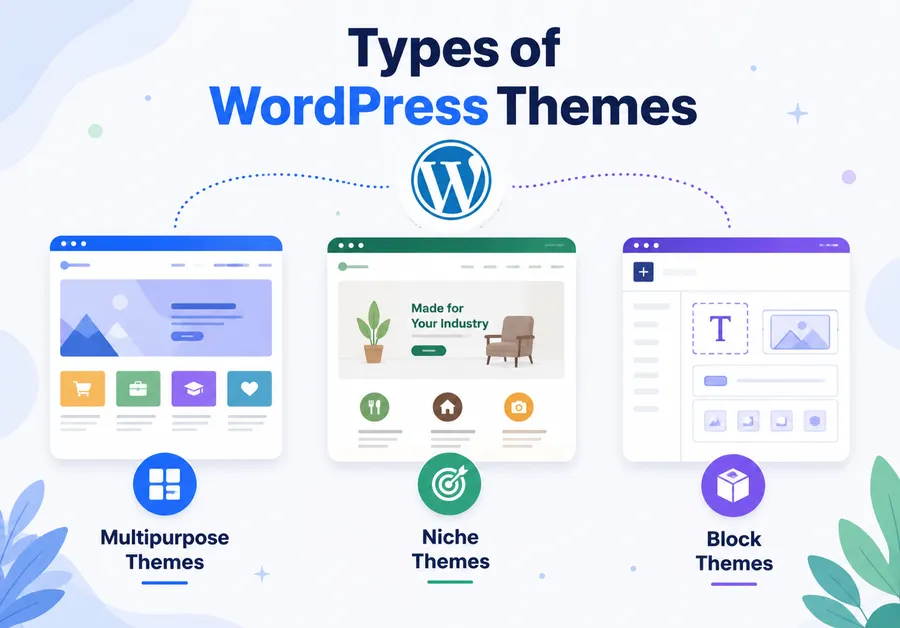
Not every WordPress website uses the same type of theme. The most common categories include:
Multipurpose Themes
Multipurpose WordPress themes are designed to work for almost any type of website. They typically include extensive customization options and integrate well with page builders.
Popular examples include:
- Galax
- Astra
- GeneratePress
These are among the most frequently detected themes when using a WordPress theme finder.
Niche Themes
Some themes are built for a specific industry or purpose, such as:
- Photography portfolios
- Restaurants (such as Restaurant WP)
- Real estate websites (such as RealPress)
- Medical clinics
- News magazines (such as Magazette)
These themes often include layouts and features tailored to that niche.
Block Themes
Modern WordPress also supports Block Themes, which are built specifically for Full Site Editing (FSE).
Instead of relying on traditional PHP templates, Block Themes allow users to customize headers, footers, templates, and layouts using the Gutenberg Site Editor.
Examples include:
- Twenty Twenty-Five
- Twenty Twenty-Six
Why Knowing a Website’s Theme Matters
Learning what WordPress template a website is using can help you choose a similar design, analyze competitors, and discover high-performing WordPress themes.
It can help you:
- Find design inspiration for your own website
- Discover fast, well-optimized themes
- Identify the page builder being used
- Estimate how much customization a website required
- Understand which plugins power specific features
- Research competitors before redesigning your own site
For agencies and freelancers, theme detection can even speed up project planning. Knowing whether a website uses Astra with Elementor or a completely custom theme provides valuable insight into the site’s overall technology stack.
Of course, simply identifying a theme doesn’t tell the whole story. Many websites heavily customize their themes or rely on plugins to create their final appearance. That’s why the next step is learning how to identify a site’s theme accurately.
How to Check a Site’s Theme Manually (The Developer’s Method)
Before reaching for an automated tool, it helps to know how to spot a theme yourself. This is the method developers use when they want to confirm what a detector tool is telling them, and it works remarkably well even when a site has taken steps to hide its theme name.
After testing this on hundreds of live sites, the fastest manual route is almost always diving into the page source, followed by a quick investigation of the stylesheet.
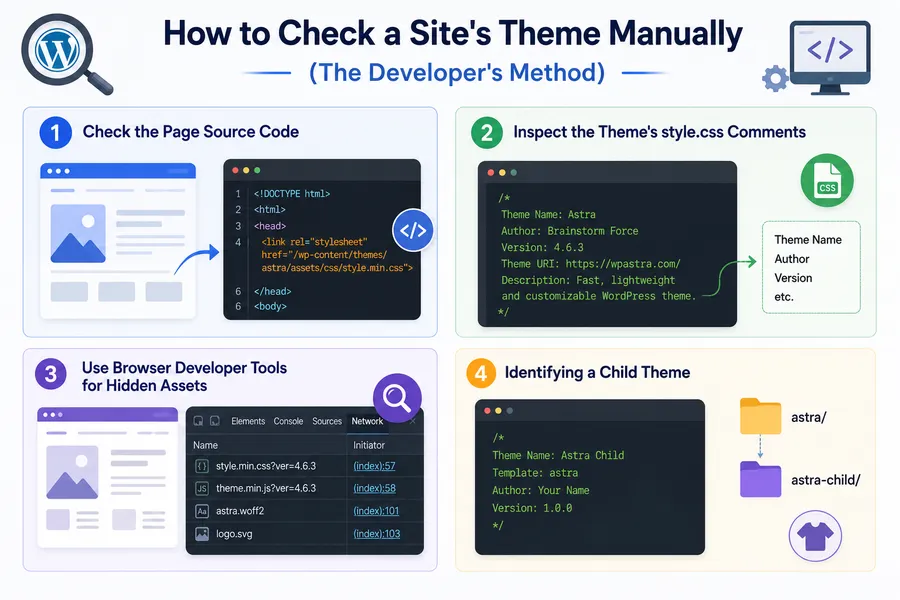
1. Check the Page Source Code
This is the most direct method and requires no special software. WordPress operates on a very predictable file structure, and by looking at the raw HTML of a website, you can easily spot the pathways where design assets are stored.
- Open the website you want to inspect in any modern browser.
- Right-click anywhere on the background of the page and select “View page source,” or simply press Ctrl+U on Windows (Command+Option+U on Mac).
- Once the raw HTML source code loads in a new tab, press Ctrl+F (Command+F on Mac) to open the search bar.
- Type in wp-content/themes.
The folder name that immediately follows this string is usually the theme’s slug. For example, if you see a URL pathway that looks like [example.com/wp-content/themes/generatepress/style.css](https://example.com/wp-content/themes/generatepress/style.css), you immediately know the site is using the GeneratePress theme.
This method works because WordPress must load theme assets—including CSS and JavaScript files—from this specific folder structure to render the site correctly to the visitor.
2. Inspect the Theme’s style.css Comments
Every properly coded WordPress theme includes a style.css file. This is a mandatory file that dictates the visual rules of the site. At the very top of this file, standard WordPress coding practices require a comment block that lists vital information about the theme.
Once you have found the theme slug using the page source method above, you can often navigate directly to this stylesheet:
- Copy the URL path of the stylesheet from the source code. It usually looks like: [https://example.com/wp-content/themes/theme-slug/style.css](https://example.com/wp-content/themes/theme-slug/style.css)
- Paste this URL directly into your browser’s address bar and hit enter.
When the plain text file loads, look at the very top. You will typically see a block of text that looks something like this:
Plaintext
/*
Theme Name: Astra
Theme URI: https://wpastra.com/
Author: Brainstorm Force
Author URI: https://brainstormforce.com
Description: Fast, fully customizable & beautiful theme.
Version: 4.1.0
*/
This confirms the exact name, the creator, and the version of the theme. This step is particularly useful if the folder name (the slug) is abbreviated or does not match the commercial name of the theme exactly.
3. Use Browser Developer Tools for Hidden Assets
Sometimes, a simple page source search misses the theme because the site is heavily cached, or the assets are loaded asynchronously. In these cases, using your browser’s Developer Tools is the next best step.
- Open developer tools by pressing F12 or by right-clicking the page and choosing “Inspect.”
- Navigate to the “Network” tab at the top of the inspection panel.
- Reload the webpage (F5 or Command+R).
- Filter the network requests by clicking on “CSS” or “JS”.
- Look through the “Name” column for files being loaded. Hover over them to see the full URL path, checking for anything referencing wp-content/themes.
This method gives you a real-time view of every single file the website is requesting from the server, making it nearly impossible for a standard theme to hide.
4. Identifying a Child Theme
Professional developers rarely modify a core theme directly. Instead, they use a “child theme.” If the folder name in the source includes -child at the end (e.g., astra-child), the site is running a child theme built on top of a parent theme.
In that case, you need to check the child theme’s style.css file. Inside the comment block at the top, it will list a Template: field pointing to the parent theme’s slug. That parent theme is the actual design framework doing most of the heavy lifting.
Use a WordPress Theme Finder or Theme Detector
Manual checks work beautifully, but they require a few extra clicks and some digging. If you are researching several sites in a single sitting, this is where a dedicated detector tool saves massive amounts of time.
Use a WordPress Theme Finder
A themefinder WordPress tool is usually a web-based service that automates the manual process described above. It scans a site’s front-end code, parses the HTML, and cross-references the theme slug, stylesheet signatures, and file pathways against a massive database of known WordPress themes.
Most of these tools return a clean, user-friendly report containing:
- The official theme name.
- The current version running on the site.
- The author or marketplace where the theme was purchased.
- A list of active plugins detected through similar footprint scanning.
When asking what is the WP theme a competitor uses, these tools provide an answer in seconds. However, their accuracy depends heavily on how frequently their internal databases are updated. A newly released theme, or a custom-built agency theme, may return an inconclusive result.
WordPress Theme Detector Extension
For professionals who analyze websites daily, a WordPress theme detector extension is the ultimate convenience. These add-ons install directly into browsers like Chrome, Firefox, or Edge, running silently in the background as you surf the web.
Instead of copying a URL into a separate WordPress template finder website, you simply click the extension icon in your browser toolbar while viewing the site in question. You get an instant drop-down readout of the theme, the child theme (if applicable), and a robust list of the plugins active on that specific page.
This removes the copy-paste step entirely. The only tradeoff is that browser extensions only work while you are actively browsing and loading the site in real-time.
Online Lookup Services
There are dozens of standalone WordPress theme finder websites available for free. You paste in a URL, hit search, and wait for the report. These work incredibly well for one-off checks. They do not require you to install any software or clutter your browser with extensions. If you only need to satisfy your curiosity occasionally, an online lookup service is the most logical choice.
5+ Best WordPress Theme Detector Tools
If you frequently research WordPress websites, using a dedicated theme detector can save a significant amount of time. While no tool can identify every custom-built website, these services are highly effective for detecting popular WordPress themes and many commonly used plugins.
| Tool | Best For | Highlights |
| WPThemeDetector | Beginners | Detects WordPress themes, plugins, and hosting providers with a simple interface. |
| IsItWP | Quick theme checks | Free online tool that identifies many WordPress themes and popular plugins. |
| ScanWP | Detailed reports | Provides theme information, plugin detection, and technology insights. |
| BuiltWith | Technology analysis | Shows the complete technology stack, including CMS, analytics, CDN, and hosting. |
| Wappalyzer | Browser extension users | Detects WordPress, themes, page builders, JavaScript libraries, and other web technologies directly in your browser. |
Each tool uses different detection techniques, so running a website through two or more services often provides the most accurate results. If one detector cannot identify the theme, another may recognize plugin signatures or other technology fingerprints that reveal how the site was built.
4+ Best WordPress Theme Finder Tools Compared
Choosing the right method depends entirely on your workflow and how often you need to reverse-engineer a website’s design.
| Detection Method | Best Used For | Installation Required | Plugin Detection | Accuracy on Custom Themes |
| Manual Source Check | One-time, precise technical lookups | No | No (requires manual digging) | High, unless intentionally obfuscated |
| Online Lookup Service | Occasional, casual competitor checks | No | Sometimes (varies by tool) | Moderate |
| ThemeFinder Web Tool | Researching multiple sites quickly | No | Yes, usually limited to popular plugins | Moderate |
| Browser Extension | Frequent, ongoing web design research | Yes | Yes, highly detailed | Moderate to High |
Why Some Theme Detectors Get It Wrong
No detection method is completely flawless. Sometimes, you will run a site through a WordPress template finder and get a blank result, or a name that doesn’t seem to match the visual design at all. Understanding why this happens helps you interpret the results accurately.
Heavily Customized or White-Labeled Themes
Many web design agencies start with a well-known theme, but then they “white-label” it. They rename the theme folder on the server, strip out the original stylesheet comments, and replace the author details with their own agency name.
In this scenario, both manual checks and automated extensions may return an incorrect or blank result. The identifying markers the tools look for have been deliberately erased.
Page Builder Plugins Masking the Theme
This is the most common reason for confusion in modern WordPress design. Sites built with visual page builders like Elementor, Divi, or Beaver Builder often rely on an ultra-lightweight “blank canvas” theme.
A theme detector might correctly identify Hello Elementor or Astra as the base theme. However, looking up those themes won’t explain the actual visual layout of the page, because the page builder plugin is doing 99% of the design work. The theme is merely a structural container.
Caching and CDN Interference
To speed up load times, many websites use caching plugins (like WP Rocket) and Content Delivery Networks (like Cloudflare). These tools routinely minify HTML, combine multiple CSS files into one, and rewrite file paths to point to a CDN server instead of the standard wp-content/themes folder.
If a scan comes back entirely empty, this is usually why. To bypass this manually, you can try viewing the page source and searching for .css instead, looking for combined files, or checking the network tab in developer tools.
Using Theme Detection for Competitor Research
Beyond simple curiosity, identifying a WordPress template is a foundational step in competitor research. Whether you are an agency pitching a redesign, a freelancer scoping a new project, or a business owner analyzing market leaders, knowing what’s under the hood is invaluable.
Estimating Project Costs and Scope
Once you know what a competitor’s site is built on, you can reverse-engineer their investment. If they are using a $60 ThemeForest template, that suggests a different budget and approach compared to a site running a completely custom-coded, headless WordPress setup.
Building a Shortlist from Multiple Detections
A highly effective workflow is to find five or six websites in your niche that are dominating search results or offering exceptional user experiences. Scan all of them and log the results.
Look for patterns. If four out of six successful competitors are running the GeneratePress theme paired with the Elementor page builder, that is a massive signal. It tells you exactly what technology stack is currently favored for your specific type of content.
Checking Load Speed Alongside the Theme Name
Visual identification is only half the battle. A theme might look stunning, but if it is bloated with unnecessary code, it will hurt your SEO and user experience.
Pair every theme detection with a quick run through performance tools like Google PageSpeed Insights or GTmetrix. A theme that scores a Largest Contentful Paint (LCP) under 2.5 seconds on a heavy page layout is a far more trustworthy recommendation than a theme judged purely on its aesthetics.
The LMS and Membership Site Example
Consider the booming e-learning industry. If you are building an online course or membership site, the theme itself is only the visual skin. The actual heavy lifting—managing users, protecting content, processing payments, and tracking student progress—is done by specialized Learning Management System (LMS) or membership plugins.
If your detector tool reveals a beautiful educational site, look closely at the plugin footprint. You will almost always find the site relies on robust backend tools. To replicate that success, you need to pair your chosen theme with the right plugin infrastructure. Some of the most powerful, industry-standard options you will frequently spot in a site’s source code include:
- LearnPress: Excellent, widely supported option for those who need a streamlined, developer-friendly way to add course catalogs to an existing theme.
- MemberPress Courses: An incredibly popular all-in-one solution that seamlessly blends membership access control with a dedicated course builder.
- Thrive Apprentice: Known for its deep integration with marketing funnels and a highly visual, intuitive course creation experience.
- LifterLMS & WP Courseware: Both offer highly structured, scalable course building designed to handle complex curricula.
- AccessAlly & WishList Member: Top-tier choices for scaling businesses that need advanced CRM integration and deep membership protection.
- MemberMouse & Teachable: While Teachable is often a standalone SaaS, MemberMouse is a powerhouse for enterprise-level membership management on WordPress.
When picking a template for this kind of specialized build, you must prioritize themes that explicitly document their compatibility with these exact tools. A theme demo that natively showcases a LearnDash or MemberPress layout proves that the developer has optimized the CSS for those plugins. Attempting to force a generic blogging theme to handle complex LMS logic usually results in broken layouts and a frustrating user experience.
Final Thoughts
Figuring out what WordPress template is driving a successful website is a fundamental skill for anyone working on the web. It takes the mystery out of web design and allows you to learn directly from the best sites in your industry.
Start with a quick manual page source search for a fast, free answer. It is reliable, unblockable, and helps you understand how WordPress structures its files. When you need to scale up your research, transition to a dedicated WordPress template finder or browser extension to instantly pull plugin data alongside the theme name.
Just remember that the theme is only the starting point. The true power of a WordPress site lies in how that theme is customized, optimized for speed, and paired with the right functional plugins to deliver a complete user experience.
FAQs
Can I find out what theme a WordPress site uses without any external tools?
Absolutely. Right-click the webpage, select “View page source,” and use Ctrl+F to search for wp-content/themes. The folder name immediately following that text is the theme’s identifying slug. You can then search for that name on Google to find the developer.
Do WordPress theme detector extensions work on every single site?
No. They are highly effective, but they struggle with sites that have intentionally stripped out theme identifiers (white-labeling), heavily obfuscated their file structure using security plugins, or aggressively combined their CSS files through caching and CDNs.
Is it legal to identify and use design ideas from another WordPress theme?
Looking at a theme’s structure and understanding its general design approach is standard industry practice and completely legal. However, copying a site’s actual proprietary code, custom graphics, or unique branding without permission is copyright infringement. If you discover a premium theme you love, purchase a legitimate license for it rather than attempting to clone it directly.
Why does a theme detector show a generic name (like “Hello”) instead of the site’s actual beautiful design?
This is the hallmark of a page builder. The detector correctly identified the foundational “blank canvas” theme (such as Hello Elementor), but it cannot name the design because the design isn’t a theme at all—it was custom-built visually using a plugin layered on top of that blank canvas.
Can I find out what plugins a site is using just like I can find the theme?
Yes. The manual process is identical: search the page source for wp-content/plugins/ instead of themes. Additionally, most robust browser detector extensions will automatically list the front-end plugins they detect running alongside the active theme.
Can a website hide its WordPress theme?
Yes. Developers can rename the theme folder, remove identifying information from the style.css file, or serve assets through a CDN. In these cases, even the best WordPress theme finder may not identify the correct theme.
Read more: 5+ Best Popup Maker WordPress Plugin Picks