You have a stack of graded work, a syllabus, and one question: what is my grade right now? A grade calculator points method answers it in a few minutes. You add up the points you earned, add up the points available, and divide.
This guide shows you how to do that step by step, how to handle weighted categories, and which tools save the most time for students, teachers, and online course creators.
LearnPress – WordPress LMS Plugin
We provide an amazing WordPress LMS plugin to create & sell online courses. Let’s find out!
Try NowTable of Contents
What is a grade calculator points system?
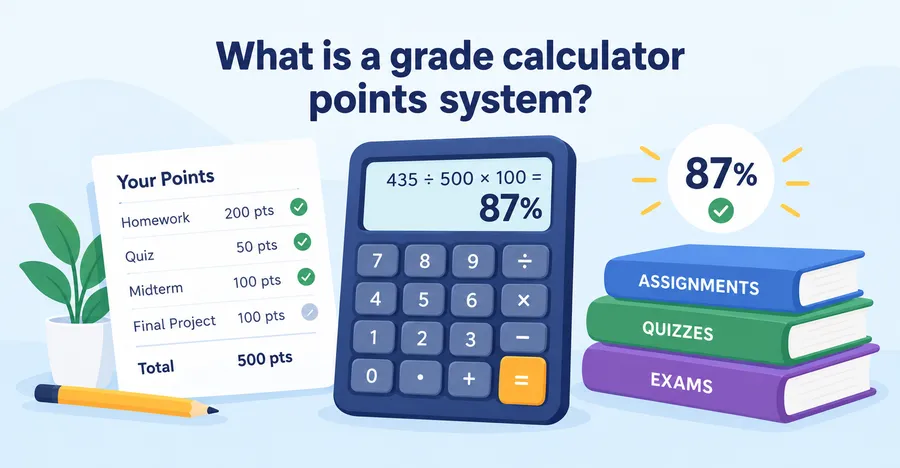
A grade calculator points system finds your overall grade by dividing the total points you earned by the total points possible, then multiplying by 100. If you earned 435 points out of 500, your grade is 87%. It is the simplest grading method, and most online tools are built on it.
The method works because every assignment adds to one shared pool. A 100-point exam naturally matters more than a 10-point quiz, with no extra math needed.
Points-based grading explained
In a points-based course, the syllabus gives each task a point value. Homework might be 200 points in total, each quiz 50 points, the midterm 100 points, and the final project 100 points. Your grade at any moment is your earned points divided by the points available so far.
That last part matters. Early in a term, you only count work that has been graded. Counting points for assignments that have not happened yet will make your grade look much lower than it really is.
Points vs weighted grading
Weighted grading assigns a percentage to each category, such as homework 20% and final exam 30%. Points grading has no category percentages. Both are common, and some courses mix them.
Check your syllabus first. If it lists percentages for categories, use the weighted method later in this guide. If it lists points for each task, use the points method. The result can be different for the same scores, so picking the wrong one gives you a wrong answer.
What you need before you start
You need three things: your scores, the points possible for each task, and the grading rules from the syllabus. Without the rules, the numbers do not mean much.
Gather these items before you open any calculator:
- Every graded score, with the points earned and the points possible
- The syllabus grading scale, such as A is 90 to 100 and B is 80 to 89
- Any rules about dropped scores, extra credit, or late penalties
- Whether the course uses points, weights, or both
A quick tip from regular use: write the numbers in a simple table with three columns, task name, points earned, and points possible. Mistakes almost always come from missing a row, not from bad arithmetic.
How to use a grade calculator points method step by step
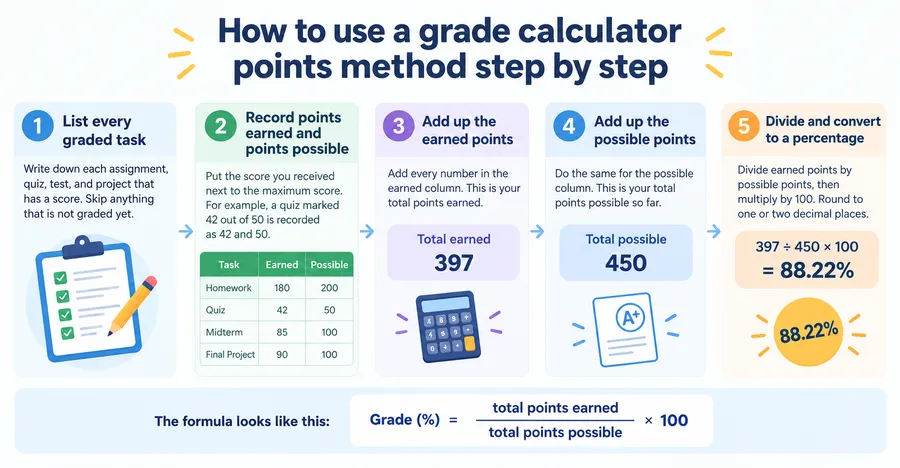
Here is the full process. It takes about five minutes the first time and under two minutes once you have a routine. A good assignment grade calculator follows exactly the same steps, so understanding them also helps you check a tool’s answer.
Step 1: List every graded task
Write down each assignment, quiz, test, and project that has a score. Skip anything that is not graded yet.
Step 2: Record points earned and points possible
Put the score you received next to the maximum score. For example, a quiz marked 42 out of 50 is recorded as 42 and 50.
Step 3: Add up the earned points
Add every number in the earned column. This is your total points earned.
Step 4: Add up the possible points
Do the same for the possible column. This is your total points possible so far.
Step 5: Divide and convert to a percentage
Divide earned points by possible points, then multiply by 100. Round to one or two decimal places.
The formula looks like this:
Grade (%) = (total points earned ÷ total points possible) × 100
Worked example with real numbers
Here is a simple course record.
| Task | Points earned | Points possible |
|---|---|---|
| Homework (all) | 180 | 200 |
| Quiz 1 | 42 | 50 |
| Quiz 2 | 45 | 50 |
| Midterm exam | 78 | 100 |
| Group project | 90 | 100 |
| Total | 435 | 500 |
Divide 435 by 500 and you get 0.87. Multiply by 100 and the grade is 87%. On a standard scale, that is a B+.
Check the answer with a percentage calculator for grading
Once you have the percentage, you can confirm single scores with a percentage calculator for grading. Type in 42 out of 50 and it returns 84%. If your hand calculation of a single task matches the tool, you can trust your totals. Remember that averaging the individual percentages only matches the points method when every task is worth the same number of points.
That is a common trap. Averaging 84% (quiz) and 78% (midterm) gives 81%, but the points method gives (42 + 78) ÷ (50 + 100) = 80%. The bigger test counts for more, and that is how a points system is supposed to behave.
How to calculate a weighted grade
A weighted grade multiplies each category score by its weight, then adds the results. Use this method when your syllabus gives percentages instead of points.
The formula is: Weighted grade = sum of (category percentage × category weight).
Weighted grade example
Suppose a course has five categories. Four are graded so far, and the final exam is still to come.
| Category | Weight | Your score | Contribution |
|---|---|---|---|
| Homework | 20% | 92% | 18.40 |
| Quizzes | 15% | 85% | 12.75 |
| Midterm | 25% | 78% | 19.50 |
| Participation | 10% | 100% | 10.00 |
| Final exam | 30% | not yet taken | 0.00 |
| Current total | 70% graded | 60.65 |
To find your current grade, divide 60.65 by the 0.70 of the course that is graded. The answer is 86.64%. That is your standing today, not your final grade.
Find the score you need on the final
Most students want to know what the final exam must look like. Use this formula: Needed score = (target grade − current contribution) ÷ weight of remaining work.
For a target of 85% overall, subtract 60.65 from 85 to get 24.35, then divide by 0.30. You need about 81.17% on the final. For a target of 90%, subtract 60.65 from 90 to get 29.35, then divide by 0.30. You need 97.83%, which is a tough goal. Knowing this early helps you decide where to spend study time.
Using a grade calculator college courses require
College grading is usually less forgiving than high school grading. Courses often have only four or five major scores, and each one can move your grade by several points. A grade calculator college students use should let you enter both points and weights.
Look for these features when you choose one:
- Support for weighted categories and plain points
- A “what do I need on the final” mode
- Dropped lowest score options
- Letter grade conversion that you can edit to match your school’s scale
Connect the result to your GPA
Your course percentage becomes a letter grade, and the letter becomes grade points for your GPA. Many US colleges use a 4.0 scale where A is 4.0, B is 3.0, and C is 2.0, but plus and minus rules vary by school. Always check your registrar’s published scale before you plan around a number.
Start tracking early in the term
Run the calculation after each graded item, not only before finals. If your first midterm is lower than you expected, you will still have time to talk to your instructor, attend office hours, and change your study approach. Waiting until the last week removes most of your options.
Assignment grade calculator tips for drops, extra credit, and late work
Real courses rarely follow the clean formula. Instructors drop the lowest quiz, offer extra credit, or subtract points for late work. A good assignment grade calculator handles these cases, and you can handle them by hand too.
Dropping the lowest score
Remove the lowest score from both the earned column and the possible column. If your four quizzes are 8, 9, 6, and 10 out of 10 each, dropping the 6 leaves 27 out of 30, which is 90%. Without the drop, it is 33 out of 40, or 82.5%. That is a big difference, so always check whether your course drops anything.
Adding extra credit
Extra credit usually adds to the earned points without adding to the possible points. If you earn 5 extra credit points on top of 435 out of 500, the new total is 440 out of 500, or 88%. Some instructors cap extra credit, so read the policy.
Late penalties
A late penalty reduces the score on a single task. If a 100-point project is 10% off for being late, the recorded score is 90 before you earn anything. Enter the penalized score as your earned points, and keep the possible points at 100.
Gradebook tools for teachers
Teachers need to do this math for every student, every week. Doing it by hand works for a class of ten, but it gets heavy fast. That is why most teachers rely on a grade book calculator, a spreadsheet, or a digital gradebook.
Spreadsheet as a grade book calculator
A spreadsheet is the most common grade book calculator because it is free and flexible. Put students in rows and assignments in columns. Use the SUM function for earned points, a second SUM for possible points, and a division formula for the percentage. If you need weights, SUMPRODUCT is useful.
The downside is that spreadsheets do not update by themselves. You paste in scores, check formulas, and fix errors when someone changes a column. One broken cell reference can quietly change an entire class.
What a good gradebook calculator for teachers should include
A strong gradebook calculator for teachers does more than divide numbers. Look for these things:
- Automatic score capture so you do not retype results
- Category weights and dropped scores
- A class view that shows who is falling behind
- Export to CSV or Excel for reports and parent or administrator requests
- Role permissions, so students see only their own grades
A class grading calculator for whole-class averages
Sometimes you want the average across the class, not one student. A class grading calculator finds the mean, and many also show the highest, lowest, and median. An average calculator for grades does the simplest version: add all scores and divide by the count.
For example, the scores 88, 92, 79, 95, and 84 add up to 438. Divide by 5 and the average is 87.6. Use an average calculator for grades when every score has the same maximum, and the points method when they do not.
Comparison of grade calculation options
The right choice depends on who you are and how many grades you manage. This table compares the common options side by side.
| Option | Best for | Handles weights | Automation | Main limit |
|---|---|---|---|---|
| Manual math with a basic calculator | Students checking one course | Yes, with effort | None | Easy to make arithmetic errors |
| Online grade calculator points tool | Students who want a quick answer | Some tools | Low | You retype scores each time |
| Grade calculator for college courses | College students planning a final exam score | Yes | Low | Not connected to your real grades |
| Spreadsheet grade book | Teachers with small classes | Yes, with formulas | Medium | Manual entry and formula upkeep |
| School information system | Schools with an official gradebook | Yes | High | Limited to what the school provides |
| LMS gradebook (such as LearnPress Gradebook) | Online course sites on WordPress | Based on course structure | High | Requires a WordPress LMS setup |
If you are a student, an online tool plus the formulas in this guide is enough. If you teach online, an LMS gradebook saves the most time because scores arrive on their own.
Manage grades on WordPress with the LearnPress Gradebook add-on
If you teach on a WordPress site, you do not have to retype quiz results into a spreadsheet. The Gradebook add-on for LearnPress tracks, calculates, and manages student scores inside your LMS. It works as a built-in grade book calculator for your courses, so the math runs without you.
According to the product page, the add-on records scores for quizzes, graded lessons, and assignments when the Assignment add-on is active. It calculates the average and shows it as a percentage for the course. You see every student in an Excel-style table with total scores, progress, and completion status.
What it does well
Here is where the add-on helps most in daily teaching:
- Course overview: One table shows every student in a course with scores and progress.
- Automatic averages: The percentage average is calculated from the course structure, so you do not build formulas.
- Filtering: You can filter students by name, email, or learning status.
- Export: You can export gradebook data to CSV or Excel, filtered by student, course, or completion status.
- Support for struggling learners: Low scores and unfinished lessons are easy to spot, so you can reach out early.
The changelog also lists an option that lets instructors view Gradebook data, which is useful when you have several teachers on one site.
Price, version, and fit
The add-on is listed at $39 with a lifetime license for one site and 12 months of updates and support. At the time of writing, the listed version is 4.1.4, last updated on 30 September 2026, and it is marked compatible with WordPress 7.1. Check the product page before you buy, because versions and prices change.
It is a good fit if you run a course site and want grade tracking without manual math. It is not a substitute for a school information system if you need official transcripts. It also depends on the structure of your courses, so you should set up quizzes and assignments clearly before you rely on the averages.
Pair it with an education theme
Grade tracking works best on a site that is also easy for students to use. If you are building a new course site, the Eduma education WordPress theme from ThimPress is built for LearnPress and gives students a clean course and profile layout. That means your learners can find their lessons, and you can find their results, from one site.
Common grade calculation mistakes
Most wrong grades come from a handful of repeat errors. Avoid these and your numbers will be right almost every time.
Counting ungraded work
Only include tasks that have a score. Adding future assignments with a zero will make your current grade look much worse than it is.
Mixing points and weights
Do not average category percentages when the syllabus says weights. Do not apply weights when the syllabus says points. The two methods give different answers.
Rounding too early
Keep at least two decimal places until the final step. Rounding each score first can shift your final percentage by a small amount, and that can matter at a grade boundary like 89.5%.
Forgetting the grading scale
An 89.6% might be an A- at one school and a B+ at another. Use your own course scale, not a generic one.
Trusting a tool without checking it
Every online tool can have different defaults. Run one task by hand, and if the tool matches, trust the rest.
FAQs about grade calculator points
How do I calculate my grade using points?
Add the points you earned on all graded work, add the points possible for the same work, and divide the first total by the second. Multiply by 100 to get a percentage. Only count work that has been graded so far.
Is a points-based grade the same as a weighted grade?
No. A points-based grade treats every point equally across the course. A weighted grade gives each category a set percentage, so a small category can count for the same as a large one. The same scores can produce different final grades under each method.
What is a good grade calculator for teachers who run online courses?
An LMS gradebook is the best choice because it records scores automatically. For WordPress sites, the Gradebook add-on for LearnPress tracks quiz and assignment scores, calculates the course average, and exports data to CSV or Excel. For offline classes, a well-built spreadsheet works.
What grade do I need on my final exam to pass?
Subtract your current weighted contribution from the grade you want, then divide by the weight of the final exam. If you have 60.65 points toward a total of 100 and the final is worth 30%, you need about 81.17% to reach 85%. Plug in your own numbers to find your target.
Can extra credit increase my grade in a points-based system?
Yes. Extra credit usually adds points to your earned total without increasing the total possible points. For example, if you earn 435 out of 500 points and receive 5 extra credit points, your grade increases from 87% to 88%. Check your instructor’s rules because some courses limit extra credit.
How often should I use a grade calculator points method?
Use a grade calculator after each graded assignment, quiz, or exam. Regular calculations help you track your progress, identify low scores early, and plan how to improve before the end of the course. Always use the points and grading rules provided in your syllabus.
Can I calculate my current grade without including ungraded assignments?
Yes. To calculate your current grade, include only assignments, quizzes, and exams that have been graded. Divide the total points you earned by the total possible points for that completed work, then multiply by 100. This gives you a more accurate picture of your current performance without counting future assignments as zero.
Conclusion
A grade calculator points method comes down to one simple idea: earned points divided by possible points. Once you know that, you can check any tool, plan for finals, and catch mistakes before they cost you. Use weights when your syllabus gives percentages, handle drops and extra credit carefully, and keep your records in one clear table.
If you manage courses online, do not repeat this math by hand for every learner. The Gradebook add-on for LearnPress can handle score tracking and averages inside your WordPress LMS, and a theme like Eduma gives you a ready-made education site to run it on. Start with your syllabus, run the numbers today, and you will always know exactly where you stand.
Read more: 7+ Best Platforms to Sell Digital Products