If you run courses on LearnPress and you have outgrown the built-in quiz feature, you have probably already searched for a LearnPress Exam Add-on review before spending money on it. This add-on is not a standalone WordPress plugin. It is an extension built on top of LearnPress, the WordPress LMS plugin, and it only works once LearnPress is already installed and active on your site.
In this review, we walk through installation, every major feature, current pricing, and who actually gets value out of adding it to a course site.
Let’s get started!
LearnPress – WordPress LMS Plugin
We provide an amazing WordPress LMS plugin to create & sell online courses. Let’s find out!
Try NowTable of Contents
What the LearnPress Exam Add-on actually is
The Exam Add-on for LearnPress adds a dedicated exam system on top of your existing LearnPress courses, separate from the built-in quiz lessons. Since it is an add-on rather than a plugin in its own right, it depends entirely on LearnPress being installed and activated first. Without LearnPress running, the add-on cannot function.
How it fits into a LearnPress site
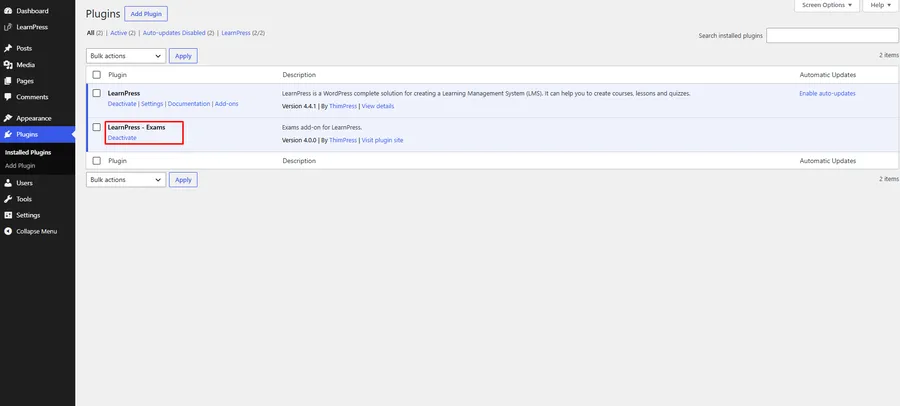
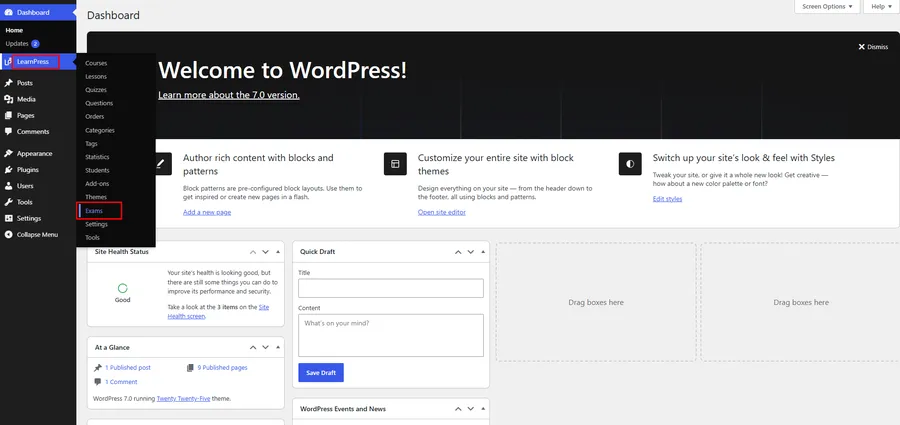
Once you activate LearnPress and then activate this add-on, a new Exams menu appears under the main LearnPress menu in your WordPress dashboard. That single menu becomes the control center for building exams, organizing them into categories, reviewing submissions, and checking analytics, all without leaving the LearnPress admin area you already know.
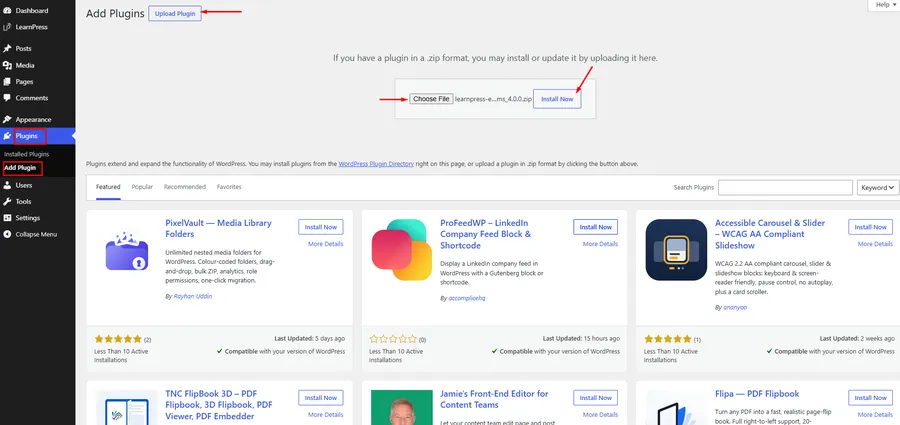
Installing the exam add-on on your LearnPress site
Getting the add-on running takes a few minutes if LearnPress is already set up. When we walked through the process on a test install, the whole thing came down to one plugin upload and a single activation click, then LearnPress immediately surfaced the new Exams menu without any extra configuration screen forcing itself on us.
What you need before you start
LearnPress must already be installed and activated on your WordPress site. This is a hard requirement, not a suggestion. The add-on has no independent function outside of a LearnPress course environment.
Step by step installation
- Log in to your WordPress dashboard.
- Go to Plugins, then Add New Plugin.
- Click Upload Plugin and select the learnpress-exam.zip file.
- Click Install Now and wait for the install to finish.
- Click Activate Plugin.
After activation, look under the LearnPress menu for the new Exams submenu. That is where every exam, category, and analytics report lives from this point forward.
Key features of the LearnPress Exam Add-on
The feature set is organized around one main workspace: LearnPress, then Exams, then All Exams. From there, a Search box helps you find existing exams, and an Add New Exam button in the top right starts a fresh one. Each exam is built through four tabs: Overview, Question, Settings, and Submissions.
Building the exam in the Overview tab
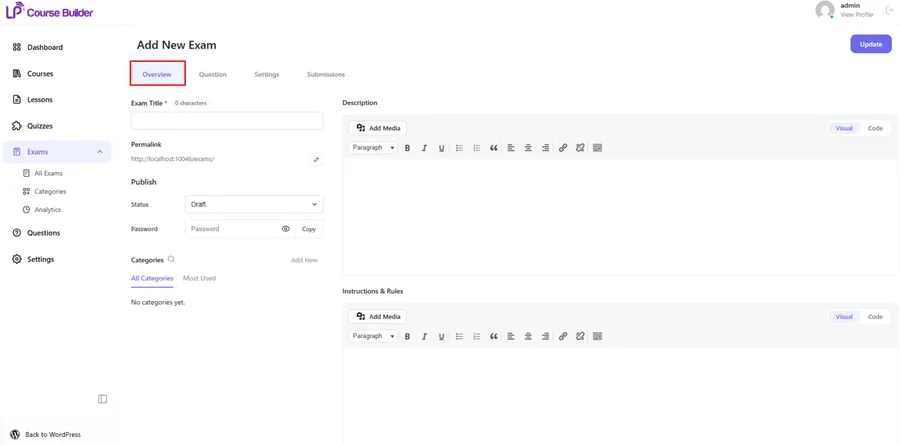
The Overview tab is where the exam actually gets defined. You set the Exam Title, customize the Permalink, write a Description, and add Instructions & Rules that students see before starting. You can leave the Status as Draft while you work or switch it to Published when ready, optionally lock the exam behind a Password, and assign it to one or more Categories. Clicking Update saves everything. One detail worth knowing upfront: the Question tab will not unlock until the exam is published, so you cannot add questions to a draft.
Adding questions, two ways
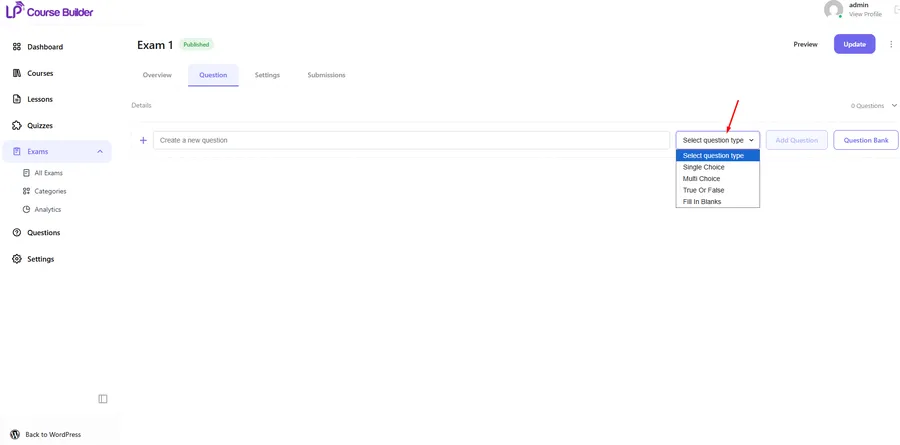
Once published, the Question tab opens up two paths. You can create a new question directly inside the exam by entering a title and choosing a question type: Single Choice, Multiple Choice, True or False, or Fill in the Blanks. Click Add Question and it drops straight into the exam.
Alternatively, click Question Bank to pull from questions you have already built elsewhere. You can select multiple existing questions and add them without recreating anything from scratch. If you manage several exams that share content, or you are building out a large question library, the Question Bank route saves a meaningful amount of repeat work.
Configuring exam behavior in Settings
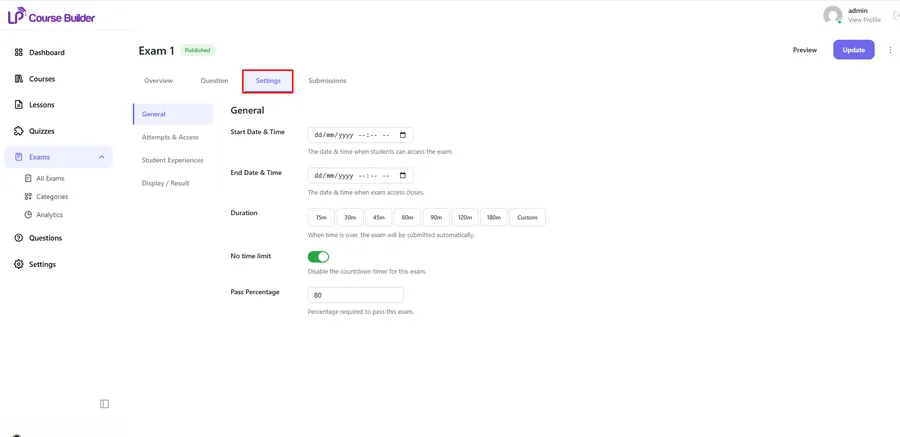
The Settings tab is broken into four sections, and this is where the add-on earns its keep for anyone running timed or restricted assessments.
- General covers the Start Date & Time and End Date & Time that bracket when students can access the exam, plus a Duration setting that auto-submits the exam once time runs out. If you would rather skip a countdown entirely, the No Time Limit toggle removes it. Pass Percentage sets the minimum score needed for a student to be marked Passed.
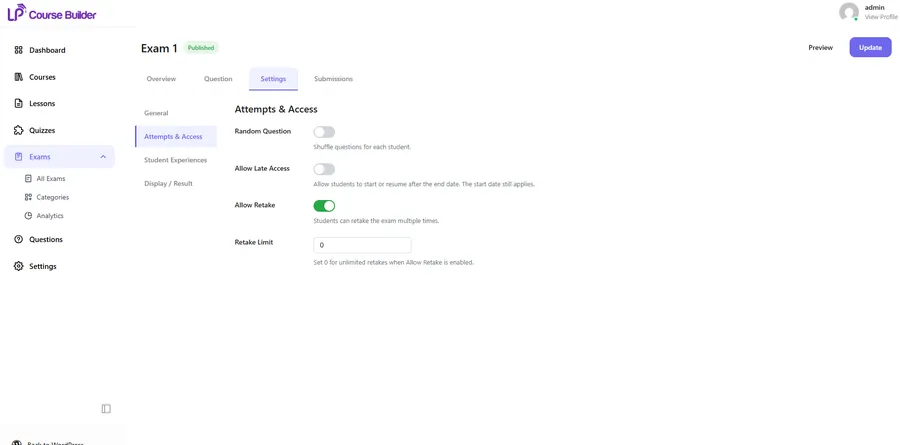
- Attempts & Access controls Random Question shuffling per student, an Allow Late Access option for students who miss the end date and time (though they still cannot access the exam before the start date and time), and Allow Retake with a configurable Retake Limit. Setting the retake limit to 0 while retakes are enabled allows unlimited attempts.
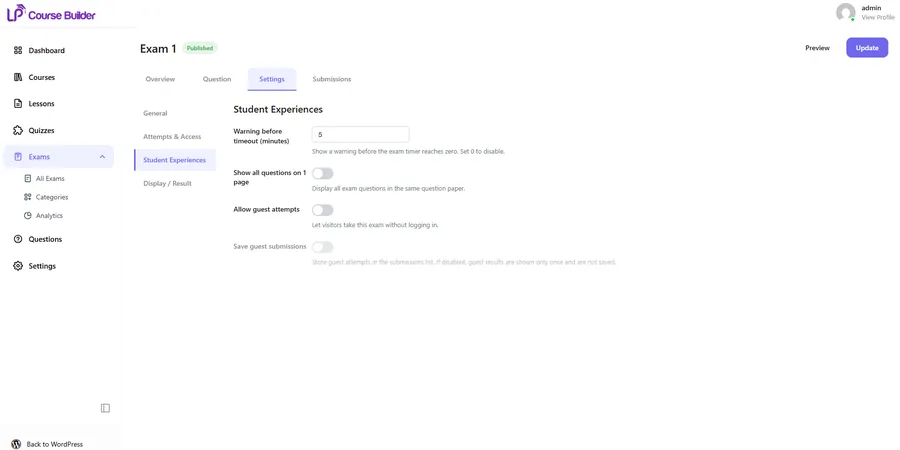
- Student Experience adds a Warning Before Timeout in minutes (set to 0 to turn it off), a Show All Questions on 1 Page toggle for a single-page exam layout instead of paginated questions, and options to Allow Guest Attempts and Save Guest Submissions. If guest submissions are not saved, a guest only sees their result once, right after submitting, and it never lands in the submission records.
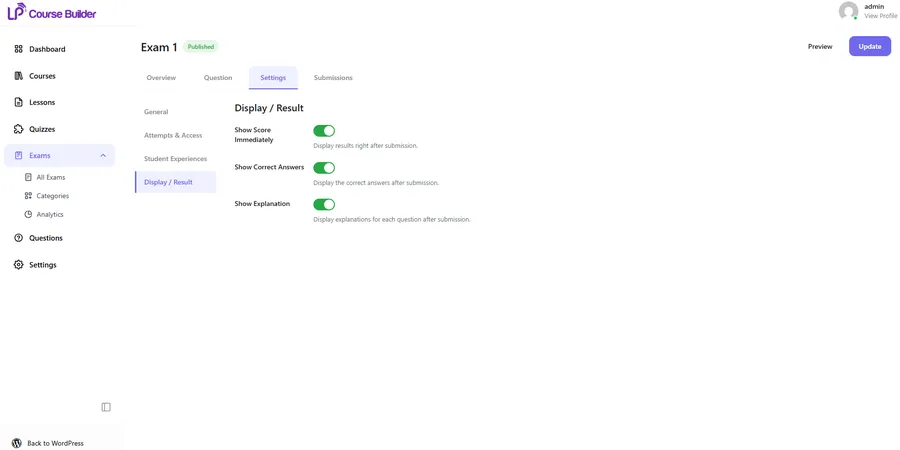
- Display / Result governs what students see after submitting: their score immediately, the correct answers to each question, and any written explanations attached to questions.
Reviewing student submissions
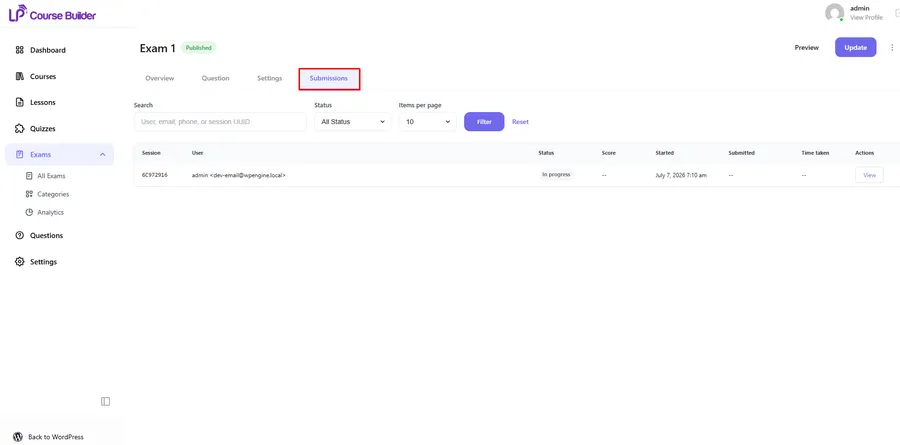
The Submissions tab lays out every attempt in a table: Session, User, Status (In Progress or Submitted), Score, Started, Submitted, Time Taken, and Actions. A Search box makes it easy to pull up one student’s history or check a specific attempt without scrolling through the full list.
Organizing exams with categories
Under LearnPress, Exams, Categories, you can build a category structure with a Name, an optional Slug (auto-generated if left blank), a Parent Category for hierarchy, and a Description. Once created, categories can be attached to one or several exams, which matters once your exam library grows past a handful of assessments.
Checking performance with the analytics dashboard
The Analytics page, found under LearnPress, Exams, Analytics, breaks results into four sections. Exams Overview shows Total Exams, Completed Exams, and Upcoming Exams. Students Overview separates Total Participants, Logged-in Participants, and Anonymous Participants, which is useful if guest attempts are enabled. Score Distribution charts how students are scoring across all submissions, and it displays a “no submission data yet” message when there is nothing to show. Pass/Fail Average summarizes overall pass and fail rates once students have actually submitted exams, giving a fast read on whether an exam is calibrated correctly.
Setting global exam defaults
A separate settings screen under LearnPress, Settings, Exam controls sitewide behavior, currently limited to Exams per Page, which sets how many exams appear on the exam archive listing. Click Save Changes to apply it.
What students see on the frontend
Once published, students reach the exam through a frontend page showing the exam details, instructions, a timer when one is set, the question list, and navigation controls to move through the exam. It is a straightforward layout built for finishing an assessment without confusion about what step comes next.
How exam results get scored
Every completed attempt lands in one of three statuses. Pass means the score met or beat the configured Pass Percentage. Fail means it did not. Voided is the interesting one: if a student’s connection drops or their browser closes unexpectedly, LearnPress keeps that session active and gives them a five minute grace period after time expires to return and click Submit. Attempts submitted inside that window still get scored. Anything left unsubmitted past the grace period is marked Voided, with no score recorded.
LearnPress Exam Add-on pricing
At the time of writing, ThimPress lists the Exam Add-on for LearnPress at a regular price of $39, currently discounted to $19, which is billed as a one time purchase rather than a subscription. The lifetime deal covers a single site license and includes 12 months of update and support. If you want coverage beyond that first year, ThimPress offers extended support add-ons, currently priced at $13 for one year, $25 for two years, and $34 for three years of extended support.
If you are already planning to buy several LearnPress add-ons, it is worth comparing against the bundle options. The LearnPress Pro Bundle, listed at $710 and discounted to $299, includes the Exam Add-on alongside all other premium LearnPress add-ons under a single site license with 12 months of support. Individual LearnPress add-ons across the catalog range from $19 up to $49 depending on the feature, so the Exam Add-on’s $19 launch price sits toward the lower end of that range.
At review time, this add-on was on version 1.0.0, listed as compatible up to WordPress version 7.0, last updated 07 July 2026. As with any young extension, steps and settings screens may shift slightly in later versions, so it is worth checking the changelog before a major update if your exam workflow is business critical.
What you get at each price point
If you only need exams and nothing else from the LearnPress premium catalog, the standalone $19 launch price is the more direct buy. If you are already eyeing other add-ons like Certificates, Assignments, or WooCommerce integration, the Pro Bundle at $299 covers the Exam Add-on plus the rest of the premium catalog for less than buying four or five add-ons separately.
Is the LearnPress Exam Add-on worth it?
For course creators who need real exam controls rather than a basic quiz, this add-on covers a lot of practical ground: scheduled access windows, retake limits, question shuffling, a shared question bank, guest attempt support, and a built-in analytics dashboard that most free quiz setups simply do not offer. The five minute grace period for interrupted sessions is a small detail, but it is the kind of thing that saves real support tickets once students start losing connections mid exam.
Who should use it
Anyone running certification style courses, timed assessments, or exams with strict attempt limits will get direct use out of the Settings tab alone. The Question Bank feature is particularly useful once you are managing more than two or three exams, since you stop rebuilding the same questions repeatedly.
Limitations to know about
The question types are currently limited to Single Choice, Multiple Choice, True or False, and Fill in the Blanks. There is no essay, file upload, or open-ended question type documented in the current version, so anyone needing subjective grading or written responses will still need a separate tool like the Assignments add-on alongside it. And because this is an add-on rather than a standalone plugin, you are locked into LearnPress as your LMS foundation, which is only a downside if you were hoping to use it independently.
FAQs about the LearnPress exam add-on review
What is the difference between LearnPress quizzes and the Exam Add-on for LearnPress?
LearnPress’s built-in quizzes are attached directly to individual lessons inside a course, while the Exam Add-on creates standalone exams with their own scheduling, categories, and analytics separate from lesson quizzes. The add-on is built for formal, standalone assessments rather than quick knowledge checks inside a lesson.
Does the Exam Add-on for LearnPress support essay or open-ended questions?
No, the current version only supports Single Choice, Multiple Choice, True or False, and Fill in the Blanks question types. If you need essay style or file upload responses, you would need to pair it with a separate add-on that handles subjective grading.
Can guest visitors take a LearnPress exam without creating an account?
Yes, if the exam has Allow Guest Attempts enabled under Student Experience settings. Whether that guest’s result is saved to the submission records depends on a separate Save Guest Submissions toggle; if it is off, the guest only sees their score once, right after submitting.
Can a voided exam attempt be restored after time runs out?
No, once an attempt is marked Voided it is not counted as a valid result and no score is recorded. Students only avoid a voided attempt by returning within the five minute grace period after time expires and clicking Submit before that window closes.
Conclusion
The LearnPress Exam Add-on brings a proper exam system to LearnPress: scheduled access, retake and shuffle controls, a reusable question bank, submission tracking, and an analytics dashboard, all for a $19 launch price at the time of this review. It will not replace a dedicated assessment platform if you need essay grading or advanced question formats, but for structured, gradable exams built directly on top of a LearnPress course, it does the job cleanly and integrates without any extra setup beyond LearnPress itself.
Read more: 5 strategies to prevent cheating in online exams on WordPress LMS websites