If a visitor lands on your site at 11 p.m. with a question about pricing or a course refund, you have two options: let them leave, or answer them right then with an AI chatbot. That single decision is why so many site owners are searching for the best AI chatbot and live chat plugin for their WordPress site this year.
Live chat is no longer a “nice to have” widget in the corner of a landing page. According to research from Invesp, businesses that add live chat to their website see roughly a 20% increase in conversions, and the global live chat software market is on track to nearly double by the early 2030s as more sites move from email-only support to real-time messaging.
This guide walks through what actually matters when picking a live chat plugin, reviews the tools worth testing in 2026, and shows you how to get one running on your site without touching a line of code.
LearnPress – WordPress LMS Plugin
We provide an amazing WordPress LMS plugin to create & sell online courses. Let’s find out!
Try NowTable of Contents
What is an AI chatbot for WordPress and why it matters
An AI chatbot is software that sits on your site, reads what a visitor types, and answers using a mix of pre-written rules and machine learning, without a human typing back. On WordPress, this usually comes as a plugin that adds a chat bubble to your pages, connects to a knowledge base, and hands off to a real person when the question gets too specific.
The reason this matters right now is timing. Support teams cannot staff live chat around the clock, but visitors expect an answer within minutes, not the next business day. An AI chatbot fills that gap. It can answer “what’s your refund policy,” “do you ship to Canada,” or “how do I reset my password” instantly, at 3 a.m., without waking anyone up. For online courses and membership sites specifically, this cuts down on the flood of repetitive emails that usually land in a support inbox during launch week.
There is also a quieter benefit: data. Every conversation your chatbot has is a record of what people are actually confused about on your site. Reviewing those transcripts once a month tells you more about your checkout page or course FAQ than any analytics dashboard will.
What to look for in a live chat plugin for WordPress
Not every live chat plugin behaves the same way once it is actually running on a busy site. Before you install anything, weigh it against these four criteria.
Response speed and uptime
A chat widget that takes eight seconds to load, or drops messages when your site gets a traffic spike, does more harm than having no chat at all. Look for plugins that load asynchronously so they do not block your page’s Largest Contentful Paint (LCP), and check the vendor’s own uptime page before committing.
AI response quality
Some tools labeled “AI chatbot” are really just keyword-matching bots dressed up in nicer language. Test the demo with a genuinely odd question, something like “can I pause my subscription for two months,” and see whether it gives a useful answer or falls back to “I don’t understand.” The difference shows up fast.
Pricing and free tiers
Most vendors offer a free plan capped at a certain number of chats or seats, then charge per agent or per resolved conversation once you scale. If you are testing the waters, a genuinely usable free chat plugin for WordPress, not a seven-day trial disguised as free, saves you from committing budget before you know if chat converts for your audience.
Fit with your site type
A plugin built for ecommerce checkout recovery is not the same tool you want for a course platform answering enrollment questions. Match the plugin to what your site actually sells.
5+ Best AI chatbot and live chat plugins for WordPress in 2026
Here is where these criteria play out across the tools worth testing this year.
LearnPress AI Chatbot
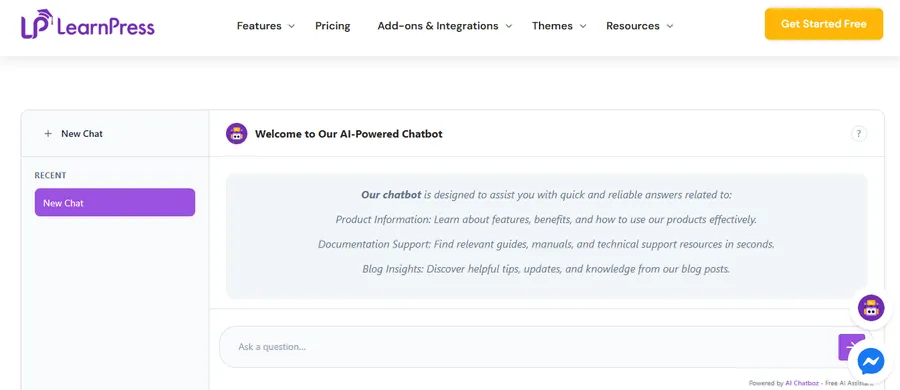
If your WordPress site runs on LearnPress, the LearnPress AI Chatbot add-on is the most tightly integrated option available, because it is built specifically for course sites rather than adapted from a generic support tool. Instead of a bolt-on widget that only knows what you type into a script, it reads your actual course content, lesson structure, and quiz data, so it can answer questions like “which lesson covers refunds” or “how many quizzes are left in this course” with real, site-specific answers.
After activating it on a LearnPress site and pointing it at an existing course catalog, the setup is closer to configuring a plugin setting than building a chatbot from scratch: you connect it, it indexes your course content, and the chat widget is live. That matters for course creators who do not have a developer on staff and cannot spend a weekend training a bot. For anyone running an education site on WordPress and searching for an AI chatbot that actually understands course structure rather than treating every question the same way, this is the one purpose-built for that job.
Tidio
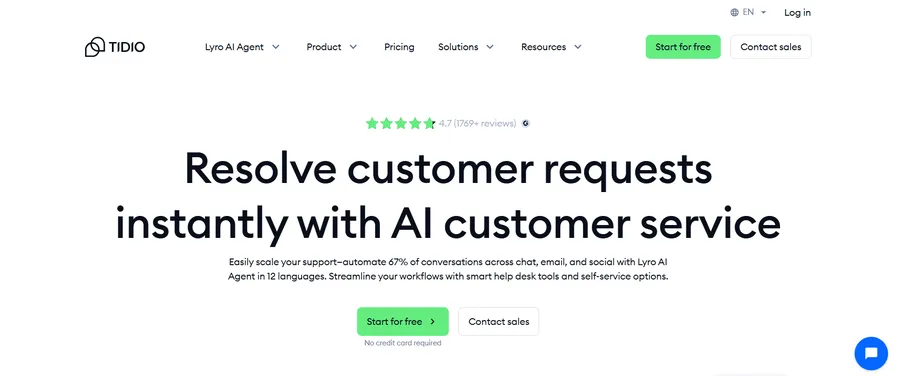
Tidio combines live chat, email, and an AI layer called Lyro that can hold multi-turn conversations using your help center content as a source. Its WordPress plugin is straightforward to install through Appearance settings, and the free plan covers a reasonable number of conversations before you need to upgrade. It tends to work best for small ecommerce stores that want cart-recovery messages alongside chat.
Tawk.to
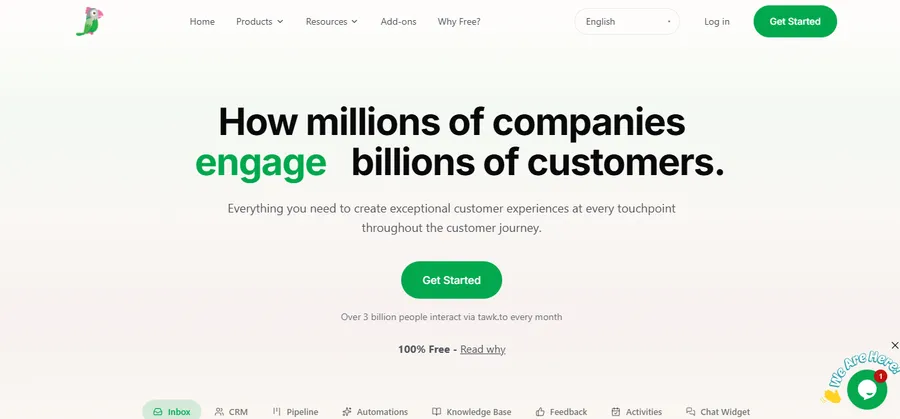
Tawk.to remains one of the most widely used free live chat plugins for WordPress, largely because its core chat features, unlimited agents, and chat history are free indefinitely, not just for a trial period. The AI response add-on is a paid layer on top, so if you mainly need a reliable online chat plugin for your website without the AI features, this is worth testing first.
HubSpot live chat
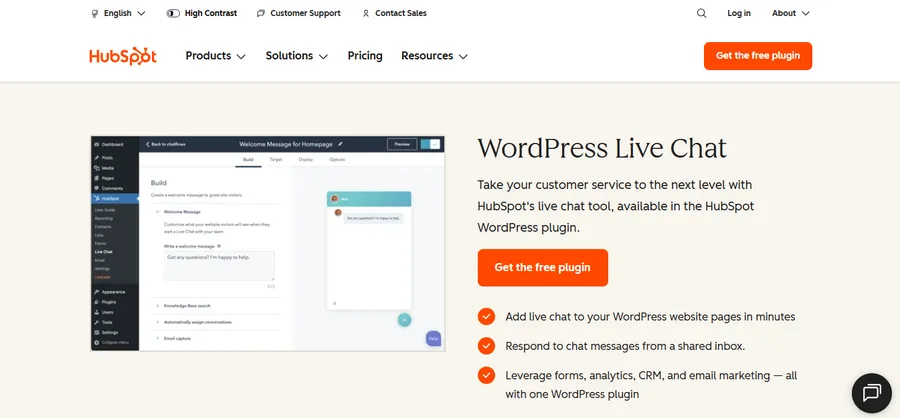
HubSpot’s chat widget is a strong pick if you are already using HubSpot’s CRM, since every conversation logs directly against a contact record. The chatbot logic itself is more rules-based than conversational compared to purpose-built AI tools, but the CRM integration is hard to beat if your sales team lives inside HubSpot already.
WP Live Chat Support
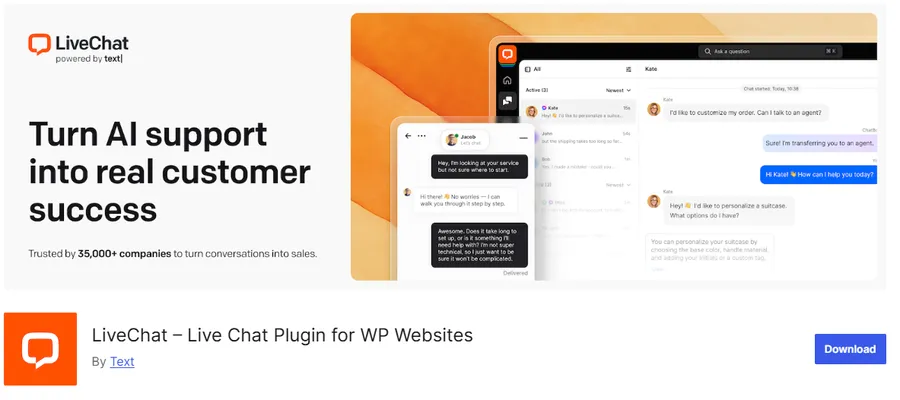
For site owners who want the simplest possible free chat plugin for WordPress, WP Live Chat Support skips the AI layer entirely and focuses on getting a working chat window on your site in a few minutes. It is a reasonable starting point if you mainly want a human-staffed chat and plan to add AI capability later through a separate integration.
Quick comparison of the top picks
Reading five reviews back to back gets confusing, so here is how the main options stack up against each other on the things that actually decide whether a tool sticks around on your site.
| Plugin | Best for | AI depth | Free plan |
|---|---|---|---|
| LearnPress AI Chatbot | Course and membership sites on LearnPress | Understands your actual course structure and lesson content | Included with LearnPress setup |
| Tidio | Small ecommerce stores | Multi-turn AI (Lyro) trained on your help center | Yes, capped chat volume |
| Tawk.to | Anyone wanting free, unlimited agents | Basic, with a paid AI add-on | Yes, indefinitely |
| HubSpot | Teams already using HubSpot CRM | Rules-based, strong CRM logging | Yes, limited features |
| WP Live Chat Support | Simple human-staffed chat | None built in | Yes |
A pattern worth noticing here: the tools with the deepest AI usually specialize in one type of site rather than trying to serve every use case at once. That is exactly why the LearnPress AI Chatbot outperforms a generic widget on a course platform. It was not adapted from an ecommerce tool. It was written to read lesson data from the start, which is a different engineering problem than answering “where is my order.”
How to install a live chat plugin on your WordPress site
Getting a chat plugin running takes about ten minutes on a standard WordPress install.
- Choose your plugin. Pick one of the options above based on whether you need AI responses, ecommerce cart recovery, or course-specific answers.
- Install from the plugin directory. Go to Plugins > Add New in your WordPress dashboard, search for the plugin by name, and click Install, then Activate.
- Connect your account. Most tools ask you to sign up on their website first, then paste an API key or connect through OAuth back inside the plugin settings.
- Configure the widget position and hours. Set where the chat bubble appears (usually bottom right) and whether it shows 24/7 or only during set support hours.
- Train or configure the AI responses. If the plugin supports AI, point it at your FAQ page, help docs, or course content so it has something to answer from.
- Test it as a visitor. Open your site in an incognito window and ask the chatbot three or four real questions before you consider it live.
Version caveat: these steps reflect WordPress 6.7 and the current plugin directory as of 2026. Exact menu labels can shift slightly after major WordPress core updates.
AI chatbot vs traditional live chat: which one fits your site
The honest answer is that most sites end up running both. An AI chatbot handles the repetitive questions, the ones you have answered fifty times already, and a human agent steps in for anything that needs judgment, a refund exception, or an angry customer. Sites that try to run AI-only support usually see satisfaction drop the moment a question falls outside the bot’s training, so build in a visible “talk to a person” option rather than trapping visitors in a loop with the bot.
For smaller sites without a support team at all, an AI chatbot alone is still worth running. Even a basic setup that answers your top ten FAQ questions correctly will catch a meaningful share of chats before they turn into abandoned tabs.
There is a middle ground worth mentioning too. Some site owners run the AI chatbot during off-hours only, then switch to a human-staffed live chat plugin during business hours. This avoids the awkward experience of a visitor typing a detailed question at 2 p.m. and getting a bot response when a real person was actually available the whole time. Setting business hours correctly in your plugin’s dashboard is a five-minute task that prevents that mismatch.
Common mistakes when adding a chat plugin to WordPress
A few mistakes show up again and again on sites that installed chat and then quietly stopped using it.
- Turning it on and walking away. A chatbot trained once on launch day and never updated will keep giving outdated answers about a promotion that ended months ago. Revisit the training content whenever your pricing, policies, or course catalog changes.
- Showing the widget on every single page. A chat bubble on your privacy policy page rarely gets used and just adds visual clutter. Some plugins let you limit the widget to specific pages, like pricing, checkout, or a course sales page, where visitors are more likely to have a question worth asking.
- Ignoring mobile behavior. More than seven in ten chat conversations now happen on a phone rather than a desktop, according to data compiled by LiveChat, so test how the widget looks and behaves on a small screen before assuming it works the same way it does on your laptop.
- Skipping the escalation path. If a visitor asks something the bot cannot answer, make sure there is a clear, one-click way to reach a human, whether that is a support email, a ticket form, or a live handoff. A dead end frustrates people faster than no chat at all.
Tips to get the most out of your online chat plugin for website
To make your online chat plugin more effective, follow these practical tips to improve engagement, response quality, and overall website performance:
- Write the first message yourself. A generic “Hi, how can I help?” converts worse than something specific to the page a visitor is on, like “Questions about this course before you enroll?”
- Review transcripts weekly. Every unanswered question is a gap in your FAQ or product page copy.
- Set realistic hours if you’re not using full AI. A chat bubble that promises instant replies but goes unanswered for six hours hurts trust more than not having chat at all.
- Keep the widget light. A chat script that adds significant JavaScript weight can hurt your Core Web Vitals scores, particularly Cumulative Layout Shift if the widget loads late and pushes content around.
Conclusion
Picking the right live chat plugin for WordPress comes down to matching the tool to what your site actually does. General-purpose tools like Tidio and Tawk.to cover most ecommerce and small business use cases, HubSpot fits teams already inside that CRM, and the LearnPress AI Chatbot is the clear pick if your site runs on LearnPress and you want a bot that understands your courses instead of guessing at generic answers. Whichever you choose, start with the free tier, watch the actual transcripts for a few weeks, and upgrade once you can see chat is doing real work on your site.
FAQs
Does adding a live chat plugin slow down my WordPress site?
It can, if the plugin loads its script before the rest of your page renders. Choose a plugin that loads asynchronously and test your site’s speed with PageSpeed Insights before and after activation to confirm it has not hurt your Largest Contentful Paint score.
Is there a genuinely free AI chatbot plugin for WordPress?
Yes, several vendors including Tidio and Tawk.to offer free plans that include basic AI or rule-based responses, though the more advanced conversational AI features are usually locked behind a paid tier once your chat volume grows.
Can I use an AI chatbot plugin with WooCommerce?
Most major live chat plugins, including Tidio and Tawk.to, are built with WooCommerce compatibility so the bot can answer order status and shipping questions directly. Check the plugin’s compatibility page for the WooCommerce version it has been tested against before installing on a live store.
Will an AI chatbot replace my human support team?
No, not entirely. An AI chatbot works best handling repetitive, common questions while routing anything complex or emotionally sensitive to a human agent, since bots that get stuck outside their training tend to frustrate visitors rather than help them.
Read more: 7+ Best WordPress Multilingual Plugins