Finding a free quiz maker that fits your class or course is harder than it sounds. Many tools advertise a free plan, then lock reports, question banks or exports behind a paywall after your first few quizzes. This guide compares seven options so you can pick one in a few minutes.
We cover browser tools, quiz maker freeware and WordPress plugins, and we say what each free plan gives you and where it falls short. If you plan to run full courses and not just one-off tests, we also show how to build quizzes inside WordPress with LearnPress.
LearnPress – WordPress LMS Plugin
We provide an amazing WordPress LMS plugin to create & sell online courses. Let’s find out!
Try NowTable of Contents
What is a free quiz maker?
A free quiz maker is a tool that lets you create questions, collect answers and score results without paying for a basic plan. Most run in the browser, so you sign in, build the quiz and share a link or an embed code.
You will see many names for the same idea. People search for a free quiz generator, an online quiz creator for free, or a free online quiz builder, and the tools behind those searches overlap heavily. The real differences are in question types, reporting and how much control you keep over your data.
Free quiz generator vs. full quiz builder
A free quiz generator usually focuses on speed. You type or paste questions, pick the right answers, and get a shareable quiz quickly. Some newer tools also suggest questions from a topic or a text passage, and you should always review those suggestions before publishing.
A full quiz builder goes further. It adds question banks, timers, randomization, grading rules, certificates and integrations. Free plans often include only part of that list, so decide which features you cannot live without before you start.
Who needs one
Teachers use quizzes for homework checks and exam practice. Trainers use them to confirm that staff understood a lesson. Course creators use them to keep learners engaged and to unlock the next lesson. Bloggers and marketers use them for lead generation and personality quizzes.
Each group needs something slightly different, which is why one tool rarely fits everyone.
How we compared these tools
We compared each tool on the same six points, based on the features each provider publishes on its own website: question types, automatic scoring, reporting, sharing and embedding options, data ownership, and the limits of the free plan.
Free plan limits change often. Treat the details below as a starting point and confirm them on each tool’s pricing page before you commit.
The 7 best free quiz maker tools
The tools below range from simple form-based options to full learning management systems. Start with the short summary of each, then use the table in the next section to compare them side by side.
1. Google Forms
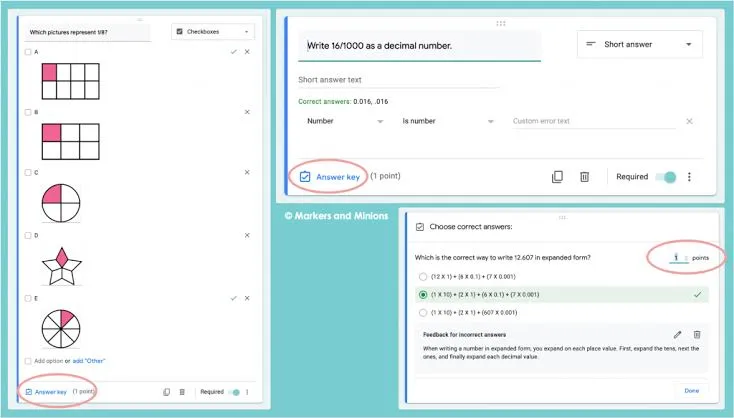
Google Forms is the easiest free option if you already use a Google account. Switch on quiz mode in the settings, assign points to each question, and add an answer key. Multiple choice, checkboxes and short answers are scored automatically, and you can release scores right after submission.
It works well as an mcq quiz creator for classroom checks. The weak spots are design control and advanced features such as timers and question banks. For a quick test, though, nothing is faster to set up.
2. Microsoft Forms
Microsoft Forms suits schools and companies that already use Microsoft 365 accounts. It supports quizzes with automatic marking, feedback for each answer and a results summary that you can open in Excel.
It handles multiple choice, text, rating and ranking questions well. The limit is that some sharing and data options depend on the type of account you sign in with, so a school or work account may behave differently from a personal one.
3. Kahoot!
Kahoot! turns a quiz into a live game. Learners join with a code, answer on their own device and see a leaderboard after every question. That energy is hard to match with a standard form.
It is best for live classes and workshops. It is less suited to formal exams or self-paced courses, and the free plan restricts some question types and reporting features.
4. ProProfs Quiz Maker
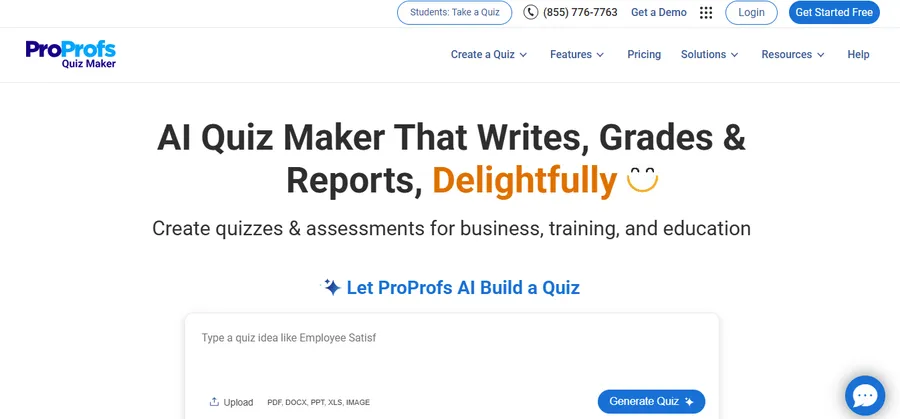
ProProfs is a dedicated quiz platform with a template library and several question formats. It offers scoring, feedback messages and a basic report view, which makes it more complete than a form tool.
The free plan is limited, and the better reporting and branding options sit in paid tiers. It is a good place to test a more structured free online quiz generator before deciding whether you need more.
5. Opinion Stage
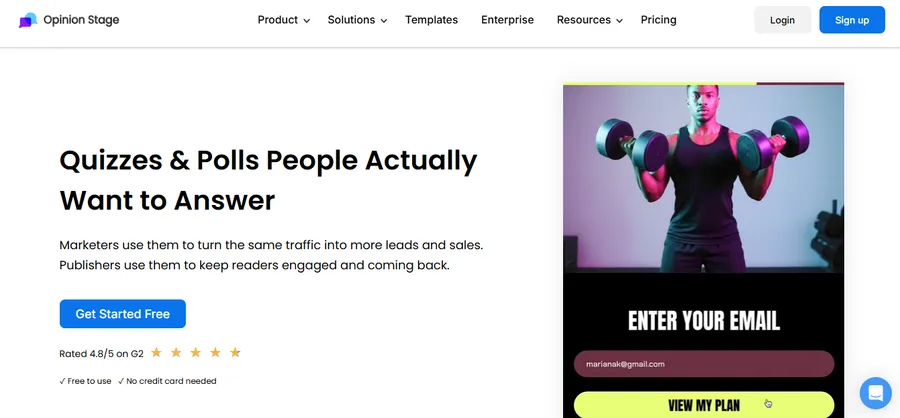
Opinion Stage focuses on attractive, embeddable quizzes, polls and forms. It is popular with marketers who want to add a scored quiz or a personality quiz to a landing page and collect leads.
It looks polished and embeds easily. For serious assessment, such as graded exams, it offers less depth than a learning-focused tool, and the free plan caps responses.
6. Testmoz
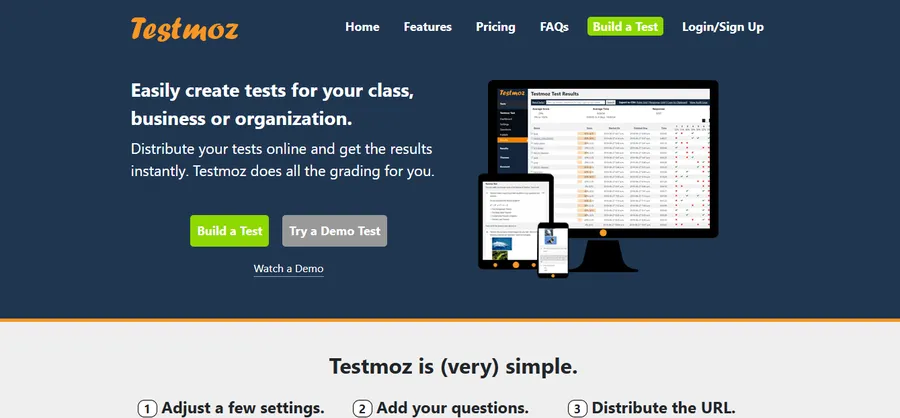
Testmoz is a simple test generator with almost no learning curve. You create a test, set a password if needed, and share a link. Results are scored automatically and teachers can review them.
It is a lightweight pick for teachers who want a plain, no-fuss quiz and do not need branding or integrations. Do not expect modern design or deep analytics.
7. LearnPress (WordPress plugin)
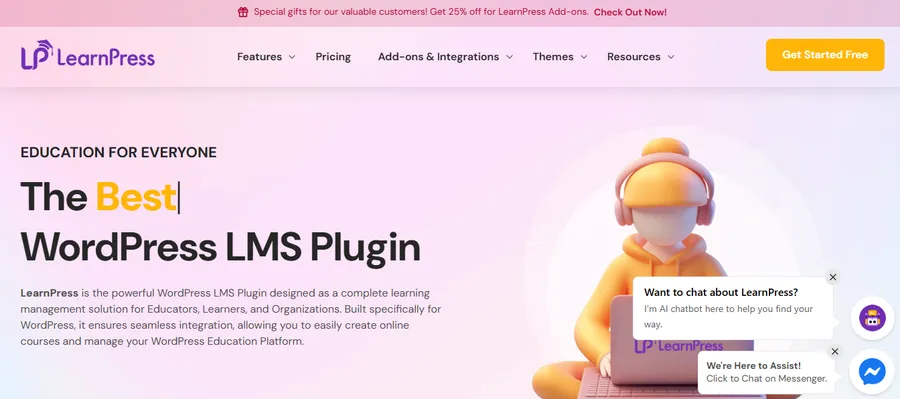
LearnPress is a free learning management system plugin for WordPress, and it includes a built-in quiz feature. You create questions once, attach them to a quiz, and add the quiz to a lesson or course. Question types include multiple choice, single choice and true or false, and add-ons extend what you can do.
Unlike hosted tools, your quizzes, learner data and results live on your own site. The trade-off is setup: you need a WordPress site and some time to configure it. We explain the steps in a later section.
Comparison table of free online quiz generator tools
The table gives a quick view of how the seven tools differ. Use it to narrow your list, then test two options with a real quiz.
| Tool | Best for | Auto scoring | Question types | Free plan limits | Data stays on your site |
|---|---|---|---|---|---|
| Google Forms | Quick classroom checks | Yes | Multiple choice, checkboxes, short answer | Few limits, basic design | No |
| Microsoft Forms | Schools and teams on Microsoft 365 | Yes | Multiple choice, text, rating, ranking | Depends on account type | No |
| Kahoot! | Live, game-style sessions | Yes | Multiple choice, true or false, and more | Some formats and reports locked | No |
| ProProfs Quiz Maker | Structured online quizzes | Yes | Several formats | Limited quizzes and reporting | No |
| Opinion Stage | Marketing and lead quizzes | Yes | Scored and personality quizzes | Response caps | No |
| Testmoz | Simple tests with no setup | Yes | Basic formats | Basic features only | No |
| LearnPress | Courses and membership sites | Yes | Multiple choice, single choice, true or false, plus add-ons | Free core plugin, add-ons vary | Yes |
How to choose the right free online quiz builder
The best choice depends on what you do after the quiz ends. Do you only need a score, or do you need to track learners across many lessons? Answer that first and the list shortens quickly.
Match the tool to your use case
For a one-time quiz, choose a form tool such as Google Forms or Microsoft Forms. For live events, Kahoot! is a strong fit. For lead generation, look at Opinion Stage. For structured learning with progress tracking, an LMS plugin such as LearnPress is the better long-term answer.
Check question types and scoring rules
If you need an mcq quiz creator, confirm that the tool supports multiple correct answers, negative marking or partial credit if you use them. Some free plans only allow simple single-answer questions.
Look at reporting and data ownership
Ask where learner data is stored and whether you can export it. Hosted tools keep results on their servers, and free plans often limit exports. If privacy rules apply to your learners, such as school or employer policies, a self-hosted option gives you more control.
Test the learner experience on mobile
Open your quiz on a phone before you share it. Long answer options, small buttons and slow loading pages cause more drop-offs than hard questions.
Why LearnPress works when quizzes are part of a course
A standalone quiz tool is fine for a single test. When quizzes sit inside lessons, you want enrolment, progress, certificates and payments in the same place. That is where a WordPress LMS makes sense.
LearnPress is free to install from the WordPress plugin directory, so it also counts as a practical free quiz maker for people who already run a WordPress site. You can add paid extensions later for things like course selling and certificates, without moving your content.
Build an mcq quiz in LearnPress
The menu names below can differ slightly between LearnPress versions, so check your dashboard if something looks different.
- Install and activate LearnPress from Plugins > Add New in your WordPress dashboard, then run the setup wizard.
- Open the LearnPress menu and choose Quizzes, then click Add New.
- Give the quiz a title and add a short description so learners know what to expect.
- Add your questions. For each multiple choice question, enter the answer options and tick the correct one.
- Set the passing grade, time limit and number of retakes in the quiz settings.
- Add the quiz to a lesson inside your course curriculum, then preview it as a student.
- Publish the course and test the quiz on a phone and on a desktop.
One practical tip: build a few questions first and preview the result before writing the whole quiz. It is much easier to fix settings early than after you have entered fifty questions.
Pair LearnPress with the Eduma theme
If you are building a full online school, a dedicated education theme saves time on layout. Eduma is an LMS theme from ThimPress that works with LearnPress and includes ready-made demo layouts for course sites. That means your course pages, instructor pages and quiz screens share one consistent design without custom coding.
If you only need a single quiz and no course site, this setup is more than you need. In that case, a form tool from the list above is the faster choice.
Tips for writing better quizzes
A good tool does not fix a weak quiz. These habits improve results whichever tool you choose.
Write clear questions
Ask one thing per question and avoid tricks. If a learner gets it wrong, it should be because they missed the concept, not because the wording confused them.
Make distractors believable
Wrong answers in multiple choice should look reasonable. Use common mistakes as distractors. Keep all options about the same length so the correct one does not stand out.
Give feedback after each answer
A short explanation after each question turns a test into a lesson. Most tools in this list let you add feedback for correct and incorrect answers.
Keep quizzes short
Ten to fifteen focused questions usually work better than a long exam. If you need more coverage, split the content into several short quizzes across your course.
Review the results
Look at which questions most learners miss. A question that nearly everyone gets wrong often points to a problem in the question or in the lesson, not in the learners.
FAQs
Is there a completely free quiz maker with no limits?
Google Forms and Microsoft Forms come closest, since they are free with a standard account and have few feature caps. Hosted quiz platforms usually limit responses, reports or branding on their free plans. A self-hosted option such as LearnPress has no per-quiz fee, but you pay for your own hosting.
Can I use a quiz maker freeware download instead of an online tool?
Yes, but most modern options are browser-based, and downloadable quiz maker freeware is now rare. Desktop software can be useful offline, though it makes sharing results and collecting learner data harder. Always download from the official site and check recent reviews first.
Which free quiz generator is best for multiple choice questions?
Google Forms is the simplest for basic multiple choice quizzes, and LearnPress is stronger when the quiz belongs to a course. Both score answers automatically. Choose based on whether you need a quick test or a full learning path.
Can AI create quiz questions for me?
Yes, several tools can suggest questions from a topic or a text. Treat those suggestions as a first draft. Check every question for accuracy, difficulty and clear wording before you publish.
Conclusion
The best free quiz maker depends on your goal. Choose Google Forms or Microsoft Forms for fast classroom checks, Kahoot! for live sessions, and Opinion Stage for marketing quizzes. ProProfs and Testmoz are useful middle options when you want something a little more structured.
If quizzes are part of a larger course, a WordPress LMS gives you more control. LearnPress lets you create quizzes, track progress and keep all learner data on your own site, and the Eduma theme can handle the design of a complete online school.
Pick two tools from this list, build the same five-question quiz in each, and compare the experience as both a creator and a learner. That small test will show you which option fits your needs.