A free editable certificate template saves you hours of design work when you need to recognize a student, employee, or volunteer. Instead of building a layout from scratch, you open a ready file, type in the details, and print or share it.
This guide shows you how to use a free editable certificate template the right way, from choosing the layout to printing a clean final copy. It is written for teachers, HR teams, event organizers, and course creators.
LearnPress – WordPress LMS Plugin
We provide an amazing WordPress LMS plugin to create & sell online courses. Let’s find out!
Try NowWhat is a free editable certificate template?
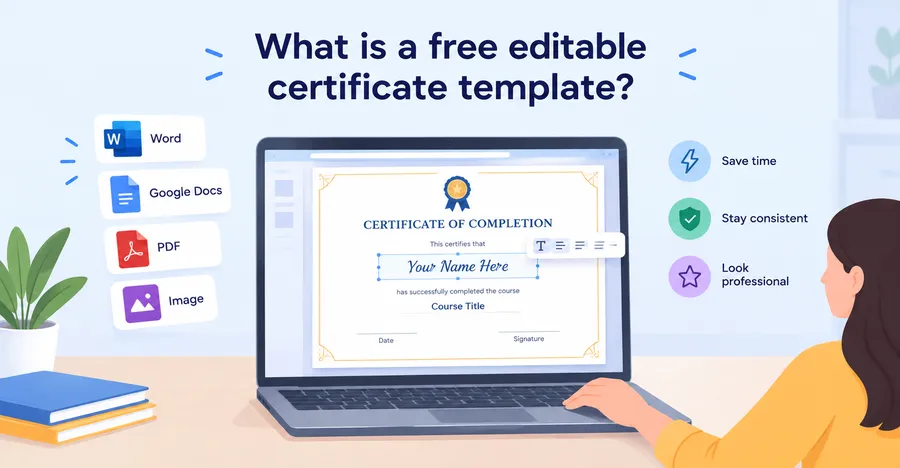
A free editable certificate template is a pre-designed certificate file that you can open, change, and reuse without paying for the design. The border, fonts, and layout are already set. You only replace the placeholder text, such as the recipient’s name, the course title, the date, and the signature line.
Most templates come as Word files, Google Docs, PDF forms, or image-based designs in an online editor. The best ones use real text boxes instead of flattened images, so you can change a name without breaking the layout.
Why templates beat designing from scratch
A good template for certificate design gives you three things: speed, consistency, and a professional look. When you issue 50 certificates after a workshop, every one should look the same, with the same margins and the same font sizes. A template guarantees that. It also lowers the chance of small errors, like a misaligned signature line or a date in the wrong place.
Who uses certificate templates
Schools use them for end-of-year awards and completion records. Companies use them for training programs and employee milestones. Online course creators use them to reward learners who finish a course. Community groups use them to thank volunteers. The core task is the same in all cases: put the right name and achievement on a clean, trustworthy document.
Types of certificates you can create
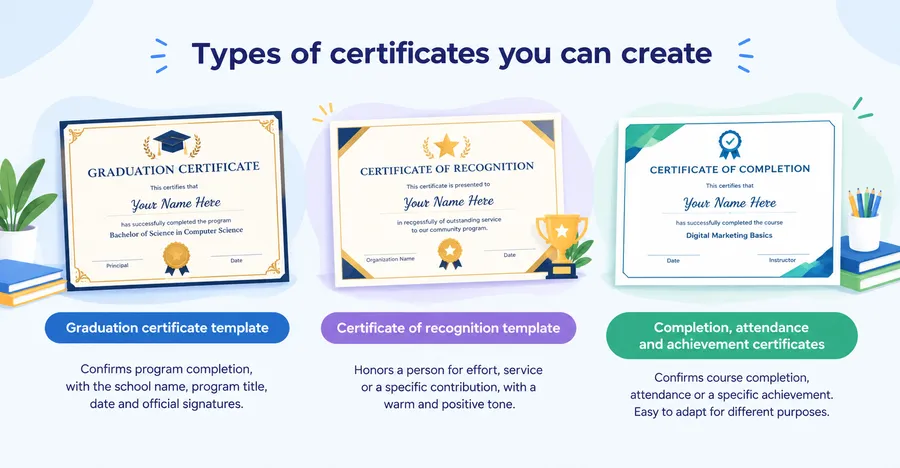
The certificate you choose depends on the reason you are issuing it. Each type has slightly different wording and design expectations, so pick the right one before you start editing.
Graduation certificate template
A graduation certificate template confirms that a student has completed a program, such as a school year, a diploma, or a short course. It usually carries the school name, the program title, the graduation date, and signatures from an authorized person like a principal or program director. The tone is formal. Use a serif font, a simple border, and a seal or logo if you have one.
Certificate of recognition template
A certificate of recognition template honors a person for effort, service, or a specific contribution. Think of “Employee of the Month,” “Outstanding Volunteer,” or “Best Team Player.” The wording can be warmer than a graduation document. Add a short line that names the reason, such as “in recognition of outstanding service to our community program.” Specific wording makes the certificate feel real rather than generic.
Completion, attendance, and achievement certificates
These are the everyday workhorses. A completion certificate says the person finished a course or training. An attendance certificate confirms they were present at an event. An achievement certificate marks a result, such as a top score. They all follow the same basic structure, so one well-built template can be adapted for all three.
What a good certificate format includes
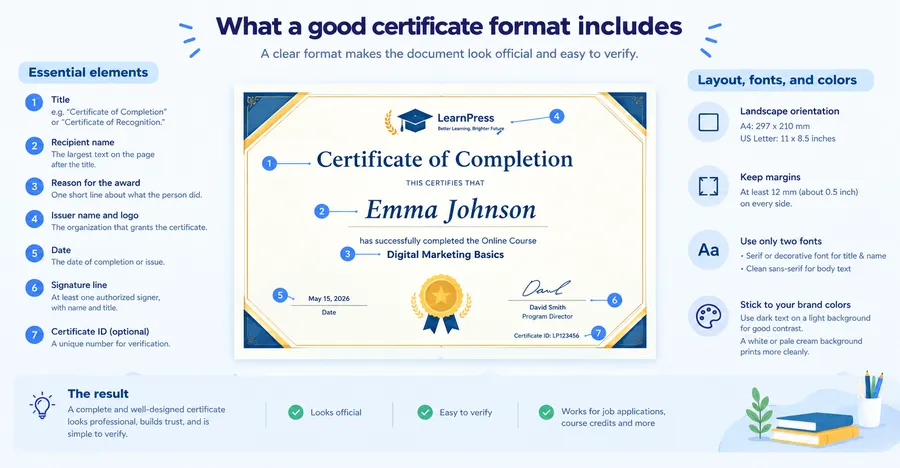
A clear certificate format makes the document look official and easy to verify. If a certificate is missing key details, it loses value quickly, especially when someone uses it for a job application or a course credit.
Essential elements
Every certificate should include these items:
- Title: For example, “Certificate of Completion” or “Certificate of Recognition.”
- Recipient name: The largest text on the page after the title.
- Reason for the award: One short line that says what the person did.
- Issuer name and logo: The organization that grants the certificate.
- Date: The date of completion or issue.
- Signature line: At least one authorized signer, with name and title.
- Certificate ID (optional): A unique number that helps with verification.
Layout, fonts, and colors
Landscape orientation is the standard certificate format. On A4 paper it measures 297 by 210 mm. On US Letter it measures 11 by 8.5 inches. Keep at least 12 mm (about half an inch) of margin on every side so nothing gets cut off during printing.
Limit yourself to two fonts. One decorative or serif font for the title and name, and one clean sans-serif font for the body text. Stick to your brand colors, and keep the text dark on a light background for good contrast. A pale cream or white background prints more cleanly than a dark one.
How to use a free editable certificate template step by step
Using a template takes about 10 minutes once you know the flow. These steps work for almost any tool, whether you edit in Word, Google Docs, or a design app.
- Pick the right template. Match the type to your purpose. A graduation certificate template suits a program finish; a recognition layout suits an award. Confirm the orientation and paper size match your printer.
- Download or open the file. Save a master copy first. Never edit the original, because you will want a clean version for the next batch.
- Replace the placeholder text. Click into each text box and type your own details. Start with the recipient name, since it is the most visible element.
- Add your logo and signature. Insert your logo as a PNG with a transparent background. For signatures, scan a real one or use a clean digital version, and place it above the signature line.
- Check the longest name. This is the step people skip most. Test the layout with the longest name in your group. If it wraps to a second line or overflows the box, reduce the font size slightly or widen the text box.
- Proofread every field. Read names letter by letter against your source list. A spelling error on a certificate is hard to forgive.
- Export as PDF. A PDF locks the layout so fonts and spacing stay the same on every device. It also gives you a certificate printable file that any print shop can open.
- Test print one copy. Print a single page first. Check alignment, color, and margins before you print the full batch.
The steps above are based on Word 365 and Google Docs as of September 2026. Menu names may look a little different in your version.
Ways to edit a certificate: Word, online makers, and generators
You have three main ways to edit a certificate, and each fits a different need. The comparison table below shows how they stack up, followed by a closer look at each option.
| Method | Best for | Cost | Skill level | Bulk issuing |
|---|---|---|---|---|
| Microsoft Word template | One-off or small batches, full control over layout | Free templates; Word itself may need a Microsoft 365 plan | Beginner | Possible with Mail Merge |
| Google Docs template | Team sharing and quick edits | Free with a Google account | Beginner | Limited without add-ons |
| Online certificate maker | Fast, good-looking designs without design skills | Free plans with paid upgrades | Beginner | Depends on the tool |
| Certificate generator online | Creating many certificates from a spreadsheet | Free and paid options | Beginner to intermediate | Yes, usually built in |
| LMS certificate add-on | Automatic certificates after course completion | Paid add-on | Intermediate | Yes, fully automatic |
Pricing and features change often, so check each tool’s official page before you commit.
Free certificate template Word files
A free certificate template Word file is the simplest option, since almost everyone already has Word. You get full control over text, fonts, and spacing. Go to File > New, search for “certificate,” and choose a landscape design. For larger batches, use Mailings > Start Mail Merge with an Excel sheet of names, and Word will generate one certificate per row.
The trade-off is that Word layouts can shift slightly when opened on another device, which is why exporting to PDF matters.
Online certificate maker tools
An online certificate maker runs in your browser and gives you drag-and-drop editing, built-in fonts, and decorative borders. These tools are handy when you do not have design experience and need something polished fast. Most let you download a PDF or PNG. The downside is that free plans may add a watermark or limit exports, so test the download before you rely on it for an event.
Certificate generator online for bulk creation
A certificate generator online is built for volume. You upload a spreadsheet of names, map the columns to fields on the design, and the tool produces every certificate at once. Some can also email them directly to recipients. If you regularly issue more than 20 or 30 certificates, this saves a lot of manual work and reduces typing errors.
How to make a certificate printable
A certificate printable file should look as sharp on paper as it does on screen. Small choices in file setup and paper make a visible difference.
Set up the file correctly
Export at 300 DPI if you are using images, and use PDF whenever possible. Keep all important text at least 12 mm away from the edge. If you are sending the file to a professional print shop, ask whether they need bleed, which is usually an extra 3 mm of background color beyond the trim line.
Choose the right paper and printer settings
Standard office paper works for internal awards, but heavier stock feels more official. Paper between 200 and 300 gsm gives a solid, professional feel. Choose the “best quality” print setting, turn off “fit to page” scaling if it shrinks your margins, and let the ink dry before handling.
When I prepare a batch, I always print one copy on plain paper first, then hold it over the final stock to check alignment. It costs almost nothing and catches most problems before you waste good paper.
Issue certificates automatically with LearnPress or Eduma
If you run online courses, manual editing does not scale. Every learner who finishes a course expects a certificate, and typing each one by hand wastes time. A WordPress LMS can handle this for you.
LearnPress is a free WordPress LMS plugin from ThimPress that lets you create and sell courses. Its Certificates add-on lets you design a certificate layout and award it to learners who complete a course, so the name, course title, and date fill in automatically. Check the LearnPress site for the current add-on details and pricing.
If you are building a full learning site, Eduma is a ThimPress education theme designed to work with LearnPress. It gives you ready-made layouts for course pages, instructor profiles, and event listings. Together, the theme and plugin let you build a course site where the free editable certificate template idea becomes an automated feature instead of a manual task.
Consider this route if you issue certificates weekly, need learners to download or share them, or want a consistent certificate format across all courses. If you only hand out a few awards a year, a simple Word or Google Docs file is enough.
Common mistakes to avoid
Most certificate problems come from rushing. These are the mistakes that show up again and again.
- Using too many fonts. More than two makes the page look cluttered and less official.
- Skipping the proofread. A wrong name or date can make the whole document useless.
- Low-resolution logos. A blurry logo looks unprofessional when printed. Use a high-quality PNG or SVG.
- Missing signatures or dates. Without them, a certificate lacks the details needed to trust it.
- Overloading the design. Heavy borders and busy backgrounds hide the text and drain ink.
- Not saving a master copy. Always keep a clean, unedited template so you can reuse it.
FAQs about how to use a free editable certificate template
Can I edit a certificate template on my phone?
Yes. Google Docs, the Word mobile app, and most online design tools let you edit text on a phone or tablet. Layout changes are easier on a larger screen, so use a laptop if you need to adjust spacing or images. Export to PDF before sharing so the design stays intact.
Are certificates from free templates legally valid?
A certificate is usually a record of achievement, not a legal document. Its value depends on the issuing organization’s reputation and the details it contains, such as a clear issuer, date, and signature. For professional or regulated qualifications, follow the rules set by the relevant accrediting body.
What size should a certificate be?
The standard size is A4 (297 by 210 mm) in most countries, or US Letter (11 by 8.5 inches) in the United States and Canada, both in landscape orientation. Use the size your printer and paper support. If you plan to frame the certificate, check the frame dimensions first.
How can I stop people from copying or faking a certificate?
Add a unique certificate ID, a verification link or QR code, and a real signature. For digital certificates, export as a locked PDF. If you use an LMS such as LearnPress, certificates can be tied to a learner’s account, which makes verification easier than with a plain file.
Conclusion
A free editable certificate template gives you a fast, reliable way to recognize people without needing design skills. Choose the right type for your purpose, follow a clear certificate format, and test the layout with your longest name before printing. For small batches, Word or Google Docs is enough. For larger groups, an online certificate maker or generator saves time. If you run courses on WordPress, LearnPress and Eduma can automate the whole process so every learner gets a certificate the moment they finish.
Read more: 6 Best Online Exam Creator Software