Choosing digital learning tools for a school is harder than it looks. There are hundreds of apps, and most promise the same things: better engagement, faster marking, and less paperwork. This guide shows you how to pick the right tools step by step, so teachers actually use them and students actually learn from them.
We cover how to define your needs, which categories matter, how popular options compare, and how to roll them out. You will also find a comparison table and a short FAQ. The advice suits primary schools, secondary schools, and small training centres.
Let’s get started!
LearnPress – WordPress LMS Plugin
We provide an amazing WordPress LMS plugin to create & sell online courses. Let’s find out!
Try NowTable of Contents
What are digital learning tools?
Before you compare products, agree on what you are shopping for. The term covers a wide range of software, and not every tool solves the same problem.
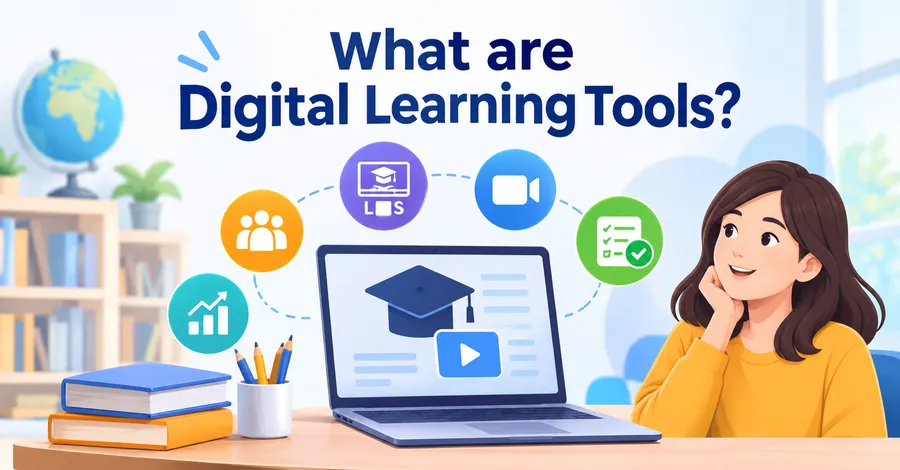
Digital learning tools are software, apps, and online course platforms that teachers use to plan lessons, deliver content, collect student work, and track progress. A quiz app, a video meeting platform, and a full learning management system (LMS) all fit this definition.
Why schools use them
Schools use digital tools for the classroom because they save time and keep learning moving. Teachers spend less time on repeat marking. Students get feedback sooner. Lessons can continue when a student is sick or a school closes for a day. Leaders also get clearer data on who is falling behind.
There is a catch. Tools only help when they match a teaching goal. UNESCO’s 2023 Global Education Monitoring Report, “Technology in education: A tool on whose terms?”, makes this point clearly: technology should serve learning aims, not set them. A tool that nobody uses is just another bill.
Main types of education tools
Most education tools fall into five groups. Knowing the group helps you avoid buying two products that do the same job.
- Learning management systems (LMS): Hold courses, lessons, assignments, and grades in one place. Examples are Google Classroom, Canvas, Moodle, and LearnPress.
- Live teaching tools: Run video lessons with chat, screen sharing, and breakout rooms. Examples are Zoom and Microsoft Teams.
- Interactive lesson and quiz tools: Add polls, games, and short checks to a lesson. Examples are Kahoot! and Nearpod.
- Collaboration and creation tools: Let students write, draw, and build together, such as shared documents and digital whiteboards.
- Assessment and analytics tools: Track results and show patterns across a class or year group.
How to choose digital learning tools in six steps
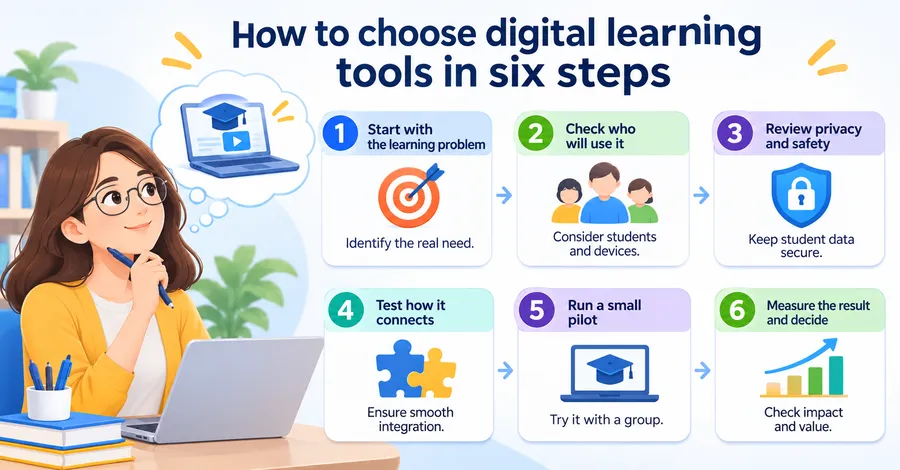
A simple process beats a long feature checklist. These six steps work for a single teacher choosing a quiz app or a whole school choosing a platform.
Step 1: Start with the learning problem
Write one sentence that describes the problem. For example: “Students do not get feedback on homework until the following week.” Now you know what to look for. If a tool does not fix that problem, it does not belong on your shortlist, no matter how good the demo looks.
Step 2: Check who will use it
Think about the age of your students, the devices they have, and the internet speed at home and in class. A tool that needs a fast connection and a new laptop will fail in many households. Also check accessibility. Look for captions, keyboard navigation, and screen reader support, and ask the vendor for an accessibility conformance report that refers to the WCAG 2.2 standard from the W3C.
Step 3: Review privacy and safety
Student data needs strong protection. Read the privacy policy and answer these questions:
- Where is the data stored?
- Can you delete a student’s data on request?
- Does the vendor use student data for advertising?
- Does the tool meet your local rules, such as FERPA and COPPA in the United States, GDPR in Europe, or the Privacy Act in Australia?
If the vendor cannot answer in plain language, move on.
Step 4: Test how it connects to your systems
A tool that needs separate logins and manual class lists creates extra work for teachers. Check for single sign-on with Google or Microsoft accounts, automatic roster sync with your student information system, and support for LTI (Learning Tools Interoperability), the 1EdTech standard that lets tools plug into an LMS. Good connections often decide whether a tool survives its first term.
Step 5: Run a small pilot
Do not roll out to every class on day one. Pick two or three willing teachers and one year group, and run the tool for four to six weeks. In a typical pilot, the first problems are not features. They are small things, such as students forgetting passwords, teachers not knowing where to find a setting, or a tool behaving differently on a school tablet than on a laptop. Better to find these with 60 students than 600.
Step 6: Measure the result and decide
Go back to the sentence you wrote in Step 1. Did the tool fix that problem? Ask teachers how much time it saved, and ask students whether it helped them learn. Then count the full cost: licences, training time, support, and any add-ons. Finally, check that you can export your data if you leave.
Best tools for virtual classrooms compared
There is no single winner. The best tools for virtual classrooms depend on your age group, budget, and technical skills. The sections below explain the main groups, followed by a table you can scan quickly.
Learning management systems
An LMS is the home base for your course content. Google Classroom is simple and works well for schools already using Google accounts. Canvas offers deeper grading and course design features for larger schools and colleges. Moodle is open source and highly customisable, but your team needs to host and maintain it. LearnPress is a WordPress plugin, which suits schools that want their own branded course website.
Live teaching and interactive tools
Zoom and Microsoft Teams handle live lessons, and Teams adds assignments and class notebooks for schools using Microsoft 365. Kahoot! and Nearpod do not replace an LMS. They add energy to a lesson through quizzes, polls, and interactive slides.
Comparison table
| Tool | Type | Best for | Main strength | Main limit |
|---|---|---|---|---|
| Google Classroom | LMS | Schools using Google accounts | Easy setup and daily use | Lighter course design features |
| Microsoft Teams for Education | LMS and live teaching | Schools using Microsoft 365 | Video, chat, and assignments together | Can feel busy for young students |
| Canvas LMS | LMS | Large schools and colleges | Deep grading and course structure | Higher admin effort and cost |
| Moodle | LMS | Schools with technical staff | Open source and flexible | Needs hosting and upkeep |
| Zoom | Live teaching | Real-time lessons | Reliable video and breakout rooms | Not a course manager |
| Kahoot! | Quiz and game tool | Quick checks and revision | High student engagement | Short bursts, limited depth |
| Nearpod | Interactive lessons | Teacher-led, interactive lessons | Live polls inside slides | Some features are paid |
| LearnPress | WordPress LMS plugin | Schools wanting their own course site | Full control of branding and content | Needs WordPress hosting; live video is external |
Leading educational technology platforms for schools
The leading educational technology platforms for schools are not the same for everyone. A good match depends on your size and setup, so use these three examples as a starting point.
Small primary school
Keep it light. A simple LMS such as Google Classroom, plus one quiz tool, is often enough. Younger students need fewer menus and clear buttons, and teachers need little training time.
Secondary school or college
You will likely need a stronger LMS with grading, rubrics, and parent or student reports. Canvas, Moodle, or Microsoft Teams are common choices. Add one live teaching tool and one assessment tool, and make sure they connect through single sign-on.
Training centre or school with its own course site
If you want to sell or publish courses under your own brand, a WordPress setup gives you more control than a hosted classroom app. That is where LearnPress fits, which we cover next.
Building online learning for schools with LearnPress and Eduma
If your school already has a WordPress site, you can run online learning for schools from the same install. LearnPress is a free WordPress LMS plugin from ThimPress, and Eduma is an education theme designed to work with it. Neither suits every school, but together they are a practical option for teams who want control over design and content.
What LearnPress does
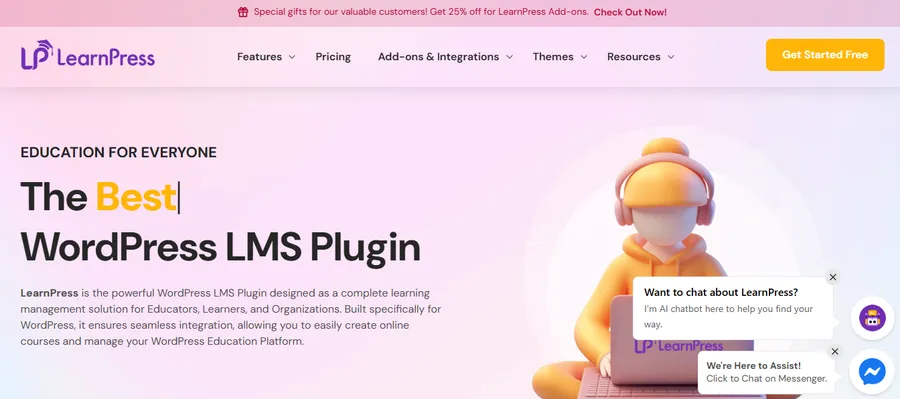
LearnPress lets you build courses with lessons and quizzes, add questions in several formats, and manage students from the WordPress dashboard. The core plugin is free, and paid add-ons extend it. Examples include assignments, certificates, and gradebook features. Check the current add-on list on learnpress.com before planning your setup, because available features change between releases.
Where Eduma fits
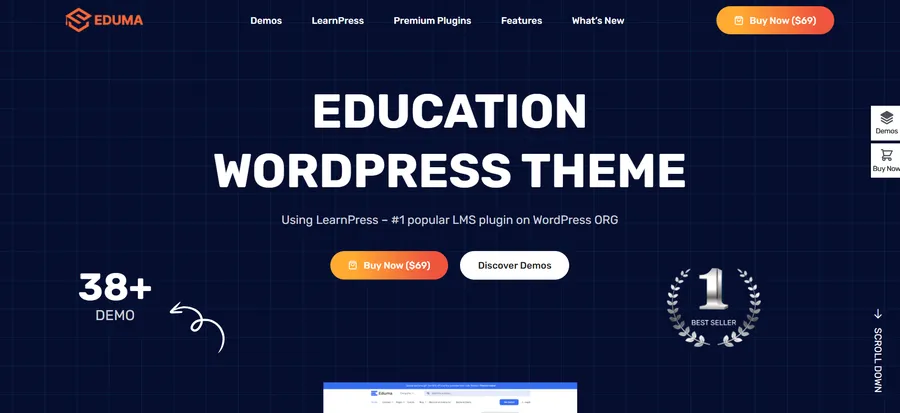
Eduma is a WordPress theme made for schools, colleges, and course sites. It ships with ready-made demo layouts, so you can import a design and replace the content instead of building pages from nothing. It works with LearnPress and with Elementor-based editing, which helps non-technical staff update pages.
How to set it up
These steps are based on recent LearnPress and Eduma releases. Menu names may vary slightly in newer versions.
- Back up your site. Always take a full backup before installing a theme or plugin, especially on a live school website.
- Install and activate Eduma. Go to Appearance > Themes > Add New, upload the theme zip, and activate it. Create a child theme before you edit any template files, so updates do not erase your changes.
- Install LearnPress. Go to Plugins > Add New, search for LearnPress, then install and activate it. Run the setup wizard to create your course pages.
- Import a demo. Choose an education demo that matches your school type, and replace the text and images.
- Create a test course. Add one lesson and one quiz, enrol a test student account, and check how it looks on a phone.
- Add live lessons. Link Zoom or Google Meet sessions inside your lessons, since video meetings run in those tools rather than in LearnPress itself.
Honest limits
WordPress gives you freedom, but it also gives you responsibility. You need reliable hosting, regular updates, and a backup plan. Page builders can also slow down a site if you load too many widgets. If your school has no one to look after the site, a hosted option such as Google Classroom may be the safer choice.
Common mistakes to avoid
Most failed rollouts share the same few causes. Watch for these before you sign a contract.
- Buying for features, not for the problem. A long feature list does not mean better teaching.
- Skipping training. Teachers need time to practise. One lunchtime demo is rarely enough.
- Ignoring teacher feedback. The people using the tool every day know where it breaks.
- Forgetting students without devices. Plan for shared devices, printed backups, or offline options.
- Choosing a closed system. If you cannot export your data, you are locked in.
- Not setting a review date. Put a six-month review in the calendar, and be willing to drop tools that are not working.
FAQs
Are free tools good enough, or should schools pay?
Free tools are often good enough for core tasks such as assignments, quizzes, and video lessons. Paid plans usually add admin controls, advanced reports, and support. Compare the free tier with your must-have list from Step 1 before paying for anything.
How many tools should a classroom use?
Most classrooms work best with three to five core tools: one LMS, one live teaching option, and one or two interactive or assessment tools. Each extra tool adds new logins and new things to learn. Add another only when it fixes a clear problem.
How do you keep students engaged during online lessons?
Keep segments short, and ask students to respond every few minutes through a poll, a quiz, or a chat question. Use breakout rooms for small group work, and give clear tasks with a time limit. Variety matters more than any single tool.
Can online learning for schools replace classroom teaching?
For most students, no. Online learning works best as a support for classroom teaching, or as a backup when attendance is not possible. Younger students in particular benefit from face-to-face contact, so a blended approach is the safest choice.
Conclusion
The best digital learning tools are the ones that fix a real teaching problem, protect student data, and are easy enough that teachers use them every week. Start with the problem, check privacy and accessibility, test connections, run a small pilot, and measure the result before you scale up.
Use the comparison table to shortlist two or three options, and match them to your school type. If you want full control over your course site, consider building on WordPress with LearnPress and Eduma. Whichever route you choose, keep your tool list short, train your teachers, and review it every six months.