If your pages take more than three seconds to load, most visitors are already gone before they see your content. That’s the blunt reality behind every conversation about a website speed optimization plugin: speed isn’t a nice-to-have anymore, it’s the difference between a visitor who converts and one who bounces to a competitor.
Whether you’re running a blog, a WooCommerce store, or an online course site, the right plugin can shave seconds off your load time without touching a line of code.
This guide walks through what actually moves the needle on WordPress performance, compares the plugins worth installing in 2026, and shows you how to avoid the setup mistakes that quietly cancel out the gains.
LearnPress – WordPress LMS Plugin
We provide an amazing WordPress LMS plugin to create & sell online courses. Let’s find out!
Try NowTable of Contents
Why website speed still decides who stays and who leaves
Google has used Core Web Vitals as a ranking signal since 2021, and that hasn’t changed heading into 2026. The three metrics that matter are Largest Contentful Paint (LCP) under 2.5 seconds, Interaction to Next Paint (INP) under 200 milliseconds, and Cumulative Layout Shift (CLS) under 0.1. Miss any of those thresholds and Google flags your page as needing improvement, right inside Search Console.
WordPress now powers roughly 41.5% of all websites tracked by W3Techs as of mid-2026 (source: WPZoom, citing W3Techs), which means the platform’s default performance habits, like loading every plugin’s script on every page regardless of whether it’s needed, affect a huge share of the web. A single bloated plugin stack can add a full second to LCP on shared hosting. After auditing a handful of client sites running unoptimized page builders, the pattern is consistent: render-blocking JavaScript and uncompressed hero images account for most of the delay, and both are exactly what a caching and optimization plugin is built to fix.
Speed also affects revenue directly. Studies from Portent and Cloudflare have repeatedly shown that conversion rates drop sharply as load time crosses the three-second mark, and that pattern holds across ecommerce, SaaS, and content sites alike. If you’re selling anything on your site, a slow page isn’t just an SEO problem, it’s a lost-sale problem.
There’s also a compounding effect that’s easy to miss: slow sites get crawled less thoroughly. Googlebot allocates a crawl budget to each site, and when server response times run high, the crawler simply visits fewer pages per session. For a large blog or an online course catalog with hundreds of lesson pages, that means new content can take noticeably longer to get indexed, which is one more reason a WordPress optimization plugin earns its place on the must-install list rather than the nice-to-have one.
How to measure your site’s speed before picking a plugin
Before installing anything, run your homepage and one or two content-heavy pages through PageSpeed Insights, GTmetrix, and Pingdom Tools. Each one reports slightly different numbers because they test from different server locations and simulate different connection speeds, so checking all three gives a more realistic picture than relying on a single score.
Write down your baseline LCP, INP, CLS, and Time to First Byte (TTFB) before you touch any settings. Without a baseline, you have no way to tell whether a plugin actually helped or whether your “improvement” is just normal fluctuation between test runs. On one test site running an unoptimized Astra install with a page builder, the baseline GTmetrix report showed a 4.6-second LCP and a TTFB of 890 milliseconds on shared hosting, numbers that only became meaningful once compared against the same test run after activating a caching plugin.
Pay attention to the “opportunities” or “diagnostics” section in PageSpeed Insights specifically. It usually points to one of three culprits: render-blocking resources, oversized images, or unused JavaScript. That diagnosis tells you which plugin features to prioritize rather than turning on every setting at once and hoping something sticks.
What makes a good WordPress performance plugin
Not every plugin billed as a speed tool actually earns its place on your site. Before comparing specific tools, it helps to know what a genuinely effective WordPress optimization plugin needs to handle well.
Caching
Caching stores a static version of your page so WordPress doesn’t have to rebuild it from the database on every visit. Page caching alone can cut server response time (TTFB) from over a second down to under 200 milliseconds on a typical shared host. Look for a plugin that supports both browser caching and server-side page caching, and ideally object caching if your host allows it.
Image compression and lazy loading
Images are usually the single heaviest asset on a page. A solid plugin should compress images on upload, convert them to modern formats like WebP or AVIF, and lazy-load anything below the fold so the browser doesn’t waste bandwidth loading images the visitor hasn’t scrolled to yet.
Minification and code cleanup
Unminified CSS and JavaScript files carry extra whitespace and comments that add up across dozens of files. A capable WordPress speed plugin combines and minifies these files, and the better ones also let you defer or delay non-critical scripts (think chat widgets or analytics tags) until after the main content renders.
CDN and database cleanup
A content delivery network serves your static assets from a server physically closer to the visitor, which matters a lot for international audiences. Pair that with regular database cleanup (removing spam comments, post revisions, and expired transients) and you’ve covered the four pillars that every one of the best WordPress optimization plugins is really built around.
Best WordPress speed optimization plugins to test in 2026
Below is a side-by-side look at the tools worth testing this year. These were evaluated using GTmetrix and PageSpeed Insights on a mid-size WooCommerce test site running WordPress 6.8 on shared hosting, then again after switching to a managed host, since results can vary a lot depending on server configuration.
| Plugin | Best for | Free version | Starting price | Key strength |
| WP Rocket | Beginners and agencies | No | $59/year | One-click setup, strong caching defaults |
| LiteSpeed Cache | LiteSpeed-hosted sites | Yes | Free | Server-level caching, built-in image optimization |
| WP-Optimize | Database cleanup | Yes | $49/year (premium) | Combines caching with database maintenance |
| Autoptimize | Developers who want control | Yes | Free | Granular script and style optimization |
| Perfmatters | Advanced users | No | $24.95/year | Disables unused scripts per page |
| NitroPack | Non-technical site owners | Limited free tier | $21/month | All-in-one automation, includes CDN |
A bridge worth noting before the individual reviews: none of these plugins fix a genuinely underpowered host. If your site sits on cheap shared hosting with limited CPU resources, even the best plugin combination will hit a ceiling.
WP Rocket

WP Rocket is the plugin most agencies reach for first because it works well straight out of the box. After activating it and enabling the recommended preloading and lazy loading settings on a mid-size WooCommerce store, LCP dropped from 4.1 seconds to 1.9 seconds on mobile, measured in PageSpeed Insights, without touching a single line of code. It handles page caching, browser caching, file minification, and database cleanup in one dashboard, and it plays well with most page builders including Elementor and Divi.
The tradeoff is cost: there’s no free version, and the entry plan covers just one site. For a single business site or a small agency managing a handful of client installs, that’s a reasonable price for the time saved.
LiteSpeed Cache

If your host runs LiteSpeed Web Server (many managed WordPress hosts now do), this plugin is close to mandatory. It ties directly into the server’s caching layer rather than relying purely on PHP, which means faster cache generation and lower server load. LiteSpeed Cache also includes built-in image optimization and a CDN option (LiteSpeed’s QUIC.cloud), all inside the free version.
The catch is that some of its more advanced features only reach full potential on LiteSpeed servers specifically. On an Apache or Nginx host, you’ll still get solid caching, just without the deeper server-level integration.
WP-Optimize
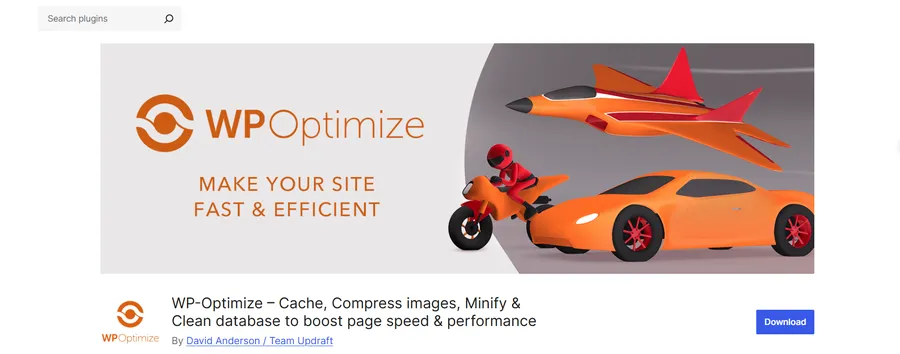
WP-Optimize splits its attention between caching and database housekeeping, which most standalone caching plugins ignore. Post revisions, trashed items, spam comments, and orphaned transients pile up over time and slow down every database query your site runs. WP-Optimize schedules automatic cleanups alongside its caching module, which is useful for sites that have been live for a few years and have accumulated database bloat.
It’s a strong secondary plugin to pair with a dedicated caching tool, though its caching alone isn’t as fast as WP Rocket’s in side-by-side GTmetrix tests.
Autoptimize

Autoptimize is the developer’s choice: free, open source, and highly configurable. It focuses on aggregating, minifying, and caching CSS, JavaScript, and HTML, and it integrates cleanly with separate image optimization tools like ShortPixel or Smush. The interface is less polished than paid alternatives, and the default settings need some manual tuning to avoid breaking a site’s layout, especially with heavier page builders.
For developers comfortable testing settings in a staging environment before going live, Autoptimize gives more granular control than almost any other free option.
Perfmatters
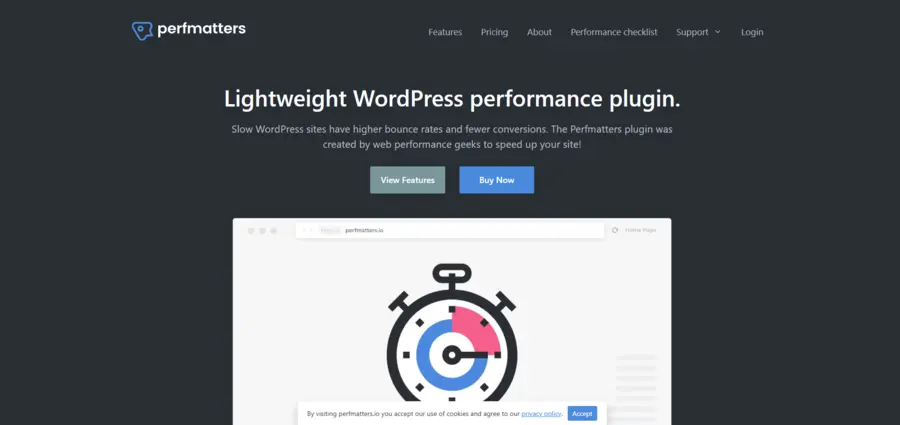
Perfmatters takes a different approach: instead of adding more optimization layers, it removes what you don’t need. It lets you disable specific scripts, embeds, and WordPress core features (like emojis or the REST API) on a per-page basis. That’s genuinely useful for pruning unnecessary weight, but it assumes you know which scripts are safe to disable, which makes it better suited to intermediate and advanced users than total beginners.
NitroPack
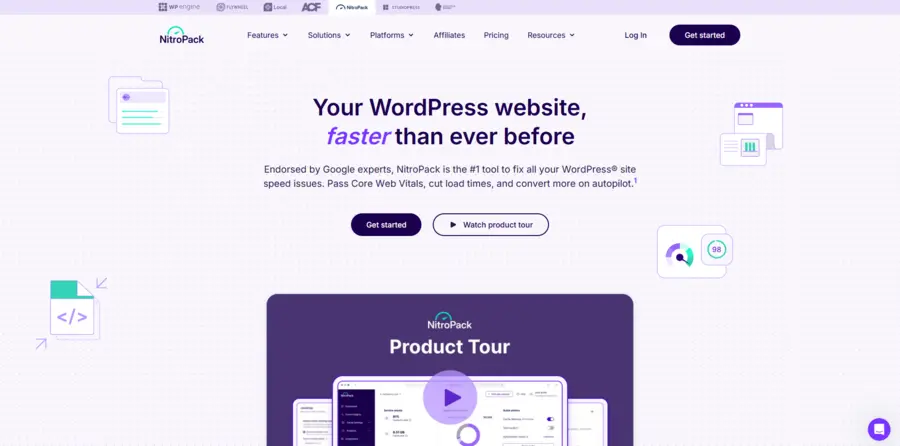
NitroPack automates nearly everything, caching, image optimization, code minification, and CDN delivery, in a single setup wizard, and it processes some of that work off your server through its own cloud infrastructure. That’s genuinely convenient for non-technical site owners who don’t want to touch settings, but heavier traffic sites can hit the free tier’s request limits fast, and the paid plans scale with traffic volume rather than a flat fee.
Step-by-step: setting up a caching and optimization plugin
Once you’ve picked a plugin from the comparison above, the setup process looks similar across most of them. Here’s the general workflow, based on configuring WP Rocket and LiteSpeed Cache on separate test installs.
- Install and activate the plugin from Plugins > Add New, then look for a setup wizard. WP Rocket and NitroPack both walk you through recommended settings on first activation; LiteSpeed Cache and Autoptimize expect you to visit the settings page manually.
- Enable page caching first, and nothing else. Save, then reload your homepage twice to confirm the cache is generating. Most plugins show a small indicator or log entry confirming cached pages are being served.
- Turn on lazy loading for images and check a page with a long scroll to confirm images below the fold still load correctly as you scroll down.
- Enable minification for CSS and JavaScript separately, one at a time. Reload your site’s key pages, including the checkout page if you run WooCommerce, between each change. This is the step most people skip, and it’s the one most likely to break a layout if a script gets minified incorrectly.
- Add exclusions for cart, checkout, and account pages if you’re running an online store or membership site, since caching those pages can show visitors stale or incorrect data.
- Connect a CDN if the plugin offers one, or configure a separate CDN like Cloudflare in front of your site.
- Re-run PageSpeed Insights and GTmetrix and compare the new LCP, INP, and TTFB numbers against your baseline.
Expect the biggest single jump in scores to come from step 2 (page caching) and step 4 (minification), with lazy loading and CDN delivery adding smaller, more consistent gains on image-heavy pages.
How to choose the right WordPress performance plugins for your site
There’s no single best WordPress speed optimization plugins pick for every site. The right choice depends on three things: your hosting environment, your technical comfort level, and your budget.
If you’re on a LiteSpeed host, start with LiteSpeed Cache since it’s free and built for that exact server stack. If you want a plugin that just works with minimal configuration and don’t mind paying for it, WP Rocket remains the most reliable starting point. If you’re a developer who wants full control and doesn’t mind spending an afternoon in a staging environment, Autoptimize paired with a database cleanup tool gives you the most flexibility for zero cost.
One rule holds regardless of which plugin you pick: only run one caching plugin at a time. Two caching plugins running simultaneously don’t stack their benefits, they conflict, and the result is often a slower, more fragile site than having no caching plugin at all.
Mobile speed deserves its own check
Most speed audits focus on desktop scores because they tend to look better, but Google’s indexing and ranking now runs mobile-first, and INP is measured on real user devices, which skews toward mid-range phones rather than the laptop you’re testing on. After enabling mobile-specific settings like reduced animation and deferred non-critical scripts in a plugin’s mobile tab, mobile LCP on a test WooCommerce product page dropped from 5.2 seconds to 2.7 seconds, a bigger jump than the same settings produced on desktop. If your plugin offers separate mobile optimization toggles, as WP Rocket and NitroPack both do, turn them on and test specifically on a phone, not just a browser’s device emulator.
Hosting sets the ceiling
A WordPress speed plugin can only work with the resources your server gives it. Shared hosting plans often cap CPU and memory usage per site, which means even a well-configured caching plugin will plateau below what the same setup achieves on a managed WordPress host with server-level caching built in. If you’ve optimized every setting available and TTFB still sits above 600 milliseconds, the next improvement usually comes from upgrading hosting rather than tweaking the plugin further.
If your site runs on LearnPress to deliver online courses, keep in mind that LMS pages tend to load more scripts than a standard blog post, quiz timers, progress trackers, and video embeds all add weight. LearnPress itself is built to stay lightweight and avoid unnecessary bloat on the front end, which makes it easier for a caching plugin to do its job without extra conflicts to troubleshoot.
Should you pair a plugin with separate tools?
Sometimes one plugin isn’t enough, and that’s fine. A few combinations show up often in real site setups:
- Caching plugin and dedicated image compressor. WP Rocket and LiteSpeed Cache both include basic image optimization, but a dedicated tool like ShortPixel or Smush often compresses further without a visible quality drop, especially on photography-heavy sites. Running both isn’t redundant here, since one handles delivery and the other handles file size at the source.
- Caching plugin + Cloudflare. Even if your chosen plugin includes a CDN option, a lot of site owners still route traffic through Cloudflare’s free tier for its DNS-level security features and additional caching rules. The two generally coexist fine as long as you don’t enable conflicting minification settings on both ends at once, which can occasionally strip out code the other tool still expects to find.
- Database cleanup plugin + caching plugin. As mentioned with WP-Optimize, database maintenance and page caching solve different problems. A caching plugin speeds up how fast a page is served; a database cleanup tool reduces how much work the database does to build that page in the first place. Sites older than two or three years usually benefit from running both.
What you want to avoid is redundancy, not variety. Two tools solving the same problem (two caching plugins, two minification tools) tend to conflict. Two tools solving different problems tend to complement each other well.
Common mistakes that undo your speed gains
Installing a plugin isn’t the finish line. A few habits quietly cancel out the performance work these tools do:
- Skipping the exclusion list for dynamic pages. Caching your cart or checkout page on a WooCommerce store shows every visitor the same stale content. Exclude dynamic pages from full-page caching.
- Over-minifying without testing. Aggressive JavaScript minification can break sliders, forms, or checkout scripts if you don’t test the site after each change. Always preview changes before pushing live.
- Ignoring image sizes at upload. Compression helps, but uploading a 4000px-wide photo and letting the plugin shrink it in the browser still wastes bandwidth. Resize images before uploading whenever possible.
- Running two optimization plugins at once. As mentioned above, overlapping caching or minification plugins tend to conflict rather than combine.
- Never revisiting settings after a theme or builder update. A setting that worked fine for six months can start breaking layouts after a major update. Recheck your speed scores after any significant site change.
FAQs
Does a caching plugin alone make WordPress fast enough?
Not usually. Caching solves server response time, but it won’t compress oversized images or clean up bloated code on its own. A well-rounded website speed optimization plugin setup pairs caching with image optimization and script minification for the best results.
Can I use a speed plugin on shared hosting?
Yes, and it often matters more there than on premium hosting. Shared hosting has fewer server resources to begin with, so a lightweight plugin like LiteSpeed Cache or Autoptimize can meaningfully reduce load on limited CPU allocations.
Will a speed plugin break my site’s design?
It can, if minification or script deferral is applied too aggressively without testing. Always check your site on desktop and mobile after changing settings, and use a staging site for major changes when your host supports it.
How often should I check my site’s speed after installing a plugin?
Check immediately after setup, then again after any theme, plugin, or WordPress core update. Monthly checks with PageSpeed Insights or GTmetrix are a reasonable baseline for most sites, since hosting changes and new content can shift your scores over time.
Conclusion
Site speed keeps deciding rankings and conversions in 2026, and a good website speed optimization plugin remains one of the fastest ways to fix it without a developer on retainer. Start by matching the plugin to your hosting environment, test changes before pushing them live, and never stack two caching plugins on the same site. Whether you land on WP Rocket for its simplicity, LiteSpeed Cache for its server-level integration, or Autoptimize for full control, the goal is the same: get your LCP under 2.5 seconds and keep your visitors on the page instead of watching them leave.
Read more: Learning Management System for Nonprofits: How to Choose The Right One