An interactive quiz gives students instant feedback while they are still thinking about the topic. That is why teachers, course creators, and trainers use it more than a paper test.
In this guide, you will learn what makes a good quiz, which online assessment tools are worth comparing, and how to set one up on your own WordPress site.
LearnPress – WordPress LMS Plugin
We provide an amazing WordPress LMS plugin to create & sell online courses. Let’s find out!
Try NowTable of Contents
What is an interactive quiz?
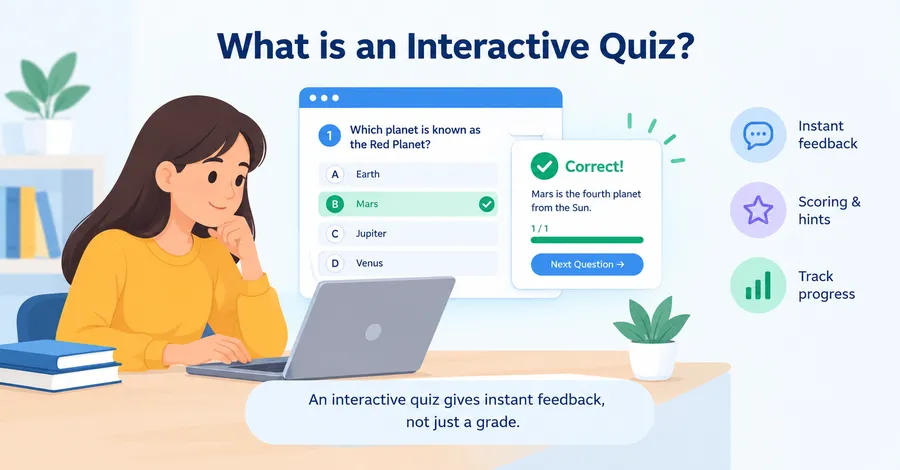
An interactive quiz is a set of questions that responds to the learner’s answers, usually by showing feedback, scoring, hints, or the next question right away. It differs from a static test because the student gets a reaction at each step, not a grade a week later.
Definition and how it works
In practice, the learner opens a quiz page, answers one question or a full set, and clicks a button to check the result. Good quiz software then shows the correct answer, a short explanation, and the final score. Many tools also record how long each attempt took and which questions were missed most often.
Where it fits in formative assessment
Formative assessment means checking understanding during the learning process, not at the end of it. The goal is to help the student improve, not to assign a final mark. Research by Paul Black and Dylan Wiliam, summarized in their 1998 paper “Inside the Black Box,” argues that regular feedback during learning is one of the strongest ways to raise achievement. A short quiz is one of the easiest ways to put that idea into daily teaching.
Summative assessment, such as a final exam, still has a place. The difference is purpose. A formative quiz is a practice round; a summative exam is the match.
Why use an interactive quiz for student assessment
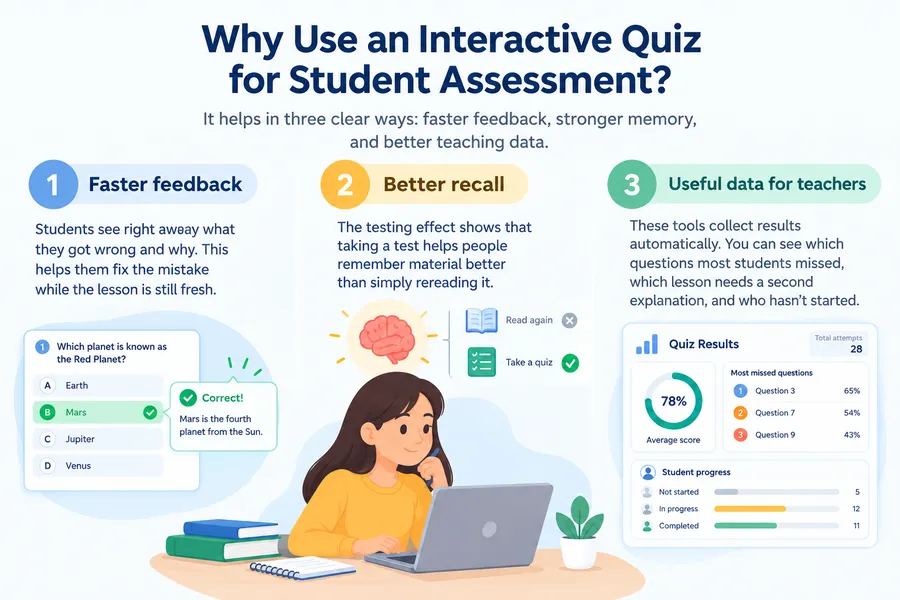
It helps in three clear ways: faster feedback, stronger memory, and better teaching data. Each one is worth a closer look before you choose any tool.
Faster feedback
Students see right away what they got wrong and why. This matters because a wrong idea left uncorrected tends to stick. When feedback arrives in seconds, the student can fix the mistake while the lesson is still fresh.
Better recall
Cognitive science has a well-known finding called the testing effect. Henry Roediger and Jeffrey Karpicke published a study in 2006 showing that taking a test helps people remember material better than simply rereading it. A short quiz after each lesson turns that finding into a habit.
Useful data for teachers
These tools collect results automatically. You can see which question most students missed, which lesson needs a second explanation, and which learners have not started. That is information a stack of paper tests rarely gives you in time to act on it.
Types of quiz questions
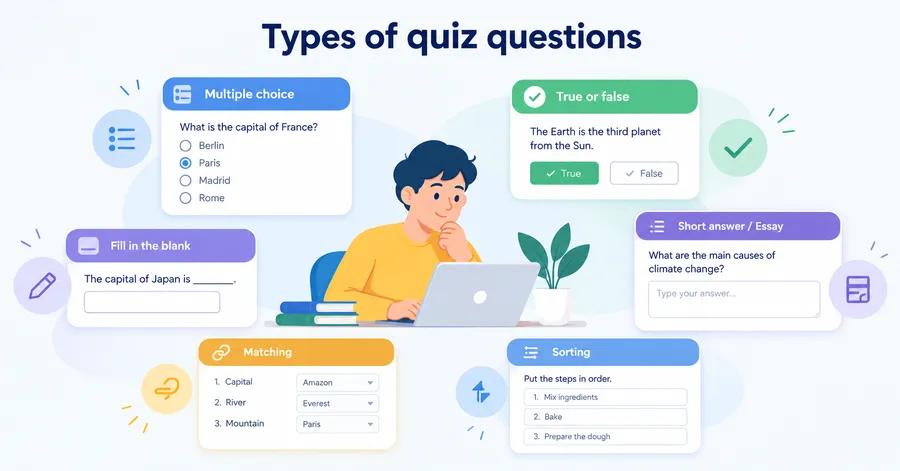
Most student assessment tools support several question formats, and a good quiz mixes them. Pick the format based on what you want to measure, not on what is quickest to build.
Multiple choice and true or false
Multiple choice works well for facts, definitions, and quick checks. True or false is faster to write but easier to guess, so use it sparingly. For multiple choice, write distractors (wrong answers) that reflect real student mistakes. Obvious wrong answers teach nothing.
Fill in the blank, matching, and sorting
These formats ask students to recall or arrange information instead of recognizing it. Fill in the blank suits vocabulary and formulas. Matching and sorting suit processes, timelines, and grouped concepts. They take a little longer to set up, but they test understanding more deeply than a simple choice list.
Short answer and essay
Open responses show how a student thinks. The trade-off is marking time, since most of these answers need a teacher to review them. Use them for key checkpoints and keep the rest of the quiz auto-graded.
Features to look for in online assessment software
Good online assessment software should save you time without limiting how you teach. Before you pay for anything, check the features below against your actual workflow.
Question types and question banks
Look for at least multiple choice, true or false, fill in the blank, and some form of open response. A question bank lets you store questions once and reuse them across quizzes. Random selection from a bank also means two students rarely get the same quiz.
Auto grading and instant feedback
Auto grading is the main time saver. The tool should score objective questions on its own and let you add an explanation for each answer. For online formative assessment tools, instant feedback is not optional. It is the whole point.
Reports and gradebook
You need to see results per student, per quiz, and per question. A gradebook that collects scores across a whole course helps you spot learners who are falling behind. Export options, such as CSV, are useful when your school or company needs records elsewhere.
Settings and security
Check whether you can set a time limit, limit retakes, set a passing grade, and shuffle questions and answers. These settings do not make cheating impossible, but they make it harder. Also confirm how the tool stores student data, especially if you teach minors.
Comparison of online assessment tools
The best choice depends on whether you run a live classroom session, send a quick survey-style test, or build a full online course. The table below compares four common options by their typical use. Features change often, so check each vendor’s current plan before you decide.
| Tool | Best for | Question styles | Reports and grading | Hosting and control |
|---|---|---|---|---|
| Google Forms | Quick, free quizzes and short checks | Multiple choice, short answer, checkboxes | Basic auto grading and response summaries | Hosted by Google; limited design and course structure |
| Kahoot! | Live, game-style sessions in class | Mainly multiple choice and polls | Session reports; designed for engagement | Hosted service; less suited to long-term course tracking |
| Standalone quiz plugin | Single quizzes on a website | Varies by plugin | Varies; often limited to quiz-level results | Self-hosted on WordPress; you control the data |
| LearnPress (WordPress LMS) | Full courses with lessons, quizzes, and certificates | Multiple choice, true or false, and more through add-ons | Quiz results, course progress, and gradebook options | Self-hosted on WordPress; full control of content and student data |
How to read this table
Google Forms and Kahoot! are fast to start, and many teachers use them for one-off activities. Their limit is structure: a single quiz is not the same as a course with lessons, progress tracking, and certificates. If your goal is ongoing learning, a learning management system (LMS) usually fits better than a stand-alone quiz tool.
How to create an interactive quiz with LearnPress
LearnPress is a free WordPress LMS plugin from ThimPress that lets you build courses, lessons, and quizzes inside your own site. If you already use WordPress, it is a practical way to keep your assessments and your course content in one place.
The steps below follow the typical LearnPress workflow. Menu names may differ slightly between versions, so check your own dashboard as you go.
Step 1: Install and set up LearnPress
Go to Plugins > Add New in your WordPress admin, search for LearnPress, then install and activate it. The setup wizard asks for basic details such as currency and page assignments. Create these pages before building content, because courses and quizzes depend on them.
Step 2: Create a course and add lessons
Open LearnPress > Courses > Add New and give the course a clear title. In the Curriculum tab, add sections and lessons. Quizzes live inside this structure, so your assessment sits right after the lesson it tests.
Step 3: Build the quiz and add questions
In the Curriculum tab, add a new quiz to the section you want. Then add questions from your question bank or write new ones. Each question can carry its own mark, so you can weigh harder questions more heavily. For each one, write a short explanation so students learn from a wrong answer.
Step 4: Configure the quiz settings
Set the duration, passing grade, and the number of retakes allowed. You can also choose whether students see the correct answers after submitting. For a formative quiz, allow retakes and show explanations. For a graded checkpoint, limit attempts and hide answers until the deadline passes.
Step 5: Extend with add-ons
LearnPress offers add-ons for extra needs, such as more question types, a gradebook, certificates, and assignments. Review the add-on list in your dashboard to see what is available for your version, since some are free and some are premium.
Step 6: Preview as a student
Before you publish, enroll a test account and take the quiz yourself. Check that the timer works, the feedback reads clearly, and the page looks right on a phone. This five-minute test catches most problems before real students see them.
Why Eduma works well for quiz-based courses
Eduma is a WordPress education theme from ThimPress, built to work with LearnPress. It gives you ready-made layouts for course catalogs, course pages, and instructor profiles, so your quizzes sit inside a site that already looks like a learning platform.
If you plan to sell courses, Eduma also pairs with WooCommerce, which handles payments. You can edit the design with page builders such as Elementor, so you do not need to write code. As with any theme, create a child theme before editing template files, so your changes survive updates.
Eduma is a good match if you want a complete course website. If you only need a single quiz on a blog post, a lighter plugin may be enough, and the theme is not required.
Best practices for better quizzes
A tool only helps when the quiz itself is well written. These habits make the difference between a quiz that students skim and one that teaches.
Keep each quiz short and focused
Aim for one learning goal per quiz. Five to ten questions after a lesson usually works better than a 50-question test at the end of the month. Short quizzes are easier to retake, and students are more likely to finish them.
Write feedback, not just answers
“Incorrect” is not feedback. A good explanation says why the answer is wrong and points back to the lesson. This single habit often matters more than any tool feature.
Mix easy and hard questions
Start with a few easy questions to build confidence, then add harder ones. A quiz that is too hard discourages students, and one that is too easy tells you nothing.
Review your quiz data
After a few weeks, look at which questions most students missed. A question that almost everyone gets wrong may be unclear, or the lesson may need a better explanation. Either way, the data tells you where to improve.
Make it accessible
Use clear fonts, good color contrast, and short sentences. Check that the quiz works on mobile, since many students will take it on a phone. Follow the Web Content Accessibility Guidelines (WCAG) from the W3C if your audience includes learners with disabilities.
Common mistakes to avoid
Even a well-chosen tool cannot fix a poorly planned quiz. These are the problems that show up most often when teachers start building quizzes online.
Testing too much at once
A quiz that covers a whole unit overwhelms students and hides what they actually misunderstand. Split big topics into small checks, one per lesson. That way a low score points to a specific gap.
Ignoring the results
Many teachers build a quiz, publish it, and never open the reports. The data is the reason to use digital tools in the first place. Set a reminder to review results every two weeks and adjust your lessons.
Skipping the preview
Broken timers, missing answers, and unclear wording are easy to fix before launch and frustrating after. Always take the quiz yourself first, on both a laptop and a phone.
FAQs
How many questions should an interactive quiz have?
Five to ten questions is a good range for a lesson-level quiz. This length takes most students under ten minutes, which keeps attention high. Use longer quizzes only for module reviews or final checkpoints.
How can you reduce cheating on an online quiz?
You cannot stop it completely, but you can make it harder. Use question banks with random selection, shuffle answer order, set a time limit, and limit retakes. For high-stakes tests, combine the quiz with a project or a supervised session.
Are there free student assessment tools?
Yes. Google Forms is free, and LearnPress has a free core plugin that includes quizzes. Free versions often limit advanced features, such as detailed reports or extra question types, so test them against your needs first.
Can students take a quiz on a phone?
Yes, if the tool uses a responsive design. Most modern quiz software and WordPress themes, including Eduma, are built to adapt to smaller screens. Always preview the quiz on a real phone before you publish it.
Conclusion
A quiz of this kind turns assessment into part of the learning process. It gives students fast feedback, helps them remember more, and shows you where to improve your teaching. The right online assessment software depends on your goal: Google Forms and Kahoot! suit quick activities, while a WordPress LMS suits full courses.
If you want to build quizzes inside your own course site, LearnPress is a practical starting point, and the Eduma theme gives you a ready-made design to go with it. Start with one short quiz after your next lesson, review the results, and improve from there.
Read more: Tuition Management Systems: A Practical Guide for Schools and Tutoring Centers