If you are new to online teaching, you need a clear learning management system definition before you pick any software. A learning management system (LMS) is software that lets you create, deliver, track, and manage online courses in one place.
This guide explains what an LMS is, how it works, which features matter, and how to build one on WordPress. It is written for course creators, schools, and training teams who want practical answers.
LearnPress – WordPress LMS Plugin
We provide an amazing WordPress LMS plugin to create & sell online courses. Let’s find out!
Try NowTable of Contents
Learning management system definition and meaning
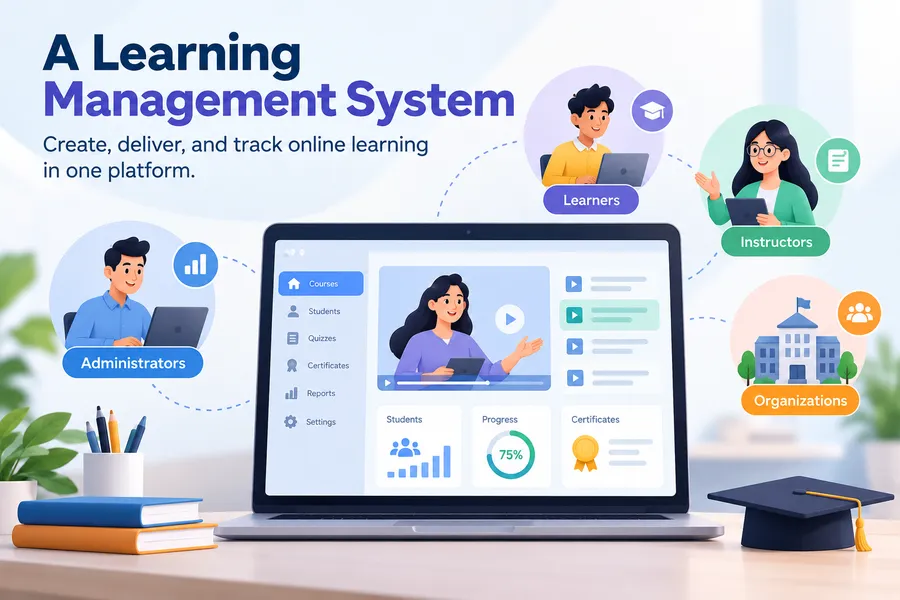
A learning management system is a software application that handles the full cycle of online learning, from publishing lessons to tracking results. This section gives the plain definition first, then shows how the term is used in real projects.
A simple definition
The learning management system definition most people accept is this: an LMS is a platform for administering, documenting, delivering, and reporting on training or education. Instructors upload content. Learners sign in, study, take quizzes, and earn certificates. Administrators see who finished what.
Meaning of learning management system in daily use
The meaning of learning management system changes slightly depending on who you ask. A university uses it to run semester courses and grade assignments. A company uses it for onboarding and compliance training. A solo coach uses it to sell a paid video course. The core idea stays the same: one system holds the content, the learners, and the progress data.
Who uses an LMS
LMS software is common in several settings:
- Schools and universities that run blended or fully online classes.
- Businesses that train employees, partners, or customers.
- Training centers and language schools that sell courses.
- Independent experts who package their knowledge into paid programs.
What is LMS experience?
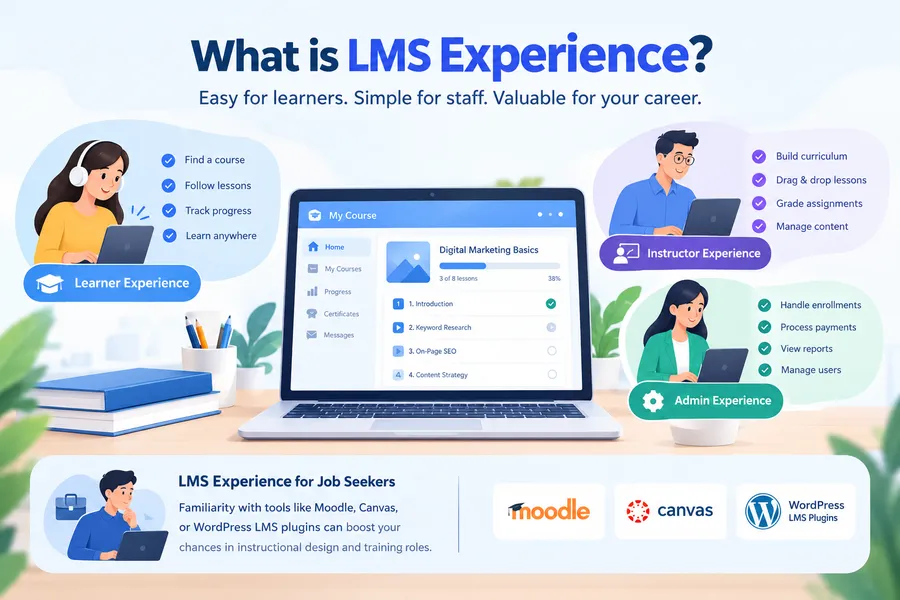
When people ask “what is LMS experience,” they usually mean one of two things: how it feels to use an LMS as a learner, or how much hands-on skill someone has with LMS tools. Both matter, and this section covers the first meaning, which shapes completion rates.
The learner side
A good learner experience is simple. The student finds a course, enrolls, sees a clear lesson list, and always knows what to do next. Progress bars, saved lesson positions, and mobile-friendly pages remove friction. A confusing menu or a slow video page makes students quit, no matter how good the content is.
The admin and instructor side
Staff have their own experience. Instructors want to build a curriculum quickly, reorder lessons by drag and drop, and grade work without switching tabs. Admins want enrollment, payments, and reports in one dashboard. If a task takes ten clicks in the LMS, people stop using it.
For job seekers, “LMS experience” can also mean familiarity with tools such as Moodle, Canvas, or WordPress LMS plugins. Employers often list it for instructional design and training coordinator roles.
Core features of an LMS
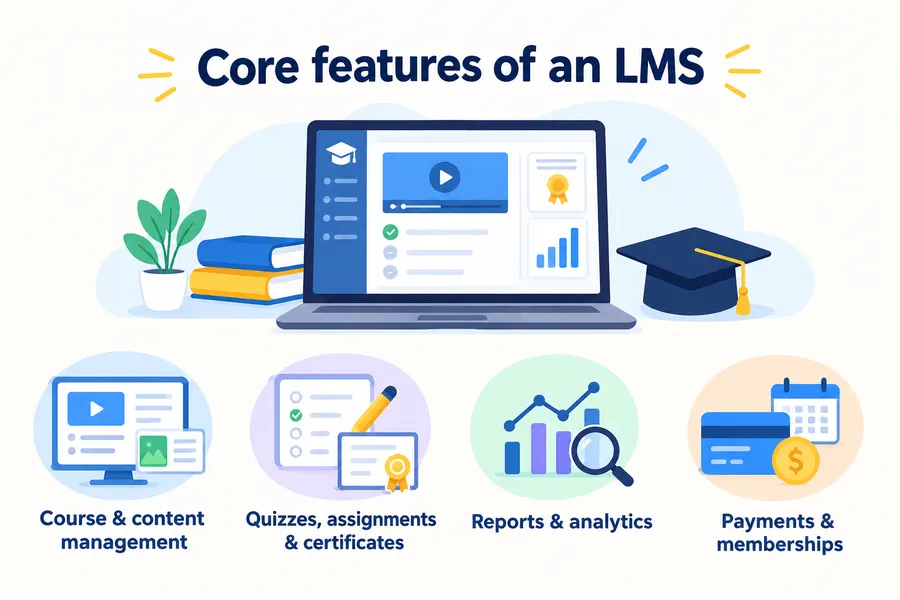
Every LMS covers a few essential jobs, though the depth differs by product. The sections below list the features you should expect and test before committing.
Course and content management
You should be able to build courses with sections, lessons, and media. Video, text, PDF files, and downloads are standard. Better systems also support drip content, where lessons unlock on a schedule, and prerequisites, where a student must finish lesson one before lesson two.
Quizzes, assignments, and certificates
Assessment is what separates an LMS from a simple video library. Look for multiple-choice quizzes, timed tests, question banks, and assignment uploads with instructor feedback. Certificates of completion give learners something to show for their effort, and they help with employer training records.
Reports and analytics
Reports answer practical questions. Which lessons do students skip? Where do they fail quizzes? Who has not logged in for 30 days? Without this data, you are guessing about course quality.
Payments and memberships
If you sell courses, the LMS needs a checkout. Many systems support one-time purchases, subscriptions, coupons, and bundles. On WordPress, this usually means connecting a payment gateway or WooCommerce.
How to manage learners in an LMS workflow
To manage learners in an LMS workflow, you follow a repeatable path from enrollment to completion. A clear workflow saves admin time and keeps students from getting lost. Here is a practical version that works for most course sites.
- Register the learner. The student creates an account, or an admin imports users in bulk from a CSV file.
- Enroll in a course. Enrollment happens by purchase, by manual assignment, or by group rule.
- Deliver the lessons. The learner works through the curriculum in order, with progress saved automatically.
- Assess understanding. Quizzes and assignments confirm that the student learned the material.
- Support and communicate. Instructors answer questions through course comments, email, or a forum.
- Certify and report. The system issues a certificate and logs the result for the admin.
Tips for a smoother workflow
Group learners by cohort or department so you can send one message to many people. Set automatic reminders for unfinished courses. Review your drop-off report monthly and fix the lesson where most students stop. These small habits make it far easier to manage learners in your LMS workflow without hiring extra staff.
Flexible and open integrations for LMS platforms
An LMS rarely works alone. It needs to talk to payment tools, email services, video hosts, and membership systems. Flexible and open integrations for LMS platforms let you connect those tools without custom rebuilds, and they protect you from being locked into one vendor.
Common standards: SCORM, xAPI, and LTI
Three standards come up often:
- SCORM is a long-standing format for packaging e-learning content so it can run on different systems.
- xAPI records learning activity in more detail, including activity outside the LMS.
- LTI (Learning Tools Interoperability), maintained by 1EdTech, lets external tools plug into an LMS and share user data securely.
If you plan to buy content from third-party vendors, check which of these standards your LMS supports.
APIs and webhooks
A REST API lets developers read and write LMS data, such as enrollments and progress. Webhooks send an alert to another app when something happens, for example when a student completes a course. Together, they allow you to connect your LMS to a CRM, a help desk, or an automation tool.
Plugin-based integrations on WordPress
On WordPress, integration often means installing an add-on. You can connect a LearnPress site to WooCommerce for payments, to BuddyPress for community features, or to a membership plugin for gated access. Because WordPress is open source, developers can also use hooks and filters to extend the LMS without editing core files. This is a real advantage when your needs change after launch.
SAAS LMS platforms vs self-hosted LMS
You can run an LMS in two main ways: rent a hosted product or install software on your own site. SAAS LMS platforms charge a recurring fee and handle hosting for you, while a self-hosted LMS gives you more control over data, design, and cost. The table below compares them.
| Factor | SAAS LMS platforms | Self-hosted LMS (WordPress with LearnPress) |
|---|---|---|
| Setup time | Fast, often same day | Moderate, requires hosting and theme setup |
| Pricing model | Monthly or yearly subscription | Core plugin is free; you pay for hosting, premium add-ons, and themes |
| Control over data | Stored on vendor servers | Stored on your own server |
| Design freedom | Limited to vendor templates | Full control with themes and page builders |
| Integrations | Depends on vendor’s list | Open ecosystem of plugins, hooks, and APIs |
| Maintenance | Handled by vendor | You handle updates and backups |
| Scaling cost | Often rises with learner count | Mostly tied to hosting resources |
| Best for | Teams that want zero technical work | Creators and schools that want ownership and flexibility |
Neither option is better for everyone. If you have no technical help and need to launch next week, SAAS LMS platforms are a sensible choice. If you want to own your content, shape the design, and avoid per-learner fees, a WordPress LMS is worth the extra setup time.
How to create a learning management system on WordPress
This section covers how to create a learning management system using WordPress, a free LMS plugin, and an education theme. The steps are based on current LearnPress 4.x releases, and menu names may change slightly in newer versions.
Step 1: Get hosting and install WordPress
Choose a host that offers recent PHP versions, SSL, and daily backups. Install WordPress, then set your permalinks under Settings > Permalinks to a clean structure such as “Post name.” Always take a backup before installing new plugins or themes.
Step 2: Install an LMS plugin
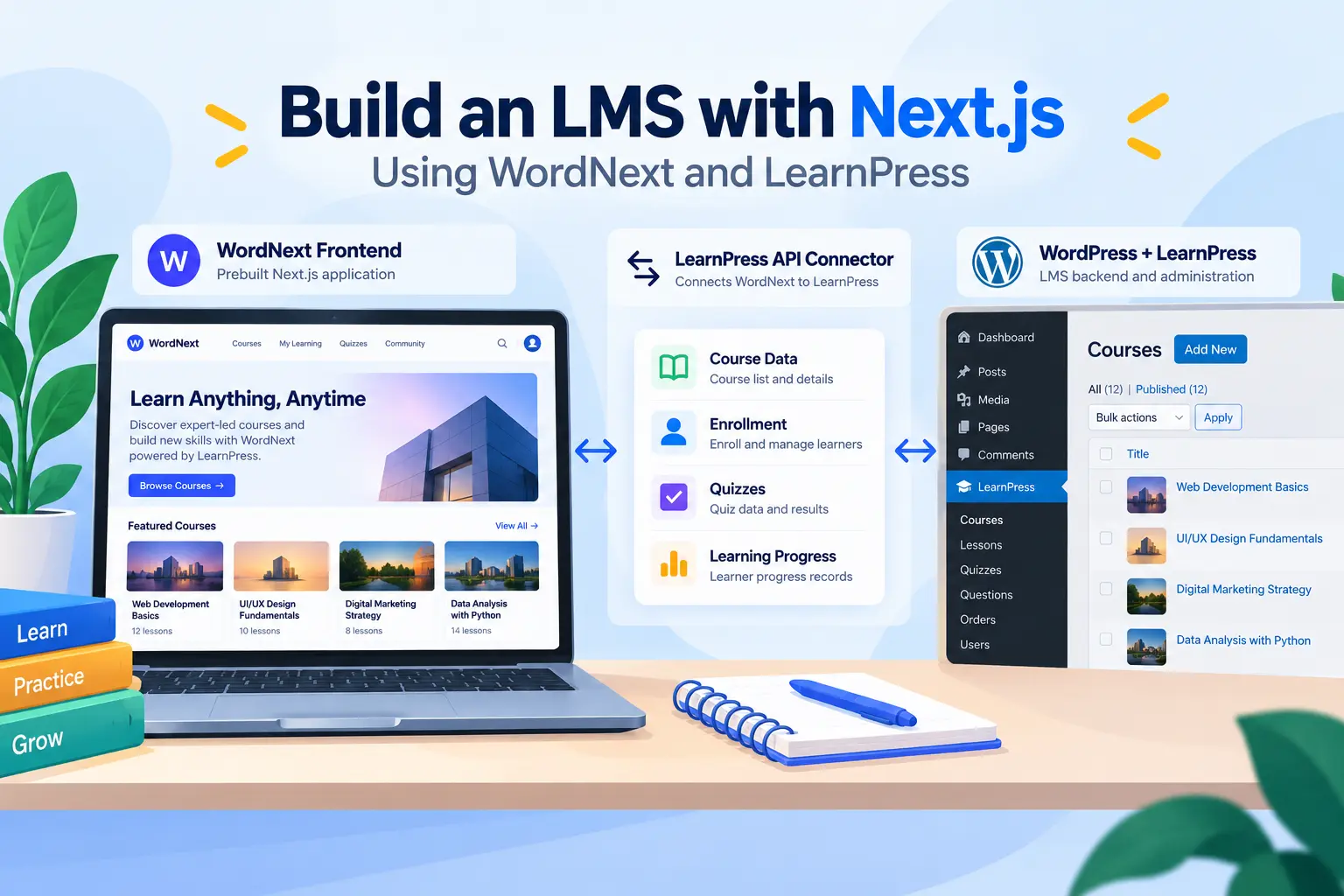
LearnPress is a free WordPress LMS plugin from ThimPress. After you activate it, a LearnPress menu appears in the dashboard with sections for courses, lessons, quizzes, and questions. It also creates the basic pages students need, such as the course archive, checkout, and profile.
This makes LearnPress a good fit if you want to build a full course site without writing code. Add-ons extend it with features such as certificates, assignments, student lists, and payment gateway support. Check the add-on page for the version you are using, since availability can differ between free and paid add-ons.
Step 3: Pick an education theme
Your theme controls how the course catalog and lesson pages look. Eduma is an education theme by ThimPress built to work with LearnPress. It includes ready-made demo layouts for online academies, universities, and course marketplaces, and it works with Elementor so you can adjust pages visually. It is a practical option if you want a polished design without hiring a developer. If you already have a theme you like, LearnPress can still work with it, though you will spend more time on styling the course pages.
Step 4: Build your first course
Go to LearnPress > Courses > Add New. Add a title, description, and featured image. Then open the Curriculum tab, create a section, and add lessons and quizzes inside it. Set the course price, duration, and difficulty level. Preview the course as a student before you publish it, because layout problems are easier to catch from the learner side.
Step 5: Set up payments and enrollment rules
Open the LearnPress settings and choose a payment method. For more checkout options, such as coupons or subscriptions, connect WooCommerce or a membership plugin. Decide whether students enroll manually, by purchase, or by invitation.
Step 6: Test, launch, and review
Create a test student account and complete a full course: enroll, watch lessons, take the quiz, and finish. Check the mobile view, since many learners study on phones. After launch, review your reports weekly and update weak lessons.
How to choose the right LMS
The best LMS is the one that fits your audience, your budget, and your technical comfort. Use the questions below to narrow your options before you start a trial.
- What will you teach, and to whom? A corporate compliance program needs reporting. A paid course needs strong checkout tools.
- How many learners do you expect? Per-learner pricing on some hosted products can grow quickly.
- Do you need custom design? If branding matters, choose a system that lets you change layouts freely.
- Which tools must connect? List your email service, payment gateway, and video host, then confirm the LMS supports them.
- Who will maintain it? Self-hosted systems need someone to run updates and backups.
Always test with a pilot course before you move all your content. Most vendors and plugins let you try the basics for free.
FAQs
Can WordPress work as a learning management system?
Yes. WordPress becomes an LMS when you add a plugin such as LearnPress, which adds courses, lessons, quizzes, and student profiles to your site. Pair it with an education theme like Eduma to get a ready-made course layout. Check that your hosting meets the plugin’s PHP and memory requirements.
What is the difference between an LMS and an LXP?
An LMS is built around administration: assigning courses, tracking completion, and reporting. A learning experience platform (LXP) focuses on content discovery and personalized recommendations, similar to a streaming service. Many organizations use an LMS as the core system and add LXP features only when they have large content libraries.
How much does an LMS cost?
Costs range widely. Hosted products charge a recurring fee that often depends on user count, while a WordPress LMS has a free core plugin and separate costs for hosting, premium add-ons, and themes. Compare the total cost over 12 months, not just the first month.
Do I need coding skills to set up an LMS?
No, not for a standard course site. Plugin-based systems use visual editors and dashboard settings, so most creators can build and launch without writing code. You only need a developer for custom integrations or unusual features.
Conclusion
The learning management system definition is simple: software that helps you create courses, enroll learners, track progress, and report results. Once you understand the meaning of learning management system tools, the rest comes down to choosing a setup that fits you. SAAS LMS platforms suit teams that want speed and zero maintenance. A WordPress LMS suits creators and schools that want control, design freedom, and open integrations.
If you want to build your own, start small. Install LearnPress, choose a theme such as Eduma, publish one course, and test the full student journey. Then improve the workflow based on real learner data. A clear plan, a tested course, and steady updates will do more for your results than any single feature.
Read more: Tuition Management Systems: A Practical Guide for Schools and Tutoring Centers