A gradebook online is a web-based tool where teachers record scores, calculate final grades, and share progress with students and parents. If you still track marks in a paper register or a messy spreadsheet, online grading can save you hours every term.
This guide explains what to look for, compares the main options in a table, and shows how to set up a gradebook inside WordPress with LearnPress.
LearnPress – WordPress LMS Plugin
We provide an amazing WordPress LMS plugin to create & sell online courses. Let’s find out!
Try NowWhat is a gradebook online?
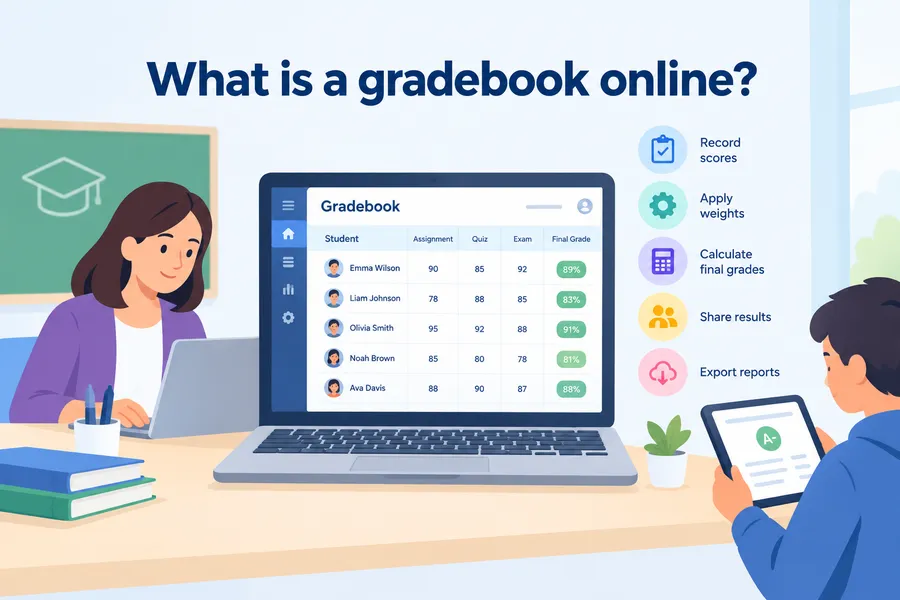
A gradebook online replaces the paper register with a secure web page where you enter marks once and let the system do the math. Here is what that means in practice and who benefits most.
Definition and core functions
A gradebook online is a web-based system that stores student scores, applies grading rules, and produces final grades and reports automatically. Teachers log in from a laptop, tablet, or phone, enter marks for each assignment, and the totals update straight away. Most tools also let students and parents view results through their own accounts.
The core functions are simple:
- Record scores for tests, quizzes, homework, and projects
- Apply weights, such as 40% for exams and 20% for homework
- Calculate averages and final grades
- Show progress to students, parents, and administrators
- Export data for report cards and school records
Who uses it
Classroom teachers, private tutors, university lecturers, and online course creators all use these tools. School teachers usually need class lists, term reports, and parent access. Course creators who sell lessons on their own website need grades tied to quizzes and assignments inside a learning platform, which is a different workflow. Knowing which group you belong to makes the choice much easier.
Why teachers are moving to online grading
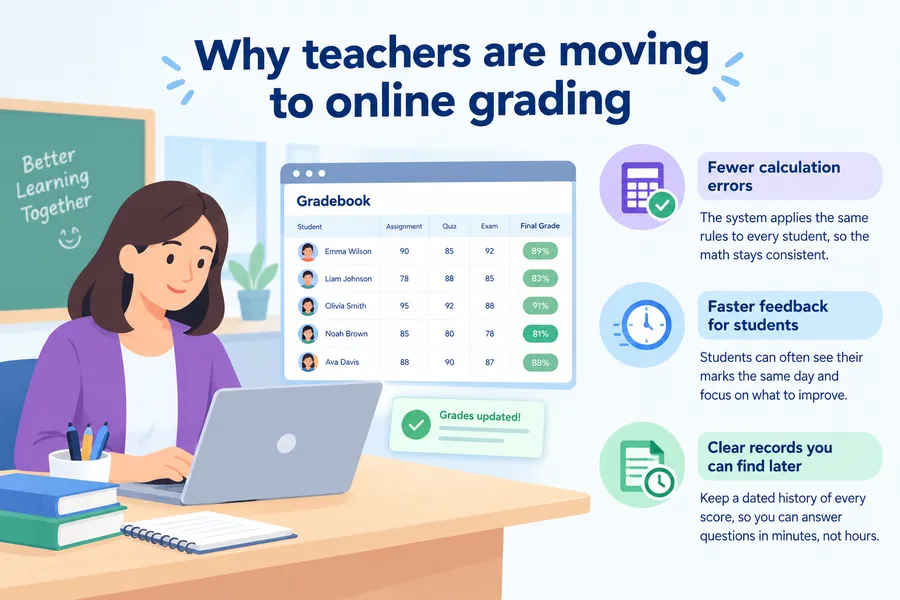
Online grading has become the default in many schools because it removes repetitive work and gives students faster feedback. The benefits fall into three areas.
Fewer calculation errors
Weighted averages are easy to get wrong by hand. One wrong formula in a spreadsheet can change a student’s final result without anyone noticing. Good gradebook software applies the same rule to every student, so the math stays consistent from the first assignment to the last.
Faster feedback for students
When you enter a mark, students can often see it the same day. That helps them spot weak areas while there is still time to improve. It also cuts down on the “what did I get?” questions that fill the first ten minutes of a lesson.
Clear records you can find later
Paper registers get lost, and old spreadsheets get buried in shared drives. An online gradebook keeps a dated history of every score. If a parent or school leader asks why a grade changed, you can answer in a minute instead of searching through files.
Key features to look for in gradebook software
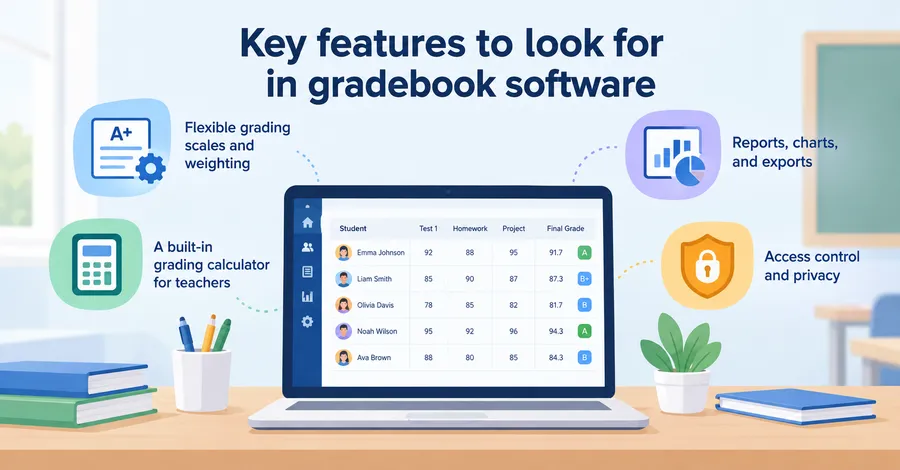
Not every tool fits every classroom, so check features before you commit. These are the ones that matter most when you compare gradebook software.
Flexible grading scales and weighting
Your tool should support the scale your school uses, whether that is percentages, letter grades, a 4.0 scale, or pass and fail. It should also let you weight categories and drop the lowest score if your policy allows it. If you cannot match your school’s rules, you will end up doing the math outside the tool anyway.
A built-in grading calculator for teachers
A grading calculator for teachers turns raw scores into final grades without a separate formula. Look for one that shows how each assignment affects the total. This helps you explain a result to a parent and lets students see what score they need on the next test to reach a target grade.
Reports, charts, and exports
Good teacher gradebook online tools give you class reports, individual progress views, and charts. Check that you can export to CSV or PDF. Exports matter at the end of the term, when grades often have to move into a school information system or a report card template.
Access control and privacy
Student grades are sensitive data. Pick a tool that lets you control who sees what, so a student sees only their own marks and a parent sees only their own child. If your school is covered by student privacy rules such as FERPA in the United States or GDPR in the European Union, confirm that the provider supports those requirements before you upload any real data.
Types of online gradebook programs compared
Online gradebook programs fall into four broad groups. The table below compares them on use case, setup effort, cost pattern, and main limit. Prices change often, so check each provider’s current plans before you decide.
| Type | Best for | Setup effort | Cost pattern | Main limit |
|---|---|---|---|---|
| Spreadsheet (Google Sheets, Excel) | Single teachers with small classes | Low, but you build the formulas | Free or low cost | Manual work, easy to break formulas, no built-in student access |
| Standalone school gradebook software | Schools that need class lists, parent portals, and report cards | Medium to high, often needs admin support | Usually per student or per school license | Less suited to self-paced online courses |
| Gradebook inside a general learning management system | Schools already using that system for lessons | Medium | Often bundled with the platform | You are tied to that platform’s grading rules |
| WordPress LMS gradebook add-on (for example, LearnPress GradeBook) | Course creators, academies, and training sites on WordPress | Medium, you install and configure it | Plugin license, plus hosting | Needs a WordPress site and basic site management |
The right row depends on where your teaching happens. A classroom teacher with 30 students and a school-managed system rarely needs WordPress. A tutor or academy that runs lessons on its own website often does.
How to choose grading programs for teachers
Choosing among grading programs for teachers is easier when you work through a short checklist. Follow these steps in order.
- Define where you teach. In-person classes, online courses, or a mix. This decides whether you need a school system or a course platform.
- List your grading rules. Write down the scale, the category weights, and any late-work policy. Test every tool against that list.
- Check who needs access. Decide whether students, parents, or co-teachers must see grades, and how much each can see.
- Test with a small class first. Enter a few assignments, check that the final grade matches your own calculation, and try an export.
- Review support and updates. Look for recent updates, clear documentation, and a working support channel. A tool that is not maintained can become a risk.
Here is a practical tip from how teachers usually run trials: pick one real class and enter one full unit of marks, not dummy data. Problems with weighting and rounding show up quickly with real numbers.
Using a gradebook online with WordPress and LearnPress
If you run courses on a WordPress site, you can keep grading in the same place as your lessons. LearnPress is a free WordPress LMS plugin, and it has a premium GradeBook add-on built for this job. This section is based on the add-on documentation, last updated in October 2025, so menus may look slightly different in newer versions.
What the GradeBook add-on does
The GradeBook add-on gives you a central place to see how learners are doing across your courses. The official documentation covers downloading and installing the add-on, its advantages, settings, a front-end gradebook, a recent activity view, and a student overview. In short, it works as online gradebook software that sits inside your LMS, so you do not need to copy scores between systems.
For teachers who already deliver quizzes and assignments through LearnPress, this removes a common pain point. Scores come from the course itself, and you review them in one dashboard.
How to check a student’s results
The Student Overview screen is the quickest way to see an individual learner’s progress. Here is the workflow from the documentation:
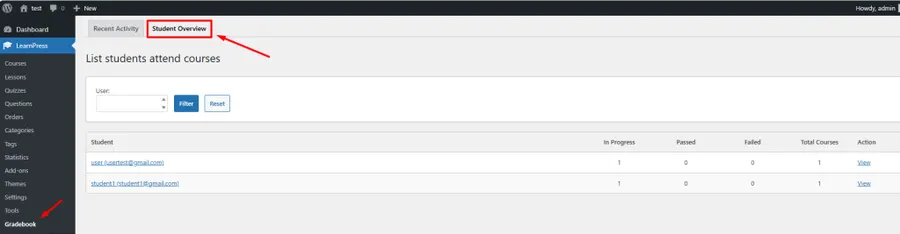
- In your WordPress dashboard, go to LearnPress > Gradebook > Student Overview.
- Find the learner in the list and click View. You will see the courses that user is enrolled in.
- Click a course to open the score results for that course.
- Use View Chart for a visual summary of the learner’s enrolled courses.
- Use Export CSV if you need the data in a spreadsheet.
One detail to know before you rely on the export: according to the documentation, the CSV file includes only the course name, start date, end date, progress, and status. If you need every individual assignment score in a spreadsheet, check the on-screen course results and plan your reporting around that limit. Being clear about this early saves frustration at the end of a term.
Pairing the add-on with an education theme
A gradebook is only one part of a course website. Your learners also need a clean course catalog, readable lessons, and a smooth login. Eduma, the premium education theme from ThimPress, is built to work with LearnPress and is listed on the LearnPress website with more than 38 demo layouts. If you prefer to start without a license fee, EduPress is a free theme from the same team. Either one gives you a ready-made site structure, so you can spend your time on lessons and grading rather than on design.
If you are not running a WordPress site, you can skip this option and use the comparison table above to pick a school system or spreadsheet instead.
Tips for better online grading
A good tool does not fix a messy grading process. These habits make any gradebook online more useful.
- Keep categories simple. Three to five categories, such as homework, quizzes, projects, and exams, are easier to explain than ten. Students trust a system they understand.
- Publish your grading policy first. Share weights and late-work rules before the first assignment. Disputes drop when the rules are clear from day one.
- Enter grades on a schedule. Set a fixed time each week, for example Friday afternoon. Students then know when to expect updates, and you avoid a backlog at the end of the term.
- Back up your data. Export your records at the end of each term, even if the platform stores them for you. A CSV file on your own drive is a simple safety net.
- Review before you publish. Scan for blank cells and extreme outliers. A missing score can drag down an average and cause unnecessary worry for a student.
- Use comments, not just numbers. A short note such as “Strong argument, work on citations” helps a student improve far more than a score alone.
FAQs about the gradebook online
Can I import existing grades from a spreadsheet into an online gradebook?
Many tools allow CSV import, but support varies by product. Prepare your file with one row per student and one column per assignment, then run a test import with a small sample. If a tool has no import option, you may need to enter the data by hand for the first term.
How much do online gradebook programs cost?
Costs range from free spreadsheet templates to paid licenses charged per student, per school, or per site. Some learning platforms include grading in the base price, while plugins such as the LearnPress GradeBook add-on are sold as a separate license. Always check the provider’s current pricing page, because plans change.
Can parents see grades in a gradebook online?
Yes, if the tool includes parent accounts or a shared view. Standalone school systems usually offer parent portals as a core feature. On a course platform such as WordPress with LearnPress, learners view their own progress, so check what access options fit your situation before you promise parents a login.
Do I need coding skills to set up a gradebook on WordPress?
No. Installing a plugin or add-on follows the same steps as any other WordPress plugin: upload it, activate it, and adjust the settings. You only need basic site management skills, such as managing users and updating plugins. Keep regular backups and test updates on a staging copy first.
Can an online gradebook calculate weighted grades?
Yes. Many online gradebook tools can apply different weights to assignments, quizzes, projects, and exams. For example, you can assign 40% to exams and 20% to homework, then let the system calculate the overall grade automatically. Check that the tool supports your school’s specific grading rules before using it.
Is an online gradebook suitable for online courses?
Yes. An online gradebook can work well for online courses when grades need to connect with quizzes, assignments, and learner progress. An LMS such as LearnPress can keep course content and grading in the same WordPress site, reducing the need to move scores between separate systems.
Conclusion
The best gradebook online is the one that matches your grading rules, your class size, and the place where you teach. Spreadsheets work for small groups, school systems suit full classrooms with parent access, and LMS add-ons suit course creators who want scores and lessons in one place. Compare the options in the table, test any tool with a real unit of marks, and confirm how it handles privacy and exports.
If you teach online through WordPress, try LearnPress with the GradeBook add-on and a theme such as Eduma. It keeps online grading next to your lessons, so you spend less time moving data and more time helping learners improve.
Read more: Elearning Authoring: Tools, Features and How to Choose