Elearning authoring is the process of building online courses, quizzes and simulations with software that needs little or no coding. If your team is trying to pick between dozens of tools, the choice affects how fast you publish, how learners feel about the course and how easily you can update it later.
This guide explains what authoring involves, compares the main tools and shows how to get the finished content onto your own WordPress site.
LearnPress – WordPress LMS Plugin
We provide an amazing WordPress LMS plugin to create & sell online courses. Let’s find out!
Try NowWhat is elearning authoring?
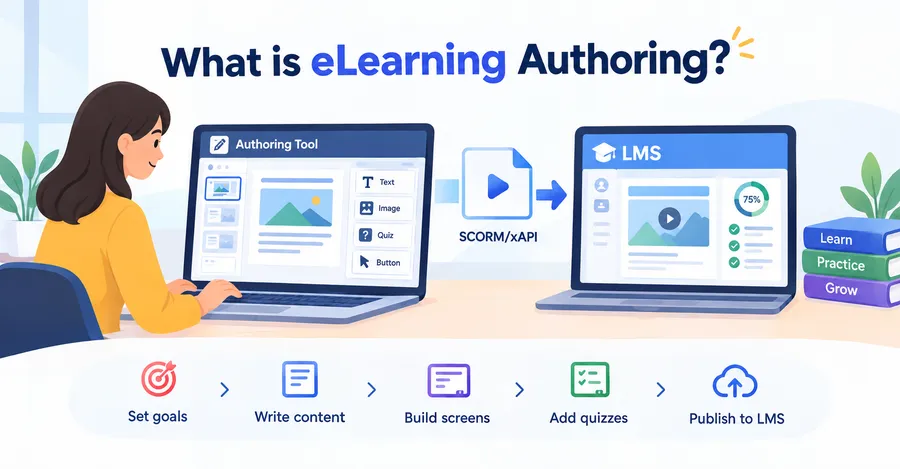
Elearning authoring means creating digital learning content in a tool built for that purpose, then exporting it so a learning platform can deliver and track it. The output can be a short micro-lesson, a full compliance course or a scenario-based simulation.
Most projects follow the same path: plan the learning goals, write the content, build the screens, add quizzes and test the package. Then you publish it to a learning management system (LMS).
Who uses authoring tools
Instructional designers use them daily, but they are no longer the only audience. HR teams, subject matter experts, trainers and small business owners now build courses themselves. Modern tools use templates and drag-and-drop editors, so you do not need a developer for a standard course.
Authoring tools versus an LMS
An authoring tool creates the content. An LMS hosts it, enrolls learners and records progress. Confusing the two is a common mistake for first-time buyers. You usually need both, and they must speak the same technical language, such as SCORM or xAPI.
Types of e learning authoring software
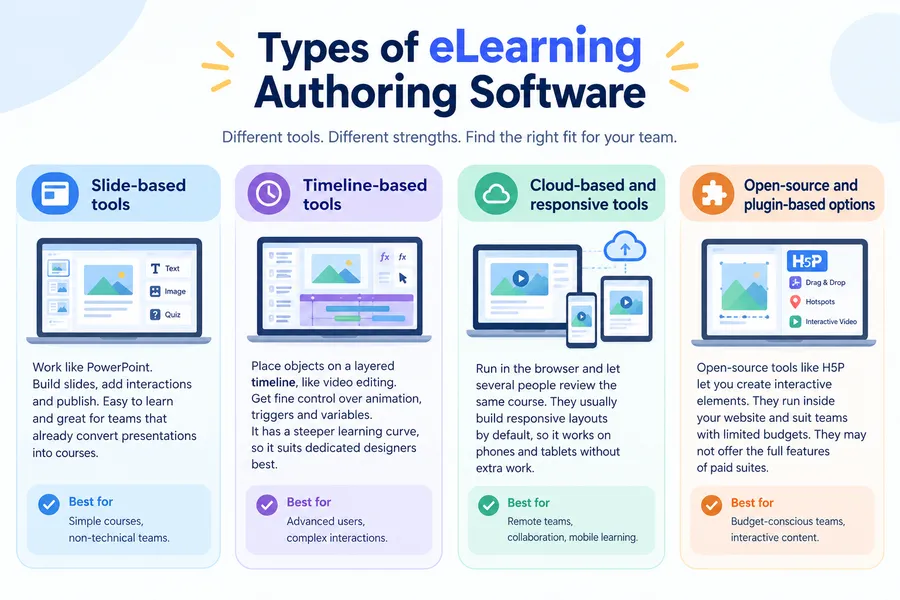
E learning authoring software falls into a few clear groups, and each suits a different team size and skill level. Knowing the groups helps you cut a long list down to a short one quickly.
Slide-based tools
These tools work like PowerPoint. You build slides, add interactions and publish. They are easy to learn and suit teams that already convert presentations into courses. The trade-off is that layouts can feel rigid when you want complex branching.
Timeline-based tools
Timeline tools let you place objects on a layered timeline, similar to video editing. They give you fine control over animation, triggers and variables. That power comes with a steeper learning curve, so they suit dedicated instructional designers better than occasional builders.
Cloud-based and responsive tools
Cloud tools run in the browser and let several people review the same course. They usually build responsive layouts by default, so a course adapts to phones and tablets without extra work. Teams that collaborate across locations often prefer them.
Open-source and plugin-based options
Open-source tools such as H5P let you create interactive elements like drag-and-drop tasks, image hotspots and interactive video. Because they run inside your website, they suit teams with limited budgets. They may not offer the full course-building features of paid suites.
Features to look for in elearning development tools
Good elearning development tools save time on repetitive work and give learners a smooth experience. Before you trial any product, decide which features are essential and which are nice to have.
Standards support
Check which export formats the tool supports. SCORM is the most common standard, and xAPI records learning activity beyond the LMS, such as mobile use or offline practice. The cmi5 standard combines the reliability of SCORM with the flexibility of xAPI. If your LMS does not support the format your tool exports, your course will not report results.
Responsive output
Learners open courses on laptops, tablets and phones. Look for tools that preview your course at several screen sizes and reflow content on their own. Test on a real phone before you commit, because emulators do not always show touch problems.
Templates and asset libraries
Ready-made templates, character images and icon sets shorten build time. They also keep a consistent look across a course library. Check that the licenses allow commercial use.
Quiz and assessment options
Basic tools offer multiple choice and true or false questions. Stronger ones add drag-and-drop, hotspots, fill-in-the-blank and question banks that shuffle. Look for scoring controls, such as passing marks and limited attempts.
Accessibility
Accessible courses work with screen readers, keyboard navigation and captions. Look for support for the Web Content Accessibility Guidelines (WCAG) from the W3C. Accessibility also matters for legal compliance in many regions, so ask vendors for their accessibility statement.
Review and collaboration
Course review often causes the longest delays. Tools with built-in commenting let reviewers leave notes on a specific screen, which cuts long email chains.
Comparison of popular elearning content authoring tools
The table below compares elearning content authoring tools that teams often shortlist. Features and plans change often, so confirm details on each vendor’s website before you buy.
| Tool | Type | Best for | Common export options | Learning curve |
|---|---|---|---|---|
| Articulate 360 (Storyline and Rise) | Desktop and cloud suite | Teams that need both custom interactions and fast responsive courses | SCORM, xAPI, cmi5 | Moderate |
| Adobe Captivate | Desktop | Software simulations and detailed screen recordings | SCORM, xAPI, AICC | Moderate to steep |
| iSpring Suite | PowerPoint add-in | Teams that already build in PowerPoint | SCORM, xAPI, cmi5 | Easy |
| Elucidat | Cloud | Large teams that produce content at scale | SCORM, xAPI | Moderate |
| H5P | Open-source plugin | Interactive activities inside a WordPress site | Runs inside the site; xAPI statements available | Easy |
How to read the table
No single tool wins on every row. Articulate 360 and Captivate give you depth, iSpring gives you speed, Elucidat gives you collaboration and H5P gives you low cost. Match the tool to your team, not to a feature count.
Run a real pilot
Feature lists hide daily friction. Build one real lesson in each shortlisted tool, publish it to your LMS and check that scores report correctly. A two-hour pilot often shows problems that a demo never will, such as a slow preview or an export that breaks your quiz logic.
Building corporate e learning that people finish
Corporate e learning succeeds when it is short, relevant and tied to a real job task. Long, text-heavy modules create low completion rates, no matter how good the authoring tool is.
Start with a business goal
Ask what people should do differently after the course. A goal such as “reduce data-entry errors in the order system” is easier to design for than “improve knowledge of the system.” Write the goal down first, then build only the content that supports it.
Split long topics into short lessons
Break a one-hour course into lessons of five to ten minutes. Employees can finish them between tasks, and you can update one lesson without rebuilding the rest. Microlearning also makes it easier to reuse lessons across different roles.
Use real scenarios
Replace abstract rules with situations your staff meet at work. A customer service course, for example, can show a frustrated caller and let the learner pick a response. Feedback after each choice explains why an answer works or fails.
Track results that matter
Completion alone says little. Use quiz scores, scenario choices and later performance data to see whether training changes behavior. The Kirkpatrick model, which measures reaction, learning, behavior and results, offers a simple framework for planning this.
Designing interactive training that works
Interactive training keeps learners active instead of asking them to click “next” repeatedly. The goal is not to add animation everywhere but to make learners think and decide.
Choose interactions with a purpose
Every interaction should support a learning goal. Use drag-and-drop to teach sequences, hotspots to teach parts of a machine or screen, and branching scenarios to practice decisions. If an interaction does not teach anything, remove it.
Give instant, specific feedback
Learners improve faster when feedback appears right after an action. Say what was right or wrong and point to the rule behind it. “Incorrect” alone teaches nothing.
Keep cognitive load low
Show one idea per screen, use plain language and limit on-screen text. Pair short text with a relevant image or diagram. Narration should add to the screen, not read it word for word.
Test with real learners
Ask three to five people from the target group to try the course before launch. Watch where they hesitate. Small fixes, such as clearer button labels, often lift completion more than large redesigns.
How to publish authored courses on WordPress
If you run your training on WordPress, you can build courses in your authoring tool and deliver them through a learning plugin. This gives you control over branding, pricing and student data without paying per-user fees to a hosted platform.
Use an LMS plugin for structure
LearnPress is a free WordPress LMS plugin from ThimPress that handles courses, lessons, quizzes, enrollment and student progress. You can create lessons directly in the WordPress editor, and use add-ons for features such as certificates, prerequisites and payments. Interactive H5P activities can be added through the H5P plugin and embedded in lessons.
For most small and mid-size training programs, this setup is enough. Use your authoring tool for complex interactions, embed the result in a lesson and let the LMS handle enrollment and reporting.
Pick a theme built for learning
The theme controls how your course catalog and lesson pages look. Eduma is a ThimPress education theme designed to work with LearnPress. It includes course layouts, instructor profiles and page templates, so you spend less time on design and more on content. If you use a child theme for changes, your customizations survive theme updates.
Steps to publish a course
- Install and activate LearnPress under Plugins > Add New.
- Create a course under LearnPress > Courses and add sections and lessons.
- Embed your authored content, or add a quiz using the built-in quiz builder.
- Set the course price, access rules and completion conditions.
- Preview the course as a student and check it on a phone.
Check compatibility before you commit
If your course uses SCORM or xAPI reporting, confirm that your LMS or add-on supports the format. Native LearnPress lessons and quizzes work without SCORM, but packaged SCORM files need extra support. Test one package on a staging site first. This walkthrough reflects current plugin behavior, and menu names or add-ons may differ in newer releases.
How to choose the right tool
The right tool depends on who builds the courses, how often they change and where they are delivered. A simple decision process prevents an expensive mistake.
Step 1: define your team and volume
A solo trainer building four courses a year needs a different tool from a team producing fifty. High volume favors cloud collaboration and templates. Low volume favors ease of use and low cost.
Step 2: confirm LMS compatibility
List the export formats your LMS accepts. Remove any tool that does not match. This single check removes many options early.
Step 3: count the total cost
Include licenses, training time, asset libraries, review seats and future renewals. A cheaper tool that takes twice as long to use can cost more in staff hours.
Step 4: plan for updates
Courses go out of date. Choose a tool that lets you edit a single screen and republish quickly. Ask how the vendor handles source file access if you ever switch tools.
FAQs about the best eLearning authoring tools
Do I need coding skills to use an authoring tool?
No, most modern tools are built for non-programmers. You work with templates, menus and drag-and-drop editors. Coding knowledge helps with advanced customization, such as JavaScript triggers, but it is optional for standard courses.
What is the difference between SCORM and xAPI?
SCORM is an older standard that tracks activity inside an LMS, mainly completion and scores. xAPI records a wider range of learning activity and can store data in a separate learning record store. Choose xAPI if you need to track learning outside the LMS.
How long does it take to build one hour of elearning?
It varies widely with content complexity, media and review cycles. Simple slide-based lessons take far less time than simulations with branching and custom video. Track your own build hours on the first two courses, then use that data to plan future projects.
Can I create a course for free?
Yes, you can. Open-source tools such as H5P and free LMS plugins let you build and host a course without license fees. You will still spend time on design, testing and hosting costs, so free software rarely means a free project.
Conclusion
Elearning authoring gets easier once you split the decision into small parts: your team, your LMS, your content type and your budget. Start with a short list, run a small pilot with a real lesson and check that your reports work before you buy. Then build short, practical courses that solve one problem at a time.
If you host your training on WordPress, pair your chosen tool with LearnPress for course management and consider Eduma for a ready-made education layout. Whichever tools you pick, keep the learner’s task at the center, and your training will be easier to build and more useful to finish.