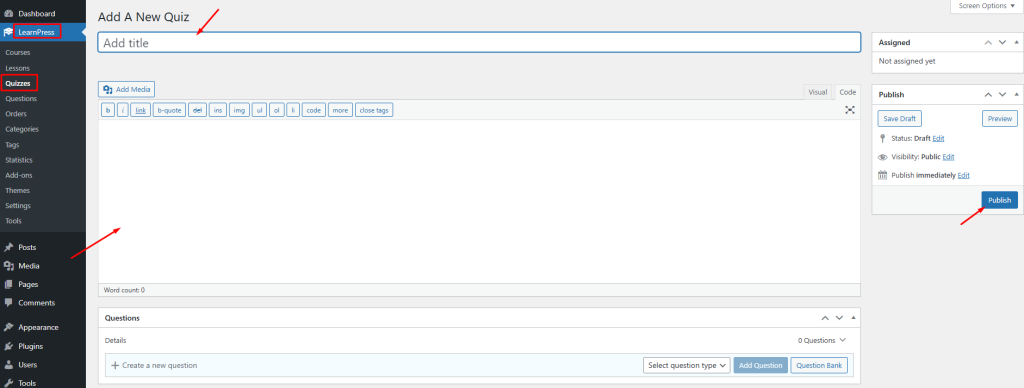
In this section, we will guide you on how to create a quiz and configure quizzes settings.
1. Create a quiz
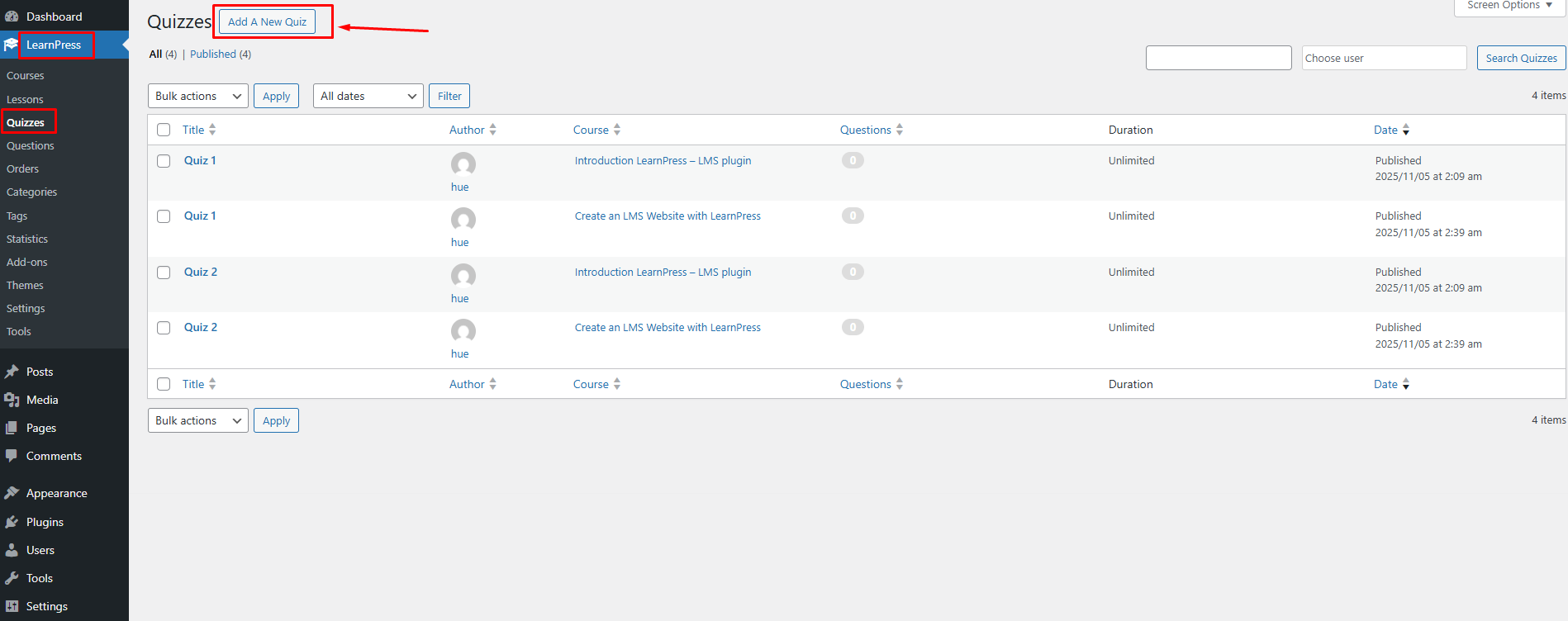
To create a new quiz, you can go to your Dashboard => LearnPress => Quiz => Add A New Quiz. You can see in below picture.
2. Quiz Settings
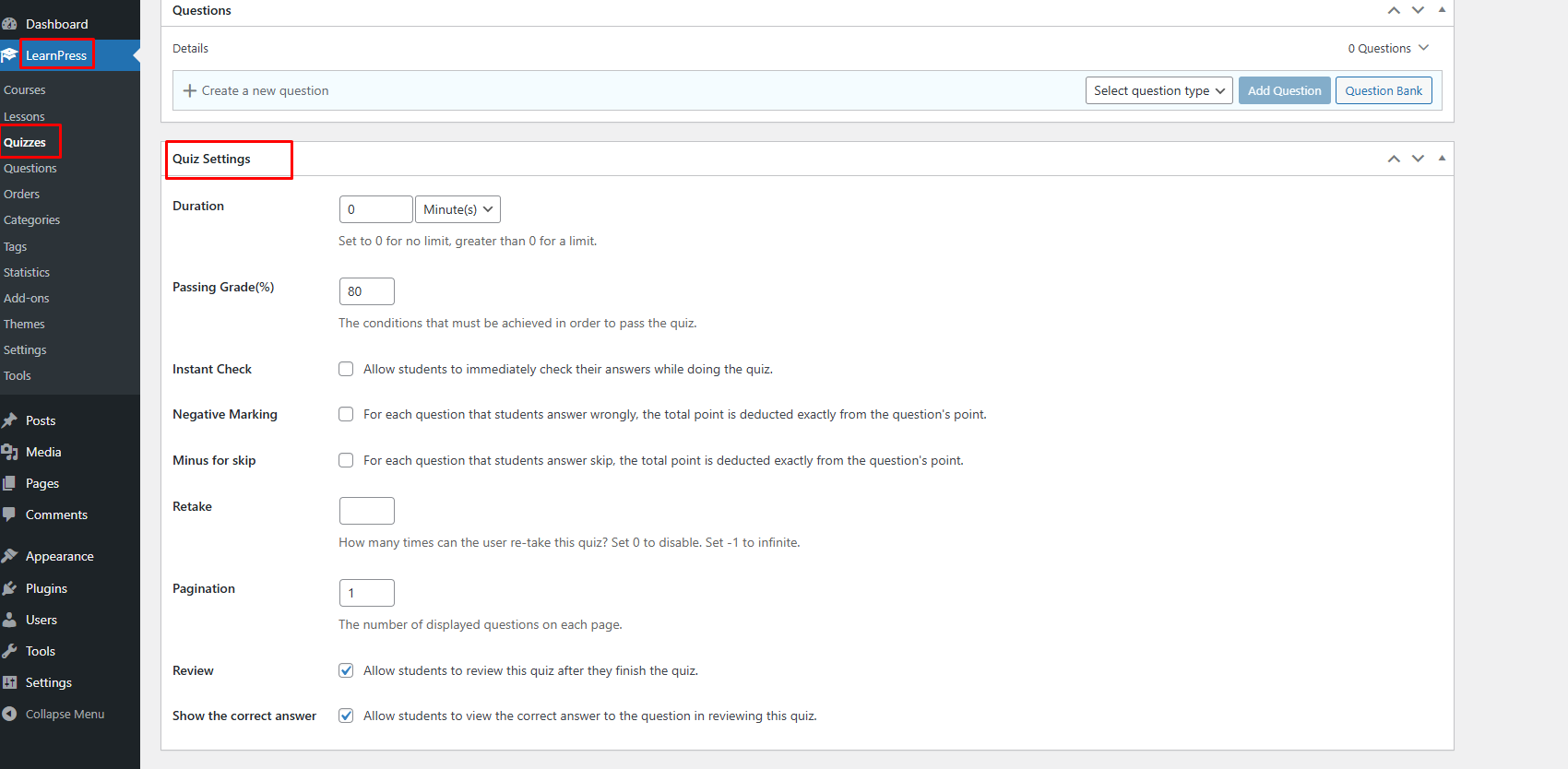
We allow you to set many options for the quiz, you can see in the below picture.
You should pay attention to the “Duration”, “Show correct answer”, “Minus point”, “Passing Grade” and “Re-take”.
3. Quiz types
With LearnPress, we support True/False questions, single choice questions, multiple-choice questions, Fill in Blank.
You can start creating questions in the ‘Create a new question‘ box. After entering the question, you need to select ‘Select question type‘ to choose the type of question you want. After selecting, click ‘ Add question‘ to add a question.

3.1. True/False questions
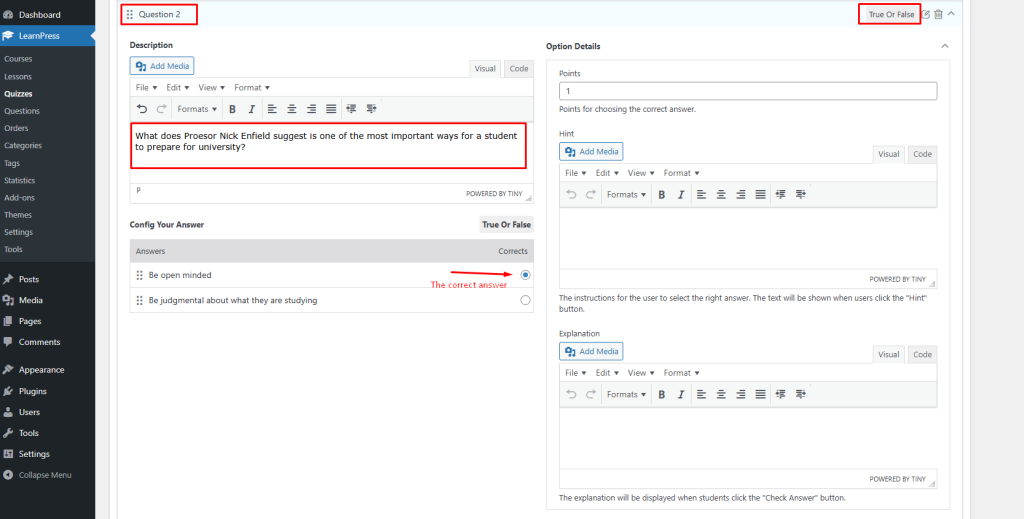
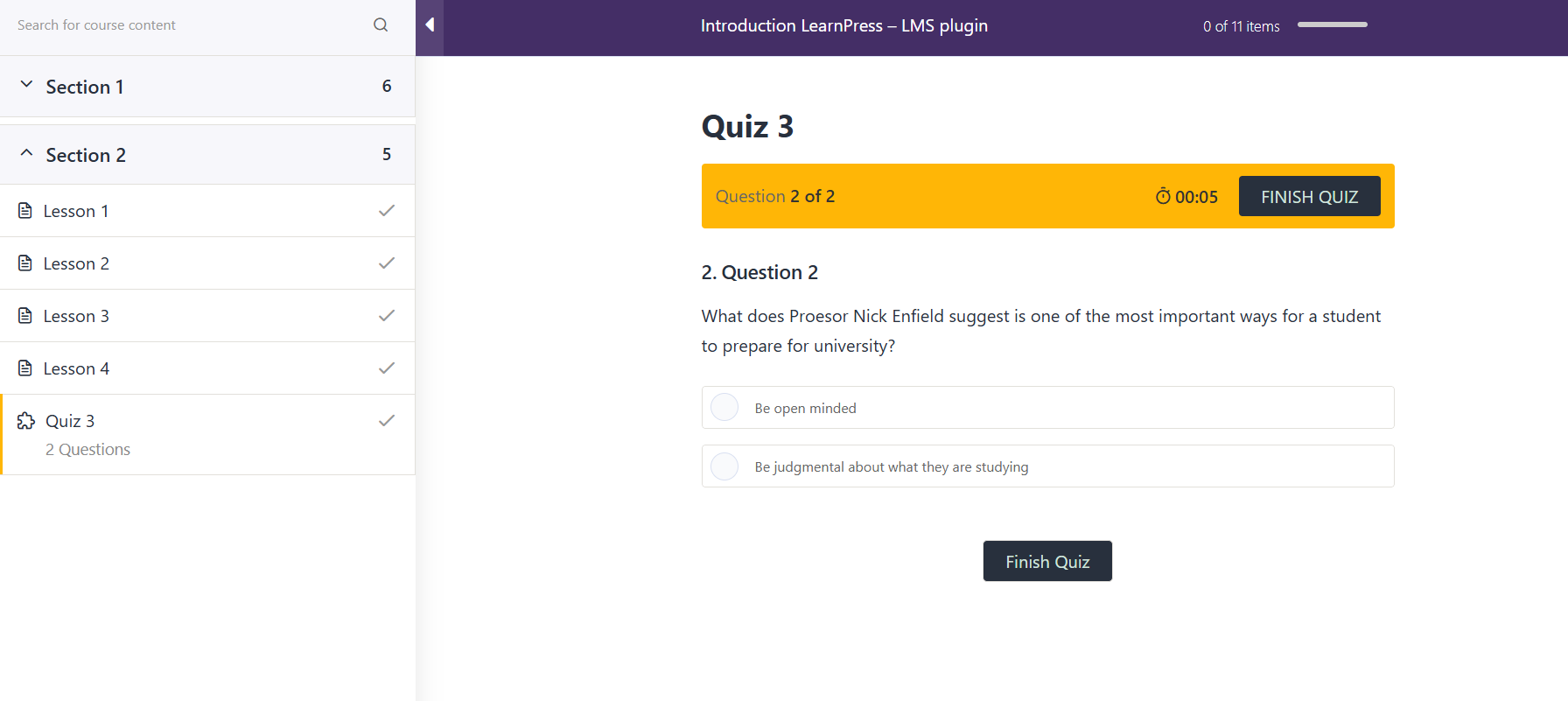
In the True/False question, you need to put question name, question content, choose the correct answer.
– Description
- This is where you enter questions for students.
- You can format text (bold, italic, lists, margins…) or switch to Code mode to edit HTML directly.
- The Add Media button allows you to insert images, videos, or audio into your question.
– Config Your Answer
This is the part where you set up the answer to the question.
- Here, the question type is True or False (but it is actually multiple choice).
- There are two answers entered:
- For example:
- Be open minded ✅ (selected as the correct answer)
- Be judgmental about what they are studying
- You can add, delete, or rearrange the order of the answers.
- The Corrects column marks which answer is correct.
– Option Details
a. Points
- This box allows you to enter the number of points the student receives if they answer correctly (here 1 point).
b. Hint
- You can enter suggestions for learners.
- When taking the quiz, if hints are turned on, students can click “Hint” to see this section.
c. Explanation
- This section displays the explanation after the learner answers (correct or incorrect).
- You can use it to explain why the answer is correct, helping students understand better.
3.2. Single choice
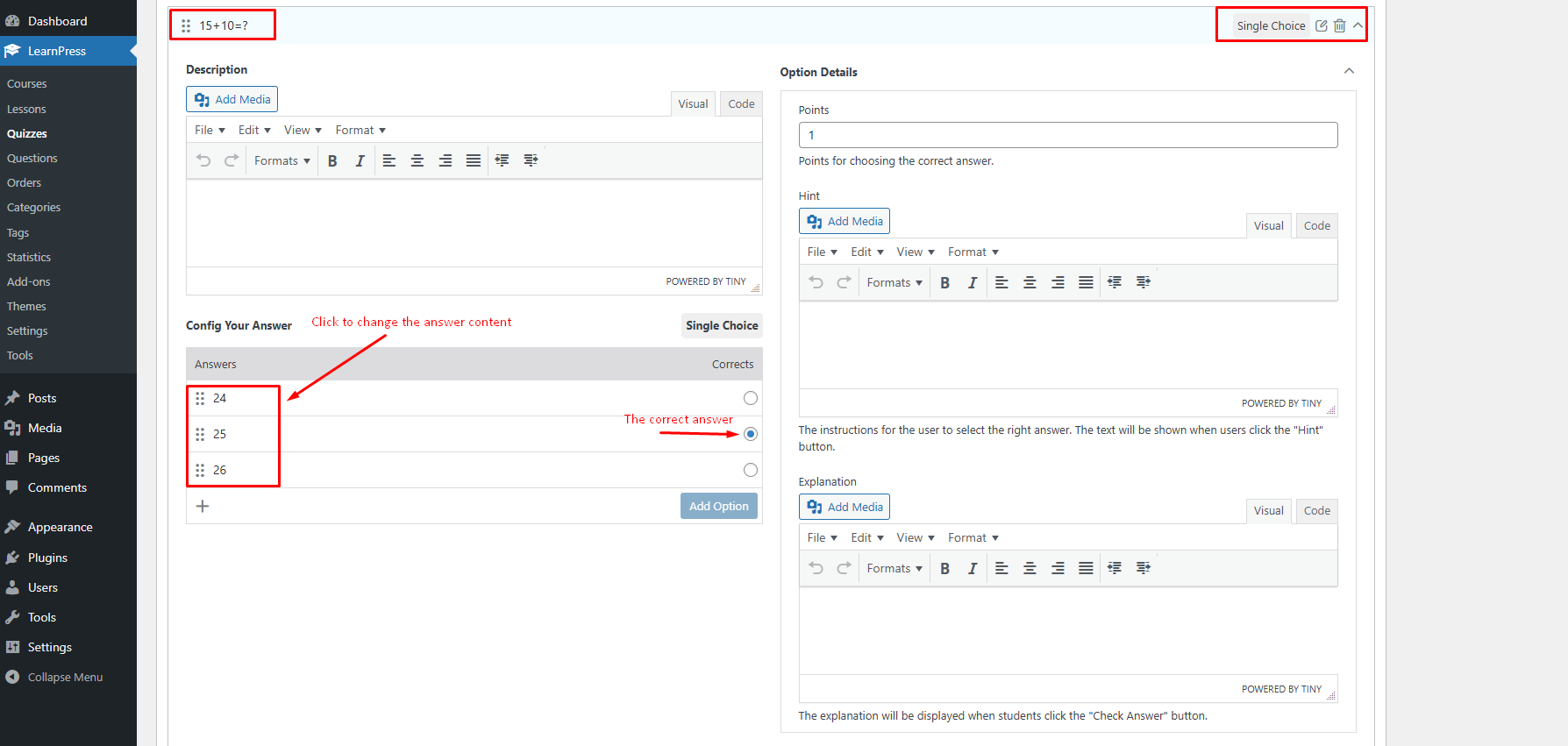
To create a single choice question, you need to enter the options and choose the correct answer, you can add more options by click “Add option” bottom. You can see the picture below.
3.3. Multiple-choice questions
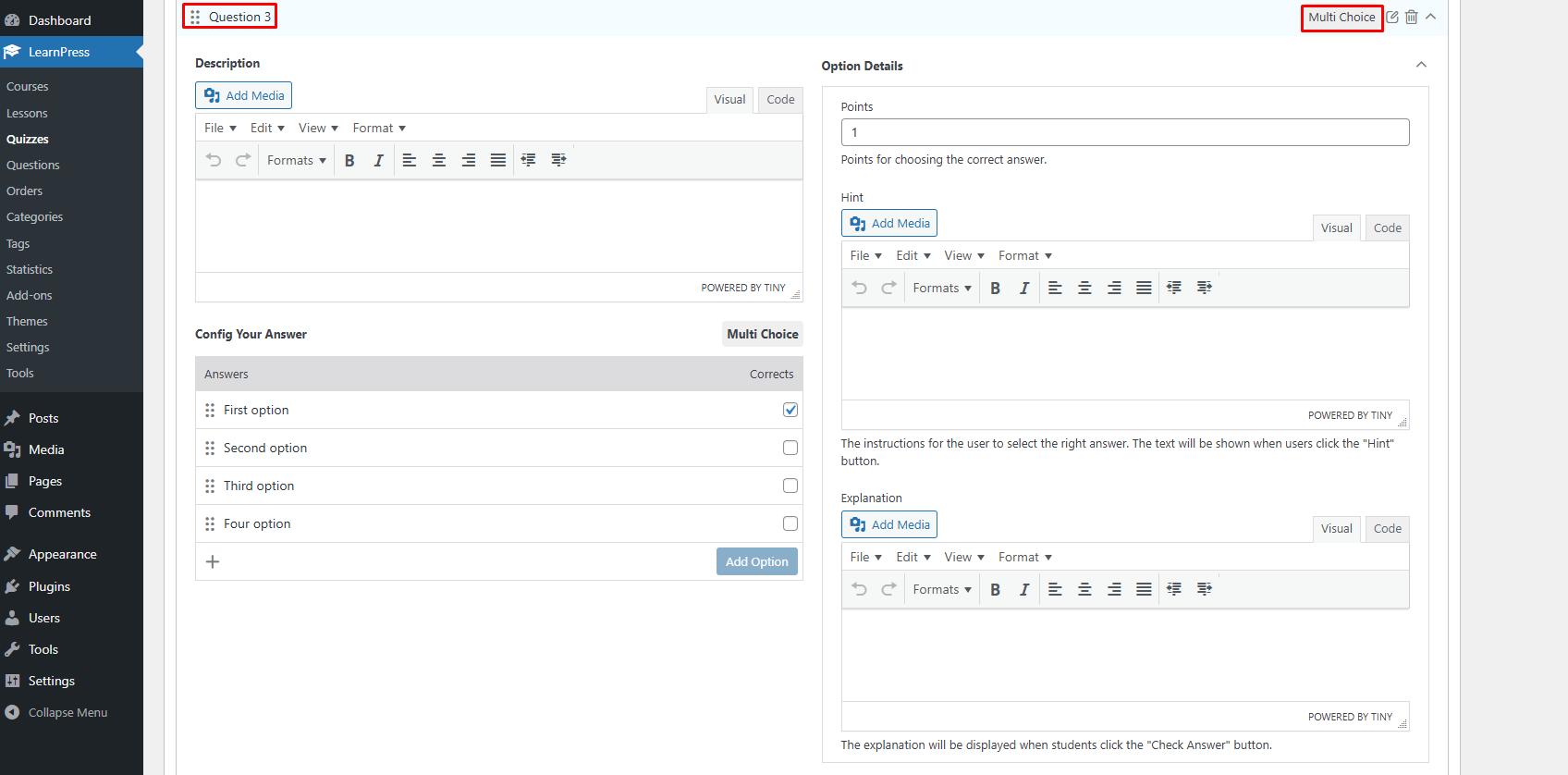
With the multiple-choice questions, you can select more than one correct answer.
3.4. Fill in Blank questions
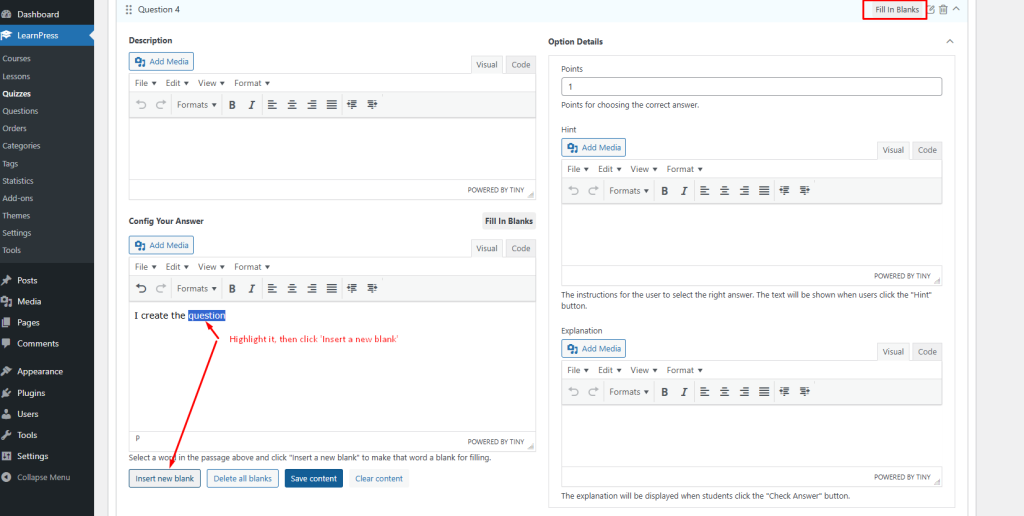
With the Fill-in-blank questions, you can create questions with blanks that need to be filled in.
4. Assign quiz to a course
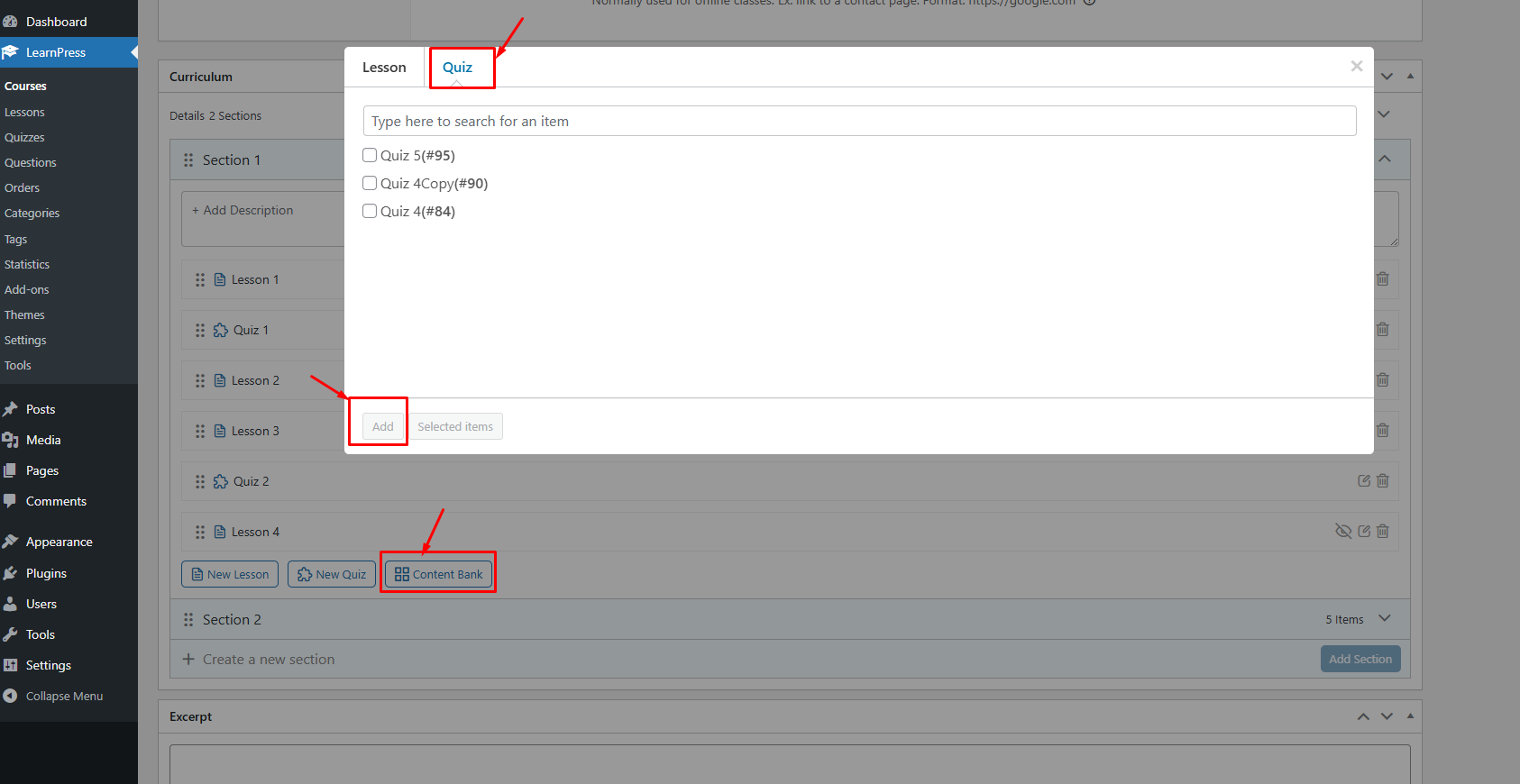
To assign a quiz to a course. You can edit the course, in the Curriculum section, click on the “Content Bank” button, then choose the quizzes you want to add to the course (note that you can add only the quizzes created by you) and click “Add”.
5. Quiz interface
On the quiz creation page, there are three main sections.
- Overview
- Questions
- Settings
- Overview is what the students see before they start the quiz, you can introduce your quiz, content, mark rules, purposes and anything you want.
- Questions are all the questions students will do in the quiz
- Settings give you the custom option for the quiz.