Running an education business requires a stable, flexible, and cost-effective online course platform. As your academy grows, you might find that your current setup no longer meets your specific needs. If you are looking for a reliable way to migrate MasterStudy to LearnPress, you have arrived at the perfect guide. Moving an entire database of courses, quizzes, and student records can feel like a daunting task. However, technological advancements have made this process incredibly straightforward today.
Many course creators eventually decide to switch from MasterStudy to find better customization options. They want a system that integrates seamlessly with a wider variety of plugins and themes. In the past, a complete WordPress LMS migration meant hiring expensive developers. It required weeks of manual data entry and coding. Fortunately, a flawless MasterStudy to LearnPress migration is now highly accessible to everyone. By utilizing the official LearnPress Migration Tool, you can automate this heavy lifting safely and securely.
LearnPress – WordPress LMS Plugin
We provide an amazing WordPress LMS plugin to create & sell online courses. Let’s find out!
Try NowTable of Contents
Why You Should Migrate MasterStudy to LearnPress
The e-learning landscape is highly competitive. To stay ahead, platform flexibility is absolutely crucial. When you choose to switch from MasterStudy, you open the door to a vast, open-source ecosystem. LearnPress provides a lightweight core with powerful premium add-ons, allowing you to pay only for what you truly need. This modular approach is exactly why users want to migrate MasterStudy to LearnPress. It reduces annual renewal costs significantly while helping you speed up WordPress and boost website performance.
Furthermore, managing student data requires utmost care. A manual WordPress LMS migration carries the risk of human error. Missing a single database table could corrupt user progress. Our automated MasterStudy to LearnPress migration eliminates this risk entirely. It ensures that your business transitions smoothly without interrupting the learning experience of your active students.
Introducing the Automated Solution
We understand the technical fears associated with moving websites. To solve this, our developers created a dedicated solution. The LearnPress Migration Tool is designed specifically to handle complex database transfers safely. It acts as an intelligent bridge between the two platforms. If you want to switch from MasterStudy, this tool will map your existing data architecture to the new system perfectly.
This robust utility allows you to migrate MasterStudy to LearnPress with just a few simple clicks. You do not need to write a single line of PHP or SQL. The plugin reads your source database, organizes the content, and reproduces it beautifully. This represents a massive leap forward for any WordPress LMS migration strategy, turning a month-long project into a five-minute automated task.
What Data is Transferred During the MasterStudy to LearnPress Migration?
Before you execute the transfer, it is important to know exactly what gets moved. When you use the tool to migrate MasterStudy to LearnPress, it captures comprehensive educational data. First, it securely transfers your Courses Data. This includes all your course titles, detailed descriptions, and featured images. It ensures your hard work in planning course structure remains completely intact from top to bottom.
Next, it moves your Sections Data and Course Items Data. Every single lesson, quiz, and assignment is copied over. The time you spend formatting lesson content is preserved perfectly. Additionally, your Questions Data is migrated. This means your thoughtful quiz design, multiple-choice answers, and grading configurations are accurately reflected in the new system.
Most importantly, the tool transfers User Learning Progress Data. When you switch from MasterStudy, retaining student records is vital for your academy’s reputation. This allows you to accurately track students and retain their enrollment status and course completion percentages. This seamless continuity is the hallmark of a professional WordPress LMS migration.
Step-by-Step Guide to Migrate MasterStudy to LearnPress
Now, let us walk through the exact steps to perform this transfer. The process is remarkably user-friendly. Before you begin your MasterStudy to LearnPress migration, we highly recommend backing up your website. A full database backup ensures that you always have a safe restoration point. Once your backup is secure, begin by properly installing LearnPress and ensuring both LMS plugins are active.
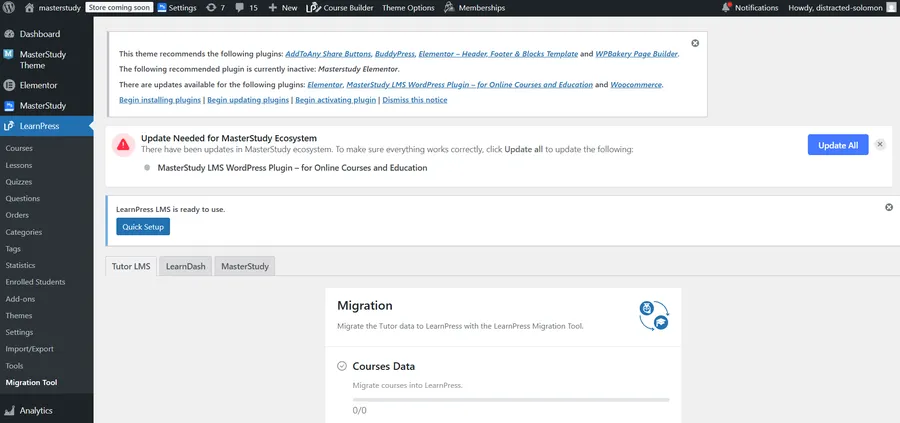
To initiate the process, navigate to your WordPress dashboard. Look at the left-hand menu and hover over the LearnPress tab. From the dropdown menu, select the Migration Tool. This will open the main interface where you control the data transfer. This centralized dashboard is where you will manage your entire WordPress LMS migration.
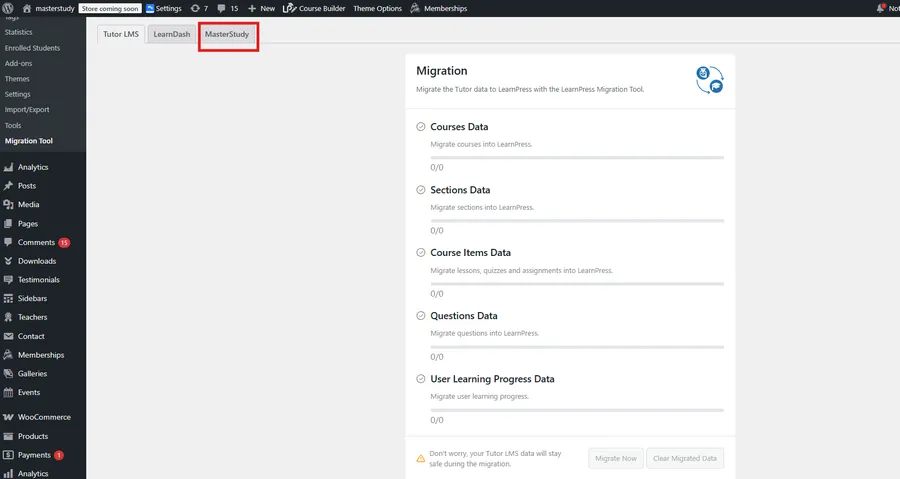
On this screen, you will see different tabs for various platforms. Since you want to switch from MasterStudy, simply click on the “MasterStudy” tab at the top. The interface will instantly update to display the specific data metrics available for your transition. You will see progress bars for Courses Data, Sections Data, Course Items Data, and more.
Initiating the Transfer Process
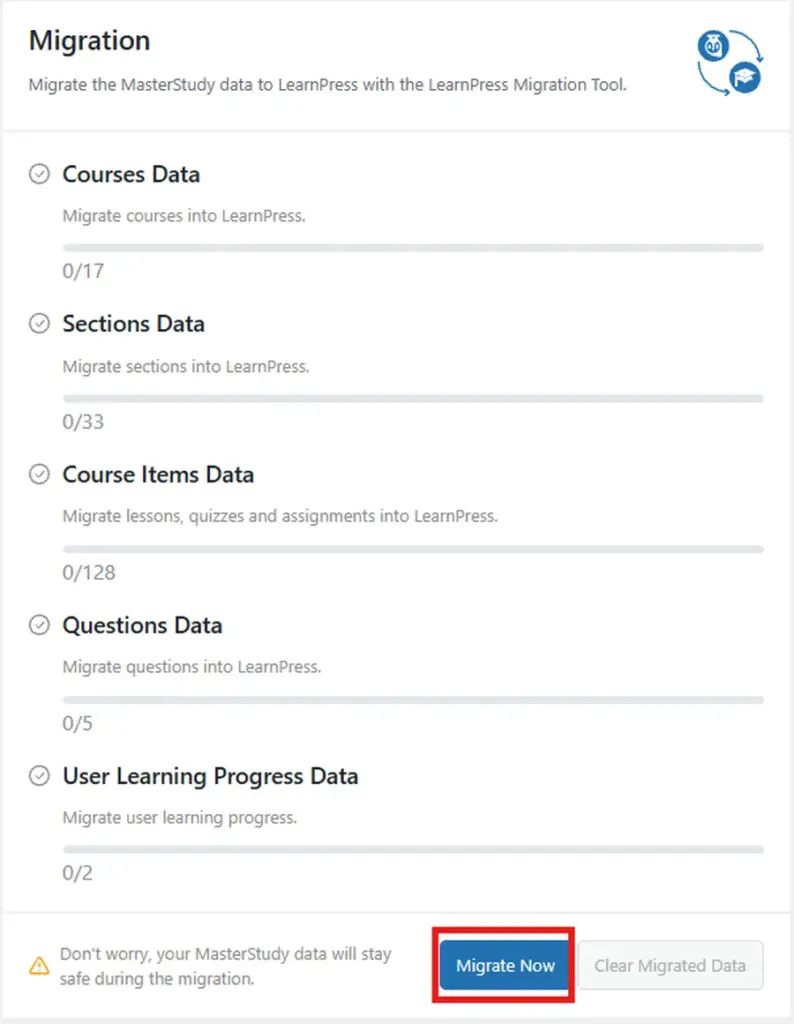
Review the numbers displayed on the screen. For example, you might see “0/17” under Courses Data, indicating that seventeen courses are ready to be moved. When you are fully prepared to migrate MasterStudy to LearnPress, locate the blue “Migrate Now” button at the bottom of the screen. Click this button to start the automated transfer.
A confirmation popup will appear on your screen. It will ask if you are sure you want to proceed. This is a final safety check. Simply click “Yes, Let’s start!” to confirm. The LearnPress Migration Tool will now begin processing your database tables. Do not close the browser tab while the progress bars are filling up.
Verifying Your MasterStudy to LearnPress Migration
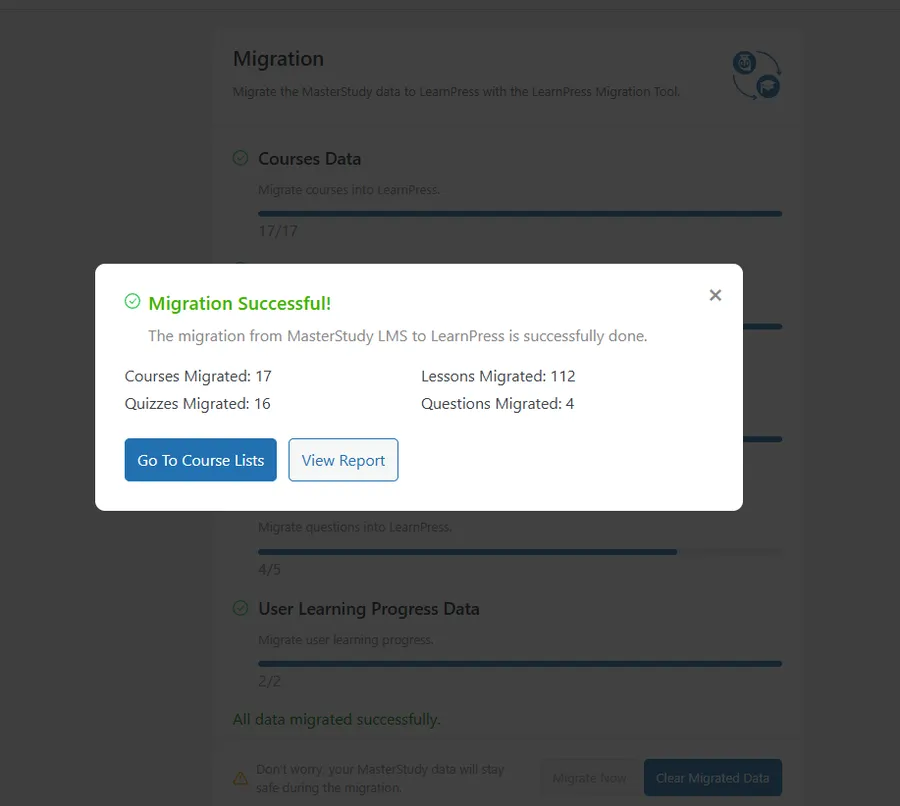
Once the system finishes processing, the progress bars will turn green. A popup window will appear bearing the message “Migration Successful!”. This notification confirms that you have successfully managed to migrate MasterStudy to LearnPress. The popup provides a detailed statistical summary of the action. It will list the exact number of courses, lessons, quizzes, and questions that were securely transferred to your new platform.
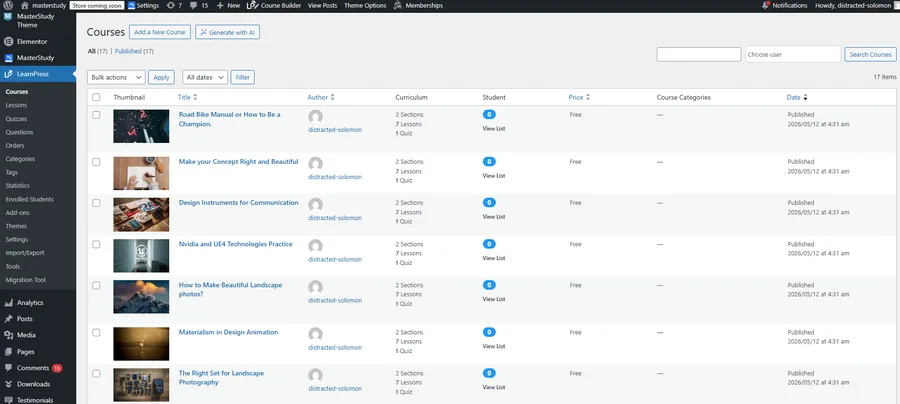
From this success popup, you have two clear options. You can click “View Report” to see a comprehensive log of every migrated item. Alternatively, you can click the “Go To Course Lists” button. Clicking this button takes you directly to your new course inventory. Here, you will see all your educational content beautifully organized within the new course builder. Your curriculum structure, author assignments, and pricing statuses are preserved.
Post-Migration Recommendations
After you migrate MasterStudy to LearnPress, there are a few final steps to take. First, review your courses on the front end of your website. Ensure that your chosen theme displays the course layouts correctly. Since different plugins handle frontend styling differently, you might need to adjust some custom CSS or theme settings to make everything look perfect.
Next, test the student experience. Create a test user account and enroll in a migrated course. Take a quiz and check if the grading system functions as expected. Because the automated tool maps data intelligently, your students should be able to log in and resume their studies immediately. For additional guidance on optimizing your site, you can always visit external resources like the official WordPress plugin directory.
Essential Backup Advice
Before making any database changes, securing your existing files is a mandatory best practice. You can use standard backup plugins to download a copy of your database to your local computer. This guarantees that if your server experiences a timeout during the transfer process, you can easily restore your website to its original state. Taking ten extra minutes to prepare can save you countless hours of troubleshooting later.
Why the New Platform is Superior
Beyond just moving your data, adopting a new platform brings exciting opportunities. Your new system is renowned for its lightweight architecture. Unlike other heavy plugins that slow down your website speed, this framework ensures fast loading times. Fast websites rank better on search engines and provide a superior user experience for learners. If you need inspiration for your next launch, exploring new online course ideas is a great way to maximize this powerful new setup.
Final Thoughts
Taking control of your e-learning platform has never been easier. High operational costs and restrictive ecosystems should never hold your educational business back. With the right automated solutions, transitioning between platforms is entirely stress-free. Upgrade your academy today, explore unparalleled flexibility, and enjoy a seamless transition with our LearnPress Migration Tool.
FAQs About Migrate MasterStudy to LearnPress
Q1: Will my website experience downtime during the transfer?
No, the automated process runs in the background of your server. However, we recommend putting your site in maintenance mode to prevent students from making new purchases while the database tables are being duplicated.
Q2: Do I need to be a developer to perform this task?
Absolutely not. The user interface is designed for beginners. If you can click a button, you can successfully navigate this entire process. There is zero coding required to complete the procedure.
Q3: What happens to my old data after the process is complete?
Your original data remains completely untouched and secure on your server. The utility simply copies the information and translates it into the new format. You can manually delete the old plugin and its data only when you feel completely confident in your new setup.
Read more: LearnPress AI Prompts: 5 Pro Tips to Master for Better Course Content
Contact US | LearnPress:
Website: https://learnpresslms.com/
Fanpage: https://www.facebook.com/learnpresslms
Email: [email protected]