Running an educational academy is a highly rewarding experience. You get to share your brilliant online course ideas with the world and watch your students succeed. However, behind the scenes, managing a digital school involves countless hours of tedious administrative work.
From checking individual progress to auditing lesson plans, daily tasks can quickly overwhelm any instructor. Many course creators spend more time managing spreadsheets than actually teaching. Fortunately, technology has evolved to solve this exact problem.
Today, we are introducing a revolutionary way to handle these heavy administrative tasks effortlessly. By using the new LearnPress MCP integration, you can completely change how you manage your website.
If you have ever felt overwhelmed by the technical side of running an online course platform, this guide is specifically written for you. We will explain exactly how this new technology works using simple, everyday language. You do not need to be a programmer to understand this. By the end of this comprehensive article, you will know exactly how to set up your own intelligent system to handle the heavy lifting for you.
LearnPress – WordPress LMS Plugin
We provide an amazing WordPress LMS plugin to create & sell online courses. Let’s find out!
Try NowTable of Contents
Making Sense of LearnPress MCP integration
When technical people talk about software connections, they use complicated words like “database queries” or “API endpoints.” It is incredibly easy to feel confused and intimidated. Let us throw all of those complex IT words away right now.
Imagine LearnPress MCP integration simply as an official employee ID card for your website.
In the past, artificial intelligence tools like Claude or ChatGPT were incredibly smart, but they stood completely outside your digital building. They could not see your enrolled students, they did not know your specific lesson plans, and they had no idea who was passing your exams. If you asked an AI for help, it could only give you generic advice.
Now, when you activate this feature, you are essentially handing a secure ID card to the AI. With this digital card, the machine can walk directly into your digital filing room. It can pull out specific student records, read your course materials, and report back to you in conversational English.
This is the pure magic of a true no-code AI integration. You do not need to write a single line of complex computer code. You simply grant access, and the smart machine does all the difficult analytical work for you. It is the easiest way to modernize your academy.
The Magic of Your LearnPress AI assistant
So, once the artificial intelligence has its secure ID card, what exactly can it do inside your digital school? The simple answer is that it fundamentally transforms your daily workflow.
Instead of manually clicking through dozens of confusing menus to find simple information, your LearnPress AI assistant becomes your dedicated administrative helper. It works around the clock and never complains.
Here are the practical, everyday ways this tool will help you automate online courses:
- Tracking Student Progress: Normally, finding out who is falling behind requires checking individual profiles. Now, you can easily track students
instantly. You can type, “Tell me which students have not completed the final quiz,” and the AI fetches that exact list for you in seconds. - Managing Assessments: Grading and analyzing test results takes hours. Your intelligent helper can take over grading analysis. You can ask it to review recent test scores and summarize which specific questions your students are failing the most.
- Smart Course Auditing: Keeping your curriculum organized is tough. The AI can automatically review your lesson content and suggest structural improvements. You can simply ask the AI to read your entire curriculum and point out if any modules are missing a final exam.
These are active, powerful AI LMS features that you can use right now. You save dozens of hours of manual data entry every single week. This allows you to focus purely on creating better content and interacting with your learners.
Exploring Brilliant AI LMS features
Let us look closer at the specific benefits you get. The LearnPress MCP integration offers incredibly practical tools for everyday teachers.
First, it provides instant reporting capabilities. You no longer have to export messy CSV spreadsheets from your gradebook. Because this is a seamless no-code AI integration, the machine reads your live database and gives you instant summaries.
Second, it helps you evaluate your teaching methods. You can ask the AI to analyze your quiz design to see if your questions are too difficult or too easy. The machine will calculate the average scores and give you helpful recommendations to improve student retention.
Third, having a reliable LearnPress AI assistant means you can operate like a large corporation, even if you are a solo instructor. The machine handles the data sorting so you can focus on building a thriving online community.
When you use these modern AI LMS features, you drastically reduce your administrative stress. You successfully automate online courses without needing to hire a real human assistant. It is a massive upgrade for your digital business.
Keeping Your School Safe with No-code AI integration
We completely understand that giving an artificial intelligence access to your private student data sounds a bit intimidating at first. Student privacy and data protection are incredibly important responsibilities for any educator.
That is exactly why the LearnPress MCP integration was built with strict, vault-like security measures from the ground up. Here is how we keep your academy safe, explained in simple terms.
1. The System is Locked by Default
When you update your educational plugin to the latest version, the AI does not automatically get access. The feature is completely turned off by default. You must intentionally flip a switch in your LearnPress settings to invite the AI inside. Nothing happens without your explicit permission.
2. Strict Read-Only Access
Right now, your LearnPress AI assistant can only read information. Think of it like giving an employee a badge that lets them look at important documents through a thick glass window. They can read the papers, but they cannot touch them. The AI cannot accidentally delete a course or change a student’s grade.
3. Unique Visitor Badges
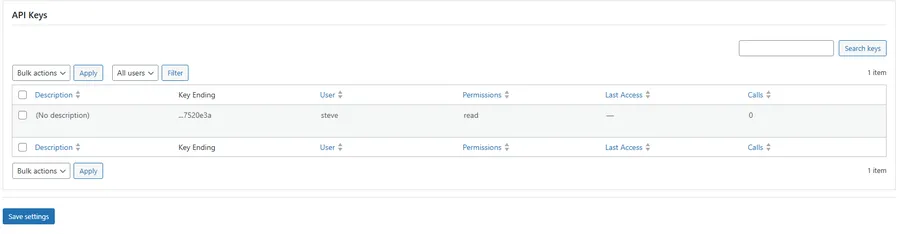
To connect the AI to your school, you will create a specific text password called an API Key. Think of this as a unique, trackable visitor badge. If you ever want to stop the AI from accessing your site, you simply delete this single badge. Your data remains perfectly safe.
These robust security protocols ensure that you can safely enjoy this no-code AI integration without losing sleep over data privacy. Furthermore, because the connection is highly optimized, it will never slow down your site, helping you maintain your efforts to speed up WordPress performance.
(Alt Text: Exploring the secure settings of LearnPress MCP integration)
7 Steps to Automate online courses
Are you ready to set up your very own intelligent system? Grab a cup of coffee, open your WordPress dashboard, and follow these incredibly simple steps.
We are going to connect your website to Claude Desktop, which is a popular, free AI application you can install directly on your computer. This process will fully activate your LearnPress MCP integration.
Step 1: Enable the Core Feature
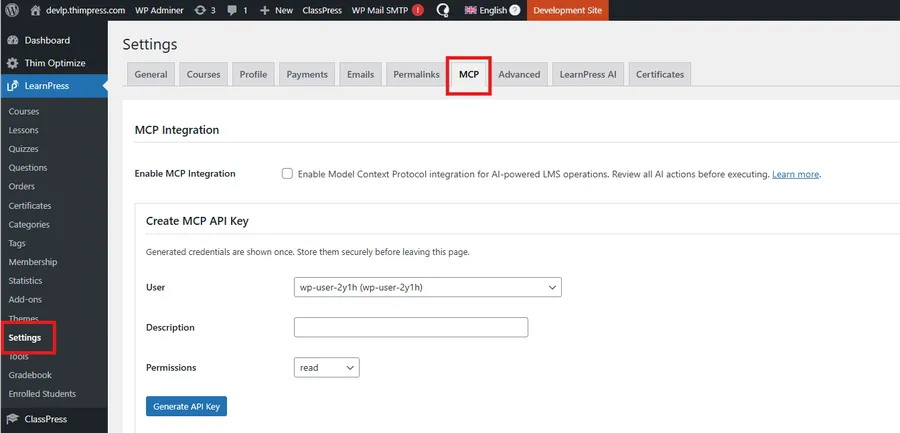
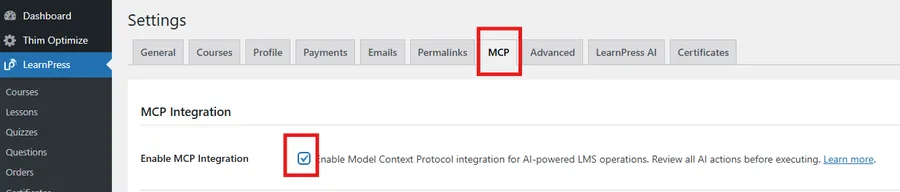
First, we need to unlock the front door of your digital academy. Navigate to your WordPress dashboard. Go to the menu on the left and click LearnPress > Settings > MCP. You will see a simple checkbox on the screen. Check that box and click the save button.
Step 2: Choose the Right User
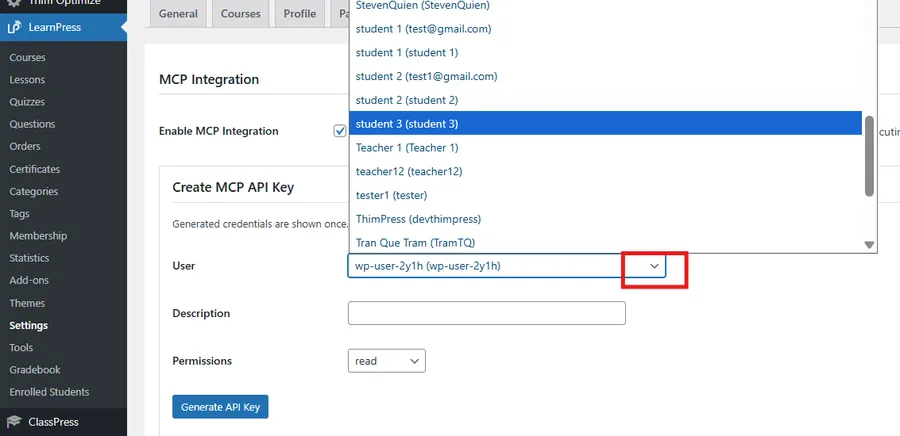
Now, we need to officially create the secure visitor badge for the AI. Stay in the exact same settings area and scroll down to the API Keys section. Select your Admin User name from the dropdown menu provided. This tells the system who is authorizing the access.
Step 3: Name Your Connection
In the Description box, type a simple name so you remember what this key is for. For example, you can type “Claude Desktop Key” or “LearnPress AI assistant.” This helps you stay organized if you create multiple keys later.
Step 4: Set Permissions and Generate
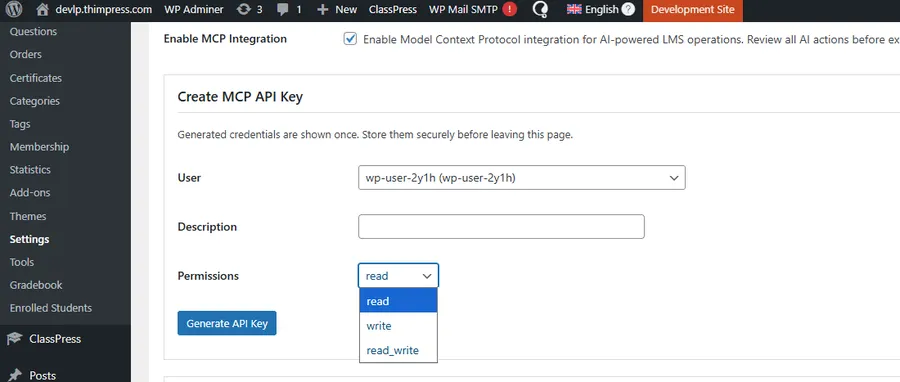
Set the permissions dropdown menu strictly to Read. Click the blue Generate button. The screen will now show you two long, random lines of text: a Consumer Key and a Consumer Secret. Copy both of these text lines and paste them into a safe notepad file.
Step 5: The Secret Handshake (Encoding)
Computers like to communicate using a very specific, secure format. We need to combine your Key and your Secret into one single, scrambled secret code. Open a standard tool called “Terminal” on your Mac, or “Command Prompt” on your Windows computer.
You will copy and paste a simple command that looks exactly like this:
echo -n “YOUR_KEY:YOUR_SECRET” | base64
Make sure to replace the placeholder text with your actual codes. Press Enter. The computer screen will spit out a new, mixed-up line of text. Copy this new text. This is your officially encoded badge.
Step 6: Connect Claude Desktop
Finally, open your Claude Desktop application. You will use your terminal one last time to give Claude the exact directions to your website. This step finalizes your no-code AI integration. Paste the official configuration command provided in our technical documentation, inserting your encoded badge where indicated. Press Enter.
Step 7: Start Asking Questions
That is everything! You have successfully completed the setup. You can now open your Claude Desktop app and type a natural sentence like “List all the published courses on my website.” You are now fully equipped to automate online courses like a true professional using premium AI LMS features.
Conclusion
The bright future of digital education is not about working harder and burning out; it is entirely about working smarter. By taking a few minutes to set up the LearnPress MCP integration, you are taking a massive, vital step forward in how you manage your online business.
You no longer have to spend your precious weekends digging through confusing spreadsheets or clicking through endless administrative menus. You now have a brilliant, tireless LearnPress AI assistant ready to answer your questions and analyze your complex data. Much like installing a helpful AI chatbot for your students, this backend tool is a game-changer for your productivity.
Do not let technology intimidate you. You can easily automate your teaching tasks today. Update your plugin to the latest version, generate your first secure API key, and experience the most advanced, time-saving AI LMS features available on the market. Welcome to the future of smart, automated education!
FAQs About LearnPress MCP integration
1. Do I need coding skills to set up the LearnPress MCP integration?
Not at all! This is a complete no-code AI integration. If you know how to copy and paste text, you can easily follow our 7-step guide. You do not need to hire a web developer or understand complex programming to build your own LearnPress AI assistant.
2. Is my private student data secure when using these AI LMS features?
Yes, absolute security is our top priority. The connection uses strict Read-Only access, meaning the AI can look at the data to answer your questions but cannot alter, delete, or change any student grades or course content. Plus, you can revoke its access at any time by simply deleting the API key in your WordPress settings.
3. Will connecting an AI agent slow down my WordPress website?
No, it will not affect your website's speed. The integration is highly optimized to run database queries efficiently in the background. You can safely automate online courses and get instant reports without causing any lag or loading delays for your enrolled students.
4. Which artificial intelligence tools can I use with this integration?
In our tutorial, we use Claude Desktop because it is currently the most popular and user-friendly application. However, because this feature is built on the open Model Context Protocol standard, you can connect it to any compatible AI client or developer tool that supports MCP.
5. Can the LearnPress AI assistant automatically create new courses for me?
Currently, this initial release focuses on reading and analyzing existing data to help you manage and automate online courses (like tracking progress and auditing curriculums). However, our development team is actively working on future updates (Write capabilities) that will allow the AI to automatically draft and publish complete lessons and quizzes directly into your dashboard.
Contact US | LearnPress:
Website: https://learnpresslms.com/
Fanpage: https://www.facebook.com/learnpresslms
Email: [email protected]