If you want to create your own quiz for a class, a course, a team training session, or your website, you no longer need to code anything or pay for software. A good quiz builder lets you write questions, set the right answers, add a timer, and share a link in less than an hour.
This guide shows you how to create your own quiz step by step and compares the eight best free options available.
LearnPress – WordPress LMS Plugin
We provide an amazing WordPress LMS plugin to create & sell online courses. Let’s find out!
Try NowTable of Contents
What it means to create your own quiz online
To create your own quiz online means to write a set of questions in a web-based tool, define correct answers, and let people take the quiz in a browser or app. Most tools grade answers automatically and show scores right after submission. Some also collect emails, track progress, or send results to a spreadsheet.
The tools in this guide fall into two broad groups. The first group is standalone apps, such as Google Forms or Kahoot!, which run on the tool’s own website. The second group is plugins that run inside your own site, such as LearnPress for WordPress. Both groups can work well, and the right choice depends on where you want your quizzes to live.
Common types of quizzes
Most free quiz makers support a few standard formats. Knowing them helps you pick a tool that matches your goal.
- Multiple choice: The learner picks one or more answers from a list. This is the most common format and the easiest to grade.
- True or false: The learner decides if a statement is correct. It is fast to write but easy to guess.
- Fill in the blank: The learner types a missing word or number. It tests recall better than multiple choice.
- Matching and sorting: The learner connects items or puts them in order. Fewer free tools support this format.
- Personality or lead quizzes: The result depends on the answers, not on a score. These are popular for marketing.
Who uses a quiz builder
Teachers use a quiz builder to check understanding after a lesson. Course creators use quizzes to unlock the next lesson or to issue a certificate. HR teams use them for compliance training. Bloggers and marketers use them to get more engagement and collect leads. Each group needs slightly different features, which is why this guide lists more than one tool.
How we evaluated the tools
We compared each tool using the same checklist, based on its public documentation, pricing page, and feature list at the time of writing. Free plans and limits change often, so always confirm the current terms on the tool’s official website before you commit.
Here is what we looked for:
- A free plan that is truly usable, not a short trial.
- Question types and answer settings, including a quiz randomizer for questions and answer choices.
- Automatic grading, scoring, and result display.
- Sharing options, such as a link, an embed code, or a plugin on your own site.
- Reporting, so you can see who passed and which questions were missed.
- Ease of use for a first-time user.
We did not rank tools by popularity alone. A tool that is perfect for a live classroom game may be a poor fit for a paid online course, so each review states who the tool is best for.
Quick comparison table
The table below summarizes the main differences. Use it to shortlist two or three tools, then read the full reviews.
| Tool | Best for | Free plan | Randomize questions | Auto-grading | Works on your own site |
|---|---|---|---|---|---|
| LearnPress | Online courses on WordPress | Yes, free core plugin | Yes (question bank and random settings) | Yes | Yes |
| Google Forms | Simple classroom and team quizzes | Yes | Yes (shuffle order) | Yes | Embed only |
| Microsoft Forms | Schools and companies using Microsoft 365 | Yes | Yes (shuffle options and questions) | Yes | Embed only |
| Quizizz | Self-paced practice and homework | Yes, with limits | Yes | Yes | No |
| Kahoot! | Live game-style quizzes | Yes, with limits | Yes | Yes | No |
| ProProfs Quiz Maker | Business training and assessments | Yes, with limits | Yes | Yes | Embed |
| Typeform | Interactive and lead-generation quizzes | Yes, with limits | Limited | Basic scoring | Embed |
| ClassMarker | Secure tests and exams | Yes, with limits | Yes | Yes | Embed or link |
The 8 best free quiz makers
This section reviews each tool in detail. Each review covers what the tool does well, where it falls short, and who should use it. If you want the best free quiz maker for a long-term learning site, start with the first one.
1. LearnPress
LearnPress is a free WordPress LMS plugin built by ThimPress. It adds courses, lessons, and quizzes to any WordPress site. If you already run WordPress, this is one of the most flexible options for building a quiz builder free of monthly fees. You install it from Plugins > Add New, then create quizzes from the LearnPress menu in your dashboard.
The quiz tools are practical for real courses. You build a question bank once and reuse questions across several quizzes. You can set a time limit, a passing grade, and a retake limit. Quiz settings also let you show hints, review answers after submission, and check answers instantly, depending on your version and active add-ons. Question types such as single choice, multiple choice, and true or false are available in the core plugin, and add-ons expand the list.
The main limit is that LearnPress needs a WordPress site and some hosting. That is more setup than a simple form tool. Some advanced features, such as certificates, content drip, and certain question types, come from paid add-ons. If you want a polished learning site, the Eduma theme from ThimPress is built to work with LearnPress, and it gives you ready-made course layouts, so you spend less time on design. LearnPress is best for educators, trainers, and course sellers who want full control over their data.
2. Google Forms
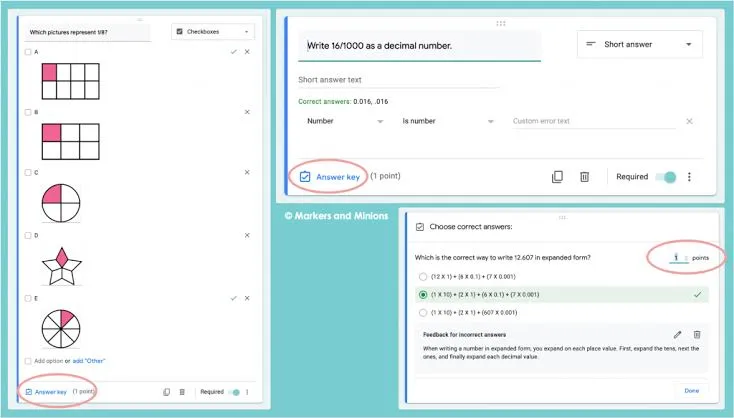
Google Forms is the easiest quiz creator free of cost for anyone with a Google account. To start, open a new form, go to Settings, and switch on “Make this a quiz.” Then you add questions, assign points, and mark the correct answers. Google grades responses automatically and can release scores right after submission or later.
It handles multiple choice, checkboxes, dropdowns, and short answers well. You can turn on the option to shuffle question order, which works as a simple quiz randomizer, and Forms also lets you shuffle the order of answer options on multiple choice questions. Responses flow into a Google Sheet, which makes it easy to filter results or build charts.
The weak points are design and control. Forms has limited branding and no built-in timer, so you need an add-on or a workaround for timed tests. It also lacks advanced question banks. Still, for a fast classroom quiz or an internal team check, it is hard to beat for speed and cost.
3. Microsoft Forms
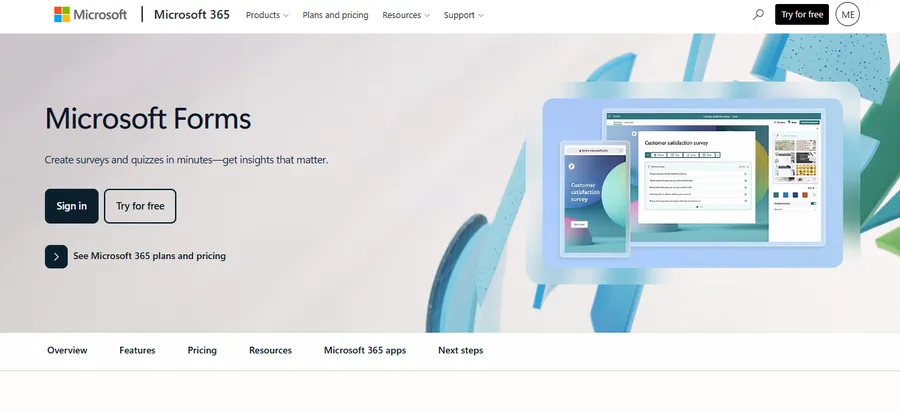
Microsoft Forms is the Microsoft 365 answer to Google Forms. You sign in with a Microsoft account, choose “New Quiz,” and add questions with points and correct answers. It grades automatically and shows a summary of results with charts. Many schools and companies already have access through their Microsoft accounts, which makes it a convenient pick.
You can shuffle answer options and question order, add images, and add math expressions for science and maths quizzes. Results export to Excel, and quizzes can be shared by link or inside Microsoft Teams. The experience is clean and simple, which helps new users create free quizzes online without a long learning curve.
On the downside, advanced features can depend on your Microsoft plan, and customization of the look is limited. If you do not already use Microsoft tools, there is little reason to choose it over Google Forms. It is best for organizations that live inside Microsoft 365.
4. Quizizz
Quizizz is a popular platform for classroom practice. Teachers can build a quiz from scratch or choose from a large library of shared quizzes made by other teachers. Students can play at their own pace, which makes it a strong choice for homework and revision. Note that the company has been updating its branding and product names, so check the current name and features on its website.
One strength is its built-in tools for generating content. Quizizz offers AI-assisted features that work like a quiz question generator, so you can paste a topic or text and get draft questions to edit. Always review generated questions for accuracy before you publish them. The platform randomizes question and answer order by default in many modes, which cuts down on copying.
The free plan has limits, and some reports and advanced features sit behind paid plans. The game-style look also may not suit serious corporate training. Quizizz is best for K-12 and higher-education teachers who want engaging, self-paced practice.
5. Kahoot!
Kahoot! is known for live, game-style quizzes with music, timers, and a leaderboard. A host shows questions on a screen, and players answer on their phones using a game PIN. It turns a dull review session into a competition, and the energy in a room often changes within the first minute.
Creating a quiz is straightforward. You add a question, set a time limit, choose points, and mark the correct answer. Kahoot! also offers question-generation helpers on some plans, so you can start from a topic and edit the draft. Kahoot! can randomize answer order, and its question types include multiple choice, true or false, and others depending on your plan.
The free plan is limited in question types and features, and many advanced options need a paid subscription. It is also built mainly for live play, so it is less suited to formal exams or long-form assessments. Kahoot! is best for teachers, event hosts, and trainers who want a fun, high-energy session.
6. ProProfs Quiz Maker
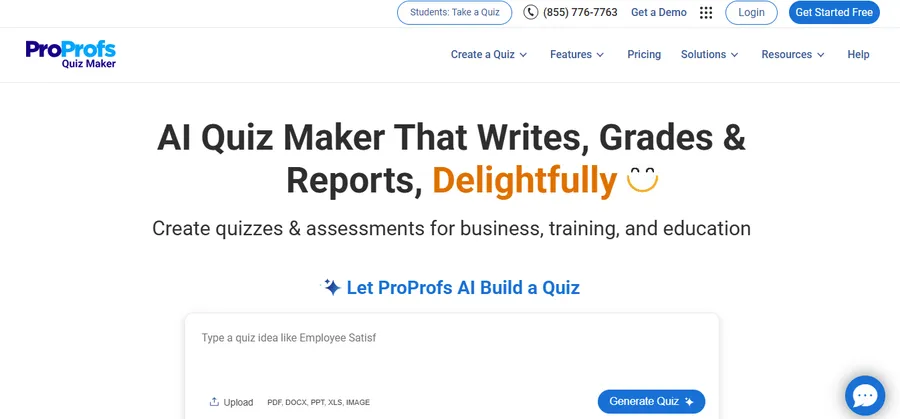
ProProfs Quiz Maker is a business-friendly platform for training and assessments. It offers a large template library and many question types, such as multiple choice, matching, fill in the blank, and essay. The editor is simple, and you can add images, videos, and explanations for each answer.
It stands out for its settings. You can randomize questions, set time limits, require a passing score, and send results by email. Reports show how each learner performed on each question. These controls make it useful when you need to prove that employees completed a training module.
The free plan restricts the number of quizzes and features, and ProProfs branding appears on free quizzes. Larger teams usually need a paid plan. ProProfs is best for small businesses and trainers who want a ready-made assessment tool without building their own site.
7. Typeform
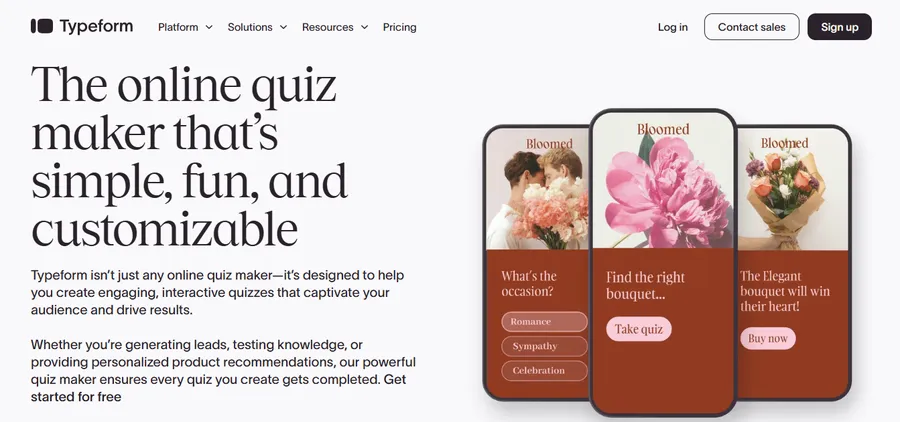
Typeform shows one question at a time in a clean, conversational layout. This design makes quizzes feel more like a chat than a test. It is popular with marketers who want to create your own quiz for lead generation, such as “Which product is right for you?”
You can add scoring logic, so each answer adds points, and then show different results based on the total. Typeform also supports logic jumps, images, and integrations with email tools and spreadsheets. The look is among the best on this list, and it works well on mobile.
Typeform is not a full learning tool. The free plan limits responses and features, and its grading options are basic compared with tools built for education. Randomization is limited, so it is a weaker pick if you need strict exam rules. It is best for marketing quizzes, surveys, and light assessments.
8. ClassMarker
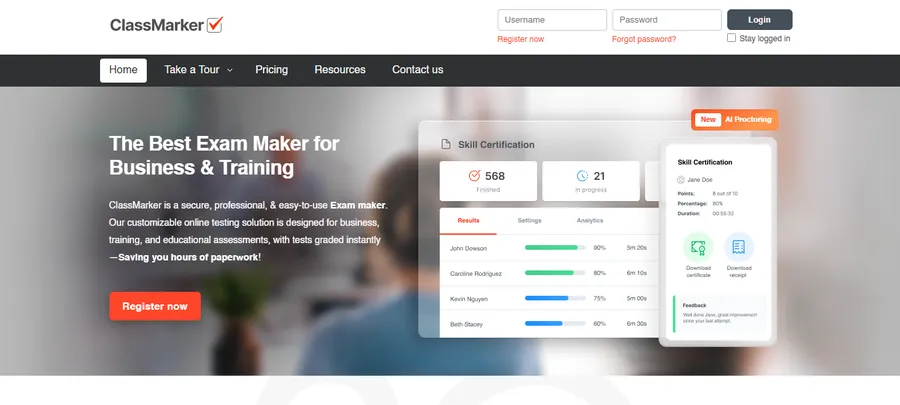
ClassMarker is built for serious testing. It focuses on secure, graded online exams with detailed results. You can build question banks, pull random questions from categories, set time limits, and control how many attempts a test taker gets. These tools make it a strong quiz randomizer for exams where fairness matters.
It supports multiple choice, true or false, short answer, essay, and other formats. Results can be emailed, and certificates are available. The interface looks more traditional than modern, but it is reliable and easy to understand after a short learning period.
The free plan limits the number of questions answered or results stored each month, so heavy users will need a paid plan. The design is also less playful than Kahoot! or Quizizz. ClassMarker is best for training providers, certification programs, and teachers who need controlled testing.
How to create your own quiz step by step
You can create your own quiz in about 30 minutes using any tool above. The steps below work the same way across most quiz makers, with small differences in menu names. We use LearnPress and Google Forms as examples because they cover the two main setups, a WordPress site and a no-site option.
Step 1: Define the goal and audience
Decide what the quiz must prove. A quiz that checks recall of facts looks different from one that checks decision-making. Write one clear sentence, such as “Learners can name the five parts of a lesson plan.” This sentence guides every question.
Step 2: Choose the right quiz builder
Pick a tool that matches where the quiz will live. If you run a WordPress course site, install LearnPress. If you only need to send a link to a class, Google Forms is enough. Check that the free plan includes the question types and reports you need.
Step 3: Write your questions
Write more questions than you need, and keep each one short. Use a simple structure: one clear question, one correct answer, and two or three believable wrong answers. If you are short on time, a quiz question generator can give you drafts, but you must check every answer for accuracy and fix unclear wording.
Step 4: Set answers, points, and feedback
Mark the correct answer for each question and assign points. Add a short explanation for the correct answer, because feedback helps people learn from mistakes. In Google Forms, you do this from the “Answer key” panel. In LearnPress, you set the correct option inside the question editor.
Step 5: Turn on randomization and time limits
Randomization reduces copying and makes retakes more useful. Use your tool’s quiz randomizer to shuffle question order and answer choices. Add a time limit only if speed matters, since a tight timer can add stress and lower the quality of results. In LearnPress, you set the duration and retake limits in the quiz settings.
Step 6: Preview and test
Take the quiz yourself on a laptop and on a phone. Look for typos, unclear questions, and wrong answer keys. Ask one colleague or learner to test it too. This step catches most problems before real users see them.
Step 7: Publish and share
Share the quiz by link, embed it on a page, or add it to a course lesson. On WordPress, you can place a quiz inside a lesson so learners must pass it to continue. A WordPress theme such as Eduma can display quizzes and courses in a clean layout that is easy to browse.
Step 8: Review results and improve
After people take the quiz, check which questions were missed most often. If nearly everyone misses a question, the wording may be unclear. If everyone gets it right, it may be too easy. Update the quiz every few months to keep it useful.
How to write better quiz questions
Good questions are clear, fair, and focused on one idea. This section gives practical tips that apply to any quiz maker, and they matter more than the tool you choose.
Use plain language
Write questions the way you would explain them to a colleague. Avoid double negatives, such as “Which of these is not incorrect?” Keep sentences short. If a learner must read a question twice to understand it, rewrite it.
Make wrong answers believable
Wrong answers, called distractors, should look reasonable to someone who has not learned the topic. Do not use jokes or obviously wrong options, because they make the question too easy. Keep all answers about the same length, since the longest answer is often the correct one, and test takers notice that.
Use a quiz question generator carefully
A quiz question generator can save time, especially when you start from a blank page. Paste a short passage or a topic, and the tool suggests questions and answers. Treat the output as a first draft. Check facts, remove duplicates, and rewrite anything that sounds vague. You remain responsible for the accuracy of your quiz.
Randomize to keep quizzes fair
A quiz randomizer shuffles the order of questions, the order of answers, or the questions drawn from a bank. This is helpful when many people take the same quiz at the same time. For stronger fairness, build a bank with 30 questions and let each learner see 10 random ones. LearnPress, ClassMarker, and ProProfs all support some form of this approach.
Mix question types
Do not use only multiple choice. A mix of true or false, short answer, and scenario questions gives a better picture of what a learner knows. Start with easy questions to build confidence, then move to harder ones.
How to choose the right quiz builder
The best tool depends on your goal, your budget, and where you want your quizzes to live. Use the guidance below to narrow the list.
Choose by use case
- Online course or membership site: LearnPress, because quizzes sit inside lessons and connect to progress tracking.
- Fast classroom check: Google Forms or Microsoft Forms.
- Live group activity: Kahoot!
- Homework and practice: Quizizz.
- Corporate training: ProProfs or ClassMarker.
- Marketing and lead capture: Typeform.
Check free plan limits
Many tools advertise a free plan, but limits can be strict. Look at the number of quizzes, responses, questions, and reports allowed. If you plan to grow, check how much the first paid plan costs. Free tools without limits, such as Google Forms and the LearnPress core plugin, are safer for long-term use.
Think about data ownership
When you use a hosted app, your quizzes and results live on the company’s servers. When you use a plugin on your own WordPress site, you own the data and can back it up yourself. This matters for schools and businesses with privacy rules. Always check how a tool stores and protects personal data.
Consider your site and design
If your learning site already runs on WordPress, a plugin keeps everything in one place, so learners do not leave your site. A theme built for learning, such as Eduma, can match your quizzes to your brand. If you do not have a site, a standalone quiz creator free of hosting costs is simpler to start with.
FAQs
Can I really create free quizzes online without paying anything?
Yes. Google Forms, Microsoft Forms, and the core LearnPress plugin are free to use for basic quizzes. Other tools offer free plans with limits on responses, questions, or reports. Read each tool’s pricing page, since limits change from time to time.
What is the easiest way to make a quiz for students?
Google Forms is usually the easiest option. You turn on quiz mode in Settings, add questions, and set the answer key. Share the link, and Google grades the responses for you. For a full course with lessons and progress tracking, a WordPress plugin is a better long-term choice.
Can AI write quiz questions for me?
Yes, many tools now include AI features that draft questions from a topic or a piece of text. These drafts save time, but they can contain errors or unclear wording. Always check each question and answer before you share the quiz with learners.
How do I stop people from cheating on an online quiz?
You cannot remove cheating completely, but you can reduce it. Randomize question and answer order, draw questions from a larger bank, set a time limit, and limit retakes. For high-stakes exams, a tool built for secure testing, such as ClassMarker, offers stronger controls than a basic form.
Conclusion
Now you know how to create your own quiz, and the choice of tool is simpler than it looks. Google Forms and Microsoft Forms are fast for basic needs. Kahoot! and Quizizz are great for engagement. ProProfs, Typeform, and ClassMarker cover training, marketing, and secure exams.
If you run a WordPress site and want quizzes tied to lessons, learner progress, and certificates, LearnPress is a strong place to start, and the Eduma theme can help you build a complete learning site around it. Pick one tool from this list, write ten clear questions, test the quiz yourself, and publish it today. You can improve it as you see real results.
Read more: 6+ Best WordPress Chat Module Options