If you run a WordPress site for test prep, certification training, or professional development, you already know that a static PDF or a Google Form is not enough. Students preparing for IELTS, TOEFL, or PMP need a realistic testing environment: a timer, a pass mark, instant feedback, and a record of every attempt. That is exactly what online mock exams are for, and the LearnPress Exam Add-on gives you a dedicated toolkit to build them without touching a line of code.
This guide walks through the entire process: installing the add-on, creating an exam from scratch, configuring every setting that controls how students experience the test, reviewing submissions, and reading the analytics dashboard. Along the way, we will look at how to apply these tools specifically to IELTS, TOEFL, and PMP mock exams, and where a professional online exam builder like this one fits into a WordPress LMS built on LearnPress.
Whether you are an English language school converting paper-based practice tests into online mock exams, or a training provider preparing candidates for the PMP certification, the workflow is the same. You publish an exam, populate it with questions, set the rules that govern timing and access, and let students take it directly on your site. The exam can be created and configured through the WordPress Dashboard using the available exam editor and settings.
LearnPress – WordPress LMS Plugin
We provide an amazing WordPress LMS plugin to create & sell online courses. Let’s find out!
Try NowTable of Contents
What a professional online exam builder needs
Before comparing tools, it helps to define what “professional” actually means for online mock exams. A test-prep site is not the same as a quiz plugin bolted onto a blog. Students expect a countdown timer that behaves the same way a real exam center would enforce it. Instructors expect a question bank they can reuse instead of retyping the same 200 questions for every new exam. Program administrators expect a dashboard that shows pass rates without exporting a spreadsheet.
The LearnPress Exam Add-on was built around those three expectations. It sits directly on top of LearnPress, the WordPress LMS plugin, and adds a dedicated Exams workspace where you create, schedule, and grade tests. Because the Exam Add-on requires LearnPress, you can manage exams from the LearnPress section of your WordPress Dashboard.
There is also a practical reason test-prep sites lean on a dedicated exam plugin instead of a general quiz builder: certification and language exams have rules that a generic quiz format was never designed to enforce. A PMP mock exam can use a configured pass percentage to define the score students need to pass the practice test. An IELTS or TOEFL practice test needs a countdown that behaves consistently across every student attempt, and a record of exactly how long each candidate spent on the test. Building online mock exams around those specific requirements, rather than adapting a tool meant for casual course quizzes, is what separates a professional online exam builder from a basic plugin.
Installing the Exam Add-on for LearnPress
Before you install the Exam Add-on for LearnPress, confirm that the core LearnPress plugin is already installed and activated on your WordPress site. The add-on depends on LearnPress and will not function without it.
Once LearnPress is active, follow these steps:
- Log in to your WordPress Dashboard.
- Go to Plugins, then Add New Plugin.
- Click Upload Plugin and select the learnpress-exam.zip file from your computer.
- Click Install Now and wait for the installation to finish.
- Click Activate Plugin once installation completes.

After activation, a new Exams menu appears under the LearnPress menu in your dashboard. That menu is your central workspace for creating, managing, and organizing every exam on the site, so it is worth bookmarking if you plan to build out a full library of IELTS, TOEFL, or PMP mock exams.
Creating a new exam: the Overview tab
To start building your first test, go to LearnPress, then Exams, then All Exams. This All Exams page is the hub for everything exam-related on your site. Use the search box to find an existing exam quickly, or click Add New Exam in the top-right corner to start fresh.
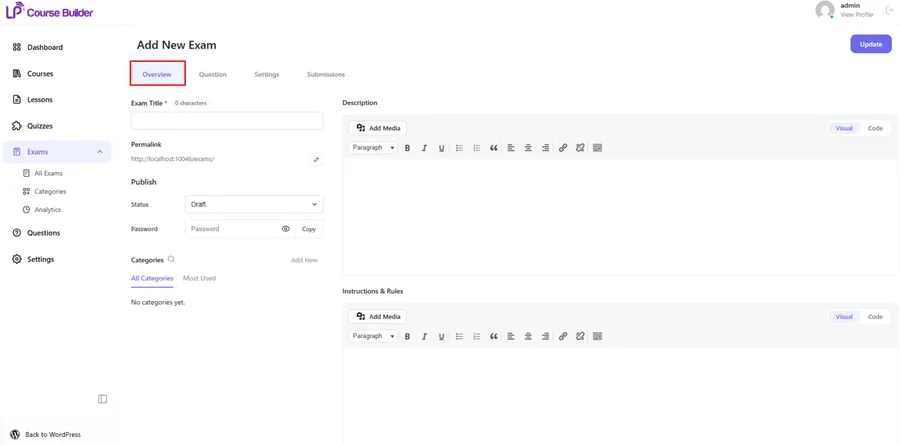
Clicking Add New Exam opens the exam editor, which is organized into four tabs:
- Overview, for the exam’s basic information
- Question, for building the exam content
- Settings, for exam behavior and student experience
- Submissions, for viewing student results
The Overview tab is where every exam begins. Here you configure:
- Exam title: the name students will see when browsing exams.
- Permalink: a custom URL for the exam page, useful if you want a clean link for a PMP mock exam or an IELTS practice test.
- Description: a short overview or introduction shown to students before they start.
- Instructions and rules: any requirements, time limits, or exam etiquette students should read before beginning.
- Status: Draft while you are still building the exam, or Published when it is ready for students.
- Password: an optional layer of protection if the exam should only be accessible to a specific group.
- Categories: one or more categories for organizing the exam within your library.
Once the required fields are filled in, click Update to save. Keep in mind that the Question tab only becomes available after the exam has been published, so you cannot add questions to a draft exam.
Adding questions to your exam
After publishing, the Question tab unlocks, giving you two ways to build out the content of your online mock exams.
Creating a new question directly
To add a question from scratch:
- Enter the question title.
- Choose a question type from the dropdown.
- Click Add Question.
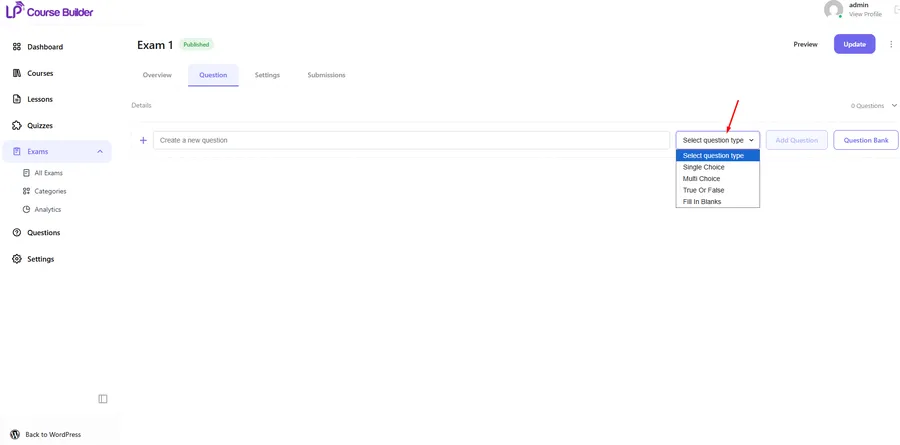
The add-on currently supports four question types: Single Choice, Multiple Choice, True or False, and Fill in the Blanks.
Reusing questions from the Question Bank
If you already have a library of questions, click Question Bank to browse it. From there you can select one or several questions and add them to the current exam without recreating them. This is the fastest way to create online exams with LearnPress once you have built up a question library, since a single bank of questions can feed dozens of different mock exams. It is especially useful if you run recurring IELTS or TOEFL practice sessions and want consistent question sets across multiple test dates.
Configuring exam settings
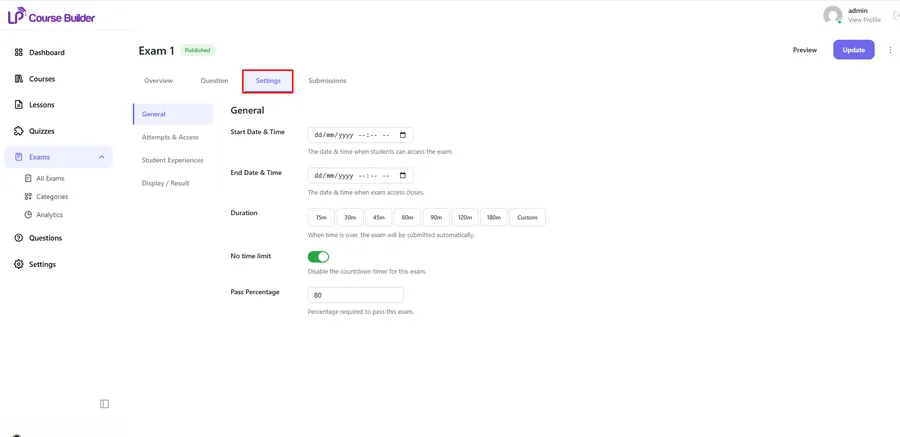
The Settings tab controls the exam schedule, access rules, attempts, student experience, and result display. It is organized into four sections: General, Attempts & Access, Student Experience, and Display / Result.
Each section covers a specific part of how the exam runs, and reading through all four before publishing is the difference between a basic quiz and a professional online exam builder setup.
General
The General section controls the exam’s schedule and pass requirements.
- Start date and time: students cannot begin the exam before this point.
- End date and time: access closes after this point, unless Allow Late Access is enabled.
- Duration: the maximum time students have to finish. When time runs out, the exam submits automatically.
- No time limit: turns off the countdown entirely, removing the timer so students can work without restriction.
- Pass percentage: the minimum score required to pass. Anyone at or above this threshold is marked as Passed.
Attempts & access
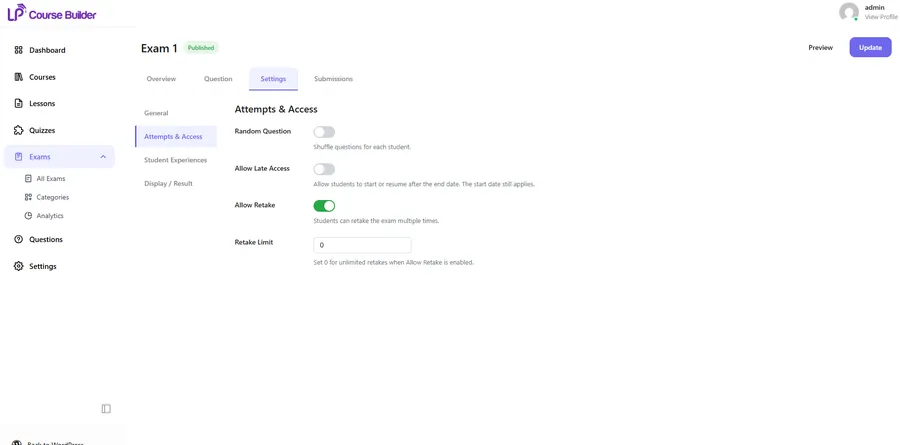
This section governs how students reach the exam and how many times they can take it.
- Random question: shuffles question order for each student, reducing the chance that two students see an identical sequence.
- Allow late access: lets students start or resume after the end date has passed, though they still must wait until the start date to begin.
- Allow retake: permits students to attempt the exam again after finishing.
- Retake limit: sets the maximum number of retakes. Entering 0 allows unlimited retakes when Allow Retake is turned on.
Student experience
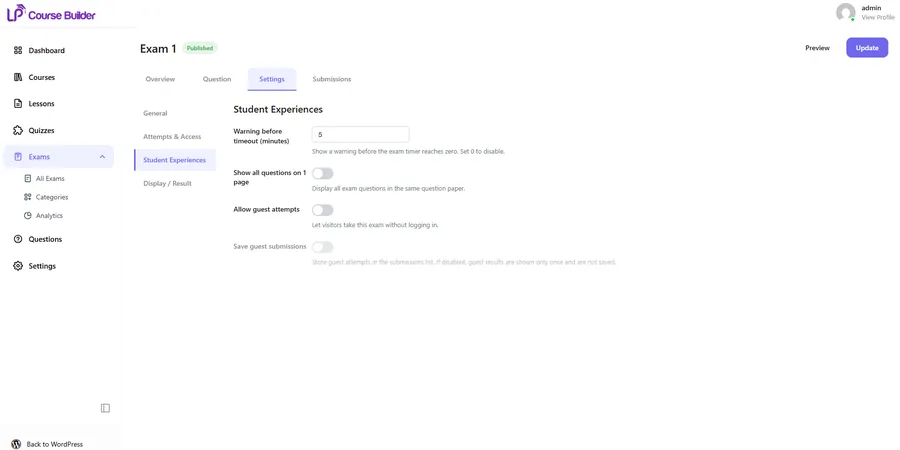
This section shapes what happens during the test itself.
- Warning before timeout: displays a countdown warning a set number of minutes before time runs out. Enter 0 to disable it.
- Show all questions on 1 page: displays the full exam on a single page instead of splitting it across multiple pages.
- Allow guest attempts: lets visitors who are not logged in take the exam.
- Save guest submissions: stores guest attempts in the submission list. If this is off, guest results only appear once immediately after submission and are not saved.
Display / result
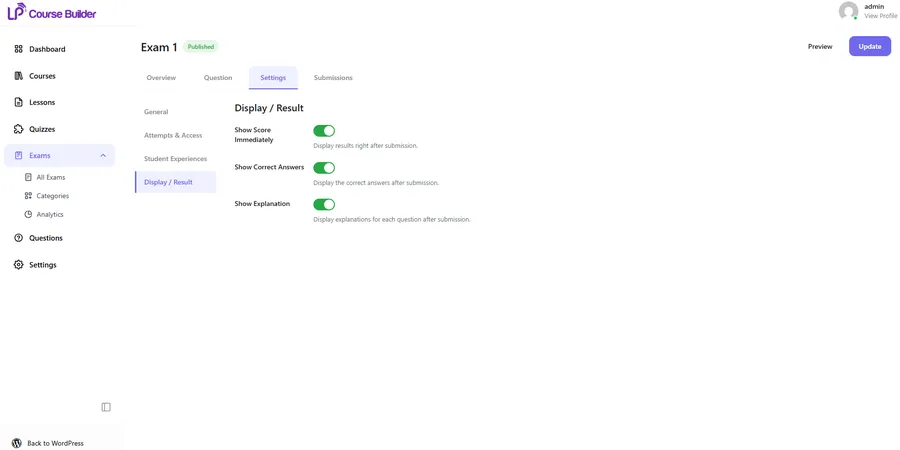
This section controls what students see after they submit.
- Show score immediately: reveals the student’s score right after submission.
- Show correct answers: displays the correct answer for each question once the exam is over.
- Show explanation: displays the explanation written for each question after submission.
Together, these four sections give you the same level of control you would expect from a dedicated, professional online exam builder rather than a generic quiz tool.
Managing student submissions
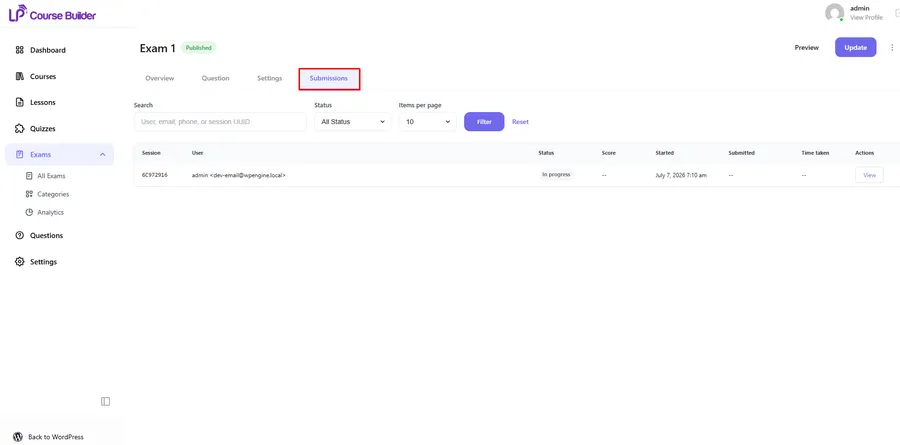
The Submissions tab lets you monitor every attempt on a given exam. Each row in the submissions table includes:
- Session: a unique identifier for the attempt.
- User: the student who submitted it.
- Status: whether the attempt is In Progress or Submitted.
- Score: the student’s result.
- Started: the date and time the attempt began.
- Submitted: the date and time it was turned in.
- Time taken: total time spent on the exam.
- Actions: options for viewing or managing that specific submission.
Use the search box to locate a specific submission quickly, or to pull up a student’s full exam history. Reviewing submissions regularly is a simple habit that helps you catch incomplete or unusual attempts before they affect your pass rate data.
Organizing exams with categories
As your exam library grows, categories keep it manageable. To create one, go to LearnPress, then Exams, then Categories, and fill in:
- Name: the category label.
- Slug: a URL-friendly version of the name, generated automatically if left blank.
- Parent category: an optional way to build a hierarchy, for example nesting “TOEFL Reading” under a broader “TOEFL” category.
- Description: a short summary of what the category covers.
Click Add New Category to save it. Once created, a category can be applied to one or many exams, which makes it much easier to organize test-prep content by subject, course, or exam type, especially if you are running separate tracks for IELTS, TOEFL, and PMP mock exams on the same site.
Reading your exam analytics

The Analytics page, found under LearnPress, then Exams, then Analytics, gives you a top-level view of how your exams are performing.
Exams overview
This section shows the total number of exams created, how many have been completed, and how many are upcoming and not yet started.
Students overview
Here you can see total participants, how many were logged-in users, and how many were anonymous guests. This distinction matters if you are running free trial mock exams alongside paid, account-based ones.
Score distribution
This chart shows how scores are spread across all submissions for a given exam, which is a fast way to spot whether most students are clustering near the pass mark or spread widely. If no submissions exist yet, this section displays “No submission data yet.”
Pass / fail average
This section summarizes the overall pass and fail rates for submitted exams, giving you a quick read on whether your PMP mock exam or IELTS practice test is calibrated at the right difficulty. It only populates once students have actually submitted attempts.
Setting global exam defaults
Beyond individual exam settings, there is one site-wide option under LearnPress, then Settings, then Exam: Exams per Page, which controls how many exams display on each page of your exam archive. For example, setting this to 1 would show one exam per page. After adjusting it, click Save Changes to apply.
What students see on the frontend
Once an exam is published, students access it directly from the frontend of your site. The exam page presents everything they need in one place: exam details, instructions, a timer if one is enabled, the question list, and navigation controls for moving through the test. The result is a clean, focused testing experience that mirrors what a student would expect from a dedicated online mock exams platform, without leaving your WordPress site.
Understanding pass, fail, and voided results
Every submitted attempt is assigned one of three statuses:
- Pass: the student’s score meets or exceeds the configured pass percentage.
- Fail: the score falls below the pass percentage.
- Voided: the attempt was not submitted successfully and does not count as a valid result.
The voided status deserves a closer look because it protects both students and instructors from technical accidents. If a student loses their connection or accidentally closes the browser, the system keeps that exam session active for a five-minute grace period after the exam time expires. If the student returns within that window, they can resume the session and click Submit to record a score. If they do not return in time, the attempt is marked Voided and no score is recorded. This small detail matters a great deal in high-stakes testing, where a dropped connection should never be indistinguishable from an unanswered exam.
Building IELTS, TOEFL, and PMP mock exams with LearnPress
Everything covered so far comes together differently depending on what kind of certification or language exam you are preparing students for. Here is how the features map onto three common use cases.
IELTS mock exams
For an IELTS practice exam, you can set a fixed duration and choose whether to display all questions on one page. You can also organize IELTS practice questions in the Question Bank and reuse them across exams. Setting a fixed Duration, disabling No Time Limit, and enabling Show All Questions on 1 Page recreates that pressure.
TOEFL mock exams
For TOEFL practice, you can allow students to retake an exam and configure whether their scores, correct answers, and explanations are shown after submission. The Allow Retake setting, combined with a Retake Limit of 0 for unlimited attempts, supports that kind of repeated practice. Turning on Show Score Immediately and Show Explanation after each attempt gives students the fast feedback loop.
PMP mock exams
PMP candidates are studying for a single, high-stakes certification exam, so accuracy in scoring and record-keeping matters more than speed of iteration. A configurable Pass Percentage, combined with the Submissions tab’s detailed attempt history, gives instructors a reliable way to track a candidate’s readiness over multiple practice sessions. Categories are useful here too, letting you separate mock exams by PMP knowledge area so students can target their weak spots directly.
Across all three, the same underlying professional online exam builder is doing the work. What changes is how you configure Settings and organize your Question Bank around each exam’s real-world format.
It is worth planning your category structure before you build your first batch of exams. A site running IELTS, TOEFL, and PMP mock exams side by side will get more value out of the Categories feature if each certification track has its own parent category from the start, with subcategories for individual sections or knowledge areas. That structure also makes the Analytics dashboard more useful later, since you can compare score distribution and pass rates across a specific exam type rather than looking at every mock exam on the site as one undifferentiated pool.
Pairing exams with assignments for full course assessment
Mock exams are strong at measuring recall and applied knowledge through structured question types, but some courses also need written or file-based work, such as essays, case studies, or practical submissions. For that, ThimPress also offers an Assignment Add-on for LearnPress, which lets instructors add assignments to any course section, accept file uploads or written answers, and grade submissions with personalized feedback that syncs directly to the LearnPress gradebook. Used alongside the Exam Add-on, it rounds out a course with both objective testing and evaluated written work, all inside the same WordPress LMS.
Why Eduma is built for this kind of testing
Eduma, ThimPress’s WordPress LMS theme, is designed to work with LearnPress and its add-ons. Pairing Eduma with the Exam Add-on can help you build a consistent learning website for courses and online mock exams.
FAQs About How to Build Professional Online Mock Exams Using LearnPress
Do I need to know how to code to build a mock exam in LearnPress?
No coding is required. The entire process, from installing the add-on to publishing an exam, happens through the WordPress Dashboard using the Overview, Question, and Settings tabs described above. Question creation and exam scheduling are handled through standard dropdowns and fields.
Can I let students try a mock exam before they create an account?
Yes. The Allow Guest Attempts setting in the Student Experience section permits visitors who are not logged in to take an exam. If you also want to keep a record of those attempts, enable Save Guest Submissions, otherwise guest results only display once immediately after submission.
What happens if my internet cuts out in the middle of a mock exam?
The system keeps the session active for a five-minute grace period after the scheduled exam time ends. Returning within that window lets the student click Submit and receive a score. If they do not return in time, the attempt is marked Voided and no score is recorded, so a dropped connection is not scored as a failed attempt.
Can I use the LearnPress Exam Add-on to create PMP mock exams?
Yes. You can create a PMP mock exam with timed duration, a configurable Pass Percentage, randomized questions, retake controls, and detailed submission records. These settings can help you build practice exams for PMP candidates.
Can I randomize questions in a LearnPress mock exam?
Yes. The Random Question setting in the Attempts & Access section can shuffle the question order for each student. This can help create different question sequences while using the same exam question set.
Can I set a time limit for an online mock exam?
Yes. In the General section of the exam Settings, you can set a Duration to define how long students have to complete the exam. When the time runs out, the exam is submitted automatically. If you do not want a countdown, you can enable No Time Limit instead.
Conclusion
Building professional online mock exams no longer means adopting a separate, disconnected testing platform. With the Exam Add-on for LearnPress, you can install the plugin, create an exam through the Overview and Question tabs, fine-tune timing and access through Settings, and track results through Submissions and Analytics, all from inside your existing WordPress LMS. Whether you are running IELTS and TOEFL practice tests or a full PMP mock exam program, the same workspace scales from a single practice quiz to a structured exam library organized by category. Paired with Eduma for the surrounding course experience, it gives test-prep and certification sites everything they need to create online exams with LearnPress and deliver them with the reliability students expect from a real exam.
Read more: Using the LearnPress Exam Add-on for employee onboarding and compliance training