If you have ever opened the WordPress plugin directory and stared at 60,000 results with no idea where to start, you are not alone.
Picking the best WordPress plugins for your site is less about installing everything that looks useful and more about choosing a lean stack that actually does its job.
This guide breaks down the plugins worth your time in 2026, organized by category, so you can build a fast, secure site without drowning in updates and settings screens.
LearnPress – WordPress LMS Plugin
We provide an amazing WordPress LMS plugin to create & sell online courses. Let’s find out!
Try NowTable of Contents
Why your plugin choices matter more than you think
Every plugin you activate adds a bit of weight to your site. Some slow down your database, some conflict with your theme, and a few quietly stop getting updated and turn into a security hole. After testing dozens of plugins across client sites over the past two years, the pattern is always the same: sites that run five or six well-chosen tools outperform sites running twenty plugins that overlap in function.
That is really what this list of recommended WordPress plugins is built around. Instead of naming every plugin that exists, each pick below solves a specific problem, has an active development team behind it, and has held up in real testing, not just a features page.
SEO plugins
SEO plugins handle the technical groundwork: XML sitemaps, meta tags, schema markup, and readability checks. You need one, but you only need one active at a time, since running two SEO plugins together usually causes duplicate schema output.
Yoast SEO
Learn MoreYoast SEO is still the plugin most WordPress users learn on first, and for good reason. The traffic light system for readability and keyword focus is genuinely useful for beginners, and the free version covers sitemaps, meta descriptions, and basic schema without asking for a credit card.
Rank Math
Learn MoreRank Math packs more into its free tier than Yoast does, including support for multiple focus keywords per post and built-in 404 monitoring. After switching a mid-size blog from Yoast to Rank Math, the setup wizard imported every redirect and meta field automatically, which is not something every plugin migration handles cleanly.
Performance and caching plugins
Site speed affects both rankings and conversions. Google’s Core Web Vitals report flags Largest Contentful Paint (LCP) over 2.5 seconds as a problem, and a slow-loading page builder is usually the first place to look when scores drop.
WP Rocket
Learn MoreWP Rocket is a paid caching plugin, but it earns its price by turning on page caching, lazy loading, and file minification with almost no configuration. On a mid-size WooCommerce store running on shared hosting, enabling WP Rocket’s preload setting brought mobile LCP down from over four seconds to under two, measured directly in PageSpeed Insights.
LiteSpeed Cache
Learn MoreIf your host runs LiteSpeed servers, LiteSpeed Cache is free and pairs server-level caching with image optimization and database cleanup in one plugin. It is one of the few caching tools that genuinely rivals WP Rocket’s results without a subscription fee.
Security plugins
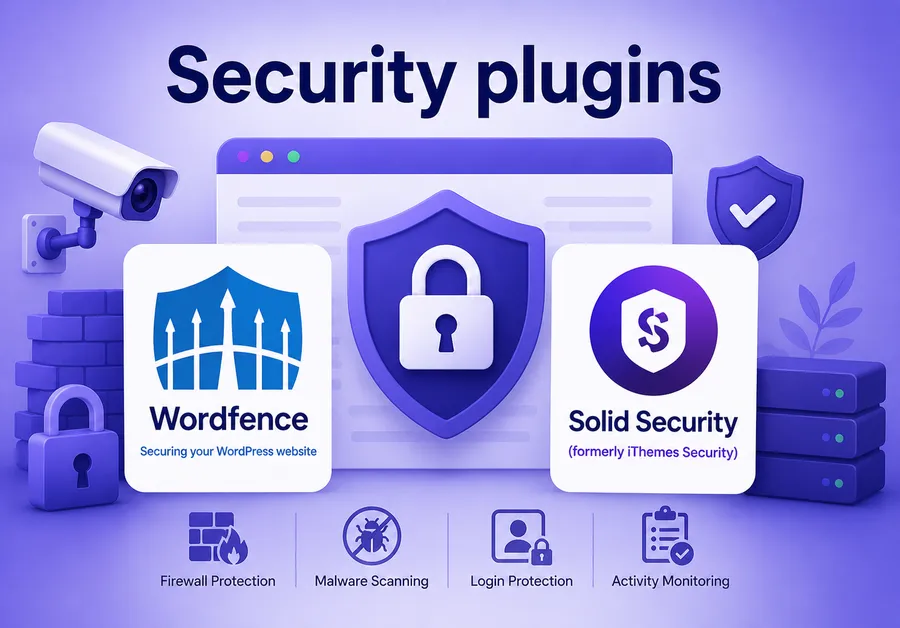
A hacked WordPress site usually traces back to an outdated plugin, a weak password, or brute-force login attempts that were never blocked. Security plugins close these gaps before they become a 2 a.m. emergency.
Wordfence
Learn MoreWordfence runs a firewall and malware scanner directly on your server, which means it can block malicious traffic before WordPress even loads. The free version includes login attempt limiting, which alone stops the majority of automated brute-force attacks.
Solid Security (formerly iThemes Security)
Learn MoreSolid Security focuses on hardening: forcing strong passwords, enabling two-factor authentication, and hiding the default wp-admin login URL from bots that scan for it. Pairing it with a firewall plugin like Wordfence covers both prevention and detection.
Form and contact plugins
Every business site needs at least one working contact form, and most need more: quote requests, newsletter signups, or multi-step applications.
WPForms
Learn MoreWPForms uses a drag-and-drop builder that non-technical staff can use without training, and the free Lite version covers basic contact forms with spam protection built in. The paid tiers add conditional logic and payment field integration for stores collecting deposits.
Fluent Forms
Learn MoreFluent Forms loads noticeably faster than most competitors because it avoids pulling in unnecessary scripts on pages where the form is not displayed. For sites that care about every millisecond of load time, this difference shows up in Core Web Vitals testing.
Backup plugins
No plugin on this list matters if you lose your site to a bad update with no way back. A backup plugin is not optional.
UpdraftPlus
Learn MoreUpdraftPlus takes scheduled backups and stores them off-server in Google Drive, Dropbox, or Amazon S3, so a compromised host does not take your backups down with it. Restoring from a backup is a one-click process, which matters when you are troubleshooting under pressure.
Duplicator
Learn MoreDuplicator is built for migrating a site between hosts or staging environments, not just backing it up. If you plan to move your site later, Duplicator packages the entire WordPress installation, including the database, into a single transferable file.
Page builder and design plugins
Page builders let you design layouts visually instead of writing custom templates for every page.
Elementor
Learn MoreElementor remains the most widely used page builder because its drag-and-drop canvas works for both marketing pages and blog layouts. The tradeoff is added JavaScript weight, which can hurt Core Web Vitals scores on cheaper hosting plans if you are not pairing it with a caching plugin.
Beaver Builder
Learn MoreBeaver Builder produces lighter page output than Elementor while still offering a visual editor, which makes it a better fit for developers who want flexibility without the performance cost. Its module system also plays well with custom theme development.
Image optimization plugins
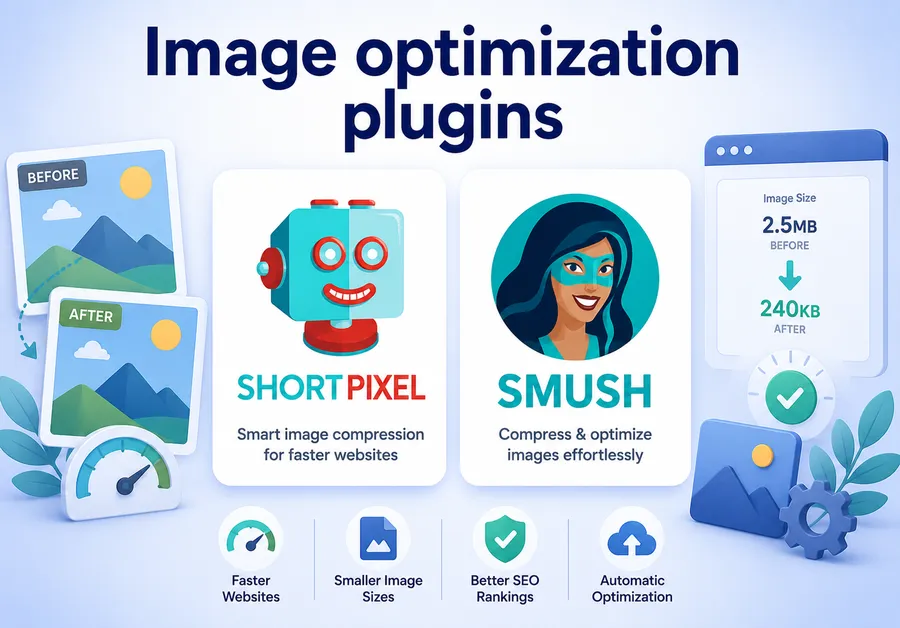
Unoptimized images are one of the most common reasons a WordPress site fails a speed test.
ShortPixel
Learn MoreShortPixel supports both WebP and AVIF formats, which most older image plugins still do not offer, and its pay-per-image pricing scales well for sites with a large media library. Running a bulk optimization pass on an existing site typically cuts total image weight by more than half without a visible quality drop.
Smush
Learn MoreSmush is a solid free option for smaller sites that just need automatic compression on upload without managing a credit system. It also includes lazy loading, which delays offscreen images from loading until a visitor scrolls to them.
Analytics plugins
Understanding visitor behavior tells you whether your SEO and content decisions are actually working.
MonsterInsights

MonsterInsights connects Google Analytics to your WordPress dashboard so you can see traffic, top pages, and conversion data without leaving the admin panel. This removes the need to log into a separate analytics platform just to check basic numbers.
eCommerce plugins
If you plan to sell anything, WooCommerce is the default answer for a reason.
WooCommerce
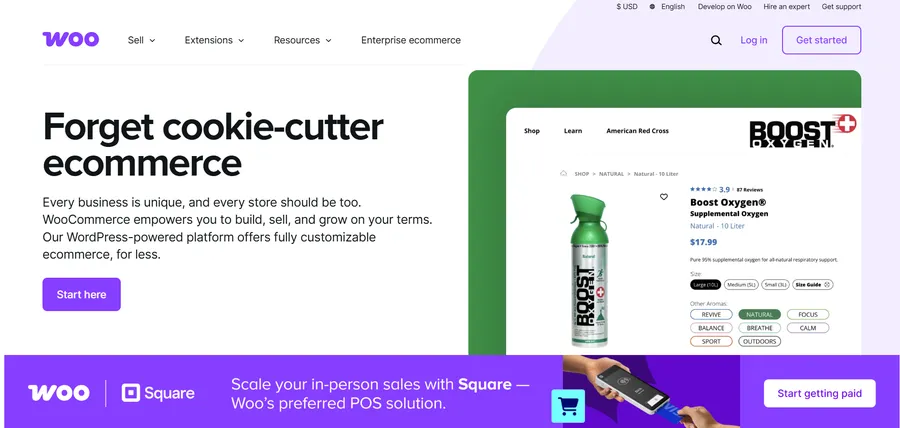
WooCommerce powers a significant share of online stores built on WordPress, according to W3Techs usage statistics, and it handles everything from single-product sites to catalogs with thousands of SKUs. Because it is built on WooCommerce hooks, developers can extend nearly every part of the checkout flow without touching core files.
LMS and online course plugins
If you are building or teaching courses on WordPress, your plugin stack looks a little different, since you need enrollment, lesson progress tracking, and quizzes on top of everything else.
LearnPress

LearnPress is a free, WordPress-native LMS plugin that lets you build courses, lessons, and quizzes directly inside the block editor without needing a separate platform. It is a strong starting point for course creators who want full control over pricing and content without paying monthly SaaS fees, and it pairs cleanly with WooCommerce if you want to sell courses alongside physical or digital products.
Comparison table of top picks
| Category | Top pick | Free version | Best for |
| SEO | Rank Math | Yes | Beginners wanting more features for free |
| Performance | WP Rocket | No | Sites needing fast setup with minimal config |
| Security | Wordfence | Yes | Blocking brute-force attacks and malware |
| Forms | WPForms | Yes | Non-technical teams building forms fast |
| Backups | UpdraftPlus | Yes | Off-server scheduled backups |
| Page builder | Elementor | Yes | Visual page design for marketing pages |
| Image optimization | ShortPixel | Trial | Large media libraries needing WebP/AVIF |
| Analytics | MonsterInsights | Yes | Viewing Google Analytics inside WordPress |
| eCommerce | WooCommerce | Yes | Selling products or courses |
| Online courses | LearnPress | Yes | Building and selling courses natively |
How to choose the right plugin stack for your site
Start with the problems your site actually has, not the plugins other blogs recommend by default. A blog with no store does not need WooCommerce, and a portfolio site with ten pages does not need a heavyweight page builder. A reasonable starting stack for most sites is one SEO plugin, one caching plugin, one security plugin, one backup plugin, and whatever content-specific tool your site needs, such as a form builder or an LMS plugin like LearnPress for course content.
Treat this as your baseline list of must have WordPress plugins, then add specialty tools only when a specific feature gap shows up. Before installing anything new, check the plugin’s last update date and active install count in the WordPress.org directory. A plugin that has not been updated in over a year is a risk regardless of how good its reviews look.
It also helps to think of your stack as essential plugins for WordPress grouped by function rather than a long unsorted list. Group them mentally into security, speed, content, and conversion, and audit each group once or twice a year to remove anything you are no longer using.
Common plugin mistakes to avoid
Even a good list of plugins can hurt your site if you install them the wrong way. A few habits separate a stable WordPress install from one that breaks after every update.
Installing duplicate functionality
Running two caching plugins, two SEO plugins, or two firewall tools at once is one of the fastest ways to break a site. They tend to fight over the same settings, write conflicting rules to your .htaccess file, or duplicate schema markup in your page source. Before adding a new plugin, check whether an existing one already covers that function.
Ignoring update notifications
Outdated plugins are the single most common entry point for WordPress hacks, according to security audits published by Wordfence and Sucuri. Set aside time weekly to review pending updates, and always test major updates on a staging site first if your host offers one, since a plugin update can occasionally break compatibility with your theme.
Choosing plugins based on install count alone
A high number of active installs is a decent signal, but it does not guarantee a plugin fits your specific setup. Read the support forum before installing anything, particularly the most recent threads, since that tells you how responsive the developer is when something goes wrong. A plugin with a smaller install base and fast support replies is often a safer bet than a massive plugin with an abandoned support queue.
Skipping the staging environment
Testing a new plugin directly on a live site is a common shortcut that occasionally backfires, especially with page builders and LMS plugins that modify how content is rendered. Most managed WordPress hosts include a one-click staging feature. Use it before activating anything that touches checkout flows, course content, or your homepage template.
FAQs About The Best WordPress Plugins
How many plugins is too many for a WordPress site?
There is no fixed number, since a well-coded plugin from a reputable developer has far less impact than a poorly built one. The real question is whether each plugin serves a distinct purpose. If two plugins overlap in function, such as two SEO tools or two caching plugins running together, remove one before it causes conflicts.
Do WordPress plugins slow down my site?
Some do, especially page builders and plugins that load scripts on every page instead of only where needed. Pairing any script-heavy plugin with a caching tool like WP Rocket or LiteSpeed Cache usually offsets most of the slowdown, and testing your site in PageSpeed Insights after each new install helps catch problems early.
Are free WordPress plugins safe to use?
Most plugins listed in the official WordPress.org directory go through a review process and are safe, but safety depends on ongoing updates, not just the initial listing. Stick to plugins with recent update history, a large active install base, and responsive support forums, and avoid anything pulled from unofficial sources outside WordPress.org.
What is the best LMS plugin for WordPress?
LearnPress is one of the strongest options for course creators who want a free, WordPress-native LMS without recurring SaaS fees. It handles lessons, quizzes, and student progress directly inside WordPress, and it integrates with WooCommerce for course sales, making it a practical choice for anyone building a teaching site from scratch.
Conclusion
There is no single list of must have WP plugins that fits every site, but the categories above cover what nearly every WordPress site needs: search visibility, speed, security, backups, and a way to manage the content type you actually publish. Pick one solid plugin per category, keep everything updated, and resist the urge to install a new tool for every small feature request. That discipline, more than any single plugin on this list, is what keeps a WordPress site fast, secure, and easy to maintain over time.
This walkthrough reflects plugin behavior as of mid-2026. Features, pricing, and free-tier limits change with major releases, so check each plugin’s changelog before relying on specific details for a live site.
Read more: 6 Best WP Directory Plugin Options for Building a Business Directory