
Student tracking shows teachers who is learning, who is falling behind, and who needs help before the next report card arrives. A good tracking system in schools replaces scattered spreadsheets and paper notes with one clear record for every learner.
In this guide, you will compare five tools, see their key features side by side, and learn how to pick the right one for your school or training center.
LearnPress – WordPress LMS Plugin
We provide an amazing WordPress LMS plugin to create & sell online courses. Let’s find out!
Try NowTable of Contents
What is a student tracking system?
A student tracking system is software that records and reports a learner’s attendance, grades, assignments, behavior, and course progress in one place. Teachers, parents, and administrators use it to spot problems early and to measure real growth over time.
What data a tracking system should record
Most schools need five types of data in one dashboard:
- Attendance and punctuality
- Grades, quiz scores, and assignment status
- Course or lesson completion
- Behavior notes and participation
- Skills or standards mastered
If a tool covers only one or two of these, you will still end up with spreadsheets on the side.
Why education tracking matters for schools
Education tracking turns raw marks into decisions. A teacher who sees a drop in quiz scores in week three can step in during week four, not after the exam. Leaders also use the same data to compare classes, check whether a new course works, and report results to parents or boards.
A student achievement tracking system adds one more layer. It links each grade to a learning goal, so you can see not just what a student scored, but which skill they have or have not mastered yet.
What to look for in student progress tracking software
The right student progress tracking software is easy for teachers to update, clear for parents to read, and flexible enough to match how your school teaches. Before you compare brands, check the points below.
Features that matter most
- Gradebook: Automatic grading for quizzes and a simple way to enter manual marks.
- Progress reports: Visual dashboards per student and per class, with export to CSV or PDF.
- Attendance: Quick daily or per-session check-in.
- Parent access: A portal or messaging tool so families see progress without waiting for meetings.
- Integrations: Works with your existing website, email, or student information system.
- Data privacy: Role-based access and a clear policy on how student data is stored. Schools in the US should check FERPA requirements, and schools in the EU should check GDPR.
Cloud tools or self-hosted tools
Cloud tools such as Google Classroom or ClassDojo are quick to start because the vendor handles hosting and updates. Self-hosted tools such as Moodle or LearnPress run on your own server. They take more setup, but you control the data, the design, and the cost structure.
How we reviewed these tools
We compared each tool using its public documentation, feature pages, and plugin listings, then scored it on five points: data covered, ease of use for teachers, parent access, setup effort, and cost model. We did not run formal benchmarks, so treat the notes below as a practical guide and run a short trial with your own class before you decide. For LearnPress and Eduma, the feature details come from the official ThimPress and LearnPress documentation.
Best student tracking tools reviewed
These five tools cover different needs, from a full school records system to a free classroom app. Each review below gives a short overview, the key features, and the type of school it suits best.
1. LearnPress with Eduma theme
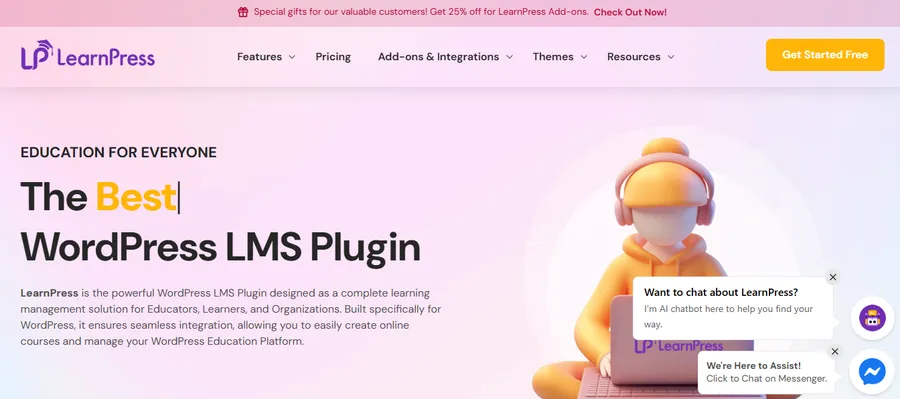
LearnPress is a free WordPress LMS plugin, and Eduma is a premium education theme built to work with it. Together they let a school or training center run courses, quizzes, and student records on its own WordPress site. Teachers can see each learner’s course progress, results, and enrollment from the dashboard. The Gradebook add-on, which is bundled with Eduma, adds a clear view of passed lessons and quizzes, and it exports to CSV. Because you own the site, you decide how data is stored and who can see it.
Key features:
- Course, lesson, and quiz progress tracking per student
- Gradebook add-on with progress and result views
- Student List add-on to see who is enrolled in each course
- Certificates and prerequisite courses to guide learning paths
- WooCommerce support to sell courses, plus Elementor and Gutenberg compatibility
Pros and cons: You own your data and design, and the core plugin is free. You do need basic WordPress skills, a reliable host, and regular updates, and attendance tracking is not as detailed as in a full school records system.
Best for: Schools, academies, and tutoring centers that want their own branded site with built-in student progress tracking software. It is less suited to schools that need full timetabling and finance modules.
2. Moodle
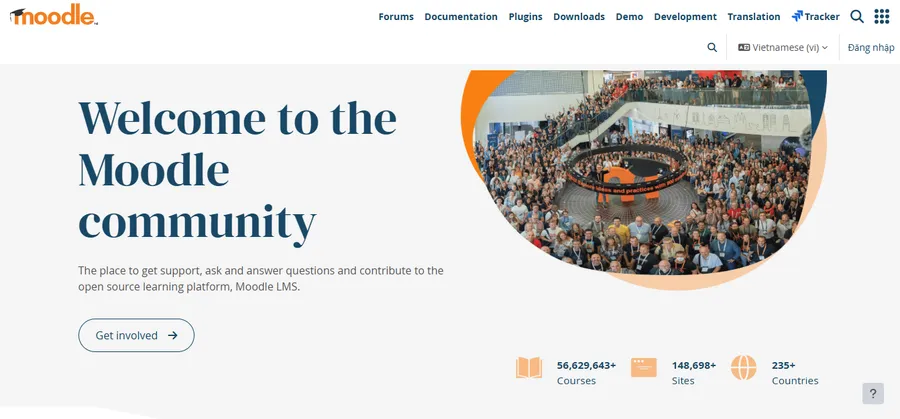
Moodle is a free, open-source learning management system used by schools and universities worldwide. You install it on your own server or buy hosting from a Moodle partner. It offers detailed reports, a flexible gradebook, and activity completion tracking. The learning curve is steeper than most tools here, and the default interface looks dated until you apply a modern theme. In return, you get deep control over courses and data.
Key features:
- Gradebook with weighted categories and custom scales
- Activity and course completion tracking
- Competency frameworks for skills-based learning
- Built-in reports and logs for each learner
- Large plugin library
Pros and cons: Very flexible and well supported by a large community. It also needs more admin time, and teachers may need training before they feel confident.
Best for: Larger schools and universities with an IT team that can manage hosting and updates.
3. Google Classroom
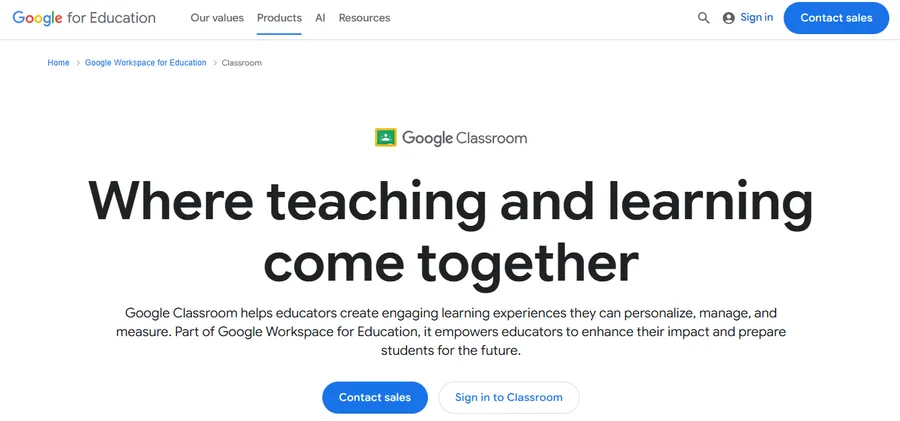
Google Classroom is a free classroom tool for schools that use Google Workspace for Education. Teachers post assignments, collect work, grade it, and return feedback in one stream. The student work view shows who has submitted, who is late, and who has not started. It is simple, familiar, and quick to roll out. It is not a full student information system, so attendance, behavior records, and long-term reporting often need another tool.
Key features:
- Assignment tracking with turned-in, missing, and late status
- Grading with rubrics and a basic gradebook
- Grade export to Google Sheets
- Easy integration with Google Meet, Drive, and Docs
- Guardian email summaries
Pros and cons: Fast to learn and free for eligible schools. Reporting is basic, so long-term trends and attendance usually live somewhere else.
Best for: Primary and secondary classes that already use Google accounts and want a low-cost start.
4. PowerSchool
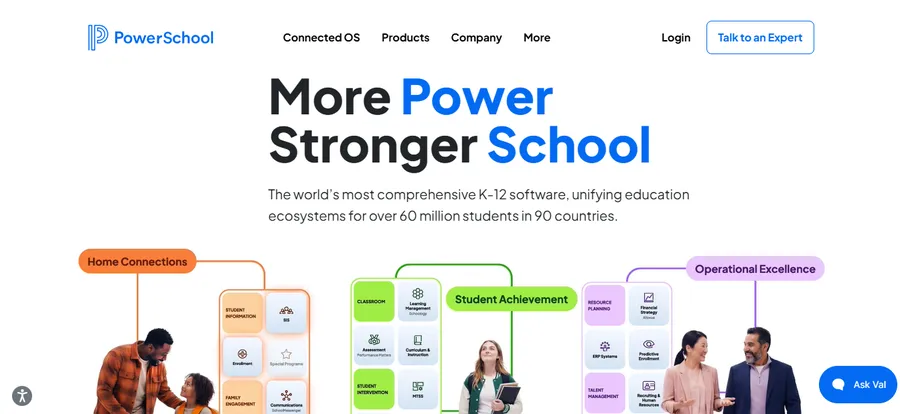
PowerSchool is a student information system (SIS) used by many school districts, mostly in North America. It handles enrollment, attendance, grades, scheduling, and reporting for the whole school. Parents and students log in to a portal to see marks and attendance. It is built for administrators who need one official record. Pricing is usually quote-based, so you need to contact the vendor, and setup often involves district-level planning.
Key features:
- Central student records and enrollment
- Attendance and gradebook modules
- Parent and student portal
- District-level reporting and analytics
- Add-ons for special education and assessments
Pros and cons: One official record for the whole school and strong reporting. Costs and setup time are higher, and small schools may not need this much.
Best for: Districts and large schools that need an official, school-wide tracking system in schools with strict reporting rules.
5. ClassDojo
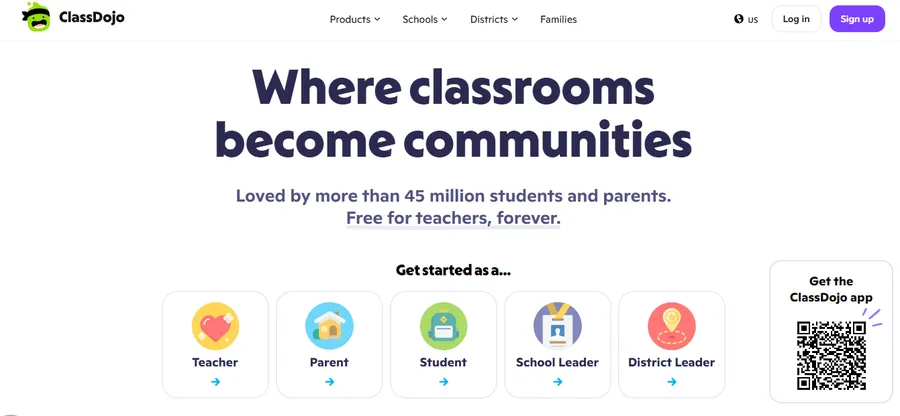
ClassDojo is a free classroom communication app that focuses on behavior and family engagement. Teachers award points for positive actions, share photos and updates, and message parents directly. It is not a full gradebook, but it is very good at the human side of tracking, such as participation, teamwork, and effort. Younger students usually respond well to the points and avatars.
Key features:
- Behavior points and custom skills
- Student portfolios for sharing work
- Parent messaging with translation
- Class stories and announcements
- Simple reports on behavior trends
Pros and cons: Parents and young students enjoy it, and it takes minutes to start. It does not replace a gradebook, so most teachers pair it with another tool.
Best for: Elementary classrooms that want strong parent communication and positive behavior tracking.
Student tracking tools comparison table
Use this table to compare the five tools on the points schools ask about most. Check each vendor’s site for current pricing and plans.
| Tool | Type | Best for | Gradebook | Attendance | Parent access | Cost model |
|---|---|---|---|---|---|---|
| LearnPress + Eduma | WordPress LMS | Schools and academies with their own site | Yes (add-on) | Limited | Via site accounts | Free plugin, paid theme |
| Moodle | Open-source LMS | Large schools, universities | Yes | Via plugin | Yes (parent role) | Free software, hosting cost |
| Google Classroom | Cloud classroom | Primary and secondary classes | Basic | No | Email summaries | Free for schools |
| PowerSchool | Student information system | Districts, large schools | Yes | Yes | Yes (portal) | Quote-based |
| ClassDojo | Behavior and communication app | Elementary classes | No | No | Yes (messaging) | Free, with paid options |
Common mistakes when you start tracking students
Most failed rollouts come from process problems, not software problems. Knowing the usual traps helps you avoid them in your first term.
Tracking too much data
Teachers stop updating a system that asks for ten fields per student. Start with three or four measures, such as quiz scores, assignment completion, attendance, and one teacher note. Add more only when someone will actually use the data.
Skipping training and a review routine
A dashboard does nothing if nobody opens it. Set a weekly ten minute check where teachers review students who dropped below a set level, then agree one action for each. Share the same simple report with parents each month so everyone sees the same picture.
Ignoring privacy and consent
Student records are sensitive. Tell families what you collect and why, limit access by role, and delete data you no longer need.
How to choose the right system
Start with your biggest pain point, not with the longest feature list. A school that struggles with parent communication needs a different tool than one that struggles with course completion data.
Match the tool to your school type
- Single school or training center: LearnPress with Eduma or Google Classroom.
- University or large school with IT staff: Moodle.
- District with strict reporting rules: PowerSchool.
- Elementary classroom: ClassDojo, often combined with a gradebook tool.
Questions to ask before you commit
- Who will enter the data, and how many clicks does it take?
- Can parents and students see progress without extra training?
- Can you export your data if you leave?
- How are updates, backups, and privacy handled?
- What is the total cost after hosting, add-ons, and support?
How to set up student tracking on WordPress
If you pick LearnPress and Eduma, you can have a working setup running in an afternoon. This walkthrough is based on LearnPress 4.x and a current Eduma release. Menu names may differ slightly in newer versions. Back up your site and use a child theme before you edit any theme files.
- Install the theme and plugin. Upload the Eduma theme under Appearance > Themes, then activate the LearnPress plugin when prompted.
- Add the tracking add-ons. Open the Eduma plugins page and activate Gradebook and Student List.
- Create a course. Go to LearnPress > Courses, add lessons and quizzes, and set passing grades.
- Enroll students. Let learners register on the front end, or assign the course manually.
- Review progress. Open the course gradebook to see completed lessons, quiz results, and each learner’s status. Export the data to CSV for reports.
Keep your data safe by limiting teacher and admin roles, and by using a trusted host with regular backups.
FAQs
Is student tracking the same as a student information system?
No. A student information system (SIS) is the official school record for enrollment, attendance, and final grades. Student tracking is a broader practice that also covers day-to-day progress, skills, and behavior, and many tools do one or the other.
What are the benefits of a student achievement tracking system?
It helps teachers find learning gaps early and gives parents clear evidence of progress. It also lets leaders compare results across classes and see which lessons or courses need improvement.
Can small schools use free student tracking tools?
Yes. Google Classroom, ClassDojo, Moodle, and the free LearnPress plugin all cost nothing to start with. Be aware that free tools may need extra add-ons, hosting, or a second app to cover attendance and reporting.
How do you keep student data safe in a tracking system?
Use role-based access so only the right staff can see sensitive records. Choose a vendor or host with clear privacy terms, turn on two-factor login for staff, and follow local laws such as FERPA in the US or GDPR in the EU.
Conclusion
Student tracking works best when it is simple enough for teachers to update every day and clear enough for parents to understand. For a full school record, PowerSchool is a strong choice. For classroom communication, ClassDojo and Google Classroom are easy starting points. If you want control over your own site, course data, and branding, LearnPress with the Eduma theme gives you a flexible way to track course progress and grades with no big licensing cost for the core plugin. Pick one pain point, test a tool with a single class for a month, and expand once your teachers are comfortable.