A useful idea shouldn’t disappear when you move to the next lesson. Whether you’re saving a quick reminder, revisiting something you’ve learned, or looking for a little extra help, the right tools should be easy to reach.
That’s where the latest LearnPress new features come in. With LearnPress Student Notes, a refreshed AI Learning Assistant interface, and improved curriculum navigation, learners can keep their study tools closer to the course content.
Let’s take a closer look at these LearnPress new features and how they fit into everyday learning.
LearnPress – WordPress LMS Plugin
We provide an amazing WordPress LMS plugin to create & sell online courses. Let’s find out!
Try NowTable of Contents
LearnPress Student Notes: Keep Useful Ideas Beside the Lesson
Some ideas are worth keeping close. With LearnPress Student Notes, learners can save useful takeaways right beside their lessons, making it easier to revisit important points without searching through the course again.
To get started, open the Notes panel, select Add Note, and write down a reminder. Saved notes stay connected to their lessons, so learners can return to them, make changes, or remove them whenever needed.
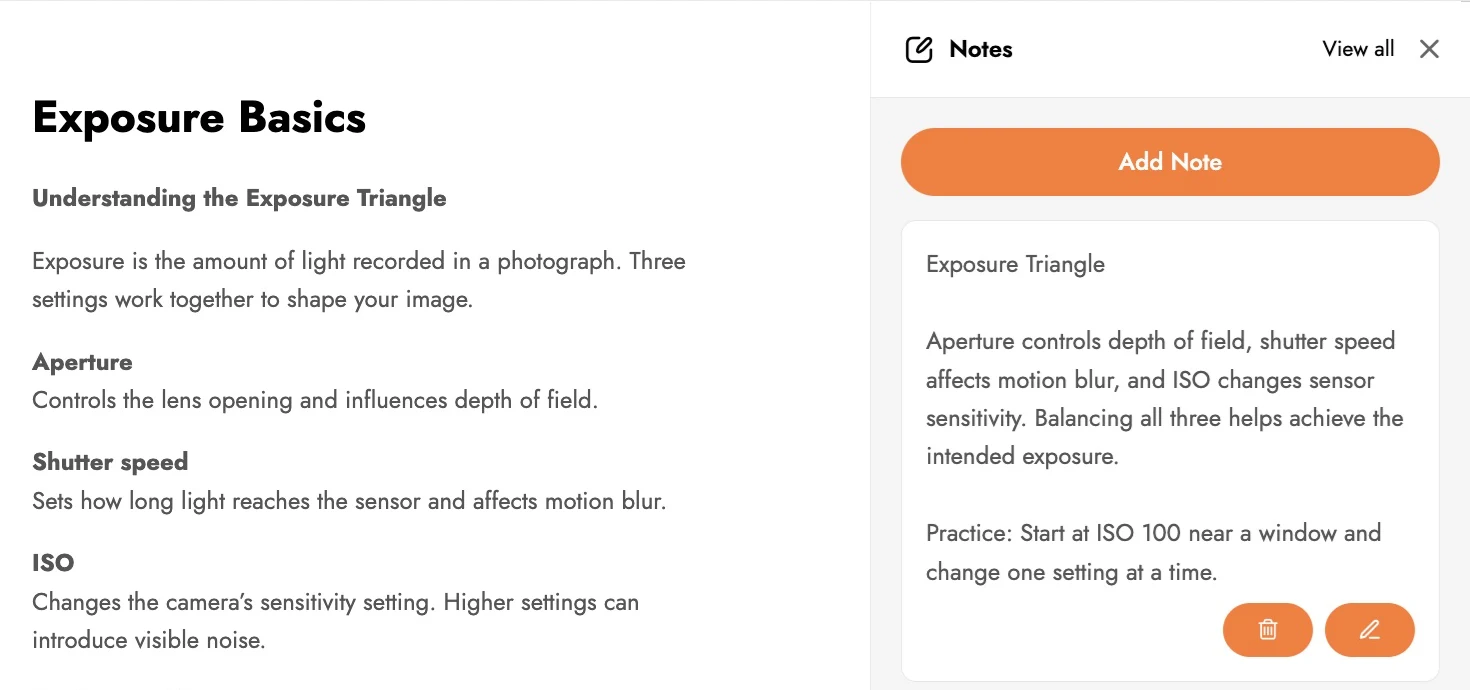
Your notes stay useful even after you’ve moved on to another lesson. Select View all to find your saved notes organized by lesson, or access them anytime from the Notes section in your learner profile. Each note stays linked to its original course and lesson, making it easy to pick up where you left off.
Student Notes are personal study notes, not public lesson comments. Course administrators can also manage notes through the WordPress dashboard, so learners should avoid storing sensitive information in them.
AI help within the learning screen
The AI Learning Assistant already existed in LearnPress. This update refreshes its interface and the way learning tools are presented; it is not the launch of a completely new assistant.
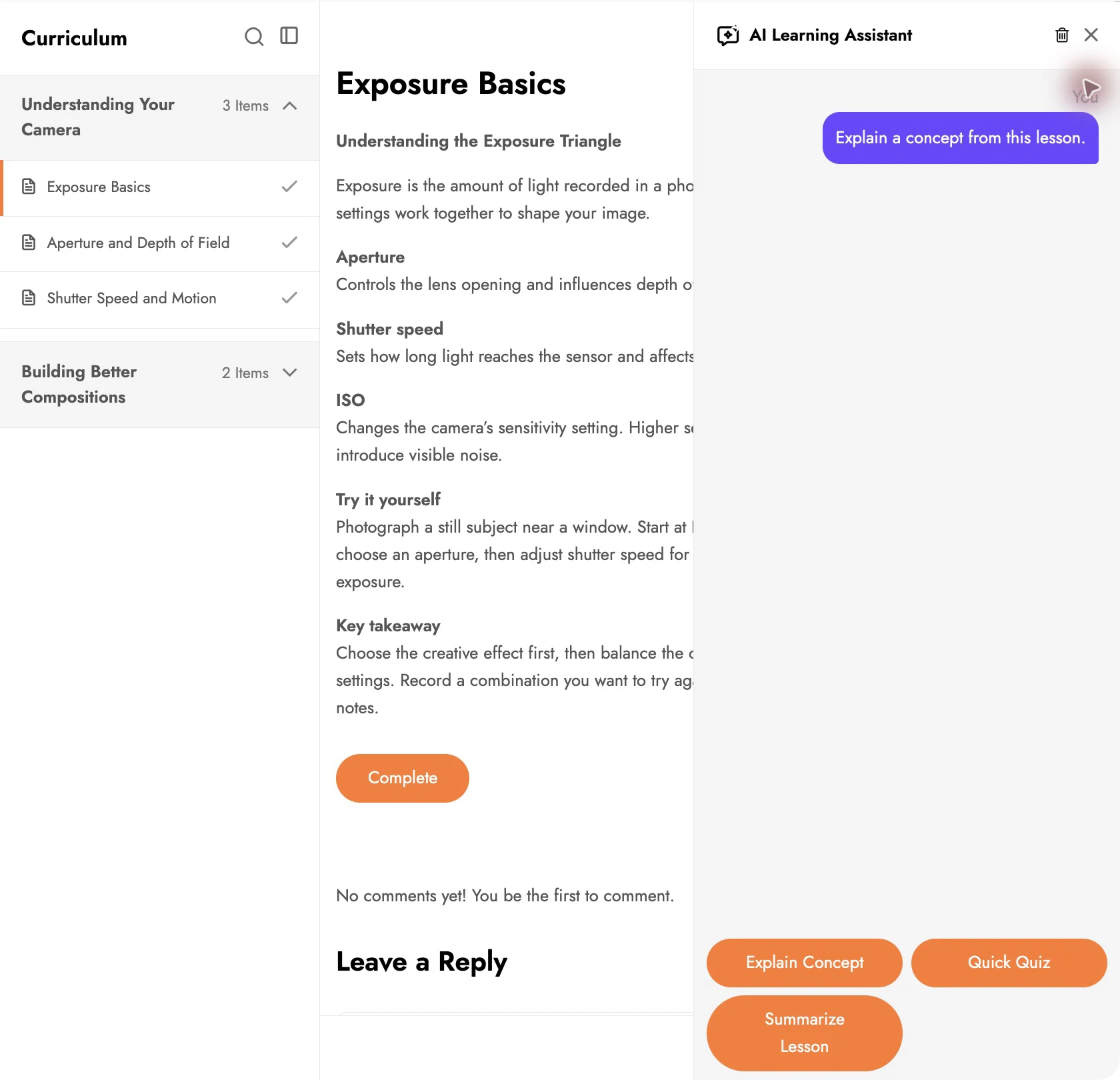
Select the AI Assistant icon on the right of the lesson to open its panel. In the current demo interface, the available quick actions are Explain Concept, Quick Quiz, and Summarize Lesson. They offer starting points when you want another explanation, a practice question, or a recap of the material.
For example, after reading about shutter speed, you could use Explain Concept to request help with the idea before returning to the lesson. Treat generated material as study support and check important points against the course content.
Availability depends on the site configuration. Course owners need to enable the AI feature and configure their OpenAI connection with an API key; learners must be logged in. The screenshot demonstrates the actual panel and its controls, not a verified successful AI response. See our AI Assistant overview for more about its capabilities and setup.
Curriculum navigation and learning tools in one view
Moving between lessons is easier when you can see where you are in the course. The curriculum sidebar keeps the course structure within reach, with organized sections, a highlighted current lesson, and search controls to help learners find what they need.
Learners can revisit earlier lessons, move forward using the previous and next controls, or hide the sidebar for more reading space. Notes and the AI Learning Assistant are also accessible from the tools area on the right, keeping useful learning tools close to the lesson. The exact layout may vary depending on the site’s theme and enabled features.
Explore the updated learning experience
Introduced in LearnPress 4.4.11, LearnPress Student Notes joins a refreshed AI Learning Assistant interface and updated learning tools to make everyday studying a little more convenient.
Whether you’re already using LearnPress or exploring it for the first time, there’s more to discover. Explore these LearnPress new features and see how they can support your next study session.
For version details and configuration information, visit the LearnPress changelog and AI Assistant overview.
What are LearnPress Student Notes?
LearnPress Student Notes let learners save personal notes directly within their lessons. They can record useful takeaways, edit saved notes, and revisit them later through the course notes collection or their learner profile.
How do I enable Student Notes in LearnPress?
Student Notes were introduced in LearnPress 4.4.11. Update LearnPress to a version that supports the feature, then open a lesson and look for the Notes icon in the learning tools area. In our LearnPress 4.4.12 test installation, no separate Notes plugin was required.
Where can I find my saved LearnPress Student Notes?
You can select View all to browse notes organized by lesson within a course. Your saved LearnPress Student Notes are also available in the Notes section of your learner profile, with links back to the relevant courses and lessons.
Does the LearnPress AI Learning Assistant require an API key?
Yes. Course owners need to enable the AI Assistant and configure an OpenAI API key for its AI-powered functions. Learners must also be logged in. Available quick actions include Explain Concept, Quick Quiz, and Summarize Lesson.
What are the latest LearnPress new features?
From saving lesson notes to accessing AI assistance and navigating courses, these LearnPress new features and interface improvements help keep useful learning tools close to the lesson.
Contact US | LearnPress:
Website: https://learnpresslms.com/
Fanpage: https://www.facebook.com/learnpresslms
Email: [email protected]