What if your course videos could do more than simply show learners what to do?
With LearnPress interactive video, watching becomes doing. The new Video Block in Interactive Blocks 4.0.1 lets instructors add timed questions, clickable buttons, visual prompts, and interactive elements directly to their videos, creating a more engaging learning experience.
Imagine a quick question appearing right after a demonstration, a helpful resource available at the click of a button, or an image highlighting an important concept. Instead of simply watching from start to finish, learners can interact with the content as the lesson unfolds.
LearnPress – WordPress LMS Plugin
We provide an amazing WordPress LMS plugin to create & sell online courses. Let’s find out!
Try NowTable of Contents
What Is Interactive Blocks for LearnPress?
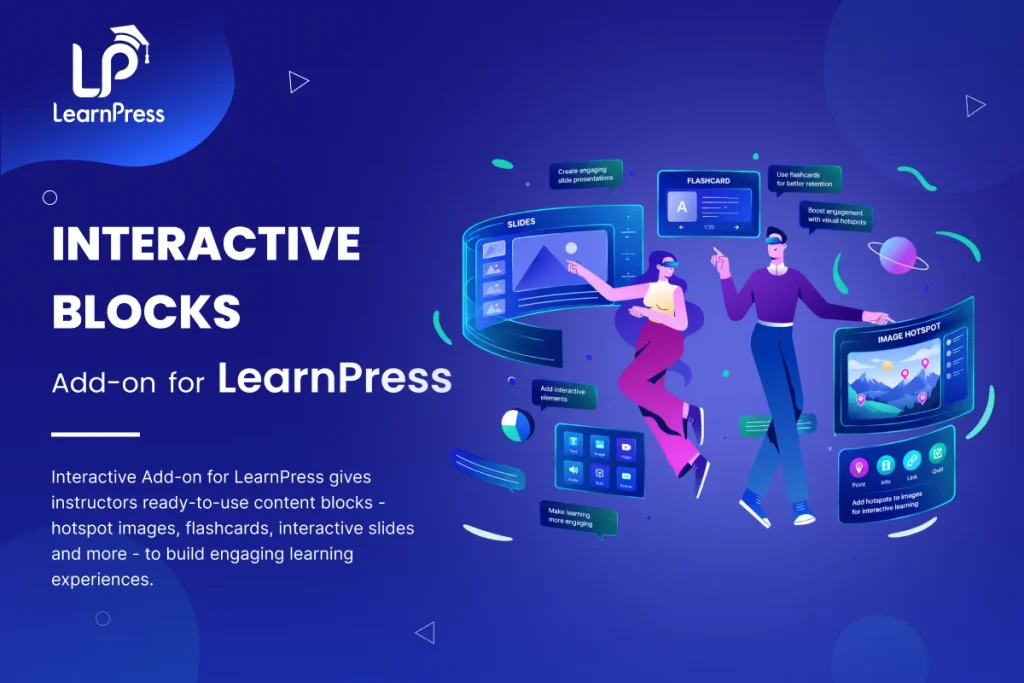
Interactive Blocks for LearnPress is an add-on that helps instructors make their online courses more engaging with interactive learning activities.
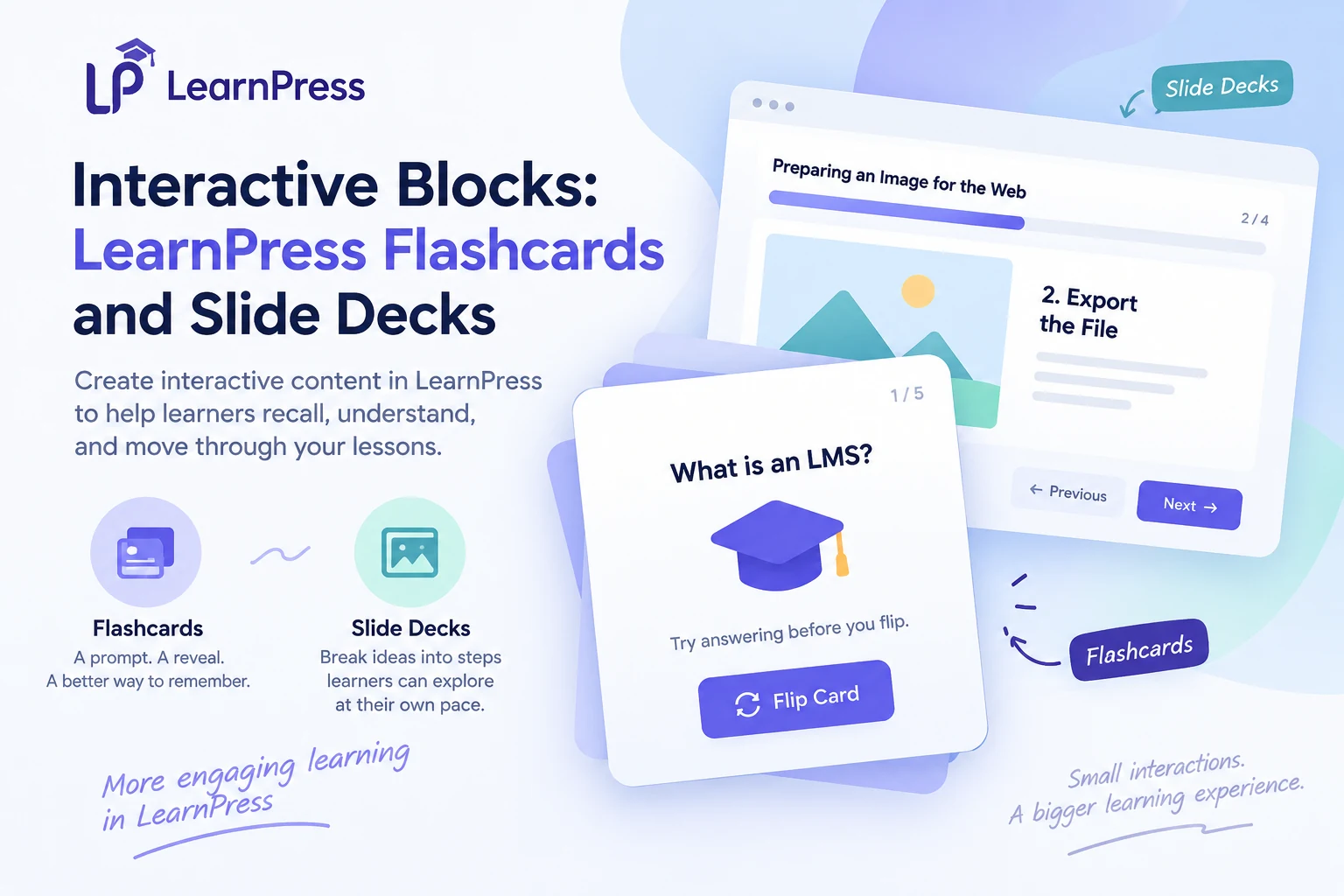
Instead of relying solely on traditional lesson content, instructors can create flashcards to reinforce key concepts and slide decks to present information step by step. These activities can be easily added to LearnPress lessons, giving learners more ways to interact with course materials.
With version 4.0.1, the add-on takes things further by introducing Interactive Video, allowing instructors to bring questions, clickable elements, and visual prompts directly into their course videos.
New to the add-on? Check out our Interactive Blocks LearnPress introduction to explore its existing features.
What’s new in Interactive Blocks 4.0.1?
The highlight of Interactive Blocks 4.0.1 is the new Interactive Video block, which lets instructors add interactive elements at specific moments during video playback.
The editor includes five interaction types:
- Text Labels: Highlight important information or add helpful reminders.
- Click Buttons: Direct learners to relevant resources or additional content.
- Image Cards: Display visual references and supporting illustrations.
- Pulsing Targets: Draw attention to important points in the video.
- Pop Quizzes: Check understanding with single-choice or true/false questions.
Each interaction has its own start and end time, so instructors can control exactly when it appears. For example, you could show a reminder before a difficult step, display an image card during a demonstration, or pause the video to ask a question before moving on.
Ask a question at the right moment
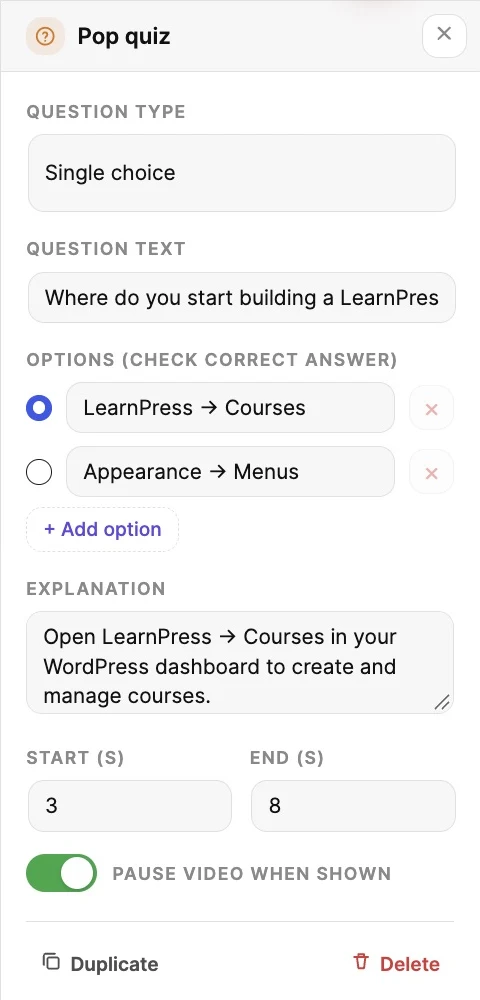
With Pop Quizzes, instructors can add single-choice or true/false questions directly to a video. Set the question, answer options, and explanation, then place it at the right moment on the timeline.
Enable Pause when shown to give learners time to answer without missing the next part of the video.
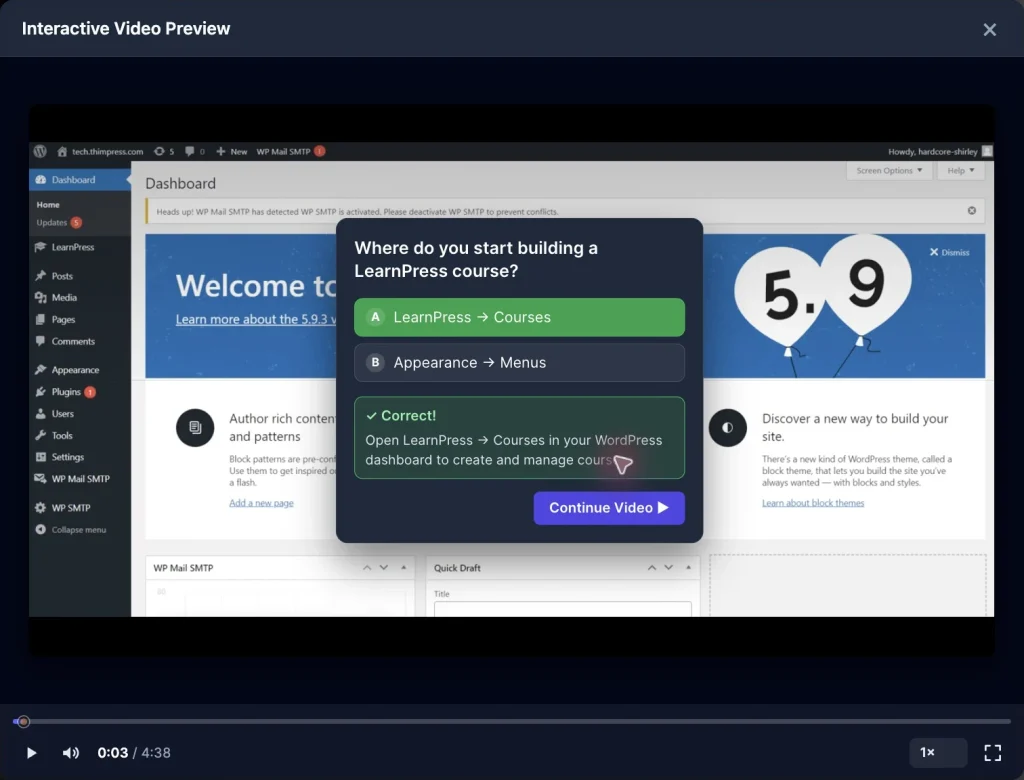
For example, imagine a tutorial introducing the WordPress dashboard. Right after showing how to create a new course, the video pauses and asks learners where they can find that option. They choose an answer, receive feedback, and continue watching.
When learners answer correctly, the video can display a “Correct!” message along with the explanation. They can then select Continue Video to resume playback.
This turns a simple demonstration into an opportunity to check understanding while the information is still fresh.
How to create your first LearnPress interactive video
Creating your first interactive video starts in the LearnPress dashboard. You can use an existing video and add interactions at the moments that matter most.
Step 1: Create a New Interactive Video
Go to LearnPress → Interactive and create a new item. Enter a title, select Video Watch & Interact, and save to continue.
Step 2: Choose Your Video Source
Select a video source from the available options, including YouTube, Vimeo, Bunny Stream, or video upload.
For YouTube videos, the editor can retrieve the video’s title, thumbnail, and duration, making it easy to get started with existing content.
Step 3: Add Interactive Elements
Open the timeline editor and choose an interaction type. Add your content, then set its start and end time to control when it appears.
For a Pop Quiz, enter your question, answer options, correct answer, and explanation. Enable Pause when shown if learners should answer before continuing.
Step 4: Preview and Add It to Your Lesson
Save your changes and open Preview to see how the activity works. Check the timing, answer the question, and make sure playback continues as expected.
When you’re happy with the result, copy the shortcode from the Interactive library and insert it into your LearnPress lesson.
Your interactive video is now ready to become part of the learning experience.
Combine Interactive Videos With Flashcards and Slides
Interactive Video is just one way to make your LearnPress lessons more engaging. You can start with a video demonstration, follow it with flashcards to reinforce important concepts, and use a slide deck to summarize the key takeaways. Together, these activities give learners different ways to explore, practice, and review course content.
Want to explore the other features? Check out our Interactive Blocks introduction, flashcard guide, and slide guide.
Make Your Next Course Video Interactive
Your next course video doesn’t have to be something learners simply watch. With Interactive Blocks 4.0.1, you can bring questions, clickable elements, and visual prompts directly into your videos, creating more opportunities for learners to participate as they go.
Start with a video you already use, add a question at an important moment, and see how a small interaction can make the lesson more engaging.
Ready to get started? Explore Interactive Blocks for LearnPress and discover what you can create.
The Interactive Blocks Add-on is also included in the LearnPress Pro Bundle, giving you access to interactive videos, flashcards, and slide decks alongside other premium LearnPress add-ons.
Frequently asked questions
What can I add to a LearnPress interactive video?
You can add text labels, clickable buttons, image cards, pulsing targets, and pop quizzes. Each element can appear at a specific time during video playback.
Can I pause a video to ask learners a question?
Yes. Pop Quizzes support single-choice and true/false questions. Enable Pause when shown to let learners answer, receive feedback, and continue watching.
Can I use Interactive Video in my existing LearnPress lessons?
Yes. Create and save your interactive video in the Interactive library, then copy its shortcode into your LearnPress lesson content.
Contact US | LearnPress:
Website: https://learnpresslms.com/
Fanpage: https://www.facebook.com/learnpresslms
Email: [email protected]