Picture a student halfway through your course at 11 p.m. They hit a confusing quiz question and look around for someone to ask. There’s no one online, and the comment box they post to might get a reply in three days. So they close the tab. Maybe they come back. Often, they don’t.
That quiet stall is a familiar reason online students disengage, and it usually has nothing to do with your course content. The new LearnPress chat room, officially the Chat Room Add-on for LearnPress, brings real-time chat rooms directly into your courses, so that moment doesn’t have to end there.
LearnPress – WordPress LMS Plugin
We provide an amazing WordPress LMS plugin to create & sell online courses. Let’s find out!
Try NowLearnPress – WordPress LMS Plugin
LearnPress is a free WordPress LMS plugin for building lessons, quizzes, certificates, and managing students. If you’re running an online school on WordPress, LearnPress gives you the core toolkit, and add-ons like this one extend it with the specific features your courses need.
Table of Contents
The Problem: Why Online Students Feel Isolated
Self-paced courses solved the scheduling problem. They didn’t solve the loneliness problem. Traditional discussion widgets work like blog comments: post, wait, refresh, wait again. There’s no sense that anyone else is actually there. For a student working through a multi-week course alone, that silence reads as “nobody’s watching,” and disengagement follows fast.
Instructors feel it too. Without a real-time channel, the only way to catch a confused or stuck student is to comb through comment threads after the fact, usually after that student has already given up. The usual workaround is pushing everyone to a Discord server or Facebook group, but that moves the problem off your site entirely. It fragments your brand experience and hands you no control over who gets access to which course’s conversation.
This isn’t a new problem. Our post on engaging online course content covers the same idea from a different angle: don’t let students learn alone.
We think community and real-time interaction are what’s missing here, and the Chat Room Add-on gives you both without leaving LearnPress.
What Is the Chat Room Add-on for LearnPress?
The Chat Room Add-on drops a real, live chat room straight into the Discussion area of every course. Students and instructors talk in the same place they already are: the course page itself.
We ran the add-on hands-on on a live demo course with a small group of test accounts, sending messages, reacting, replying, pinning, muting, and locking the room to see whether it holds up under real use. In that trial, messages landed instantly with zero page refresh, even on the zero-config Polling mode. The moderation tools felt straightforward to use without any technical setup, and the chat UI adapted cleanly to the site’s own theme instead of feeling like a bolted-on widget.
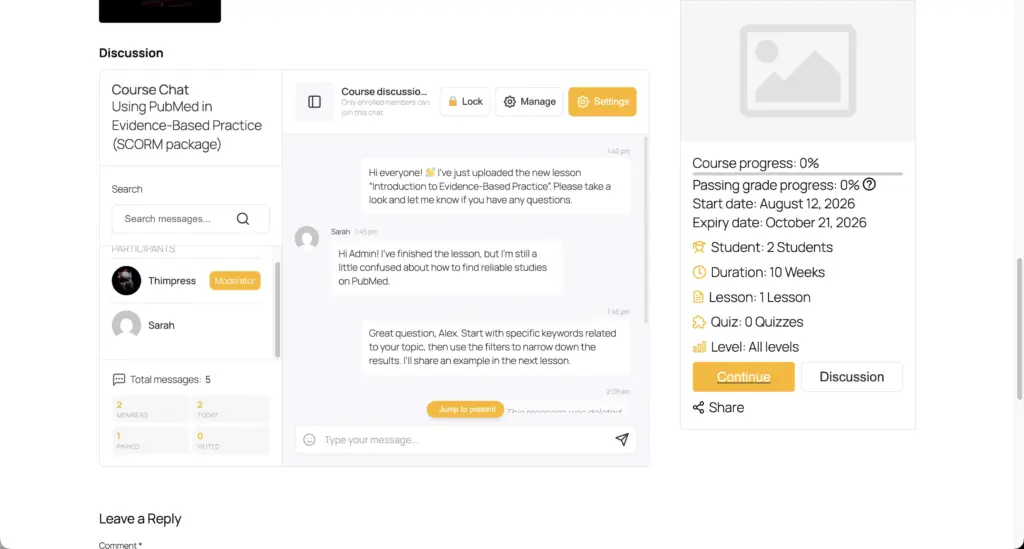
The chat room lives right inside the course Discussion area, so students never have to leave the lesson to ask a question.
Key Features of the LearnPress Chat Room Add-on
- Real-time messaging: Choose WP Polling, which works out of the box with no third-party account needed, or Pusher Channels for instant WebSocket delivery on higher-traffic sites.
- Emoji reactions: A one-tap 6-emoji picker (👍 ❤️ 😂 😮 😢 🎉), rendered consistently across browsers and devices, so students can respond without derailing the conversation.
- Reply with quote: Click Reply and the original message is quoted above your response, keeping threads readable even in busy rooms.
- @mentions with autocomplete: Type “@” and pick a participant from a dropdown; mentions render as a highlighted pill in the sent message.
- Pin and edit messages: Instructors can pin key announcements, deadlines, or meeting links to the top of the room; any message can be edited or soft-deleted after sending.
- Full moderation toolkit: Mute for anywhere from 5 minutes to 1 week, ban or unban, promote trusted students to moderator, and lock the entire room when needed. Existing history stays readable and only new posts are blocked, which is useful during exam periods.
- Rich composer: A 50+ emoji picker with search, built right into the message box.
- Live room analytics: Messages today, active members, pinned messages, and average response time, updating in near real time without leaving the chat panel.
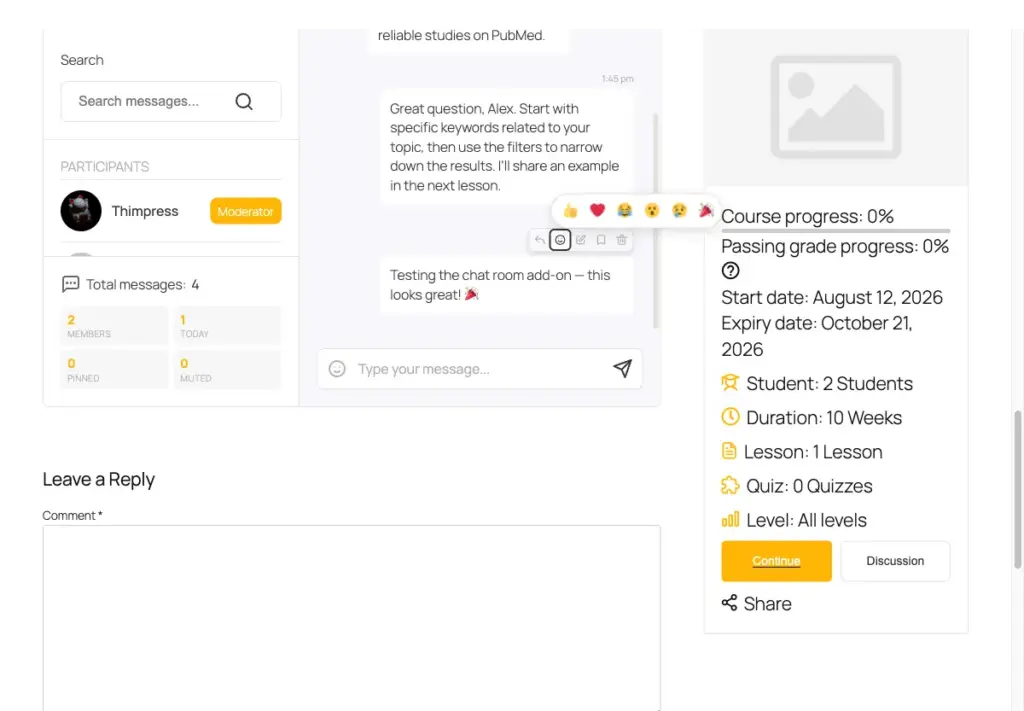
A tap-to-react picker keeps casual engagement low-friction: students respond without writing a full message.
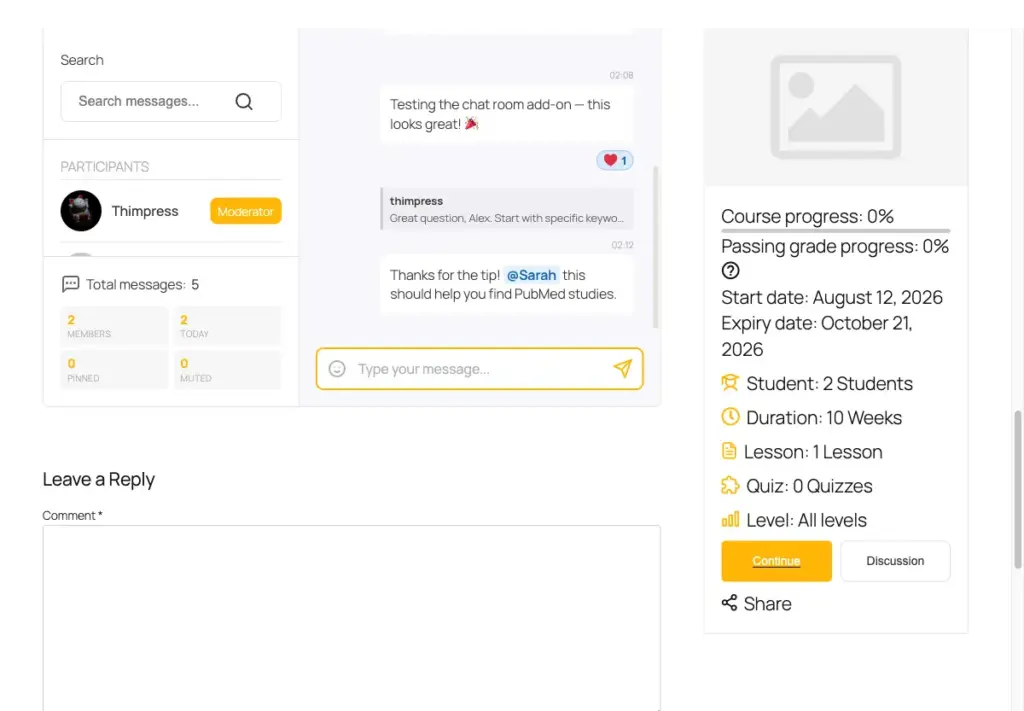
Reply-with-quote and @mentions keep fast-moving course discussions easy to follow, even days later
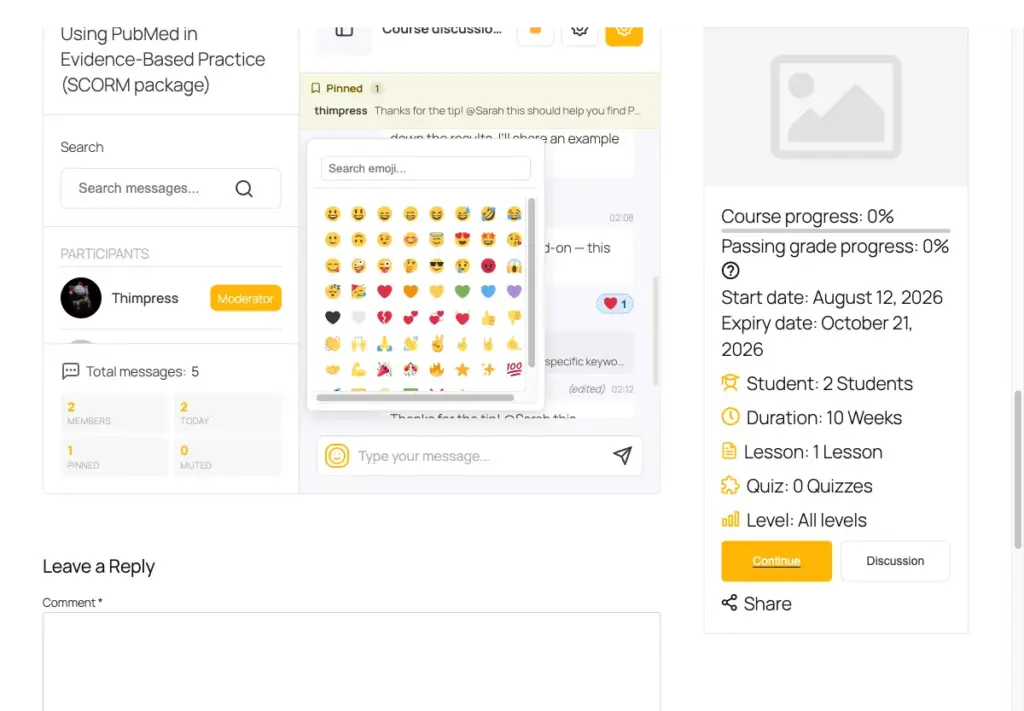
A 50+ emoji library with search, more expressive than a typical LMS comment box.
Benefits for Students: A Student Engagement Add-on
At its core, this is a student engagement add-on: it gives students a reason to show up between lessons, not just during them.
- Ask a question the instant it comes up, without opening a new tab or a support ticket
- See classmates actively working through the same material, so a self-paced course doesn’t feel like learning in a vacuum
- React and reply without the pressure of composing a full “discussion post”
- Never miss a deadline or announcement, since pinned messages stay at the top of the room
Benefits for Instructors
A dedicated Manage Room panel opens as a lightweight overlay right on the course page, so there’s no navigating away to find it. From there, instructors can post prioritized announcements, see every enrolled member, promote trusted students to moderator, and lock the room during exams or live sessions.
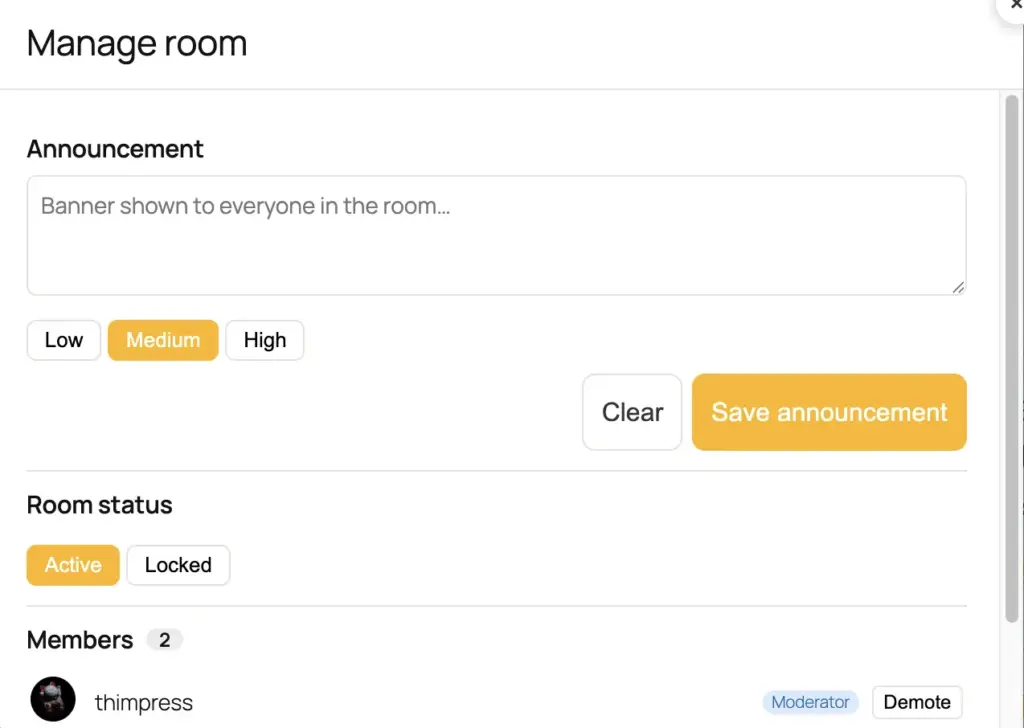
The instructor dashboard for moderating a course chatroom, with announcements, room lock, and member management in one place.
- Catch confused students the moment they get stuck instead of three days later in a comment thread
- Cut down on repetitive email or DM support by answering questions once, publicly, in context
- Build a real sense of cohort even in a fully self-paced course, the same principle behind building a community-based eLearning platform
- Keep control with granular moderation, including mute, ban, lock, and blocked-word filtering, so an open chat room stays manageable
How to Set Up the Chat Room Add-on
Step 1: Download and Install
Get the Chat Room Add-on for LearnPress from the product page, then upload and activate it from Plugins → Add New → Upload Plugin in your WordPress dashboard, the same way you’d install any other LearnPress add-on.
Step 2: Create a Chat Room for Your Course
Open any course’s edit screen, go to Course Settings → Chat Room, and click Create Chat Room. Every enrolled student is added automatically, and new enrollments join in real time as they sign up. For a full walkthrough of the student-facing experience, see Using the Course Chatroom.
Step 3: Choose Your Real-Time Transport
Start with WP Polling for zero-setup real-time chat on any host, or switch to Pusher Channels from LearnPress → Settings → Chat Room for instant WebSocket-speed delivery at higher scale. Either option gives you live chat for online courses without relying on an outside app. The same settings screen covers rate limiting, maximum message length, and a blocked-words filter for spam control. Full details are in the Chatroom Settings doc.
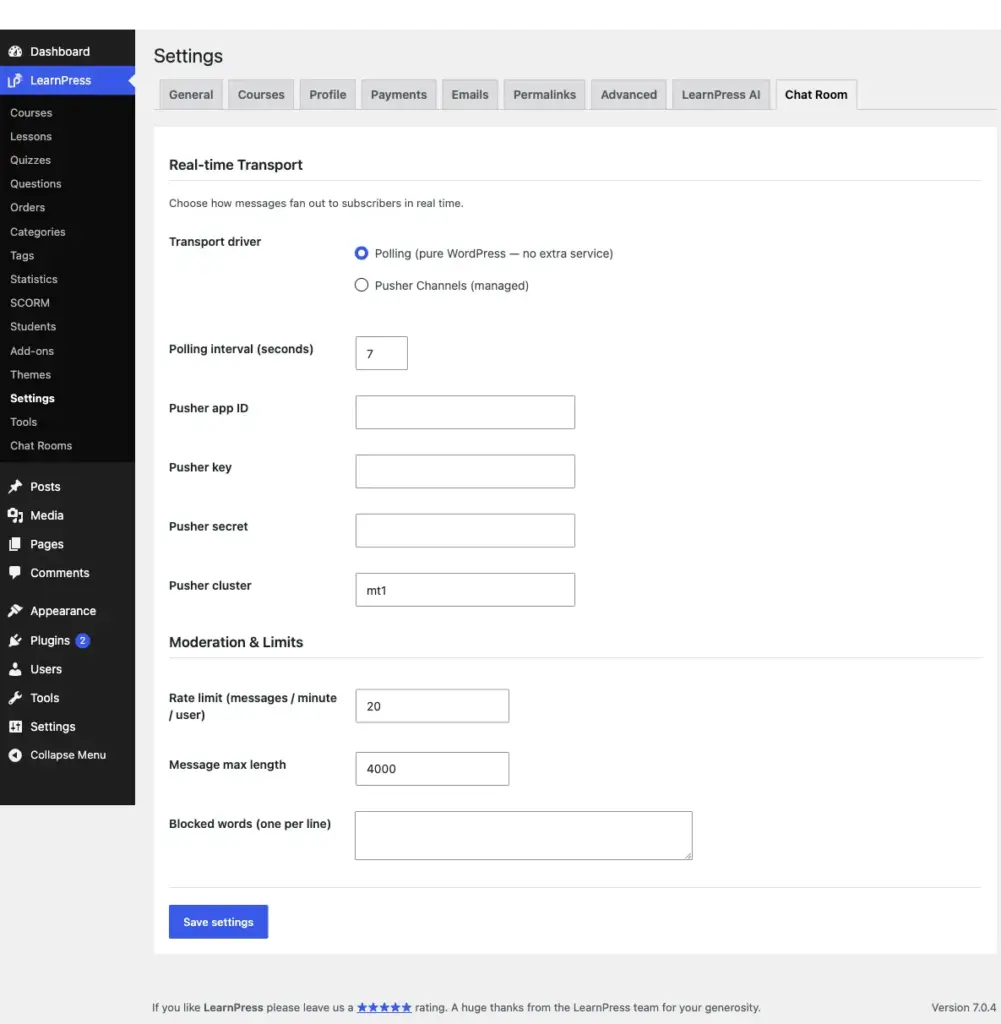
Choose your real-time transport, zero-config WP Polling or Pusher Channels for larger courses, plus built-in rate limiting and word filtering.
Step 4: Moderate and Manage
Use the Manage Room panel to post announcements, monitor activity, and adjust moderation settings for each room as your course community grows.
Get Started With the LearnPress Chat Room Add-on
If your completion rates are quietly bleeding because students feel like they’re learning alone, this is one of the simplest fixes available. It’s a chat system built specifically for LearnPress courses, from the ground up, rather than a forum plugin repurposed for LMS use.
Get the Chat Room Add-on for LearnPress Now!
Already using the LearnPress PRO Bundle? The Chat Room Add-on is included, so check your account to activate it.
Frequently Asked Questions
Does the Chat Room Add-on work with the free version of LearnPress?
Yes. It requires LearnPress 4.3.2.7 or later (the free core plugin), plus WordPress 6.3+ and PHP 7.4+.
Can instructors moderate the chat room?
Yes. Instructors and promoted moderators can mute members for anywhere from 5 minutes to 1 week, ban or unban users, pin important messages, and lock a room entirely when needed, all from the Manage Room panel.
Will chat rooms slow down my site on a high-traffic course?
The default WP Polling mode worked well in our testing on a small demo course. For larger, high-traffic courses, the add-on also offers Pusher Channels WebSockets as a lower-latency option in the global settings; we haven’t load-tested that mode ourselves, so check it against your own traffic before relying on it at scale.
Is each chat room private to enrolled students?
Yes. Students only see the chat room for courses they’re enrolled in, so every conversation stays in the right context.
Contact US | LearnPress:
Website: https://learnpresslms.com/
Fanpage: https://www.facebook.com/learnpresslms
Email: [email protected]