A learner reaches a new term in your course. Instead of reading its definition immediately, they see a question: What is an LMS? They pause, try an answer, then turn the card over. LearnPress flashcards make room for that small moment between receiving information and being tested on it.
With the Interactive Blocks add-on for LearnPress, instructors can create interactive content in LearnPress with Flashcards and Slide Decks. One separates a prompt from its reveal. The other breaks an explanation into steps the learner moves through at their own pace. Neither needs to turn every learning moment into a scored exercise.
LearnPress – WordPress LMS Plugin
We provide an amazing WordPress LMS plugin to create & sell online courses. Let’s find out!
Try NowWhat LearnPress flashcards look like to a learner
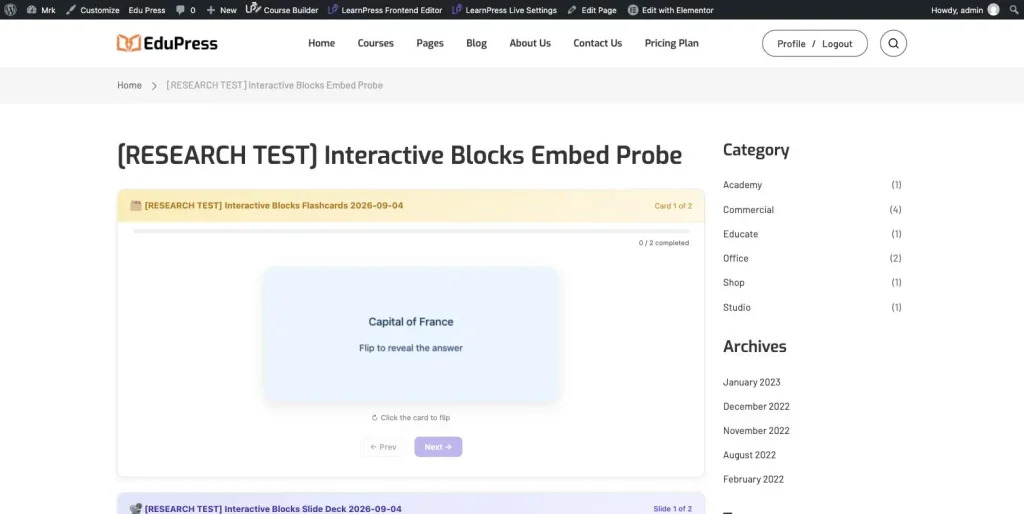
The basic rhythm is simple: see, think, reveal. The front of a card presents the prompt; the reverse presents the explanation or answer. For a vocabulary lesson, that might be a word and its meaning. For a software course, it might be a familiar screenshot paired with an explanation of what the learner is looking at.
The value comes from the prompt you write, not from the flip itself. “LMS” on the front asks little of the learner. “What does an LMS help an instructor manage?” invites them to form a response before revealing the explanation. A short instruction above the deck—“Try answering in your own words before you flip”—gives the action a purpose.
In Slider layout, cards appear as a sequence. The optional require-flip setting can keep Next unavailable until the current card has been turned over. In Grid layout, learners see several cards together and choose which to open. Use a sequence when you want a clear route through a small set; use a grid when the set is better explored or revisited in any order.
The progress indicator can advance as cards are flipped. That makes movement through the deck visible, but it is not a grade or proof of understanding. A learner can reveal an answer without thinking about it. Keep a LearnPress quiz for the point where you actually need to assess what they know.
Use a Slide Deck when the order carries the meaning
A flashcard works through a reveal. A Slide Deck works through a sequence. Consider a short lesson on preparing an image for the web: choose the dimensions, export an appropriate file, then inspect the result. Giving each step its own slide lets the learner move forward deliberately and return to a step they want to check.
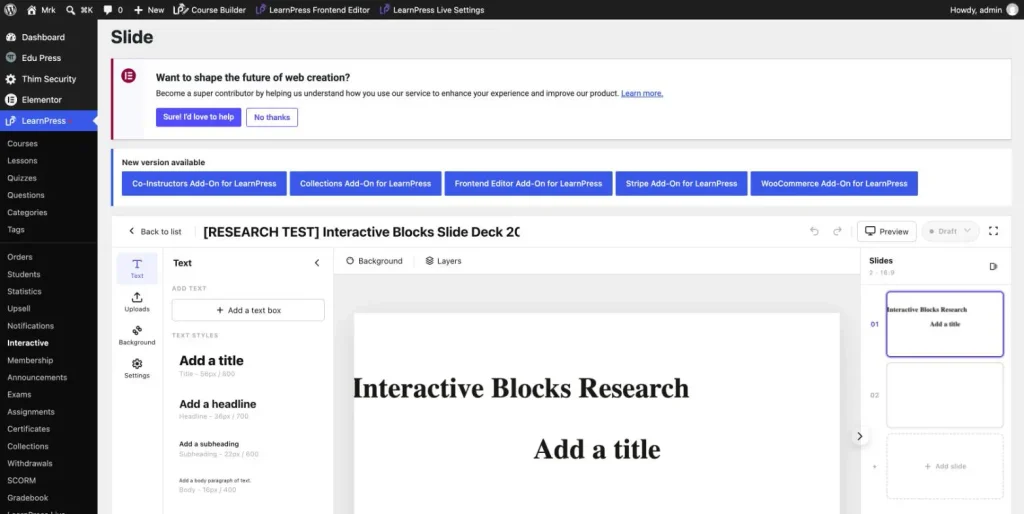
Interactive Blocks includes a slide editor with text and images, text formatting, and background controls. These tools give you room to build a compact explanation around a visual. A screenshot can carry the example while a few lines explain what to notice. The learner advances through that explanation inside the lesson.
Keep each slide responsible for one useful step or idea. If you are shrinking paragraphs to fit a slide, the material may need a written lesson instead. A deck is most helpful when the breaks clarify the explanation—not simply when they create more clicks.
Choose the interaction that fits the material
Before building anything, ask what the learner should do at this point in the course. The answer gives you a better starting point than a preference for a particular block.
| Learning moment | A useful format | Why it fits |
|---|---|---|
| Recall a term, identify an image, or compare an answer | Flashcards | A prompt can be separated from its reveal. |
| Follow a short process or a visual explanation | Slide Deck | The order helps the learner follow the idea. |
| Weigh a complex argument or read a detailed explanation | Written lesson | The reader can follow connections without artificial breaks. |
| Demonstrate knowledge against a scoring rule | Quiz | The task calls for assessment rather than a reveal. |
These formats can sit beside one another, giving you several ways to build interactive content in LearnPress without making every activity an assessment.. An introductory lesson might explain five important terms in prose, offer a small flashcard deck for review, and assess their use in a later quiz. The deck has a specific job within the lesson; it does not have to replace the lesson.
Create LearnPress flashcards around one clear prompt
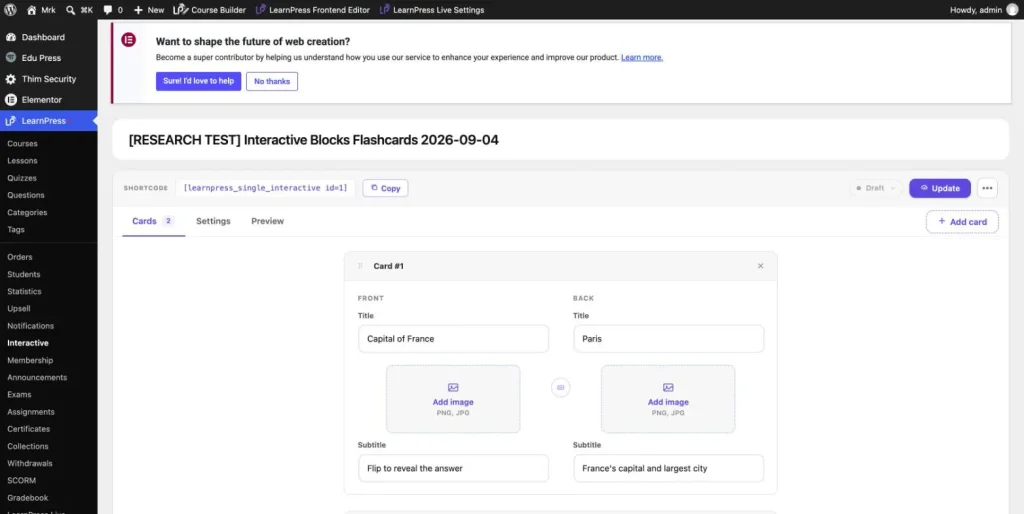
With LearnPress and the Interactive Blocks add-on installed and active, start in LearnPress → Interactive. Create a new Flash Card item and give it a name you will recognize when you return to the library. “Module 1: essential course terms” is more useful than “New cards.”
- Write the two sides. Each side provides title, subtitle, and image fields. Put the question or recognition task on the front and a concise explanation on the back.
- Choose how learners move. Select Slider or Grid. If a sequence matters, consider the Slider require-flip option; use the progress display as an orientation aid.
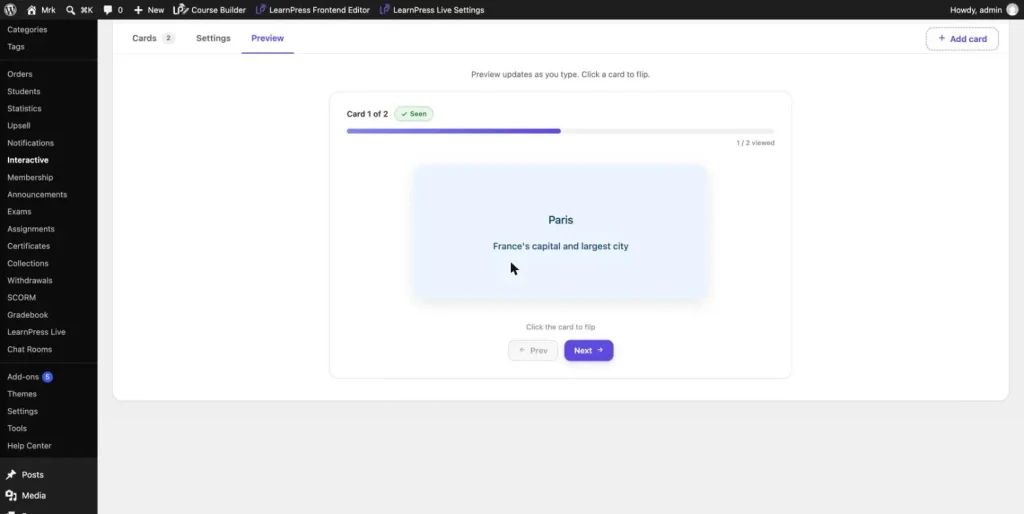
- Preview the deck. Read the prompts as a learner would. Check whether the reverse answers the question clearly and whether images add information.
- Save the source and insert it into a lesson. The Gutenberg Flashcard block and the classic editor’s Flashcard control provide routes into the deck workflow. Check the saved lesson on the frontend before learners use it.
The Flash Card creation guide covers the editor controls. Start with a small set you can review carefully. Five focused cards are a more useful first experiment than turning an entire chapter into disconnected prompts.
Build the slide sequence, then place it in the lesson
For slides, create a Slide item from the Interactive area and build the sequence there. Add and position text and images, use formatting to establish a clear reading order, and keep backgrounds quiet enough for the content to remain legible.
Once the deck is saved and available in the library, the classic lesson editor’s Slide Deck control lets you select it. This is a library selection step, so prepare the source deck first. See the Slide creation guide for the detailed workflow.
Give the deck a sentence of context in the lesson: “Step through this example, then try the same process with your own image.” That connects the presentation to an action beyond clicking Next.
Reuse a source when the explanation should stay consistent
You may need the same terminology review in an introductory lesson and again before a later project. According to the Interactive Blocks FAQ, Flash Cards and Slides can be used in multiple lessons, and edits to the source apply wherever that content is used.
That changes a routine maintenance task: a corrected definition belongs in one source rather than in several separately maintained copies. It also means a shared edit deserves attention. Before changing the wording for one audience, consider the other lessons that use the deck. Reuse is most useful when those lessons genuinely need the same explanation.
Start with one moment worth slowing down
Choose a lesson where learners meet unfamiliar terms or need to follow a short process. Start with a small set of LearnPress flashcards or a short Slide Deck, place it where the pause makes sense, and open the lesson as a learner. Read before flipping. Follow the slides in order. Check whether the interaction gives the material a clearer shape.
If you have that moment in mind, explore Interactive Blocks for LearnPress and check the current requirements and license terms. Then use the guides above to build the first version. The aim is a well-placed opportunity to think, reveal, or step through an idea before the course asks for a score.
Frequently Asked Questions
Are LearnPress flashcards the same as quizzes?
No. LearnPress flashcards separate a prompt from its reveal, while a LearnPress Quiz is designed for assessment. Flipping a flashcard does not show whether the learner knew the answer, so use a quiz when you need to assess knowledge or record a result.
When should I use LearnPress flashcards instead of a Slide Deck?
Use LearnPress flashcards when the useful interaction is seeing something first, thinking about it, and then revealing an answer or explanation. Use a Slide Deck when the sequence matters, such as a short process or visual walkthrough that learners should move through step by step.
Can I reuse LearnPress flashcards across lessons?
Yes. LearnPress flashcards created with Interactive Blocks can be reused in multiple lessons. This is useful when the same terminology, review material, or explanation needs to appear in more than one part of a course.
Can I create LearnPress flashcards with Interactive Blocks?
Yes. The Interactive Blocks add-on includes a Flashcards block for creating LearnPress flashcards inside course content. Each card can present a question, term, image, or prompt first, then reveal the explanation or answer on the other side.
Do LearnPress flashcards work with images?
Yes. LearnPress flashcards can include images alongside text, which makes them useful for recognition tasks, visual examples, terminology, and other prompts where the learner needs to identify something before revealing the explanation.
Contact US | LearnPress:
Website: https://learnpresslms.com/
Fanpage: https://www.facebook.com/learnpresslms
Email: [email protected]