If employees complete an onboarding course but there is no way to check what they learned, it can be difficult to evaluate the training results. The LearnPress Exam Add-on for employee onboarding provides a practical way to add structured exams to a LearnPress-based training website. You can create exams, add questions, set time limits and passing requirements, manage retakes, review submissions, and monitor overall exam performance from the WordPress admin area.
For organizations using online employee onboarding training, exams can be used to assess knowledge after employees complete required lessons. They can also be used for WordPress compliance training when you need structured assessments as part of an online training program.
This guide explains how to install the LearnPress Exam Add-on, create an onboarding exam, configure its settings, manage submissions, organize exams into categories, and use analytics to review results.
LearnPress – WordPress LMS Plugin
We provide an amazing WordPress LMS plugin to create & sell online courses. Let’s find out!
Try NowTable of Contents
Why Use Exams for Employee Onboarding and Compliance Training?
An onboarding course can provide employees with important information, but completing lessons does not necessarily show how well they understood that information. An exam adds an assessment step after the learning content.
For example, an employee onboarding program can include lessons followed by an exam to assess employees’ understanding of the training content. After completing those lessons, employees can take an exam to demonstrate their understanding.
The LearnPress Exam Add-on supports several settings that are useful for employee compliance exams, including:
- Start and end dates
- Exam duration
- Pass percentage
- Retake limits
- Randomized questions
- Guest attempts
- Immediate scores
- Correct answers and explanations
- Submission records
- Score distribution
- Pass/fail averages
These options allow you to configure an exam according to your training and assessment requirements.
For online employee onboarding training, you can also create different exams for different courses or training topics. The Question Bank makes it possible to reuse questions across multiple exams rather than creating the same questions repeatedly.
How to Install the LearnPress Exam Add-on
Before installing the Exam Add-on, make sure that the LearnPress plugin is already installed and activated on your WordPress website.
The Exam Add-on works as an extension of LearnPress, so LearnPress must be active for the add-on to function properly.
Step-by-Step Installation
Follow these steps to install the add-on:
- Log in to your WordPress Dashboard.
- Navigate to Plugins → Add New Plugin.
- Click Upload Plugin.
- Select the
learnpress-exam.zipfile from your computer. - Click Install Now.
- Wait for the installation to finish.
- Click Activate Plugin.
After activation, a new Exams menu appears under LearnPress in your WordPress Dashboard.
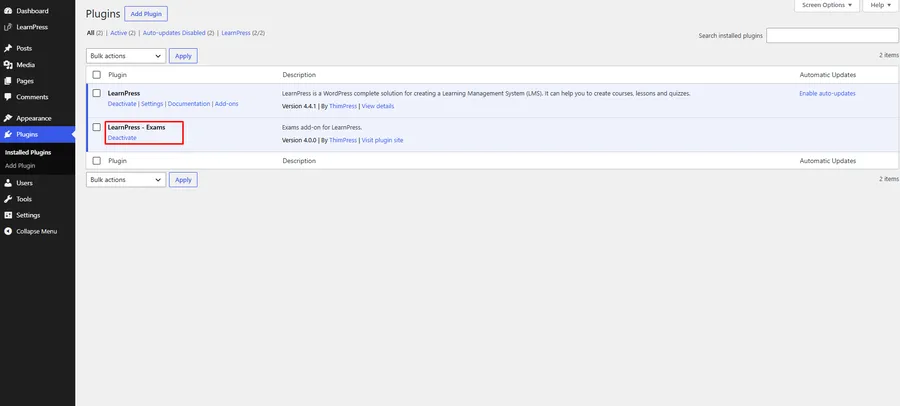
This dedicated workspace allows you to create, manage, and organize exams from one location.
How to Create an Employee Onboarding Exam
To create a new exam, go to:
LearnPress → Exams → All Exams
The All Exams page is the central workspace for managing exams. You can use the Search box to find an existing exam or click Add New Exam in the upper-right corner to create a new one.
After clicking Add New Exam, you will be taken to the exam editor. The editor includes four main tabs:
- Overview – Configure the basic exam information.
- Question – Create new questions or add questions from the Question Bank.
- Settings – Configure exam behavior and the student experience.
- Submissions – View and manage exam attempts.
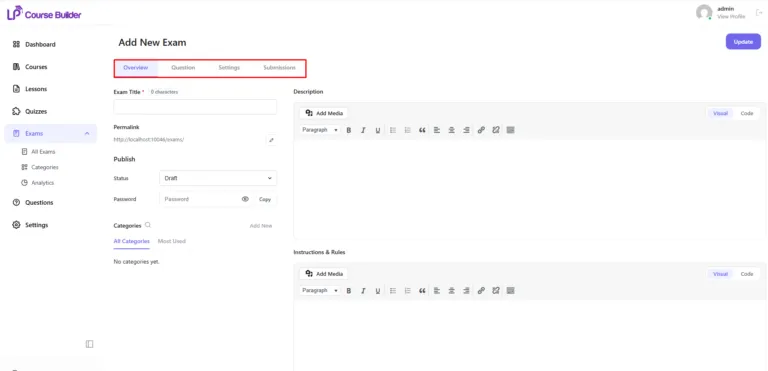
Complete the required information in each section and publish the exam when it is ready.
Configure the Overview Tab
The Overview tab contains the basic information for your exam.
You can configure:
- Exam Title – Enter the name of the exam.
- Permalink – Customize the exam URL if necessary.
- Description – Add a brief introduction or description.
- Instructions & Rules – Provide instructions, rules, or requirements employees should read before starting.
- Status – Save the exam as Draft while editing or publish it when ready.
- Password – Optionally protect the exam with a password.
- Categories – Assign the exam to one or more categories for organization.
After entering the required information, click Update to save your changes.
One important point is that the exam must be published before the Question tab becomes available.
How to Add Questions to an Exam
After the exam has been published, you can access the Question tab.
The Exam Add-on provides two ways to add questions.
Create a New Question
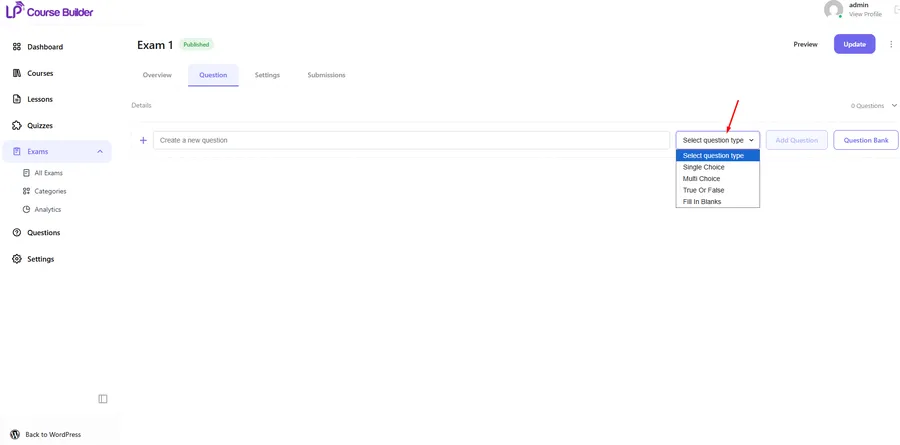
You can create questions directly inside the exam.
To do this:
- Enter the question title.
- Select a Question Type.
- Click Add Question.
The currently supported question types are:
- Single Choice
- Multiple Choice
- True or False
- Fill in the Blanks
These question types allow you to create different kinds of employee compliance exams based on the content of your training.
For example, a Single Choice question can ask employees to select one correct answer, while a True or False question can be used for a simple knowledge check.
Add Questions from the Question Bank
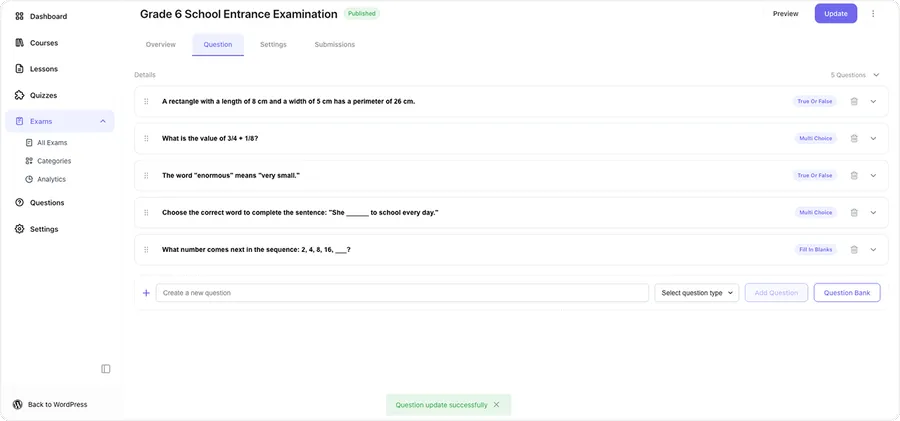
If you already have questions in your Question Bank, click Question Bank to browse the existing question library.
You can select one or multiple questions and add them directly to the exam.
The Question Bank is particularly useful when you create several exams with related content. Instead of recreating the same question for each exam, you can reuse an existing question.
For example, if a company has several WordPress compliance training exams, questions about the same topic can be stored in the Question Bank and reused whenever necessary.
This makes exam creation faster and helps you maintain a reusable collection of assessment questions.
Configure Exam Settings for Compliance Training
The Settings tab controls how the exam works and how employees interact with it.
The available sections include:
- General
- Attempts & Access
- Student Experience
- Display / Result
Each section provides different options for controlling the assessment.
General Settings
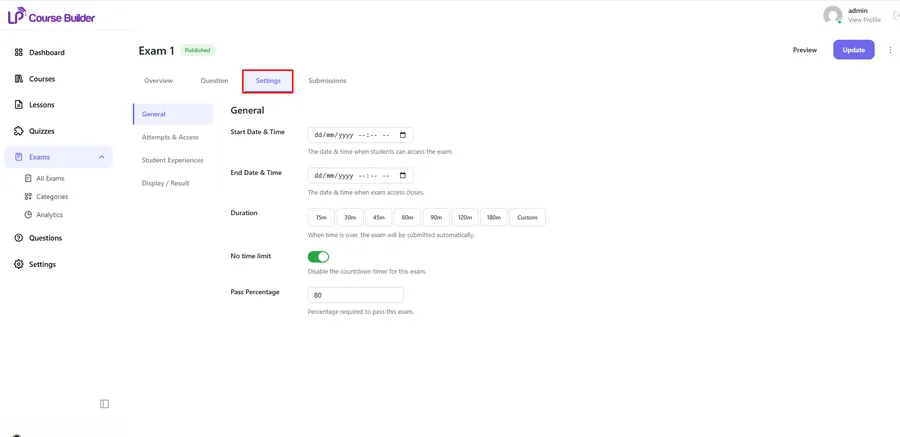
The General section controls the exam schedule, duration, and passing requirement.
Start Date & Time
Set the date and time when employees are allowed to access the exam.
Employees cannot start the exam before the specified start date and time.
End Date & Time
Set the date and time when exam access closes.
After this time, employees can no longer access the exam unless Allow Late Access is enabled.
Duration
Set the maximum amount of time employees have to complete the exam.
When the time limit is reached, the exam is submitted automatically.
This option can be useful when you want to add a defined time limit to an employee assessment.
No Time Limit
Enable No Time Limit if you do not want the exam to have a time restriction.
When enabled, the countdown timer is disabled, allowing employees to complete the exam without a time limit.
Pass Percentage
Set the minimum percentage required to pass.
An employee whose final score meets or exceeds the configured percentage will be marked as Passed.
Attempts & Access
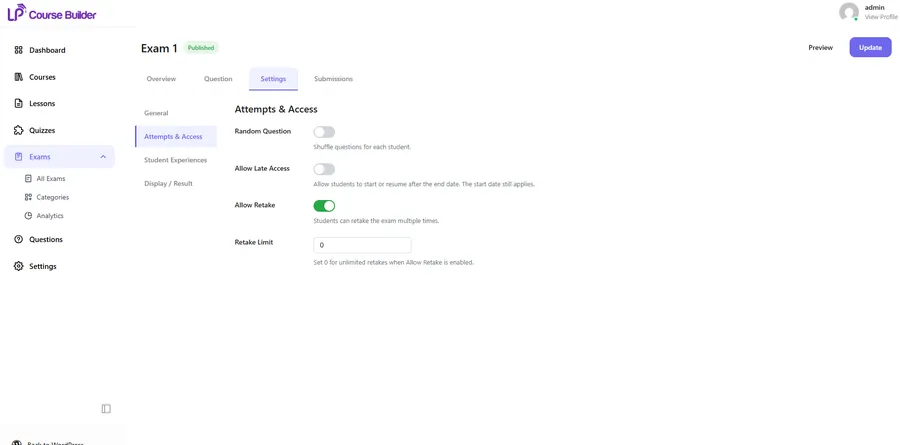
The Attempts & Access section controls how employees access the exam and how many times they can take it.
Random Question
Enable this option to shuffle the question order for each employee.
This means different attempts can display questions in a different sequence.
Allow Late Access
This setting allows employees to start or resume the exam after the End Date & Time has passed.
However, employees must still wait until the Start Date & Time before they can access the exam.
Allow Retake
Enable Allow Retake if employees should be able to take the exam again after completing an attempt.
Retake Limit
Set the maximum number of retakes allowed.
If you enter 0, unlimited retakes are allowed when Allow Retake is enabled.
These options give you control over retakes when designing online employee onboarding training assessments.
Customize the Employee Exam Experience
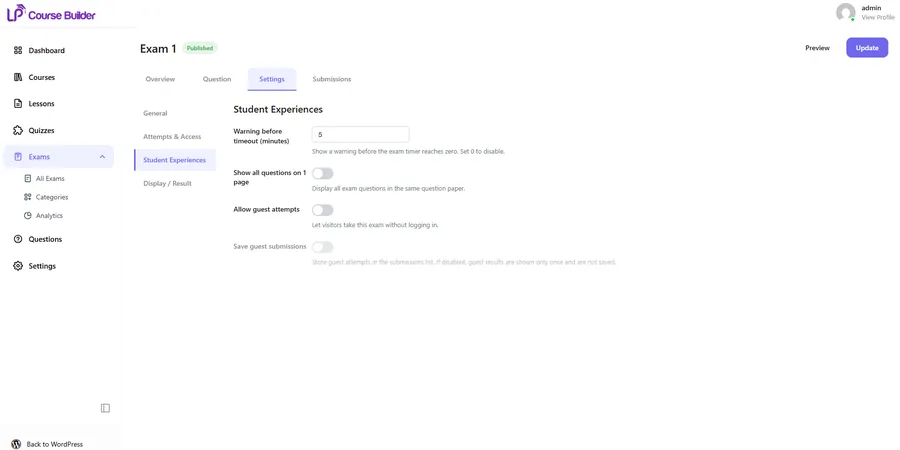
The Student Experience section controls how employees interact with the exam.
Warning Before Timeout
You can display a warning message before the exam time expires.
Enter the number of minutes before the end of the exam when the warning should appear. Enter 0 to disable the warning.
Show All Questions on 1 Page
Enable this option to display all questions on one page rather than separating them across multiple pages.
This can be useful for shorter exams where employees need to see the complete question list at once.
Allow Guest Attempts
This option allows visitors who are not logged in to take the exam.
If your training requires participants to have WordPress accounts, you can leave this option disabled.
Save Guest Submissions
When guest attempts are enabled, you can choose whether to save those submissions.
If enabled, guest attempts are saved in the submission list.
If disabled, the guest result is displayed once after submission but is not stored in the system.
Control What Employees See After the Exam
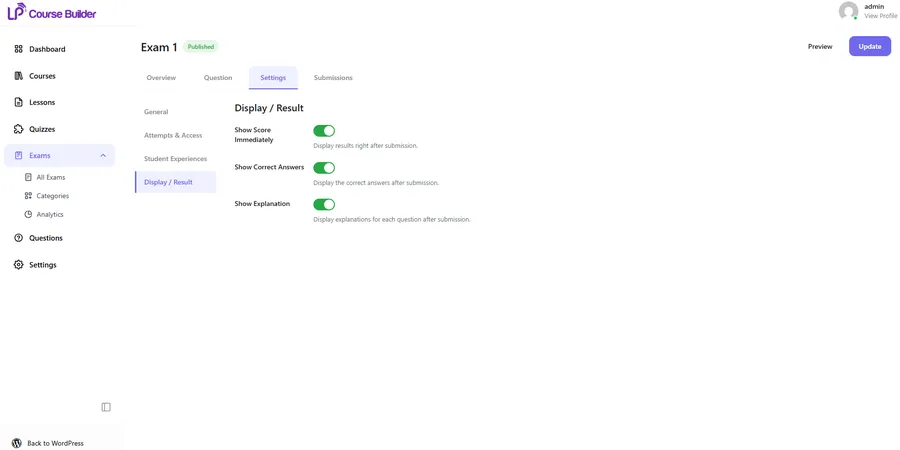
The Display / Result section controls the information shown after an exam is submitted.
- Show Score Immediately – Display the student’s score immediately after submission.
- Show Correct Answers – Display the correct answers after submission.
- Show Explanation – Display explanations after submission.
These settings allow you to decide how much result information employees receive after completing an exam.
Manage Employee Exam Submissions
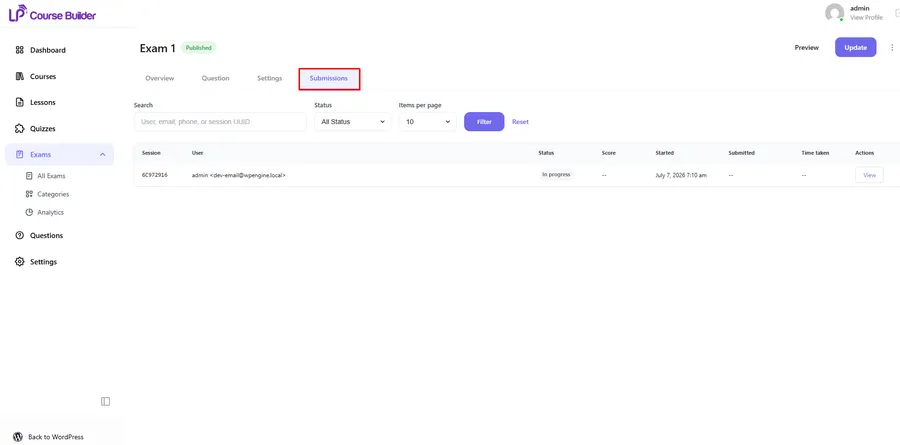
The Submissions tab allows you to monitor and manage submissions for the current exam.
Each attempt appears in a table containing important information about the exam session.
The table includes:
- Session – A unique identifier for the exam attempt.
- User – The employee or student who submitted the exam.
- Status – The current status, such as In Progress or Submitted.
- Score – The score achieved in the exam.
- Started – The date and time the exam was started.
- Submitted – The date and time the exam was submitted.
- Time Taken – The total time spent completing the exam.
- Actions – Available actions for viewing or managing the submission.
You can also use the Search box to locate a specific submission or review an employee’s exam history.
For employee onboarding, reviewing submissions can help you monitor participation and identify incomplete exam attempts.
Organize Exams with Categories
As your exam library grows, categories can make exams easier to organize and find.

To create an exam category, go to:
LearnPress → Exams → Categories
You can configure:
- Name – Enter the category name.
- Slug – Enter a URL-friendly version of the category name. If left blank, it will be generated automatically.
- Parent Category – Optionally create a hierarchy by selecting a parent category.
- Description – Add a short description of the category.
Click Add New Category to create the category.
You can then assign the category to one or more exams.
For an employee training website, categories can be based on subjects, courses, or exam types. This can make it easier to manage a growing collection of employee compliance exams.
Use Exam Analytics to Track Results

The Exam Add-on includes an Analytics page that provides an overview of exam activity and performance.
You can access it through:
LearnPress → Exams → Analytics
The dashboard includes several sections.
Exams Overview
The Exams Overview section shows:
- Total Exams – The total number of exams created.
- Completed Exams – The number of exams completed by students.
- Upcoming Exams – Scheduled exams that have not started yet.
This gives you a quick overview of exam activity.
Students Overview
The Students Overview section displays:
- Total Participants
- Logged-in Participants
- Anonymous Participants
This information shows how participants are accessing your exams.
Score Distribution
The Score Distribution section displays the distribution of scores across exam submissions.
This can help you review overall performance and identify score trends.
If there are no submissions, the section displays “No submission data yet.”
Pass / Fail Average
The Pass / Fail Average section summarizes overall pass and fail rates based on submitted exams.
This can help you understand how participants are performing and evaluate whether your assessment is appropriate for the training content.
The section only displays data after students have submitted exams.
How to Use LearnPress Exams in an Employee Onboarding Workflow
Once your exam is configured, you can use it as part of a simple employee onboarding workflow. The basic process is straightforward: employees access the training content, complete the required lessons, and then take an exam to assess their understanding. The Exam Add-on provides the settings needed to configure that assessment, from the available exam period and duration to the passing percentage and retake rules.
For LearnPress employee training, it can be useful to create exams that match the structure of your training content. For example, you can organize exams into categories based on different training subjects or exam types. This makes the exam library easier to manage as more assessments are added to the website. The Question Bank can also be used to keep questions organized and reuse existing questions when creating additional exams.
Exam access can be configured according to how the training is delivered. You can set a Start Date & Time and End Date & Time to define when an exam is available. If a time limit is appropriate for the assessment, you can set a Duration. Alternatively, you can enable No Time Limit when employees should not have a countdown. The Pass Percentage setting also lets you define the minimum score required for an employee to pass.
Retake settings provide another option when employees need more than one attempt. You can enable Allow Retake and specify a Retake Limit. If unlimited retakes are required, entering 0 allows unlimited retakes when Allow Retake is enabled. Random Question can also change the order of questions between attempts.
After employees submit their exams, administrators can review the available submission information from the Submissions tab. Each attempt includes details such as the user, status, score, start time, submission time, and time taken. This provides a central place to review individual attempts and identify incomplete submissions.
The Analytics dashboard provides a broader view of exam activity. Exams Overview shows the total, completed, and upcoming exams, while Students Overview shows total, logged-in, and anonymous participants. Score Distribution provides an overview of scores across submissions, and Pass / Fail Average summarizes the overall pass and fail rates.
Together, these features provide a structured way to manage online employee onboarding training assessments within LearnPress. Instead of treating each exam as a separate task, administrators can organize questions, configure assessment rules, review individual submissions, and monitor overall results from the WordPress dashboard.
What Employees See When Taking an Exam
After an exam is created and published, employees can access it from the frontend.
The exam page displays essential information, including:
- Exam details
- Instructions
- Timer, if enabled
- Question list
- Navigation controls
Employees can use the frontend page to start, complete, and submit their exams.
The available experience depends on the settings configured by the site administrator. For example, you can enable a timer, display all questions on one page, allow guest attempts, or show results immediately after submission.
What Do Pass, Fail, and Voided Mean?
After an exam is submitted, an attempt can receive one of three statuses.
Pass
The employee’s score is equal to or higher than the configured Pass Percentage.
Fail
The employee’s score is lower than the configured Pass Percentage.
Voided
A Voided attempt is not submitted successfully and is not counted as a valid result.
If an employee leaves the exam because of a network interruption or accidentally closes the browser, the system temporarily keeps the exam session active.
If the employee returns within 5 minutes after the exam time expires, they can continue the session and click Submit.
If the exam is not submitted before this grace period ends, the attempt is marked as Voided, and no score is recorded.
The 5-minute grace period gives employees an opportunity to return to the exam and submit their attempt after the exam time expires.
LearnPress Exam Add-on Pricing
The Exam Add-on listing provides a lifetime license for 1 site. The listed price is $39, with a displayed sale price of $19.
The listing includes:
- Lifetime license for 1 site
- 12 months of updates and support
- Optional additional update and support periods
The listed additional update options are:
- +1 Year: $13
- +2 Years: $25
- +3 Years: $34
The listing also displays a 25% OFF promotion with the coupon code LPAUG2026 for selected add-ons.
The listed Exam Add-on version is 1.0.0, last updated 07 July 2026, and compatible with WordPress 7.0.
Because pricing and promotions can change, check the product listing for the current offer before purchasing.
Build Your LearnPress Training Website with Eduma
If you are creating a complete training website for employee onboarding, the LMS theme you choose can also affect the overall learning experience.
Eduma is a WordPress LMS theme from ThimPress designed to work with LearnPress. It can be used as the foundation for a LearnPress-based education or training website.
When you combine a LearnPress training website with the Exam Add-on, you can create courses and add dedicated exams for assessment. Eduma can provide the website design and LMS-focused structure, while the Exam Add-on adds tools for creating and managing exams.
This can be useful if you want to build a more complete online employee onboarding training website instead of using the Exam Add-on alone.
FAQs About The LearnPress Exam Add-on for Employee Onboarding
Does the LearnPress Exam Add-on require LearnPress?
Yes. LearnPress must be installed and activated before you install the Exam Add-on. The Exam Add-on is an extension of LearnPress and cannot function properly without it.
What question types does the Exam Add-on support?
The Exam Add-on currently supports four question types: Single Choice, Multiple Choice, True or False, and Fill in the Blanks.
Can I reuse questions in multiple exams?
Yes. The Question Bank allows you to select existing questions and add them to an exam. This means you can reuse questions across multiple exams without creating them again.
Can I set a time limit for an employee exam?
Yes. The General settings include a Duration option that allows you to set the maximum amount of time employees have to complete an exam. You can also enable No Time Limit when a countdown is not required.
Can employees retake an exam?
Yes. Enable Allow Retake and set a Retake Limit. Entering 0 allows unlimited retakes when retakes are enabled.
Can I see employee exam results?
Yes. The Submissions tab displays exam attempts with information such as the user, status, score, start time, submission time, and time taken.
Does the Exam Add-on provide analytics?
Yes. The Analytics page includes Exams Overview, Students Overview, Score Distribution, and Pass / Fail Average sections.
Can I allow people without WordPress accounts to take an exam?
Yes. Enable Allow Guest Attempts. You can also enable Save Guest Submissions if you want guest attempts to be stored in the submission list.
Conclusion
The LearnPress Exam Add-on for employee onboarding adds a structured assessment layer to a LearnPress-based training website. Instead of relying only on course completion, you can create exams with specific passing requirements, time limits, access periods, retake rules, and different question types.
The Question Bank makes it possible to reuse questions across multiple exams, while the Submissions section provides a central place to review exam attempts. The Analytics dashboard also provides information about participation, score distribution, and pass/fail averages.
For organizations building online employee onboarding training or WordPress compliance training, these features provide flexible options for creating and managing assessments within LearnPress. If you are building the complete training website, Eduma can also provide a LearnPress-compatible LMS theme to support the overall site experience.
Together, LearnPress, the Exam Add-on, and Eduma can form a practical foundation for a WordPress-based training website where courses and exams are managed from the same ecosystem.
Read more: LearnPress Exam Add-on vs Assignments Add-on: Which One Do You Need?