If you run courses on LearnPress and you are trying to decide between the LearnPress Exam Add-on vs Assignments Add-on, the short answer is that they solve two different assessment problems. The Exam Add-on is built for timed, auto-graded testing with question banks and analytics. The Assignments Add-on is built for open-ended work, like essays and file submissions, that a real instructor has to read and score by hand.
This guide walks through what each add-on actually does, how they are installed and configured, and which one fits your course structure.
LearnPress – WordPress LMS Plugin
We provide an amazing WordPress LMS plugin to create & sell online courses. Let’s find out!
Try NowTable of Contents
What is the LearnPress Exam Add-on?
The LearnPress Exam Add-on adds a dedicated Exams workspace to your WordPress dashboard so you can build timed, structured tests separate from regular quizzes. Once the plugin is active, a new Exams menu appears under LearnPress, where you create, organize, and manage every exam from one place.
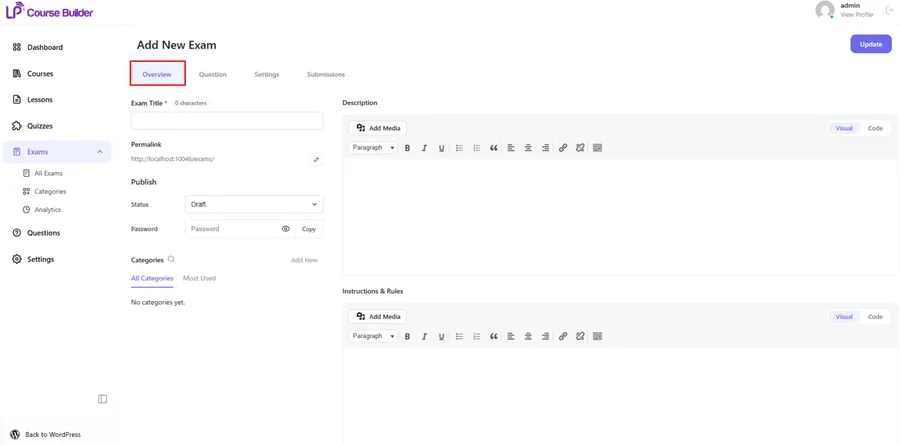
An exam is built across four tabs: Overview, Question, Settings, and Submissions. The Overview tab covers the exam title, permalink, description, instructions and rules, status, an optional password, and categories. The exam has to be published before the Question tab unlocks, and from there you can either write new questions directly (single choice, multiple choice, true or false, and fill in the blanks) or pull existing ones from a shared Question Bank so you are not rebuilding the same content for every test.
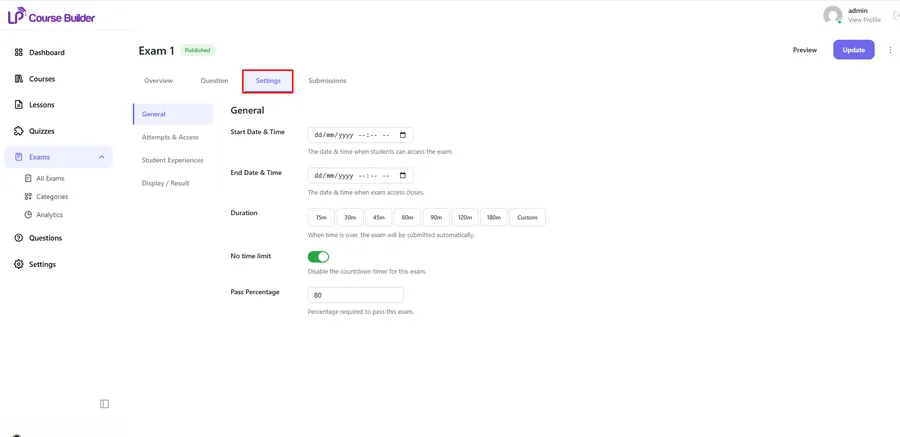
The Settings tab is where the Exam Add-on earns its name. It is split into General (start and end date, duration, a no-time-limit toggle, and pass percentage), Attempts & Access (random question order, allow late access, allow retake, retake limit), Student Experience (a timeout warning, showing all questions on one page, guest attempts, and whether guest submissions get saved), and Display/Result (show score immediately, show correct answers, show explanations). That is a lot of control over how strict or how forgiving an exam feels, and it is the main reason the Exam Add-on suits high-stakes or certification-style testing.
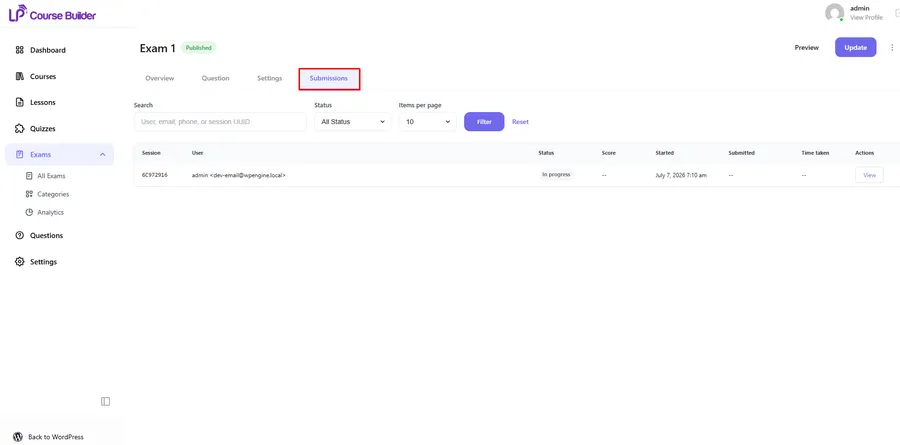
The Submissions tab lists every attempt in a table with session ID, user, status, score, start time, submit time, and time taken, so instructors can track participation without digging through individual student profiles. Exams can also be grouped into categories from LearnPress > Exams > Categories, with a name, slug, optional parent category, and description, which is useful once your exam library grows past a handful of tests.

There is also a built-in Analytics dashboard under LearnPress > Exams > Analytics with four sections: an Exams Overview (total, completed, and upcoming exams), a Students Overview (total, logged-in, and anonymous participants), a Score Distribution chart, and a Pass/Fail Average. Together they give a quick read on whether an exam is calibrated correctly or whether too many students are failing it.
One detail worth knowing before you rely on this add-on for graded certification: if a student’s session drops due to a network issue or a closed browser, the system holds the session open. They get a five-minute grace period after time expires to return and click Submit. If they do not make it back in time, the attempt is marked Voided instead of Fail, so no score is recorded for that attempt.
What is the LearnPress Assignments Add-on?
The Assignments Add-on takes a different approach to assessment. Instead of auto-grading against a fixed answer key, it lets instructors assign homework, set a deadline, and manually review and score what students turn in. Students get an email notification once their assignment has been graded, which keeps the feedback loop visible without requiring them to check back manually.

Assignments live inside a course’s curriculum, alongside lessons and quizzes. From Dashboard > LearnPress > Courses, you open a course, scroll to the curriculum, and click New Assignment, or you can go to LearnPress > Assignment > Add new assignment and attach it to a course afterward. Once created, you edit the assignment to add a description, attach reference documents, and write a short introduction that displays before the student starts.

The General Settings section controls Duration (set to 0 for unlimited time), Mark (the maximum achievable score), Passing Grade (which cannot exceed the Mark), Re-take (how many times a student can repeat the assignment, 0 to disable), Upload files (how many files a student can attach, 0 to disable), File Extensions (which formats are accepted), and Size Limit (capped under 128 MB). That combination covers both written-answer assignments and file-upload assignments, or a mix of both on the same task.

On the student side, the learning screen shows duration, total grade, passing grade, and re-attempts allowed before they even start. If the assignment duration is under two days, students see a live countdown; if it is longer, they just see the end time. After clicking Start Assignment, they get a text box for answers plus an upload option, with the ability to Save Draft before they are ready to submit.

Grading happens under LearnPress > Assignments > View Submissions. Each entry opens into an evaluation table showing ID, name, email, status, instructor, mark, and result. The Evaluation section itself has three fields: Mark, Instructor note (feedback for the student), and Document (for uploading reference answers or corrections). Clicking Evaluate saves the grade, and instructors can go back and click Re-evaluate if they need to change a score later. Scores sync automatically to the core LearnPress gradebook, and students can view their results by email (if enabled under LearnPress > Settings > Email) or directly in their profile.
LearnPress exam vs assignment: key differences
The clearest way to separate these two LearnPress assessment add-ons is by how the work gets graded and what kind of answers they support.
| Feature | Exam Add-on | Assignments Add-on |
|---|---|---|
| Question types | Single choice, multiple choice, true or false, fill in the blanks | Written answers and/or file uploads (PDF, DOC, ZIP, images) |
| Grading | Automatic, based on correct answers | Manual, by an instructor, with written feedback |
| Question reuse | Question Bank for reusing items across exams | Not applicable; each assignment is its own task |
| Timing controls | Start/end date, duration, no-time-limit option, timeout warning | Duration setting, 0 for unlimited, countdown if under 2 days |
| Retakes | Allow retake toggle with a configurable retake limit | Re-take field, 0 to disable |
| Result visibility | Show score, correct answers, and explanations immediately after submission | Result shown after instructor evaluation, with email notification |
| Analytics | Exams overview, students overview, score distribution, pass/fail average | Submission table with ID, status, mark, and result per student |
| Gradebook sync | Score recorded per submission | Score syncs automatically to the core LearnPress gradebook |
| Guest access | Allow guest attempts, with an option to save or discard guest submissions | Not covered in the assignment workflow |
If you are choosing between the LearnPress Exam Add-on and the LearnPress Assignments Add-on, this table is really a question of format. Exams work for anything with a right answer that a computer can check. Assignments work for anything that needs a human reader.
How to install and set up the Exam Add-on
Before installing, LearnPress itself needs to already be installed and activated, since the Exam Add-on will not function without it. From there:
- Log in to your WordPress dashboard.
- Go to Plugins > Add New Plugin.
- Click Upload Plugin and select the learnpress-exam.zip file.
- Click Install Now and wait for it to finish.
- Click Activate Plugin.
After activation, the Exams menu appears under LearnPress, and you can start building your first exam from LearnPress > Exams > All Exams. From LearnPress > Settings > Exam, you can also set how many exams display per page on the exam archive, then click Save Changes.
How to install and set up the Assignments Add-on
The Assignments Add-on can be installed two ways: as a downloaded plugin file, or through a purchase code tied to your ThimPress account.
To install from a downloaded file:
- After purchasing, go to My Account on thimpress.com and click Download.
- In WordPress, go to Plugins > Add New.
- Click Upload Plugin, choose the .zip file, and click Install Now.
- Click Activate Plugin once installation finishes.
To install via purchase code, sign in to your ThimPress account, go to My Account > Dashboard to find the purchase code tied to your order, then go to Dashboard > LearnPress > Add-ons > All > Install, paste the code, and click Submit. You can confirm the install worked under LearnPress > Add-ons > Installed. The same purchase code is used later to update the add-on from LearnPress > Add-ons > Update.
When to choose the Exam Add-on
The Exam Add-on fits courses where you need consistent, defensible scoring at scale. That includes certification programs, compliance testing, or any course where hundreds of students need to be graded the same way without an instructor manually reading every response. The Question Bank makes it realistic to run many exams without rebuilding content each time, and the analytics dashboard makes it easy to show, in numbers, that your certification actually reflects mastery of the material.
When to choose the Assignments Add-on
The Assignments Add-on fits courses where the value is in the work itself, not just a score. Writing courses, design courses, or anything project-based benefits from a human instructor reading the submission, leaving written feedback, and having a real conversation with the student about how to improve. It is also the right tool whenever students need to submit files rather than pick an answer from a list.
Can you run both LearnPress assessment add-ons together?
Yes. Nothing in either add-on’s documentation restricts them from running side by side, and in practice a lot of courses use both: exams for knowledge checks between modules, and assignments for a final project or portfolio piece that gets human review. Since exams sync scores into the same submission workflow and assignments sync scores into the core LearnPress gradebook, students end up with one place to see results either way.
Pricing and support
The Exam Add-on is listed at $39, currently discounted to $19, for a lifetime license on one site, which includes 12 months of updates and support. You can extend that coverage by one, two, or three additional years for an added cost at checkout. It has 21 reviews and 68 active users at the time of writing, and the current version is 1.0.0, last updated 07 July 2026, compatible with WordPress 7.0.
The Assignments Add-on is listed at $39 for a lifetime license on one site, also with 12 months of update and support included and the same optional extension tiers. It has 13 reviews and 1,500 active users, with version 4.2.1 last updated 14 July 2026, compatible with WordPress 7.0.1. Both add-ons include documentation, change logs, admin and user demos, and a support channel, and both are currently part of a 25% off promotion using the code LPAUG2026 on selected add-ons.
FAQs about LearnPress Exam Add-on vs Assignments Add-on
Does the LearnPress Exam Add-on require LearnPress to be installed first?
Yes. The Exam Add-on cannot function without LearnPress already installed and activated on your WordPress site. Install and activate LearnPress first, then upload and activate the Exam Add-on plugin file.
Can students retake a LearnPress exam or assignment?
Both add-ons support retakes, but they are configured separately. The Exam Add-on has an Allow Retake toggle with a configurable Retake Limit (0 for unlimited), while the Assignments Add-on has a Re-take field that you set to 0 to disable repeat attempts.
What happens if a student’s exam session is interrupted?
If a network issue or closed browser interrupts a session, LearnPress keeps it active for a five-minute grace period after the exam time expires. If the student returns and clicks Submit within that window, the attempt is scored normally; otherwise it is marked Voided with no score recorded.
Do assignment scores show up in the LearnPress gradebook?
Yes. Once an instructor evaluates a submission through LearnPress > Assignments > View Submissions and clicks Evaluate, the mark syncs automatically to the core LearnPress gradebook, and the student can view the result in their profile or by email if notifications are enabled.
Conclusion
Weighing the LearnPress Exam Add-on vs Assignments Add-on comes down to how you want your students graded. If you need timed, auto-scored testing with question banks, retake rules, and pass/fail analytics, the Exam Add-on covers that end to end. If you need students to write, upload files, and get real feedback from an instructor, the Assignments Add-on is built for exactly that. Many course creators end up installing both, since they cover different parts of the same student journey rather than competing for the same job.
Read more: LearnPress Exam Add-on review: features, pricing, and is it worth it?