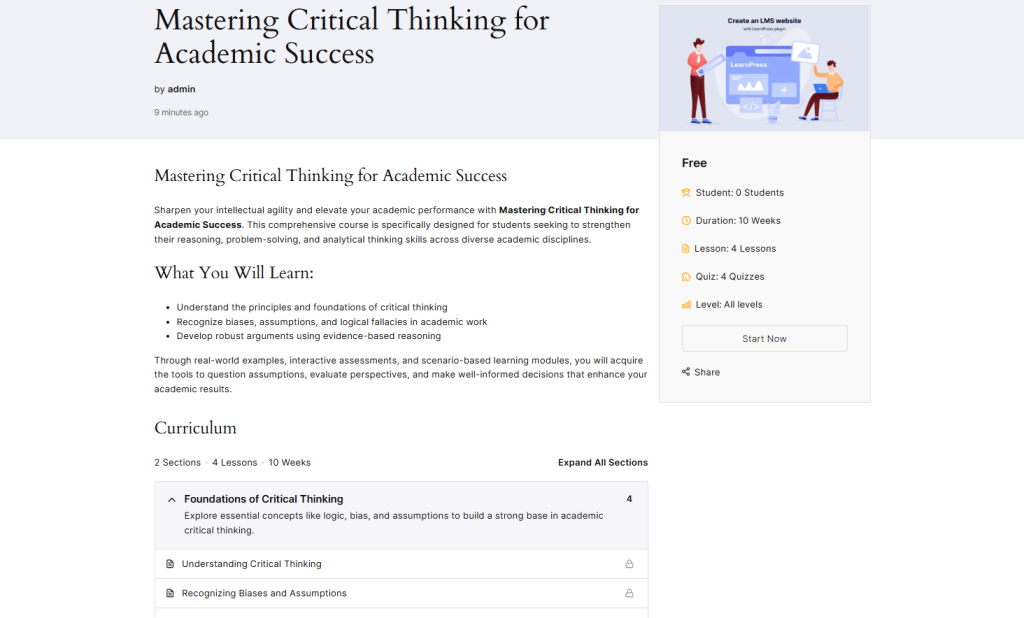
The OpenAI feature in LearPress helps you automatically create course content using AI, such as course descriptions, lessons, quizzes, and illustrations, saving you a lot of time in course development.
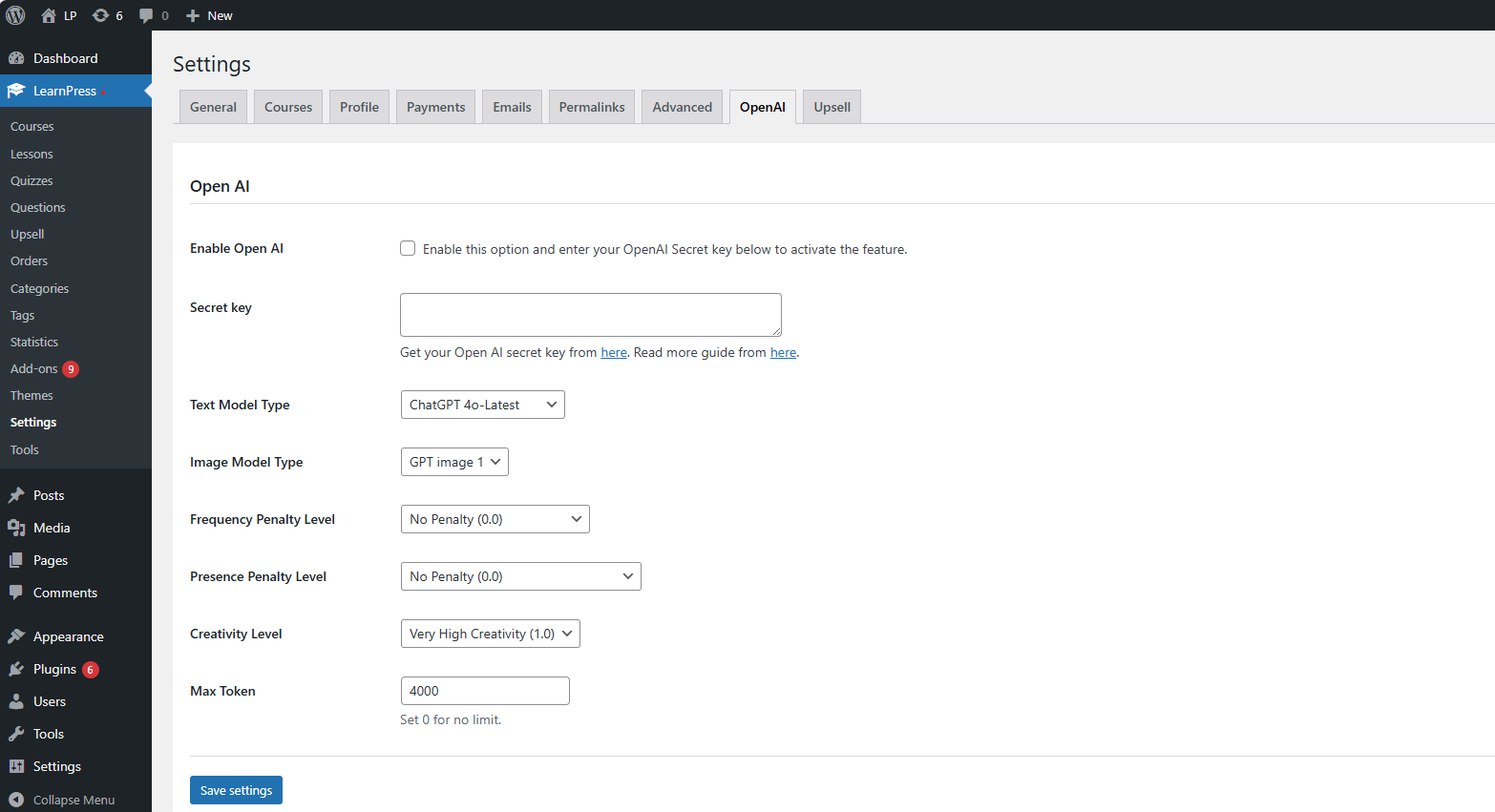
Enable OpenAI
To use OpenAI, you need to enable and configure it in LearnPress settings. Path: LearnPress -> Settings -> OpenAI -> Enable OpenAI
Turn on this option to enable OpenAI in LearnPress.
OpenAI Secret Key
Secret Key: Enter your OpenAI Secret Key so LearnPress can connect to the OpenAI service. Secret keys can be generated from the OpenAI management page. Do not share your secret key with third parties. If your key is compromised, generate a new one and update it in your settings.
Text Model Type
Select the AI model to generate text content, including: Course Description, Lesson, Quiz Questions and Answers.
Recommendation: ChatGPT 4o Latest.
Image Model Type
Select the model to use for creating illustrations for the course content.
Recommended: GPT image 1
Frequency Penalty Level
Adjust the level of restriction on AI repeating words or ideas.
Low value: natural content
High value: stronger restriction on repetition
Default: 0.0 (No Penalty)
Presence Penalty Level
Encourages AI to generate more new ideas and content.
Default: 0.0 (No Penalty)
Creativity Level
Sets the creativity level of AI content.
Low value: serious, academic content
High value: more creative content
Default: Very High Creativity (1.0)
Max Tokens
Limits the maximum number of tokens per content creation.
0: unlimited
Higher values allow for longer and more detailed content creation
Suggestion: 3000 – 4000
Click Save settings to save all OpenAI configurations. After enabling OpenAI, you can use AI when:
Creating courses.
Creating lessons.
Creating quizzes/questions.
Create a Course with AI in LearnPress
The AI Course Builder allows you to quickly generate a complete LearnPress course structure and content using artificial intelligence (OpenAI). Click Generate with AI to open the AI-powered course builder.
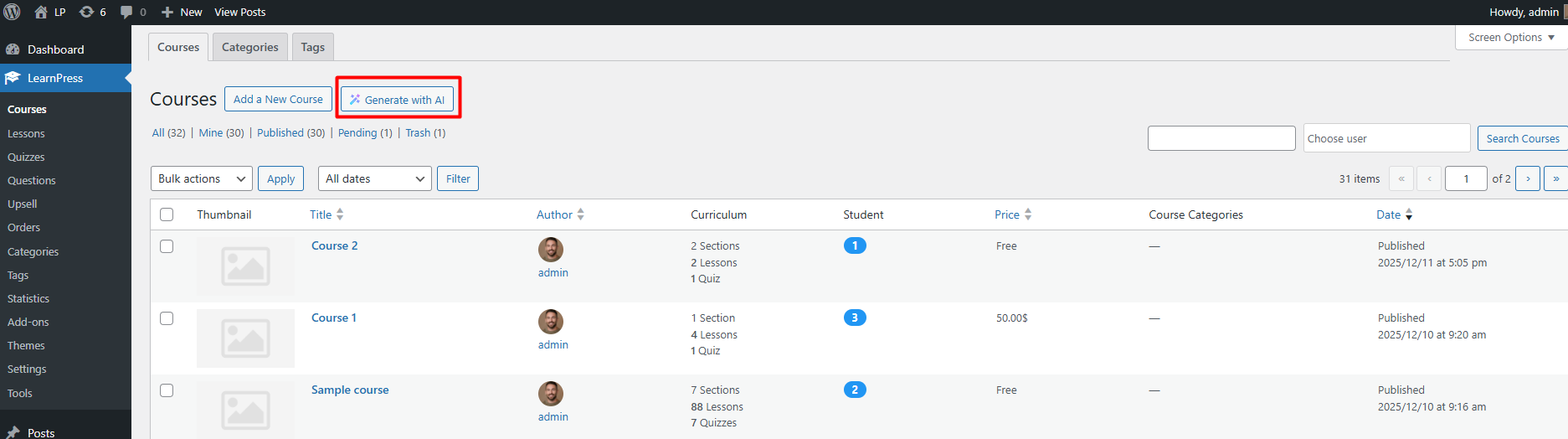
The AI Course Builder for LearnPress screen will appear.
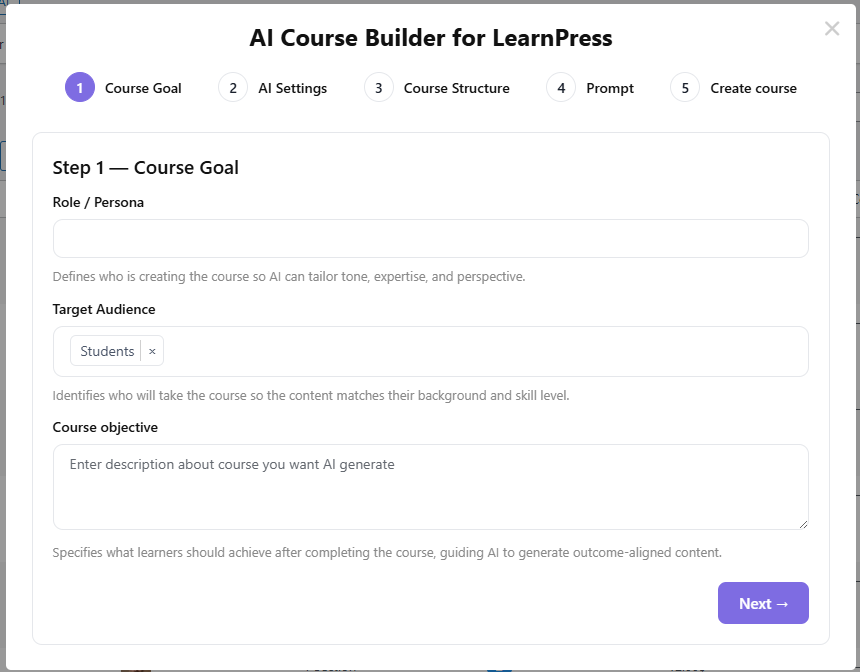
Step 1: Course Goal
Define the course goal and audience so AI can tailor the generated content.
Role / Persona: Defines who is creating the course so AI can adjust tone, expertise, and perspective.
Target Audience: Identifies who will take the course so the content matches their background and skill level.
Course Objective: Specifies what learners should achieve after completing the course, guiding AI to generate outcome-aligned content.
Click Next to continue.
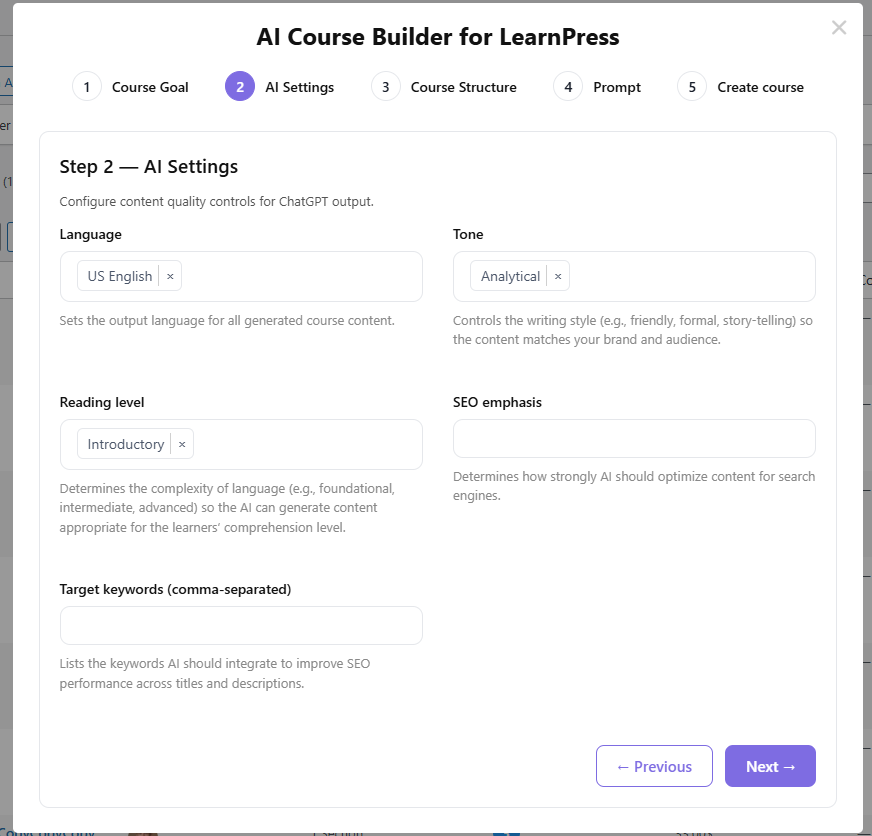
Step 2: AI Settings
Configure how AI generates course content.
Language: Sets the output language for all generated course content.
Tone: Controls the writing style to match your brand and audience.
Reading Level: Determines content complexity based on learners’ comprehension level.
SEO Emphasis: Determines how strongly AI should optimize content for search engines.
Target Keywords: Lists keywords AI should integrate to improve SEO performance.
Click Next to proceed.
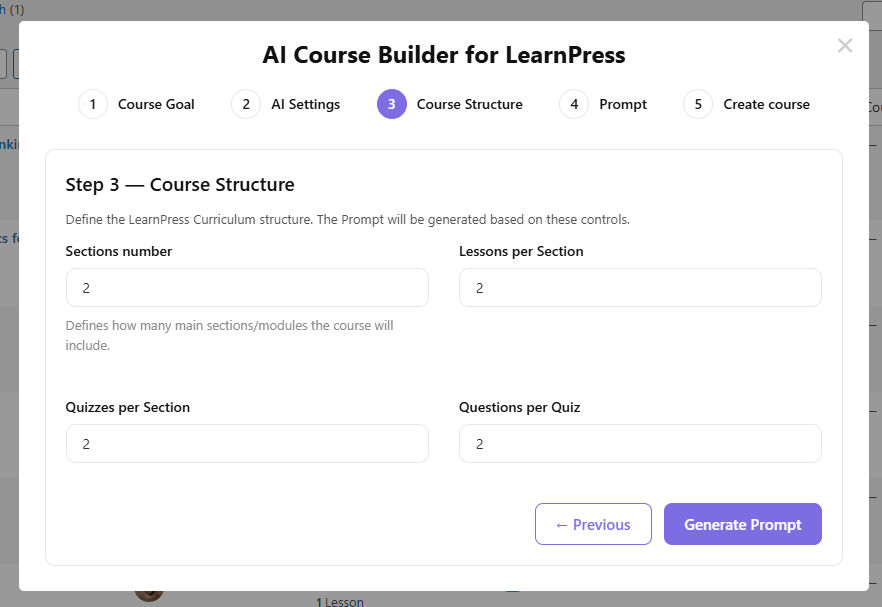
Step 3: Course Structure
Define the LearnPress curriculum structure.
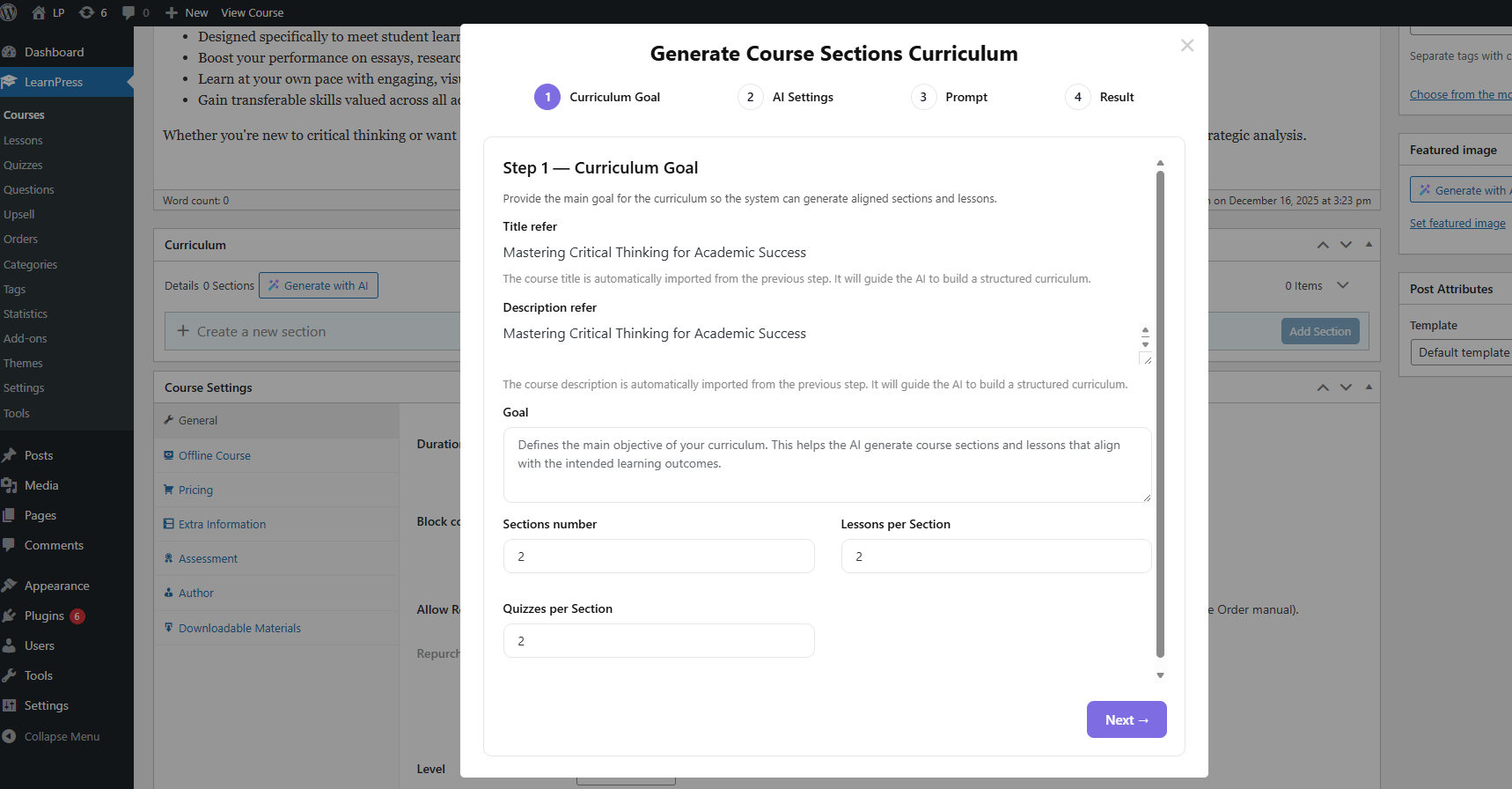
Sections Number: Defines how many main sections/modules the course will include.
Lessons per Section: Number of lessons in each section.
Quizzes per Section: Number of quizzes per section.
Questions per Quiz: Number of questions per quiz.
Click Generate Prompt to generate the AI prompt.
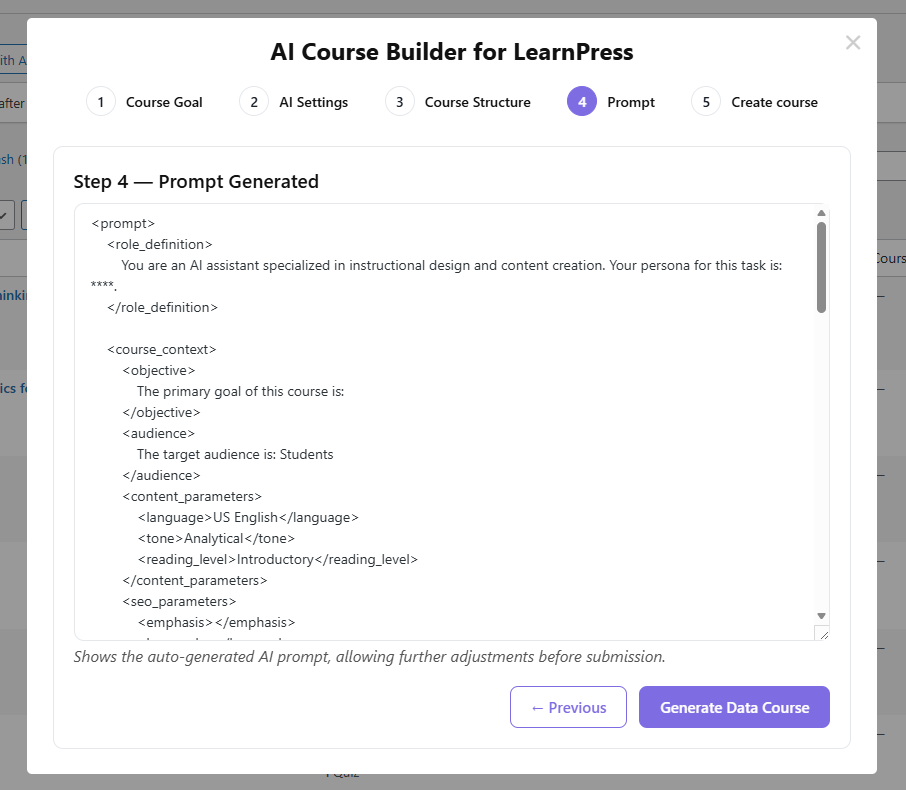
Step 4 — Prompt Generated
The prompt is auto-generated based on previous settings.
You can edit it to add specific requirements or adjust content style.
Click Generate Data Course to continue.
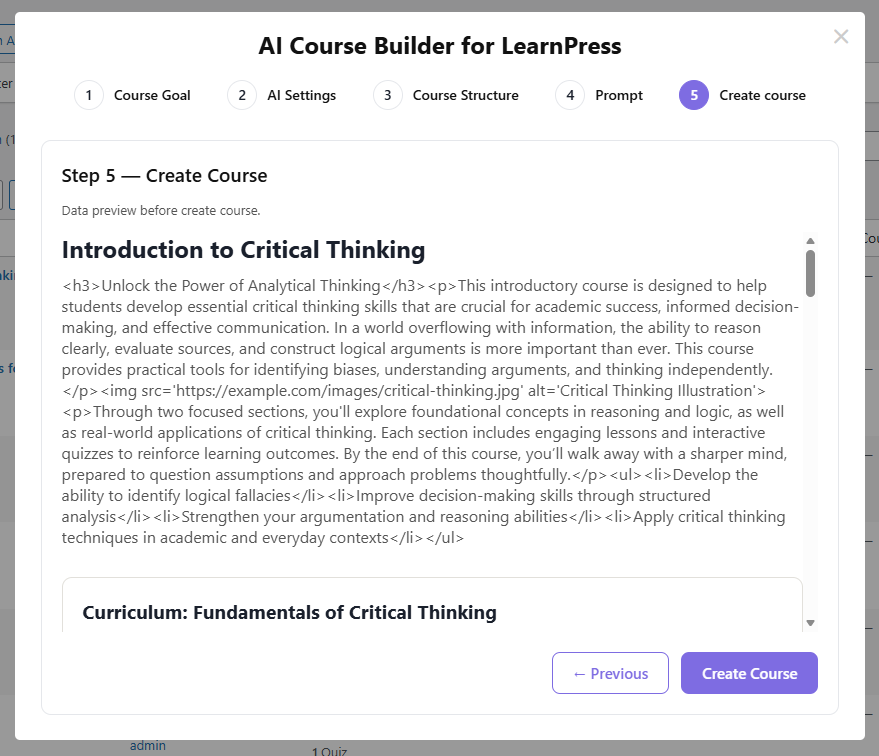
Finally, simply select Create Course to complete the process.
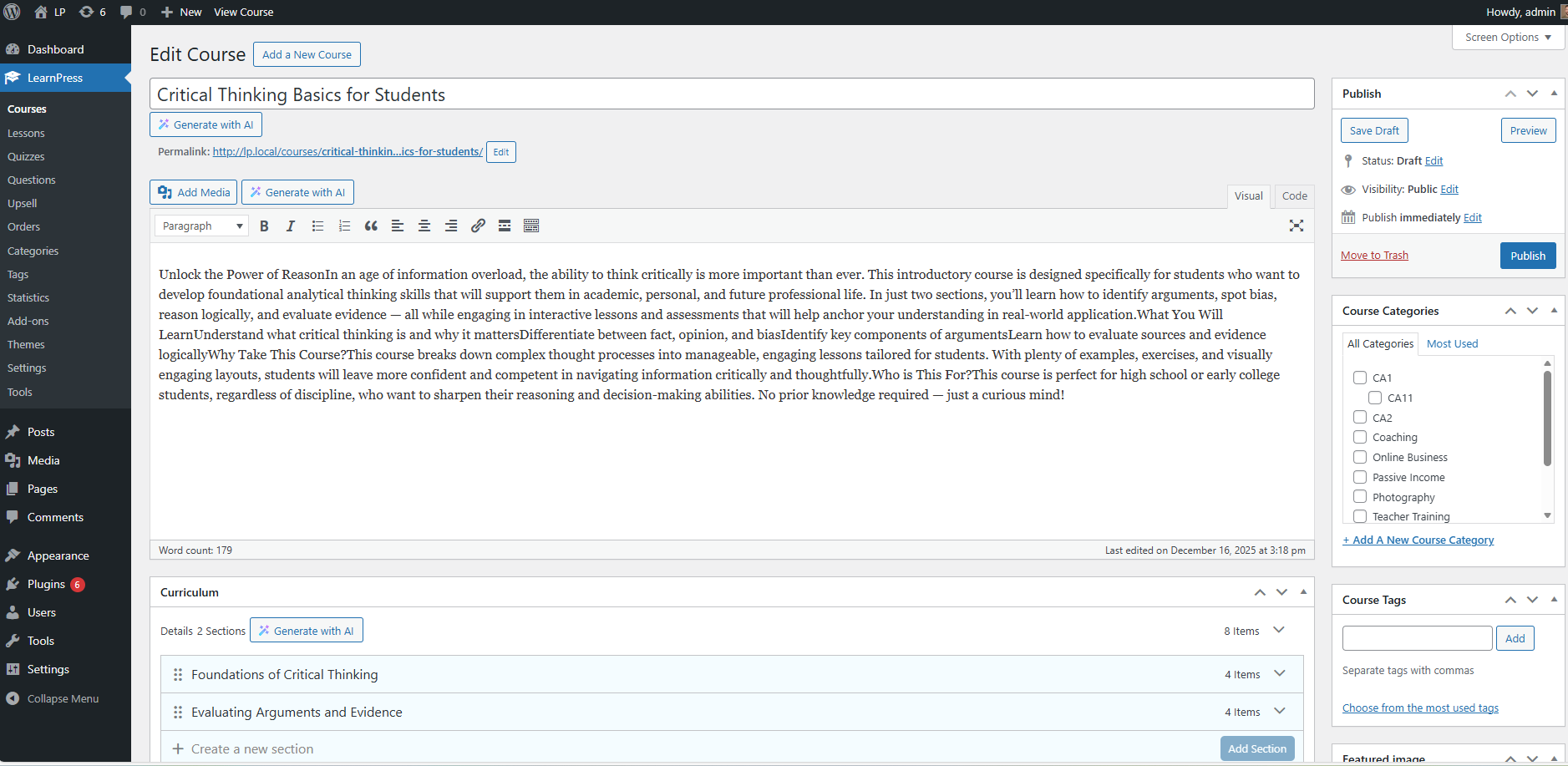
If you want to create courses manually while still using AI features, you can refer to the instructions below.
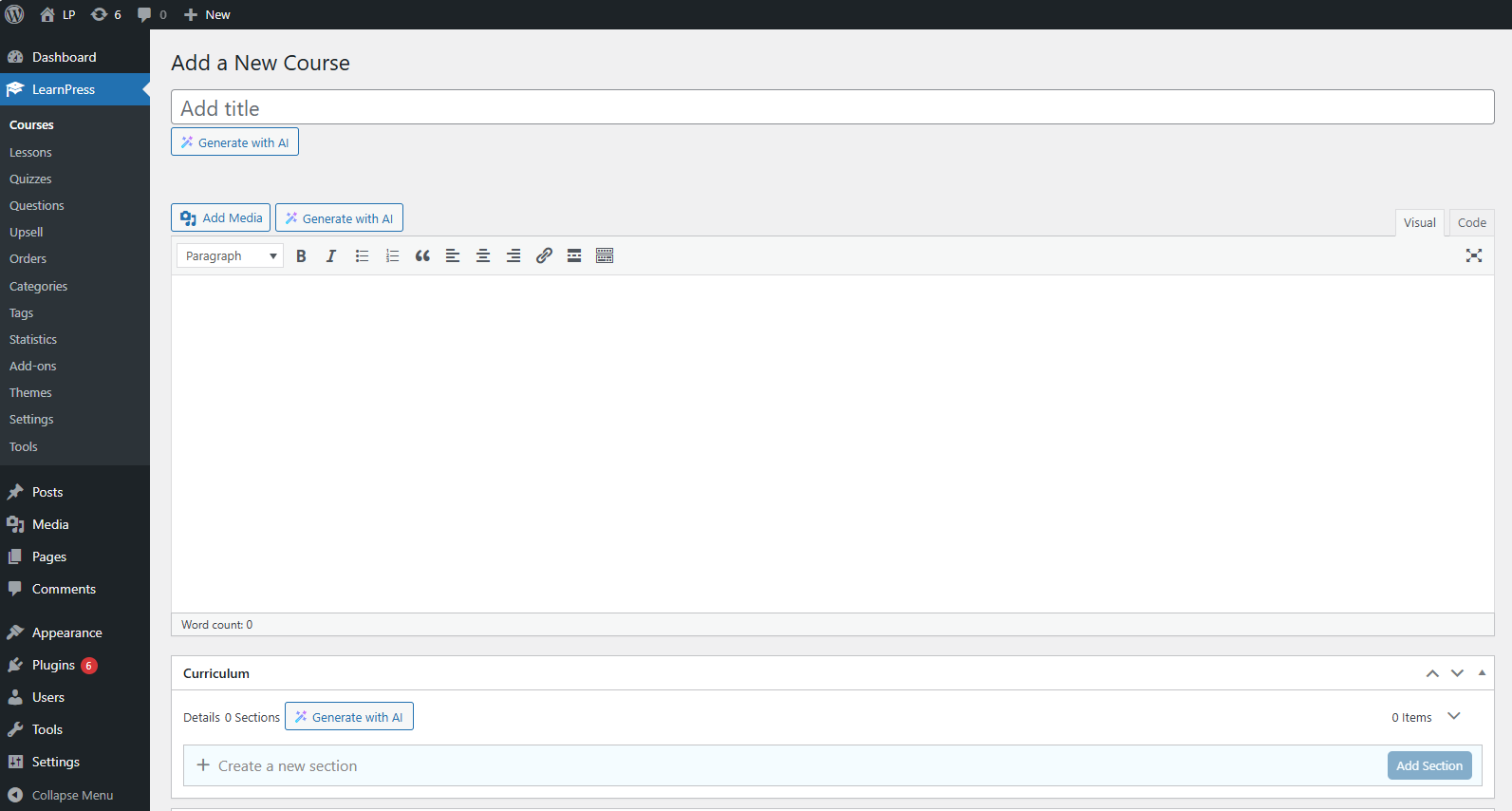
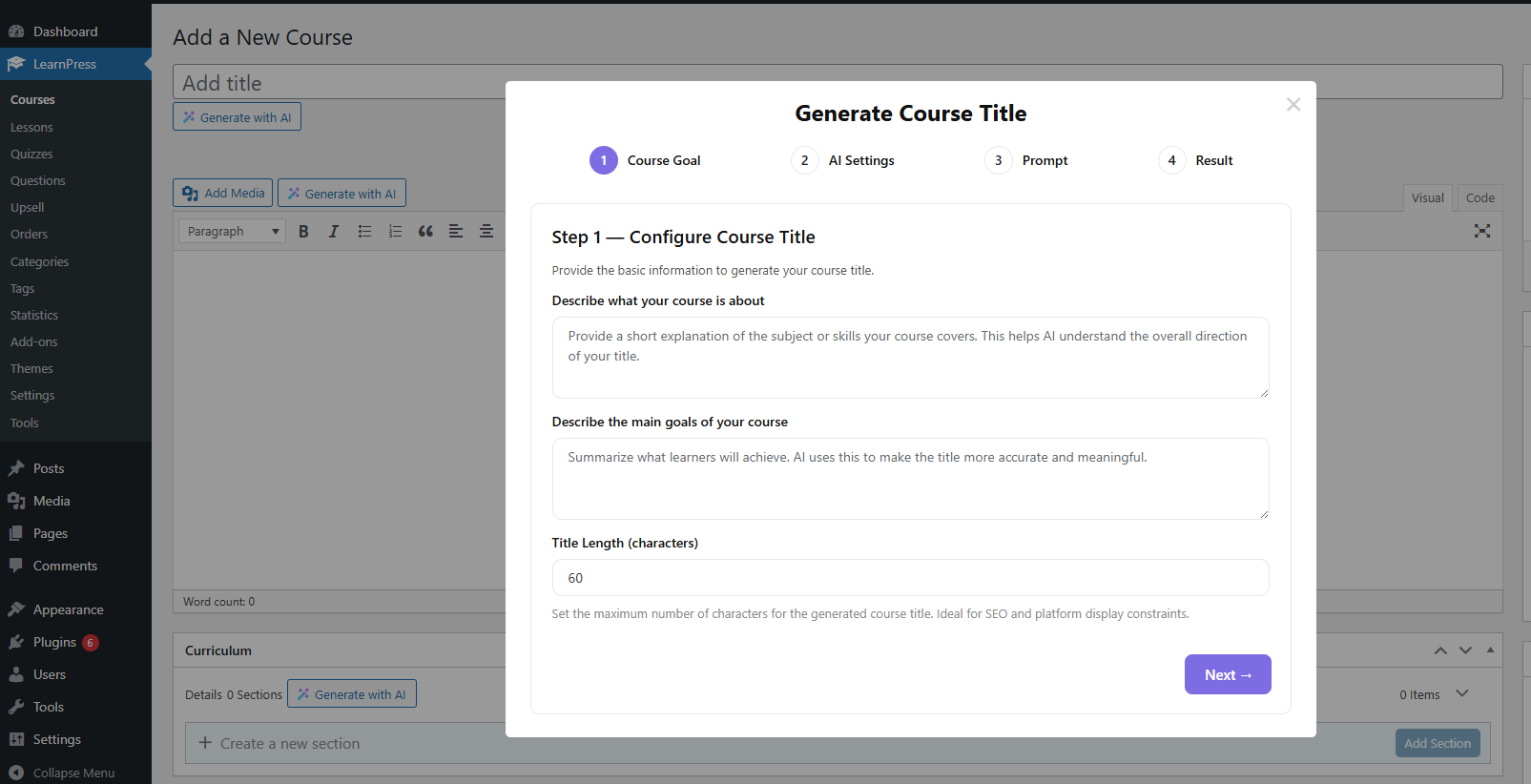
Create title courses using AI.
Here, you can generate a title with AI, which includes similar steps: Configure Course Title, AI settings, Prompt, and Result.
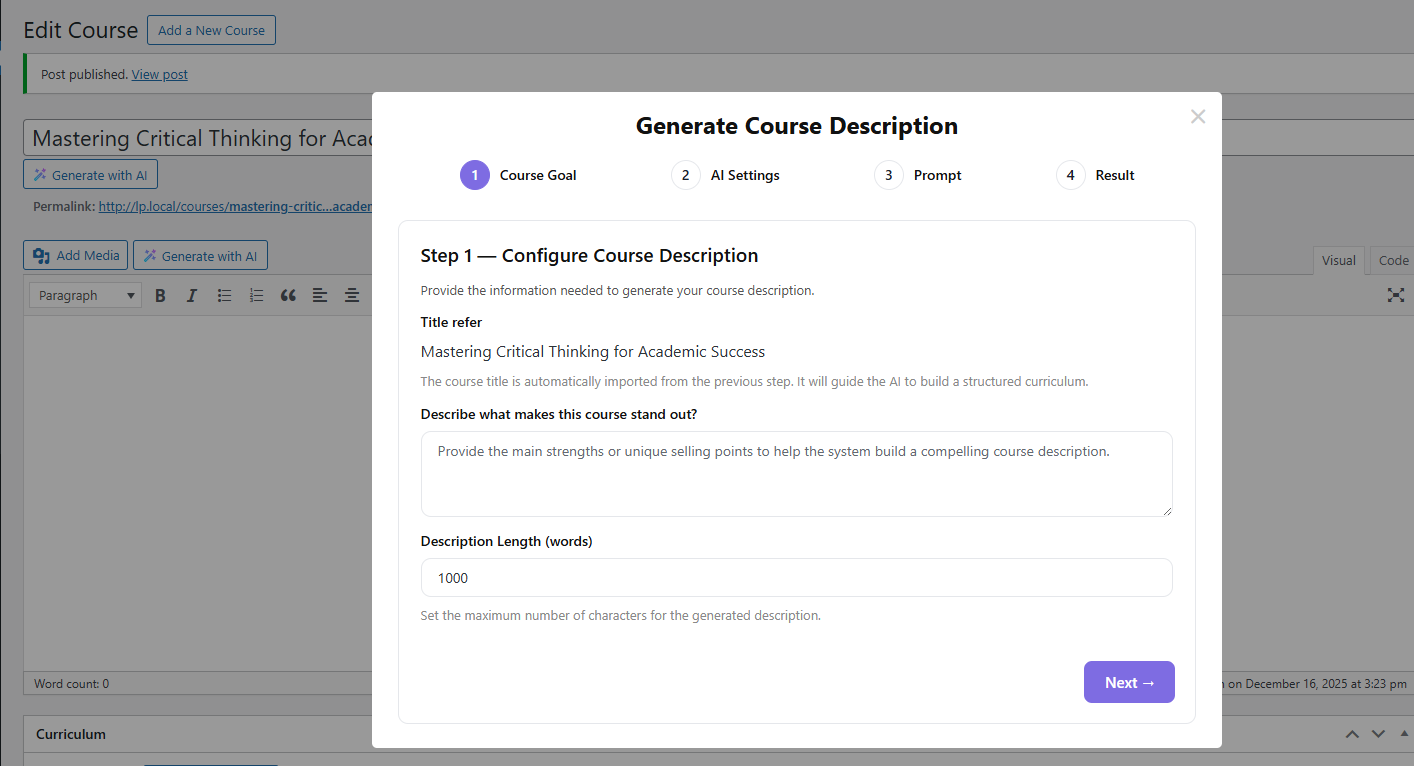
Create course descriptions using AI.
With just a few clicks, similar to the title course, you can create a detailed scientific description using AI.
Generate Course Sections Curriculum
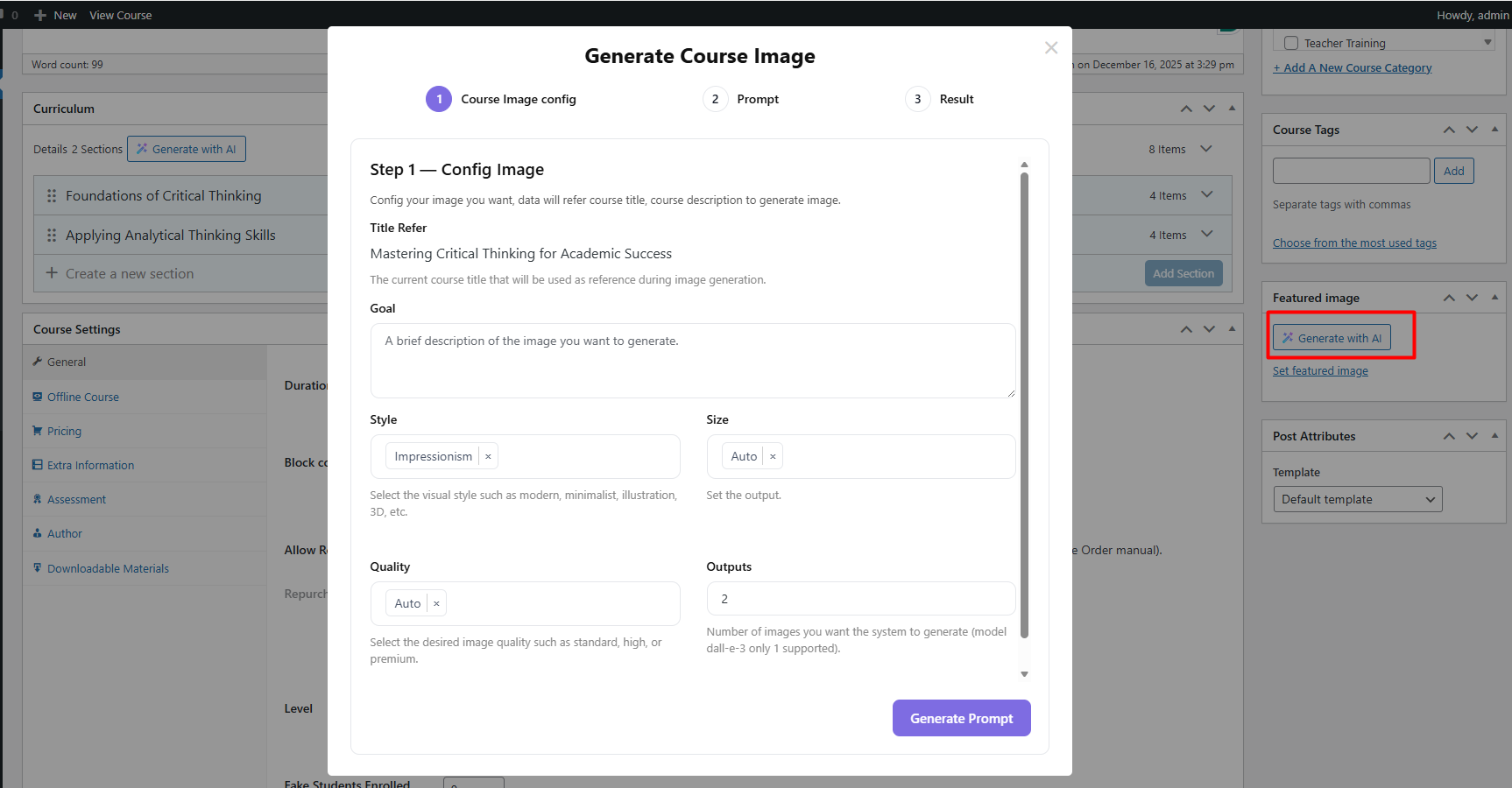
Additionally, you can create Featured Image courses using AI.
Add the required information about your image so the AI can create a suitable picture.
This is the result of a course created using AI.