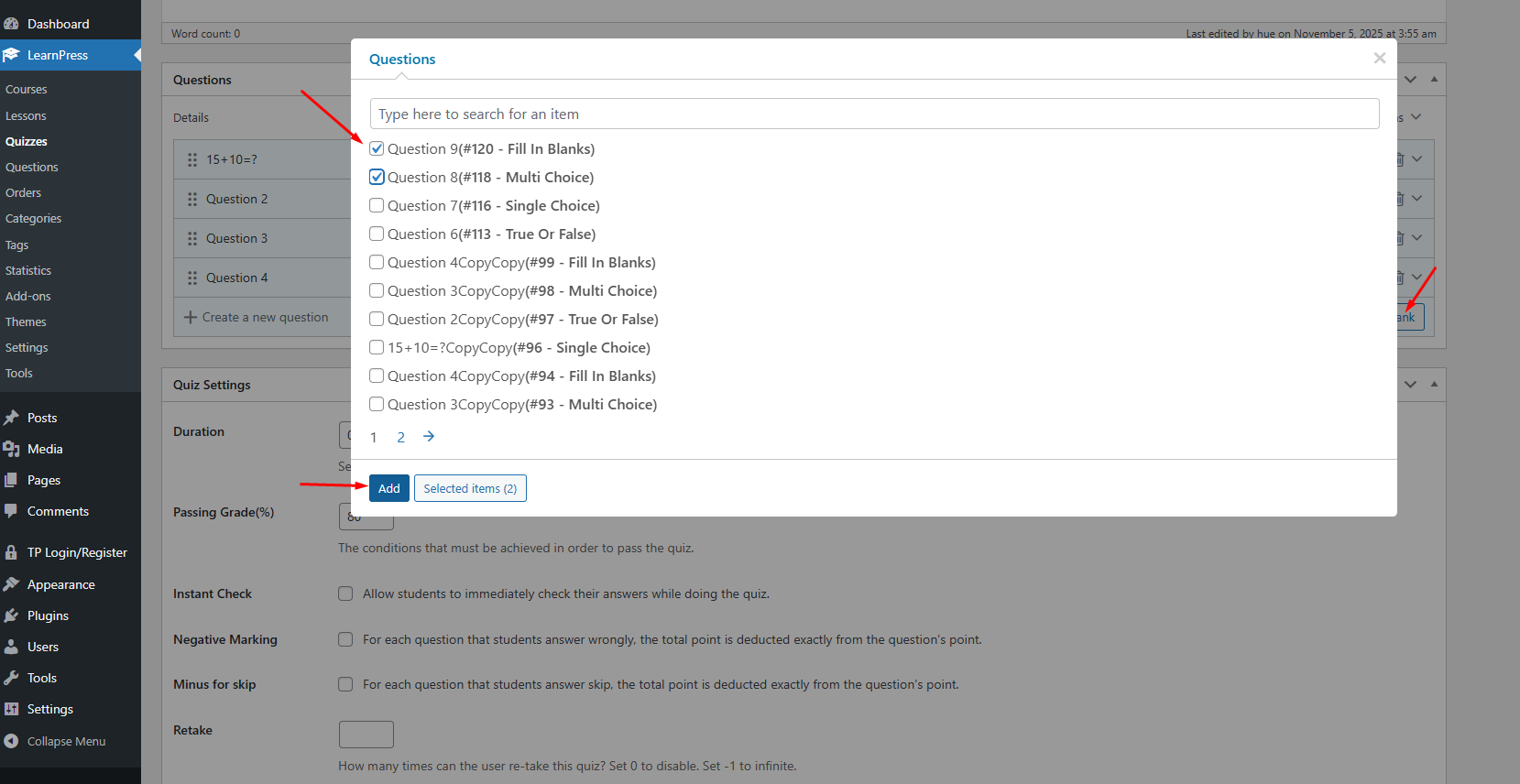
In this section, we will guide you through creating questions and assigning questions to your quiz.
Note: When you create questions in the “Questions” section, you need to assign (assign) these questions to the “Quiz” section for them to be displayed in the test.
1. Create a question
To create a new question, you can go to your Dashboard => LearnPress => Question => Add A New Question. You can see in below picture.
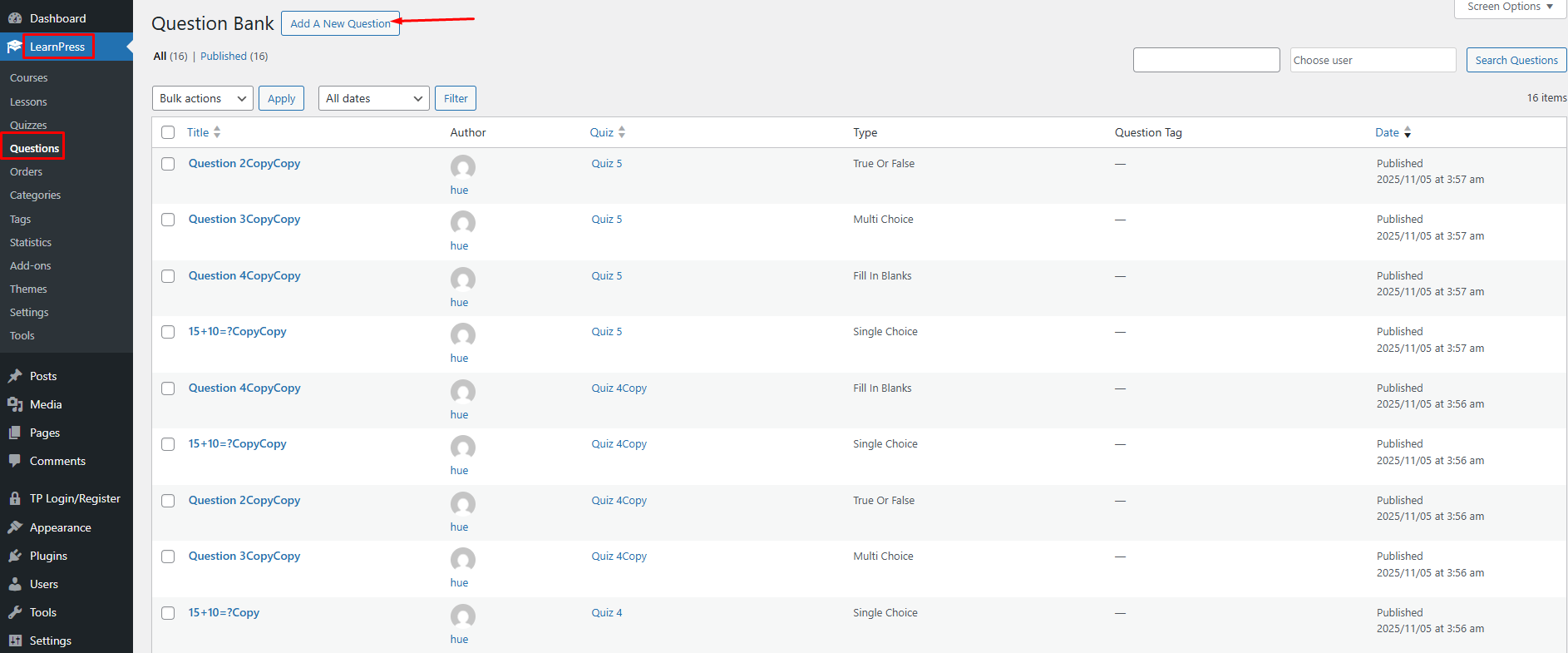
2. Question Interface
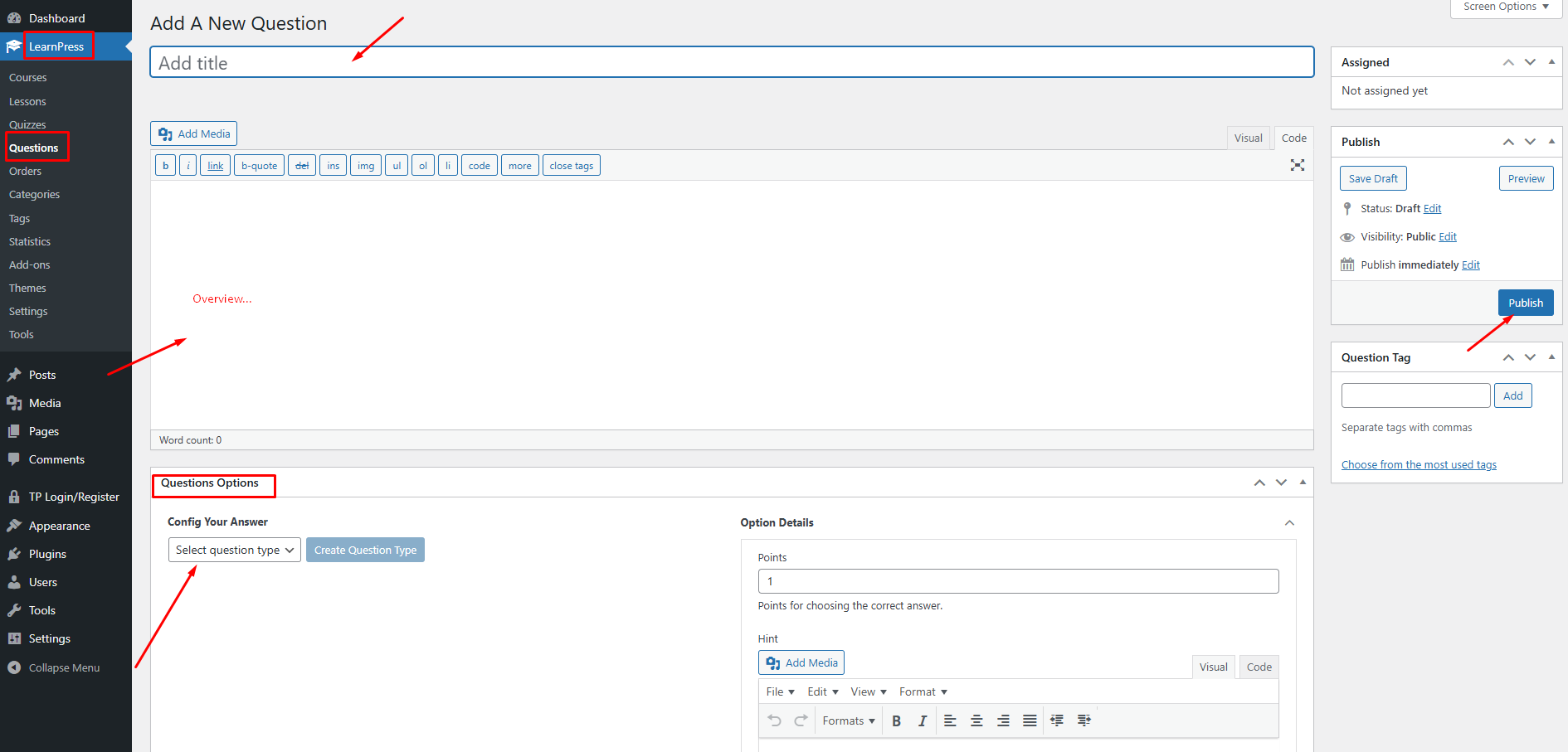
On the quiz creation page, there are two main sections:
- Overview
- You can enter a description or introduction to help students understand the content and requirements of the quiz.
- Questions
- This is where you create and configure the question types for your quiz.
- Here, you can select the question type, enter answers, mark correct answers, and set points, hints, or explanations for each question.
3. Quesion Options
Here you can select the type of question you want to create, then click on ‘Create Question Type‘ to create
Don’t forget when you’ve finished creating your questions, click’ Publish’ to save them.
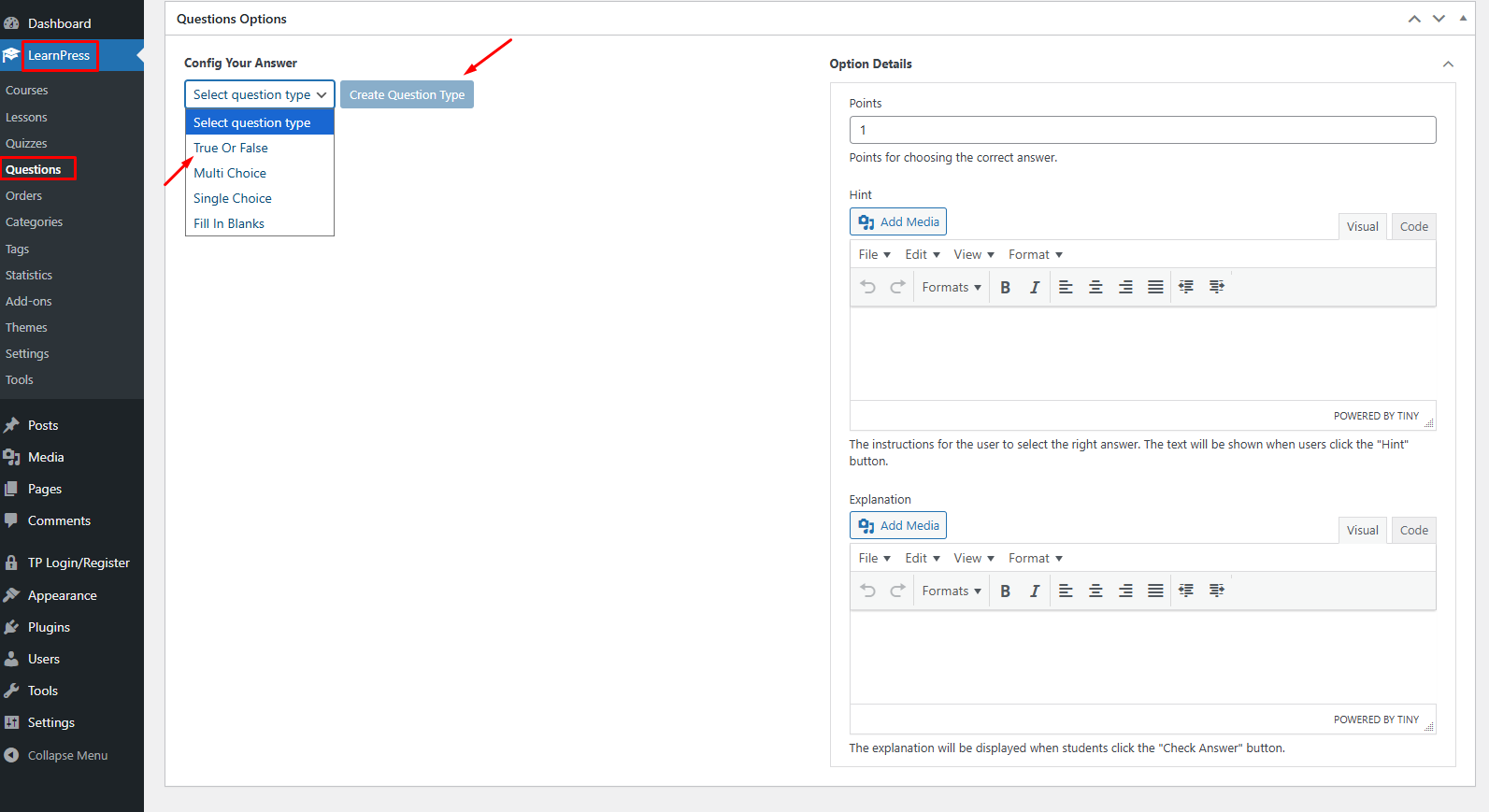
3.1 True or False questions
Used when the question has only two options: “True” or “False”.
How to create:
- In the Config Your Answer section, select True Or False → click Create Question Type.
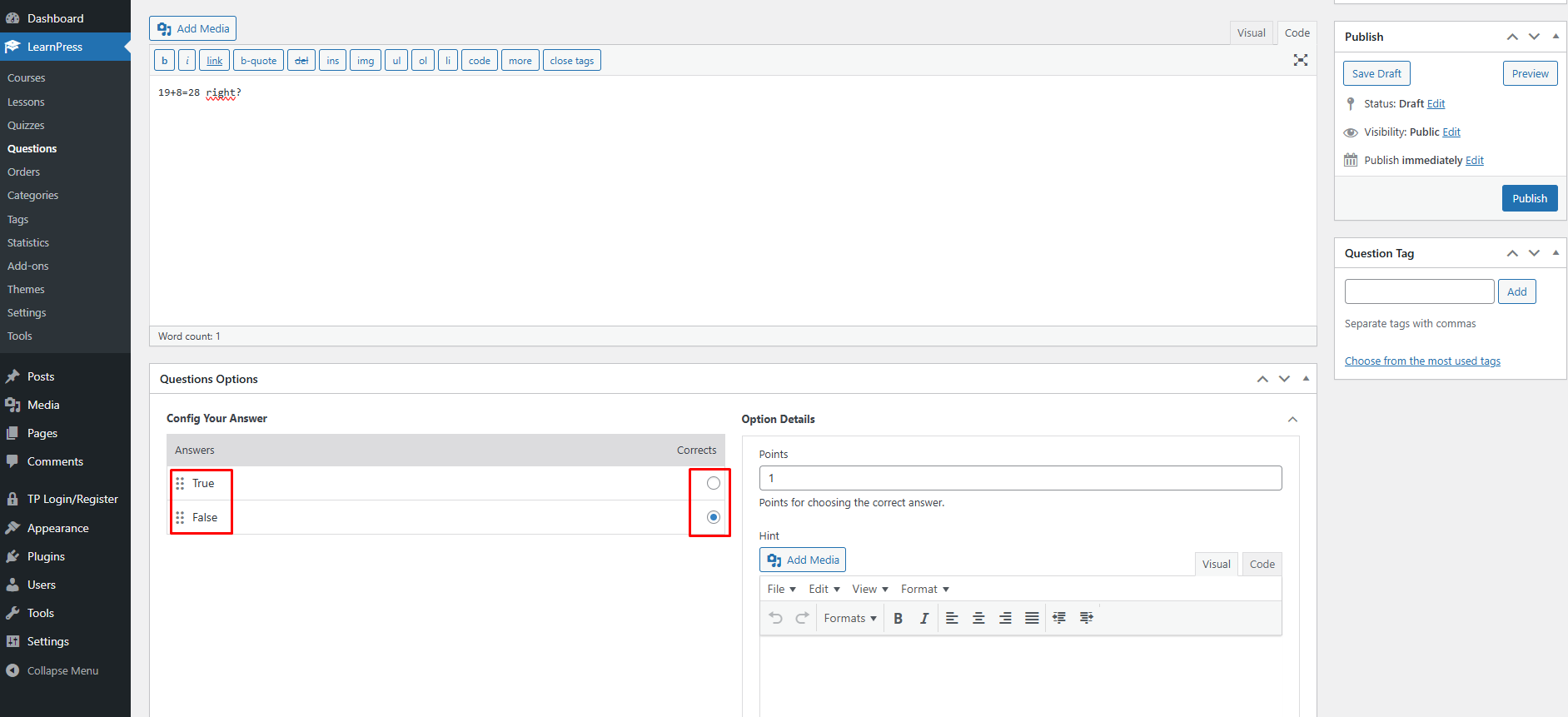
- The system will automatically create two options: True/False
- Select the tick mark in the Corrects column for the correct answer.
- Enter the number of points in the Points box (e.g., 1 point).
- (Optional) Add Hint or Explanation.
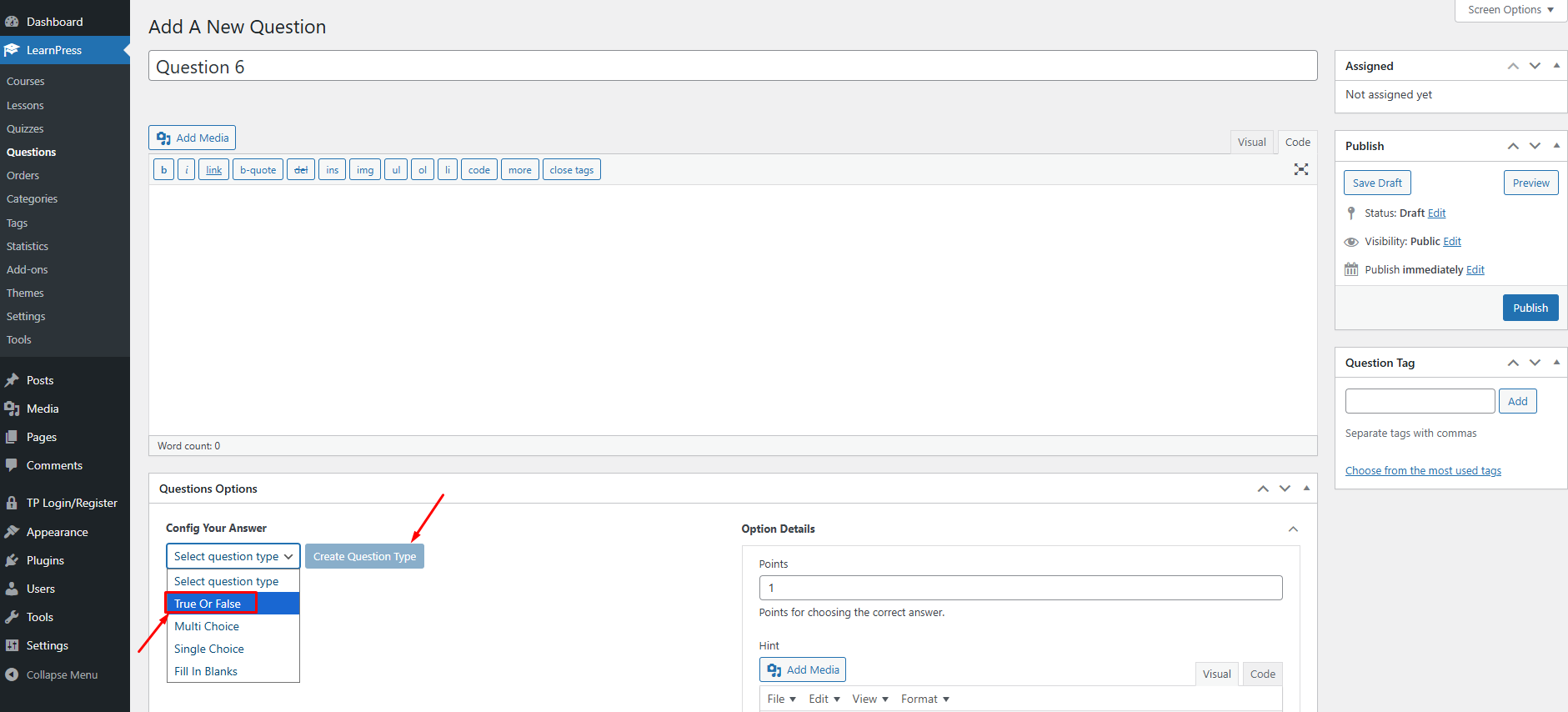
For example:
The outside interface will display like this:

3.2 Single Choice Questions
For multiple choice test with 1 correct answer.
How to create:
- Select Single Choice → click Create Question Type.
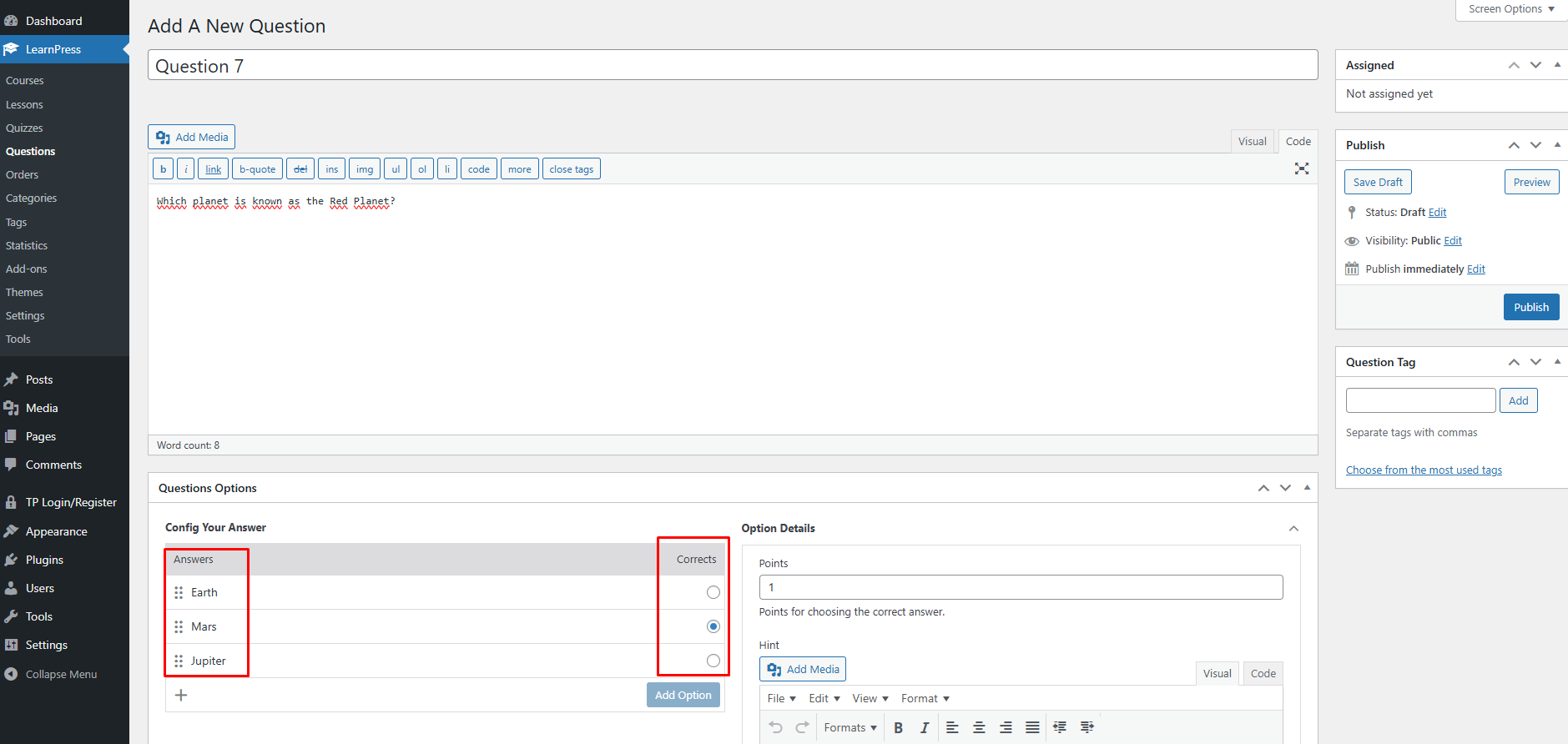
- Enter the options in the Answers section.
- Tick in the Corrects box of the only correct answer.
- Enter Points (e.g. 2).
- Add Hint or Explanation if needed.
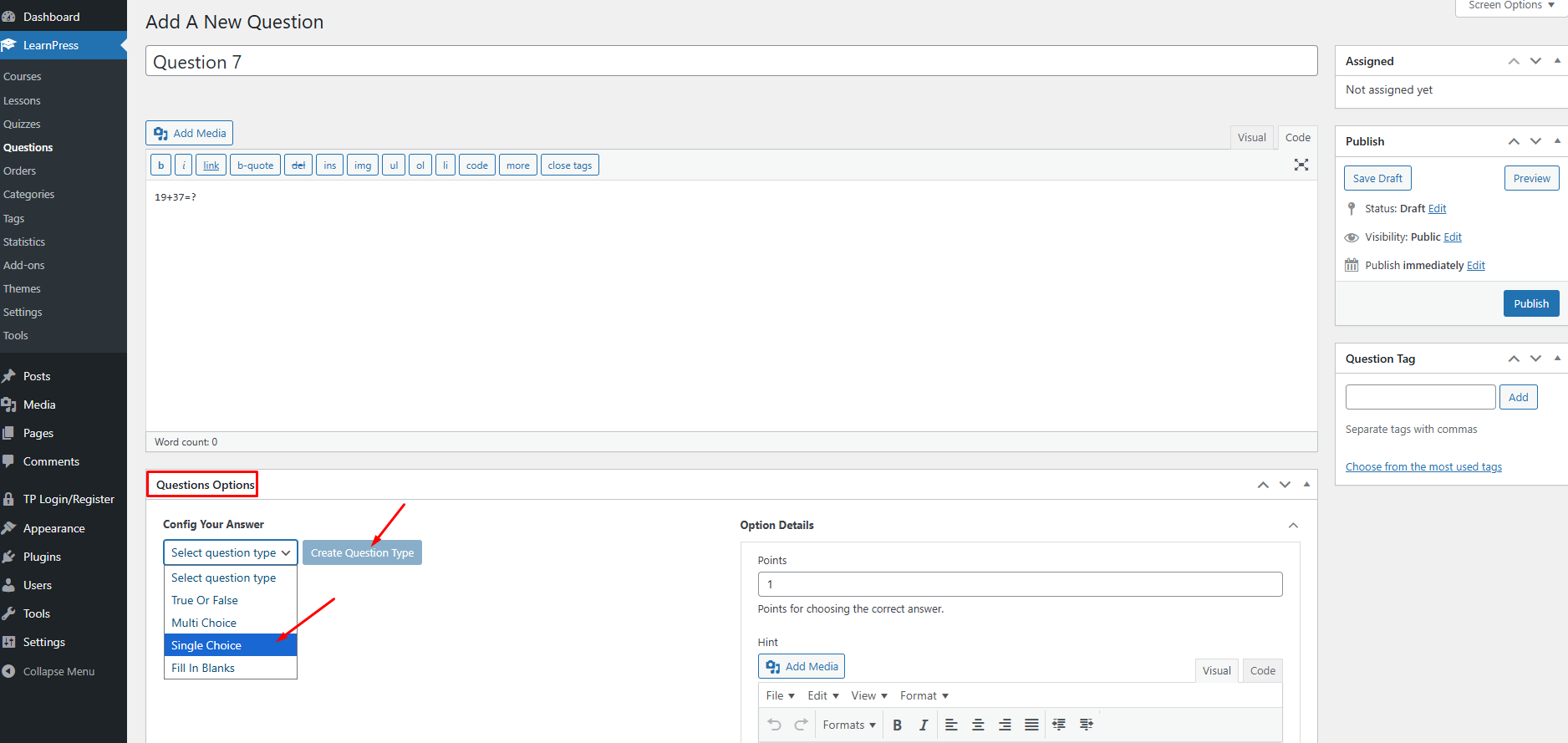
For example:
The outside interface will display like this:
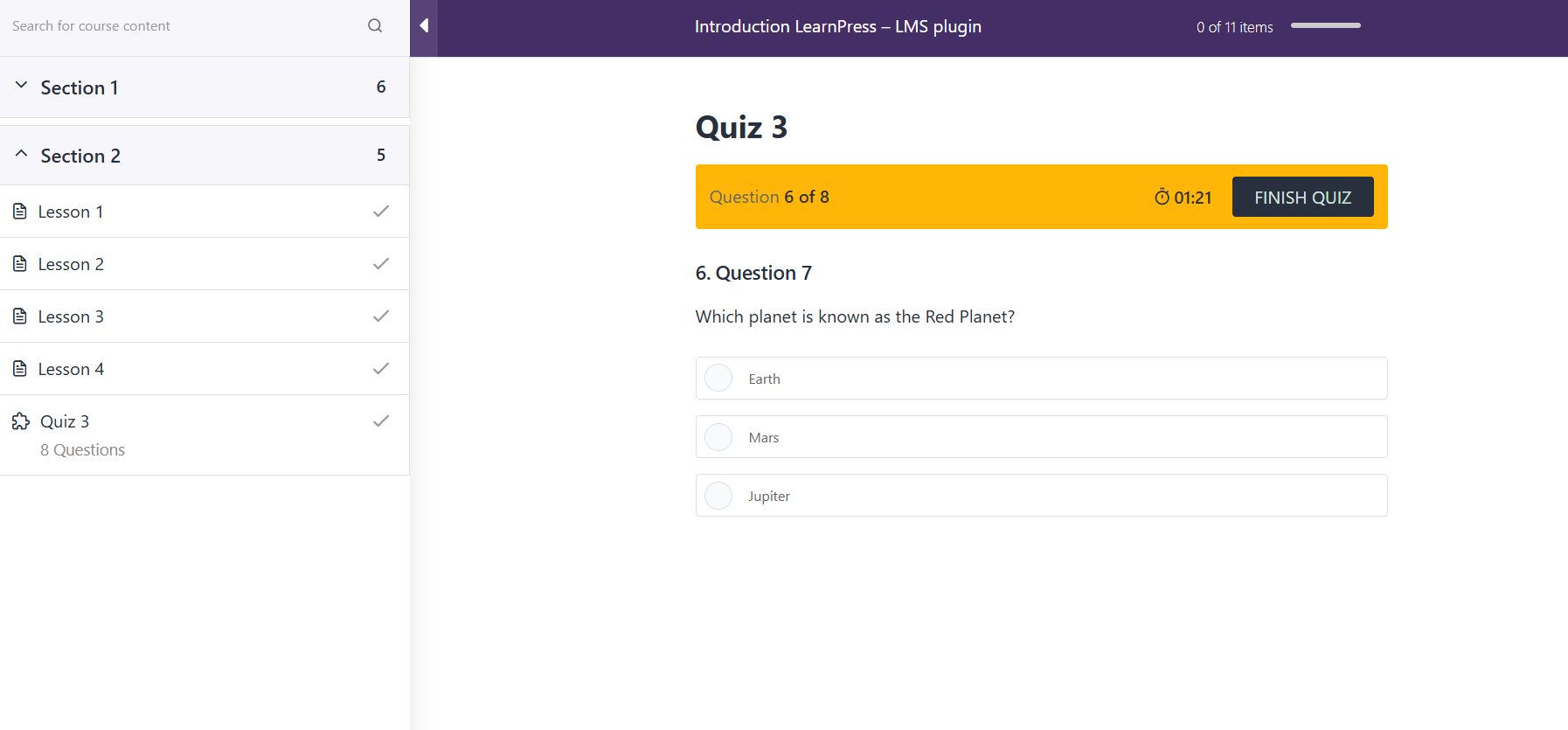
3.3 Multi Choice Questions
Used for questions with multiple correct answers at the same time.
How to create:
- Select Multi Choice → click Create Question Type.
- Enter a list of answers.
- Tick on all correct answers.
- Enter a score (e.g., 3).
- (Optional) Enter a hint or explanation.
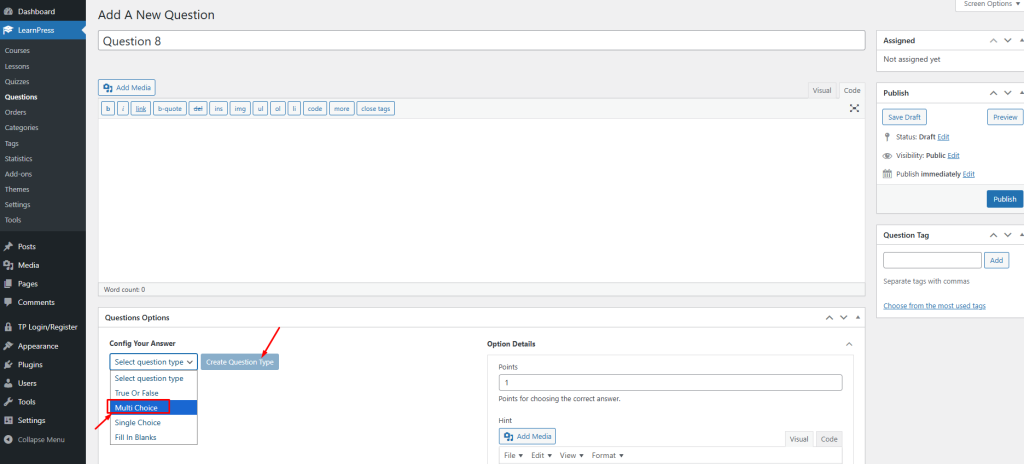
For example:

The outside interface will display like this:
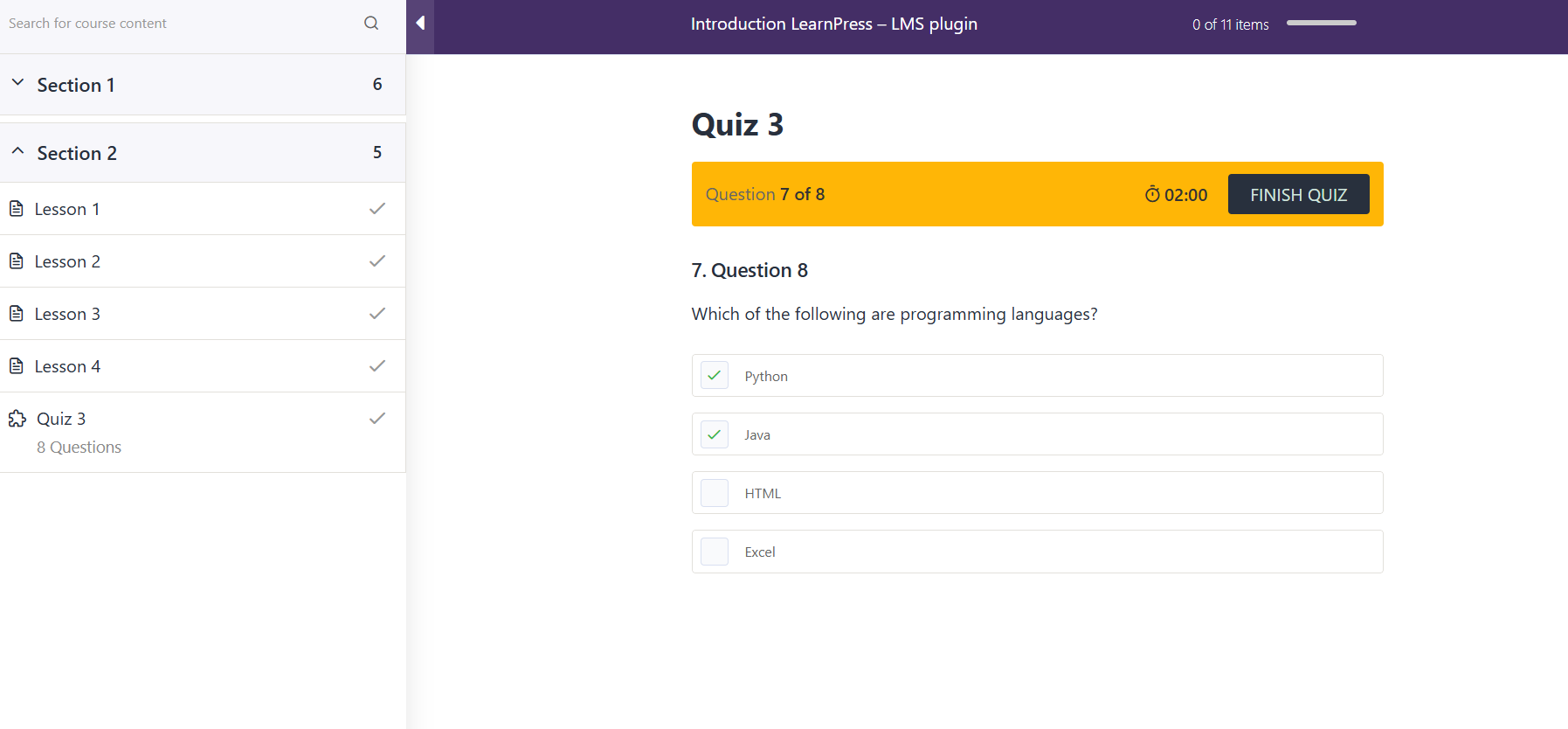
3.4 Fill in Blanks Questions
Students fill in the answers in the blanks instead of choosing the answers.
How to create:
- Select Fill In Blanks → click Create Question Type.
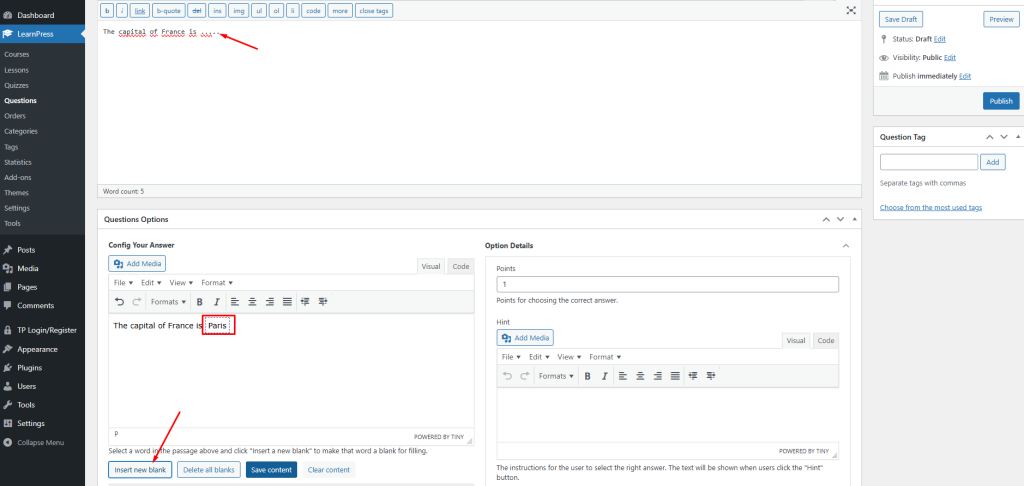
- Enter a question with blanks, using the …. symbol to mark the blanks that need to be filled.
- Enter the correct answer in the box below and highlight the word that needs to be filled in the blank and click ‘Insert new blank‘ to mark that word as the word that the student needs to fill in the blank
- Enter your score and other information.
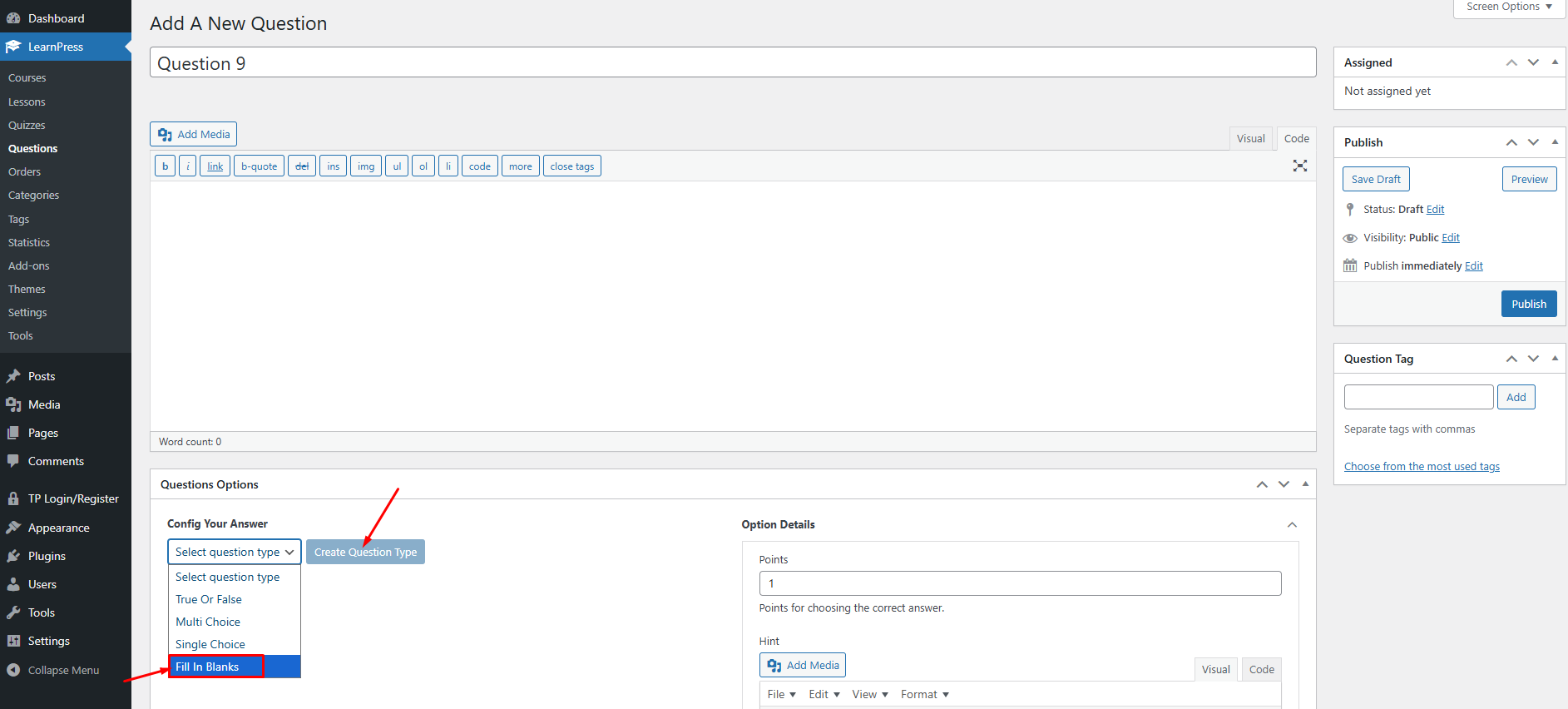
For example:
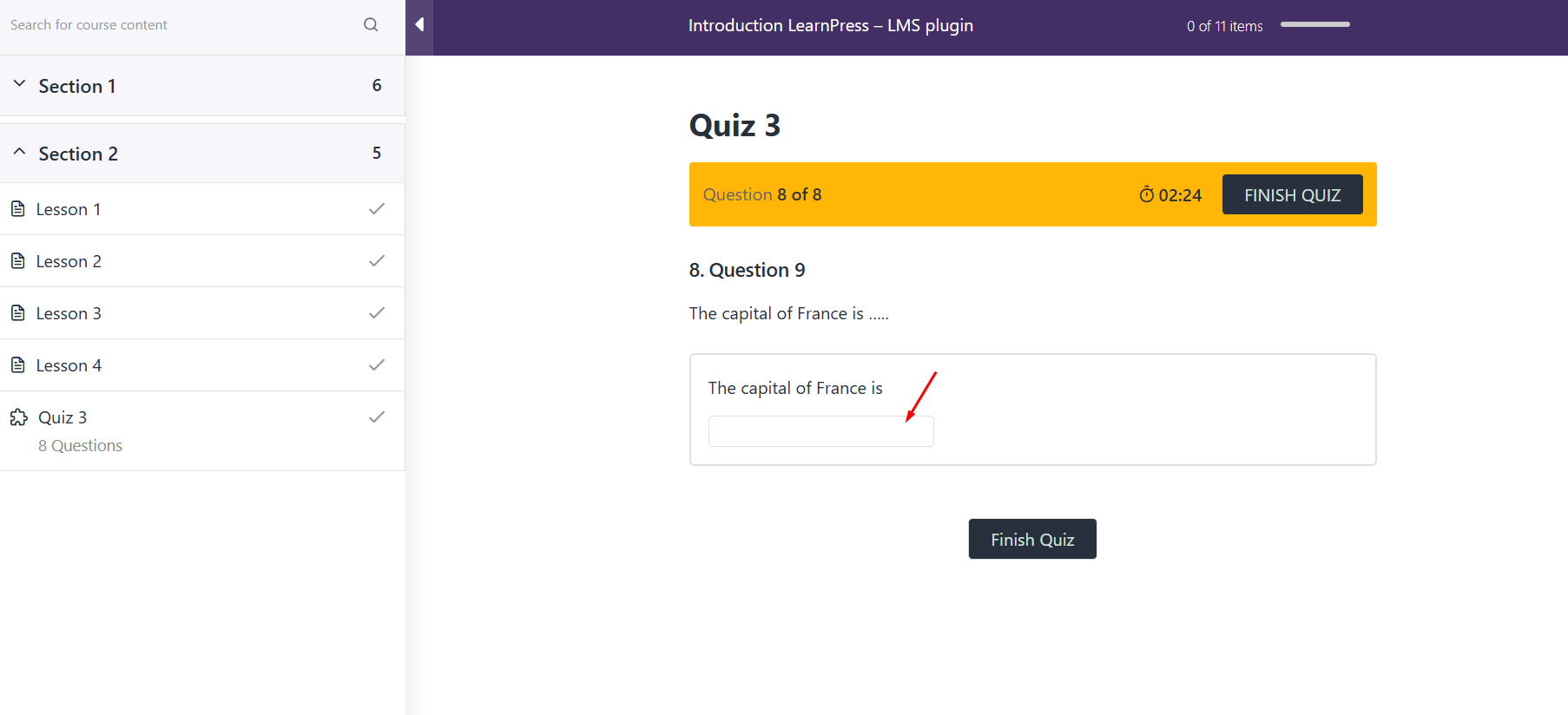
The outside interface will display like this:
Note: When you create questions in the “Questions” section, you need to assign (assign) these questions to the “Quiz” section for them to be displayed in the test.
In the Quiz section, you can add previously created questions by clicking Question Bank, selecting the questions you want to use, and then clicking Add to insert them into the quiz.