
In addition, the purchase code is also used to update the add-on. There are two methods to update the add-on: When installing the add-on via purchase code and when downloading the .zip file.
Method 1: Update the add-on when installing it via the purchase code.
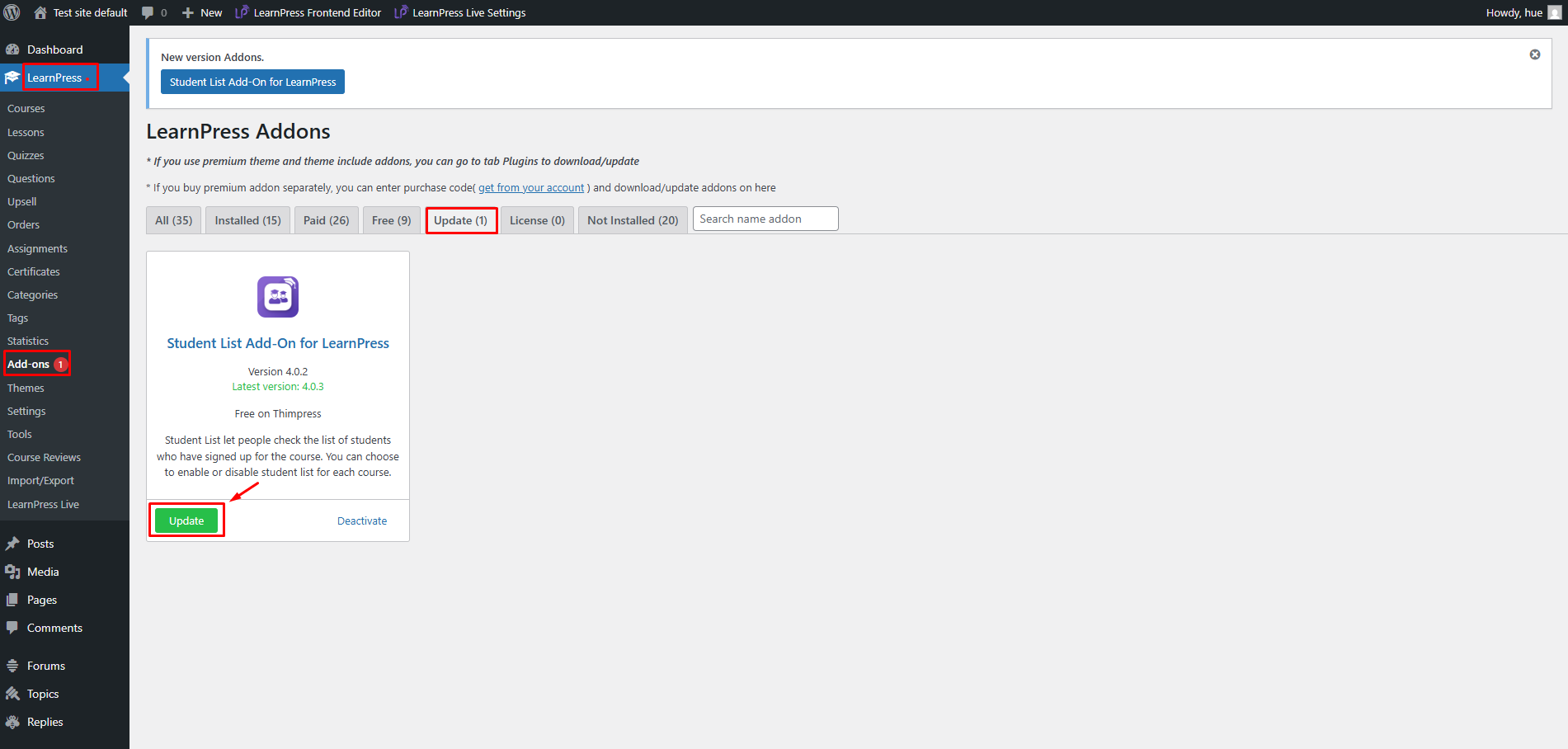
When buying and installing the LearnPress add-ons via the purchase code, you need to go to LearnPress -> Add-ons -> Update -> select the add-on and click on the “Update” button.
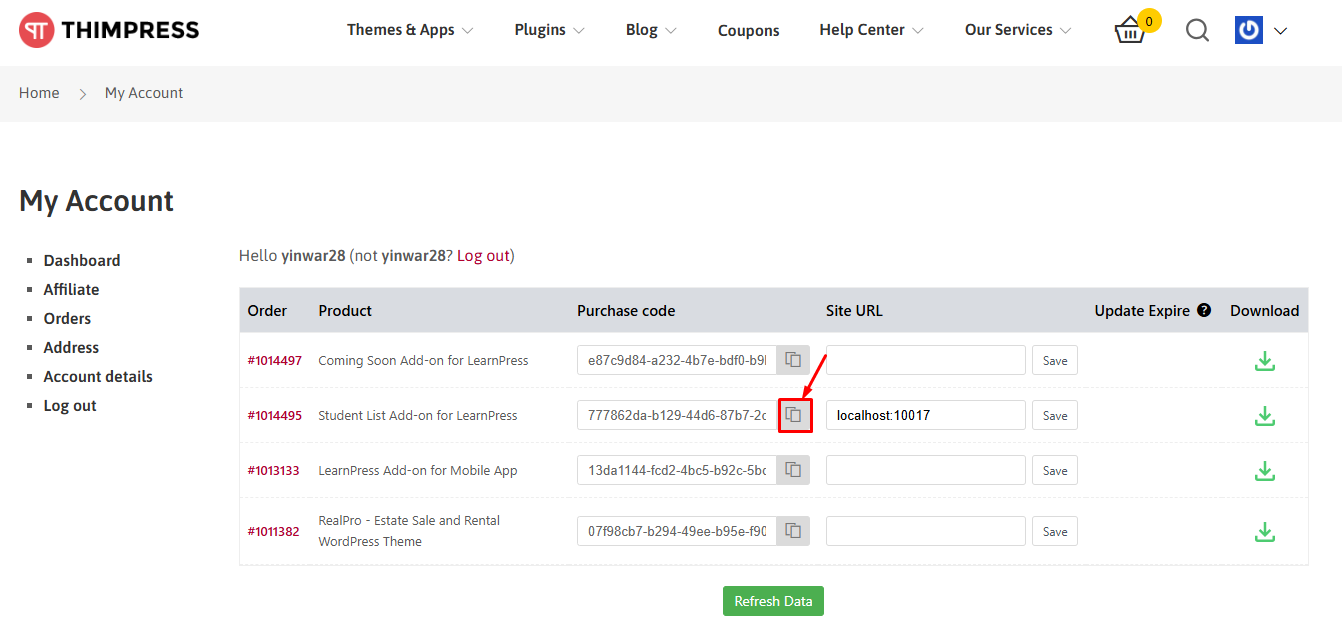
Copy Purchase Code
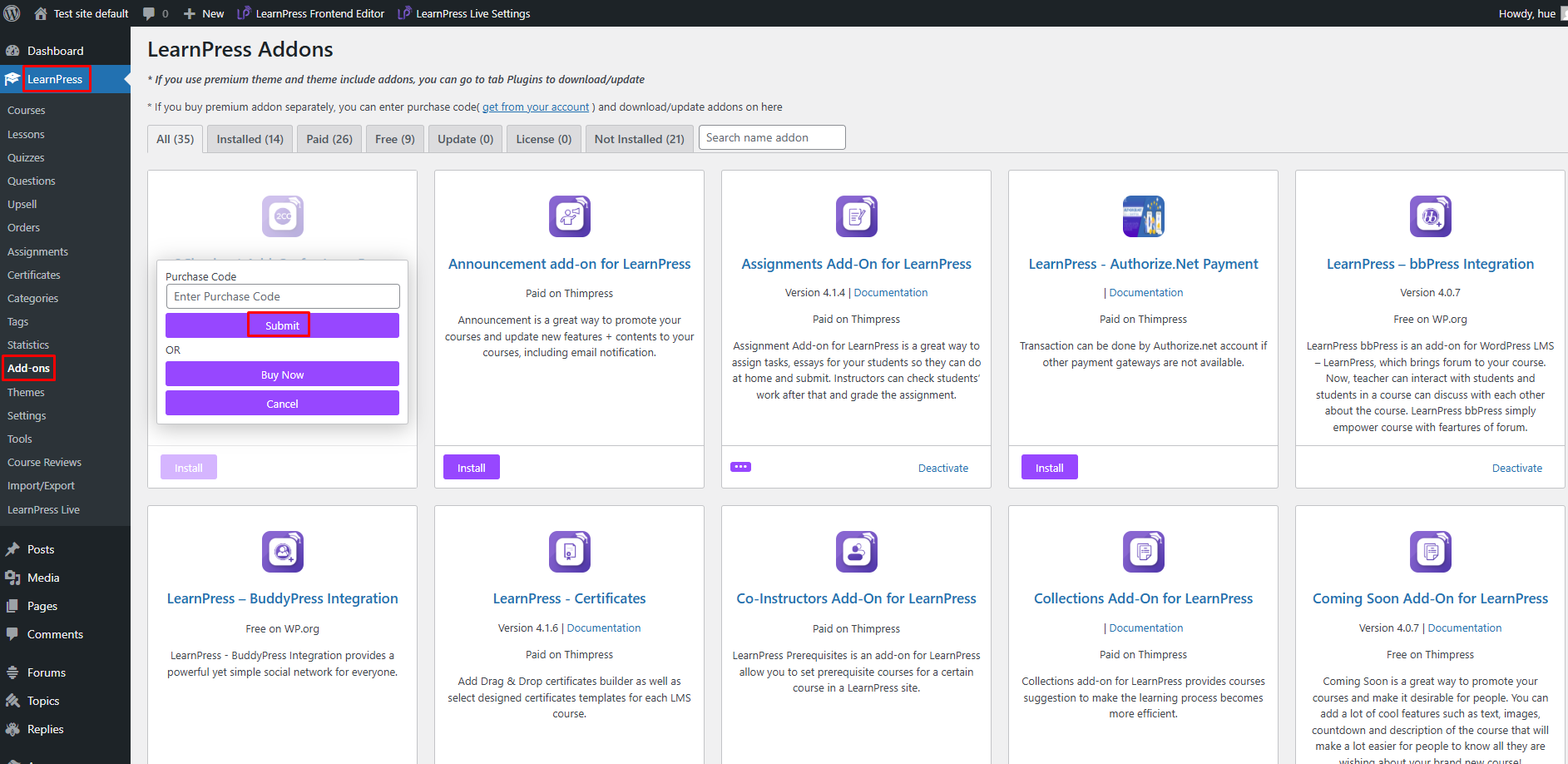
Next, go to LearnPress -> Add-ons -> Update -> find the add-on to update -> Click “…” -> Paste ” Purchase code” -> click “Submit“.
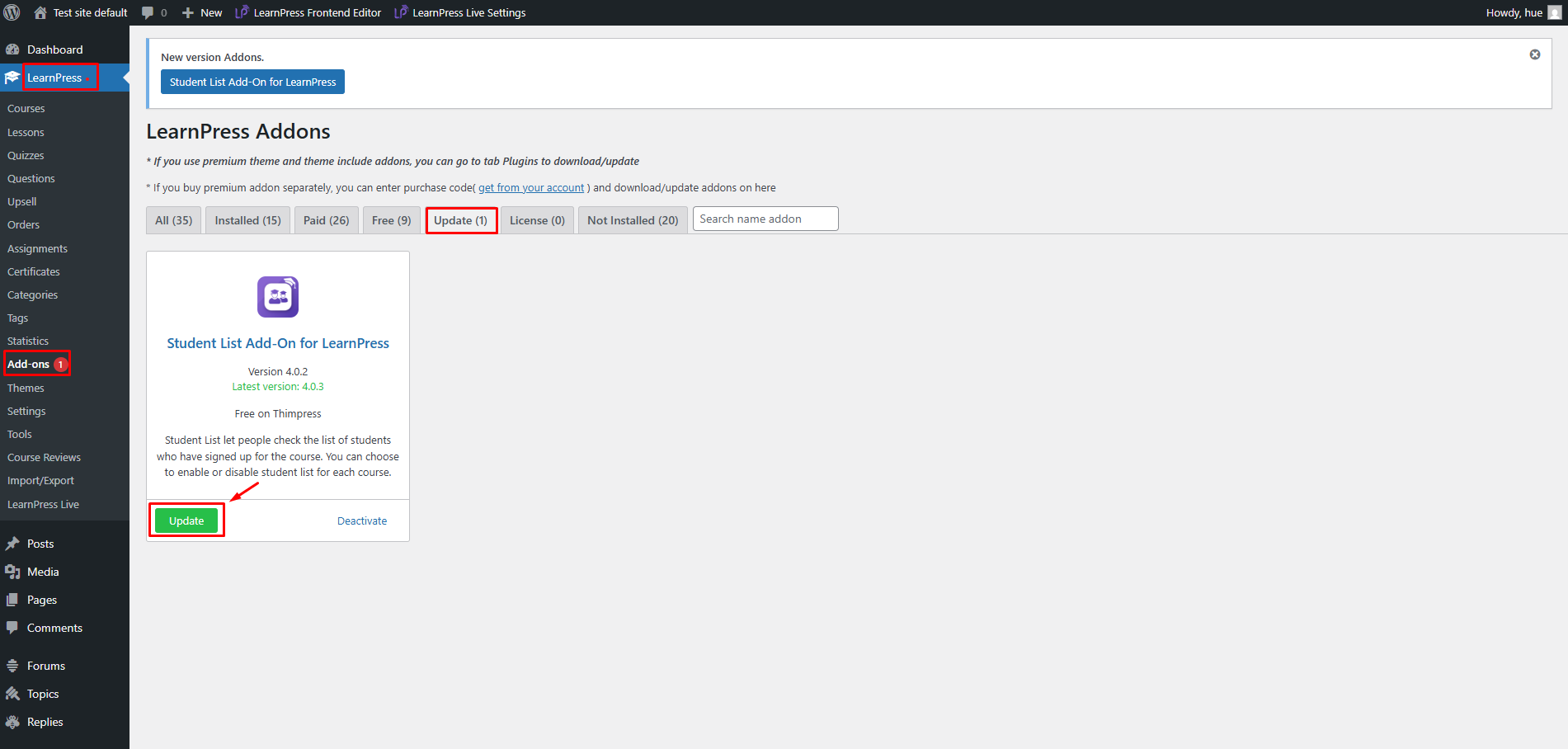
After successfully updating the purchase code -> Click “Update” to update the add-on.
Method 2: How to update the add-on by downloading and installing the .zip file
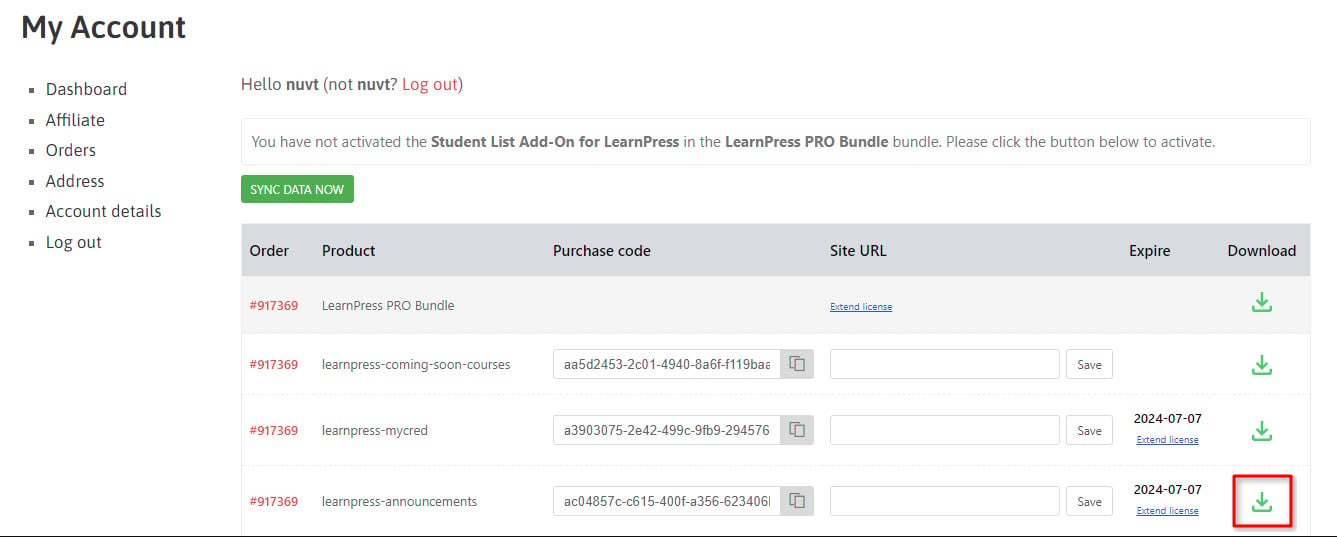
Using the same method for installing an add-on, first download the latest .zip file version from your ThimPress My Account page.
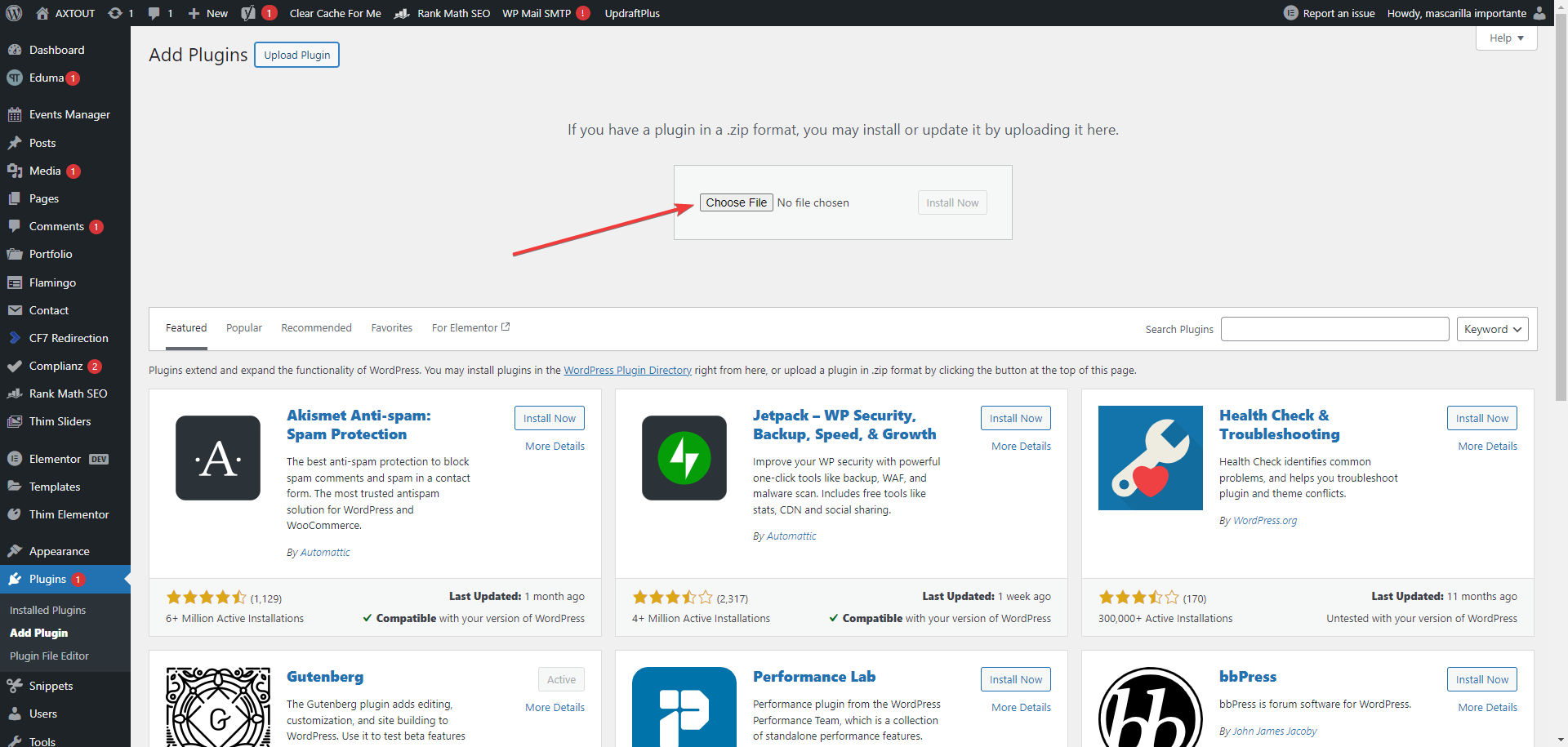
Next, navigate to WP Dashboard > Plugins > Add New, click Upload Plugin, select the add-on ZIP file, and click Install Now.
If WordPress detects that the plugin is already installed, select Replace current with uploaded to overwrite it.
Once the installation completes, click Activate Plugin to finish.