
After configuring the Klarna payment gateway, you can test the checkout process by purchasing a course.
Step 1. Select a Course
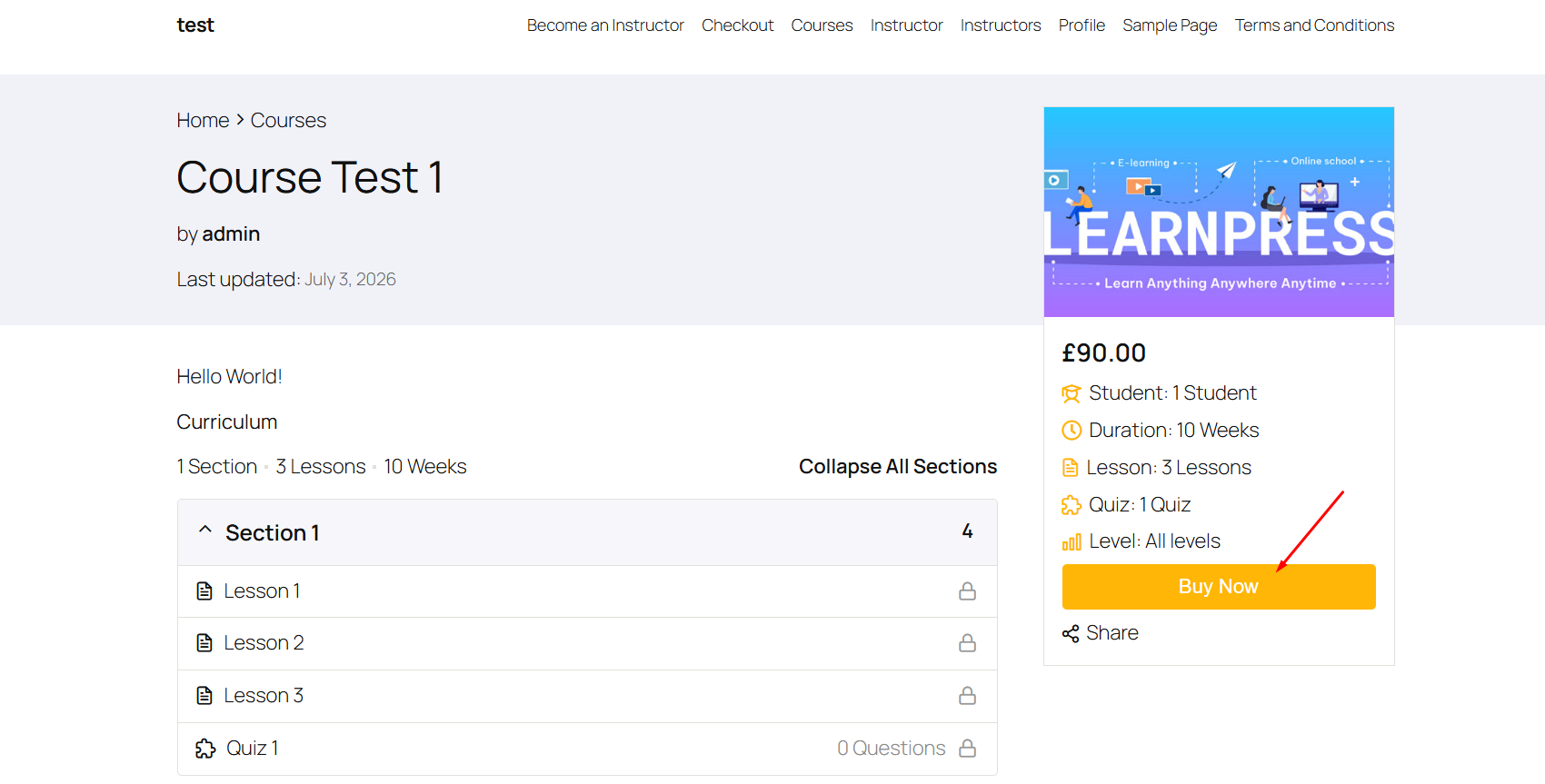
Visit your website and choose any paid LearnPress course.
Click Buy Now to proceed to the checkout page.
Step 2. Choose Klarna as the Payment Method
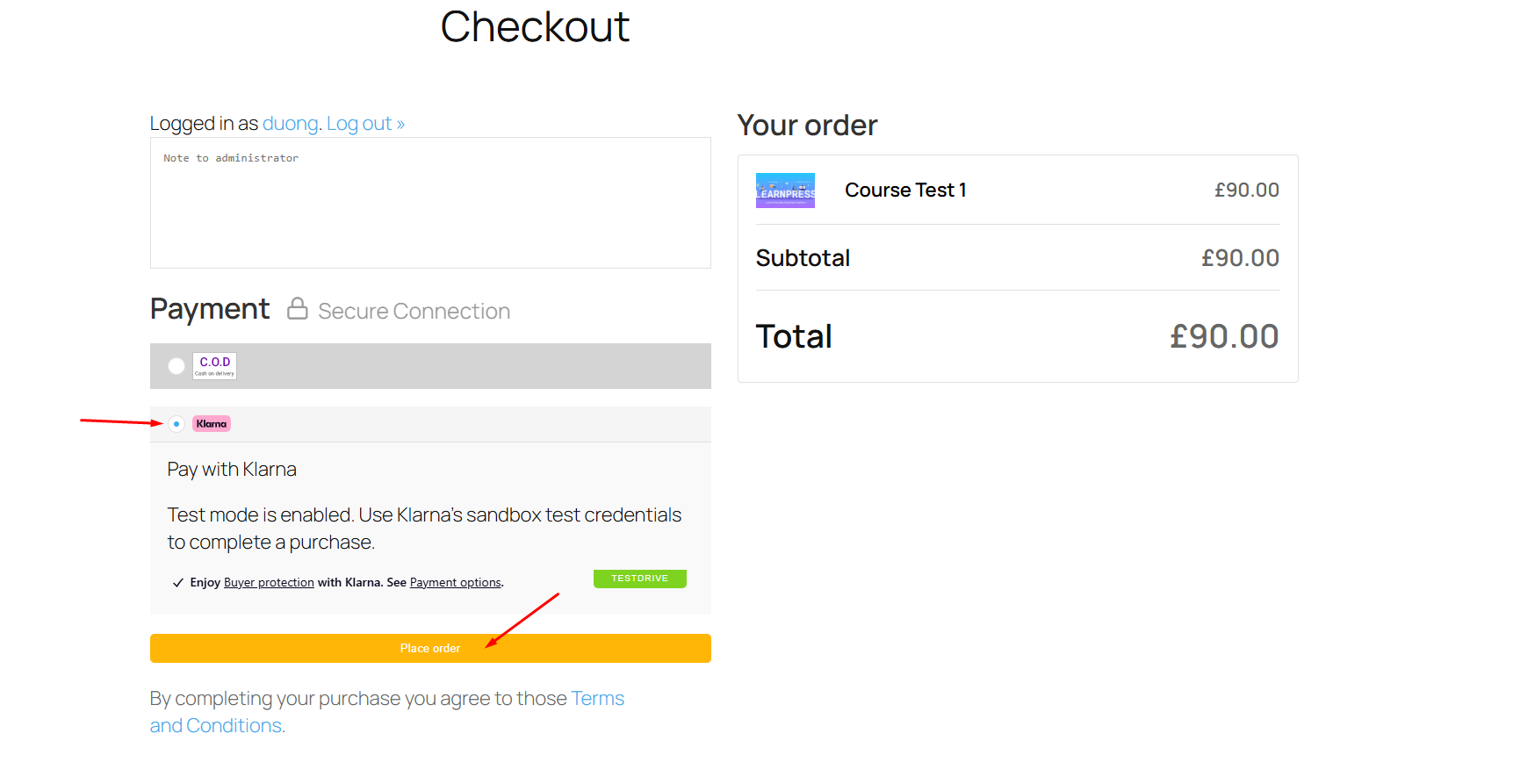
On the checkout page, select Klarna as your preferred payment method.
Click Place Order to continue.
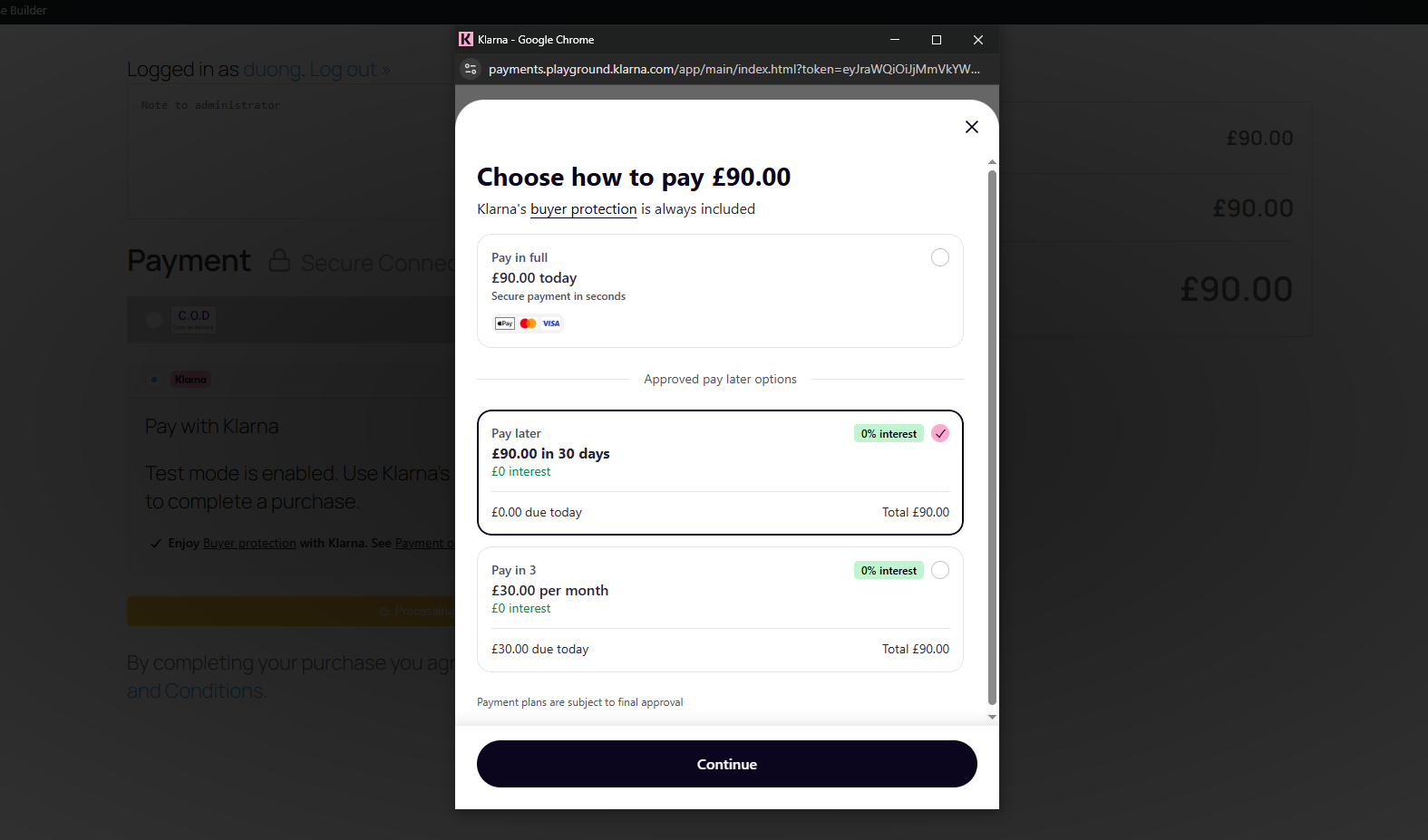
The Klarna payment window will appear, allowing you to complete the payment using one of the available Klarna payment methods.
Note
If Test Mode is enabled, the Klarna Playground environment will be used for the payment process.
Step 3. Complete the Payment
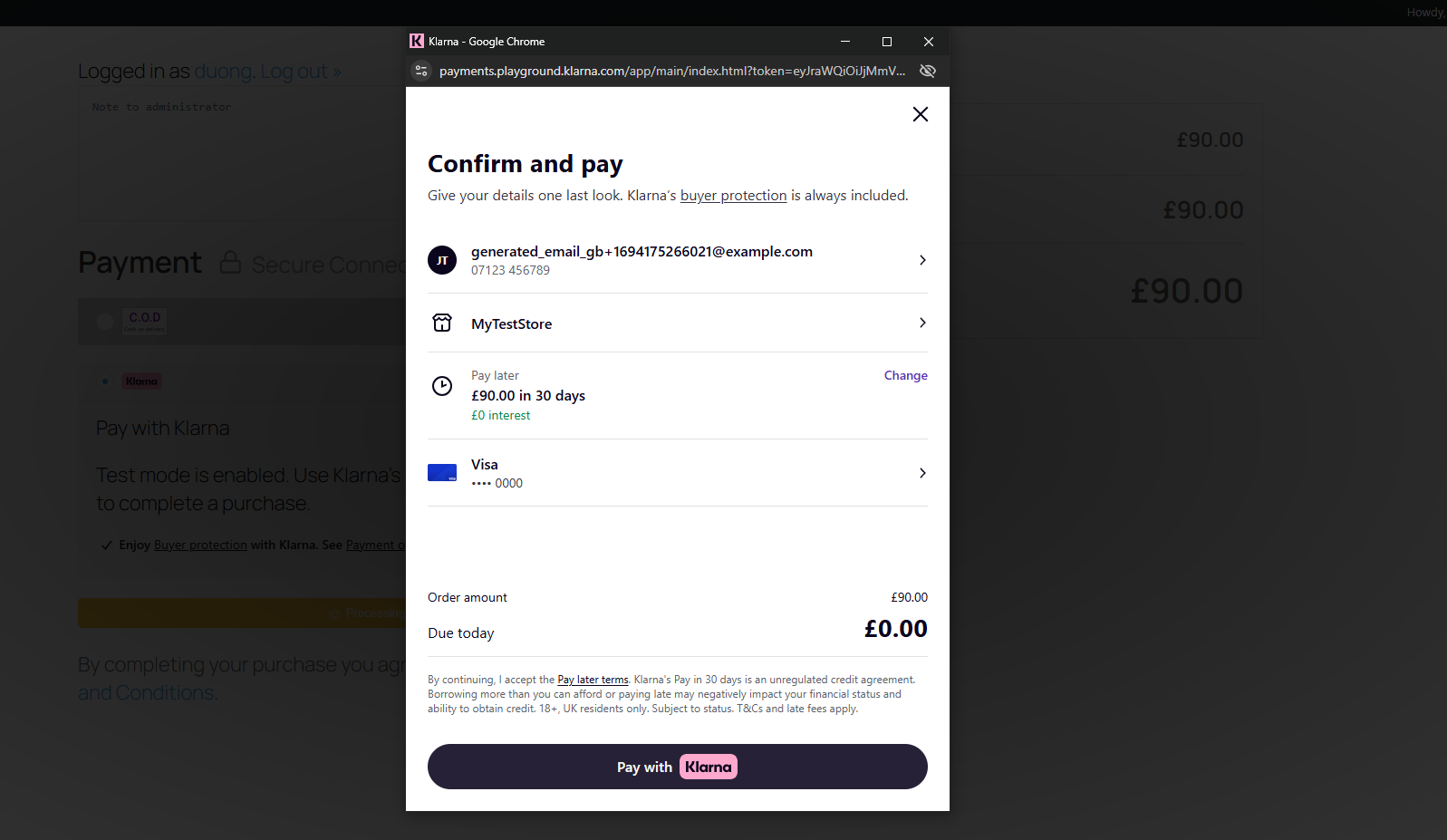
Follow the instructions displayed in the Klarna payment window to complete the transaction.
Once the payment has been processed successfully, you will be redirected back to your website.
Step 4. Verify the Order Status
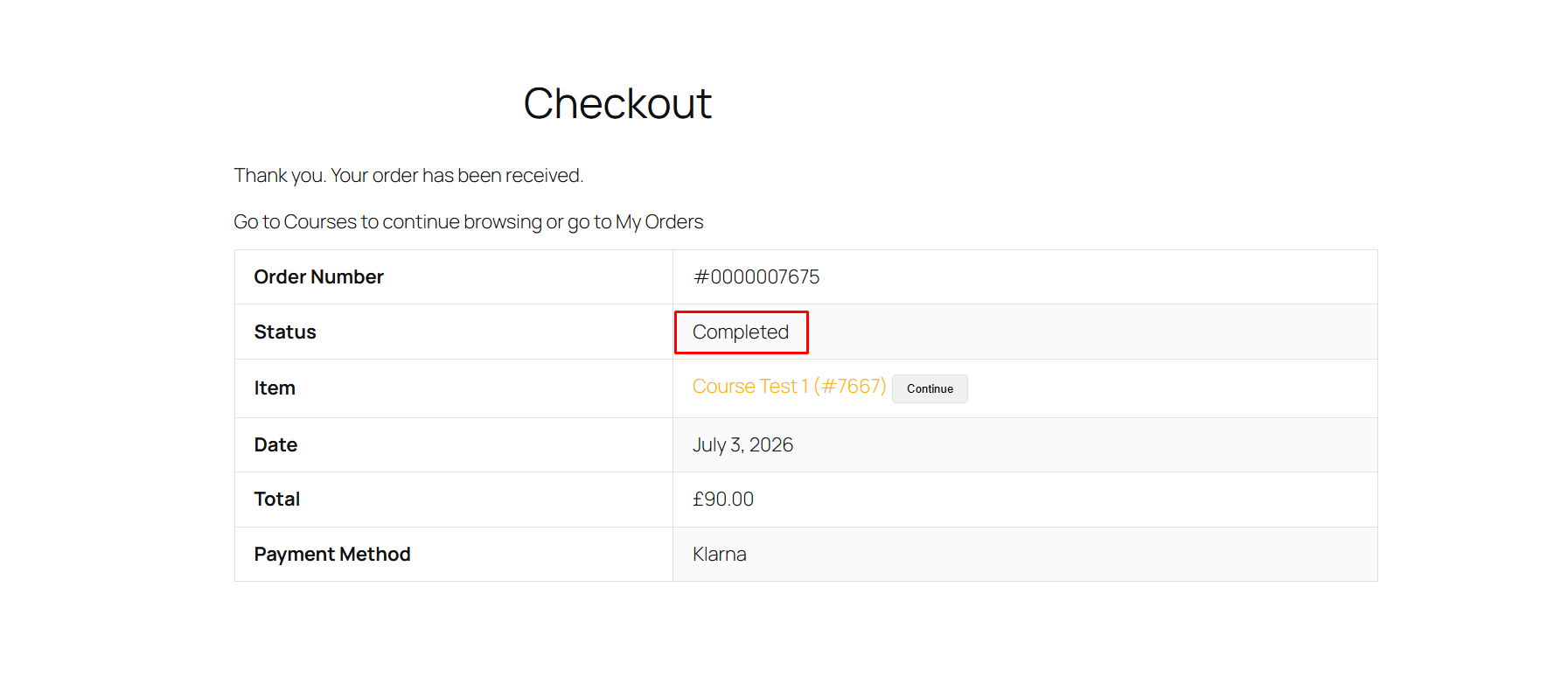
After returning to the Order Received page, verify the payment status.
Depending on Klarna’s response, the order may display one of the following statuses:
- Completed – The payment has been approved successfully. The student is automatically enrolled in the course.
- Pending / Processing – The payment is waiting for confirmation from Klarna. The order status will be updated automatically once confirmation is received.
Step 5. Verify Course Access
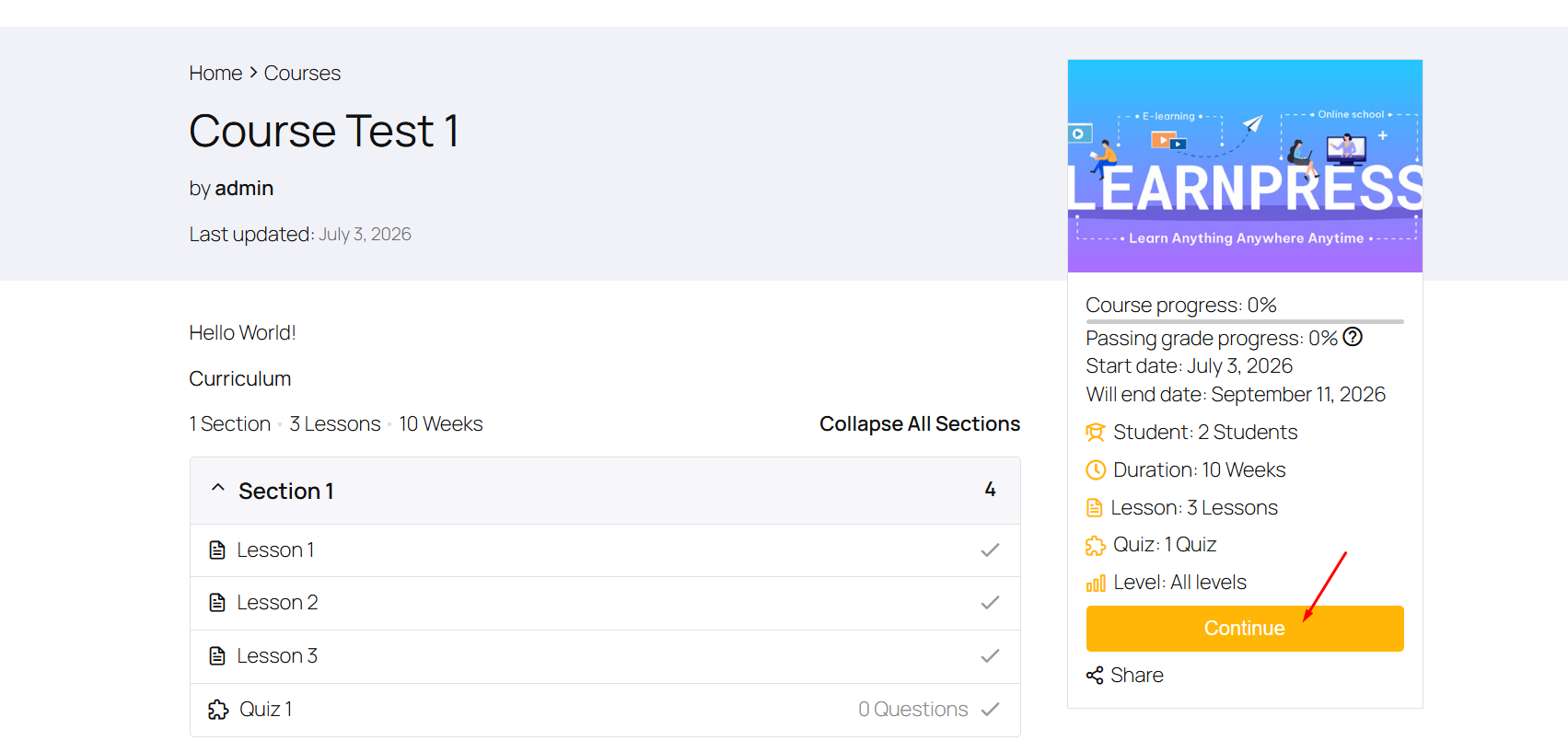
If the order status is Completed, return to the purchased course.
Verify that the student has been enrolled successfully and is able to access the course content.
Step 6. Verify the Order in LearnPress
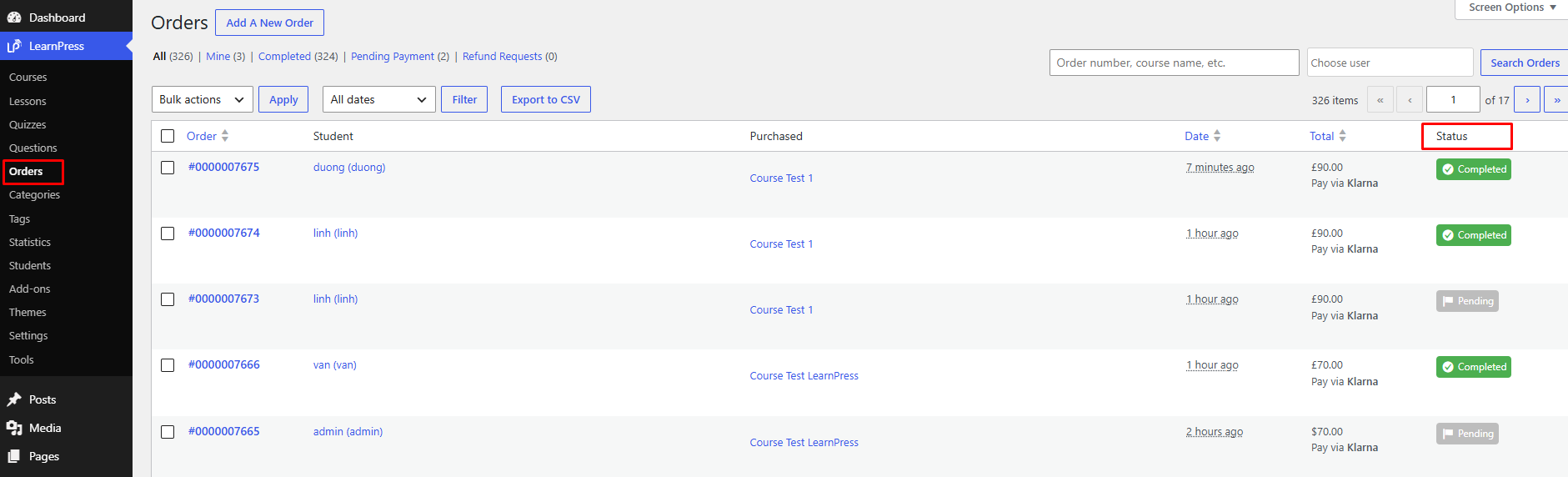
Finally, return to the WordPress Dashboard and navigate to:
LearnPress → Orders
Open the newly created order to verify its details, including:
- Order status
- Payment method
- Transaction information
- Purchased course(s)
Note
During testing, you can verify that the order status in LearnPress matches the payment status returned by Klarna.