
After obtaining your Klarna API credentials, you can configure the payment gateway in LearnPress.
Navigate to:
LearnPress → Settings → Payments → Klarna
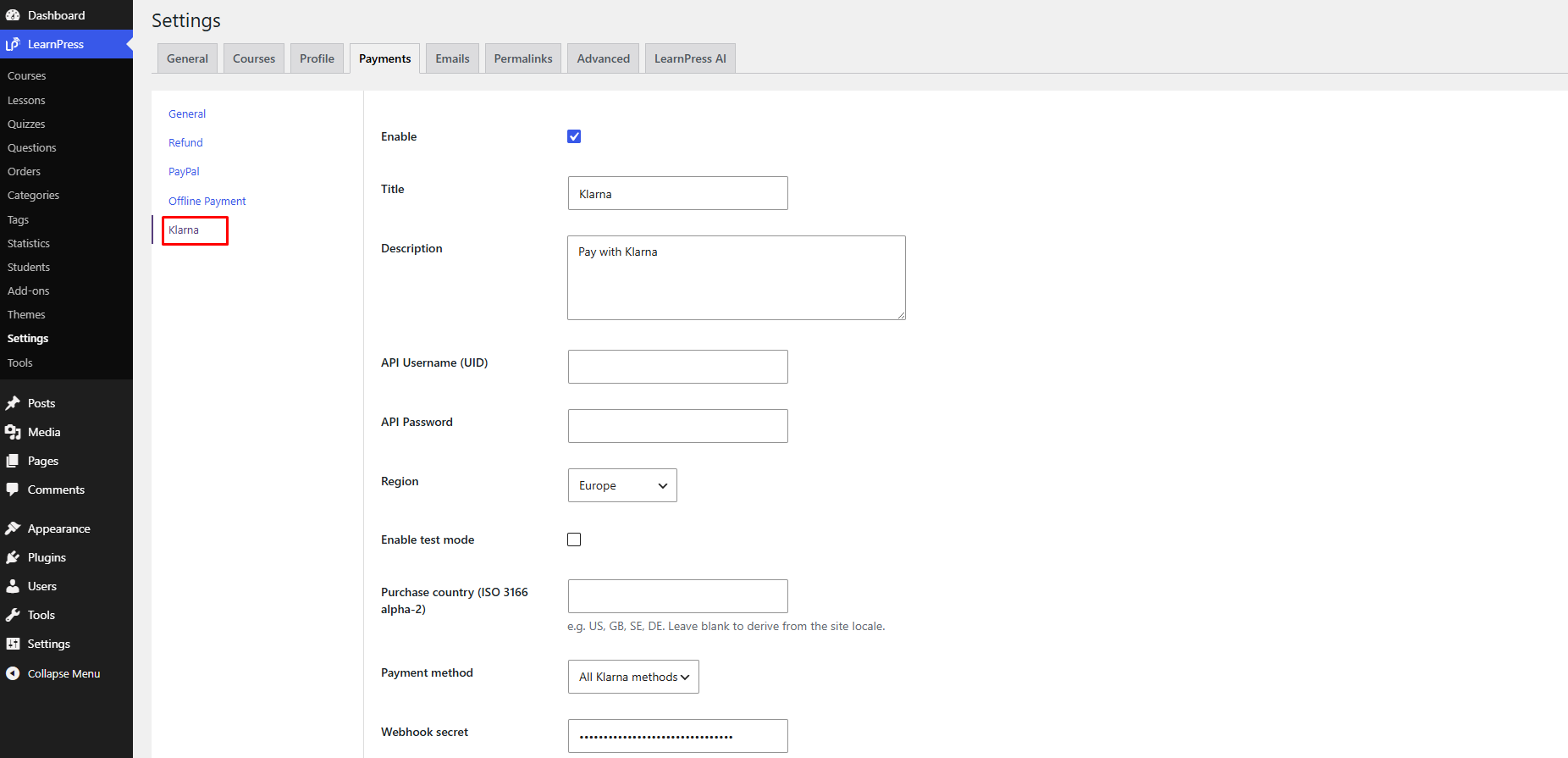
From here, you can configure the following settings:
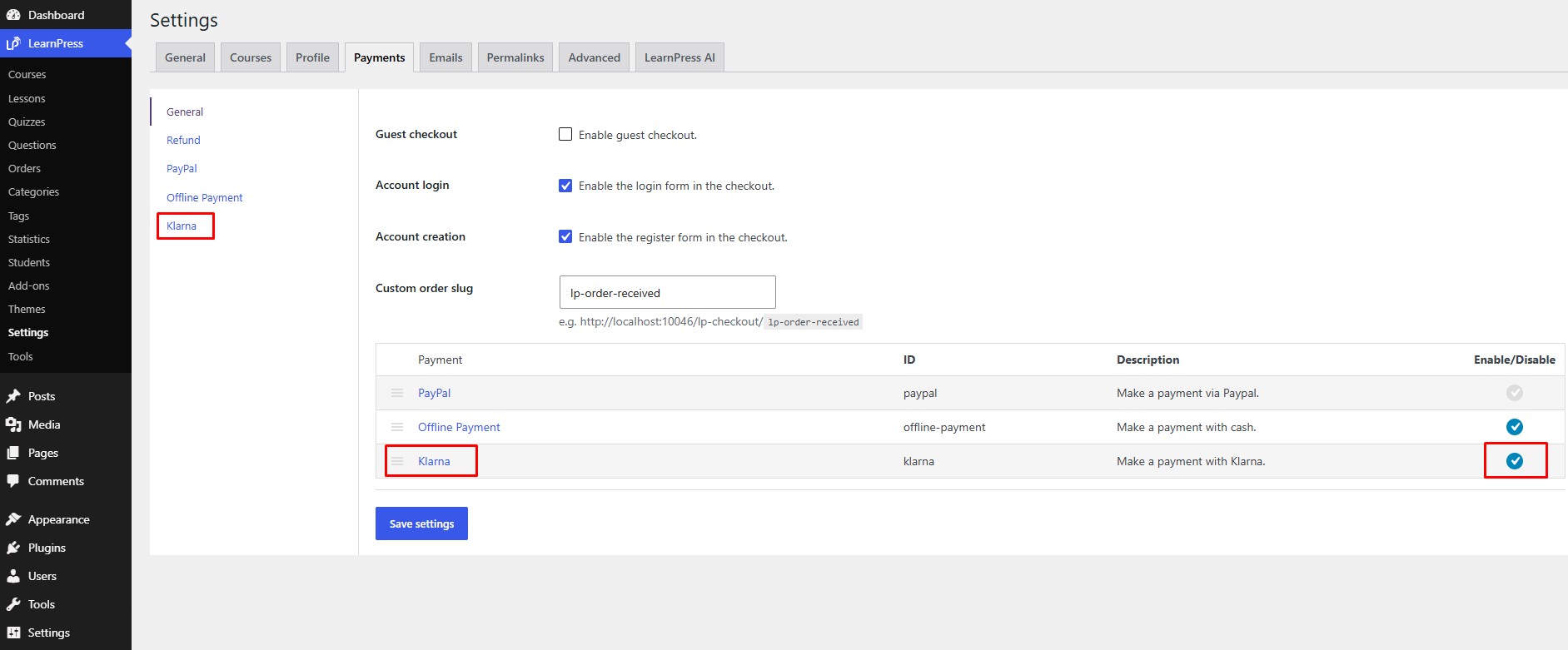
1. Enable
Enable or disable the Klarna payment gateway.
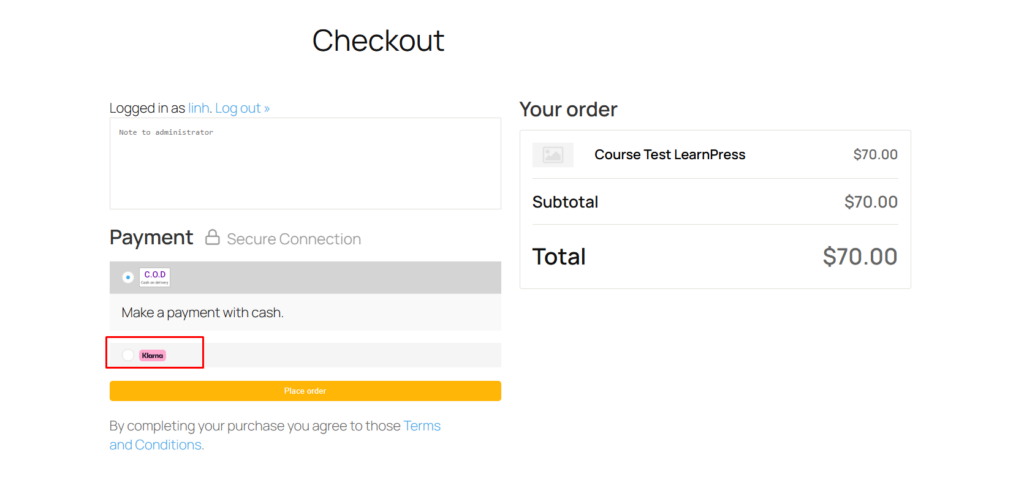
Once enabled, Klarna will be available as a payment option during checkout.
Note
The remaining settings will only take effect after the payment gateway is enabled.
2. Title
Enter the payment method title displayed to students on the checkout page.
The default value is: Klarna
You can customize this title to better match your website or business branding.
3. Description
Enter a short description displayed below the payment method during checkout.
The default value is: Pay with Klarna
This description helps customers understand the payment option before proceeding.
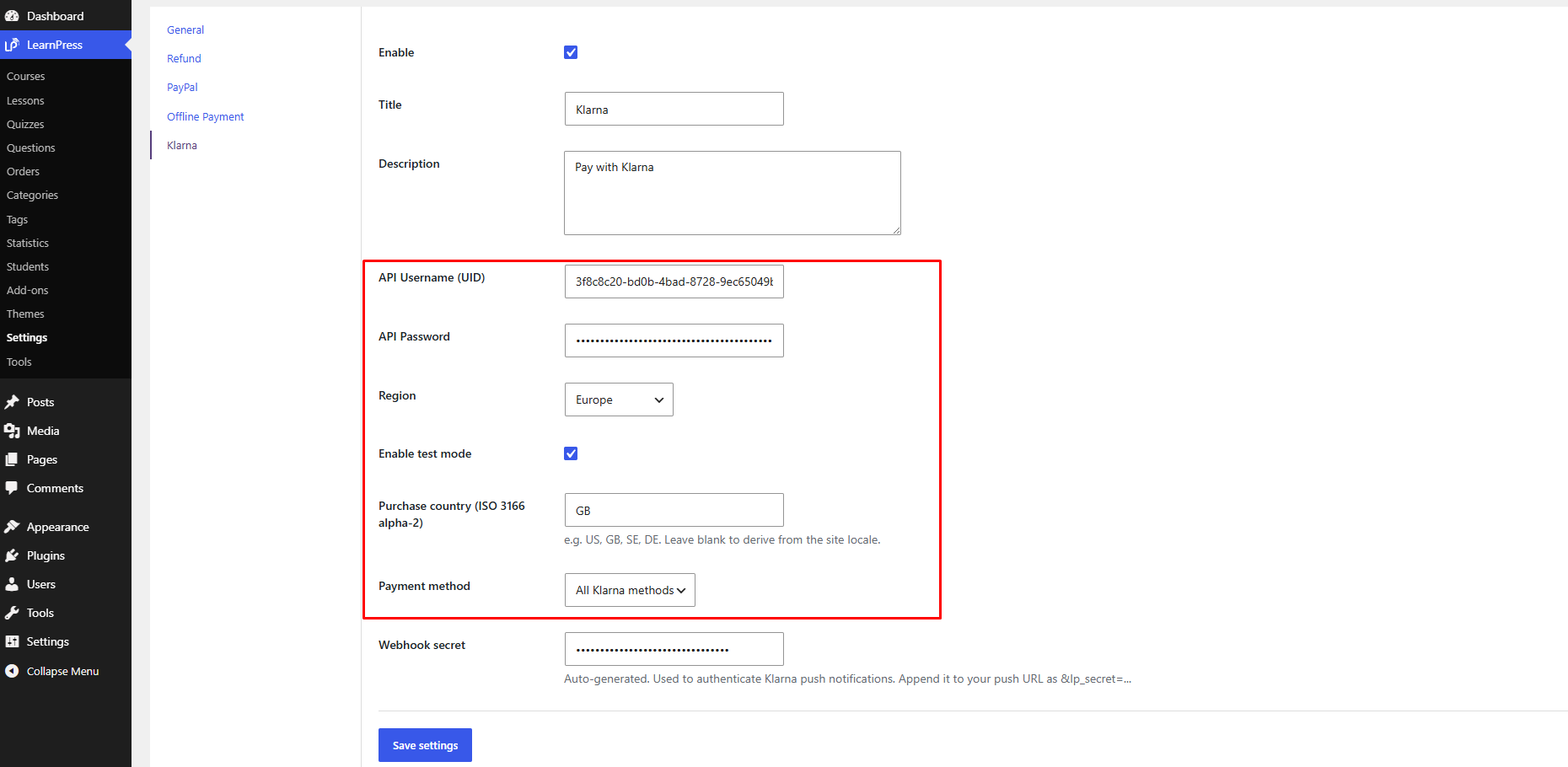
4. API Username (UID)
Enter the API Username (UID) obtained from your Klarna Merchant Portal.
This credential is required for LearnPress to communicate with Klarna.
Important
If this field is left empty, Klarna will not be available during checkout.
5. API Password
Enter the API Password generated together with your API Username.
Important
Keep your API Password confidential. Anyone with access to these credentials can communicate with your Klarna Merchant account.
6. Region
Select the region that matches your Klarna Merchant account.
Available options include:
- Europe
- North America
- Oceania
Note
The selected region must match the region of your Klarna Merchant account. Otherwise, authentication requests may fail.
7. Enable Test Mode
Enable this option when testing payments using a Klarna Playground account.
- Enabled – Connects to the Klarna Sandbox environment.
- Disabled – Connects to the Klarna Production environment.
Note
Make sure your API credentials match the selected environment. Sandbox credentials only work in Test Mode, while Production credentials only work when Test Mode is disabled.
8. Purchase Country
Enter the two-letter ISO 3166-1 Alpha-2 country code for your target market.
For example:
- GB
- US
- DE
- SE
If left blank, the plugin will automatically determine the purchase country based on your site’s locale.
Tip
When testing, ensure that the purchase country is compatible with your selected currency and Klarna Merchant account.
9. Payment Method
Choose which Klarna payment methods should be available during checkout.
Available options include:
- All Klarna methods – Display all payment methods available for the customer’s region and order.
- Pay Later – Only display the Pay Later option.
- Pay Over Time – Only display installment payment options.
- Pay Now – Only display immediate payment methods.
Note
The payment methods shown to customers depend on their location, currency, order amount, and the payment methods enabled for your Klarna Merchant account.
10. Webhook Secret
The Webhook Secret is automatically generated by the plugin and is used to verify webhook notifications sent by Klarna.
In most cases, you do not need to modify this value.
Important
Keep your Webhook Secret private. It helps protect your website from unauthorized webhook requests.
Save Your Settings
After completing the configuration, click Save Settings to apply your changes.
Once saved, Klarna will be available as a payment method in LearnPress. If Test Mode is enabled, the plugin will connect to the Klarna Playground environment. Otherwise, it will connect to the Production environment.