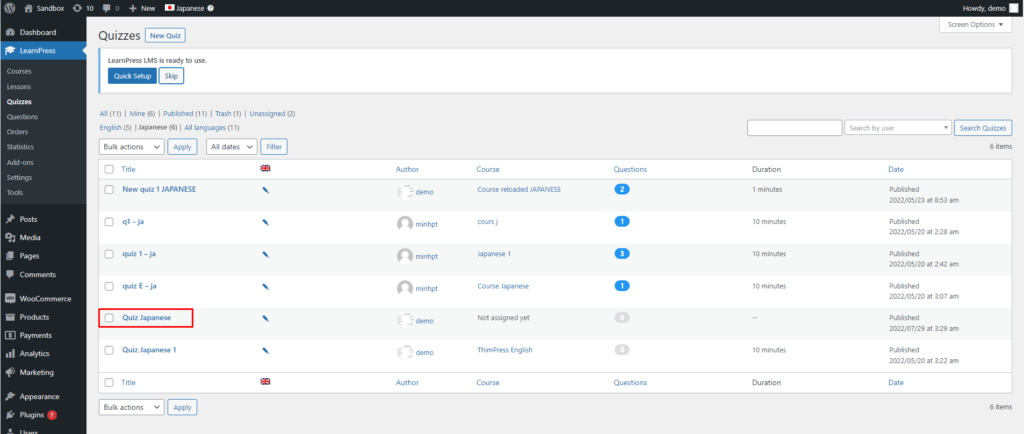
This Documentation is used for WPML Add-on for LearnPress and LearnPress – Best LMS WordPress Plugin.
There are 2 ways you can translate content to another language in the course.
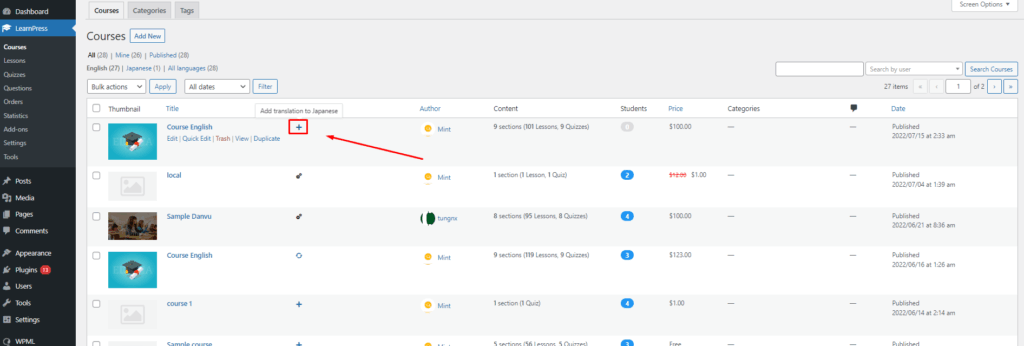
First way: Please go to Dashboard => LearnPress => Courses => Click to “Add translation to Japanese”.
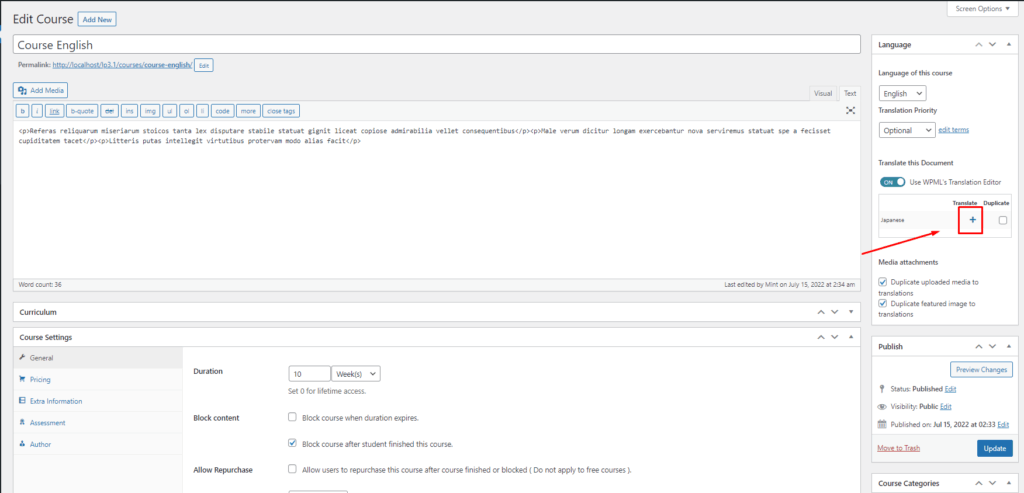
Second way: Please go to Dashboard => LearnPress => Courses => Edit course => Click to Add translation to Japanese.
In the two above ways, the site will both open the translating tab.
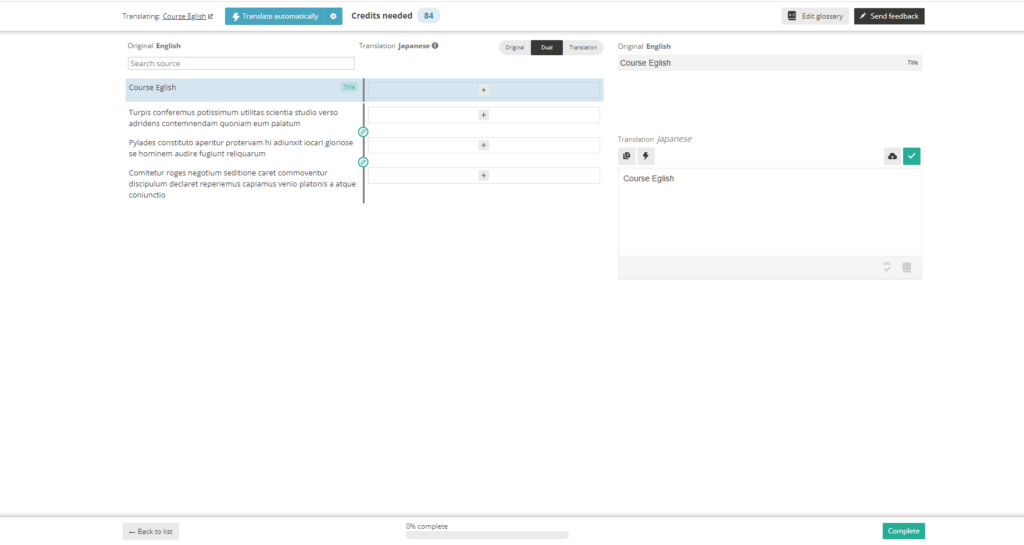
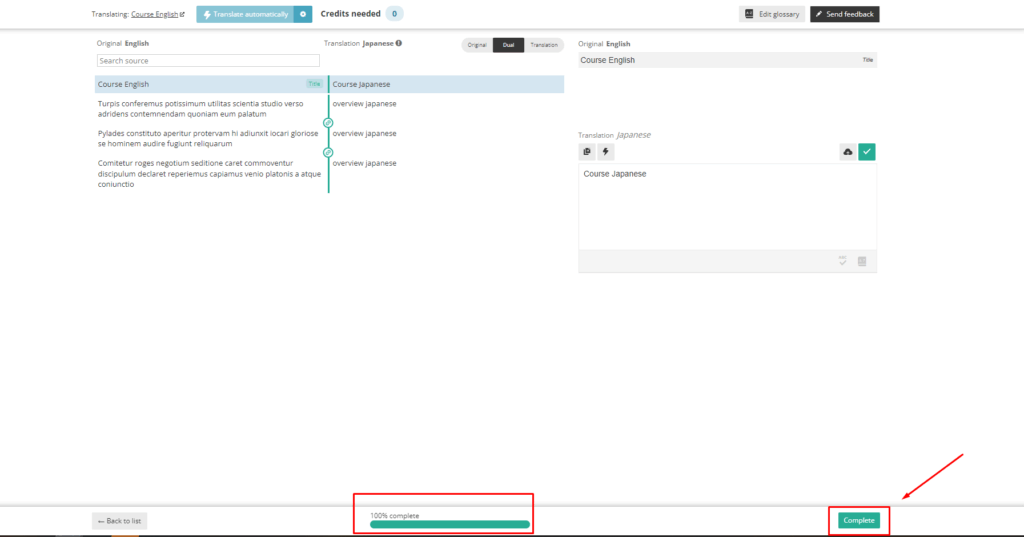
When the process is 100% complete, you need to click “Complete” to finish and review.
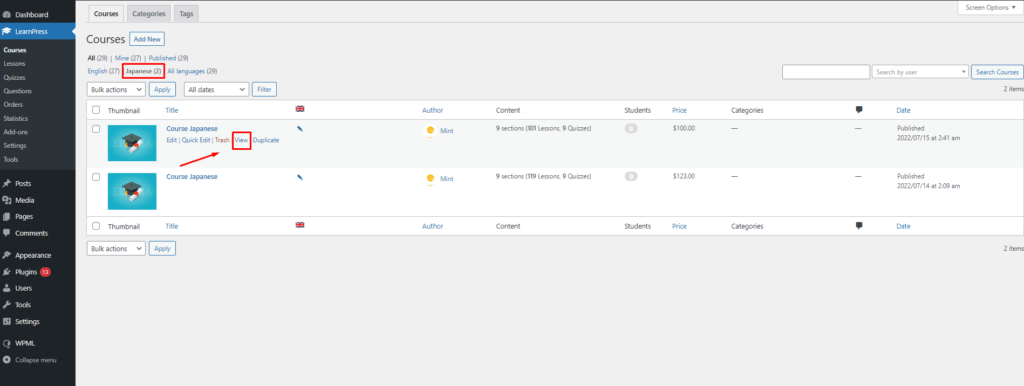
After selecting “Complete”, the site will return to the Course page. In the Backend, you can click “View” to view the course you have just translated.
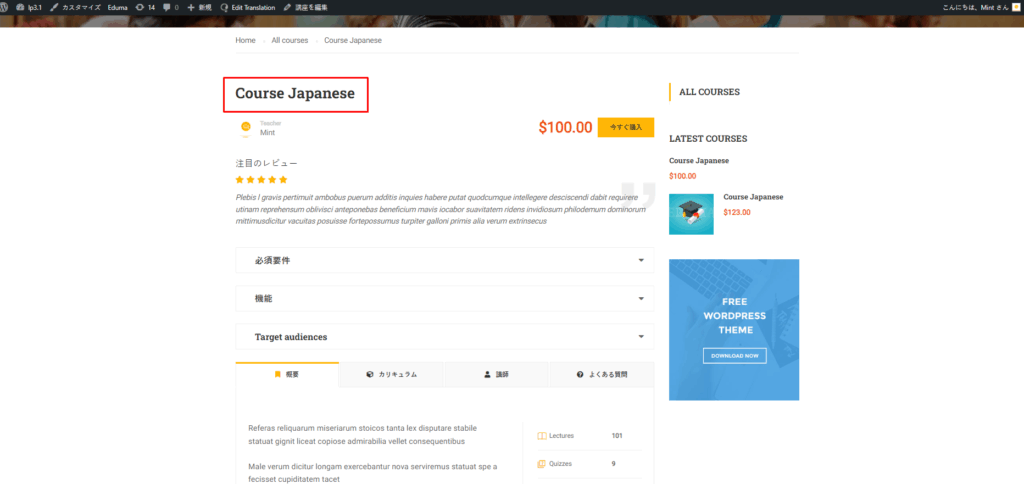
Here, you can see that the course has already been displayed in another language.
Note: Course items will automatically be copied, edited title, and assigned to the course. You can fix each item normally without any problem.
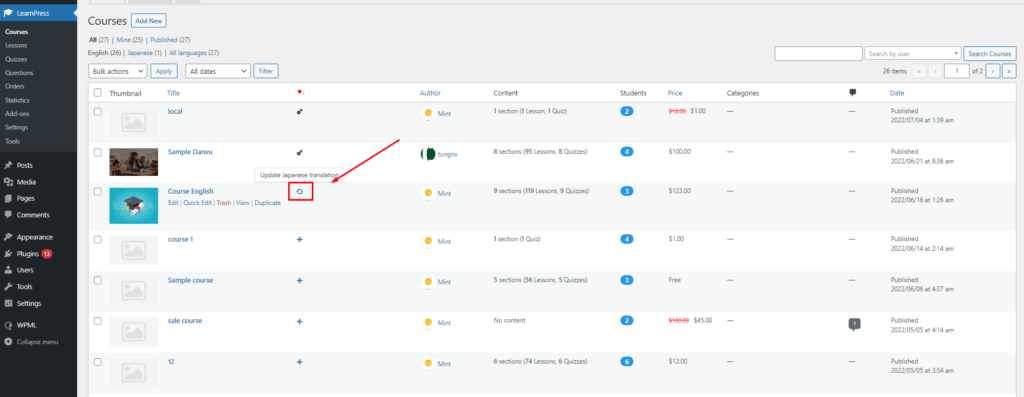
If you have some minor changes in the course default language, you can edit it as usual, and click here to synchronize with the previously translated version.
1. Translate Item Content In Course: Lesson
This Documentation is used for WPML Add-on for LearnPress and LearnPress – Best LMS WordPress Plugin.
For course items, you also translate the same as the course translation.
Please go to Dashboard => LearnPress => Lessons => Click to “Add translation to Japanese”.
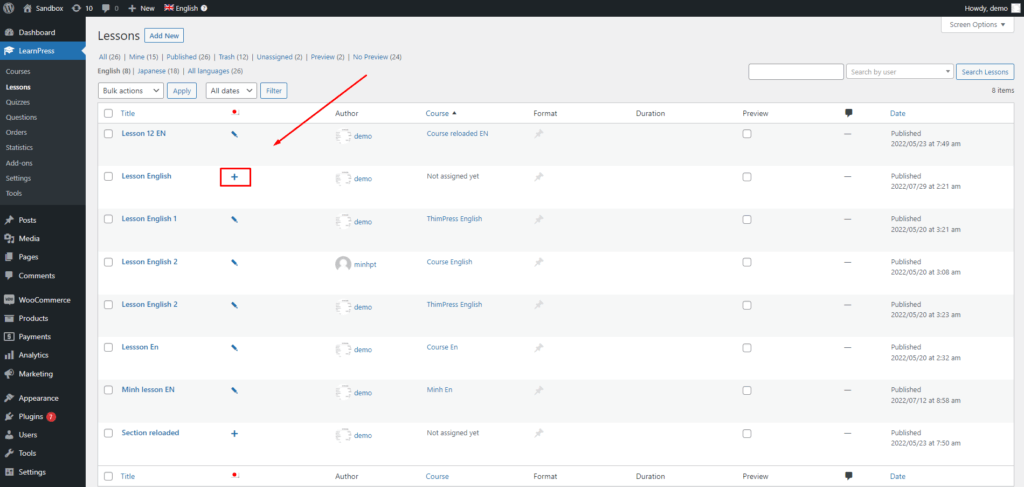
The site will open the translating tab.
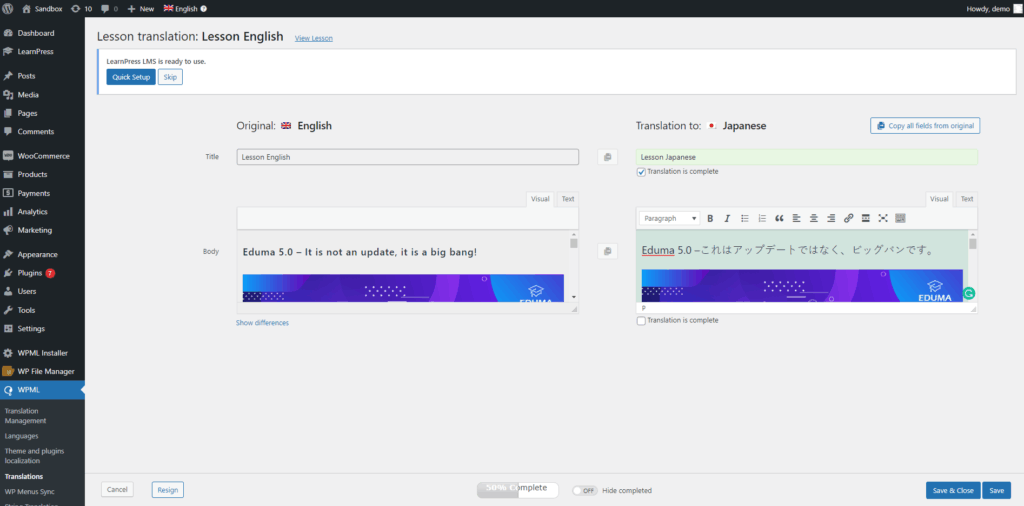
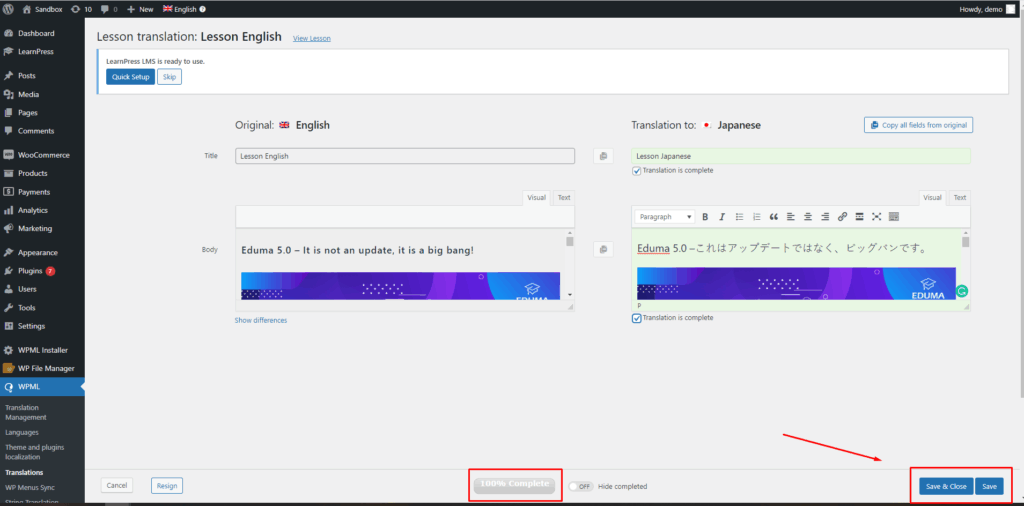
When the process is 100% complete, you need to click “Save & Close” to finish and review.
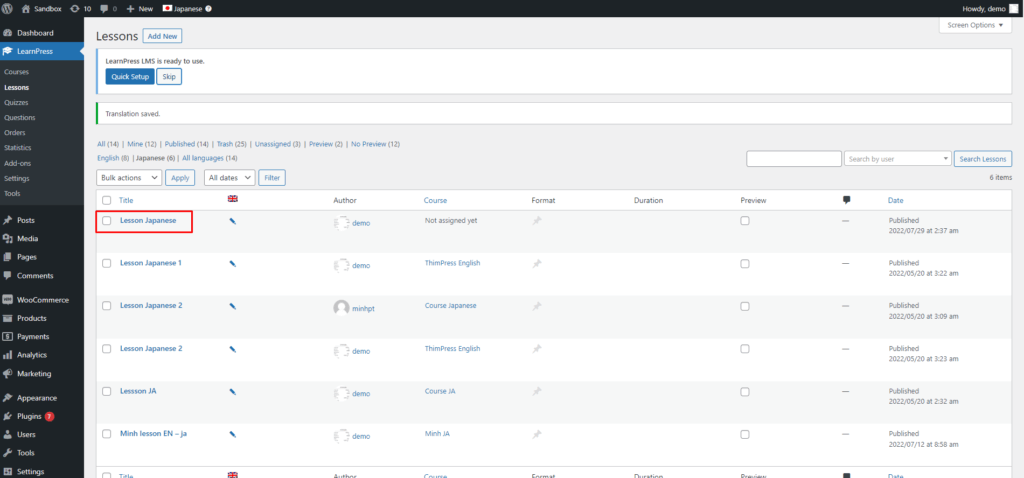
After selecting “Save & Close”, the site will return to the Lessons page. In the Backend, you can see the lesson you have just translated.
2. Translate Item Content In Course: Quiz
This Documentation is used for WPML Add-on for LearnPress and LearnPress – Best LMS WordPress Plugin.
For course items, you also translate the same as the course translation.
Please go to Dashboard => LearnPress => Quizzes=> Click to “Add translation to Japanese”.
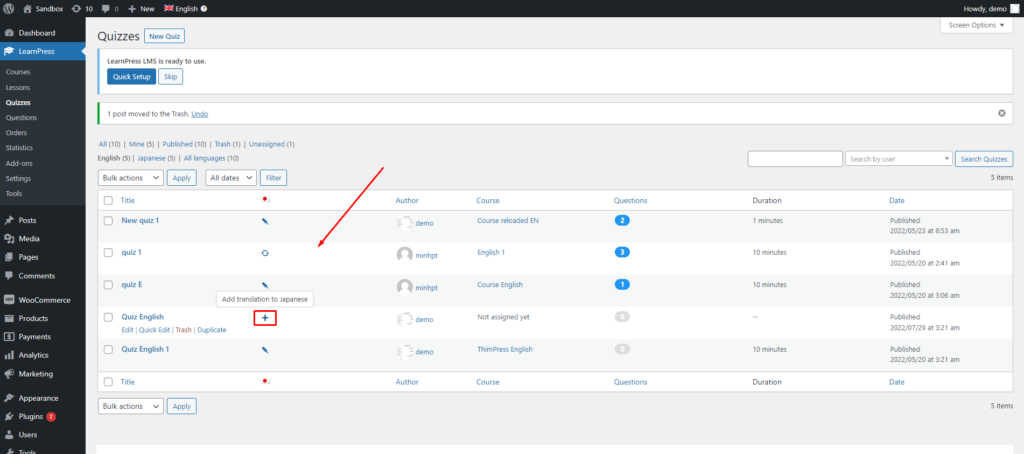
The site will open the translating tab.
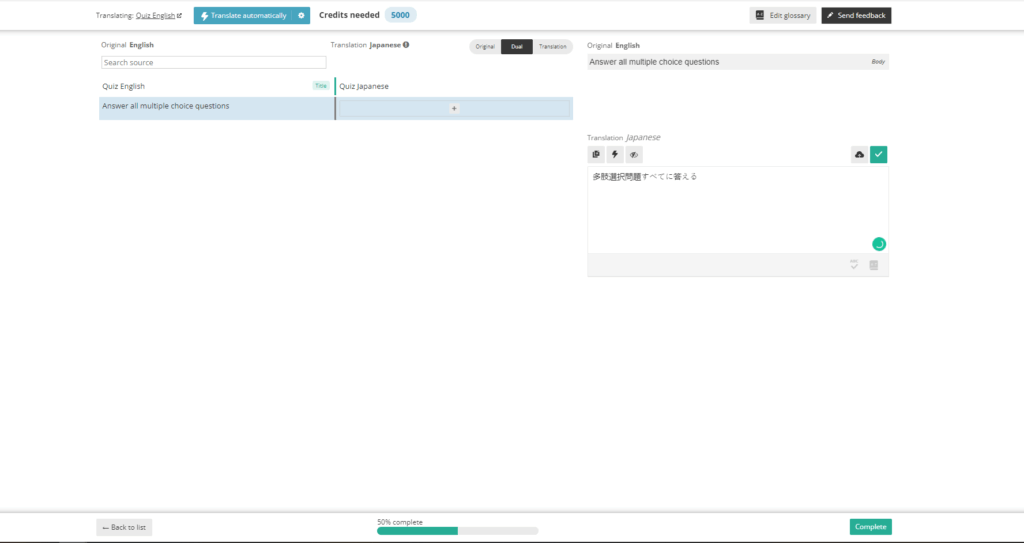
When the process is 100% complete, you need to click “Completed” to finish and review.
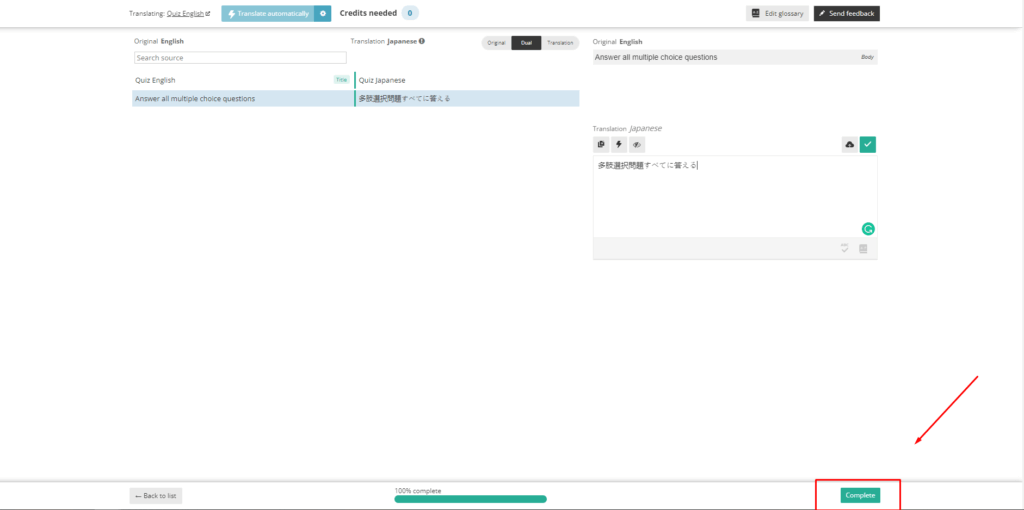
After selecting “Completed”, the site will return to the Quizzes page. In the Backend, you can see the lesson you have just translated.