Step 1: Access Collections
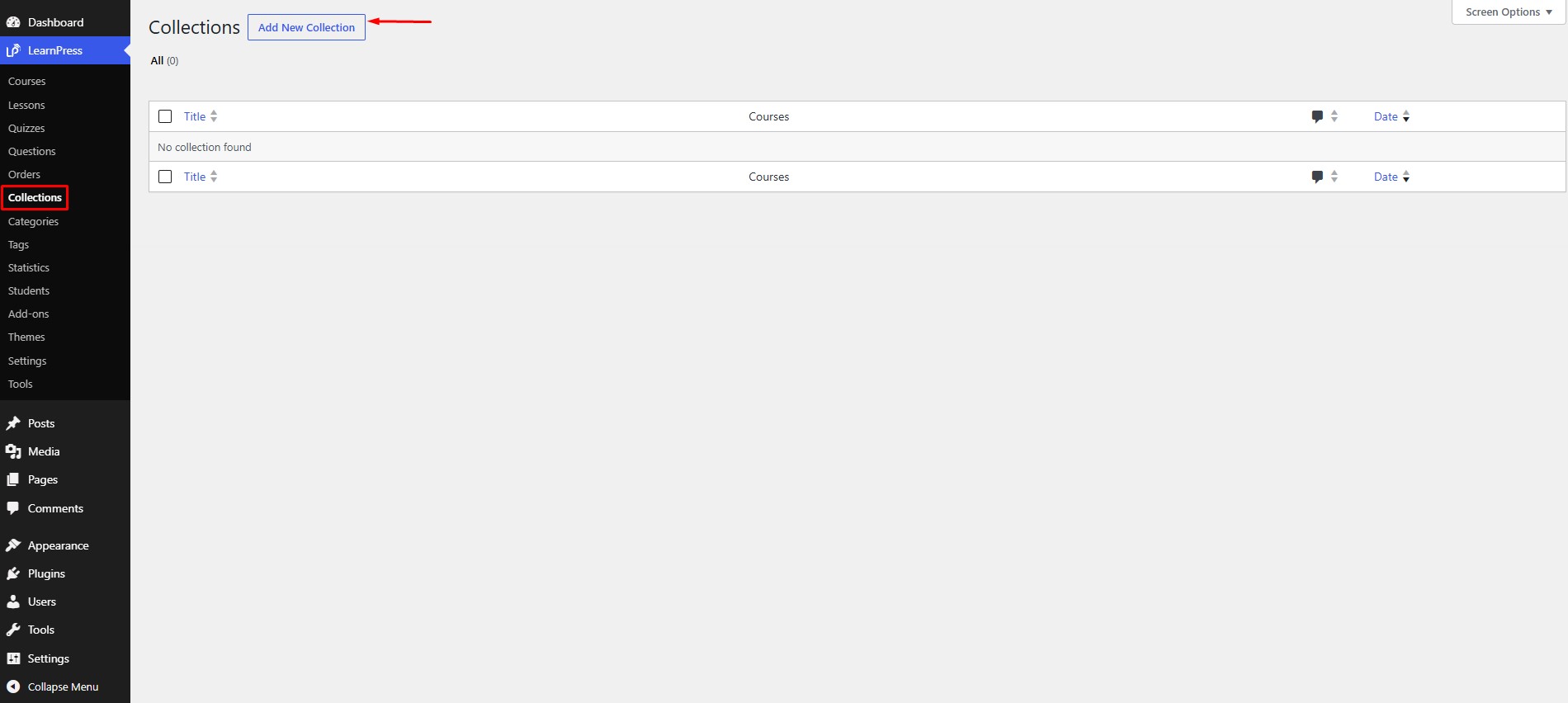
Go to LearnPress → Collections from the WordPress Dashboard.
The Collections page displays all existing collections. From this page, you can create and manage collections.
Step 2: Create a New Collection
Click Add New Collection to create a new collection.
You will be redirected to the Add New Collection page
Step 3: Enter Collection Information
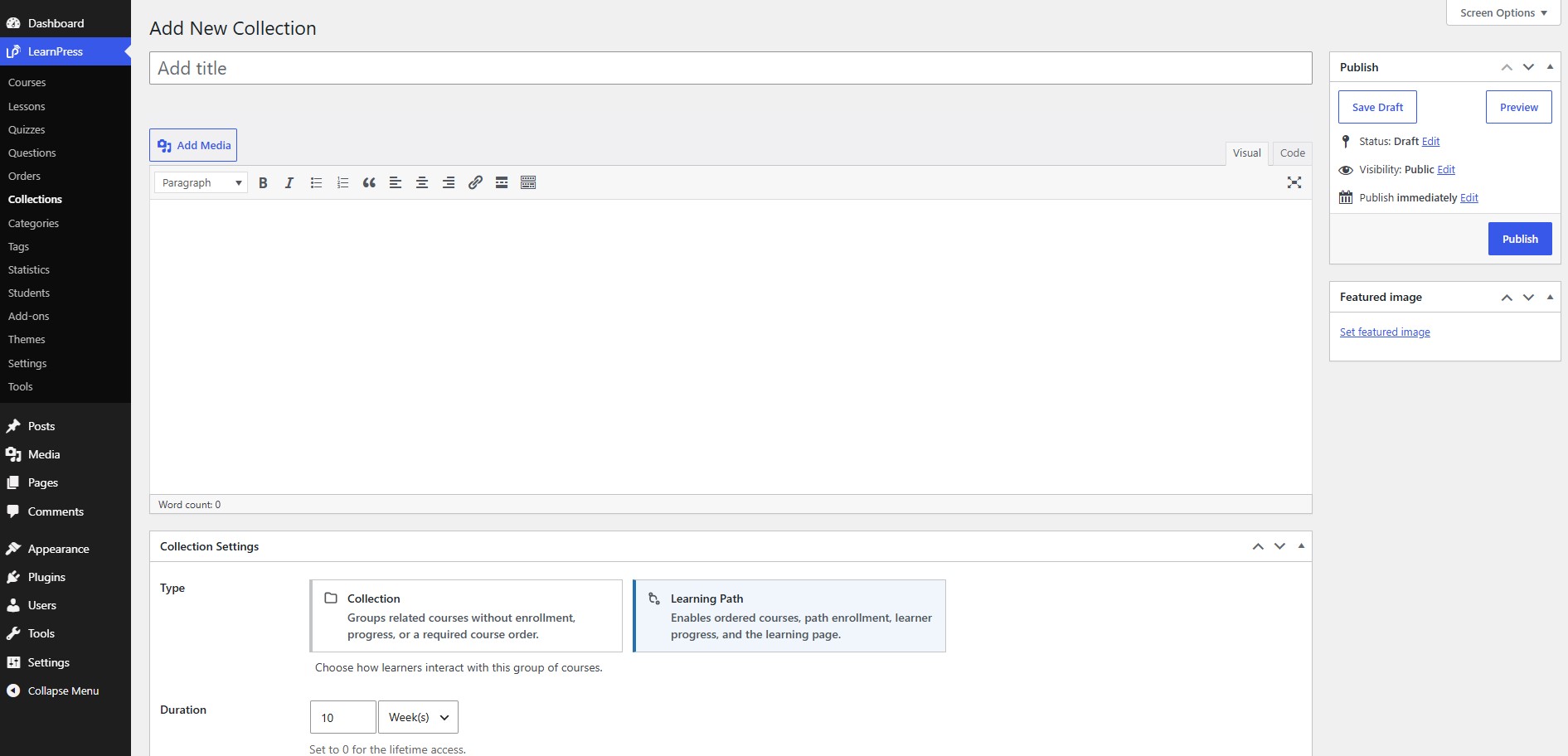
On the Add New Collection page, you can enter the basic information for the collection.
Title
Enter the name of the collection in the Title field.
Description
Use the content editor below the title to add a description for the collection.
You can add text, images, links, or other supported content to provide more information about the collection.
Step 4: Configure Collection Settings
Scroll down to the Collection Settings section.
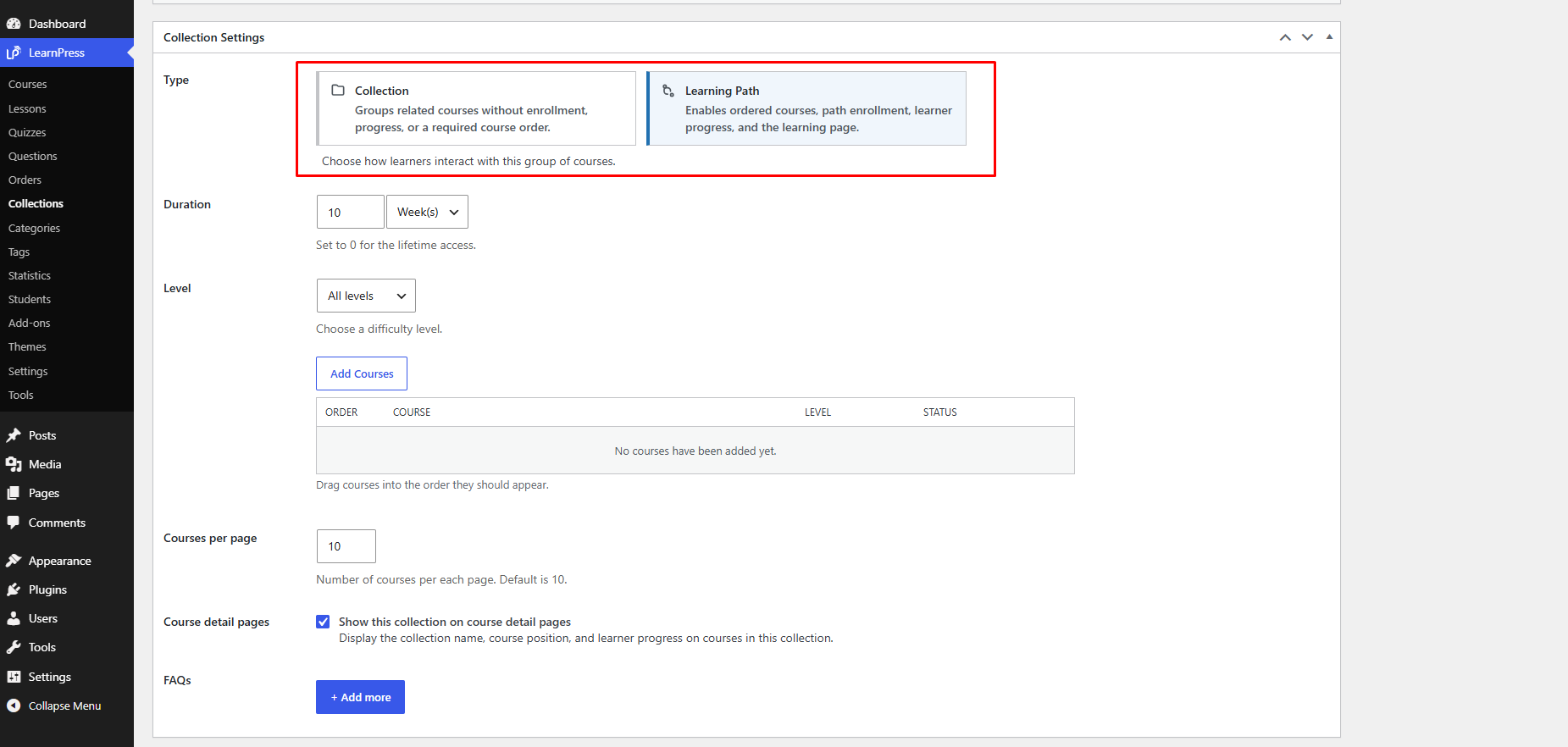
This section allows you to configure how the collection works and how learners interact with the courses included in it.
There are two available types:
- Collection – Groups related courses without enrollment, learner progress, or a required course order.
- Learning Path – Creates an ordered learning path with path enrollment, learner progress, and a dedicated learning page.
Select the type that best suits your learning structure.
Step 5: Configure the Collection Type
Depending on the selected type, configure the available settings.
1. For Collection
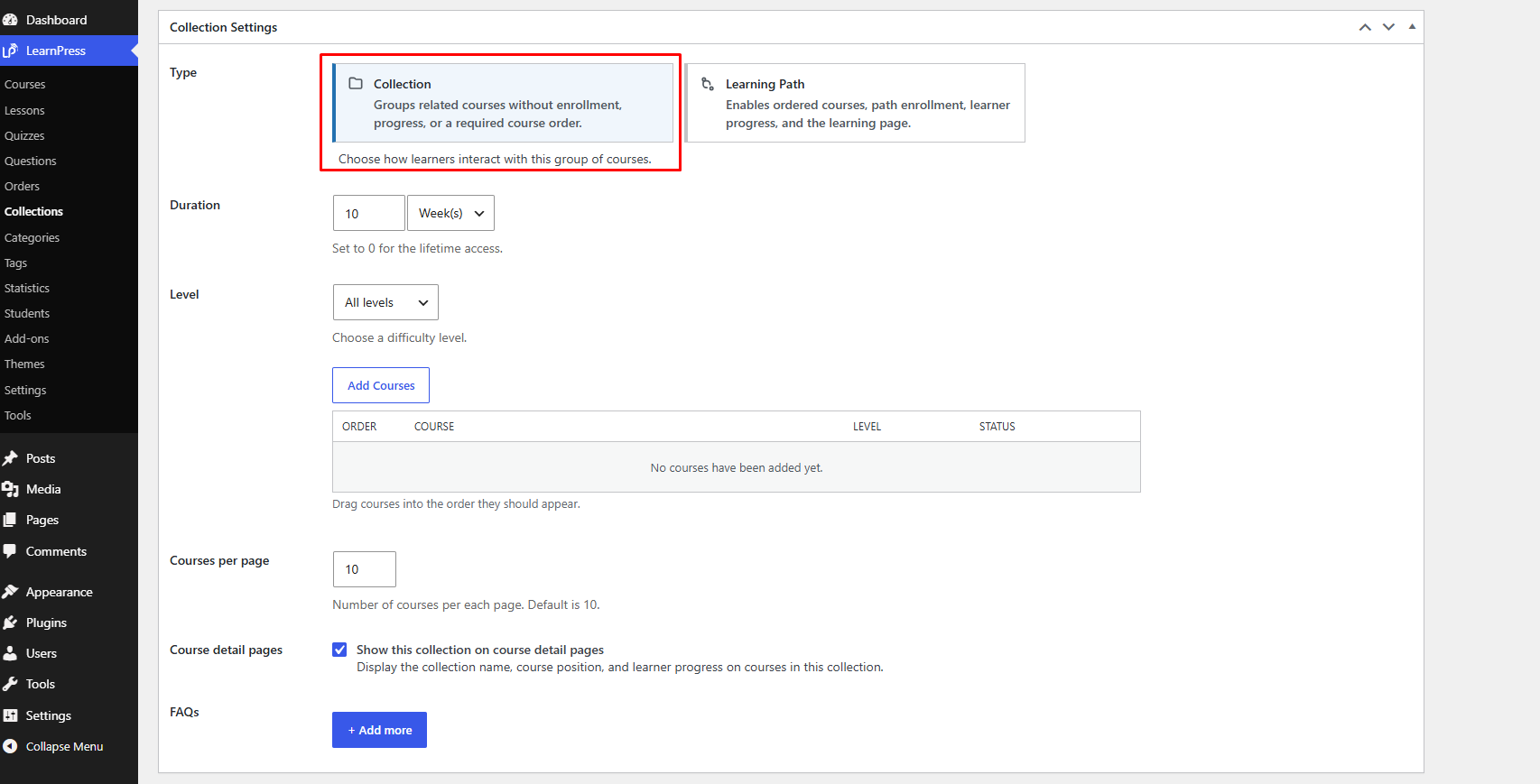
Select Collection when you want to group related courses together without requiring learners to follow a specific course order or track their progress through the collection.
The Collection type is suitable for grouping courses that are related to the same topic or category while allowing learners to access the courses independently.
1.1. Duration
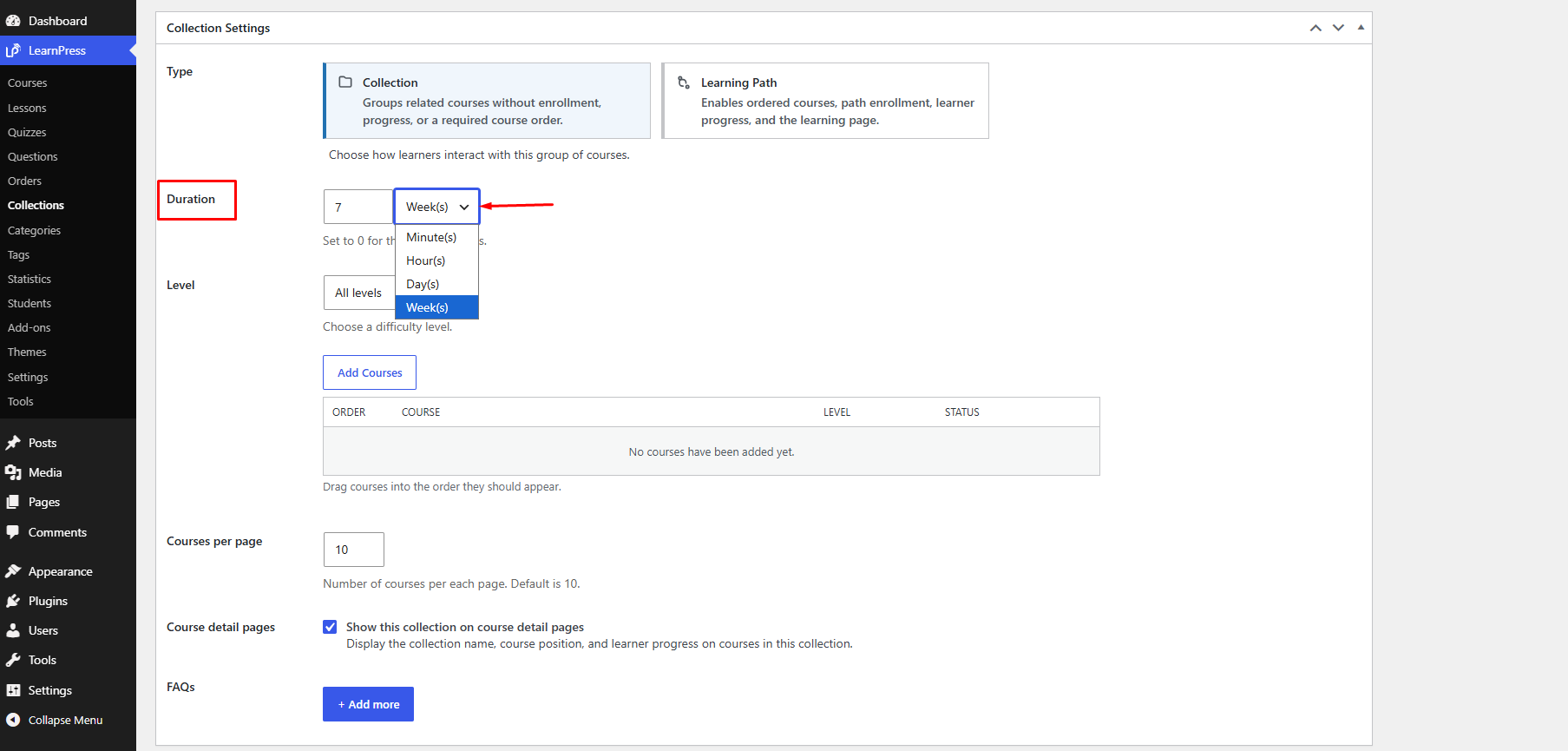
Set the duration of the collection access.
You can enter a value and select the appropriate unit, such as:
- Days
- Weeks
- Hour
- Minutes
Set the value to 0 for lifetime access.
1.2. Level
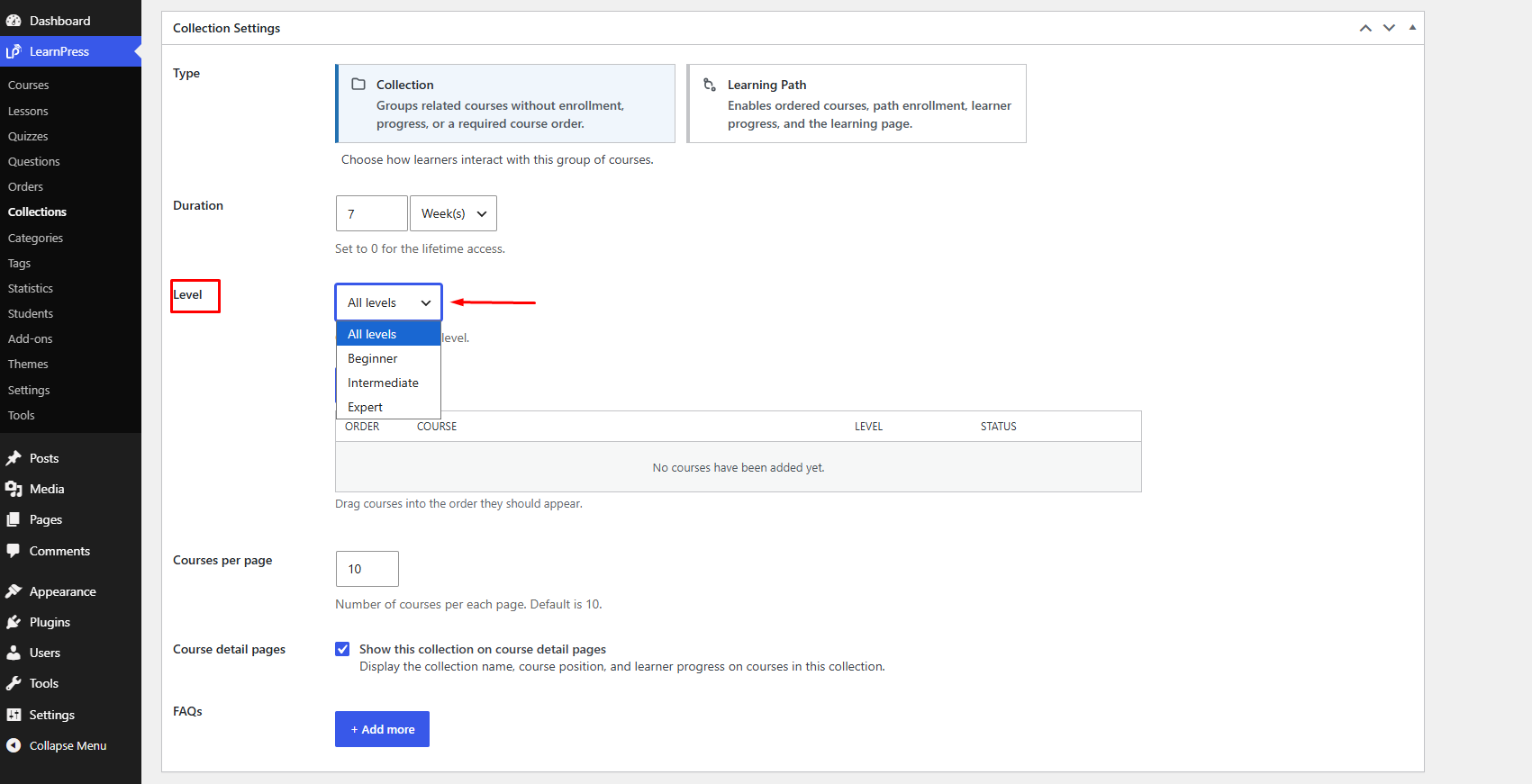
Select the difficulty level of the collection.
Available levels may include:
- All levels
- Beginner
- Intermediate
- Advanced
1.3. Add Courses
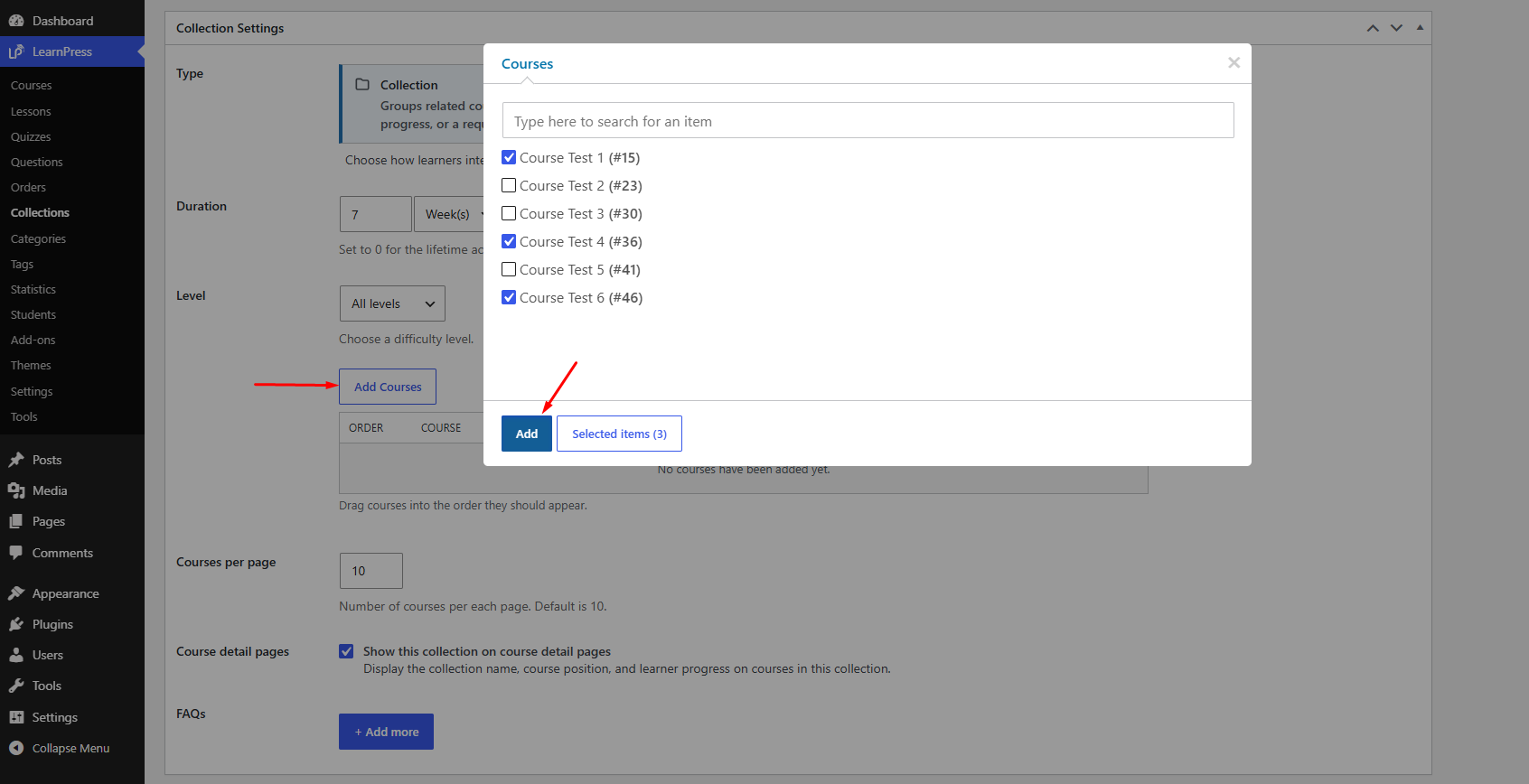
Click Add Courses to select the courses you want to include in the collection.
A popup will display the available courses. You can use the search field to find a specific course and select one or multiple courses.
After selecting the courses, click Add to add them to the collection.
For a standard Collection, the courses are grouped together and learners are not required to complete them in a specific order.
1.4. Courses per Page
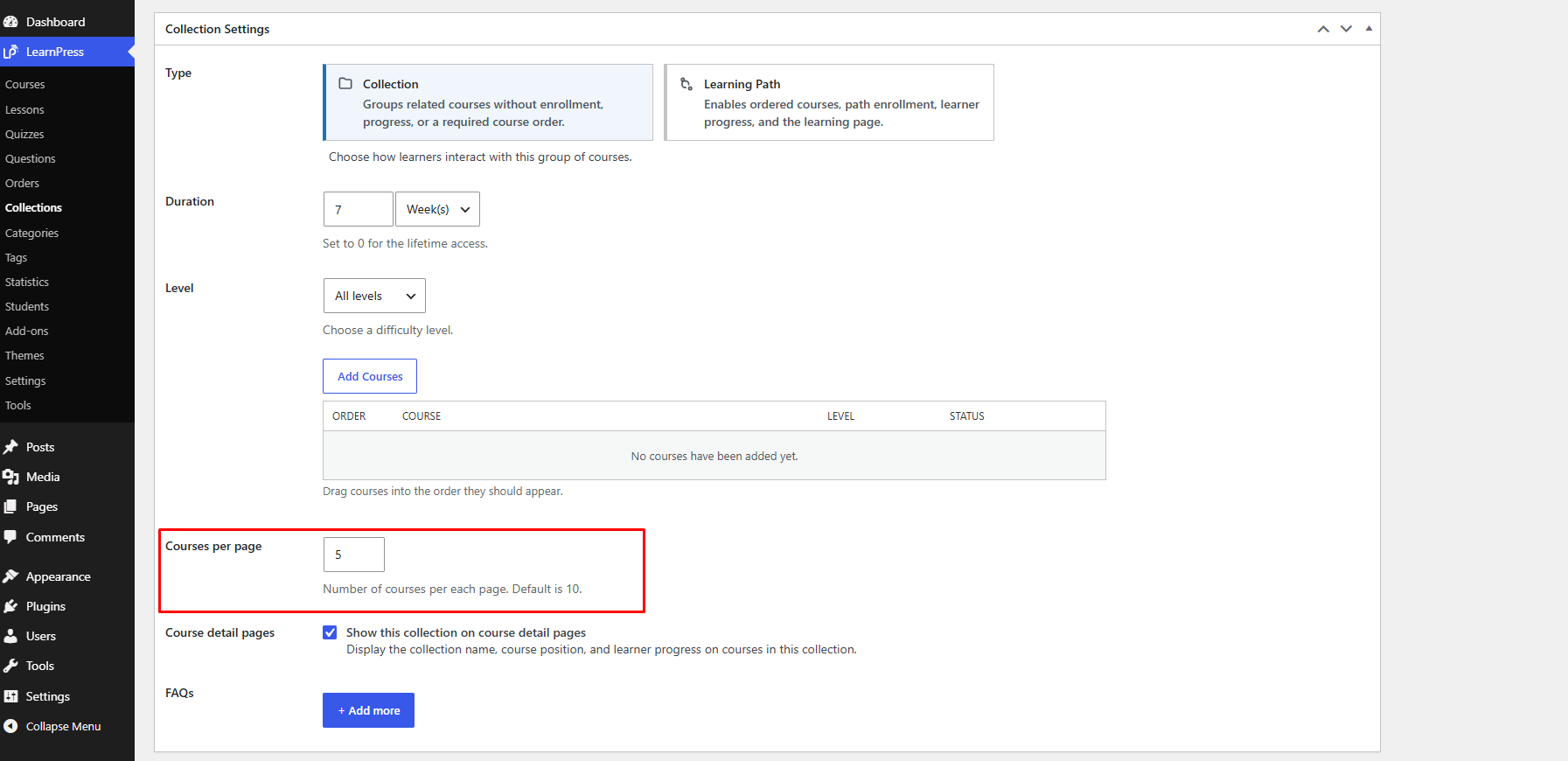
Set the number of courses displayed on each collection page.
The default value is 10.
1.5. Course Detail Pages
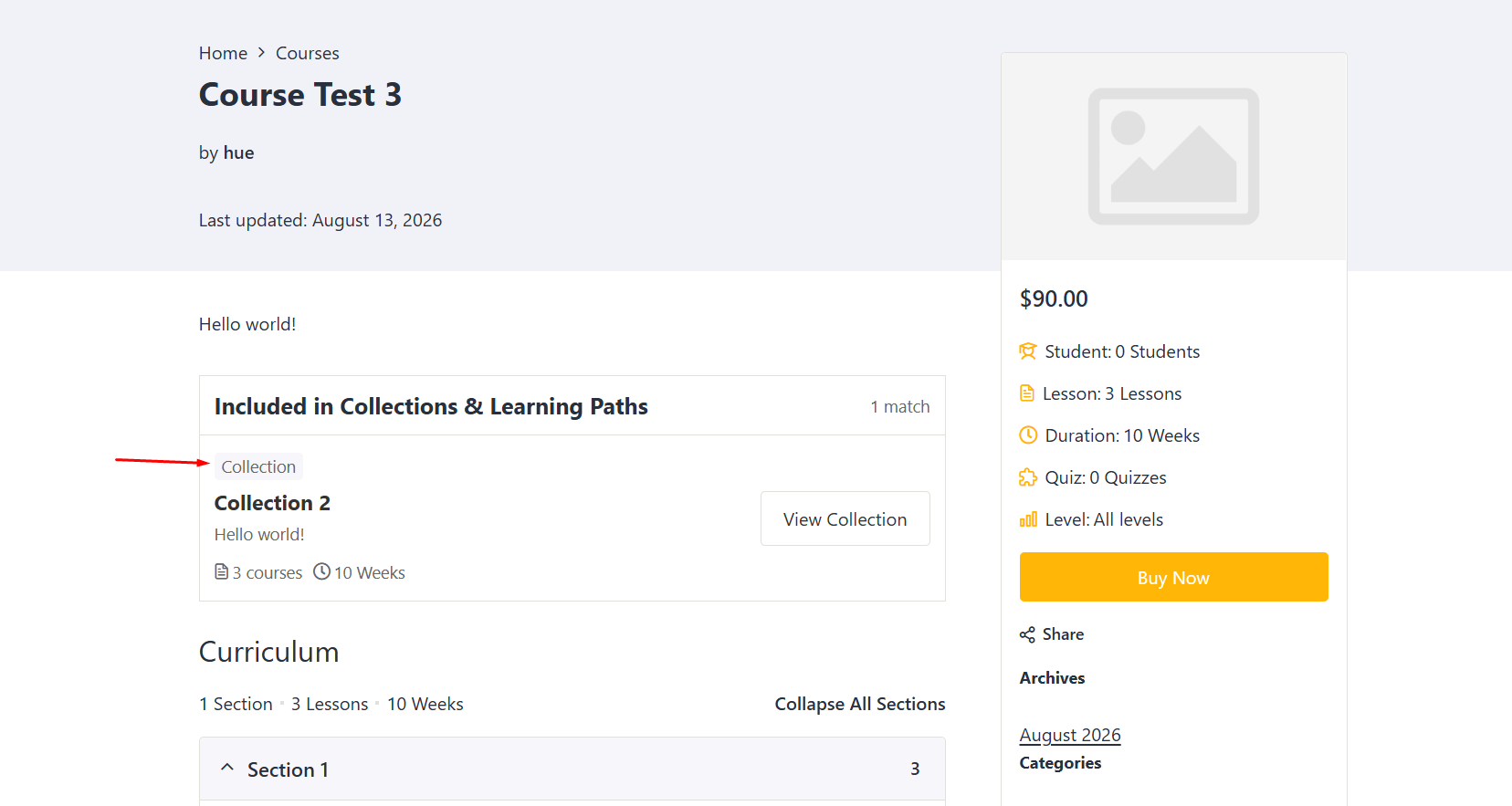
Enable Show this collection on course detail pages to display collection information on the course detail page.
When enabled, the collection name, course position, and learner progress for courses in the collection can be displayed on course detail pages.
1.6. FAQs
Use the FAQs section to add frequently asked questions related to the collection.
Click + Add more to create an FAQ item.
2. For Learning Path
Select Learning Path when you want to create a structured sequence of courses that learners should follow in a specific order.
Unlike a standard Collection, a Learning Path supports:
- Ordered courses
- Path enrollment
- Learner progress
- A dedicated learning page
This type is suitable for creating a structured learning program where learners progress through a series of courses.
2.1. Duration
Set the duration of the Learning Path access.
Enter a value and select the appropriate unit, such as days, weeks, or hour.
Set the value to 0 for lifetime access.
2.2. Level
Select the difficulty level of the Learning Path.
You can use this option to indicate the overall difficulty of the learning path.
2.3. Add Courses
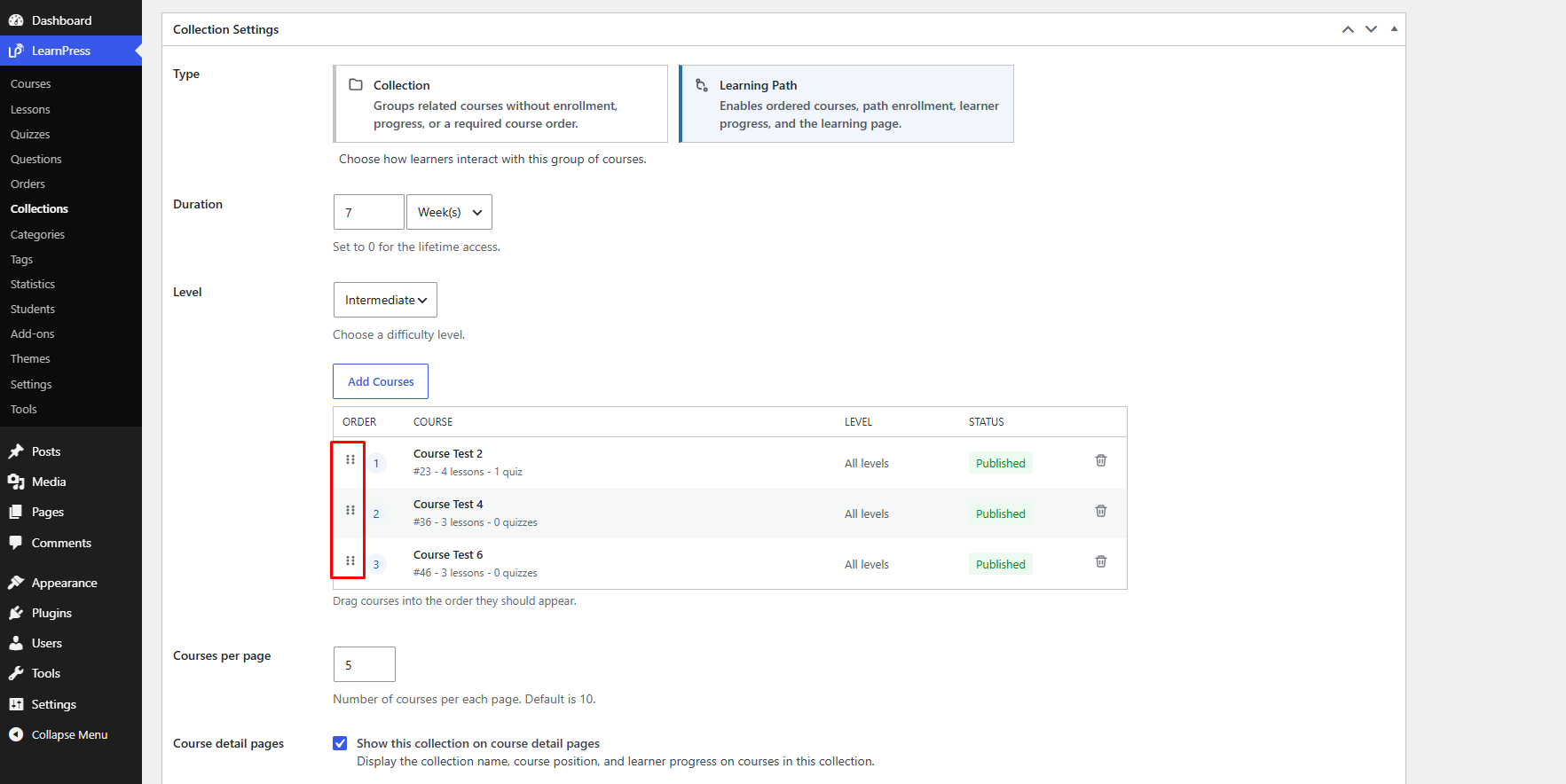
Click Add Courses to select the courses that belong to the Learning Path.
After selecting the courses, click Add.
Once the courses are added, you can drag and drop the courses to arrange them in the order learners should follow.
The course order is important for a Learning Path because it defines the sequence of the learning program.
2.4. Courses per Page
Set the number of courses displayed on each Learning Path page.
The default value is 10.
2.5. Course Detail Pages
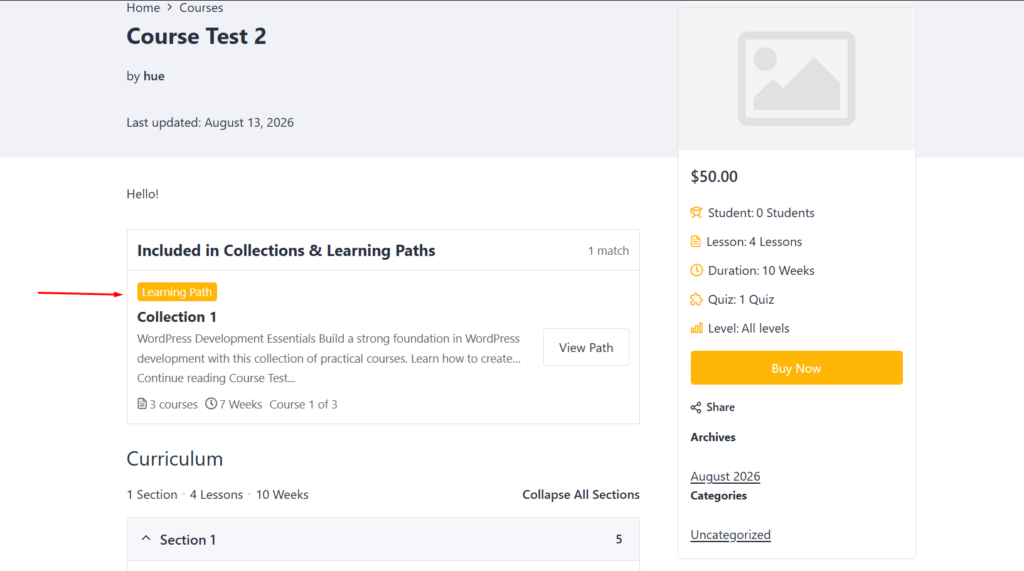
Enable Show this collection on course detail pages to display Learning Path information on the course detail pages.
When enabled, learners can see information such as the Learning Path name, course position, and their progress within the path.
2.6. FAQs
Use the FAQs section to add frequently asked questions related to the Learning Path.
Click + Add more to add FAQ items.
Step 6: Publish the Collection
After completing the collection information and settings, click Publish to create the collection.
The newly created collection will then appear in LearnPress → Collections.
Add Courses to a Collection from the Course Settings
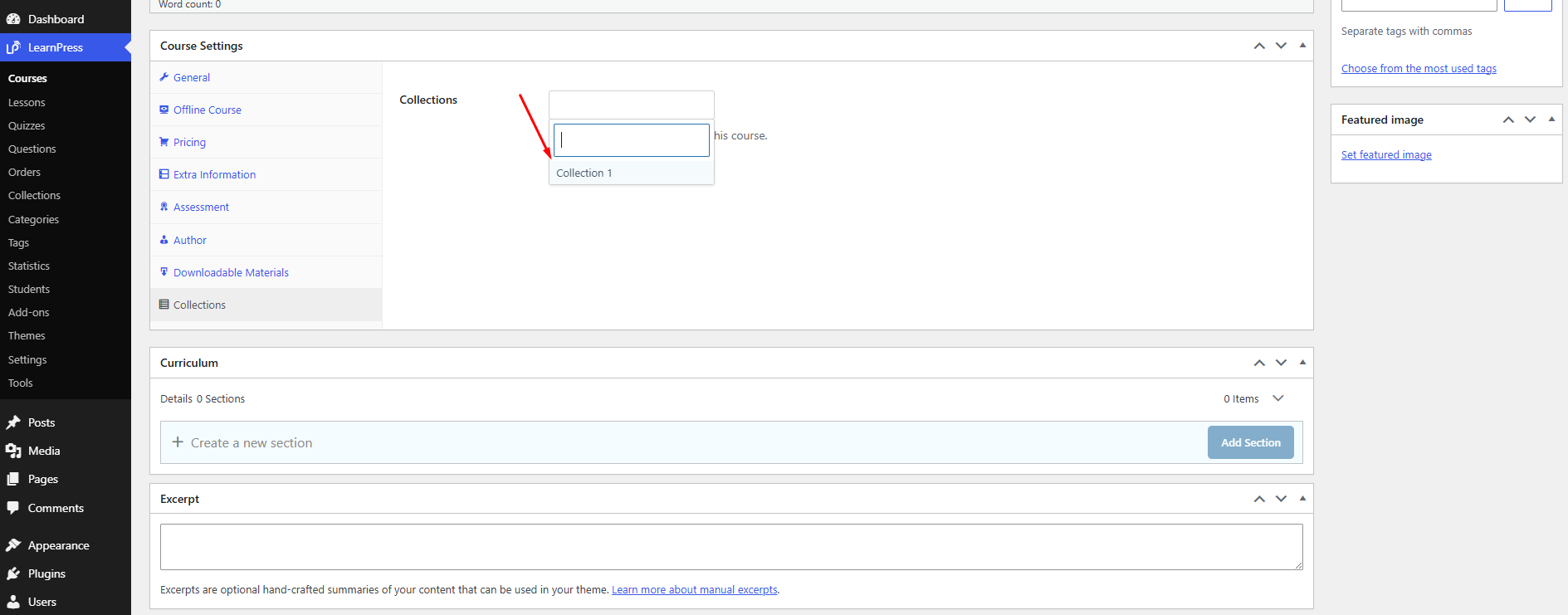
In addition to adding courses directly from the Collection editor, you can also add a collection to a course from the course settings.
To add a course to a collection:
- Go to LearnPress → Courses.
- Create a new course or edit an existing course.
- Scroll down to Course Settings.
- Open the Collections section.
- Select the collection that you want to add the course to.
- Update or publish the course.
The selected course will then be associated with the collection.
Collections Settings
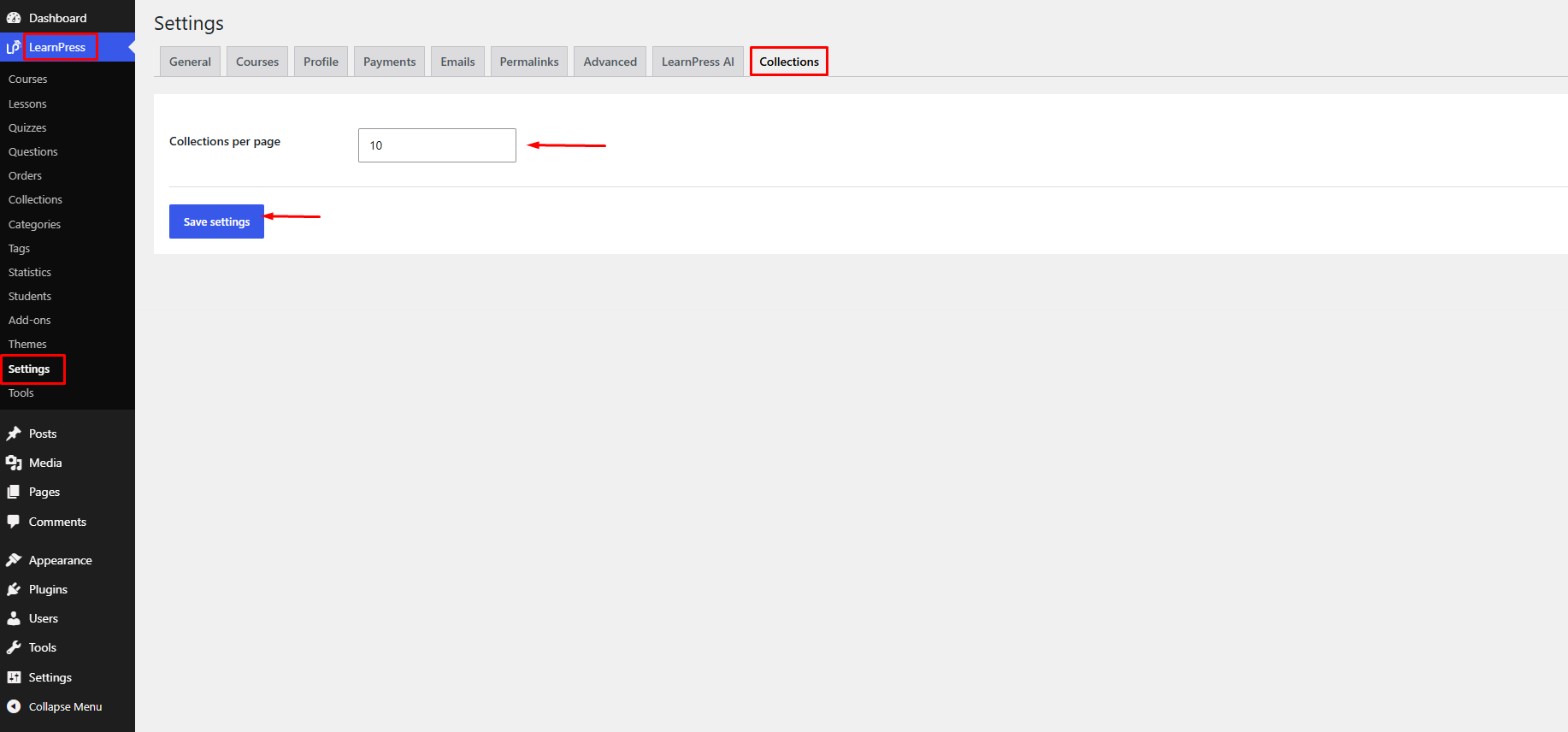
To configure the general settings for Collections, go to LearnPress → Settings → Collections.
Collections per page
The Collections per page option allows you to set the number of collections displayed on each page of the Collections archive.
Enter the desired number of collections in the field.
For example, if you set this option to 10, up to 10 collections will be displayed on each page.
After configuring the setting, click Save settings to apply the changes.