An online grading calculator turns raw scores into percentages, letter grades, and weighted averages in a few seconds. If you mark 120 papers every week, that small time saving adds up quickly. This guide explains how these tools work, which type fits your classroom, and how to keep your results organized in one place.
LearnPress – WordPress LMS Plugin
We provide an amazing WordPress LMS plugin to create & sell online courses. Let’s find out!
Try NowWhat is an online grading calculator?
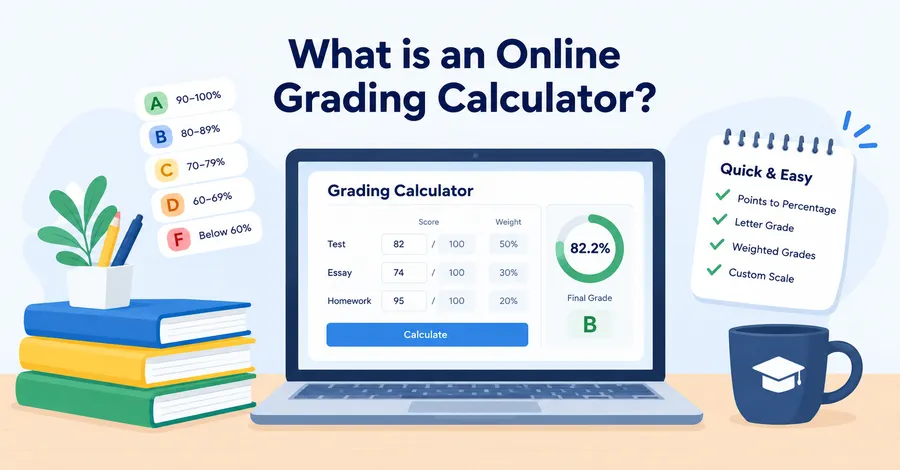
An online grading calculator is a web-based tool that converts points earned into a percentage, letter grade, or weighted course score. You type in the scores and the grading scale, and the tool does the math. Most run in a browser, so nothing needs to be installed.
Teachers use them for quick checks after a quiz, for weighted semester averages, and for answering student questions like “What do I need on the final?”
How the calculation works
The basic formula is simple: points earned divided by total points, multiplied by 100. A student who answers 42 questions correctly on a 50-point test scores 84 percent.
Weighted grades add one more step. You multiply each category score by its weight, then add the results. Suppose tests count for 50 percent, essays for 30 percent, and homework for 20 percent. A student with 82 on tests, 74 on the essay, and 95 on homework gets 41 + 22.2 + 19 = 82.2 percent.
Grading scales you can set
Schools do not all use the same scale. A common U.S. scale gives an A for 90 to 100 percent and a B for 80 to 89 percent. Australian schools often use A to E bands or percentage marks, and universities may use their own scales. A good online grading calculator lets you change the cut-off points so the result matches your school policy.
Types of grading tool for teachers
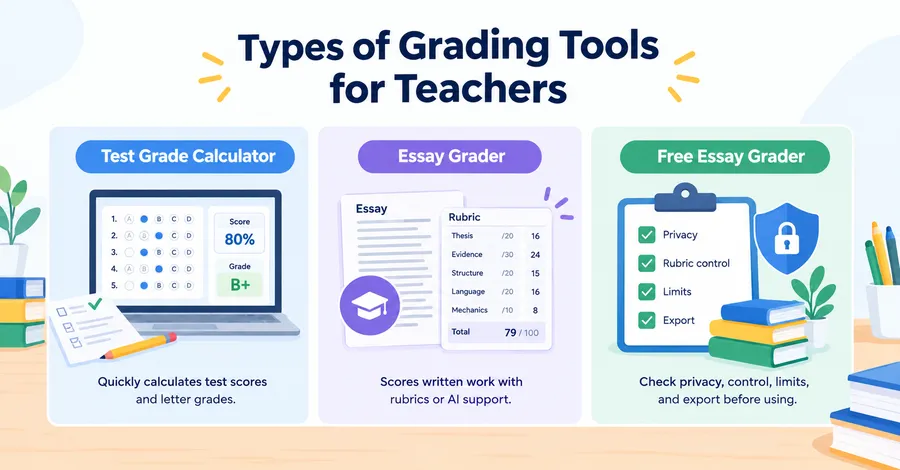
A grading tool can mean several different things, and picking the wrong type wastes time. Some tools only do arithmetic. Others help you mark written work against a rubric. Here are the three types teachers ask about most.
Test grade calculator for teachers
A test grade calculator for teachers handles objective papers such as multiple choice, true or false, and short numeric answers. You enter the number of questions and the number correct, and it returns a percentage and a letter grade.
Better versions also let you apply a curve, drop the lowest score, or give partial credit. If you give the same quiz to several classes, look for a calculator that allows a bulk entry or a saved scale, so you do not retype your settings each time.
Essay grader for teachers
An essay grader for teachers helps you score written work. It usually works in one of two ways. The first is a rubric calculator, where you rate each criterion, such as thesis, evidence, structure, and language, and the tool totals the score. The second is software that reads the essay and suggests a score or feedback.
Rubric calculators are easy to trust because you stay in control. Say you grade out of 100 with five criteria: thesis (20), evidence (30), structure (20), language (20), and mechanics (10). A student who earns 16, 24, 15, 16, and 8 gets 79. The tool just adds the numbers and shows the breakdown, which makes feedback easier to write.
Software that suggests scores can save time on first drafts, but treat its output as a starting point. Automated scoring can miss tone, originality, and context, so a teacher should always make the final call.
Free essay grader for teachers: what to check
A free essay grader for teachers is attractive, especially for schools with tight budgets. Before you rely on one, check four things:
- Privacy. Does the site store student writing? Avoid pasting names or personal details into tools that do not explain how they handle data.
- Rubric control. Can you edit the criteria and weights, or are you locked into a fixed scoring model?
- Limits. Many free plans cap the number of essays per day or the word count.
- Export. Can you download results as a CSV or copy them into your gradebook online?
If a free essay grader for teachers fails on privacy or rubric control, a simple rubric calculator or a spreadsheet may be the safer choice.
Comparison table: which tool fits which job
The right option depends on what you grade and how much record keeping you need. The table below compares the most common choices side by side.
| Tool type | Best for | Cost | Main strength | Main limit |
|---|---|---|---|---|
| Online grading calculator | Quick percentages and weighted averages | Usually free | Fast, no setup | Does not store records |
| Test grade calculator for teachers | Multiple choice and short quizzes | Usually free | Handles curves and partial credit | Not suited to written work |
| Free essay grader for teachers | Rubric scoring and draft feedback | Free tier, paid upgrades | Saves time on long papers | Privacy and daily limits |
| Spreadsheet (Excel or Google Sheets) | Custom formulas and class lists | Free or low cost | Flexible and familiar | Manual setup, error prone |
| LMS gradebook (LearnPress Gradebook add-on) | Ongoing course records inside WordPress | Paid add-on | Scores stay linked to students and courses | Needs a WordPress LMS site |
For a single quiz, an online grading calculator is enough. For a full course with many students over many weeks, you will want a system that remembers results.
How to use an online grading calculator step by step
Using one takes only a few minutes once your grading policy is clear. The steps below work for most tools, whether you grade quizzes, essays, or a whole term.
- Write down your grading policy. List each category, its weight, and the letter grade cut-offs.
- Collect the raw scores. Use total points, not percentages, whenever possible. This avoids rounding errors.
- Open your chosen grading tool. Pick a calculator that supports weights if your course has more than one category.
- Enter the points possible and points earned. Check each row before moving on.
- Apply your scale. Set the cut-offs to match your school policy.
- Review the result. Compare one or two students by hand to confirm the tool matches your math.
- Save or export. Copy the results into your gradebook, a CSV file, or your LMS.
Step 6 is the one people skip. Checking two students by hand takes about a minute and catches wrong weights or scale mistakes before grades reach students.
Mistakes that skew final grades
Most grading errors come from setup, not from the math. A few habits will protect you from the common ones.
Mixing percentages and points
If you average percentages from assignments with different point totals, a 5-point quiz counts as much as a 100-point exam. Either use total points or apply weights on purpose.
Weights that do not add up to 100
If your categories total 90 or 110 percent, every final score is off. Add up the weights before you enter any scores.
Rounding too early
Round only at the end. If you round each assignment first, a student sitting at 89.5 percent can end up with a B instead of an A.
Treating an automated score as final
An essay grader for teachers can speed up scoring, but it cannot know your class context. A strong student who took a creative risk may be marked down by software and deserve better. Review every score before you release it.
Tracking grades on your own site with LearnPress
A calculator gives you a number, but it does not remember it. If you teach online courses, you also need a place where scores stay attached to each student and each course. That is where a WordPress LMS with a gradebook helps.
LearnPress is a WordPress LMS plugin from ThimPress that lets you build and sell courses, lessons, and quizzes on your own site. It works well when your online grading calculator results need a permanent home.
What the LearnPress Gradebook add-on does
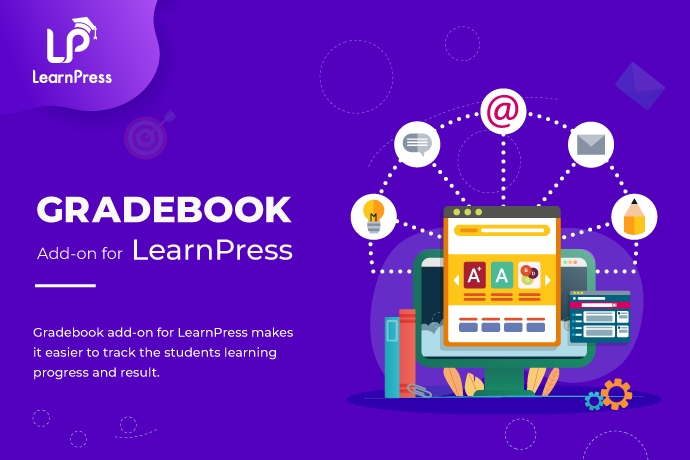
The Gradebook add-on for LearnPress adds a grade overview to your WordPress dashboard. According to the official documentation, you open the Student Overview page from LearnPress > Gradebook > Student Overview. From there you click View on any user to see the courses that student is enrolled in, then open a course to see the score results for it.
The documentation also lists a View Chart option, which lists the courses a user has enrolled in, and an Export CSV button. The student overview export includes the course name, start date, end date, progress, and status. Other pages in the add-on documentation cover Settings, a front-end Gradebook, and Recent Activity, so you can check what fits your setup before you buy. These menus may change between versions, so confirm the steps in the official docs.
Quizzes, exams, and assignments
Grades need something to measure. LearnPress also offers an Exam add-on and an Assignments add-on. In practice, you can use quizzes and exams for objective questions, assignments for written work, and the Gradebook to see how results build up across a course.
You can still use a test grade calculator for teachers or a rubric tool for offline papers, then record the final score where students can see it.
Pairing LearnPress with the Eduma theme
If you are starting a new course site, the Eduma theme is worth a look. ThimPress promotes it as a best-selling education theme for WordPress with more than 38 demos, and it is built to work with LearnPress. That saves you from designing course pages from scratch, so you can spend your time on teaching and grading. If your budget is tight, ThimPress also lists a free theme called EduPress.
If you only grade paper tests in a physical classroom, you do not need an LMS. A calculator and a spreadsheet will do the job. LearnPress makes sense when your teaching happens online and you want grades, progress, and course content in one place.
How to choose the right grading tool
Start with the work you grade most often, not with the feature list. Match the tool to the task, and add complexity only when you need it.
- Mostly quizzes and tests: Use a test grade calculator for teachers with a saved scale.
- Mostly essays: Use a rubric-based tool, and add a free essay grader for teachers only if it passes the privacy and export checks above.
- Weighted terms with many categories: Use a spreadsheet or an online grading calculator that supports weights.
- Online courses with many students: Use an LMS gradebook so records, progress, and exports live in one system.
A short test helps. Ask yourself whether you will need these results again in a month. If yes, choose a grading tool that stores them.
FAQs about online grading caculator
How do I calculate a final grade with weights?
Multiply each category score by its weight as a decimal, then add the results. For example, a score of 80 in a category worth 40 percent adds 32 points to the final grade. Make sure all weights add up to 100 percent before you start.
Can AI grade essays accurately?
AI can give a useful first pass, but it is not fully reliable on its own. It may miss tone, creativity, or context, and it can score the same essay differently on different runs. Use it for draft feedback and keep the final grade in your hands.
Is it safe to upload student work to a free grading website?
It depends on the site. Read the privacy policy, remove student names before pasting text, and check your school or district rules on student data. If you cannot find clear terms, use an offline rubric or a tool your school has approved.
What is the difference between a gradebook and a grade calculator?
A grade calculator does the math for one set of scores and then forgets it. A gradebook stores scores over time, links them to each student, and lets you export reports. Many teachers use both: a calculator for quick checks and a gradebook for the official record.
Conclusion
An online grading calculator is the fastest way to turn raw points into clear percentages and letter grades. Pair it with a test grade calculator for teachers for quizzes, a rubric tool for essays, and a careful review of every score. If you want grades to stay connected to students and courses, LearnPress and its Gradebook add-on give you a home for them inside WordPress, and Eduma can help you launch the course site itself. Start with the simplest grading tool that fits your work, then add more only when your classroom needs it.
Read more: Elearning Authoring: Tools, Features and How to Choose