
Once a chatroom has been created, enrolled users can access it by clicking the Discussion button on the course page. The chatroom provides a collaborative space where students, instructors, and administrators can communicate throughout the course.
For instructors and administrators, the chatroom also includes a set of moderation tools to help manage conversations and maintain a productive learning environment.
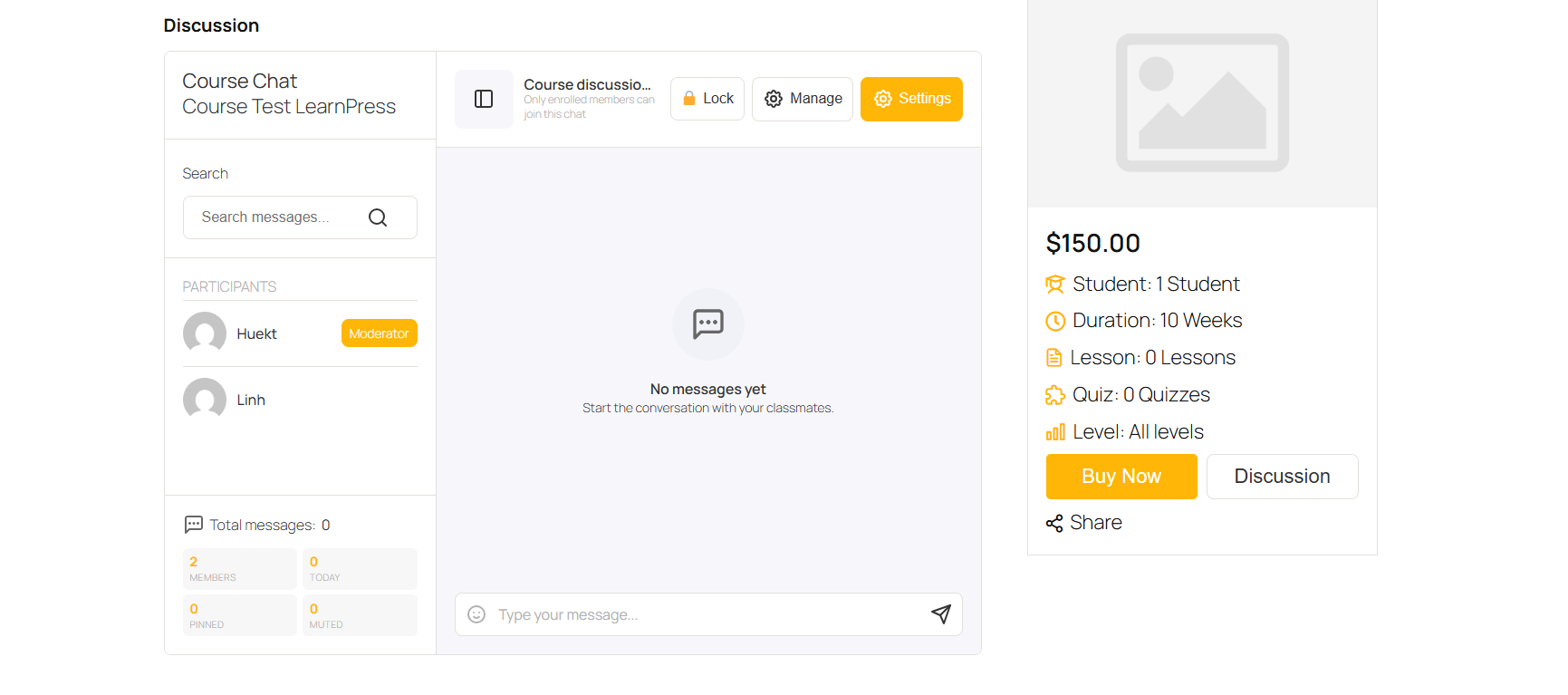
1.Search Messages
Use the Search box to quickly find messages within the chatroom. Simply enter a keyword or phrase to locate relevant conversations without scrolling through the entire chat history.
2.Participants
The Participants panel displays all users who are currently members of the chatroom. This includes students enrolled in the course as well as instructors and administrators.
Administrators and moderators can manage participants directly from this list. Clicking on a user’s name opens additional moderation options, including:
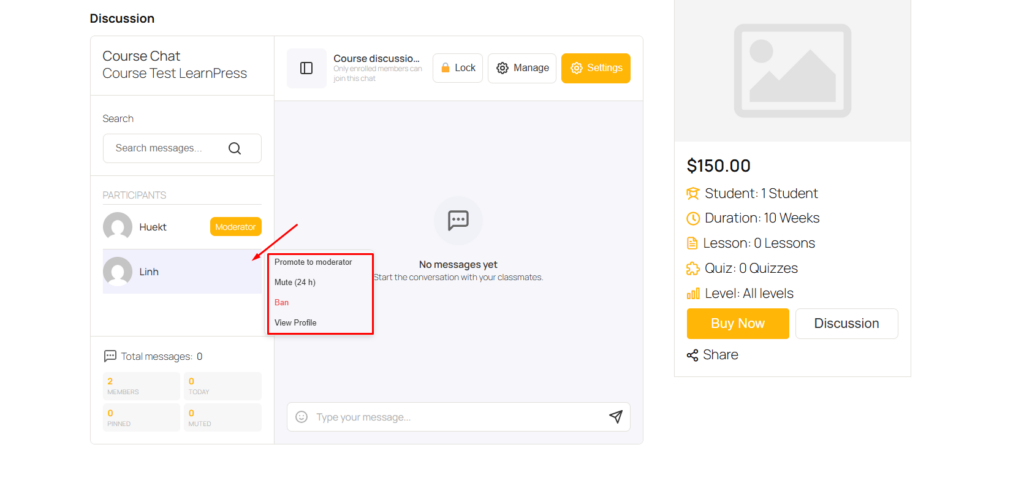
- Promote to Moderator – Grant moderator permissions to the selected user.
- Mute (24h) – Prevent the user from sending messages for 24 hours.
- Ban – Remove the user from the chatroom and block future access.
- View Profile – Open the user’s profile page.
3.Chat Statistics
At the bottom of the participant panel, the chatroom displays a summary of chat activity, including:
- Total Messages – The total number of messages sent in the chatroom.
- Members – The number of users currently in the chatroom.
- Today – The number of messages sent today.
- Pinned – The number of pinned announcements or messages.
- Muted – The number of users currently muted.
These statistics provide a quick overview of chatroom activity and member management.
4.Chatroom Toolbar
The toolbar at the top of the chatroom provides several management options for instructors and administrators.
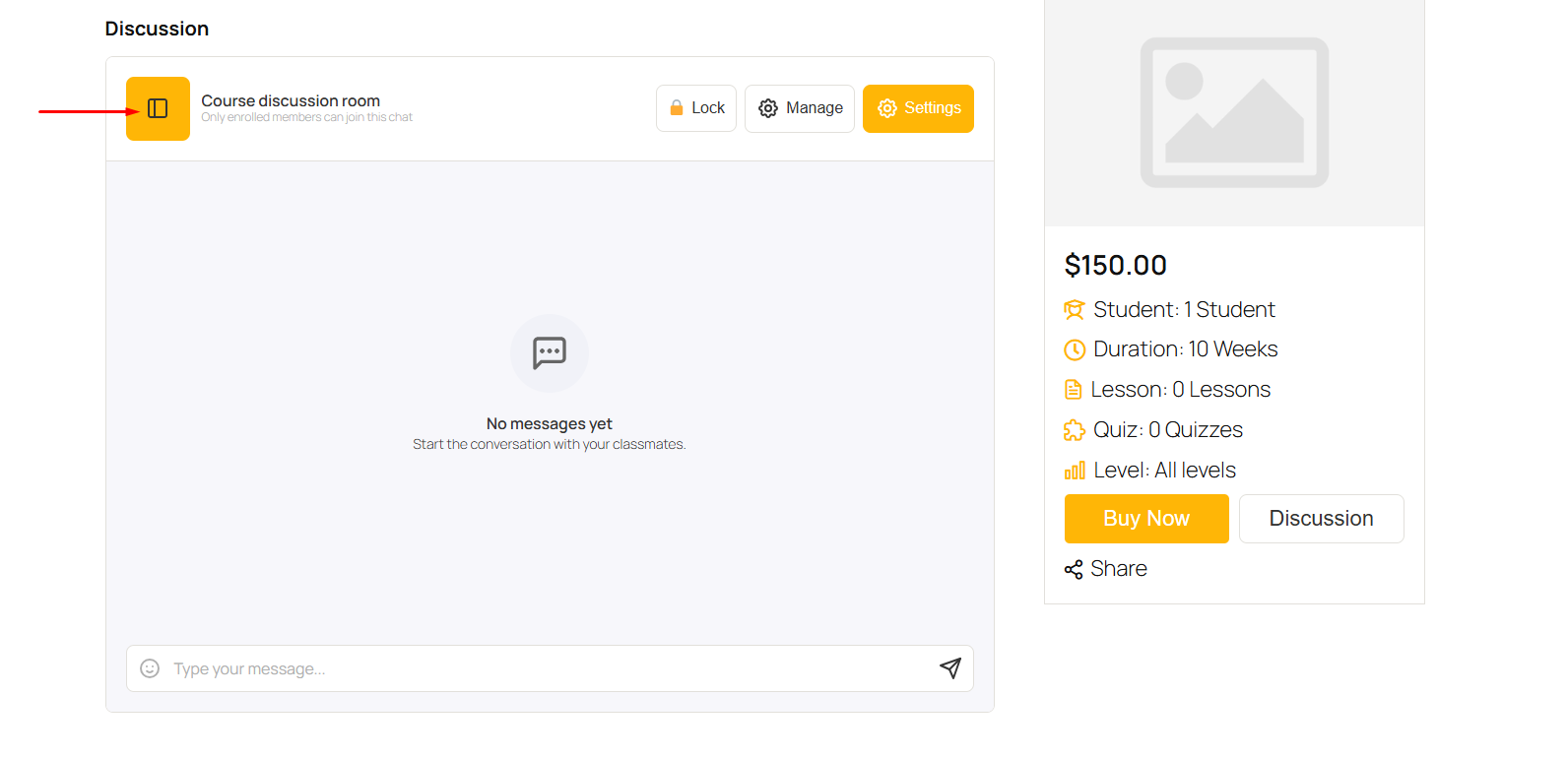
Full Screen
Click the Full Screen icon to expand the chatroom, providing a larger workspace for reading and managing conversations.
Lock / Unlock Chatroom
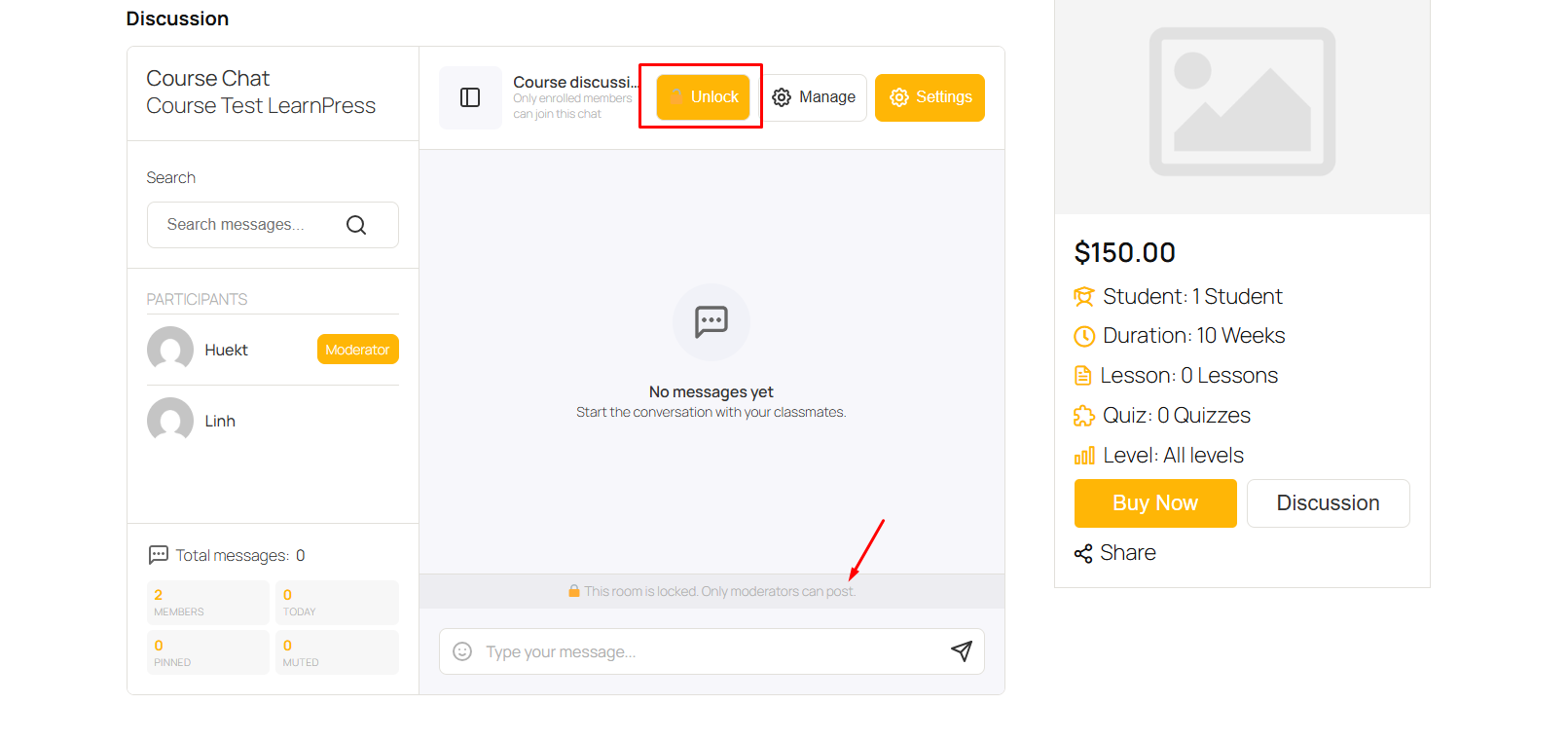
The Lock button temporarily closes the chatroom for regular members.
When a room is locked:
- Students cannot send new messages.
- Existing messages remain visible.
- Only moderators and administrators can continue posting messages.
Click Unlock at any time to reopen the chatroom for all enrolled members.
Manage Room
Click Manage to open the room management panel.
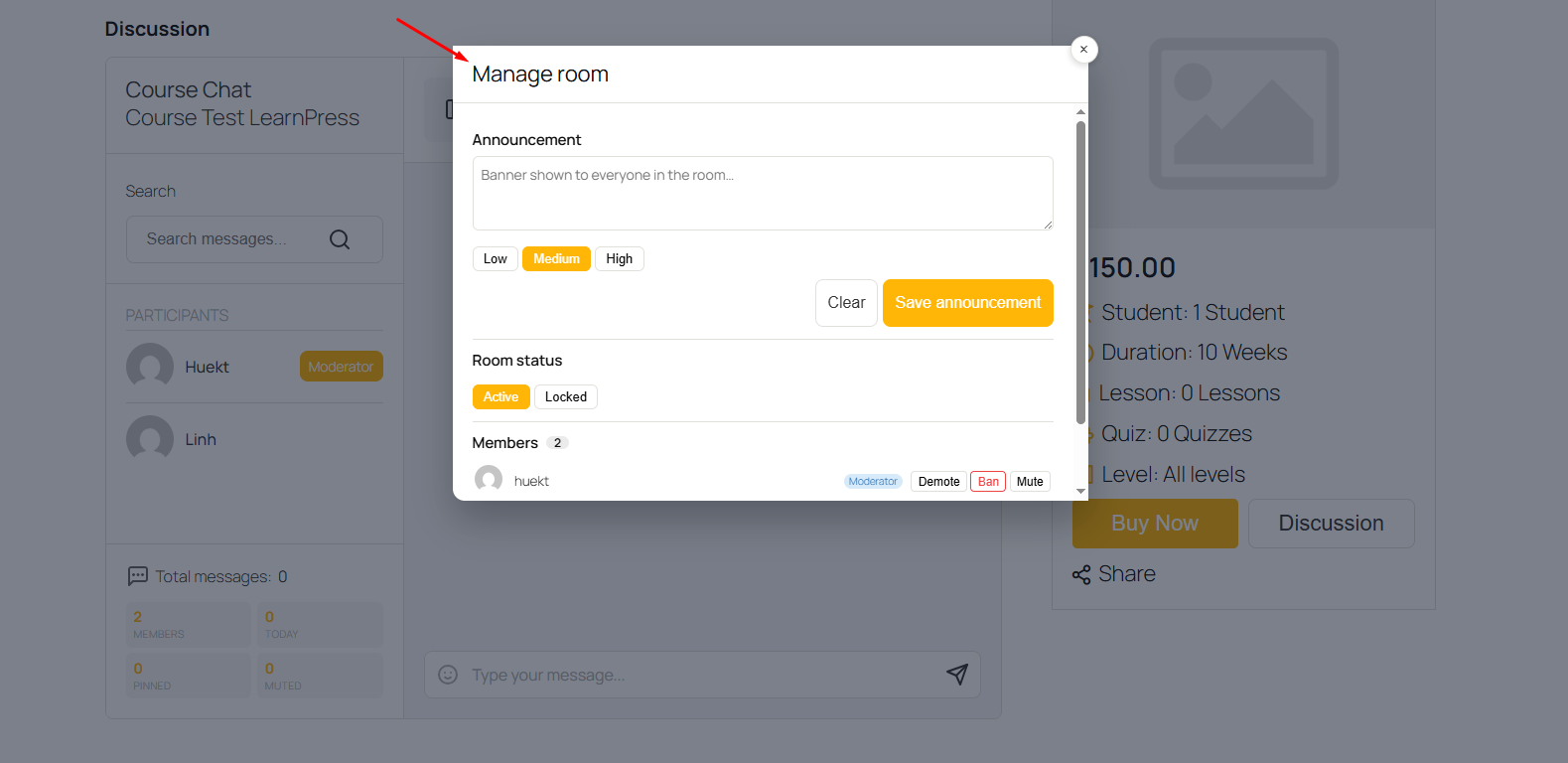
From here, moderators can:
Announcements
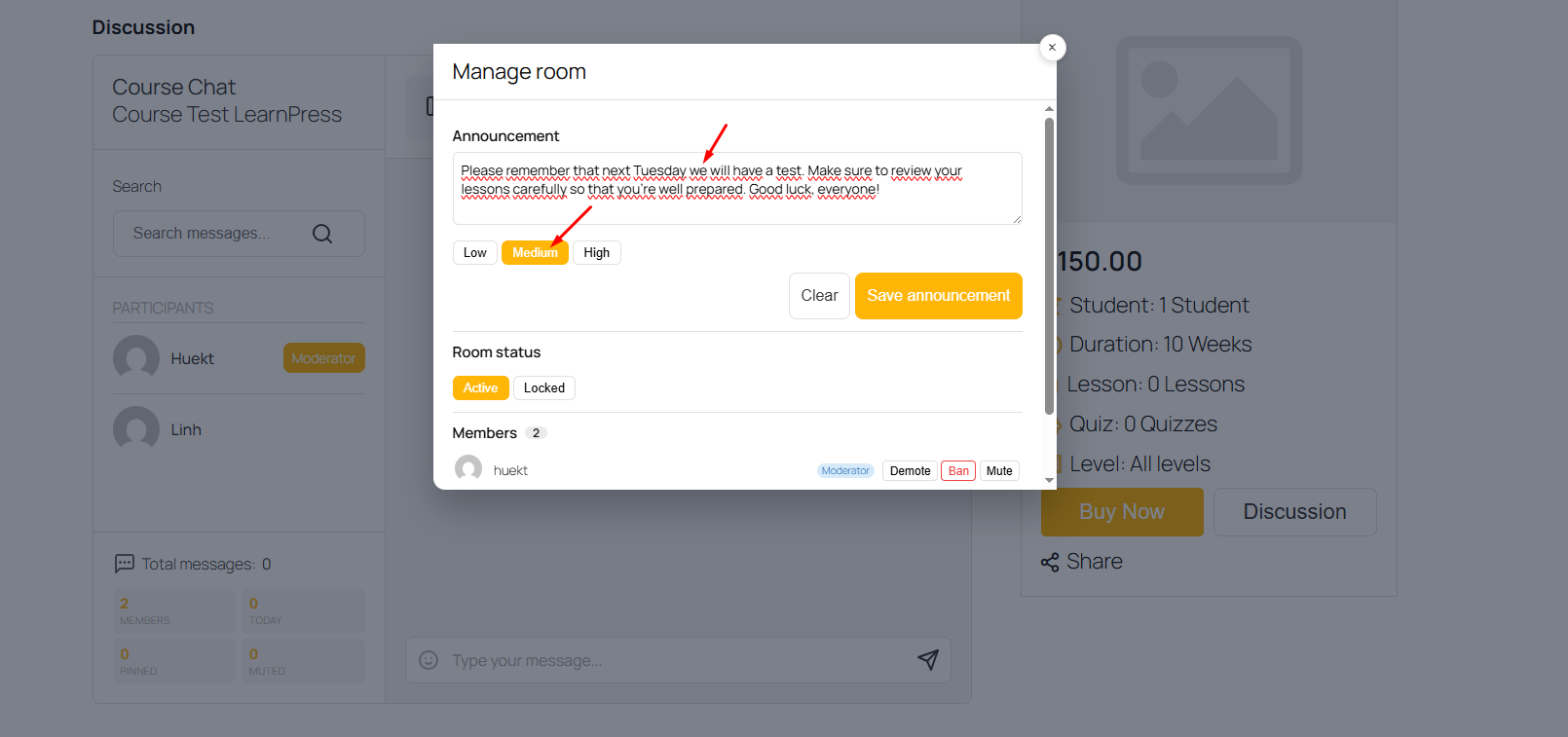
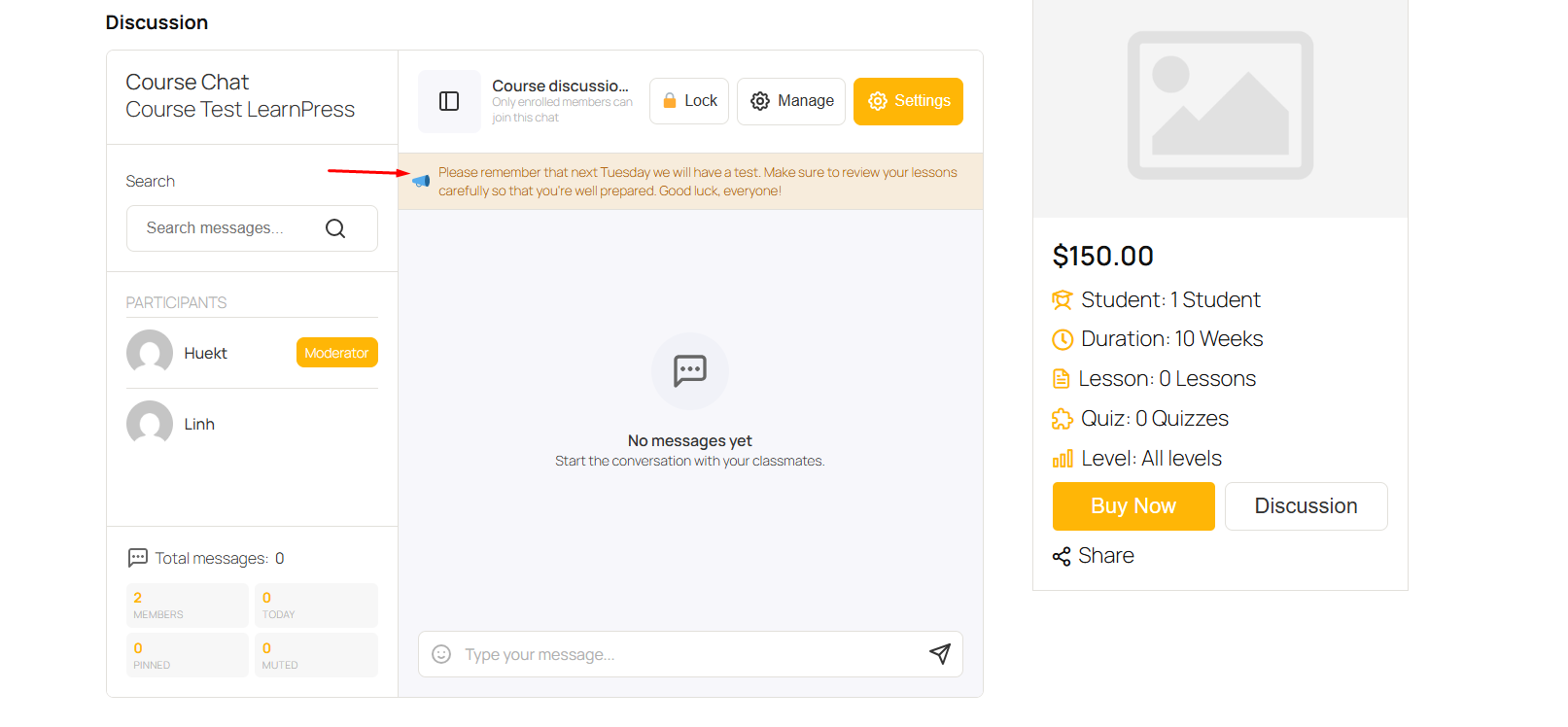
Create an announcement that appears at the top of the chatroom for all members.
Each announcement can be assigned one of three priority levels:
- Low
- Medium
- High (Urgent)
Announcements are useful for sharing important course updates, reminders, or urgent notices with all participants.
Room Status
View and change the current room status between Active and Locked.
Member Management
Manage all chatroom members in one place.
Depending on each user’s role, moderators can:
- Promote or demote moderators.
- Mute members.
- Ban members.
- View participant information.
Chat Settings
Click Settings to access additional chatroom management options.
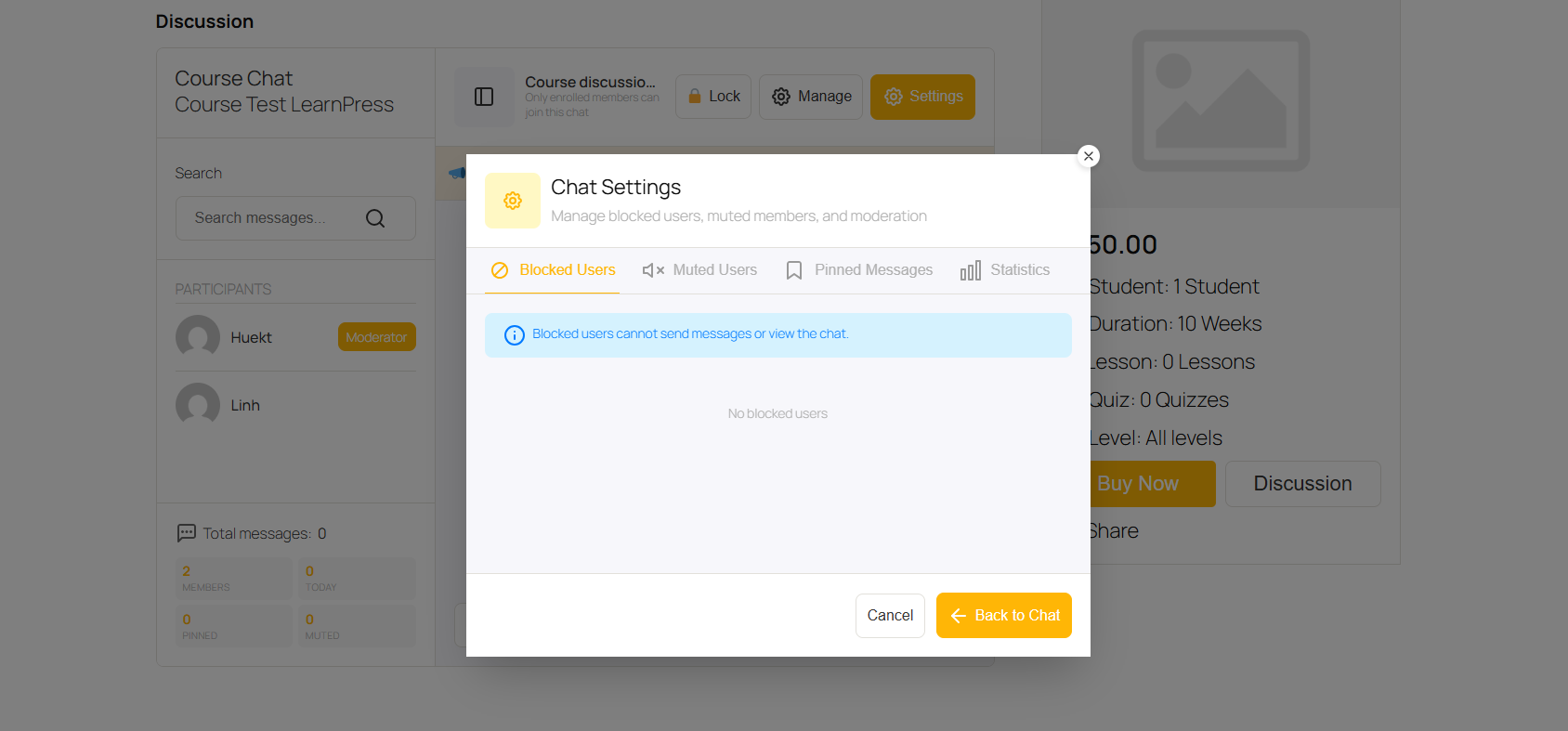
The Settings panel allows moderators to manage:
Blocked Users
View all banned users. Blocked users cannot access the chatroom or send messages.
Muted Users
View users who are temporarily muted and unable to send messages.
Pinned Messages
Manage important messages that have been pinned for all participants.
Statistics
View detailed chatroom statistics and activity information.
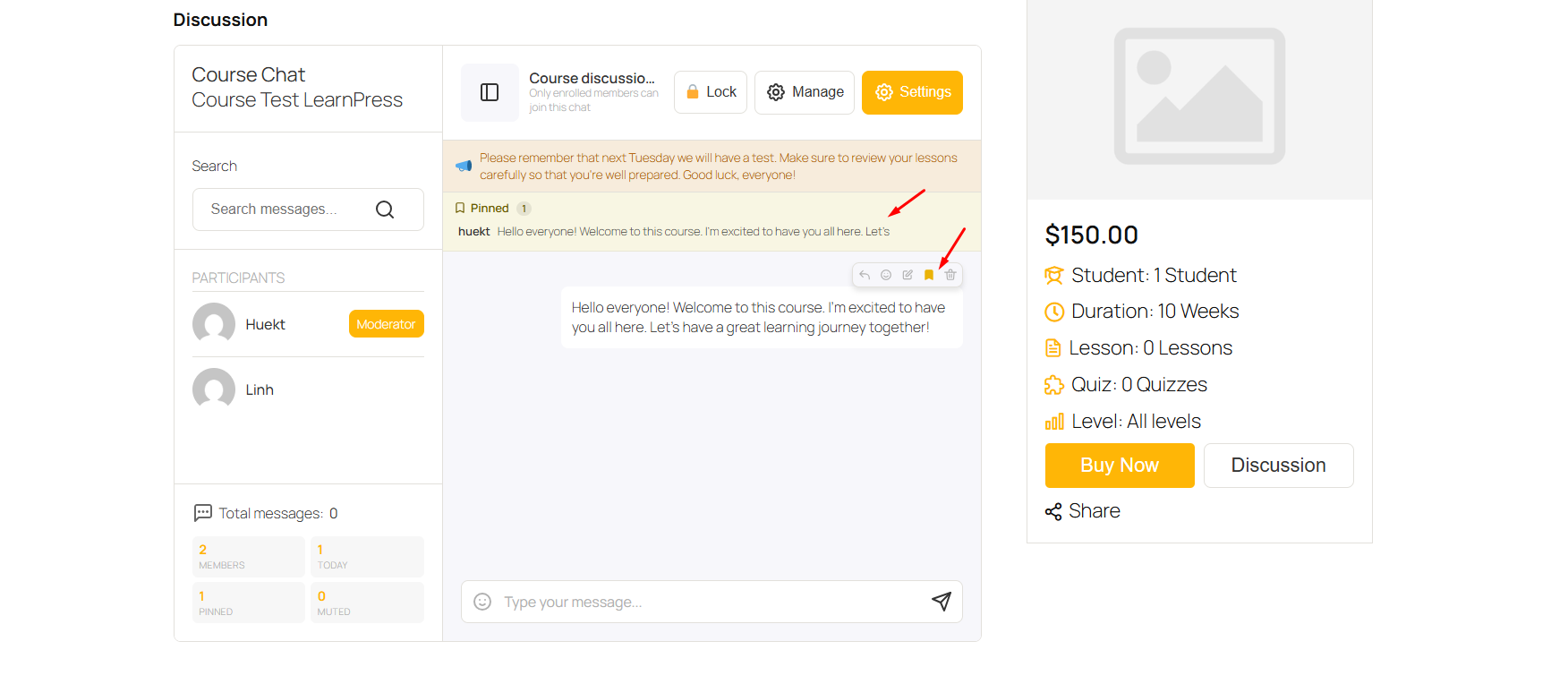
5.Pin / Unpin Messages
Moderators and administrators can pin important messages to keep them visible at the top of the chatroom for all participants.
To pin a message:
- Hover over your own message or any participant’s message.
- Click the Pin icon.
- The selected message will be displayed in the Pinned section at the top of the chatroom, making it easy for everyone to find important information.
Pinned messages are ideal for highlighting important announcements, course guidelines, meeting links, deadlines, or frequently referenced information.
To remove a pinned message, simply click the Unpin icon. The message will be removed from the pinned section while remaining in the chat history.
6.Ban/ Unban Members
Moderators and administrators can ban members from the chatroom to prevent inappropriate behavior or repeated violations of community guidelines.
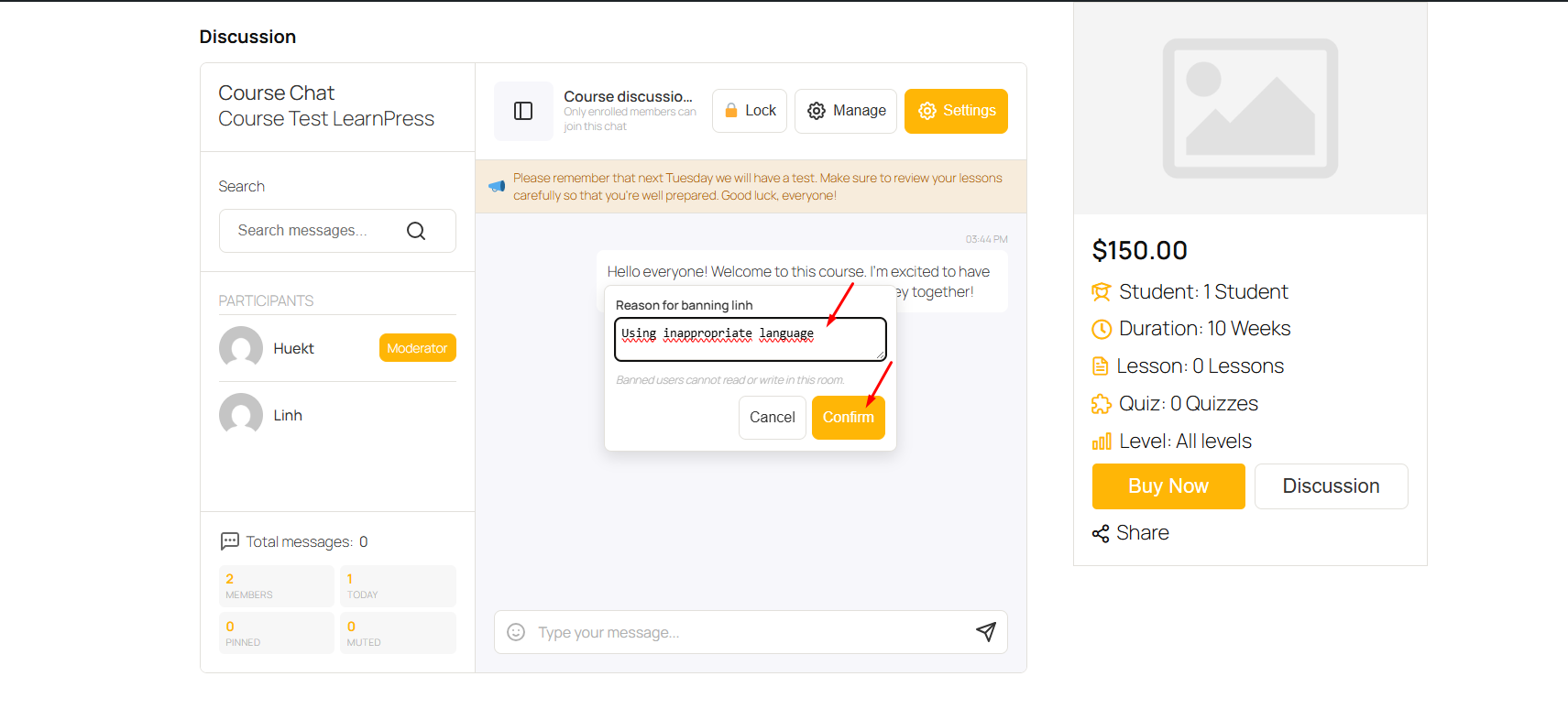
Ban a Member
To ban a participant:
- Click the participant’s name in the Participants panel.
- Select Ban from the moderation menu.
- Enter an optional reason for the ban.
- Click Confirm.
Once banned:
- The user is immediately removed from the chatroom.
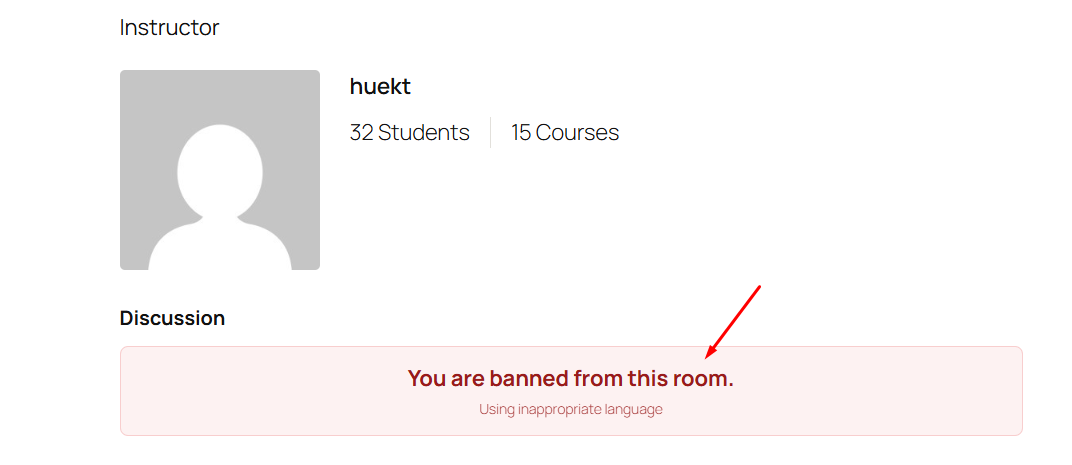
- The user can no longer read or send messages in the room.
- The ban reason is displayed to the user when they attempt to access the chatroom.
- The conversation history is no longer accessible to the banned user until the ban is removed.
Providing a clear reason helps users understand why access has been restricted and promotes fair moderation.
Unban a Member
Moderators and administrators can remove a ban at any time.
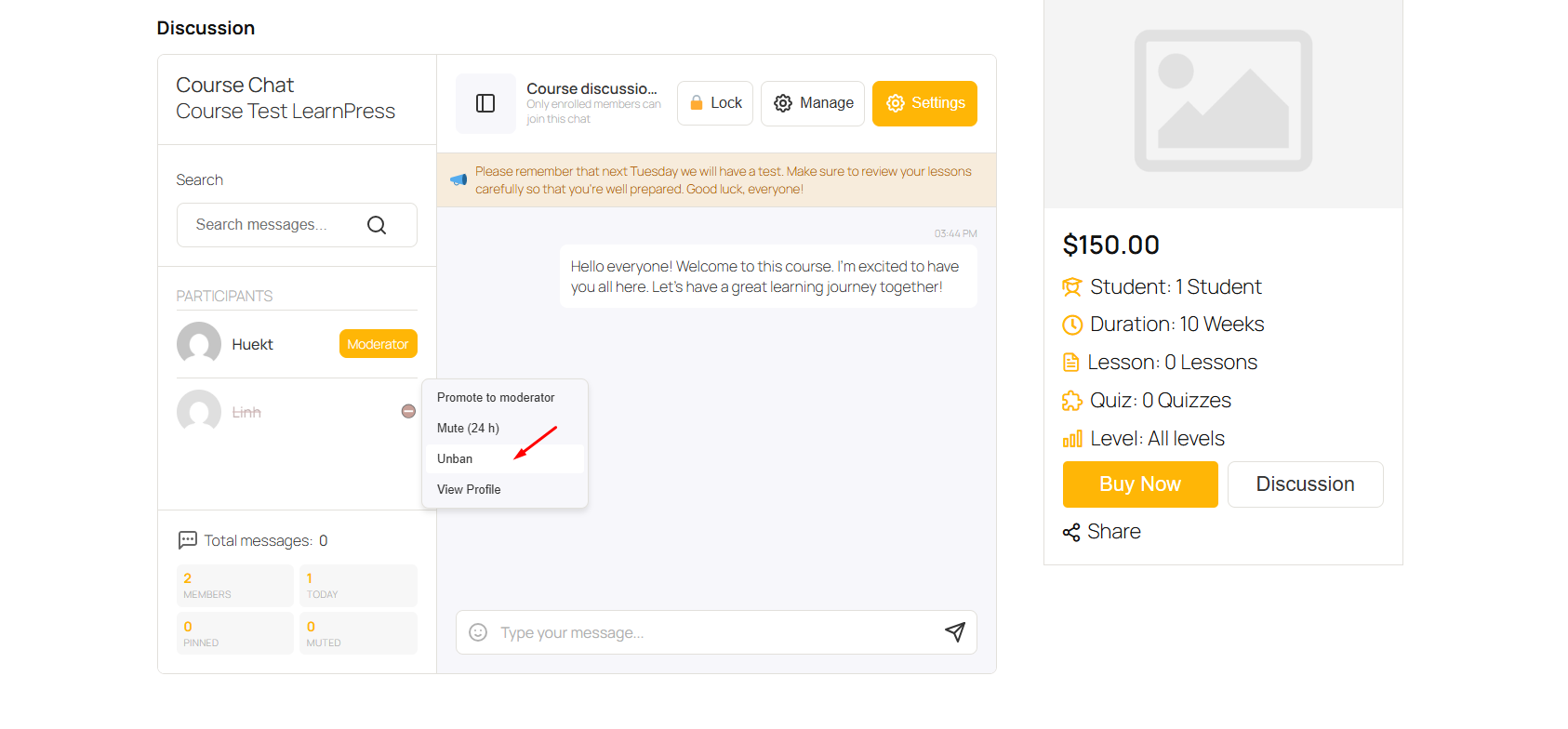
To unban a user:
- Locate the banned member.
- Click Unban.
Once the ban is removed, the user regains access to the chatroom and can participate in discussions again, provided they are still enrolled in the course.
Note: Unbanning a user restores access to the chatroom but does not automatically restore any moderation actions such as muted status if they were applied separately.
7.Mute/ Unmute Members
Moderators and administrators can temporarily mute members to prevent them from sending messages without removing them from the chatroom.
Mute a Member
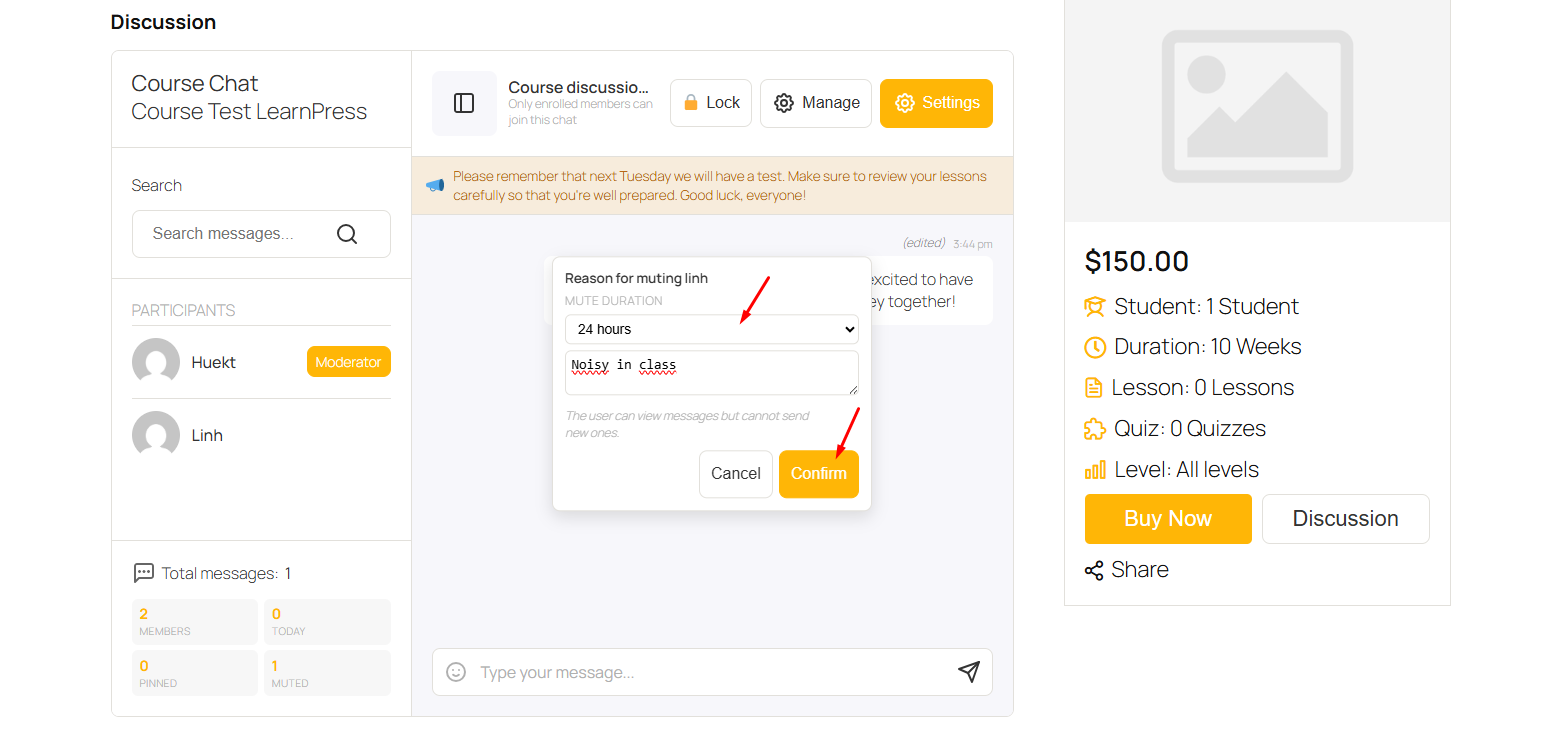
To mute a participant:
- Click the participant’s name in the Participants panel.
- Select Mute from the moderation menu.
- Choose how long the user will be muted. Available durations include:
- 5 minutes
- 10 minutes
- 30 minutes
- 1 hour
- 24 hours
- 1 week
- Or any other available duration configured by the administrator.
- (Optional) Enter a reason for muting the user.
- Click Confirm.
Once muted:
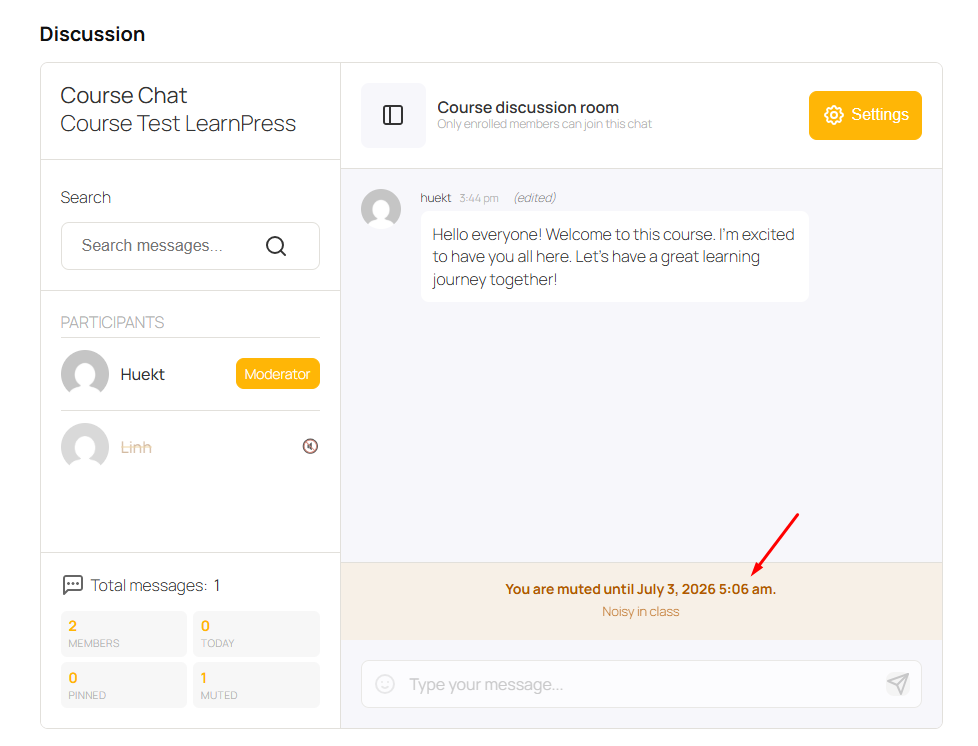
- The user remains in the chatroom and can continue reading messages.
- The user cannot send new messages until the mute period expires.
- The mute reason (if provided) is displayed to the user.
- A countdown timer shows how much time remains before the mute is automatically lifted.
The muted user will see a notification similar to:
You are muted until …….
Below the notification, the user will also see:
- The reason for the mute (if provided).
- A live countdown indicating the remaining mute duration.
Unmute a Member
Moderators and administrators can remove a mute at any time.
To unmute a user:
- Locate the muted member.
- Click Unmute.
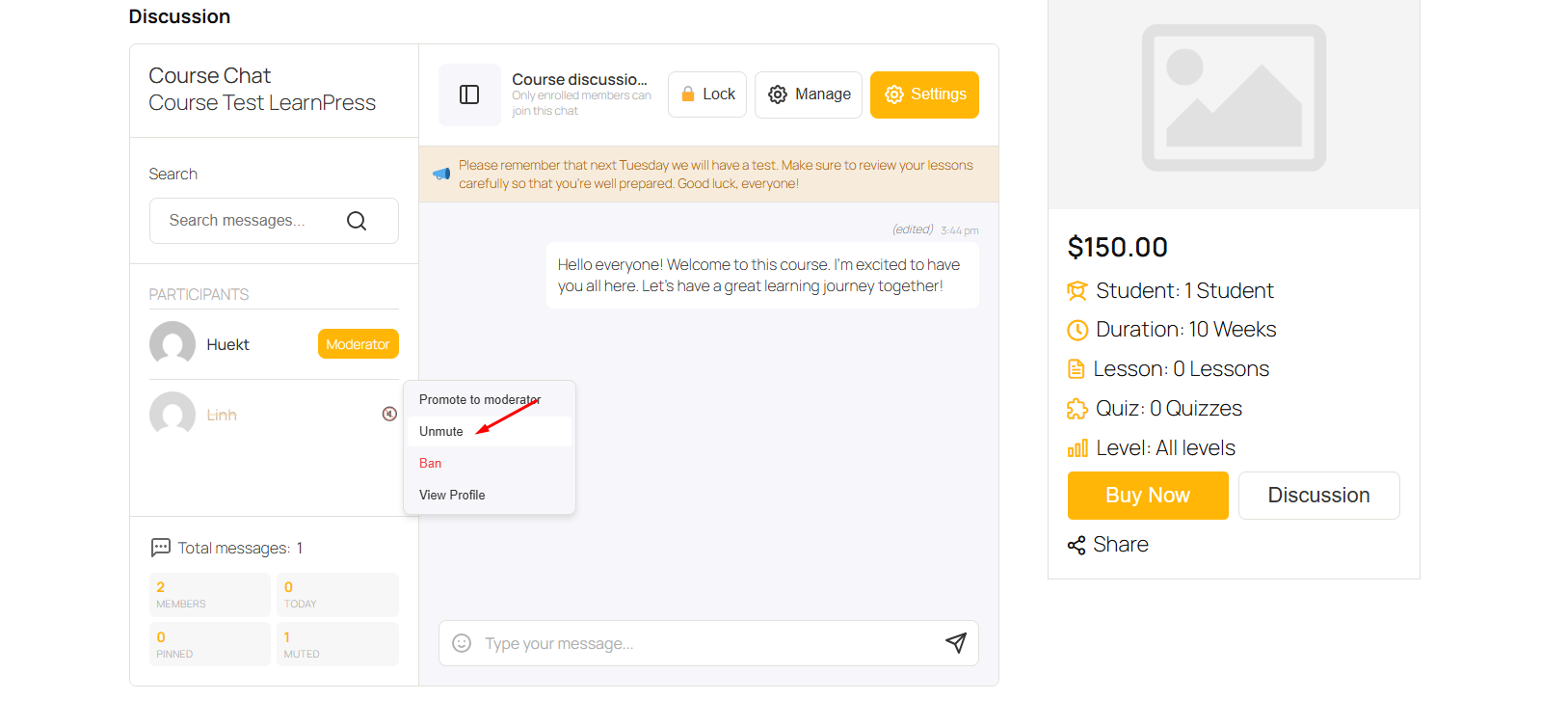
Once unmuted, the user can immediately resume sending messages without waiting for the mute timer to expire.
Note: If no action is taken, the mute will automatically expire when the selected duration ends, and the user will regain messaging privileges automatically.
8.Promote/ Demote Moderators
Administrators can promote trusted members to Moderator to help manage course discussions and maintain a healthy learning environment.
Promote a Member to Moderator
To promote a participant:
- Click the participant’s name in the Participants panel.
- Select Promote to Moderator.
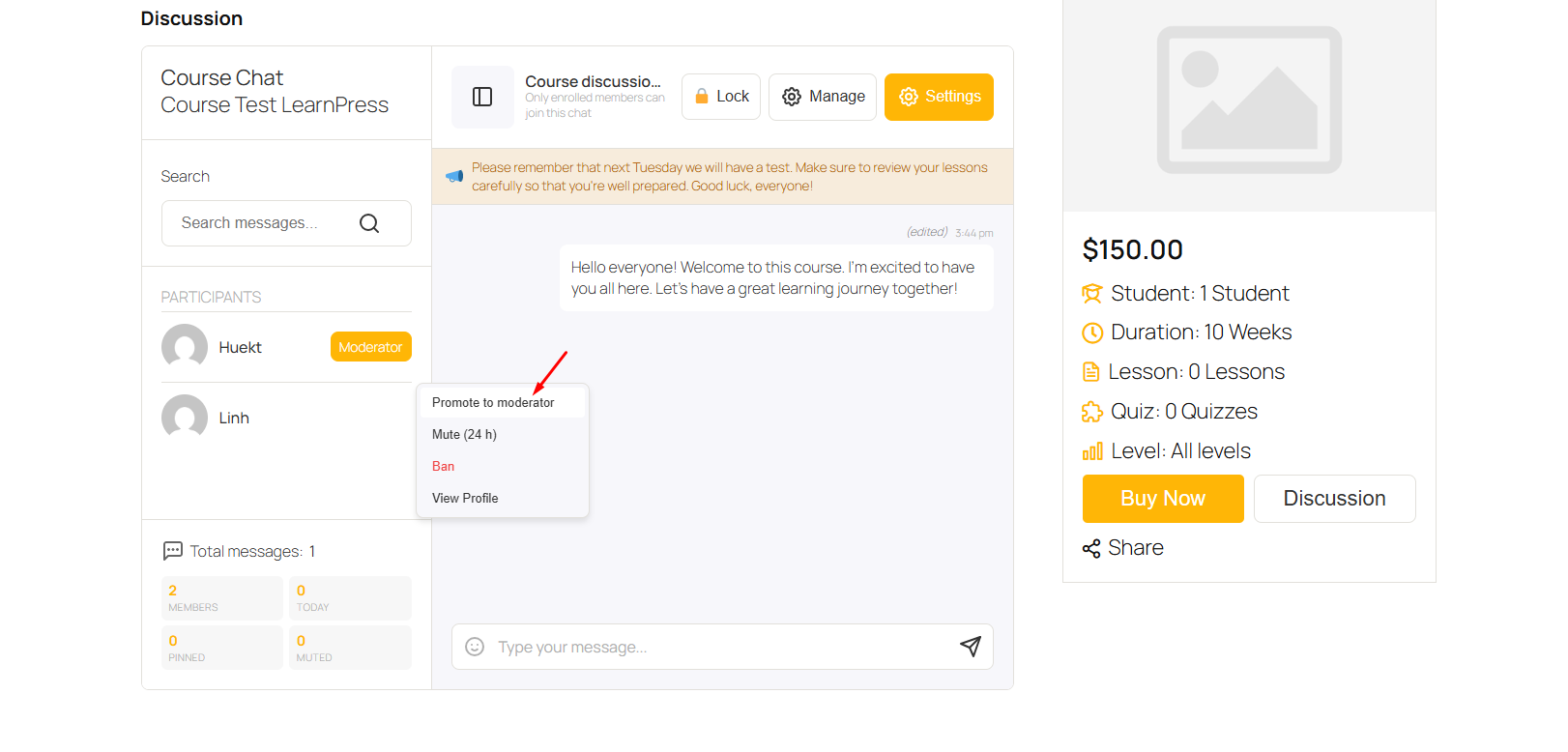
Once promoted, the user will receive Moderator privileges for that chatroom.
Moderators can:
- Pin and unpin messages.
- Create announcements.
- Lock and unlock the chatroom.
- Mute and unmute members.
- Ban and unban members.
- Manage participants.
- Access the Manage and Settings panels.
- View chatroom statistics and moderation tools.
Moderator Permissions
Moderators have almost the same moderation capabilities as administrators, allowing them to effectively manage daily chatroom activities.
However, to protect administrative control:
- Moderators cannot remove Administrator moderator privileges.
- Moderators cannot demote Administrators.
- Only Administrators can assign or revoke moderator permissions for other Administrators.
This ensures that the highest level of moderation authority always remains under Administrator control.
Remove Moderator Permission
Administrators can revoke moderator privileges at any time.
To remove moderator permissions:
- Click the moderator’s name in the Participants panel.
- Select Demote to Member
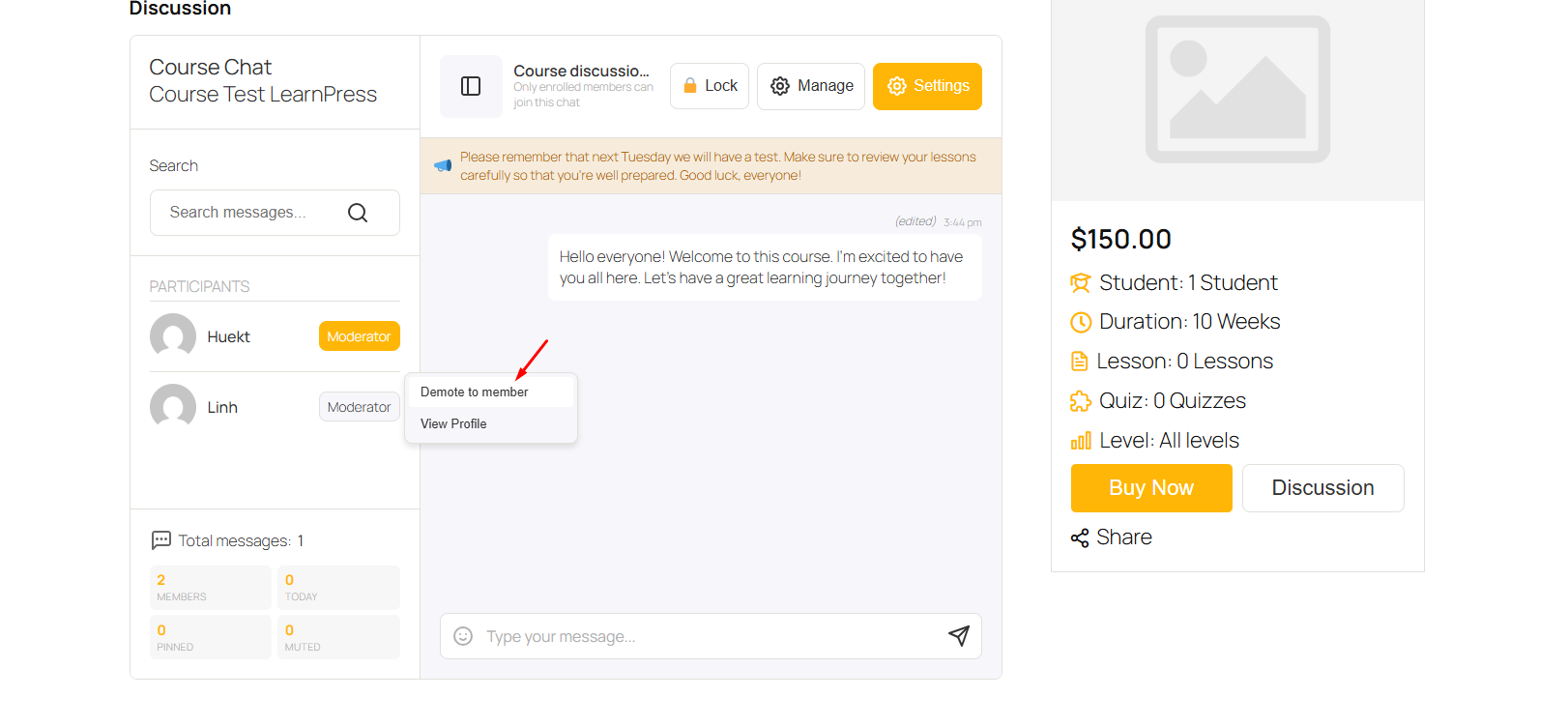
The user will immediately return to a regular member role and will no longer have access to moderation features.
Note: A moderator can manage other moderators if permitted, but cannot remove or modify the permissions of an Administrator.