
2. STRIPE CONFIGURATION
We recommend configuring Stripe in Test Mode first. This allows you to test payments without charging real money.
After confirming that everything works correctly, you can switch to Live Mode to accept real payments.
2.1. Create a Stripe Account
Step 1: Visit:
https://dashboard.stripe.com/register
Step 2: Enter the required information:
- Full name
- Password
Then click Create account.
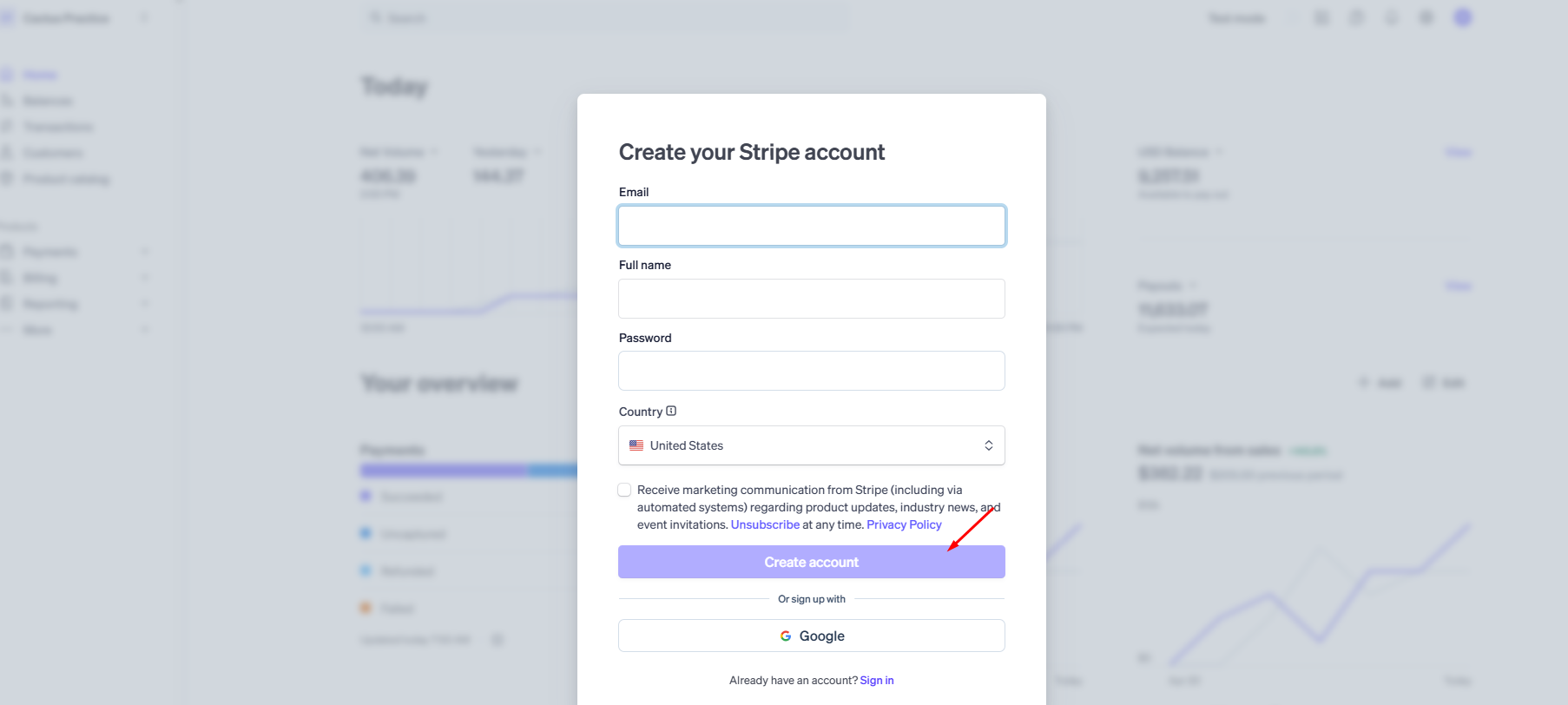
Step 3: Log in to your Stripe Dashboard.
After successfully creating your account, you can access your dashboard and configure your account settings. In this guide, we will use a Sandbox account to demonstrate the setup and testing process.
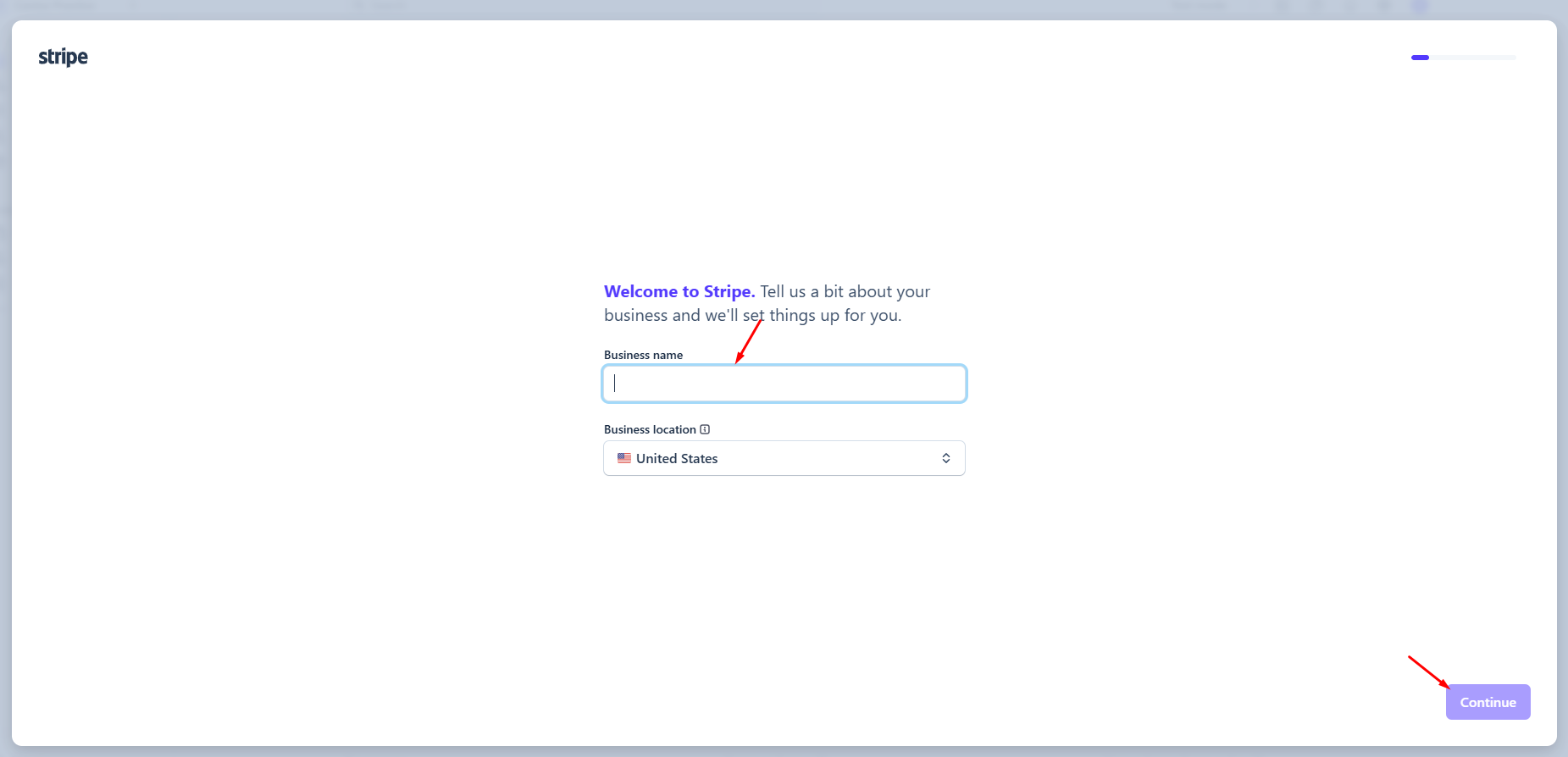
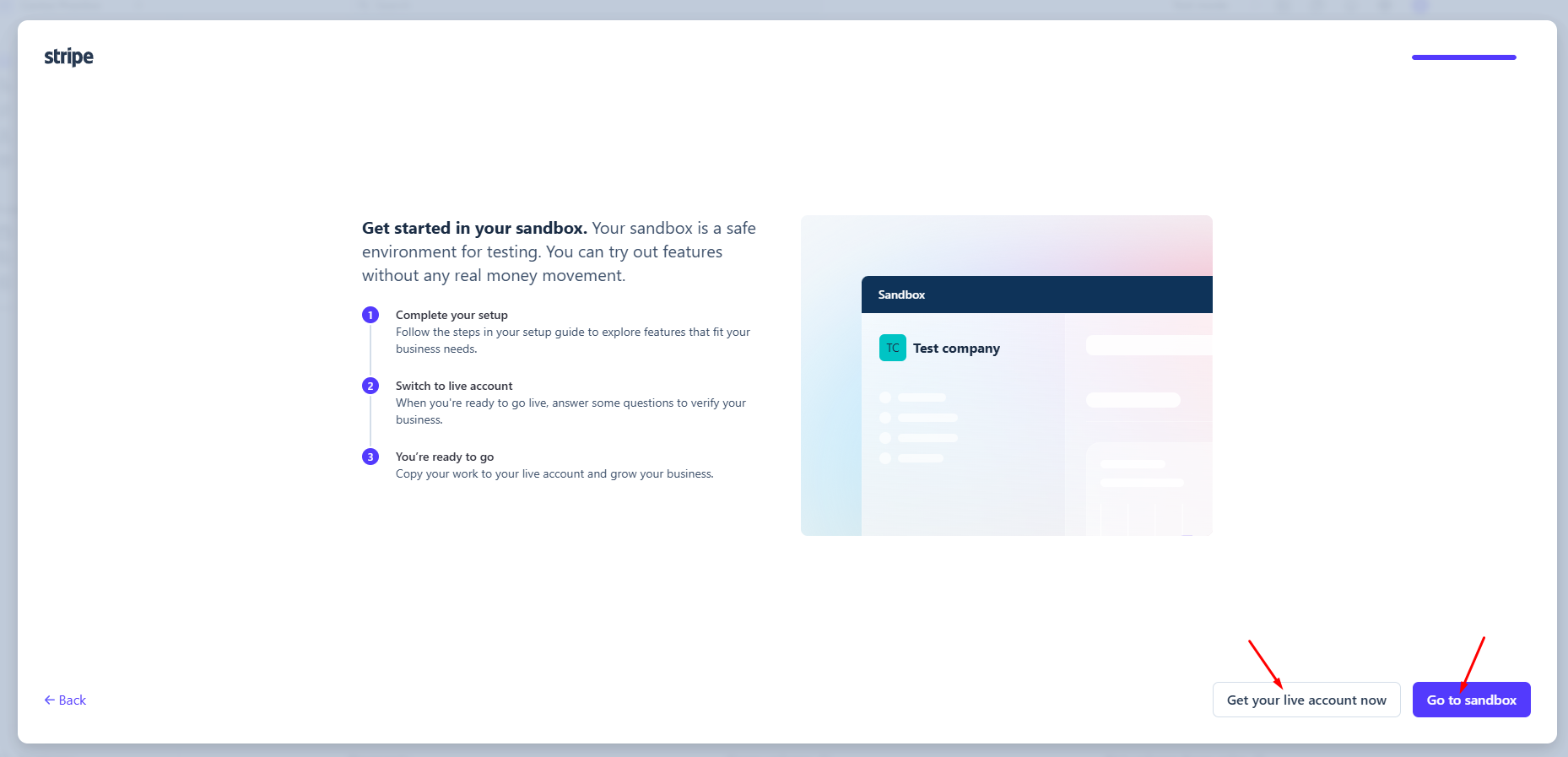
Note: You do not need to complete your business or bank account information for initial testing. These details will be required when switching to Live Mode.
Important: Test and Live are separate environments. API keys, Webhooks, products, and customers created in Test Mode are not automatically available in Live Mode. You must configure the corresponding information again when switching to Live.
2.2 Obtain Stripe API Keys
Make sure that you are in Test Mode.
Step 1: Go to:
Developers → API keys
You can also access the page directly:
https://dashboard.stripe.com/test/apikeys
Step 2: On the API keys page, you will find two credentials:
| Name | Key format | Corresponding LearnPress field |
|---|---|---|
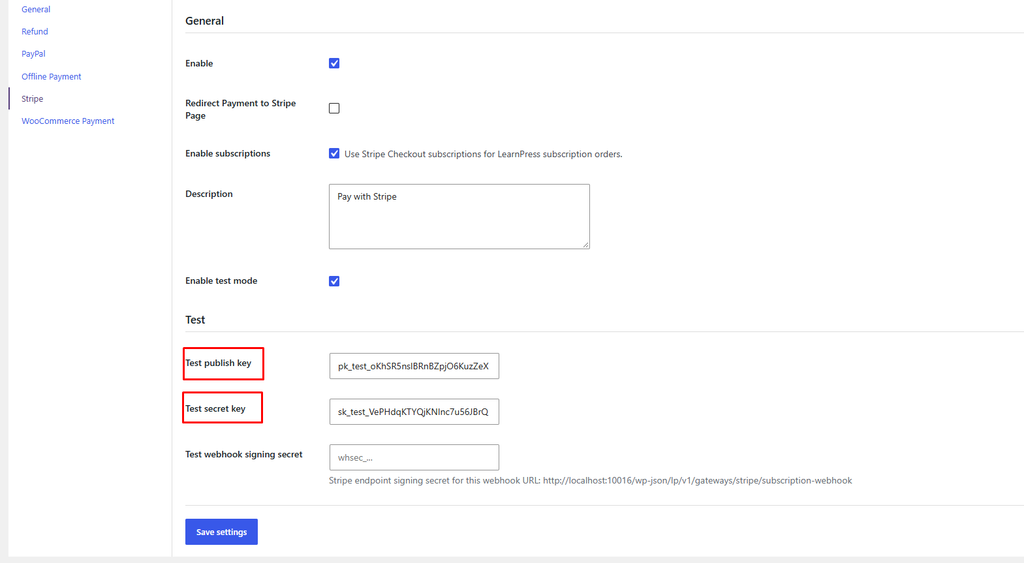
| Publishable key | pk_test_... | Test publish key |
| Secret key | sk_test_... | Test secret key |
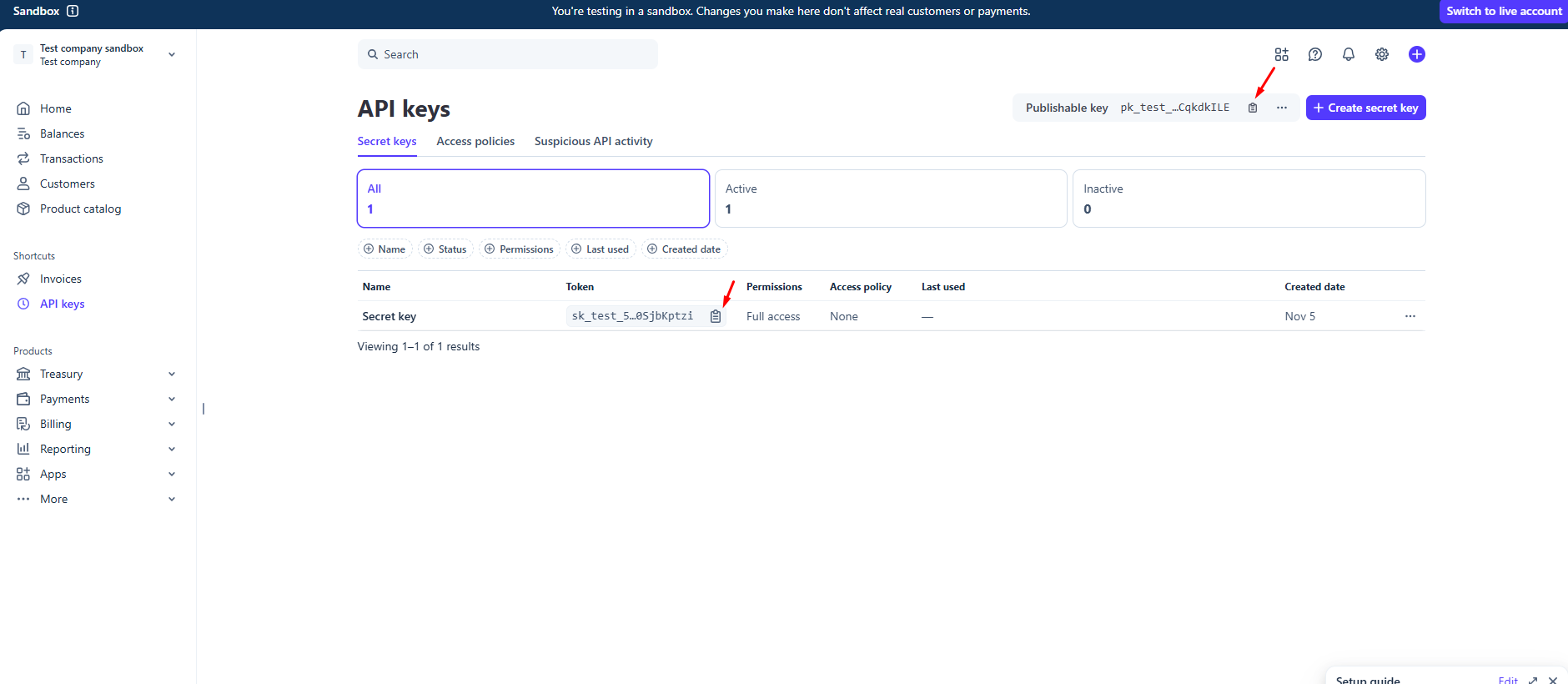
Step 3: Copy both keys and paste them into LearnPress → Settings → Payments → Stripe.
2.3. Create a Stripe Webhook
A Webhook allows Stripe to notify your website when payment events occur or when a Subscription changes its status.
If the Webhook is not configured correctly, a student may complete a payment successfully, but the Membership may not be activated or renewed.
Stripe Webhook URL:
https://YOUR-DOMAIN.com/wp-json/lp/v1/gateways/stripe/subscription-webhook
Replace YOUR-DOMAIN.com with your actual website domain.
Step 1: Make sure Stripe is in Test Mode.
Go to:
Developers → Webhooks
Or visit:
https://dashboard.stripe.com/test/webhooks
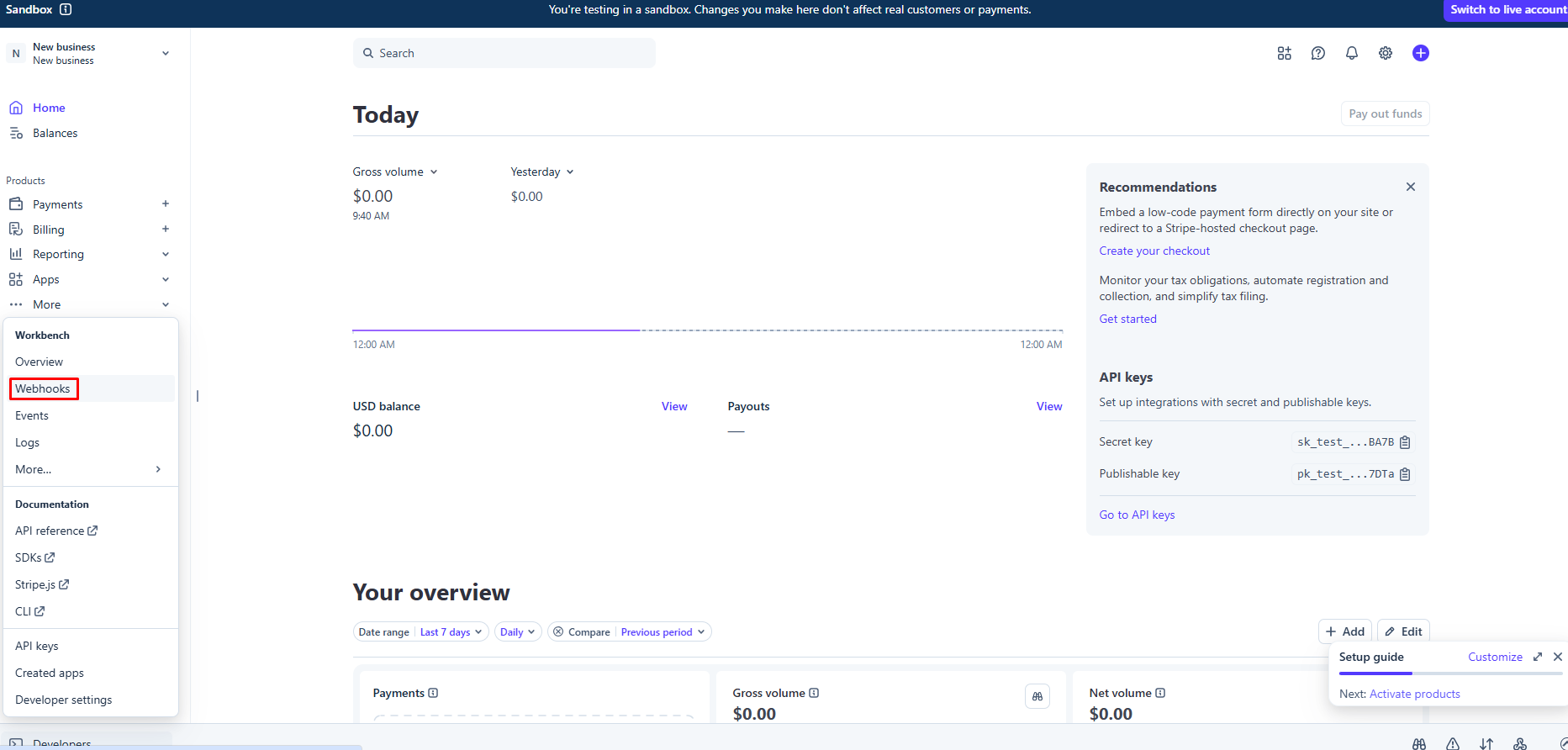
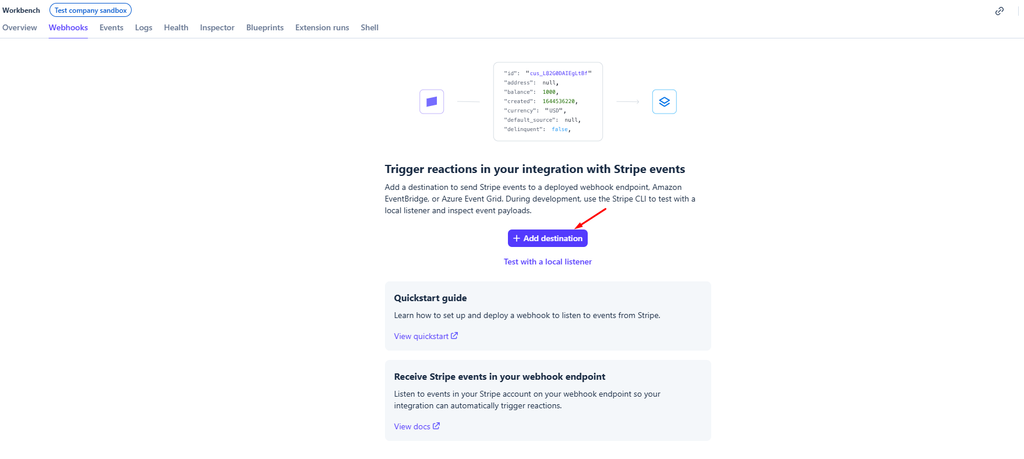
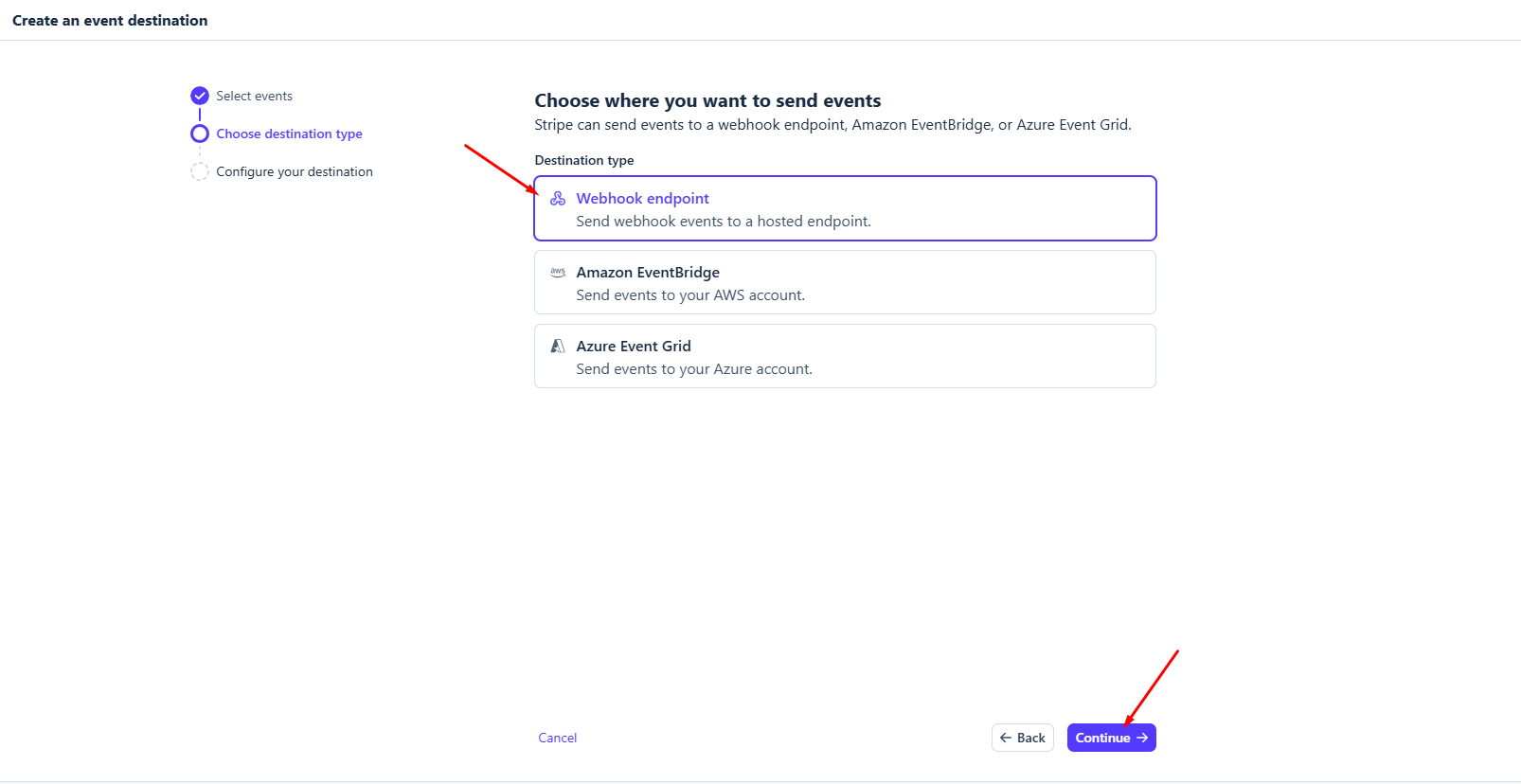
Step 2: Click Add destination
Select Your account, then choose the Webhook endpoint type.
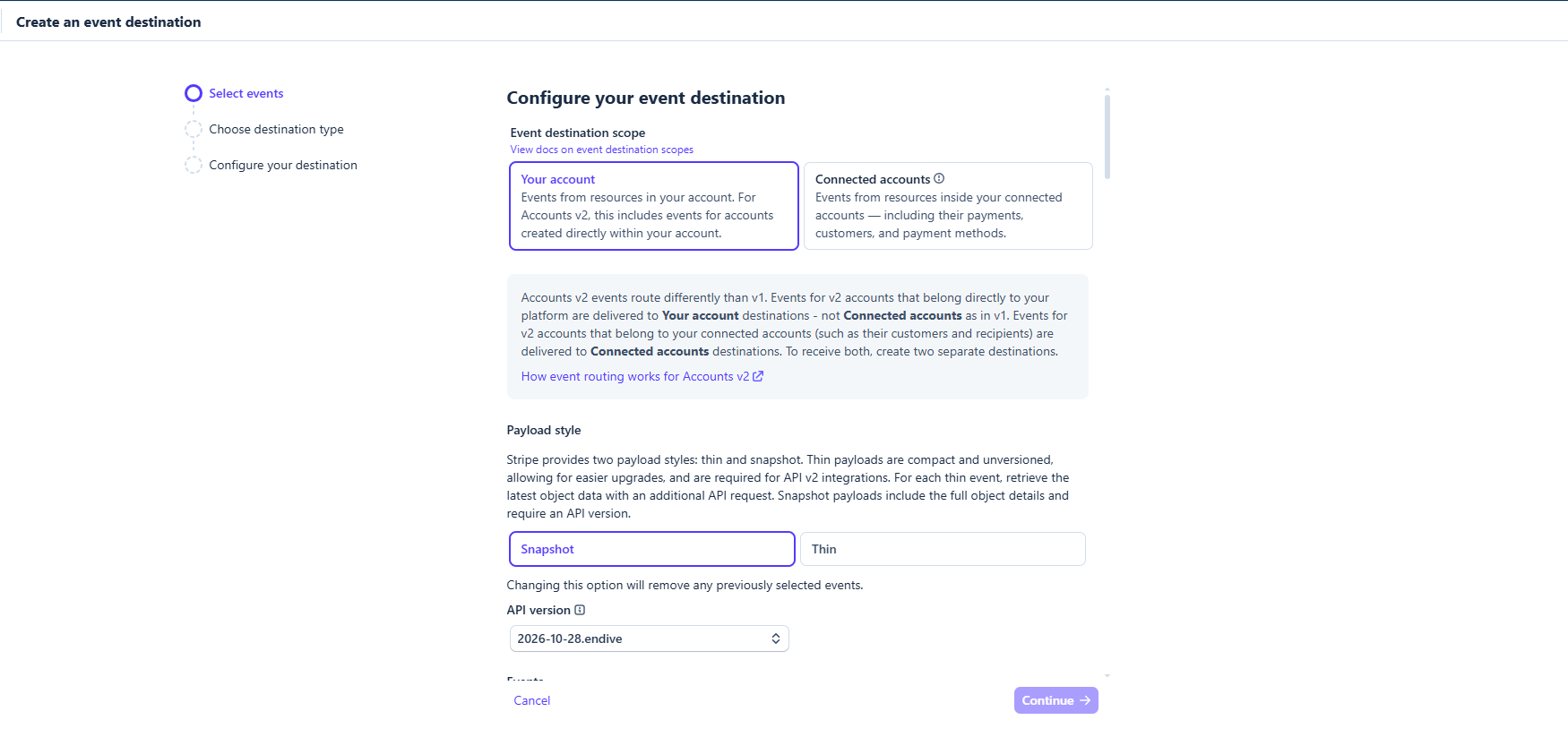
Step 3: Paste your website’s Webhook URL into the Endpoint URL field.
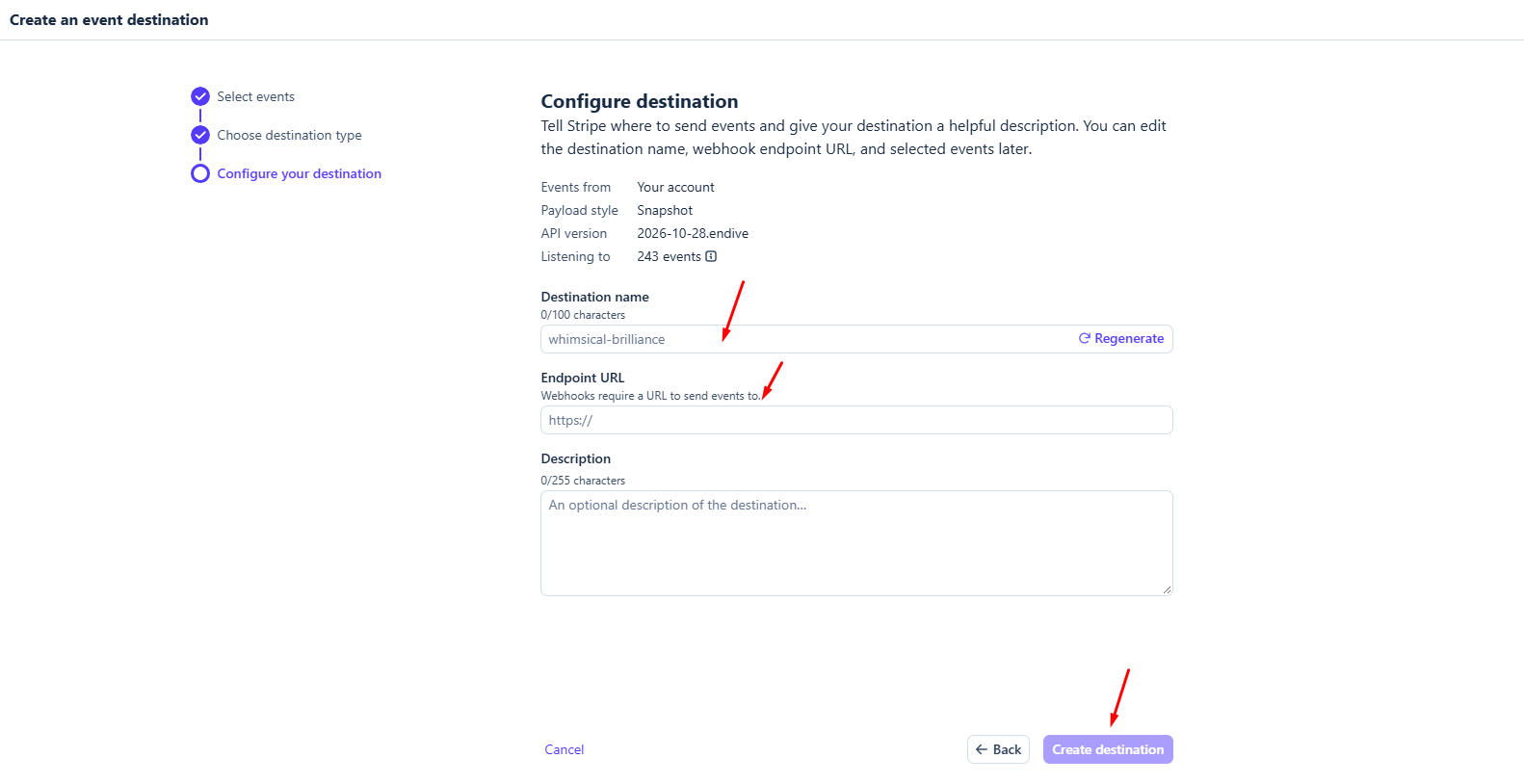
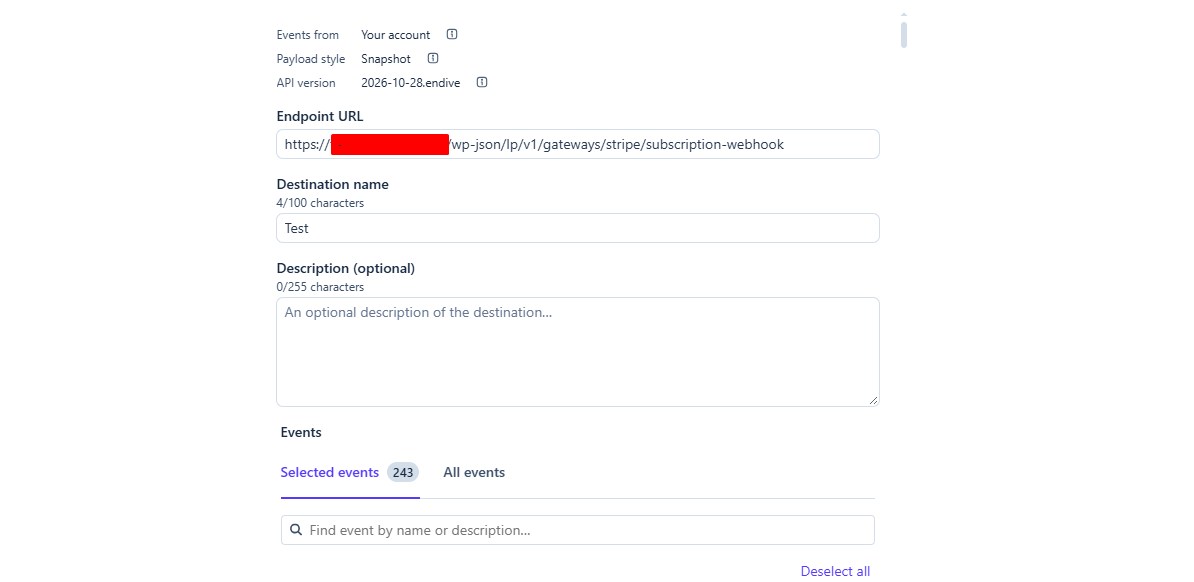
Step 4: Click Create destination to save the endpoint.
Step 5: After the endpoint is created, open it. Find the Signing secret section, click Reveal, and copy the value beginning with:
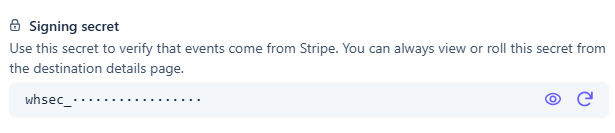
This is your Test webhook signing secret. You will enter it in the LearnPress settings later.
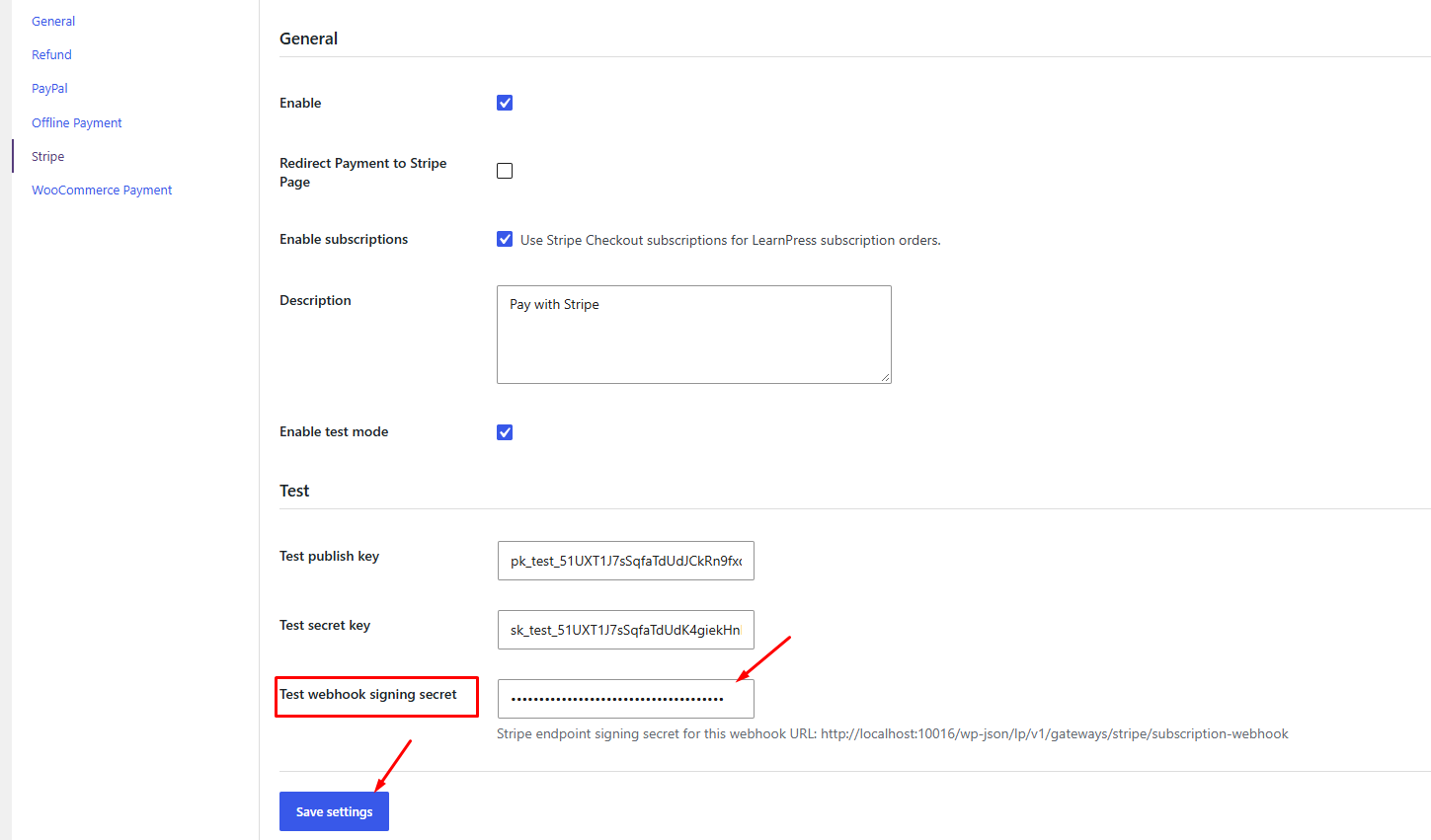
Note: Each endpoint has its own Signing secret. Test and Live Signing secrets are different. If you enter the wrong value, Webhook requests may be rejected.
3.CREATE A MEMBERSHIP PLAN
After configuring the payment gateway, you can create Membership Plans for students to subscribe to.
Go to Membership → Add New Plan. Configure all the necessary information for your Subscription Plan before clicking Save.
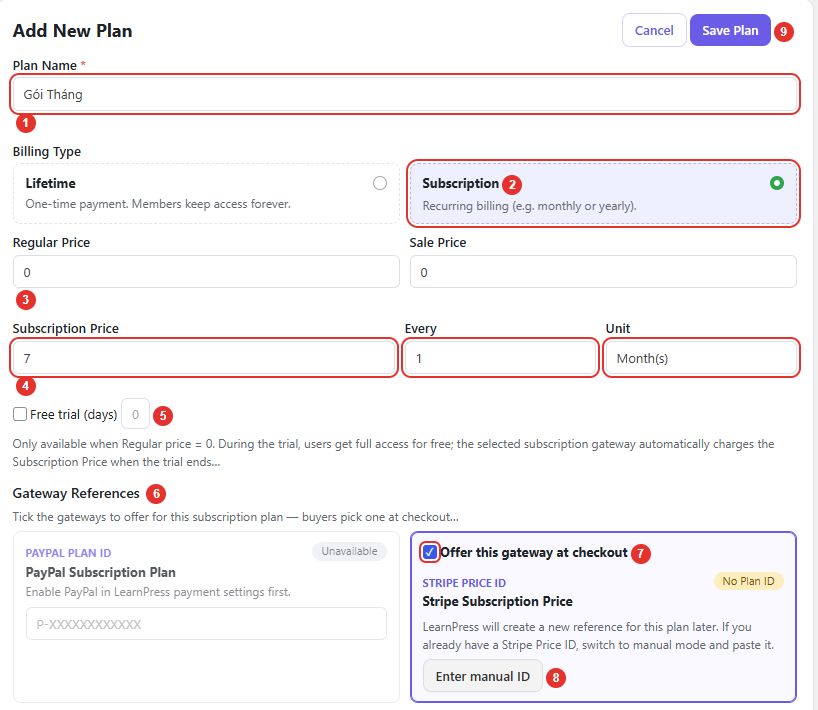
- Tick Offer this gateway at checkout to allow customers to purchase the plan using Stripe.
- Price ID: The default setting is Auto. The label No Plan ID means that the Price ID has not been created yet and will be generated automatically when you save the plan. Select Enter manual ID only if you already have an existing
price_…ID in Stripe.
Choose the appropriate mode:
| Mode | Description | When to use |
|---|---|---|
| Auto (default) | Click Save Plan → The plugin automatically creates a Product and Price on Stripe and saves the price_... ID to the plan. | Recommended. Beginners can simply use Auto. |
| Manual | Create a Price directly in Stripe, then enter the Stripe Price ID (price_...). | When you already have an existing Price on Stripe. |
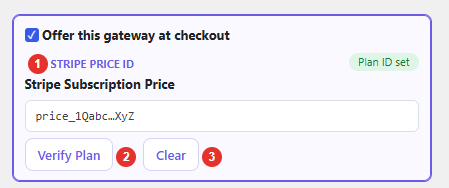
3. Click Save Plan. If successful, the Stripe card will display Plan ID set along with the generated price_... ID.
4. Click Verify Plan to ask Stripe to confirm that the Price exists. If the price or billing cycle configured on your website differs from the settings on Stripe, the plugin will list the discrepancies.
TEST STRIPE PAYMENTS
After completing the configuration, perform a test transaction to verify the entire payment process.
Purchase a Membership Plan
Step 1: Open your website in an incognito window.
Step 2: Register or log in using a regular student account. Do not use an Admin account.
Step 3: Open the Membership Plans page.
Step 4: Select the Membership Plan you want to purchase and click Subscribe.
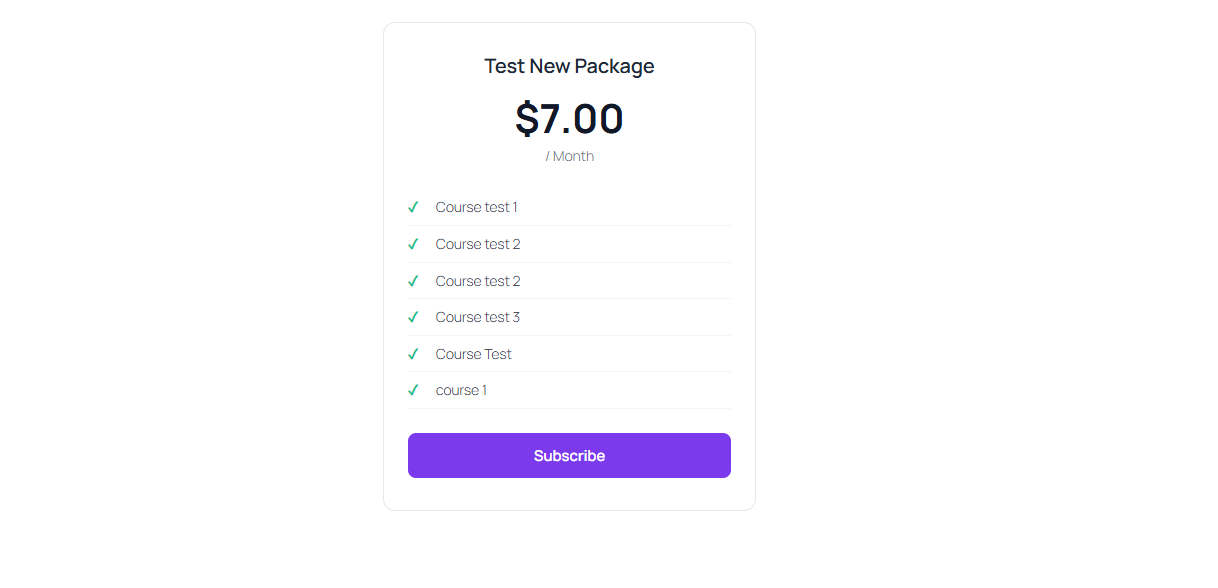
Step 5: On the Checkout page, select Stripe as the payment method.
Step 6: Click Place Order.
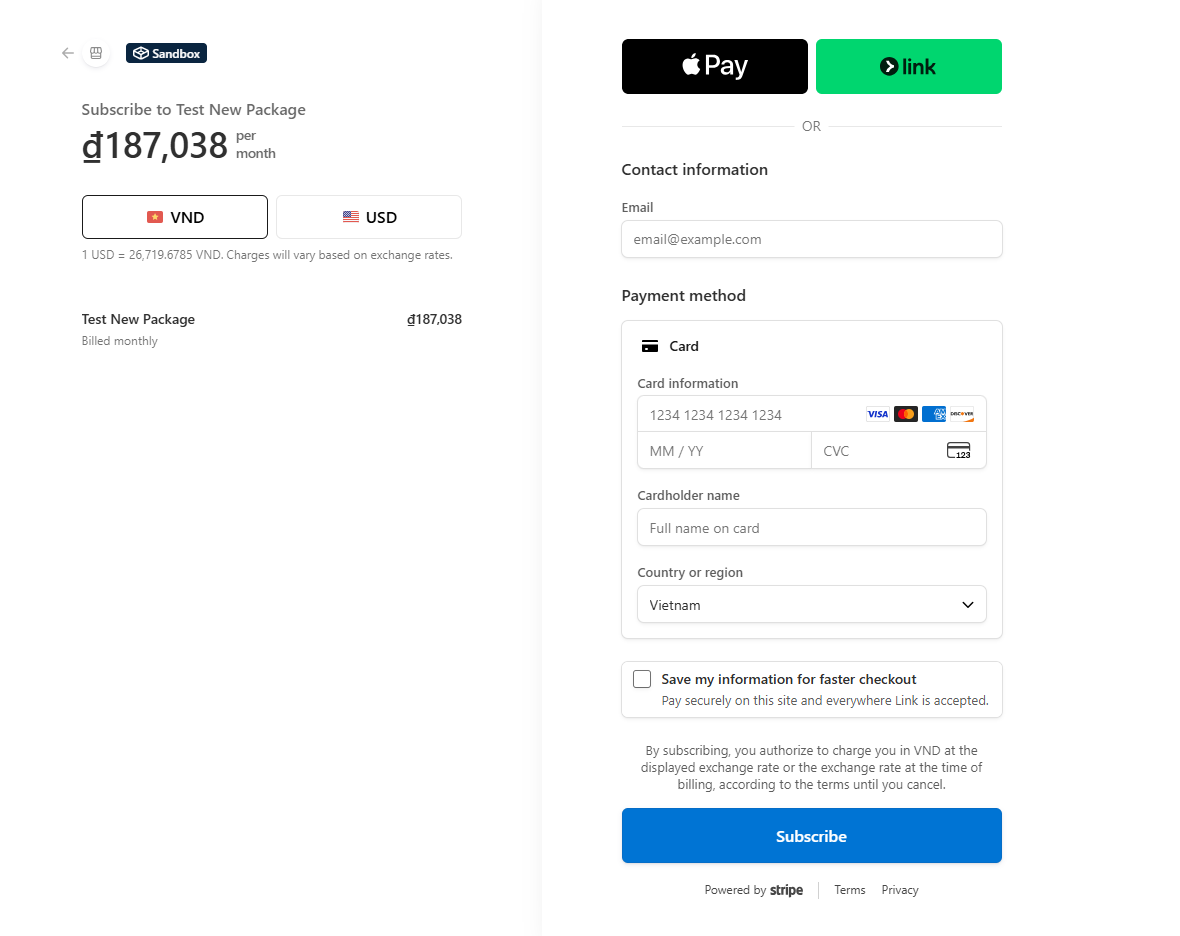
Your website will redirect you to Stripe Checkout.
Test Card Information
On the Stripe Checkout page, use the following test card details to simulate a successful payment:
| Field | Test information |
|---|---|
| Card number | 4242 4242 4242 4242 |
| Expiration date | Any future date |
| CVC | Any three digits |
| Cardholder name | Any name |
| Billing address | Any address |
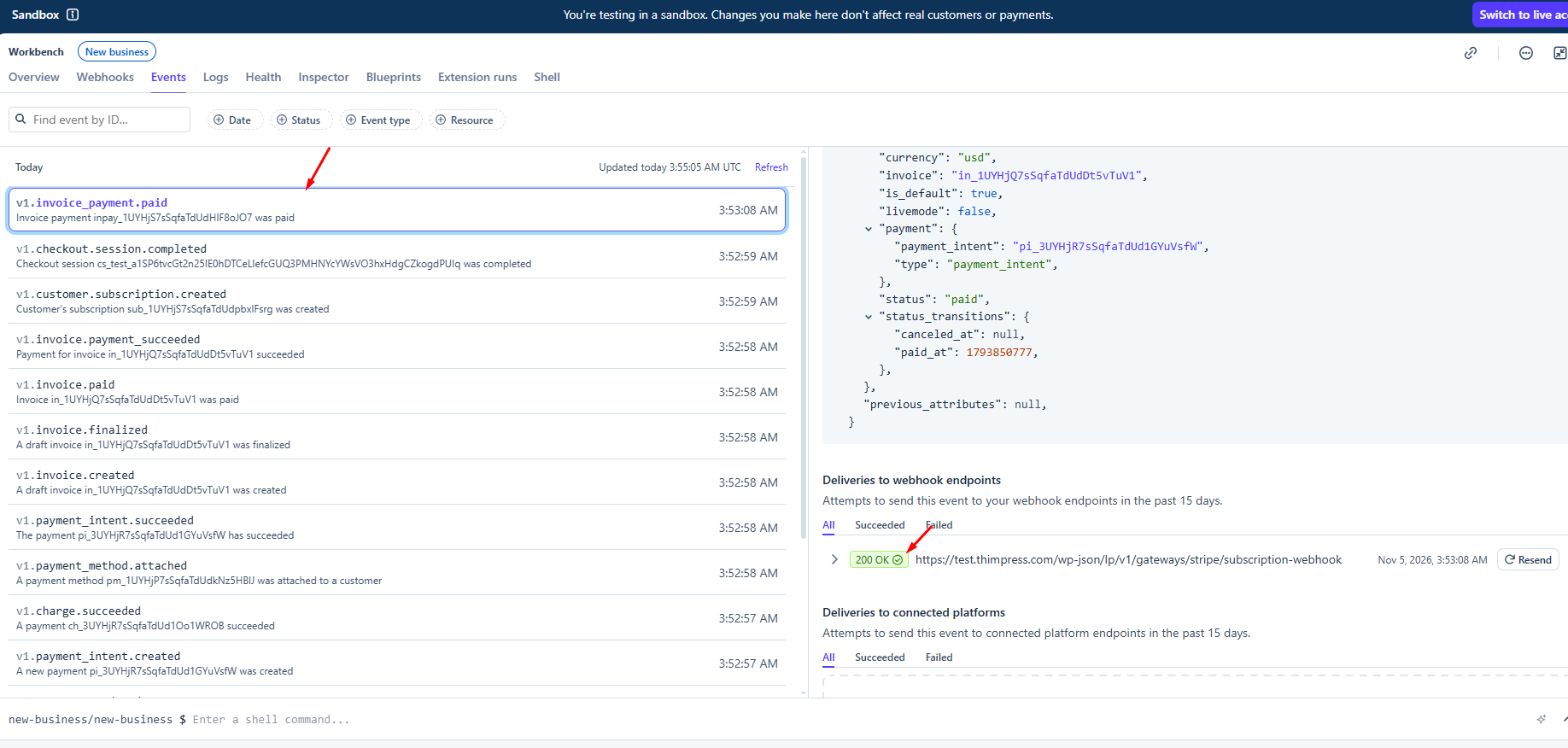
After completing the payment successfully, go to Stripe → Developers → Webhooks → Endpoint → Event deliveries to verify the result. Events such as invoice.paid should appear with a 200 OK status (green), indicating that your website has successfully received and processed the events from Stripe.
SWITCH TO LIVE MODE
After successfully testing the Stripe integration in Test Mode, follow these steps to start accepting real payments:
- Activate your Stripe account: Complete the required business information and verification on the Stripe Dashboard.
- Switch to Live Mode: Turn off Test Mode and obtain your Live API Keys (
pk_live_...andsk_live_...). - Configure Live Webhook: Create a new Webhook endpoint in Live Mode using the same Webhook URL and events as in Part A3. Copy the new Signing Secret.
- Update LearnPress settings: Go to LearnPress → Settings → Payments → Stripe, enter your Live API Keys and Webhook Signing Secret, disable Enable test mode, and save the settings.
- Recreate Membership Prices: Test Mode Prices cannot be used in Live Mode. Recreate the Prices for your Membership Plans using Auto or Manual mode, then verify them.
Important: Make sure all Live Mode settings are configured correctly before accepting real payments. Test Mode credentials and Prices cannot be reused in Live Mode.