
Interactive Blocks for LearnPress allows you to create rich, presentation-style learning content that can be embedded into any LearnPress lesson.
Like interactive slides, videos can only be created from the Interactive page. Once created, every Video automatically generates a shortcode and is stored in the Interactive library, allowing it to be inserted into one or multiple LearnPress lessons.
1. Create Interactive Videos
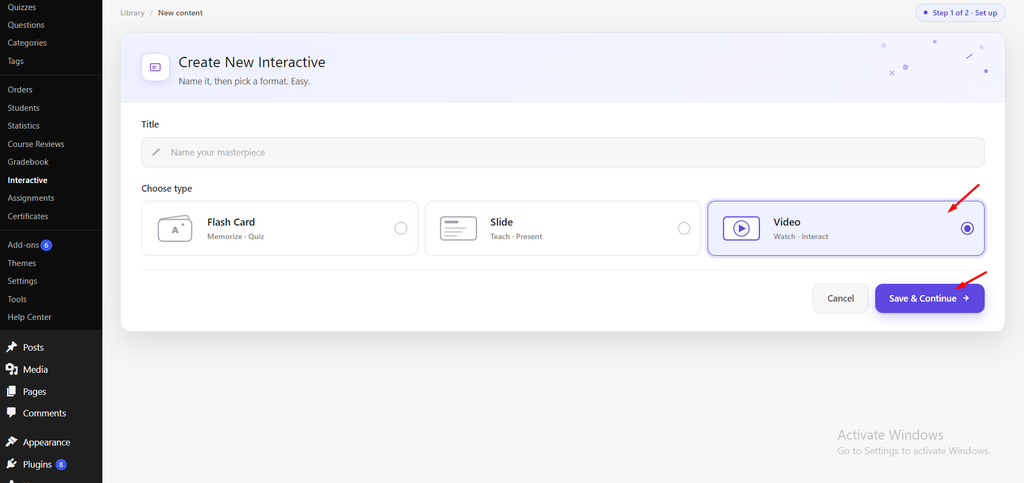
- Navigate to LearnPress → Interactive.
- Click Add New.
- Enter a title for your interactive content.
- Select Video as the content type.
- Click Save & Continue
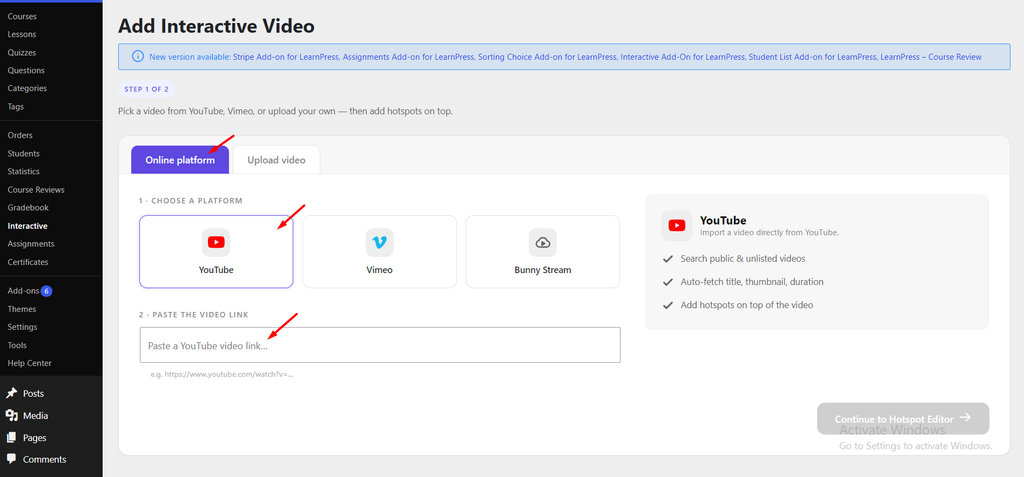
Next, you will need to select the video in the Add Interactive Video section, select a video source.
- Online Video: Paste a supported video URL from YouTube, Vimeo, or Bunny Stream.
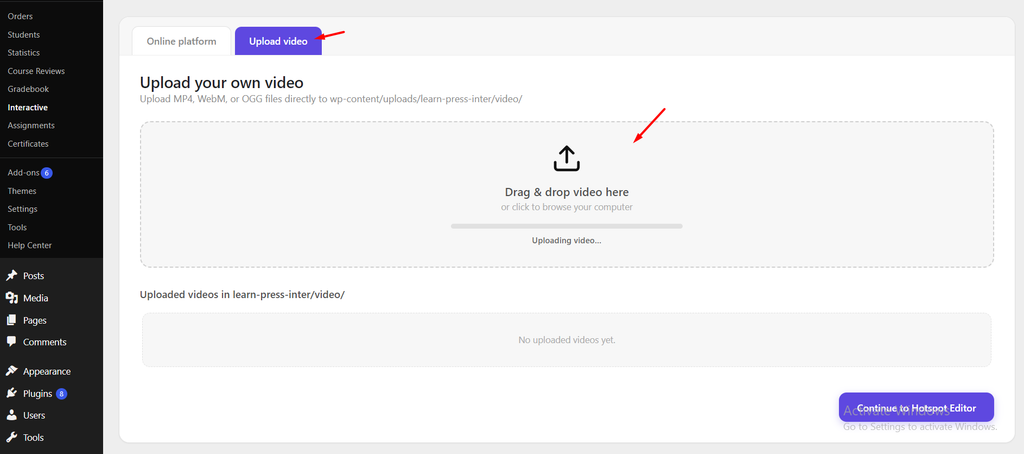
- Upload Video: Upload a video file directly from your device.
- Previously uploaded video: You can also select a previously uploaded video, if available.
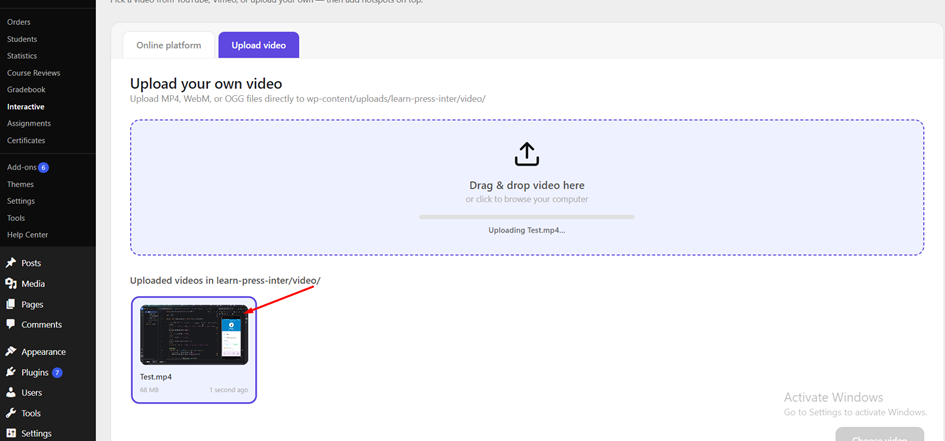
After selecting the video, click Continue to Hotspot Editor to open the editor and begin adding interactive blocks to the timeline.
2. Build your video
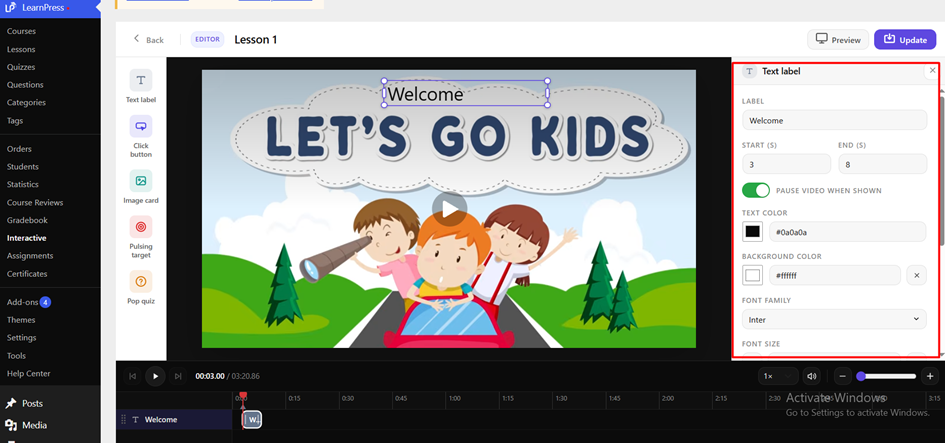
2.1. Add Interactive Blocks
The Hotspot Editor provides an intuitive drag-and-drop workspace for creating interactive videos.
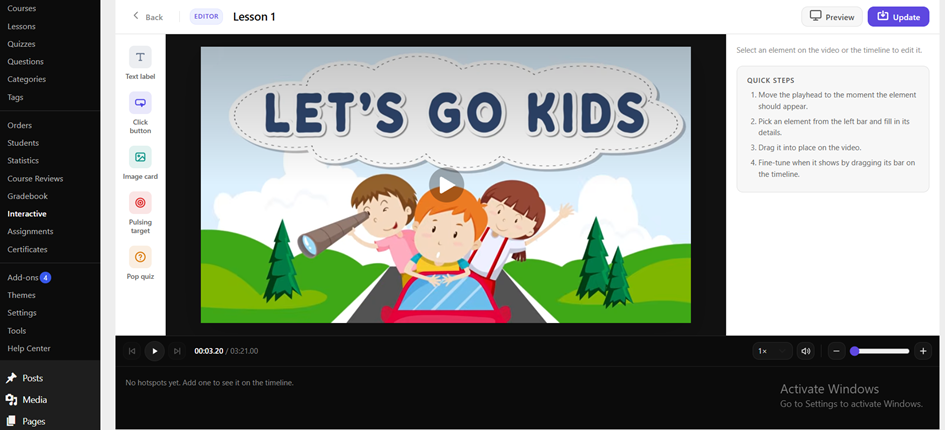
Each interactive block represents an engagement point mapped to specific timestamps:
- Start Time: The exact moment the block appears on the video.
- End Time: The moment the block disappears.
You can drag blocks to any position on the video canvas or adjust their timeline duration in the Properties Panel.
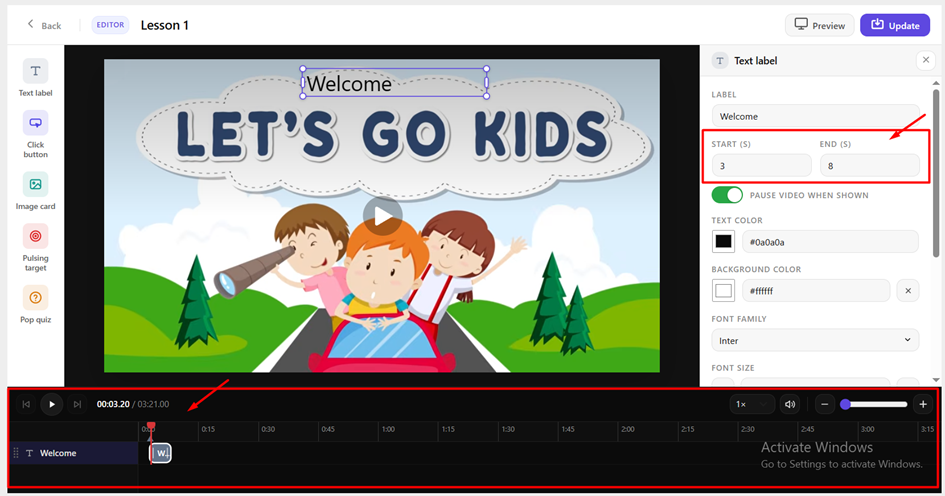
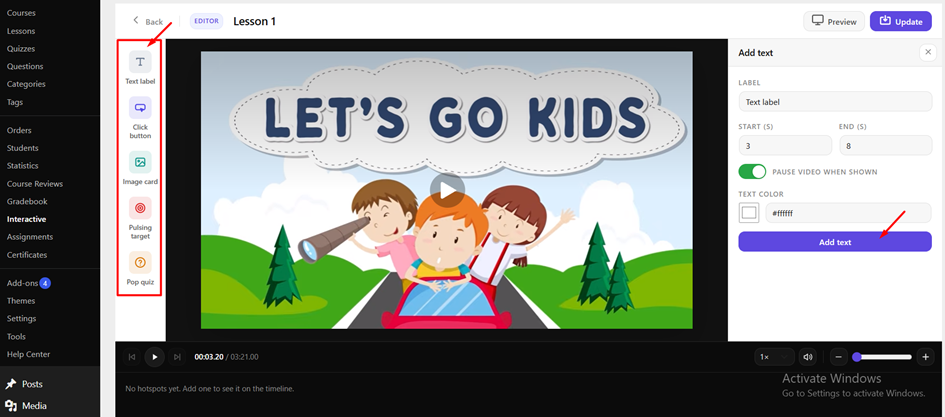
Supported Interactive Blocks:
- Pulsing Target: A blinking hotspot that displays a tooltip on hover and can optionally pause the video.
- Text Label: Displays custom text on the video with adjustable content and color settings.
- CTA Button: Displays a clickable call-to-action button with custom labels and destination URLs.
- Image Card: Displays supporting images and captions directly over the video player.
- Question: Displays an interactive question at a specified point in the video. When a learner reaches a question, the video pauses and the learner must answer the question before continuing.
- Supported question types include:
- Single choice
- True/False
- Single Choice have a minimum of two and a maximum of six answer choices.
- Instructors must mark the correct answer for each question.
- For True/False questions, the answer choices are predefined. Instructors cannot add, edit, or delete them.
- Supported question types include:
Click Add to place interactive elements at different timestamps along your video timeline.
2.2. Interactive Video Settings
After adding interactive blocks, go to the Settings to customize video playback behavior and style.
- Pause on Hotspot: Controls whether video playback automatically pauses when an interactive block appears.
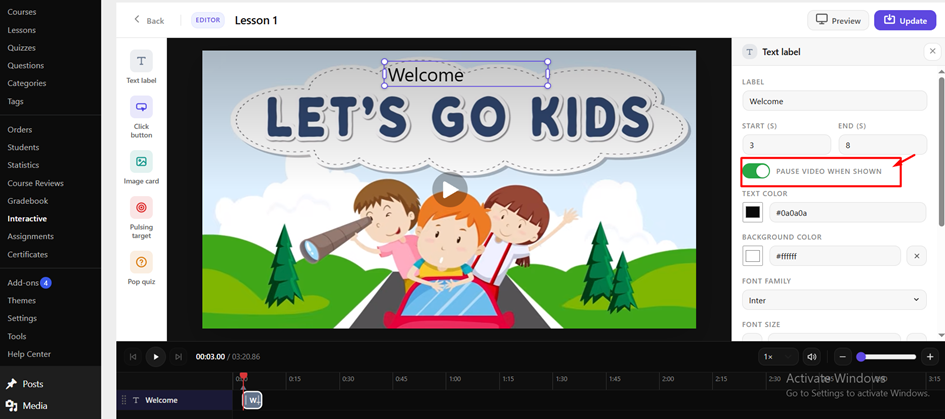
- Theme Colors: Customize the colors used for buttons, label backgrounds, and highlights to match your course branding.
2.3. Preview and update Interactive Videos
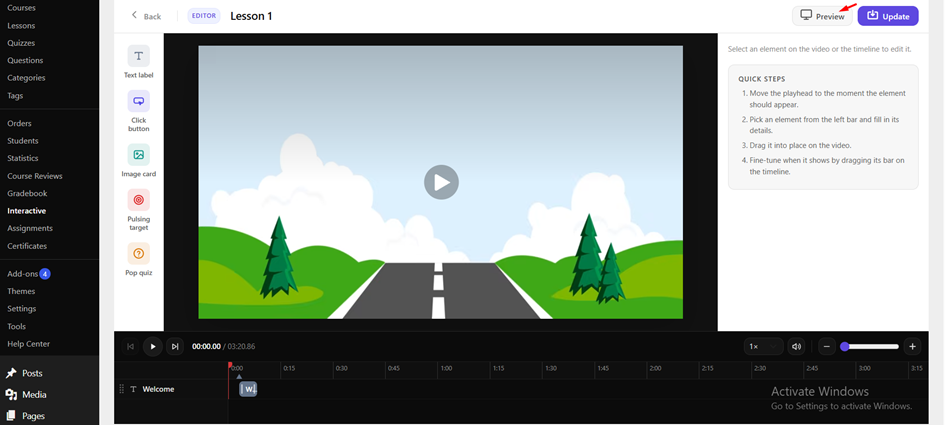
- Preview Interactive Video:
Open the Preview tab to test how your Interactive Video will appear to learners before publishing.
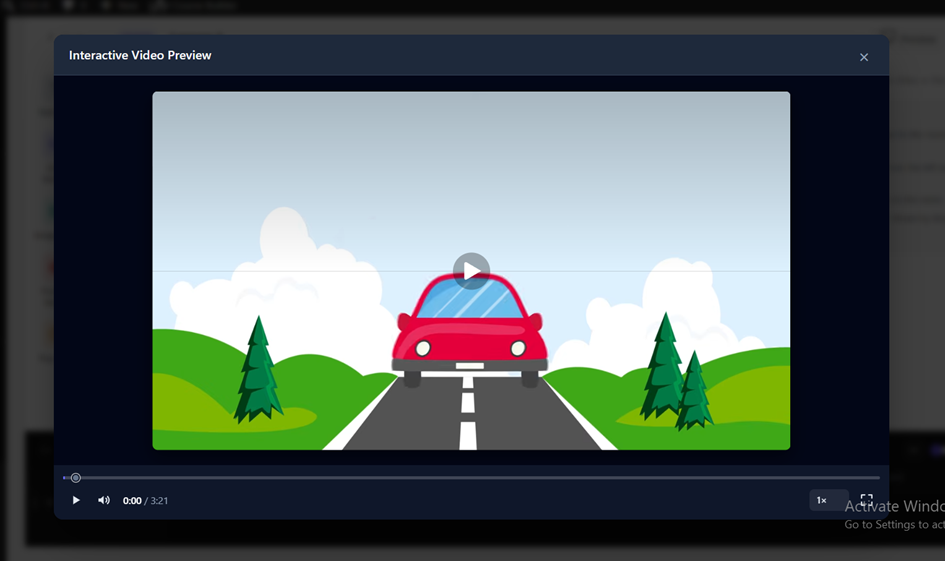
The preview updates automatically as you edit content and adjust timestamps, allowing you to verify video playback, pausing behavior, and hotspot interactions in real time.
- Update your video
When your video is complete, click Update to save your changes.
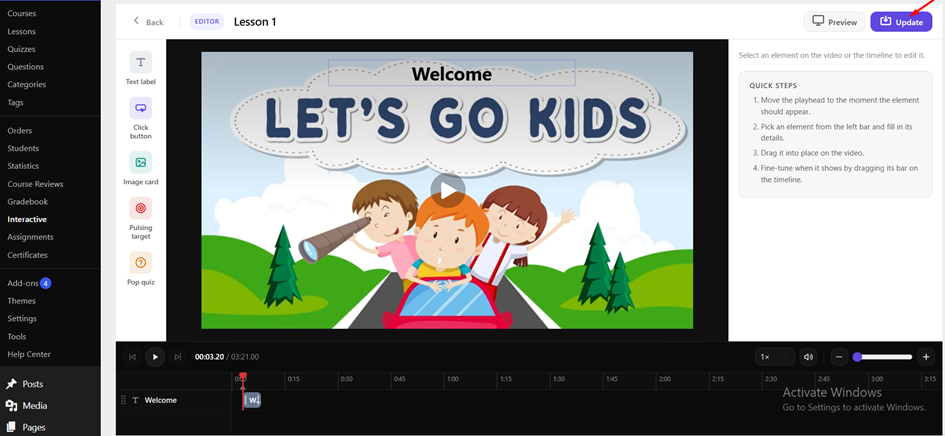
A unique shortcode is automatically generated for every Video and displayed at the top of the editor. You can copy this shortcode at any time.
3. Add Interactive Videos to a Lesson
After creating and configuring your Interactive Video, you can insert it into any LearnPress lesson.
Method 1: Insert from the Library
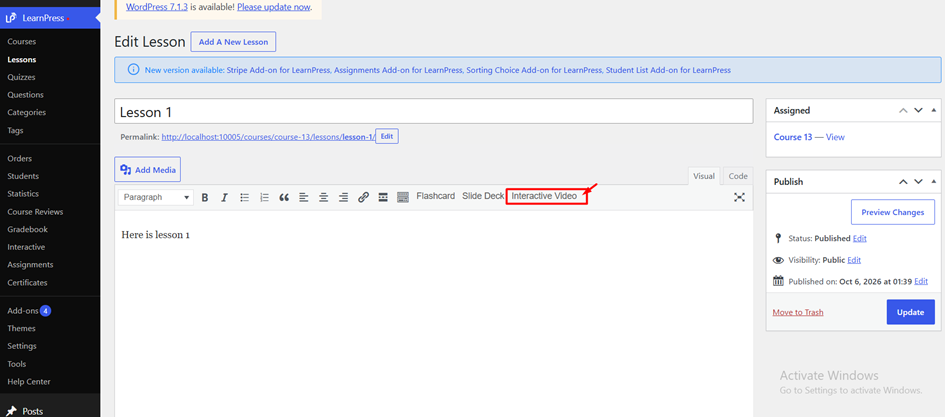
- Navigate to LearnPress → Lessons.
- Place the cursor where you want the Interactive Video to appear.
- Click the Interactive Video button in the editor toolbar.
- Open the Library tab.
- Select an existing Interactive Video from the list.
- Click Import.
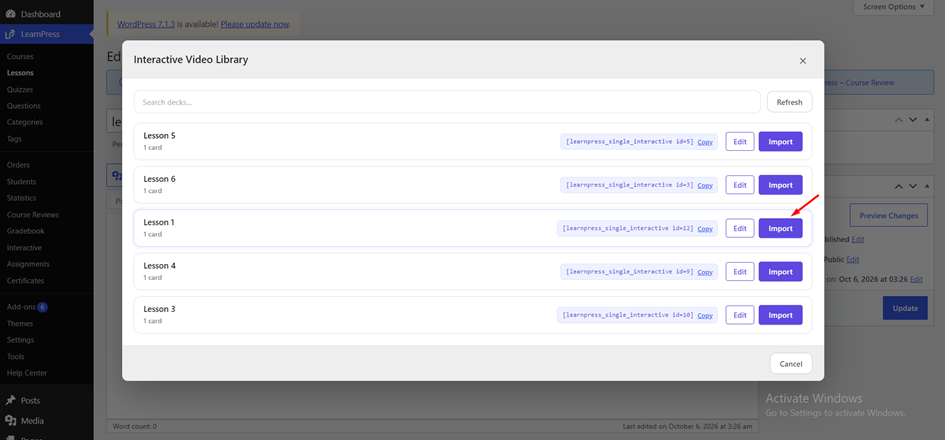
The Interactive Video shortcode will be automatically added to the lesson content. Click Update to save your lesson.
Method 2: Insert Using the Shortcode
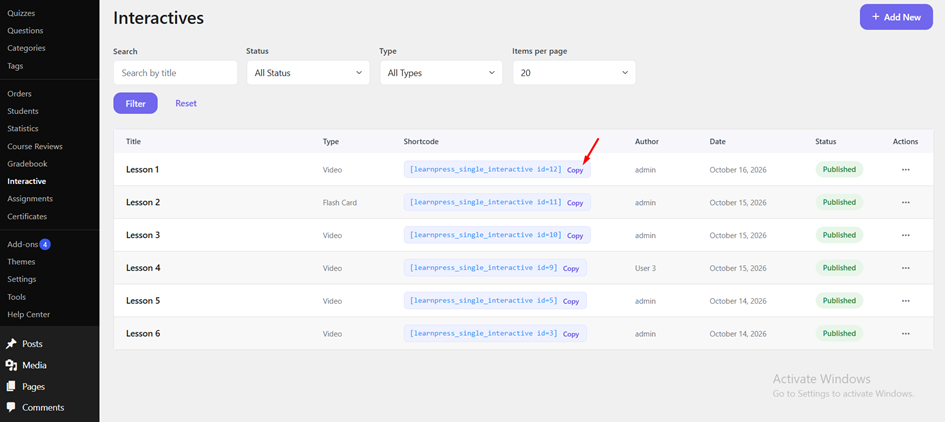
- Navigate to LearnPress → Interactive.
- Locate the Interactive Video you want to use and copy its shortcode
- Open the LearnPress lesson where you want to display the video.
- Paste the shortcode into the lesson content and update the lesson.
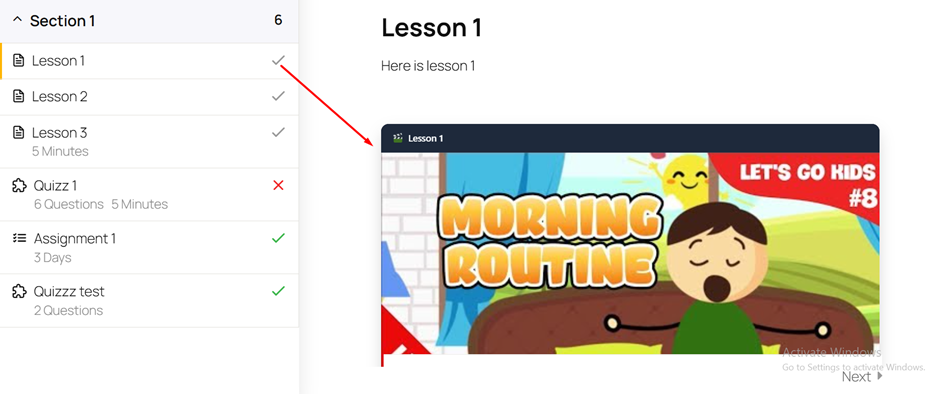
After updating the lesson, learners can view and interact with the video directly within the lesson.
Note: Every video automatically generates a unique shortcode and is saved in the Interactive library. You can reuse the same video in multiple LearnPress lessons by either importing it from the Library or inserting its shortcode manually.