Creating exams from scratch can become time-consuming when you need to assess students across multiple courses, practice tests, or recurring assessments. A question bank in LearnPress gives instructors a more efficient way to reuse existing questions instead of rebuilding the same content for every exam.
With the Exam Add-on for LearnPress, you can create questions, store them in your question bank, and add existing questions to new exams. This makes it easier to build assessments while maintaining control over exam settings, student access, attempts, results, and submissions.
In this guide, you will learn how a question bank in LearnPress works, where to find it, how to create and reuse questions, and how to manage exams built from your existing question library.
LearnPress – WordPress LMS Plugin
We provide an amazing WordPress LMS plugin to create & sell online courses. Let’s find out!
Try NowTable of Contents
What Is a Question Bank in LearnPress?
A question bank in LearnPress is a reusable collection of exam questions that you can access when creating exams with the Exam Add-on. Instead of recreating a question whenever you need it, you can select an existing question from the Question Bank and add it to an exam.
This is particularly useful when you create several exams that cover related subjects. For example, an instructor might create a practice exam, midterm, final exam, or certification assessment using questions that have already been prepared.
The Exam Add-on supports several question types, including:
| Question type | Best suited for |
|---|---|
| Single Choice | Questions with one correct answer |
| Multiple Choice | Questions with multiple correct answers |
| True or False | Quick knowledge checks and factual statements |
| Fill in the Blanks | Testing specific terms, facts, or concepts |
The main benefit is simple: create questions once and reuse them when building future exams.
How the Question Bank Fits Into the Exam Add-on
The Exam Add-on for LearnPress is designed for creating standalone, gradable exams that can be managed separately from individual courses.
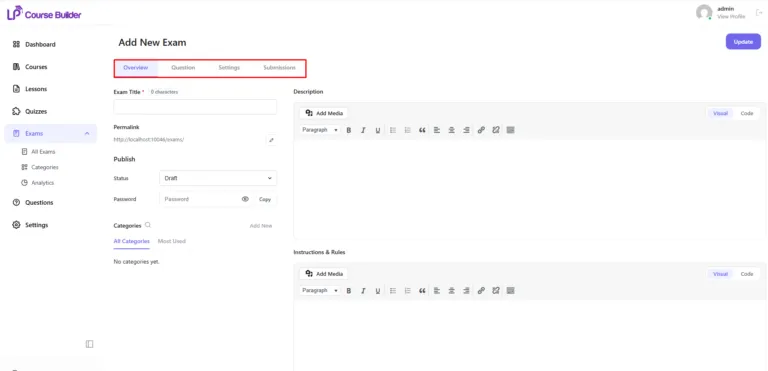
When you create a new exam, the editor provides four main areas:
- Overview – Configure basic exam information.
- Question – Create new questions or add existing questions from the Question Bank.
- Settings – Control exam rules, access, attempts, timing, and the student experience.
- Submissions – Review and manage student exam attempts.
The Question Bank is therefore part of the question-building workflow. You can either create a new question while editing an exam or select questions that already exist in your question library.
Why Reusable Questions Matter
Reusing questions can reduce repetitive work, particularly for instructors who manage multiple assessments.
For example, suppose you teach a course about digital marketing. You might need a practice test before the final exam and another assessment for students who need to retake the course. Instead of rewriting every question, you can reuse suitable questions from your existing library.
This approach can make exam creation more consistent and help you spend more time improving course content rather than repeatedly entering the same questions.
Where to Find the Question Bank in LearnPress
Before adding questions, you need to create or open an exam in LearnPress.
From your WordPress dashboard, navigate to:
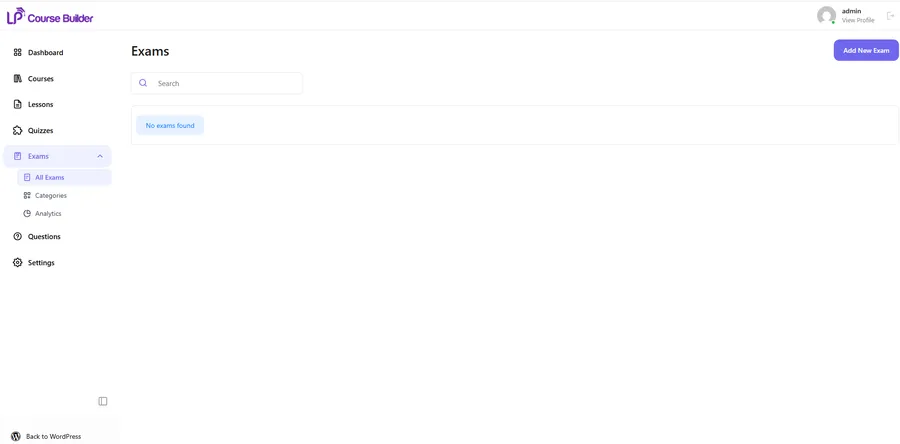
LearnPress → Exams → All Exams
The All Exams page is the central workspace for managing exams on your website.
Here, you can search for an existing exam or select Add New Exam in the upper-right corner to create a new one.
After selecting Add New Exam, LearnPress opens the exam editor. The editor contains the Overview, Question, Settings, and Submissions tabs.
Complete the Overview Tab First
The Overview tab is where you enter the basic information for your exam.
Depending on your requirements, you can configure:
- Exam title
- Permalink
- Description
- Instructions and rules
- Status
- Optional password
- Exam categories
You can save the exam while it is still a draft. However, there is an important requirement: the exam must be published before the Question tab becomes available.
Once the required information is complete, publish the exam and move to the Question tab.
Open the Question Tab
After publishing the exam, open the Question tab.
You will find two ways to build your exam:
- Create a new question.
- Add existing questions from the Question Bank.
This separation makes it easy to decide whether an exam needs completely new content or questions that you have already created.
How to Add Questions to Your Question Bank
Creating a useful question bank starts with building a collection of well-written questions that can be reused in appropriate assessments.
Create a New Question
To create a new question directly within an exam:
- Open a published exam.
- Go to the Question tab.
- Enter the question title.
- Select a question type from the dropdown list.
- Click Add Question.
The new question is added to the current exam.
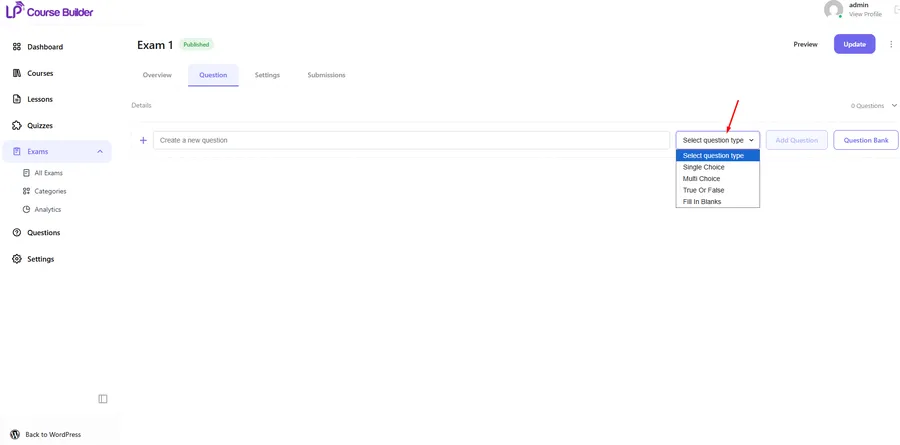
LearnPress currently supports four question types through the Exam Add-on:
- Single Choice
- Multiple Choice
- True or False
- Fill in the Blanks
Choose the question type based on what you want students to demonstrate.
For example, Single Choice can work well when only one answer is correct. Multiple Choice is useful when students need to identify several correct answers. True or False works well for straightforward statements, while Fill in the Blanks can test whether students remember a specific word, phrase, or concept.
Write Questions With Reuse in Mind
If you plan to reuse questions, avoid making them too dependent on one particular exam.
For example, instead of writing a question that says:
“According to Week 4 of our March course…”
you could write a question that focuses directly on the concept being assessed.
This makes the question easier to reuse in another exam or assessment.
Clear question titles and concise wording can also make your question library easier to manage as it grows.
How to Reuse Questions From the Question Bank in New Exams
This is where a question bank in LearnPress can save the most time.
Select Existing Questions
When creating another exam, first publish the exam so that the Question tab becomes available.
Then:
- Open the Question tab.
- Click Question Bank.
- Browse your existing question library.
- Select one or multiple questions.
- Add the selected questions to the exam.
The selected questions can then be used in the new exam without requiring you to create them again.
This is particularly useful when you are creating multiple exams with shared content.
When Should You Reuse Questions?
The Question Bank is especially useful when several assessments cover similar material.
For example, you could use existing questions when creating:
- Practice exams
- Midterm assessments
- Final exams
- Review tests
- Recurring assessments
- Exams with overlapping subject matter
You do not need to reuse questions simply because they exist. If an exam covers a completely new topic, creating new questions may be more appropriate.
The goal is to combine new and existing questions in a way that fits your assessment strategy.
How to Manage Your Question Bank as It Grows
A small question library is easy to manage. As your website grows, however, you may have a much larger collection of questions covering different subjects and assessments.
Good organization becomes increasingly important.
Use Clear and Descriptive Question Titles
Avoid generic titles such as:
- Question 1
- Question 2
- Test Question
- New Question
Instead, use titles that help you understand what the question tests.
For example:
- SEO keyword research basics
- Email marketing conversion metrics
- WordPress plugin security
- Digital marketing funnel stages
Descriptive titles make it easier to identify the right question when you return to the Question Bank later.
Review Questions Regularly
Questions can become outdated as your course material changes.
Schedule regular reviews of your question library and update questions when necessary. Pay particular attention to questions that refer to software features, statistics, policies, or other information that may change over time.
A question bank should be treated as a living resource rather than a collection that you create once and never revisit.
Avoid Creating Unnecessary Duplicates
Before creating a new question, check whether a suitable question already exists in the Question Bank.
If an existing question tests the same concept, consider reusing it instead of creating a near-duplicate.
This helps keep your library more manageable and reduces unnecessary content.
Exam Settings That Control How Questions Are Delivered
Adding questions to an exam is only one part of the process. The Settings tab lets you control how the exam works for students.
LearnPress organizes these settings into several sections.
| Setting section | What you can control |
|---|---|
| General | Start and end dates, duration, time limits, and passing percentage |
| Attempts & Access | Random questions, late access, retakes, and retake limits |
| Student Experience | Timeout warnings, question display, guest attempts, and guest submissions |
| Display / Result | Scores, correct answers, and explanations after submission |
General Settings
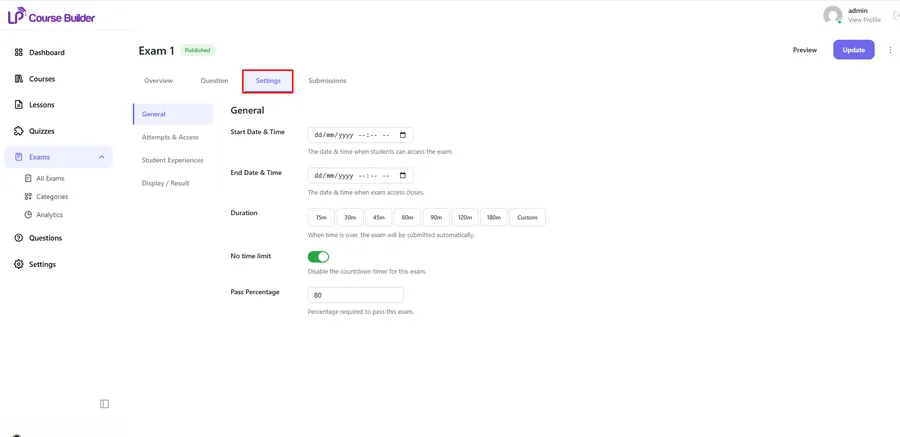
The General section lets you define when students can access the exam and how long they have to complete it.
You can configure:
- Start Date & Time
- End Date & Time
- Duration
- No Time Limit
- Pass Percentage
If a duration is configured, the exam can be submitted automatically when the time limit is reached.
You can also enable No Time Limit when students should be able to complete the exam without a countdown.
Attempts and Access Settings
The Attempts & Access section controls how students take the exam.
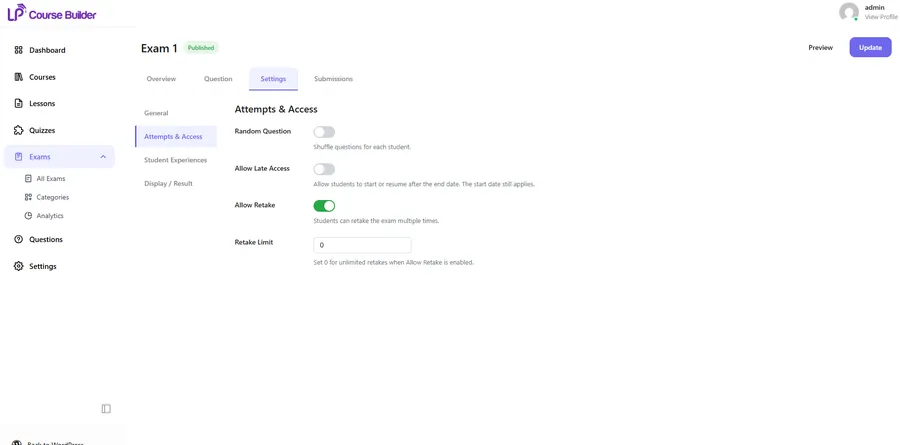
Important options include:
- Random Question – Shuffle the order of questions for each student.
- Allow Late Access – Allow students to start or resume an exam after its end date.
- Allow Retake – Allow students to take the exam again.
- Retake Limit – Set the maximum number of retakes.
If you enable Random Question, students can receive questions in a different order. This can be useful when you want to reduce identical question sequences.
Student Experience Settings
You can also control how students interact with the exam.
Available options include:
- Warning Before Timeout
- Show All Questions on 1 Page
- Allow Guest Attempts
- Save Guest Submissions
For example, you can show a warning before the exam timer expires or allow visitors who are not logged in to take an exam.
Display and Result Settings
The Display / Result section determines what students see after submitting an exam.
You can configure options for:
- Showing the score immediately
- Showing correct answers
- Showing explanations
These settings allow instructors to choose how much feedback students receive after completing an assessment.
How to Monitor Exam Submissions
After students begin taking your exams, the Submissions tab provides a central place to monitor their attempts.
Each submission can include information such as:
- Session
- User
- Status
- Score
- Started
- Submitted
- Time Taken
- Actions
You can use the Search box to find a specific submission or review a student’s exam history.
Regularly reviewing submissions can help instructors identify incomplete attempts, monitor participation, and review exam results.
Use Exam Analytics to Understand Performance
The Exam Add-on also provides analytics designed to give instructors a broader view of exam performance.
The product includes an overview of total, completed, and upcoming exams, along with participant information. It also provides score distribution and pass/fail averages.
These insights can help instructors identify areas where students may be struggling and evaluate whether an assessment is producing the expected results.
Why Use a Question Bank Instead of Creating One-Off Exams?
Creating every exam from scratch can become inefficient as the number of assessments increases.
A question bank in LearnPress gives you a reusable foundation for exam creation. Instead of repeatedly entering questions, you can select existing questions and add them to new exams.
The benefits include:
- Less repetitive work – Reuse questions instead of recreating them.
- Faster exam creation – Build new assessments from existing content.
- Greater consistency – Reuse established questions across related assessments.
- More flexibility – Combine existing questions with new ones.
- Better scalability – Manage a growing collection of questions more efficiently.
For instructors running multiple assessments, these advantages can become increasingly valuable over time.
Build Reusable Exams With LearnPress
If you already use WordPress as your LMS platform, LearnPress provides the foundation for creating and managing online courses, while the Exam Add-on for LearnPress adds dedicated exam functionality.
The add-on is designed to help instructors build exams quickly by reusing questions from a question bank. It also supports multiple question types, exam access controls, attempt limits, randomized questions, student experience settings, and exam analytics.
This makes it useful for course creators who need more than simple course-completion tracking and want a structured way to assess student knowledge.
For example, you can create an exam independently, configure its rules and access conditions, select questions from your existing library, and then monitor submissions after students complete the assessment.
If exams are an important part of your LearnPress-based learning website, using a reusable question bank can make the assessment workflow more efficient.
Best Practices for Building a Useful Question Bank
A question bank becomes more valuable when it is planned carefully. Keep these practices in mind as you build yours:
- Write questions around clear learning objectives. Each question should assess a specific concept or skill.
- Use the right question type. Choose between single choice, multiple choice, true or false, and fill in the blanks based on the learning objective.
- Use descriptive titles. Make questions easy to identify when you return to the Question Bank.
- Avoid unnecessary duplicates. Check existing questions before creating new ones.
- Review older questions. Update content when your course material changes.
- Reuse questions strategically. A question bank should save time without causing every exam to become identical.
- Combine reusable and new questions. Existing questions can provide a foundation while new questions can test recently added material.
These practices can help you maintain a question library that remains useful as your LMS grows.
FAQs
What is a question bank in LearnPress?
A question bank in LearnPress is a collection of questions that can be reused when creating exams with the Exam Add-on. Instead of recreating existing questions, instructors can select them from the Question Bank and add them to another exam.
How do I access the Question Bank in LearnPress?
Go to LearnPress → Exams → All Exams, create or open an exam, and complete the Overview information. The exam must be published before the Question tab becomes available. In the Question tab, select Question Bank to browse existing questions.
Can I reuse questions in multiple LearnPress exams?
Yes. The Exam Add-on allows you to select existing questions from the Question Bank and add them to multiple exams. This is one of the main advantages of using a reusable question library.
What question types does the LearnPress Exam Add-on support?
The Exam Add-on currently supports Single Choice, Multiple Choice, True or False, and Fill in the Blanks question types.
Can I create a new question while building an exam?
Yes. In the Question tab, you can enter a question title, select a question type, and click Add Question to create a new question directly within the exam.
Do I need to publish an exam before adding questions?
Yes. According to the LearnPress documentation, the Question tab becomes available after the exam has been published. Complete the Overview information and publish the exam before adding questions.
Can I randomize questions in a LearnPress exam?
Yes. The Random Question option is available under Attempts & Access in the exam Settings. When enabled, it shuffles the order of questions for each student.
Can LearnPress exams have time limits and retakes?
Yes. The Exam Add-on lets you configure exam duration, start and end dates, pass percentage, retakes, and retake limits. You can also enable No Time Limit when appropriate.
Can students take LearnPress exams without an account?
The Exam Add-on includes an Allow Guest Attempts option under Student Experience. When enabled, visitors who are not logged in can take the exam. You can also enable Save Guest Submissions to store their attempts in the submission list.
Conclusion
A question bank in LearnPress gives instructors a practical way to build reusable exam content instead of starting every assessment from an empty page. With the Exam Add-on, you can create different types of questions, reuse existing questions in new exams, and control how those exams are delivered to students.
The workflow is straightforward: create an exam, publish it to access the Question tab, create new questions or select existing ones from the Question Bank, configure the exam settings, and monitor submissions after students complete the assessment.
For LearnPress sites with multiple assessments or recurring exams, building a well-organized question bank can make exam creation faster and easier to manage while giving instructors more flexibility over how they assess student knowledge.
Read more: Social Media Marketing Course: How to Pick the Right One