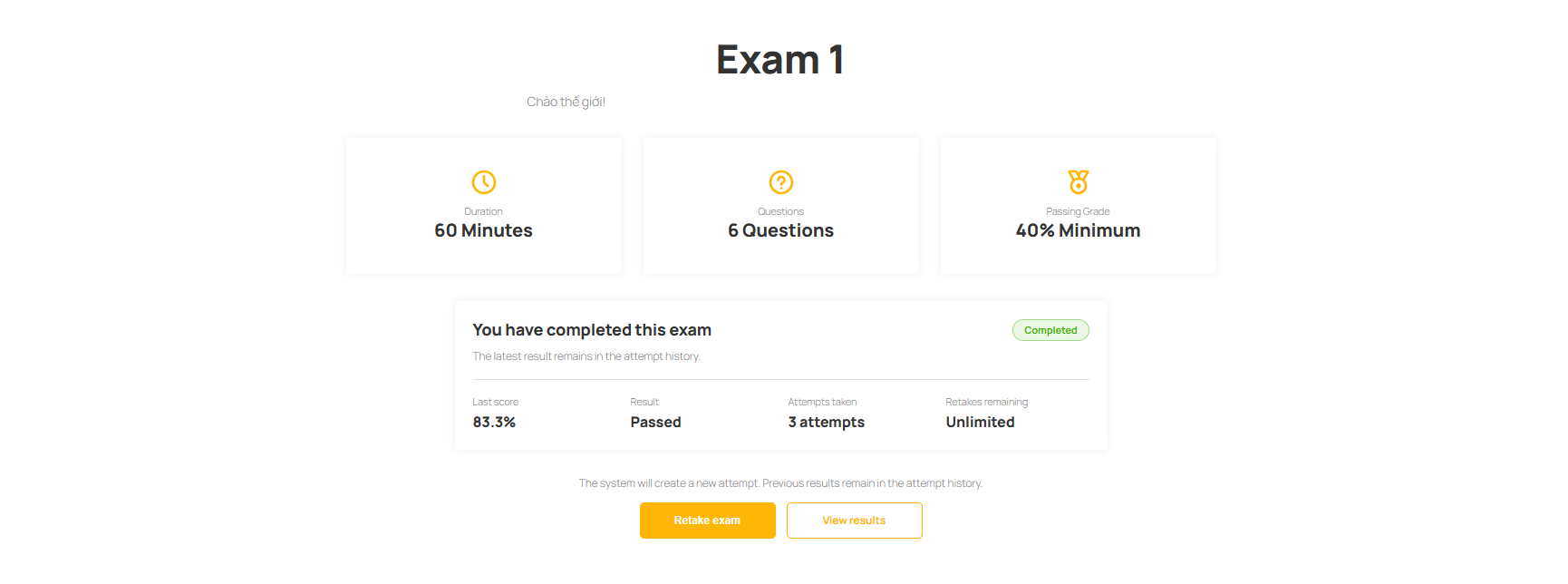
Once an exam has been created and published, students can access the exam from the frontend. The exam page displays all the necessary information and allows students to start, complete, and submit their exam.
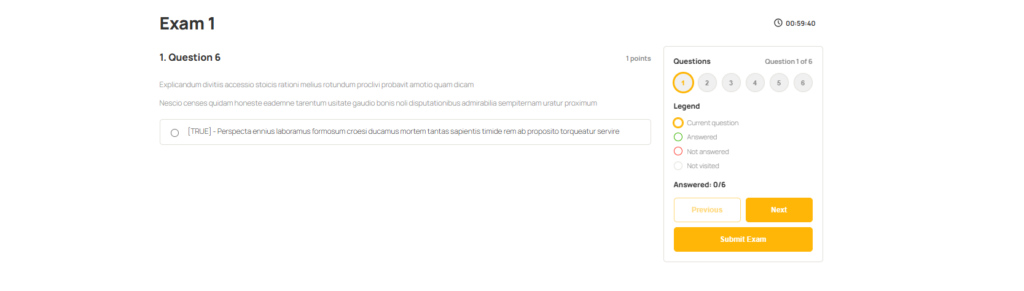
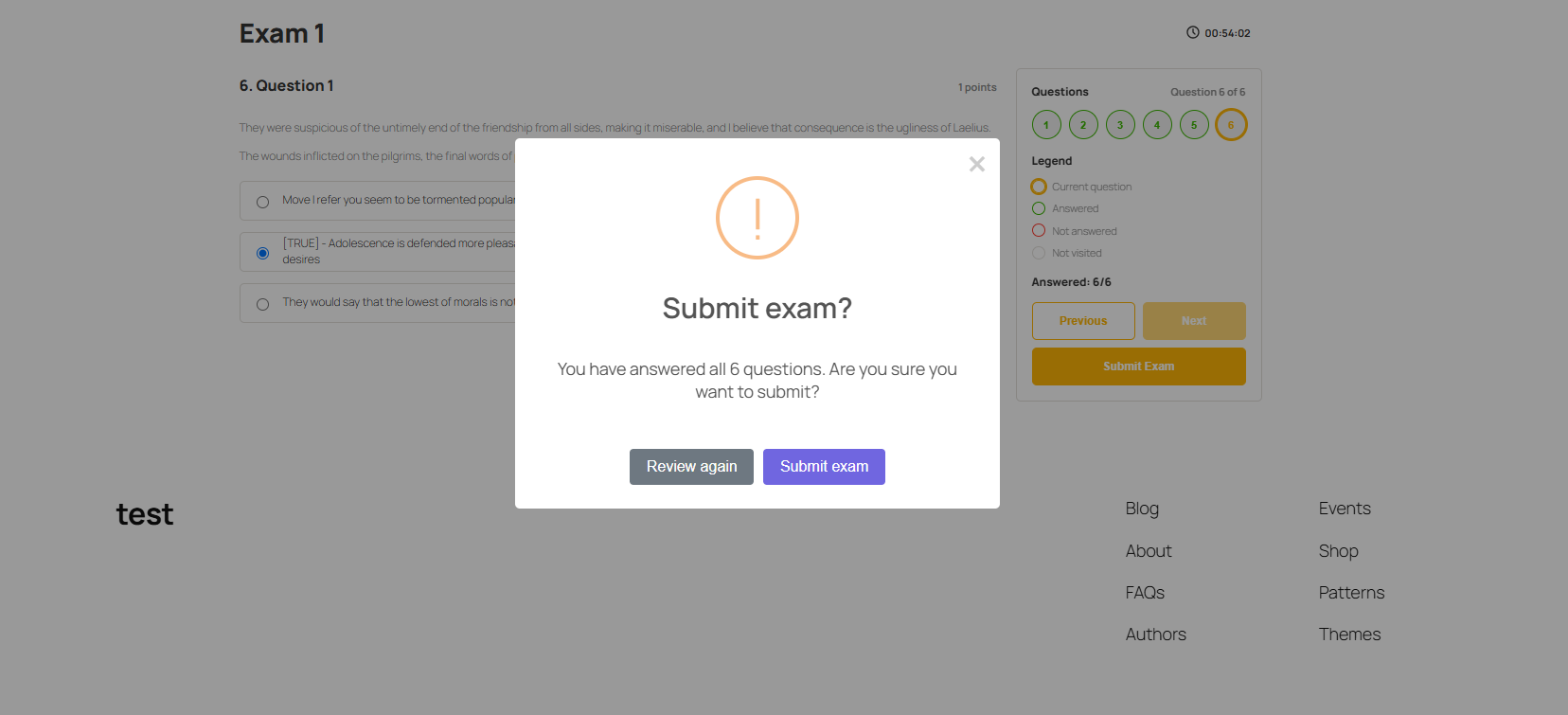
The frontend exam page displays all essential information, including the exam details, instructions, timer (if enabled), question list, and navigation controls, providing a smooth and user-friendly exam experience.
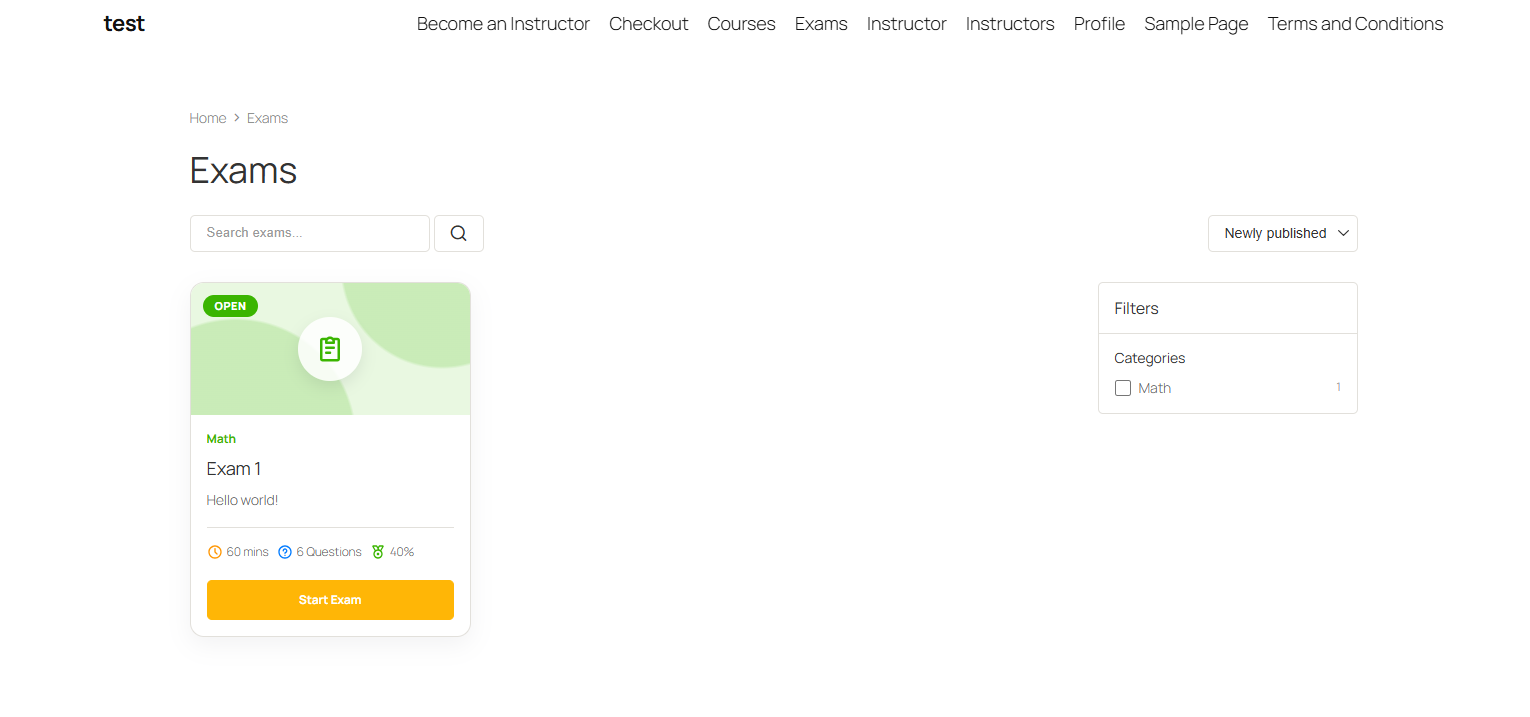
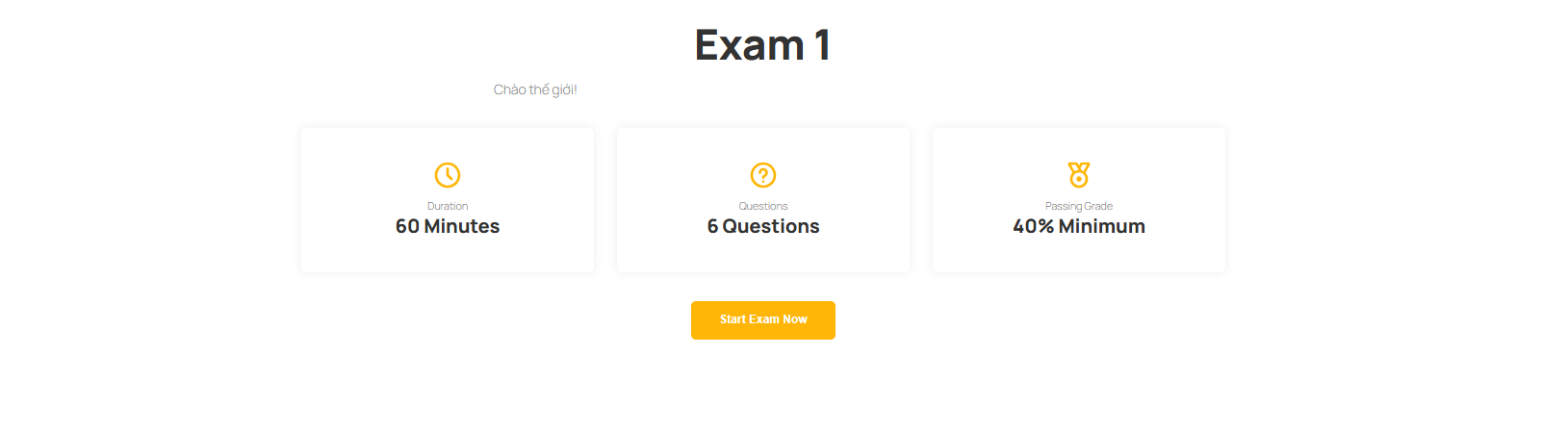
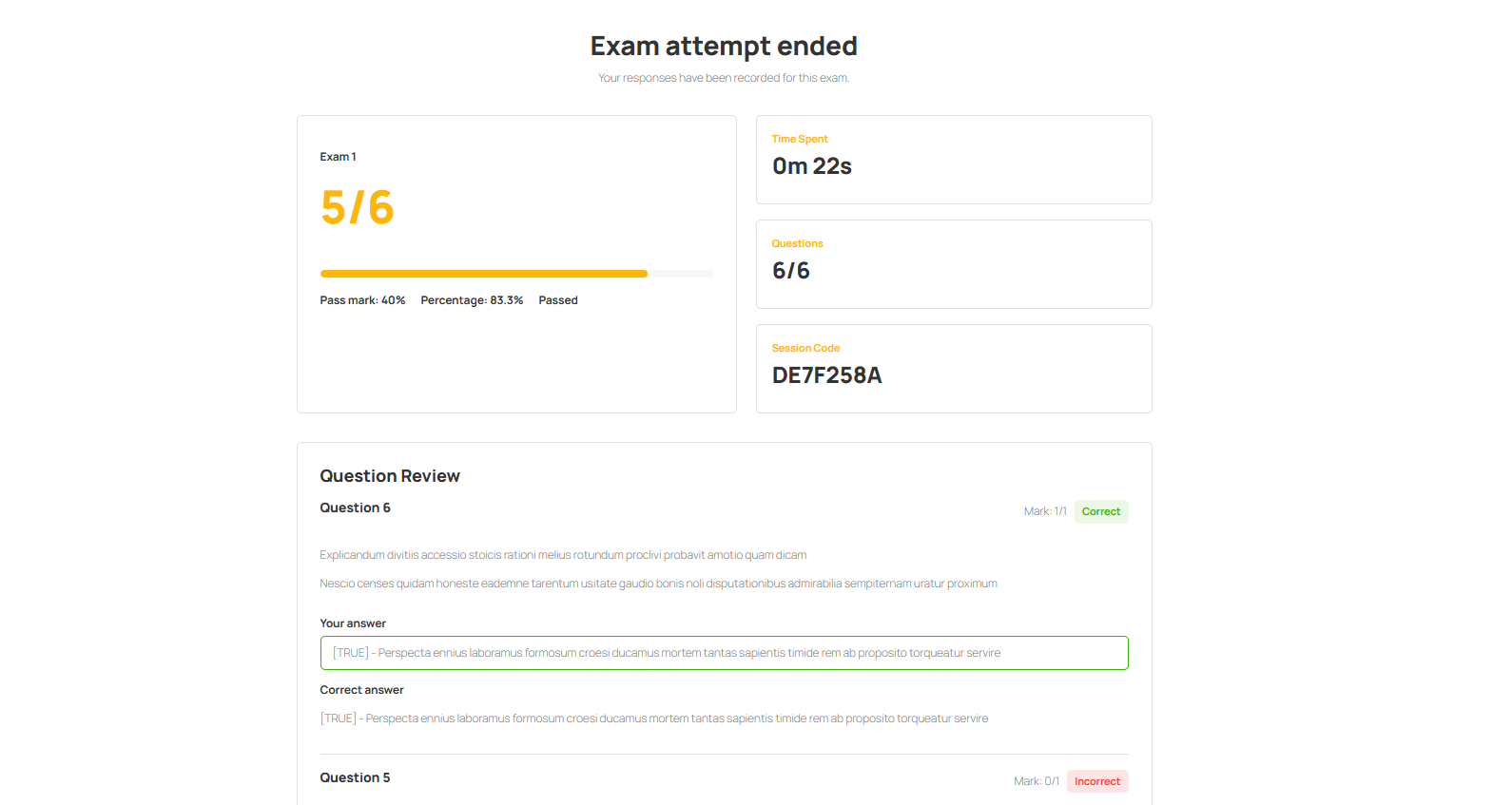
The following screenshots illustrate the student experience when accessing and taking an exam from the frontend.
Exam Result Status
After an exam is submitted, each attempt is assigned one of the following statuses:
- Pass – The student’s score is equal to or higher than the configured Pass Percentage.
- Fail – The student’s score is lower than the configured Pass Percentage.
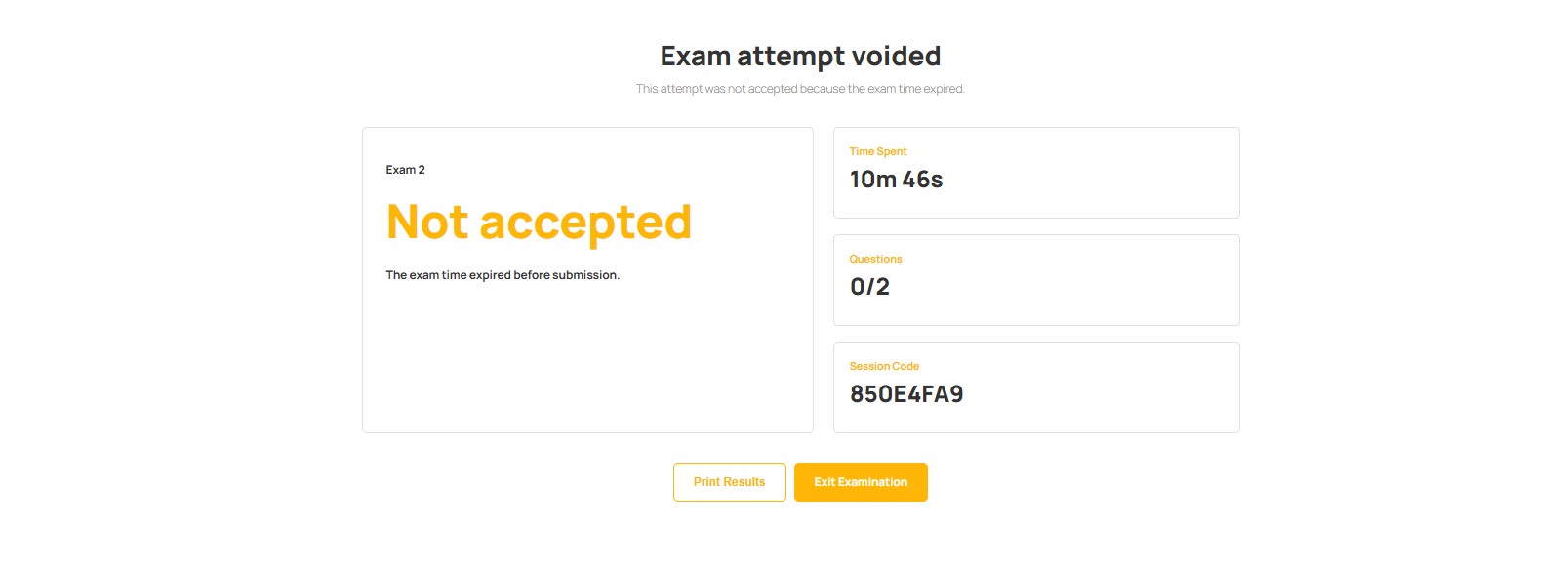
- Voided – The exam attempt was not submitted successfully and is not counted as a valid result. If a student leaves the exam due to a network interruption or accidentally closes the browser, the system temporarily keeps the exam session active. If the student returns within 5 minutes after the exam time expires, they can continue the session and click Submit. Otherwise, the attempt will be marked as Voided.
Note: To help prevent data loss caused by network issues or an unexpected browser closure, the system provides a 5-minute grace period after the exam time expires. During this period, students can return to the exam and click Submit to save their attempt and receive a score. If the exam is not submitted before the grace period ends, the attempt will be marked as Voided and no score will be recorded.