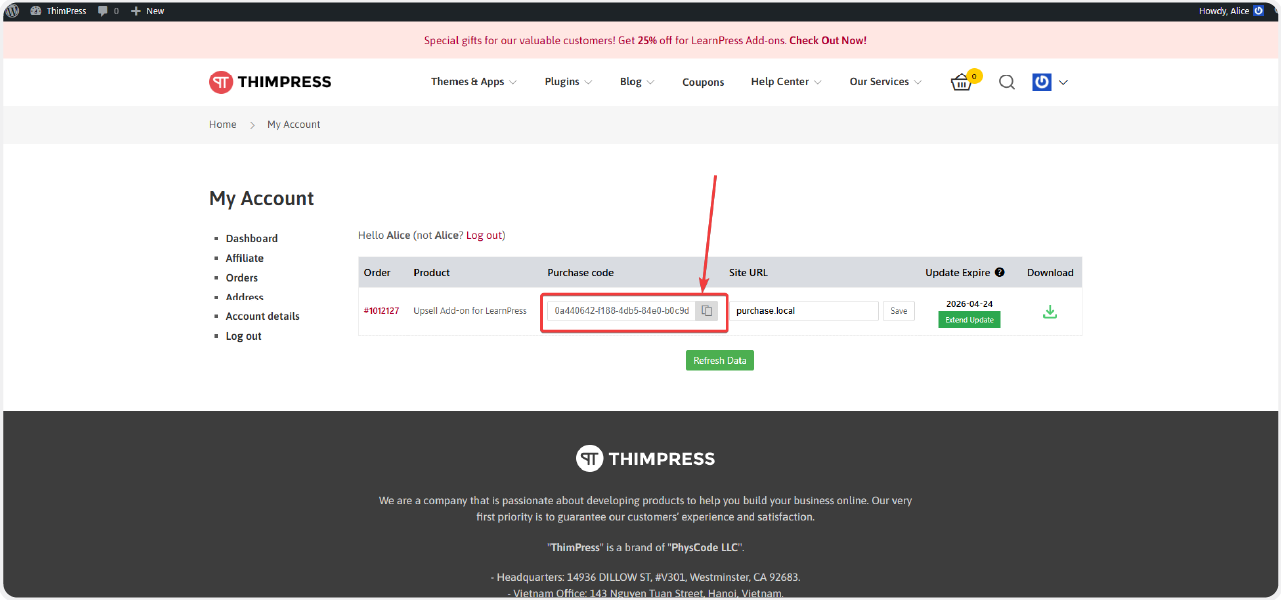
After purchasing a LearnPress Add-on, sign in to your ThimPress account, go to My Account -> click “Dashboard“. You will see the Purchase code for the add-on you purchased earlier.
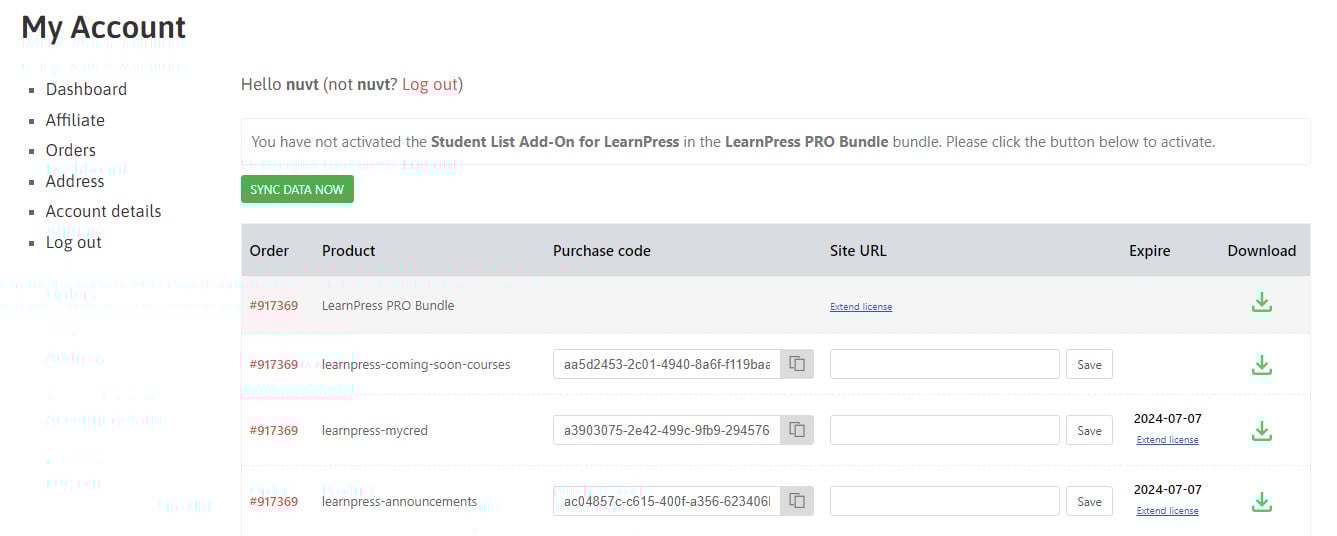
- Order: Order number.
- Product: Product name.
- Purchase code: The product code that is used to install and update add-ons on your website. Each purchase code is limited to one website.
- Site URL: Show the current URL that is activated with this purchase code.
- Expire: Expiration time of support and upgrade licenses.
- Download: Download add-ons as .zip file with different versions.
To activate the add-on, start by copying the purchase code using the copy button.
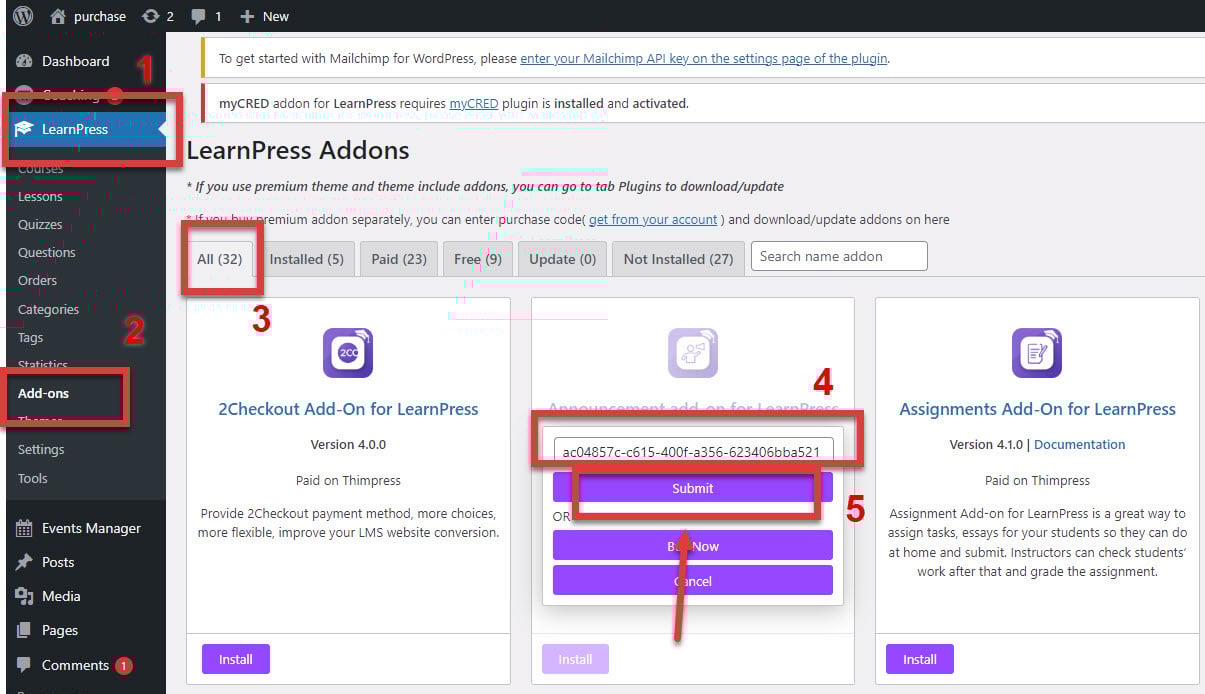
Next, you need to find the add-on that corresponds to that purchase code by going to your WordPress Dashboard > LearnPress > Add-ons > All > Install – Paste “Purchase code” > click “Submit“.
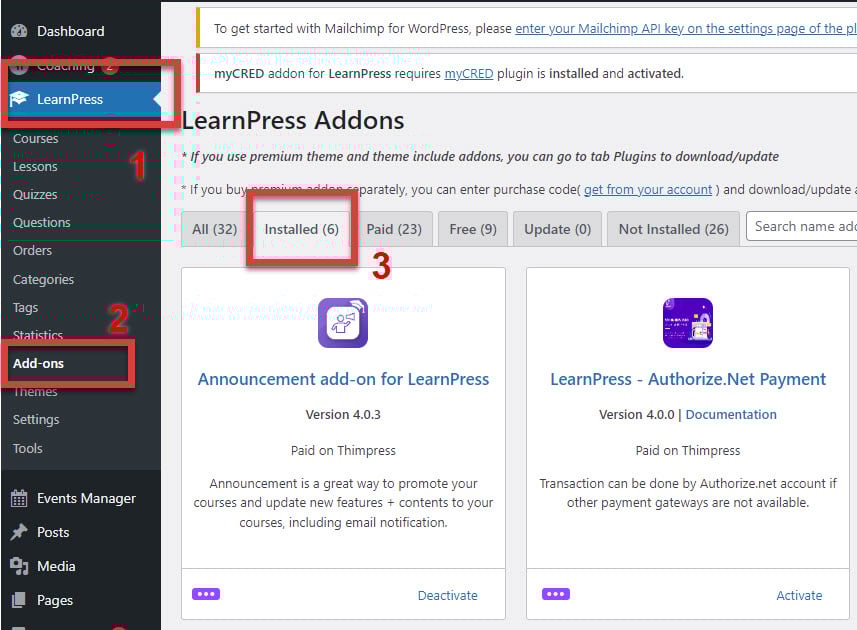
You can check if the add-on has been successfully installed by navigating to LearnPress > Add-ons > Installed.