Are you sitting in front of your computer, staring at a blank screen? You have a brilliant idea for an educational program. You know your audience is waiting for it. Yet, the thought of writing dozens of lesson plans, structuring modules, and drafting quizzes is paralyzing. This is the “Blank Page Syndrome,” and it kills more business dreams than financial issues ever will.
But what if you could have a professional instructional designer sitting next to you, ready to do 80% of the heavy lifting instantly?
Welcome to the future of e-learning. This comprehensive LearnPress AI guide will show you how to shatter the barriers of content creation. In this article, we will explore how this revolutionary WordPress LMS AI plugin allows you to go from a simple idea to a fully functioning online academy curriculum in just 5 simple steps.
Table of Contents
The Era to Create Online Courses with AI is Here
The traditional method of building a course is exhausting. You have to research, outline, draft, edit, and format. It takes weeks, sometimes months. LearnPress AI and LearnPress AI Chatbot changes this dynamic entirely. It is not just a text generator; it is a comprehensive system designed to understand the context of education.
By leveraging advanced OpenAI API integration, LearnPress does not just “write text.” It thinks like a teacher. It understands learning objectives, student personas, and logical progression. Whether you are teaching digital marketing or yoga, the AI adapts to your niche.
If you are looking for the most efficient LearnPress AI course builder tutorial, you have come to the right place. Let’s dive into the mechanics of how this tool works.
Why You Need This LearnPress AI Guide
Why should you switch to an AI curriculum generator? The answer lies in three words: Speed, Cost, and Structure.
- Speed: What used to take 30 days now takes minutes.
- Cost: You avoid hiring expensive instructional designers or copywriters.
- Structure: The AI ensures your syllabus structure flows logically, avoiding the “messy structure” that beginners often create.
The 5-Step Process: From Zero to Hero
Let’s dive into the mechanics. How does the plugin actually transform a keyword into a curriculum? Based on the actual workflow of the plugin, here is the magic behind the scenes.
To begin, you need to access the tool. As shown in the LearnPress dashboard, simply navigate to Courses on the left sidebar and click the “Generate with AI” button at the top of the screen. This opens the door to the 5-step wizard.
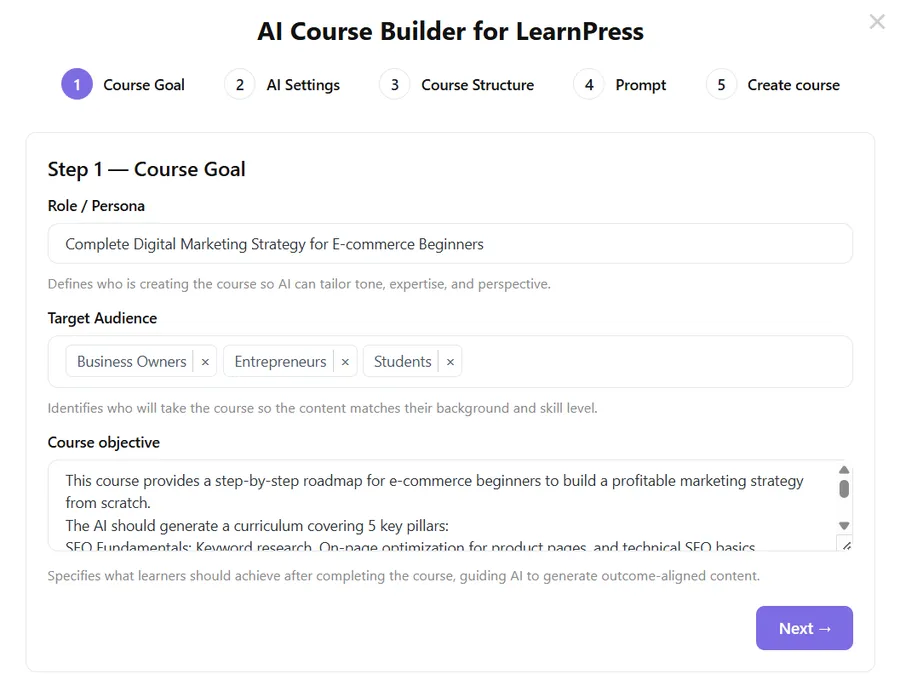
Step 1: Defining the Course Goal
The process begins with Step 1 — Course Goal. To create an online course with AI that is truly effective, you need to provide the system with context, not just a keyword. This step establishes the foundation of your syllabus. If you are struggling to find a topic, check out our guide on 12 Profitable Online Course Ideas to Launch Today
In this section of our LearnPress AI guide, you will fill out three critical fields to tailor the AI’s output:
1. Role / Persona First, you define the expertise. This field defines who is creating the course so the AI can tailor the tone, expertise, and perspective.
- Example Input: Complete Digital Marketing Strategy for E-commerce Beginners
2. Target Audience Next, identify who will take the course so the content matches their background and skill level. When you click on this field, a dropdown menu appears with a wide range of pre-set personas to choose from, such as Artists, Authors, Bloggers, Designers, or Entrepreneurs.
3. Course Objective Finally, you must specify what learners should achieve. This description guides the AI to generate outcome-aligned content. For the best results, avoid vague sentences.
For this tutorial, we input a detailed roadmap into the objective box:
This course provides a step-by-step roadmap for e-commerce beginners to build a profitable marketing strategy from scratch. The AI should generate a curriculum covering 5 key pillars:
- SEO Fundamentals: Keyword research, On-page optimization for product pages, and technical SEO basics.
- Social Media Marketing: Content planning for Instagram & TikTok, influencer collaboration strategies.
- Email Marketing: Setting up automation flows (Welcome series, Abandoned Cart recovery) using tools like Mailchimp.
- Paid Advertising: Basics of running Facebook Ads and Google Shopping Ads with a limited budget.
- Analytics: How to read Google Analytics 4 (GA4) reports to measure ROI and Conversion Rates.
Outcome: By the end of this course, students will launch their first integrated marketing campaign.
Step 2: AI Settings
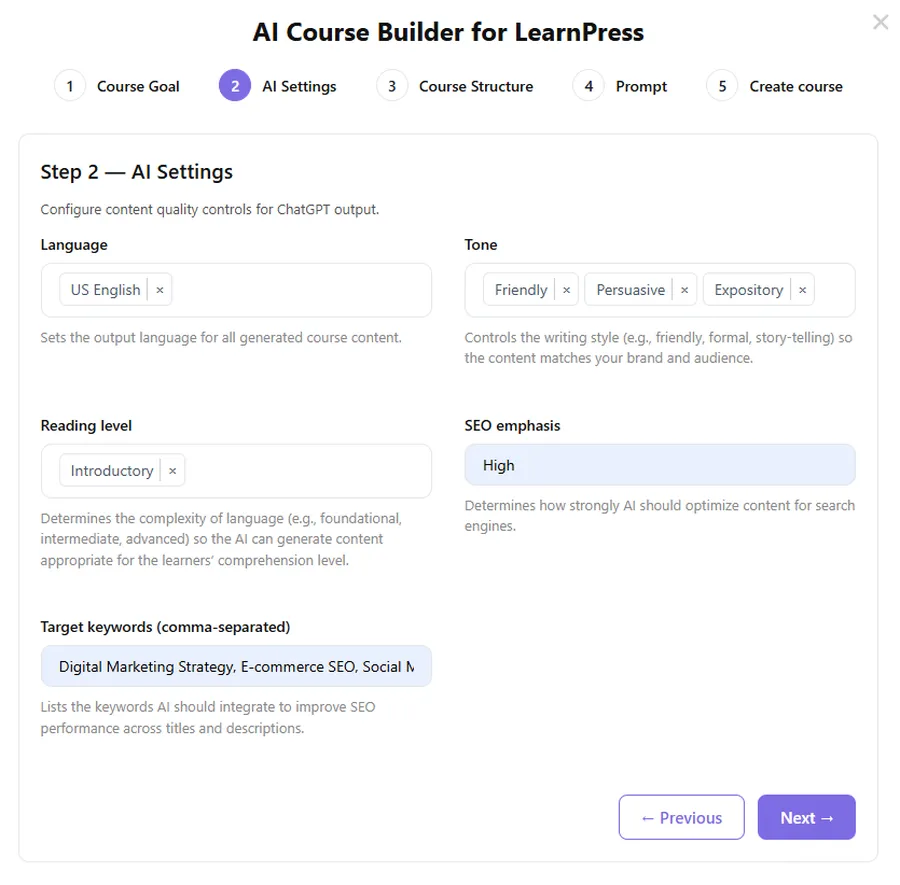
Once your goal is set, click “Next” to enter Step 2 — AI Settings. This is where the magic happens. Here, you stop treating the AI like a machine and start treating it like a content strategist. You need to configure how the AI should deliver the message.
In this stage of the LearnPress AI guide, you have 5 critical controls:
1. Language The plugin supports over 30 languages, allowing you to scale globally instantly. Whether your audience speaks English, Italian, Spanish, Chinese, or Korean, the AI can generate native-level course content without you needing a translator.
2. Tone This controls the “personality” of your course. You can select from various styles to match your brand voice:
- Formal/Expository: Best for academic or technical compliance courses.
- Story-telling: Ideal for history or soft skills to keep students engaged.
- Casual/Friendly: Great for lifestyle courses like cooking or fitness.
- Factual/Persuasive: Perfect for business and sales training.
3. Reading Level Not all students learn the same way. You can adjust the complexity of the language to one of 4 levels:
- Introductory: Simple language for absolute beginners.
- Foundational: Covers the basics with clear explanations.
- Intermediate: Assumes some prior knowledge.
- Advanced: Uses industry jargon and complex sentence structures for experts.
4. SEO Emphasis This is a critical advantage for selling your course. By setting this to “High,” the AI will automatically structure your lessons to be search-engine friendly, helping your course rank on Google.
5. Target Keywords Finally, you can input specific keywords (comma-separated) that you want the AI to focus on.
- Example: Digital Marketing Strategy, E-commerce SEO, Social Media Marketing
- The AI will intelligently weave these keywords into your lesson titles and descriptions to boost your SEO performance.
Step 3: Course Structure
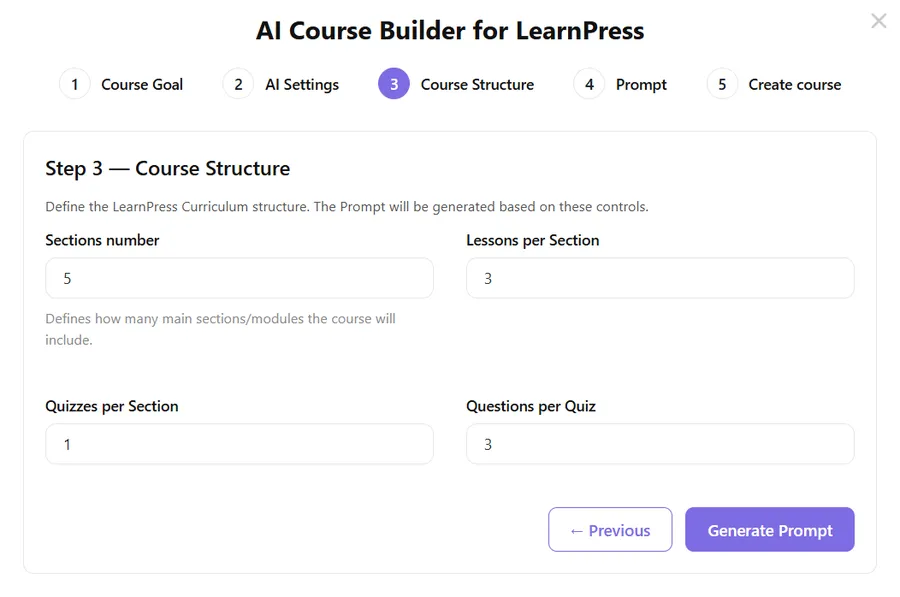
After tuning the AI’s settings, click “Next” to arrive at Step 3 — Course Structure.
This is where you transition from abstract ideas to a concrete roadmap. Most AI tools just spit out a random block of text, but LearnPress AI acts as a true course curriculum generator. It allows you to mathematically define the architecture of your syllabus before a single word is written.
In this stage of our LearnPress AI guide, you will use four controls to define the scope of your academy:
1. Sections Number (The Breadth) This defines how many main modules or chapters your course will have.
- How to use it: If you are building a simple “Crash Course,” keep this number low (e.g., 3-5). If you are creating a comprehensive “Masterclass,” you can increase this to cover every aspect of the topic.
2. Lessons per Section (The Depth) This determines how detailed each module will be.
- How to use it: A higher number here means the AI will break down big topics into smaller, bite-sized lessons. This is excellent for complex subjects where students need step-by-step guidance.
3. Quizzes per Section Active recall is essential for learning. This setting allows you to automatically inject assessments into your curriculum.
- How to use it: You typically want at least 1 quiz per section to ensure students have mastered the module before moving on.
4. Questions per Quiz Finally, you control the rigor of your assessments.
- How to use it: Adjust this based on your difficulty level. You can create quick 3-question checks or long-form 10-question final exams.
💡 Pro Tip: Don’t stress about getting these numbers perfect right now. This step just generates the initial draft. You can always manually add more lessons or remove quizzes later using the standard LearnPress course editor.
Once you have defined your structure, you are ready for the magic moment. Click the “Generate Prompt” button.
Step 4: Prompt
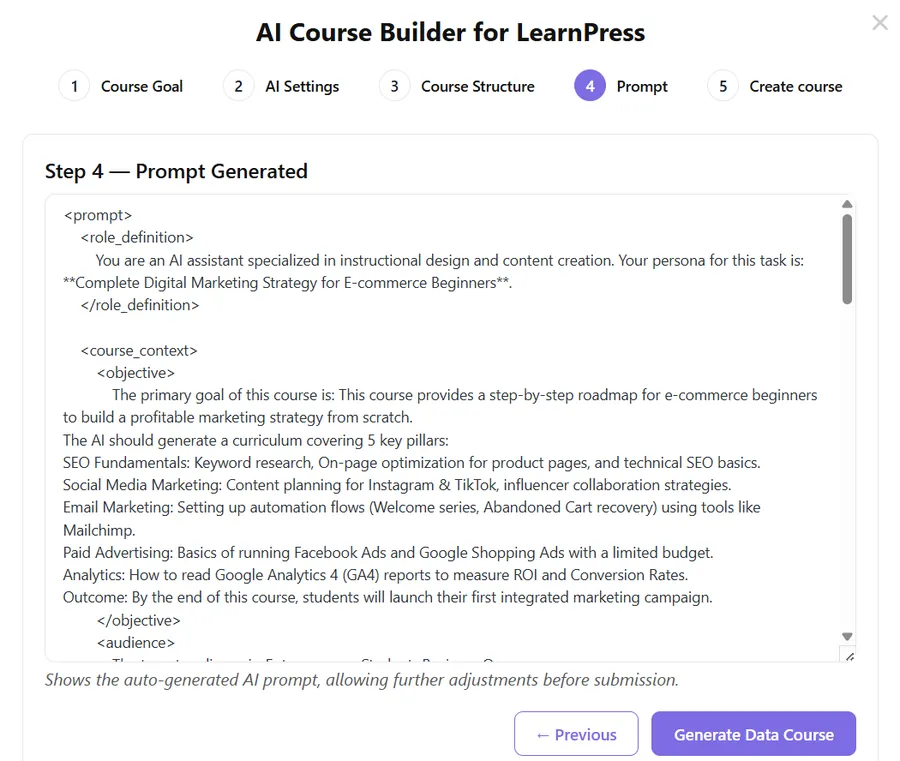
Once you click “Generate Prompt,” you will be taken to Step 4. This is where the system translates your settings into a sophisticated command for the AI.
You will see a structured text block (using XML-like tags) that defines the Role, Objective, and Audience based on your inputs from Step 1 and Step 2. For example, you will see it explicitly stating: “You are an AI assistant specialized in instructional design…”.
Do you need to be a coder to understand this? No.
The beauty of this step is its simplicity. You do not need to do anything here. You don’t need to write, edit, or “engineer” the prompt—the plugin has already done 100% of the heavy lifting for you.
- Action: Simply glance at the text to confirm it captured your intent, then click the purple “Generate Data Course” button at the bottom right to execute the command.
Step 5: Preview & Publish
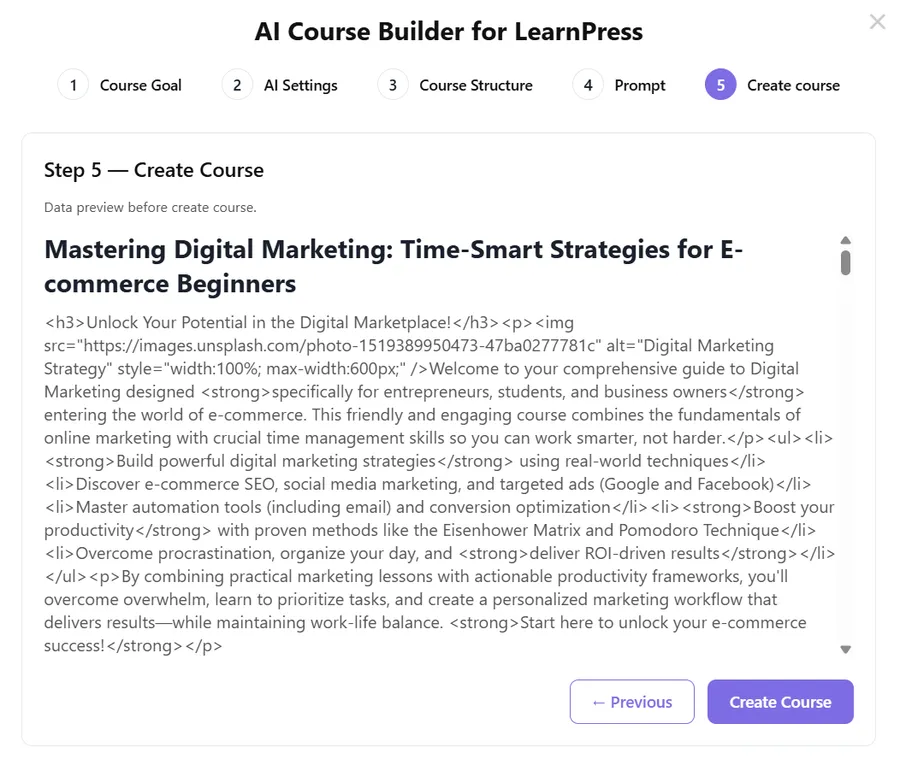
Once the AI processes your prompt, you land on Step 5 — Create Course. This is your quality control station.
Before anything is saved to your website, LearnPress gives you a transparent look at the raw data. In this preview window, you aren’t just seeing plain text; you are seeing a fully formatted HTML structure ready for the web.
Here is what you should look for in this preview:
- Smart Formatting: Notice the HTML tags like
<h3>for headers and<ul><li>for bullet points. This ensures your lessons are organized and scannable, not just a wall of text. - Automatic Visuals: The AI has automatically inserted image tags (e.g.,
<img src="...">). It fetches high-quality, relevant images (likely from Unsplash) to illustrate concepts like “Digital Marketing Strategy” without you needing to search for them manually. - Engaging Copy: Read the opening paragraph. It doesn’t just list facts; it uses persuasive language like “Unlock Your Potential” and “Start here to unlock your e-commerce success!” to motivate students.
The Final Click If you are happy with the preview, click the purple “Create Course” button at the bottom right.
In seconds, this data will be converted into a real LearnPress course with sections, lessons, and quizzes fully populated in your dashboard.
The Result: A Perfect Curriculum Structure
Immediately after generation, you are redirected to the course editor, and the results are fully visible. As you can see, the AI has faithfully executed the architecture we defined in Step 3. The curriculum is populated with 5 Sections, and each section contains exactly 3 Lessons and 1 Quiz, just as requested. The lesson titles—ranging from “What is Digital Marketing?” to “Measuring ROI”—are logically ordered and highly relevant to the “Digital Marketing” topic we input.

The Speed: 38 Seconds to Your Dream Course
Perhaps the most impressive part of this workflow is the speed. In our test, it took a mere 38 seconds to transform a single keyword into this comprehensive “dream course.” The final output includes a professional course title, a compelling description with bolded key takeaways, and a structured learning path. You are no longer staring at a blank page; you are now just one click away from hitting “Publish” and welcoming your first students.

Conclusion: Stop Waiting, Start Teaching
The days of staring at a blinking cursor are over. As this LearnPress AI guide has demonstrated, the barrier to creating online education is no longer time or technical skill—it is simply the decision to start.
In just 5 simple steps and 38 seconds of processing time, we transformed a raw concept into a structured, marketable course complete with lessons and quizzes. You didn’t just save weeks of planning; you gained a professional instructional designer that works 24/7 for pennies.
But the innovation doesn’t stop at creation. LearnPress also integrates a smart AI Chatbot, that can fix all your students’ problems, ensuring that once your course is live, your students receive instant, 24/7 support directly within the lesson interface without you lifting a finger.
Whether you are an individual instructor, a digital agency, or a business owner, the LearnPress AI course builder is your ultimate tool to scale your content production.
The knowledge is in your head. The tool is in your hands.
Ready to launch your own academy? Go to your LearnPress Dashboard, click “Generate with AI,” and let the magic happen today.
FAQs About LearnPress AI
Q1. How much does it cost to generate a complete course?
LearnPress AI uses your OpenAI API key, so you pay OpenAI directly on a "pay-as-you-go" basis. Typically, generating a full 15-lesson course costs just pennies (often between $0.05 to $0.50 depending on whether you use GPT-3.5 or GPT-4o). LearnPress does not charge extra transaction fees.
Q2. Do I need a ChatGPT Plus subscription ($20/month) to use this?
No. You do not need the monthly ChatGPT Plus subscription. You only need a free OpenAI account with some API credits loaded. API credits are separate and much cheaper than the monthly subscription.
Q3. Can I edit the content after the AI generates it?
Absolutely. The AI generates a standard LearnPress course draft. Once created, you have full control to edit text, replace images, add videos, or rearrange lessons using the WordPress editor just like you would with a manually created course.
Q4. Where do the images in the lessons come from?
By default, the LearnPress AI Course Builder integrates with Unsplash to fetch high-quality, royalty-free images relevant to your lesson topics automatically. You can also configure it to use DALL-E if you prefer AI-generated artwork.
Q5. Can I generate courses in languages other than English?
Yes. The tool supports over 30 languages. In Step 2 (AI Settings), you can select your target language (e.g., Spanish, French, Vietnamese, Japanese), and the AI will generate the entire curriculum and lesson content in that language.
Read more: 9+ Best Online Course Platform Comparison (Expert Guide)
Contact US | LearnPress:
Website: https://learnpresslms.com/
Fanpage: https://www.facebook.com/learnpresslms
Email: [email protected]