1. Chat Room
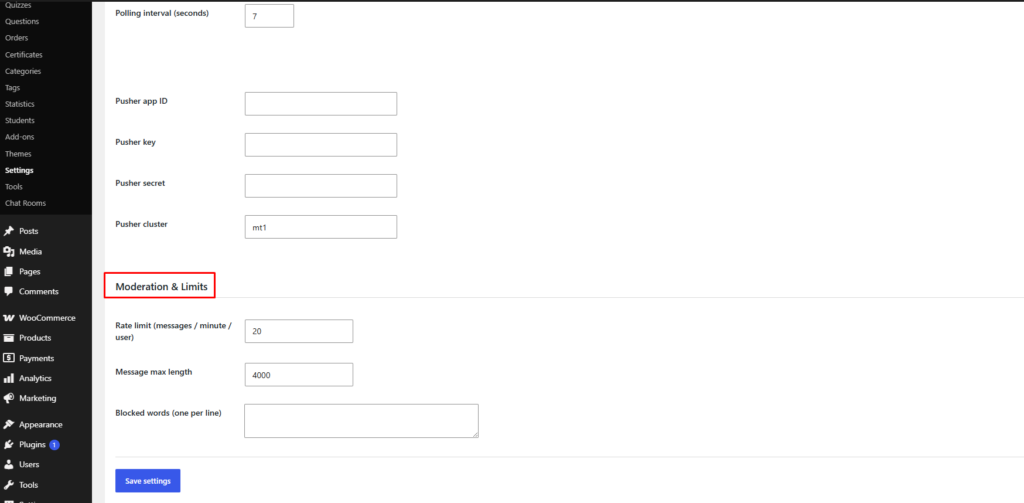
In addition to managing chatrooms directly from the course page, administrators can also manage all chatrooms from the WordPress dashboard.
Navigate to:
- LearnPress → Chat Rooms
This page provides an overview of all chatrooms created for your courses.
Each chatroom displays:
- Name – The chatroom name.
- Type – The chatroom type.
- Course – The associated course.
- Members – The number of participants.
- Status – The current room status.
- Last Activity – The most recent chat activity.
Use the search box to quickly locate a specific chatroom, or click View beneath a chatroom name to open and manage its conversation history.
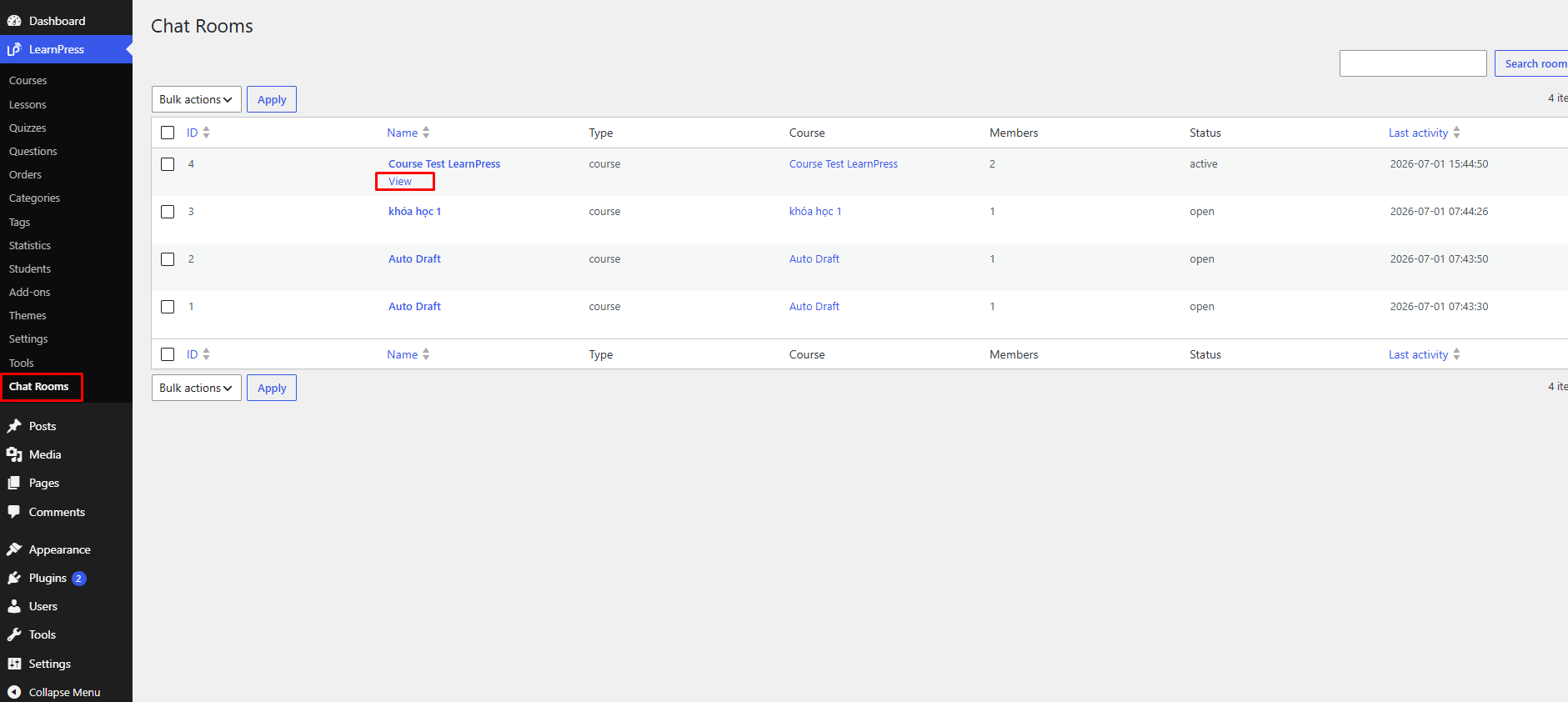
Instructors can also manage the chatrooms for their own courses directly from the frontend dashboard.
Navigate to:
- Profile → Chat Management
The Chat Management page provides a quick overview of chat activity, including:
- Messages Today – Number of messages sent today.
- Active Members – Current active participants.
- Pinned Messages – Total pinned messages.
- Your Courses – Number of courses available for chat management.
To open a chatroom, simply select one of your courses from the Course Chat dropdown. The corresponding discussion room will load, allowing you to participate in conversations and manage the chat without accessing the WordPress admin dashboard.
2.Chat Room Settings
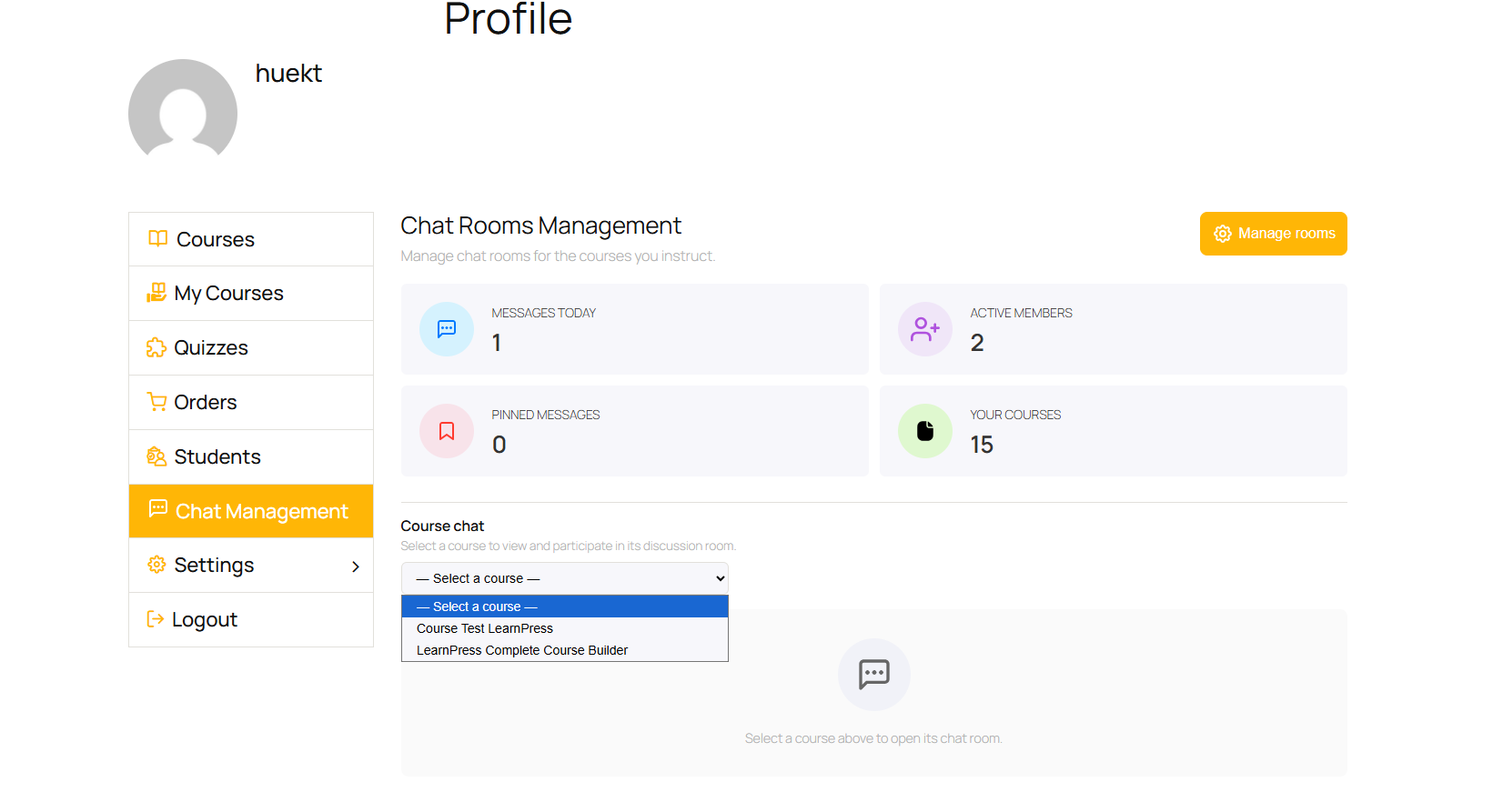
Administrators can configure chatroom settings by navigating to:
- LearnPress → Settings → Chat Room
These settings apply to all chatrooms across the website.
2.1.Real-time Transport
Choose how chat messages are delivered to users.
Polling
Uses standard WordPress requests to periodically check for new messages. This option requires no additional services.
Polling Interval (seconds)
Specify how often the chat checks for new messages. Lower values provide faster updates but may increase server load.
Pusher Channels
Enable real-time messaging using Pusher Channels.
When this option is selected, configure the following credentials:
- Pusher App ID
- Pusher Key
- Pusher Secret
- Pusher Cluster
These values are provided by your Pusher Channels account.
2.2.Moderation & Limits
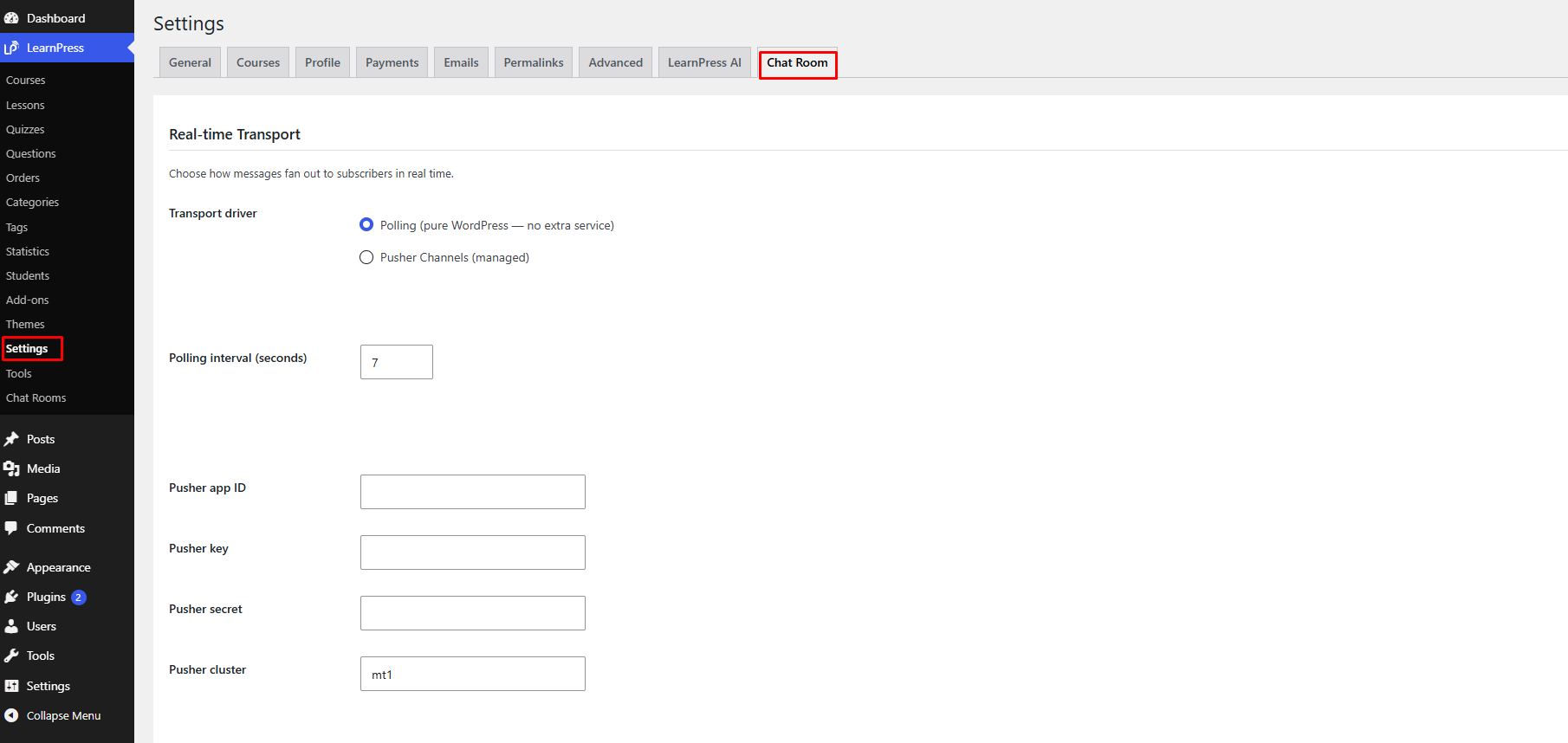
Configure global moderation rules and message limits for all chatrooms.
Rate Limit (Messages / Minute / User)
Limit the number of messages each user can send per minute to help prevent spam.
Message Max Length
Set the maximum number of characters allowed in a single message.
Blocked Words
Enter one blocked word or phrase per line.
Messages containing blocked words can be filtered according to the chatroom moderation rules.
After making any changes, click Save Settings to apply the new configuration to all chatrooms.