This Documentation is used for H5P add-on for LearnPress.
Open your “WordPress admin dashboard” -> find “H5P Content” -> select “Add New” to create a H5P item.
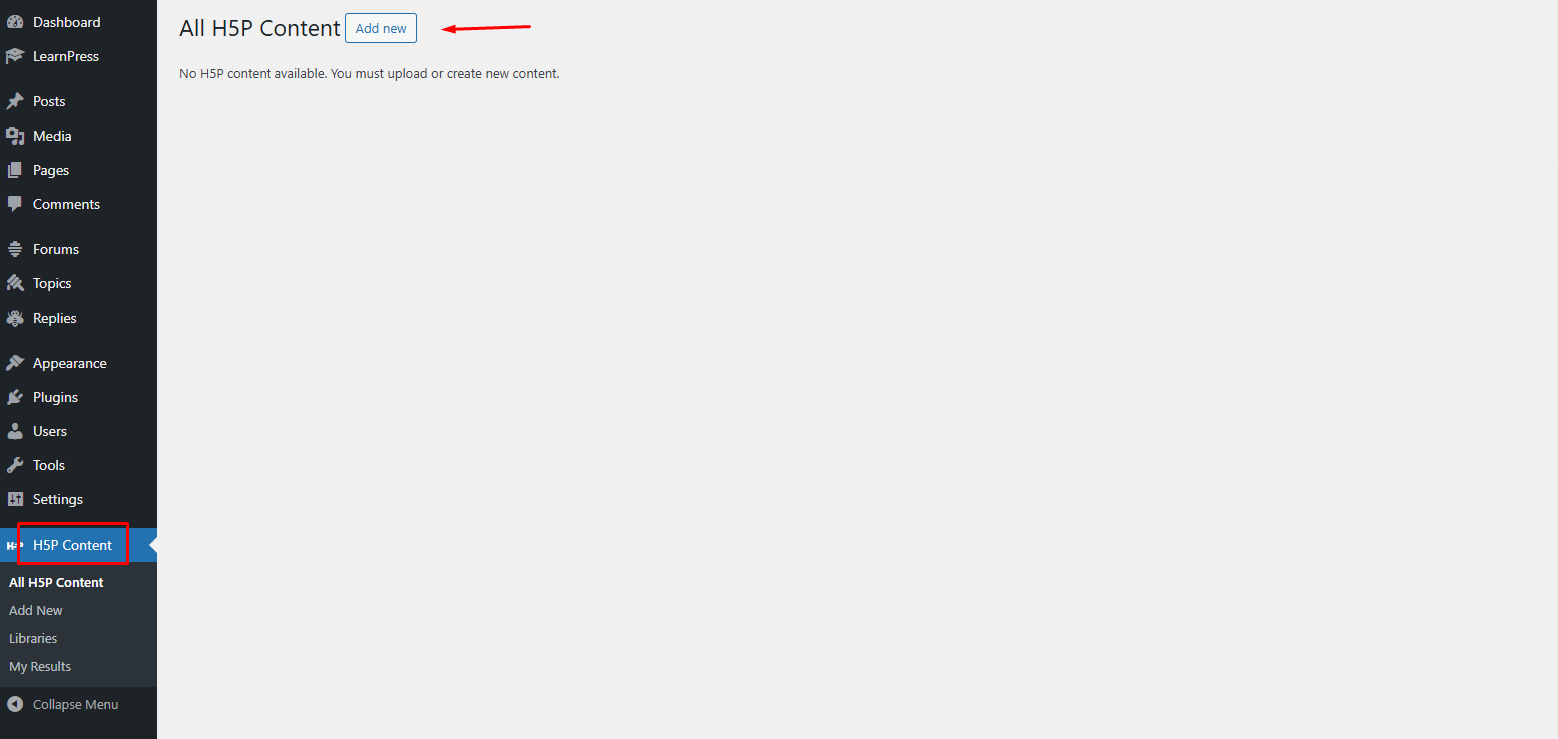
If you create the H5P Content for the first time, you will see the below information:
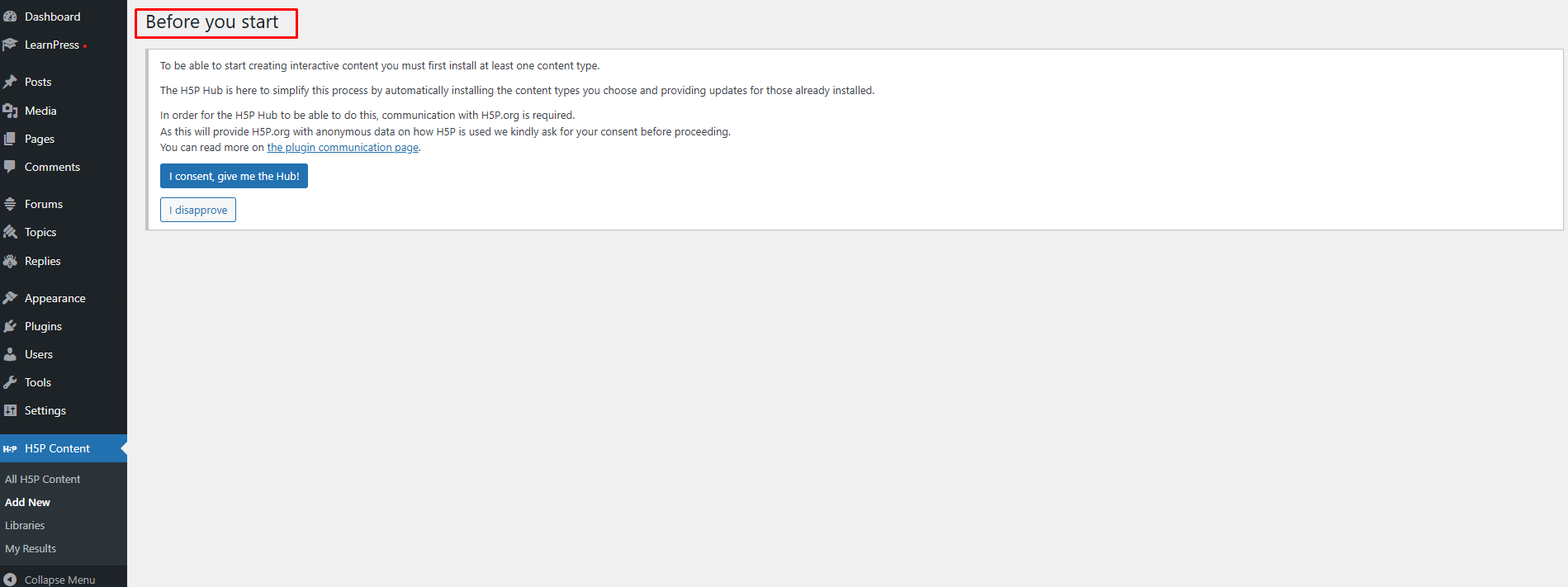
Next, click “I consent, give me the Hub!” to continue.
This is the interface of H5P:
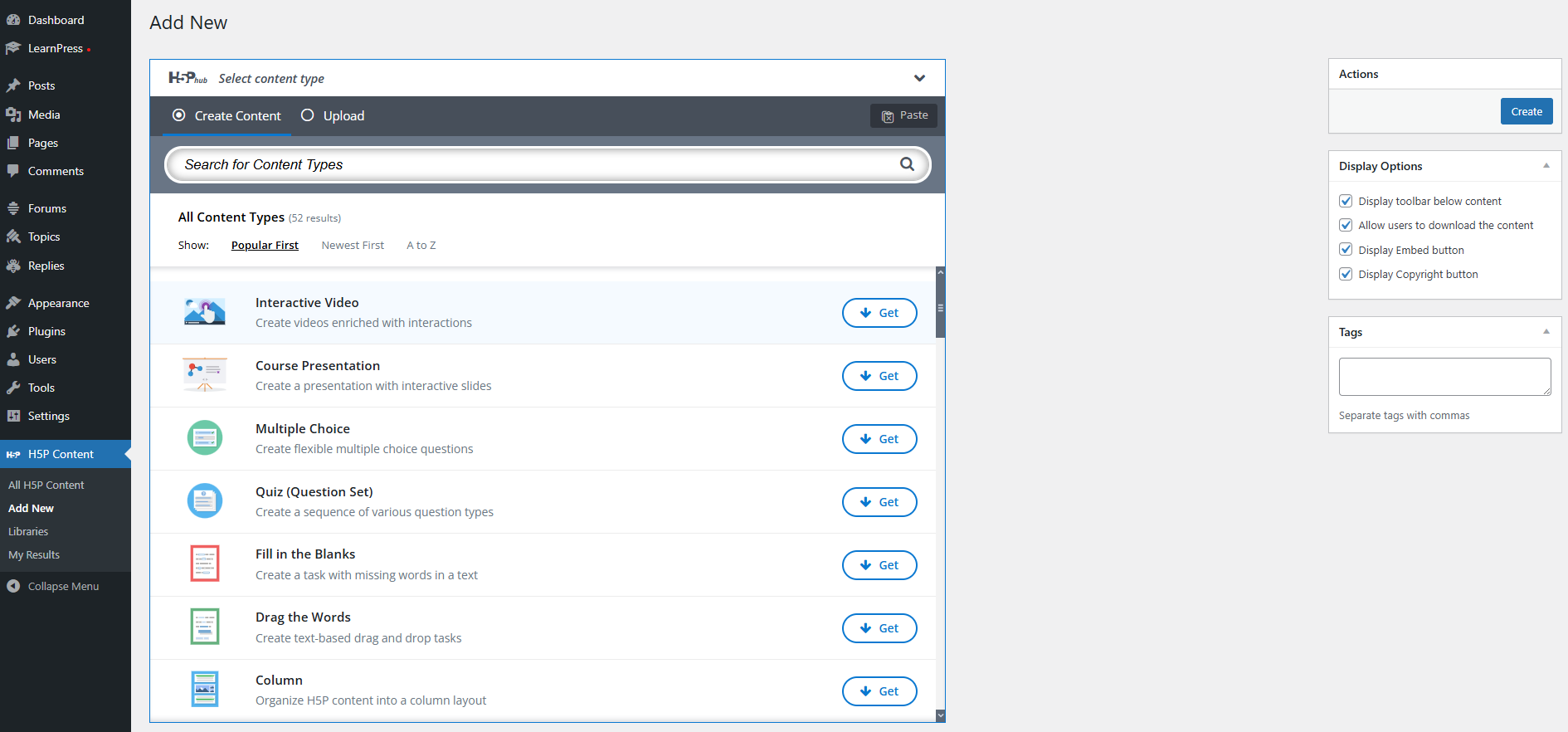
You can choose which type of content you want to use. In this guide, we use “Interactive Video” as an example. Just click “Get” -> “Install” to install that type of content from H5P.
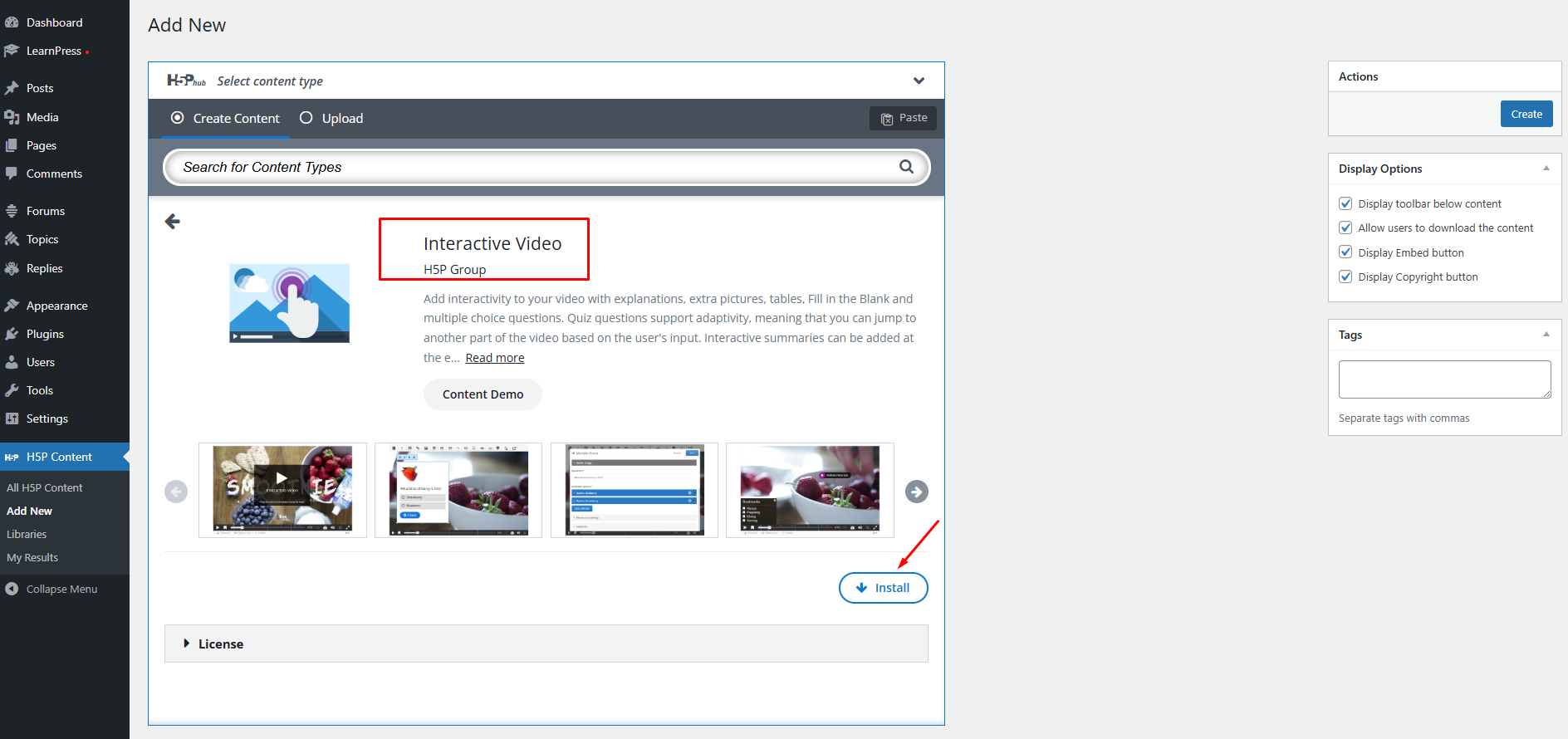
After successfully installing Interactive Video, you can click the “Use” button to create your content.
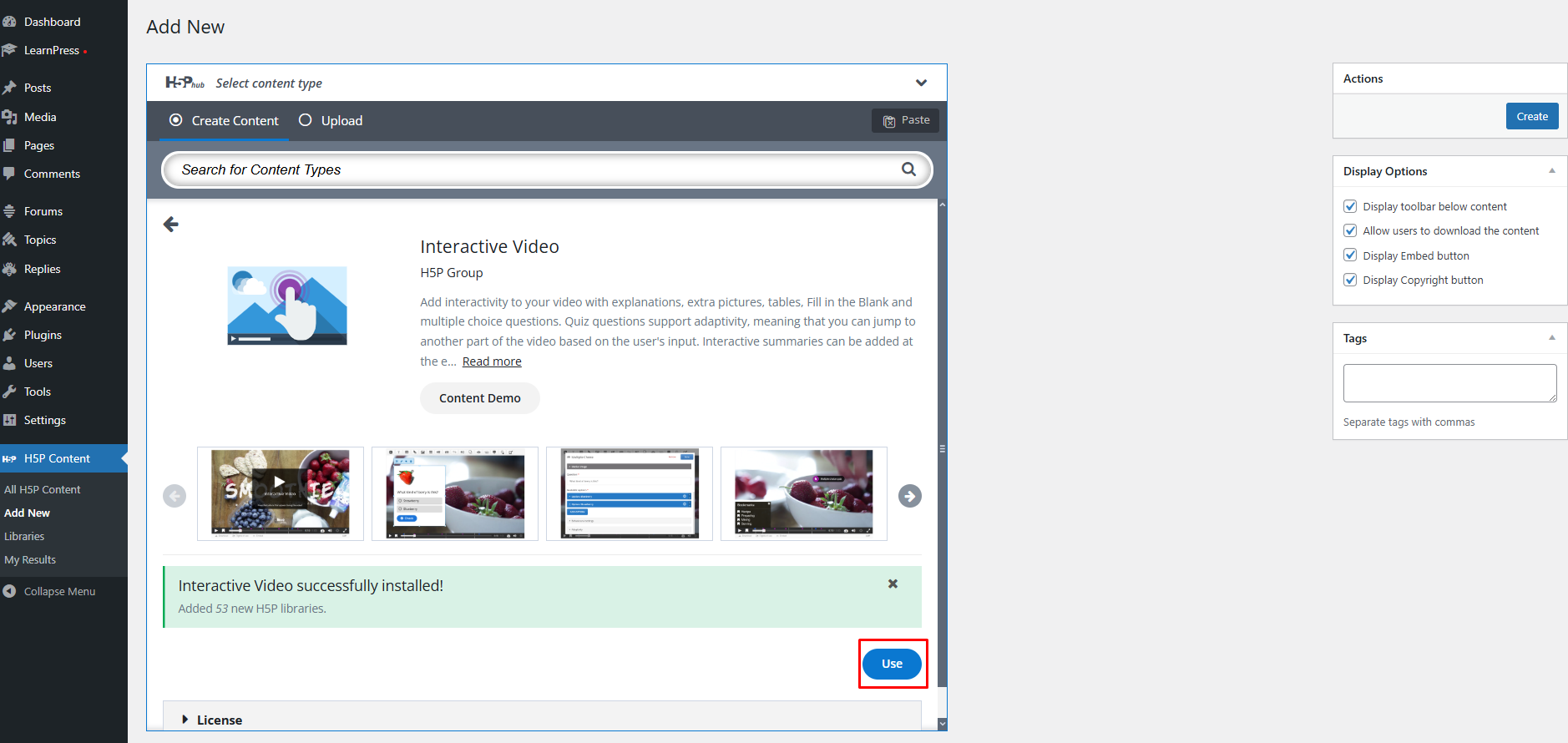
Here is where you create your interactive videos:
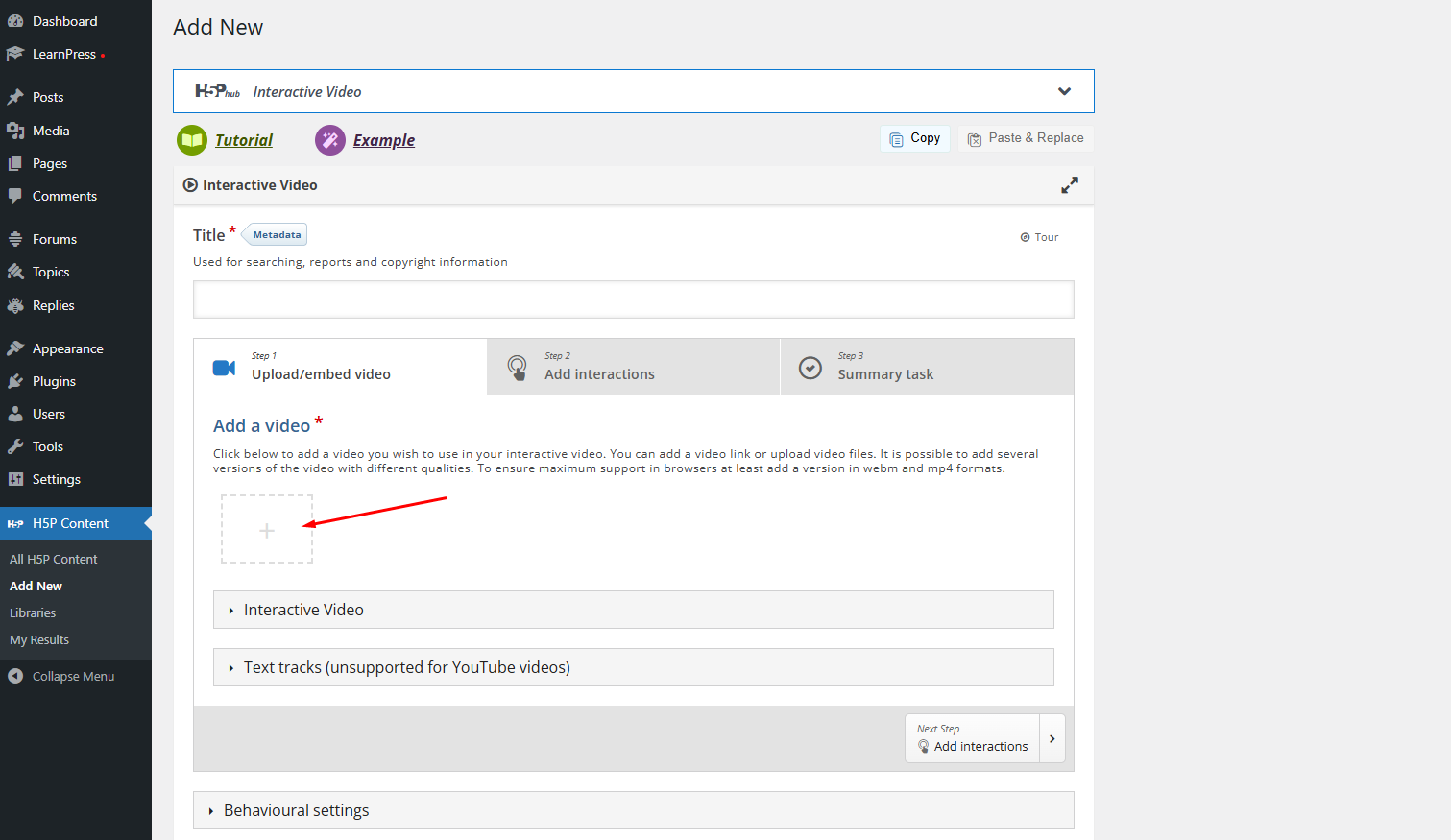
You can choose to upload a video or embed a video. In this guide, we will use a Youtube video. You will go to copy and paste the video URL link from Youtube and click the “Insert” button.
You can see your video appear after you successfully insert the video.
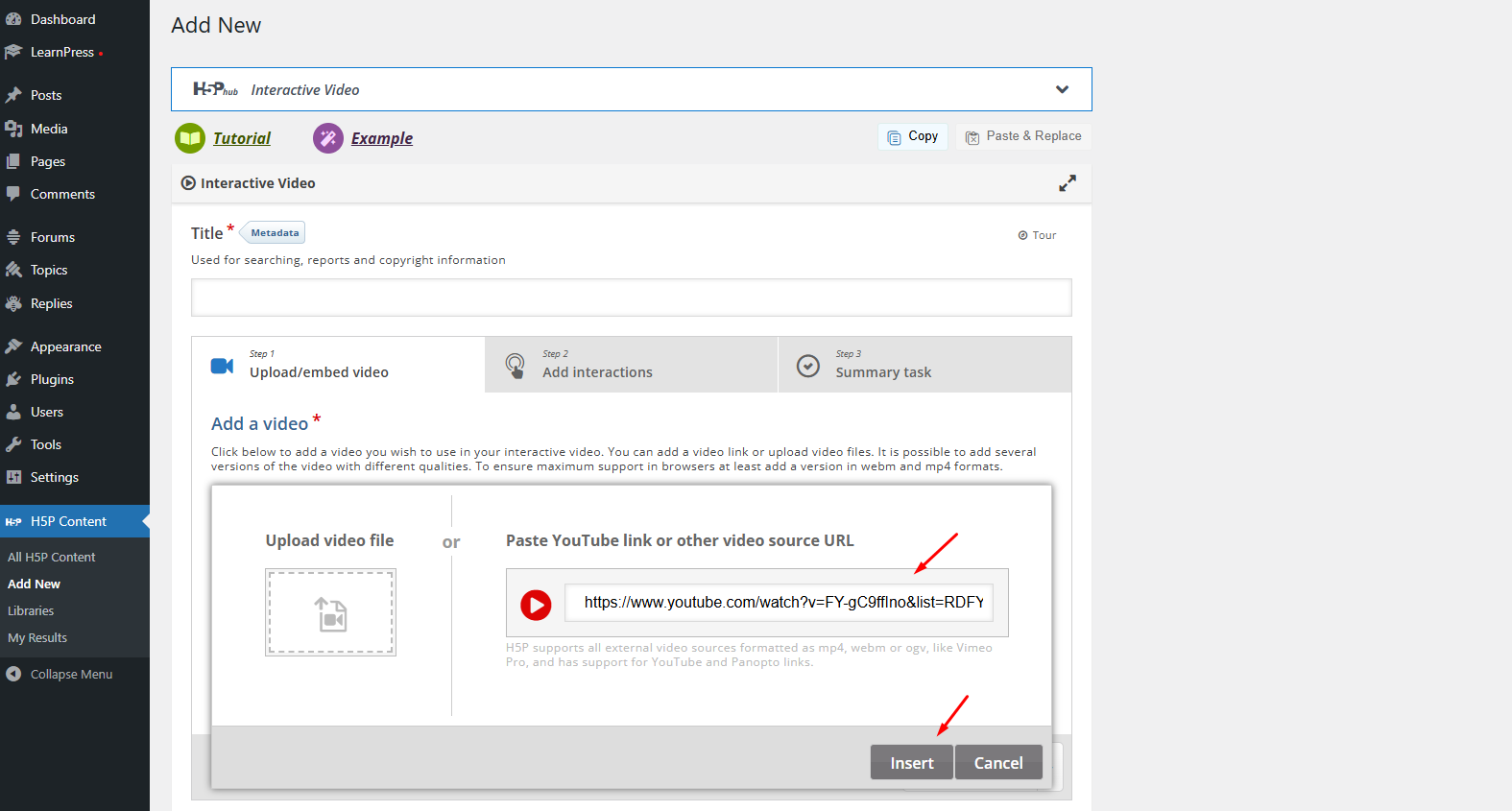
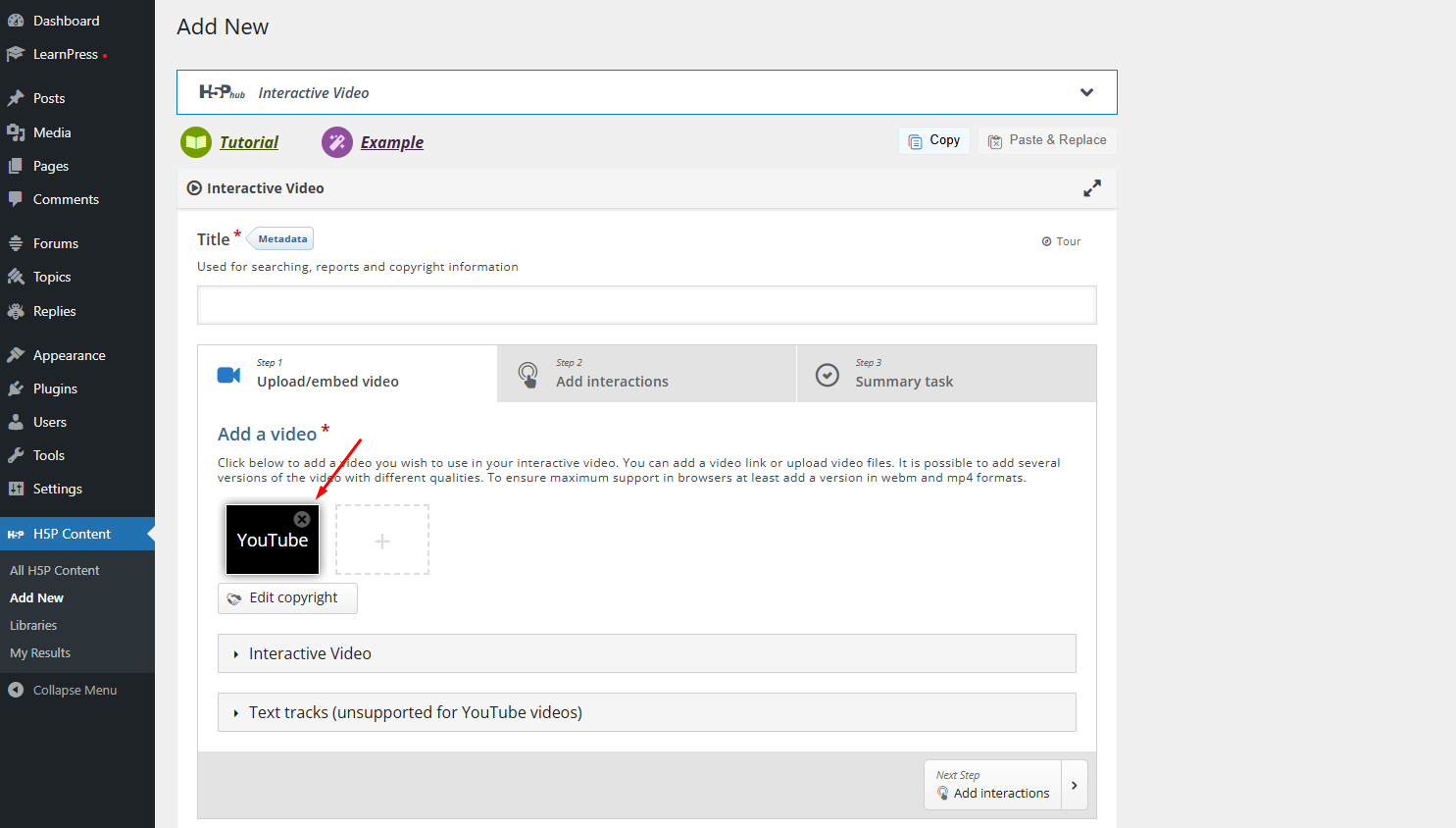
Then you can move to the next step by clicking on the “Step 2” tab or the “Next step” button.
There are many types of questions you can choose to add to that video using the drag-and-drop technique.
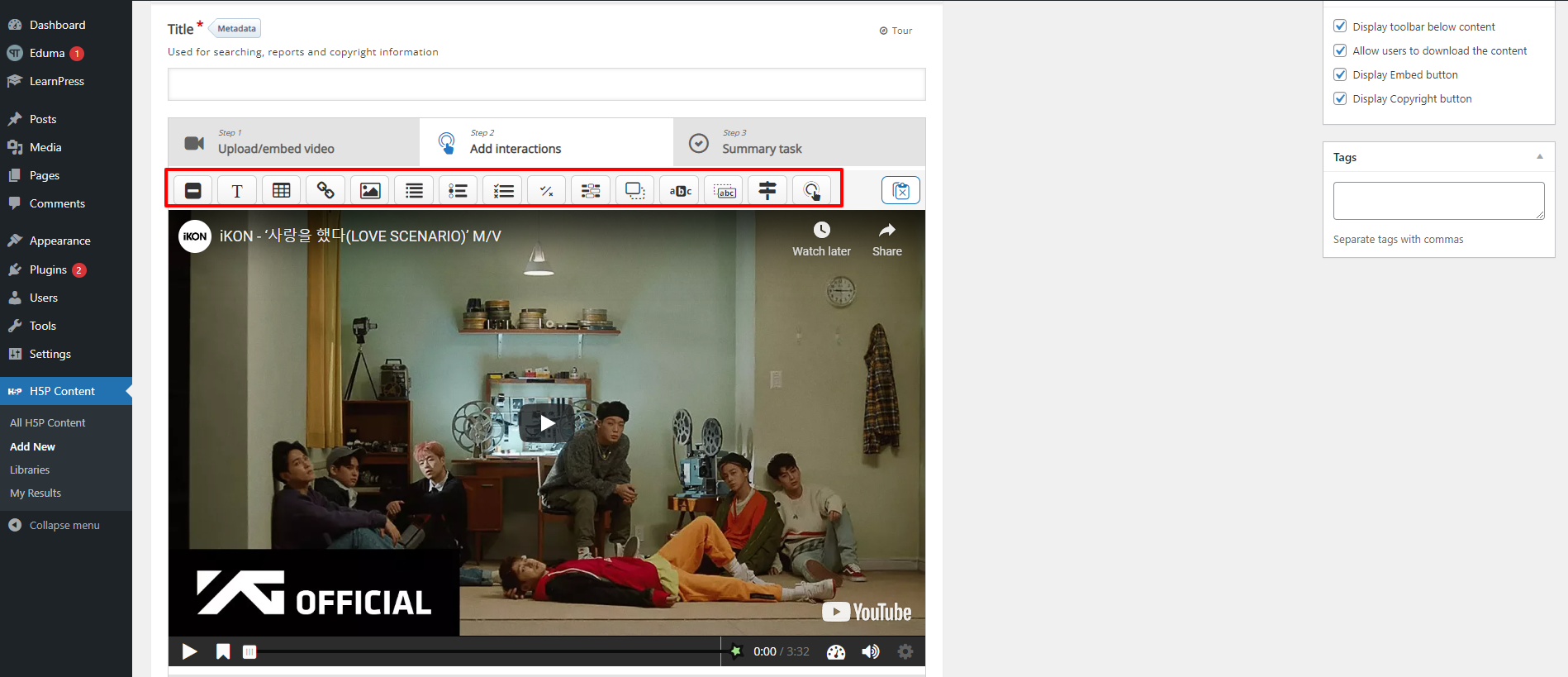
For example, we will add a single-choice question and a true/false question in this video.
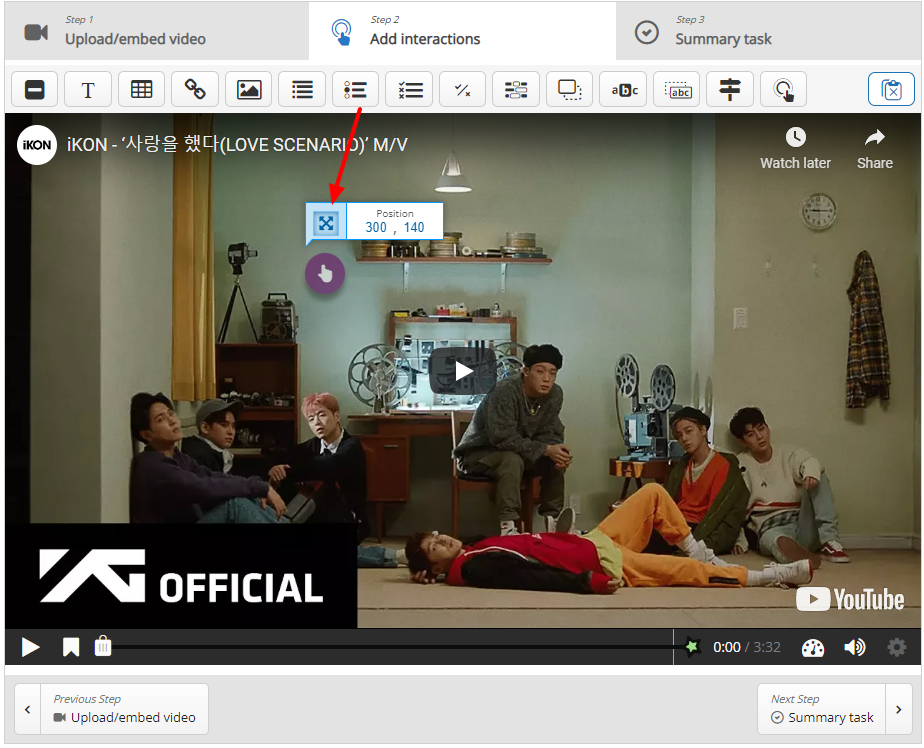
You can pause the video to choose a specific time and then drag and drop your question to the position you like.
You can set the display time for the question and choose if you want the video to play or stop while displaying the question.
Below is an example of True/ False. In H5P, the answers are called “Alternative”.
With the Single Choice Set question, the order of the answers is random, and the first alternative is the correct answer.
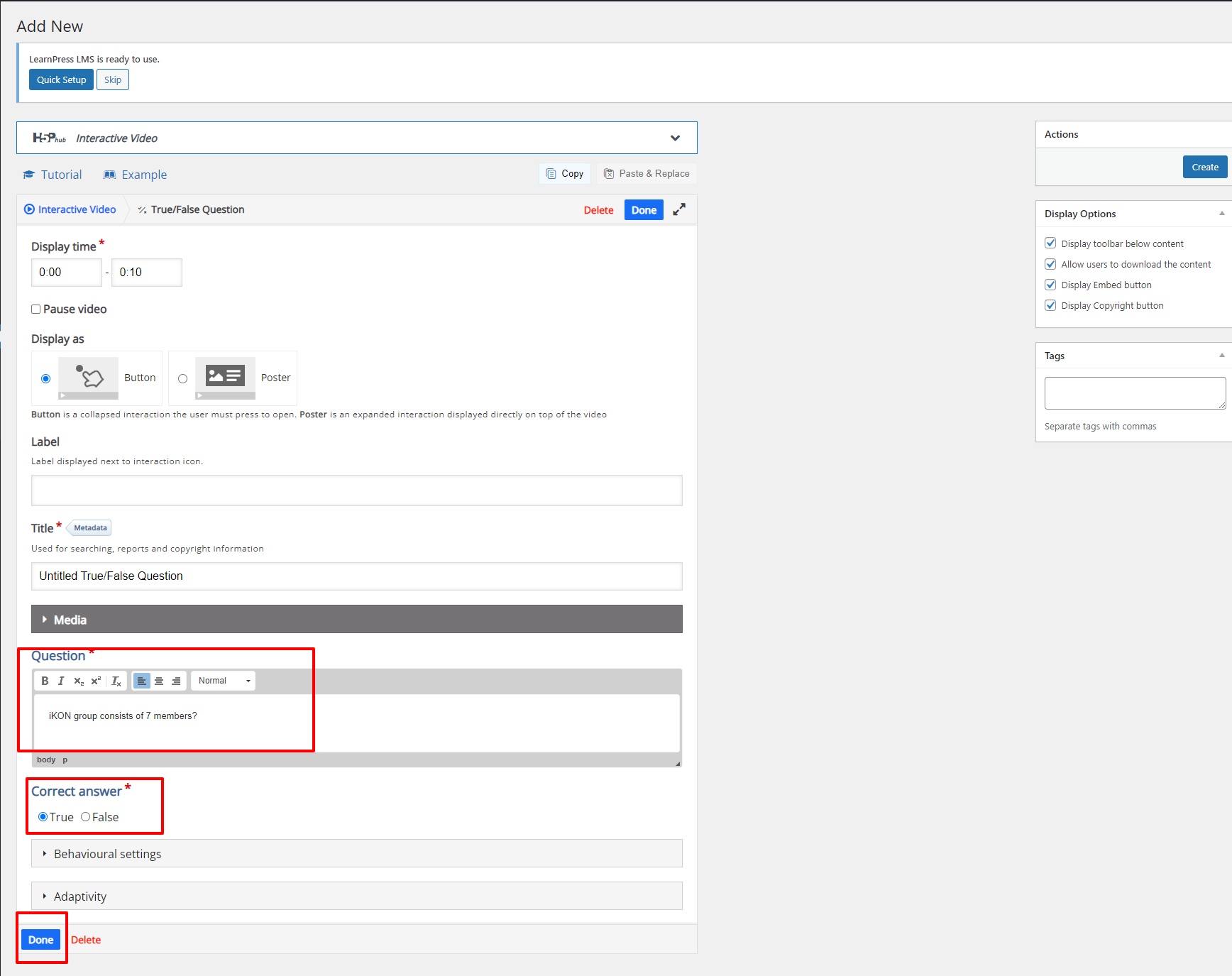
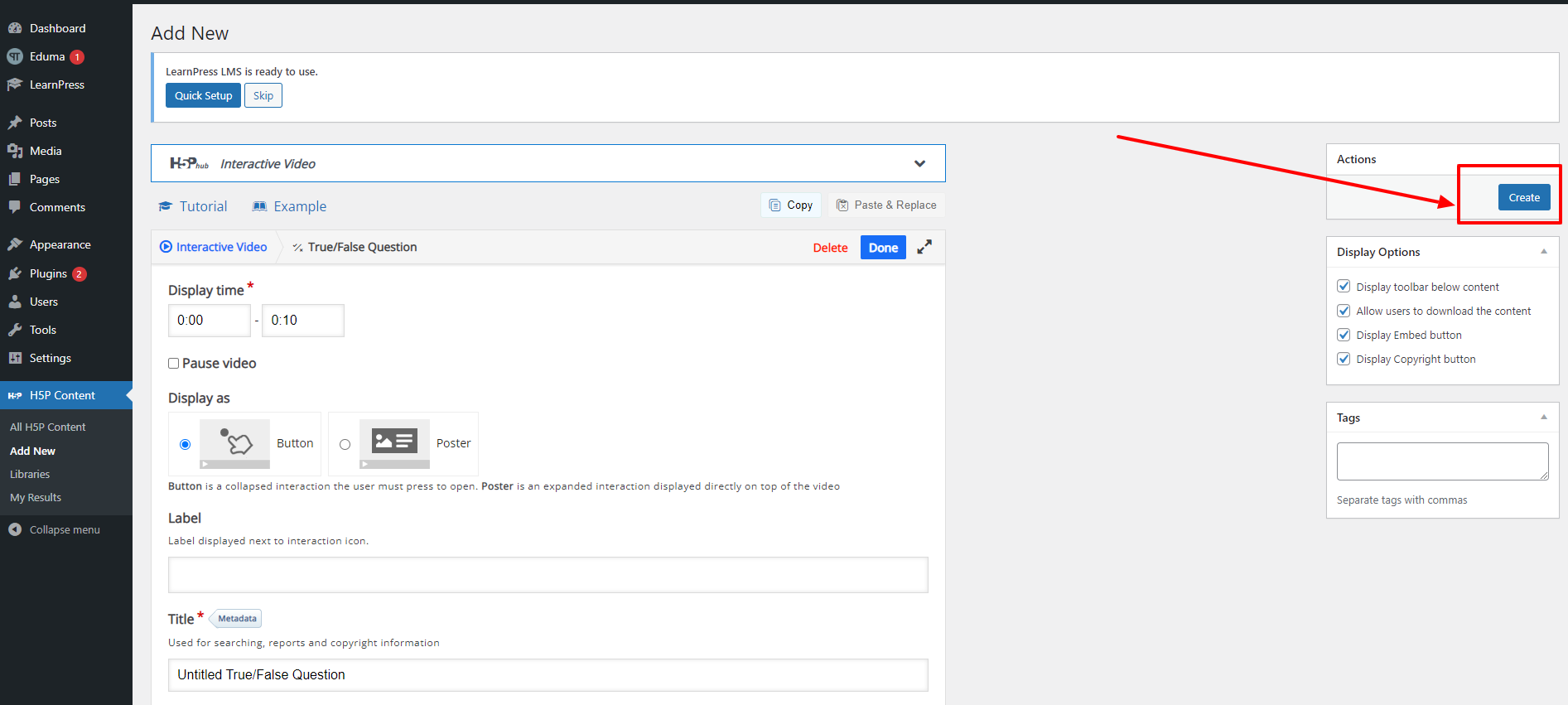
After adding the question, remember to click the “Create” button to finish the process of adding an H5P item.
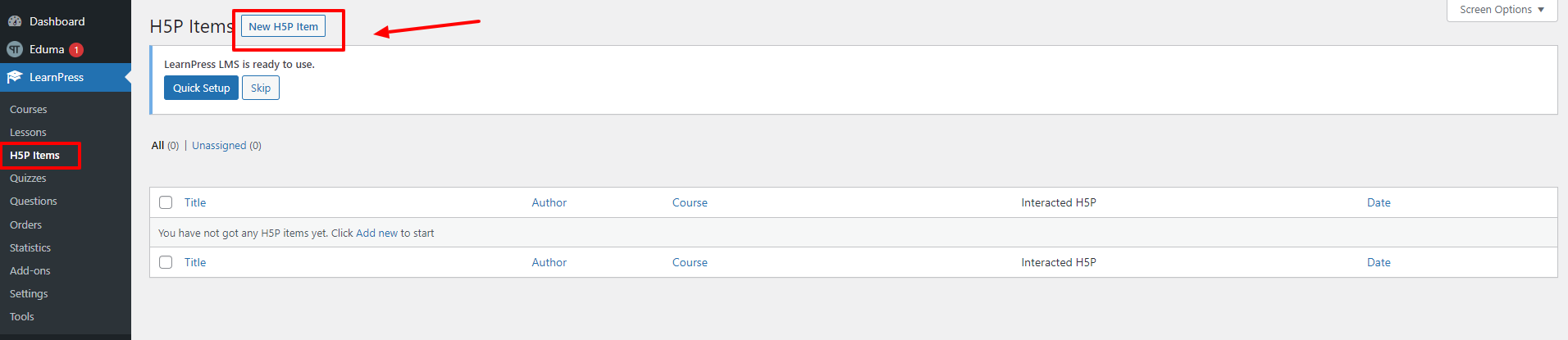
To use H5P items in LearnPress, you need to add an H5P item to H5P in LearnPress by opening WordPress Dashboard Admin -> LearnPress -> H5P items -> New H5P item:
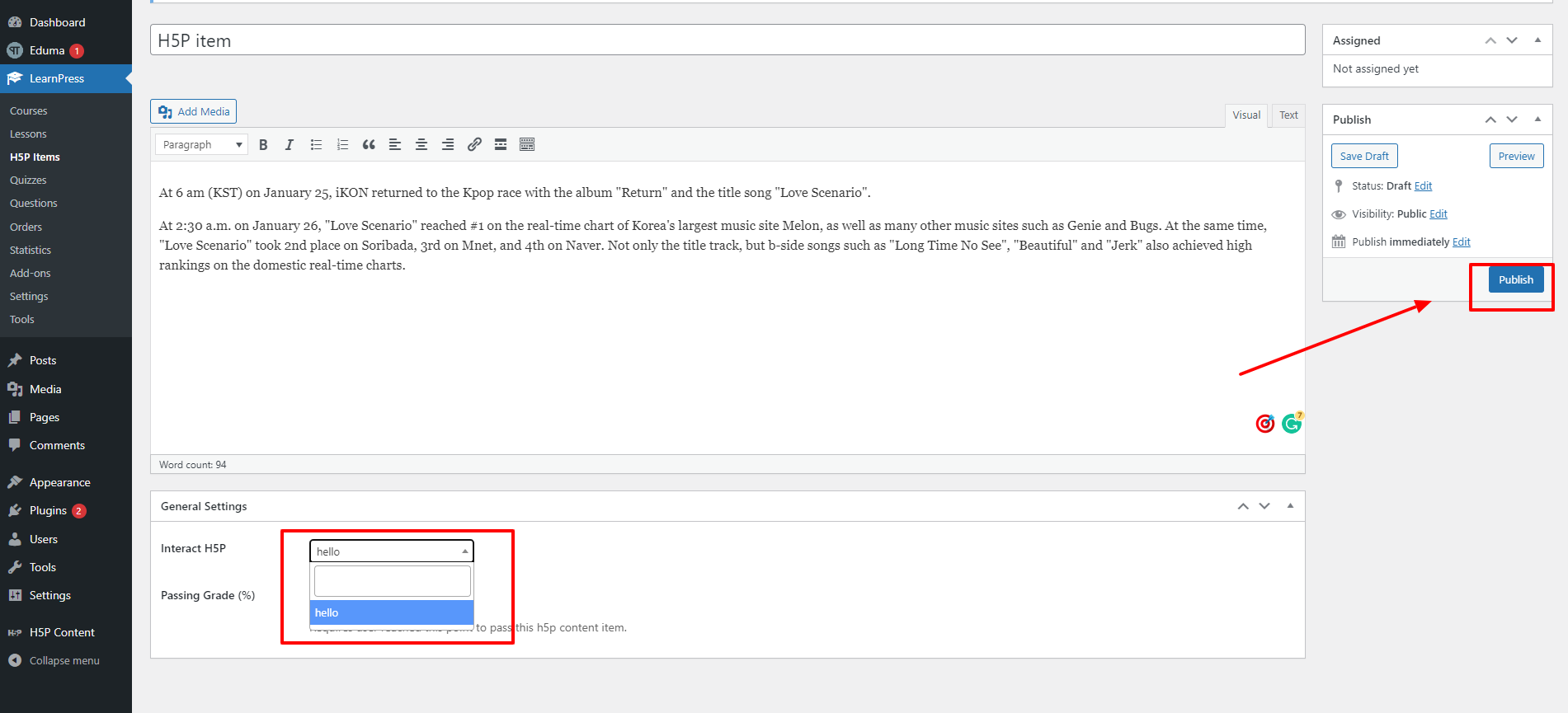
You can choose the “Interact H5P” item and set the “Passing Grade” for that H5P item in the General Settings part. After that, click the “Publish” button to create an H5P item in LearnPress.
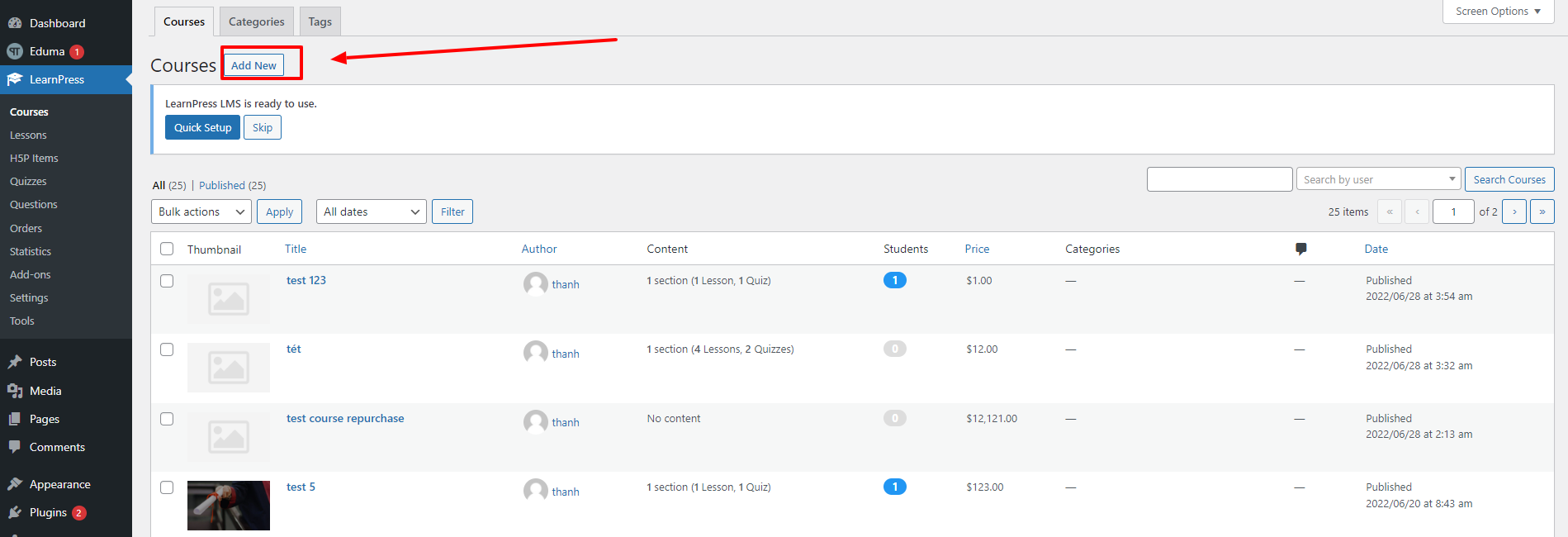
You can assign the H5P item to a course when you create/edit the course. Simply go to LearnPress on WordPress Dashboard Admin -> Courses -> click the Add New button or choose an existing course.
Visit ‘LearnPress > Courses‘
Click ‘Add New‘ or choose any existed course
Then you can scroll down to the Curriculum part to choose the “Create a new H5P item” icon or click “Select items”.
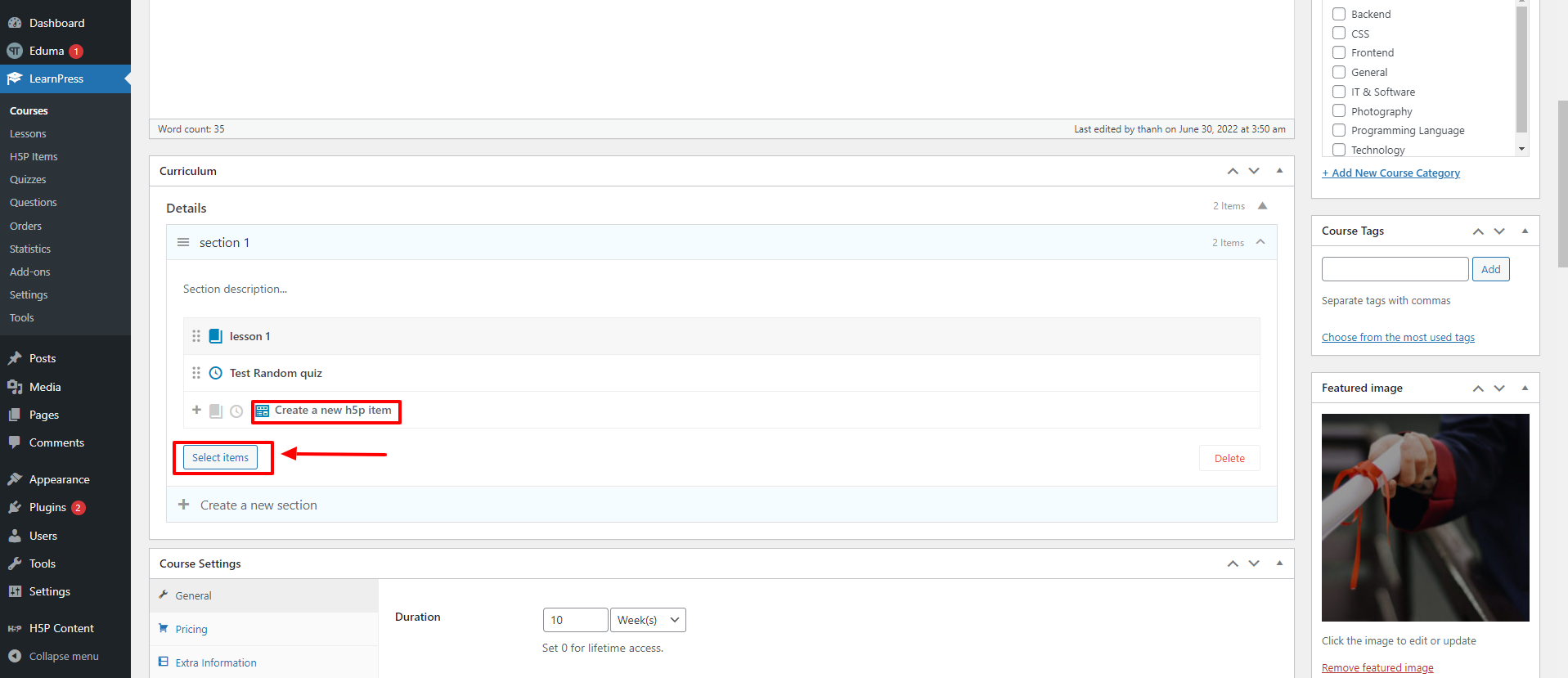
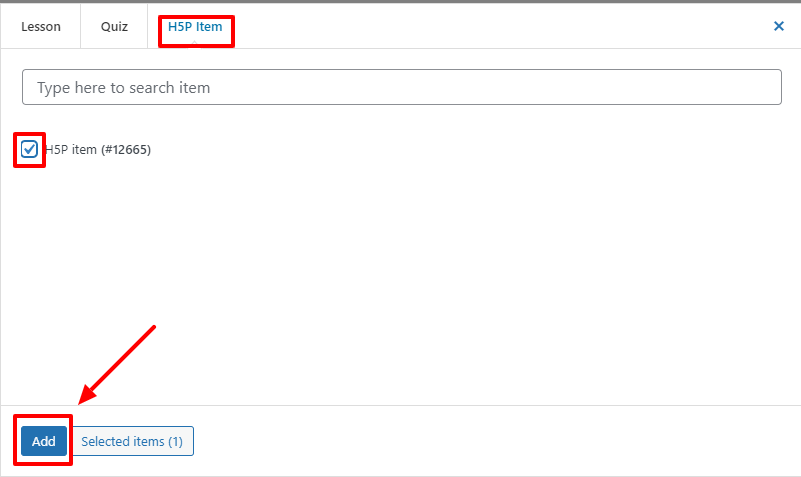
If you click the “Select items” button, you can hover your mouse over the “H5P Item” tab and find the H5P item you want. Then you can click “Add” to add that item to your course.