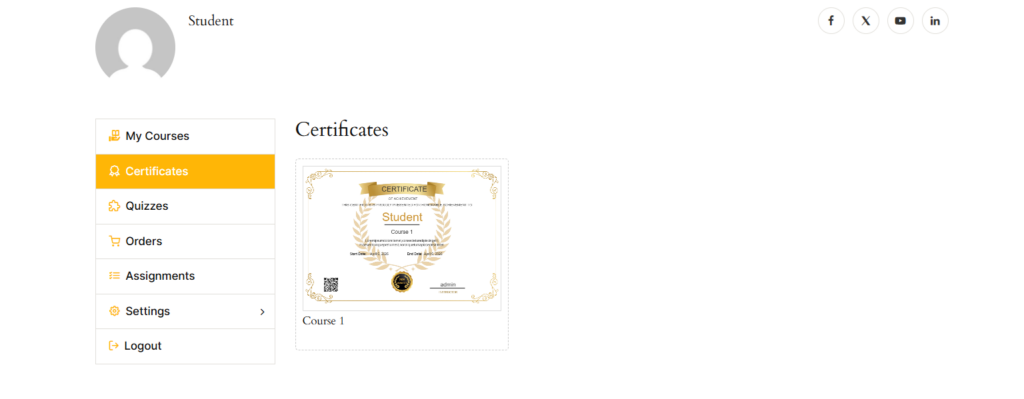
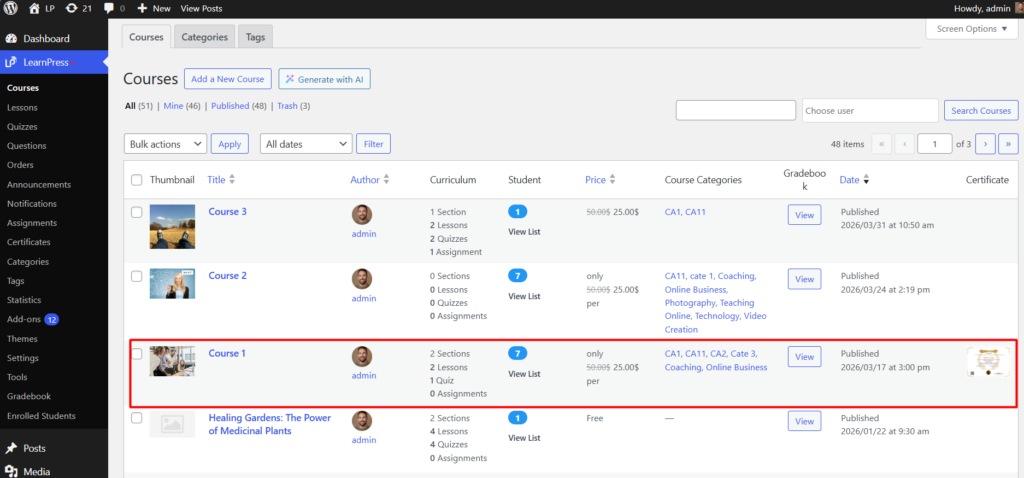
This feature allows you to assign a certificate to a course. Once assigned, students will receive the certificate after completing the course (based on completion conditions).
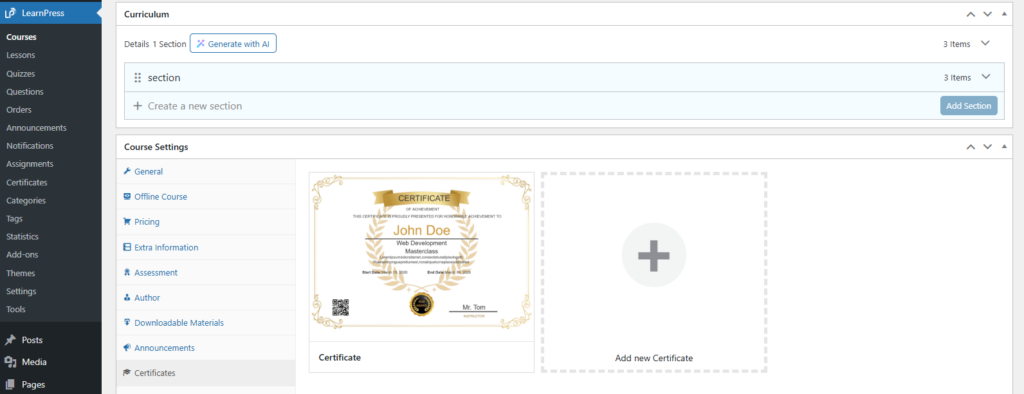
Access Course Settings:
- Go to LearnPress → Courses
- Select a course and click Edit
- Navigate to the Course Settings section
- Click the Assign button
- Select an existing certificate from the list
- The selected certificate will be linked to the course
- Click the Edit button next to the assigned certificate. You will be redirected to the certificate editor to make changes
- Click Add New Certificate. You will be redirected to create a new certificate. After creating, you can assign it to the course
Notes:
- Only one certificate can be assigned per course (depending on configuration)
- Make sure the certificate is properly designed before assigning
- Always update the course after assigning a certificate
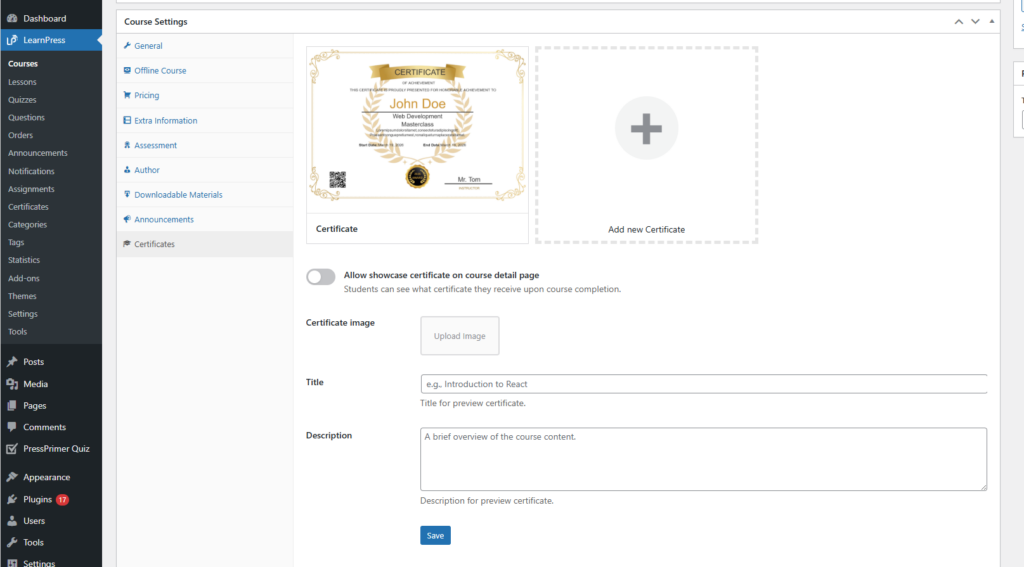
This feature allows you to display the certificate on the course detail page. Students can preview the certificate they will receive after completing the course.
When enabled, the following certificate information will be shown:
- Certificate Image: Preview of the certificate design
- Title: Name of the certificate
- Description: Short description of the certificate
Remember to click the Save button to save the information.
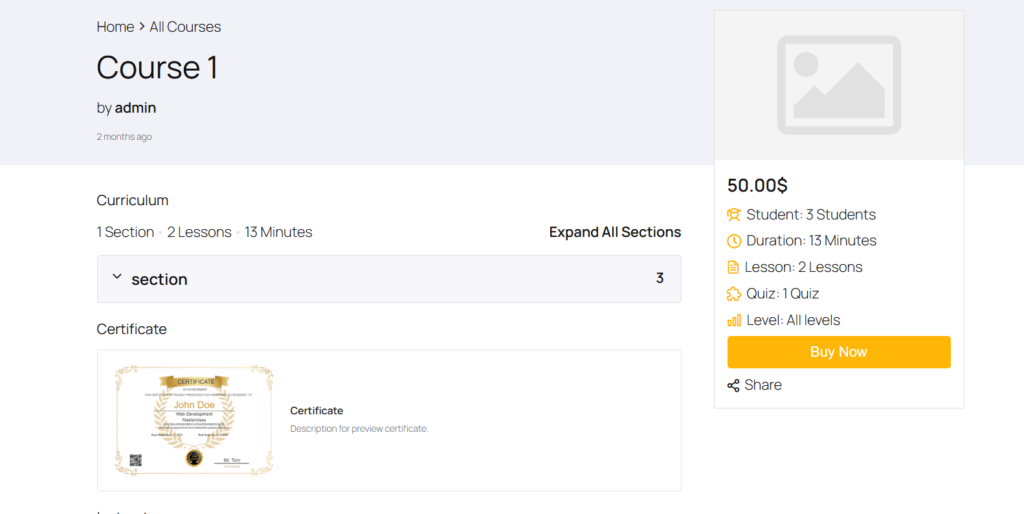
- The certificate is now available in your selected course
- The student’s account will show the certificate they have received.