
Before configuring the Klarna payment gateway in LearnPress, you need to create a Klarna Merchant account and generate your API credentials.
Step 1. Create a Klarna Merchant Account
Before configuring the plugin, you need to create a Klarna Merchant account.
If you don’t already have one, register for a Klarna Playground account (recommended for testing) or a Production account (for live payments).
If you’re new to Klarna, you can follow the official documentation below for detailed registration instructions:
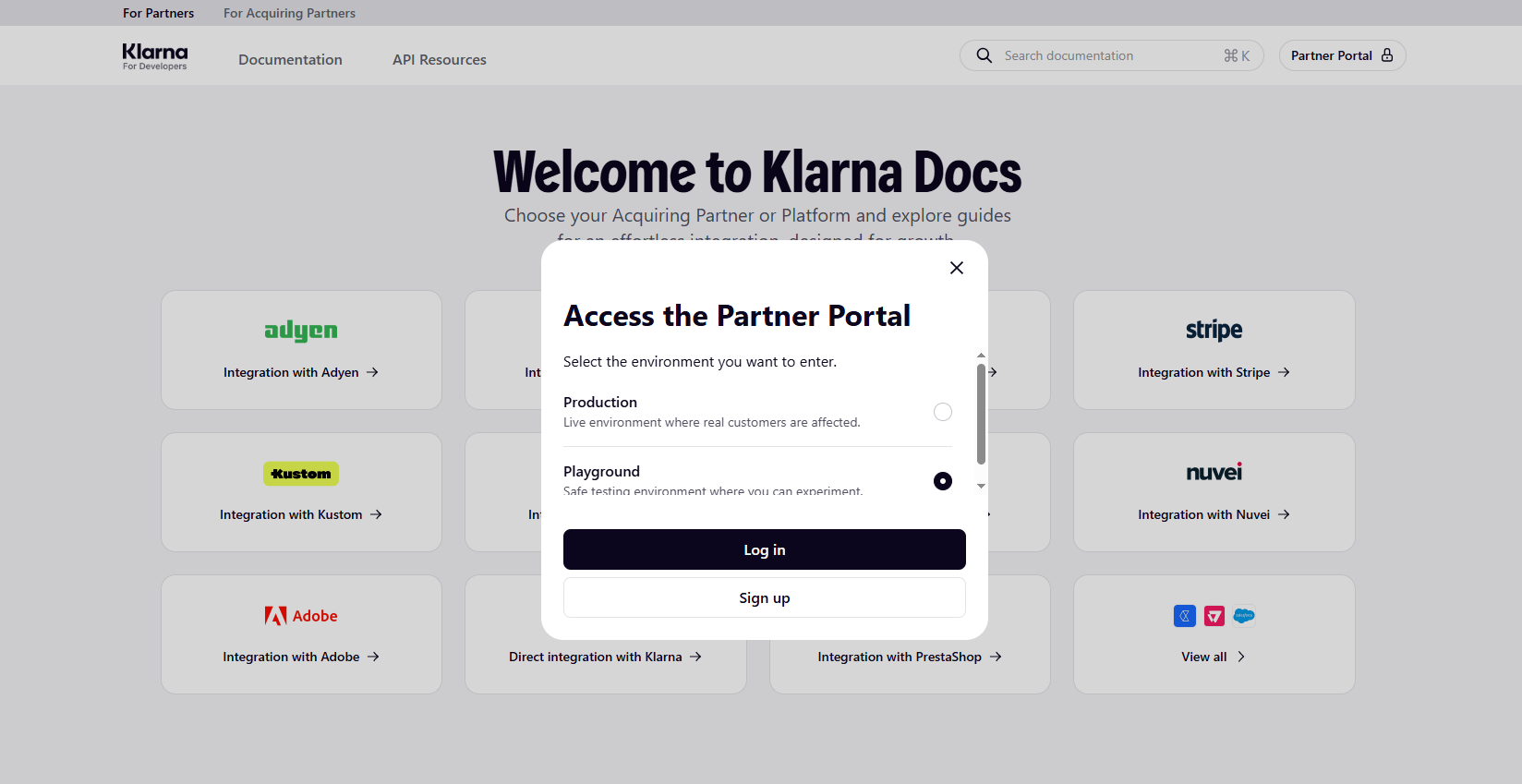
Once your account has been created and verified, sign in to the Klarna Merchant Portal:
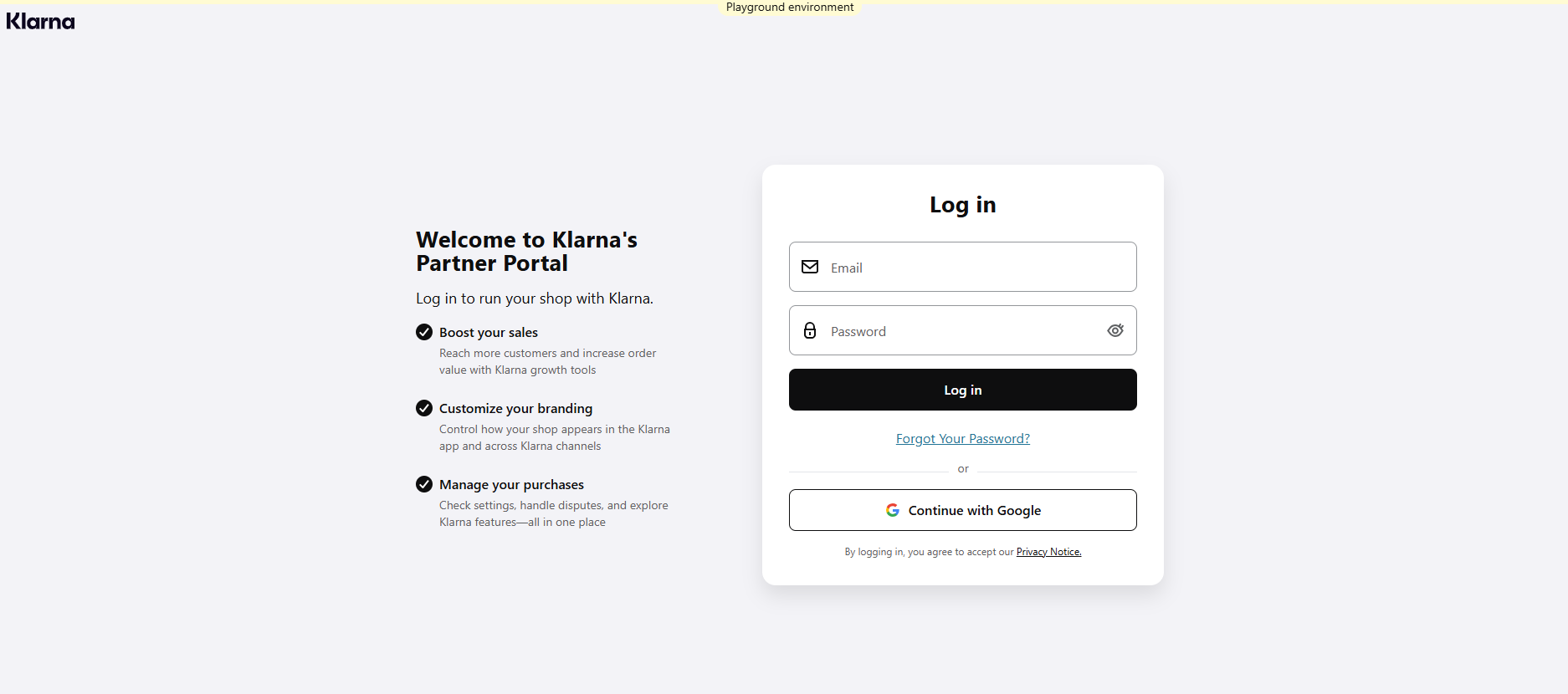
From the Merchant Portal, you’ll generate the API credentials required by the LearnPress Klarna Payment Add-on.
Note
- A Playground account is intended for testing only and does not process real payments.
- A Production account is required before accepting live customer payments.
- Playground and Production use different API credentials. Make sure you use the correct credentials for the environment configured in LearnPress.
Step 2. Open the API Keys page
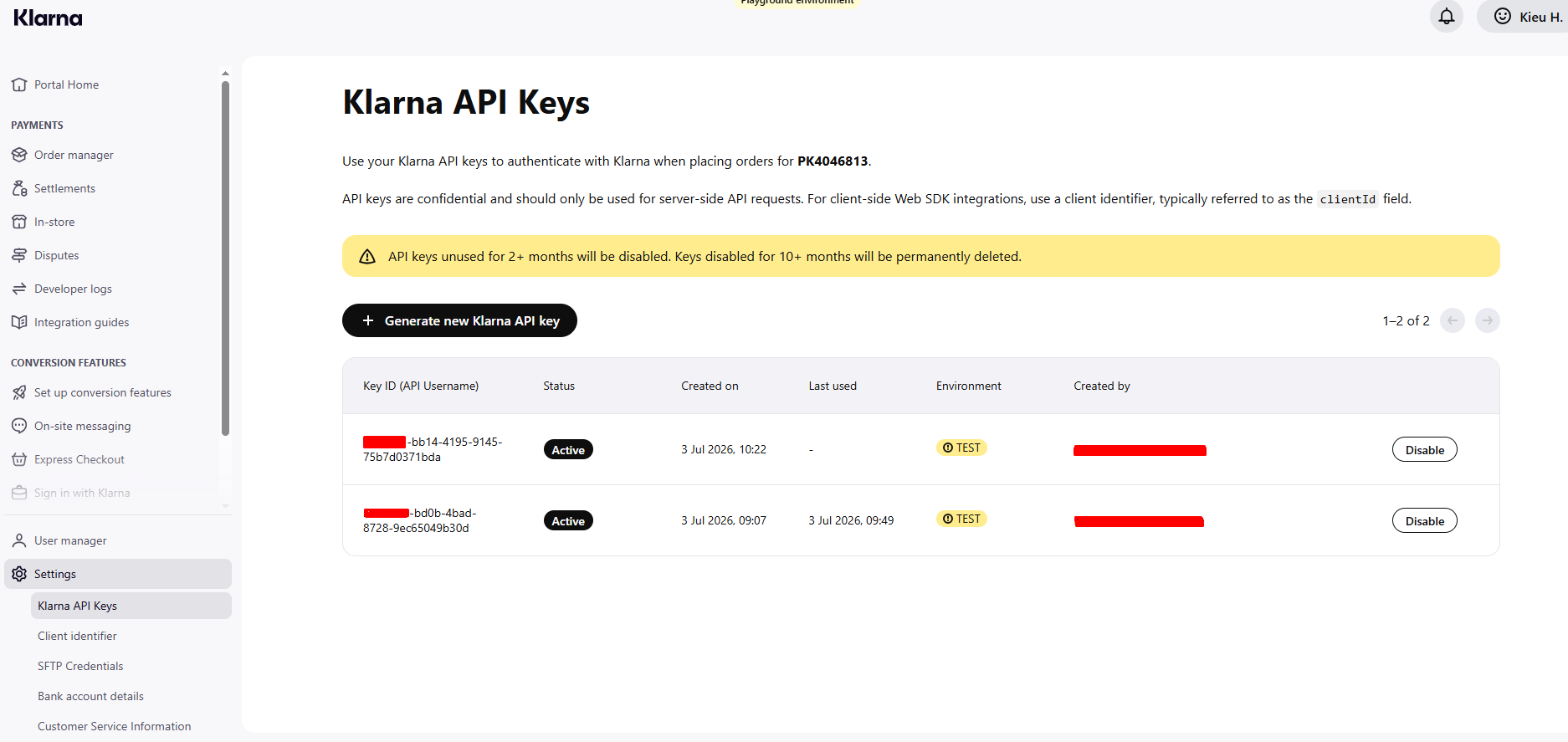
After signing in successfully, navigate to:
Settings → Klarna API Keys
Here you can manage your API credentials for your Klarna Merchant account.
Step 3. Generate a new API Key
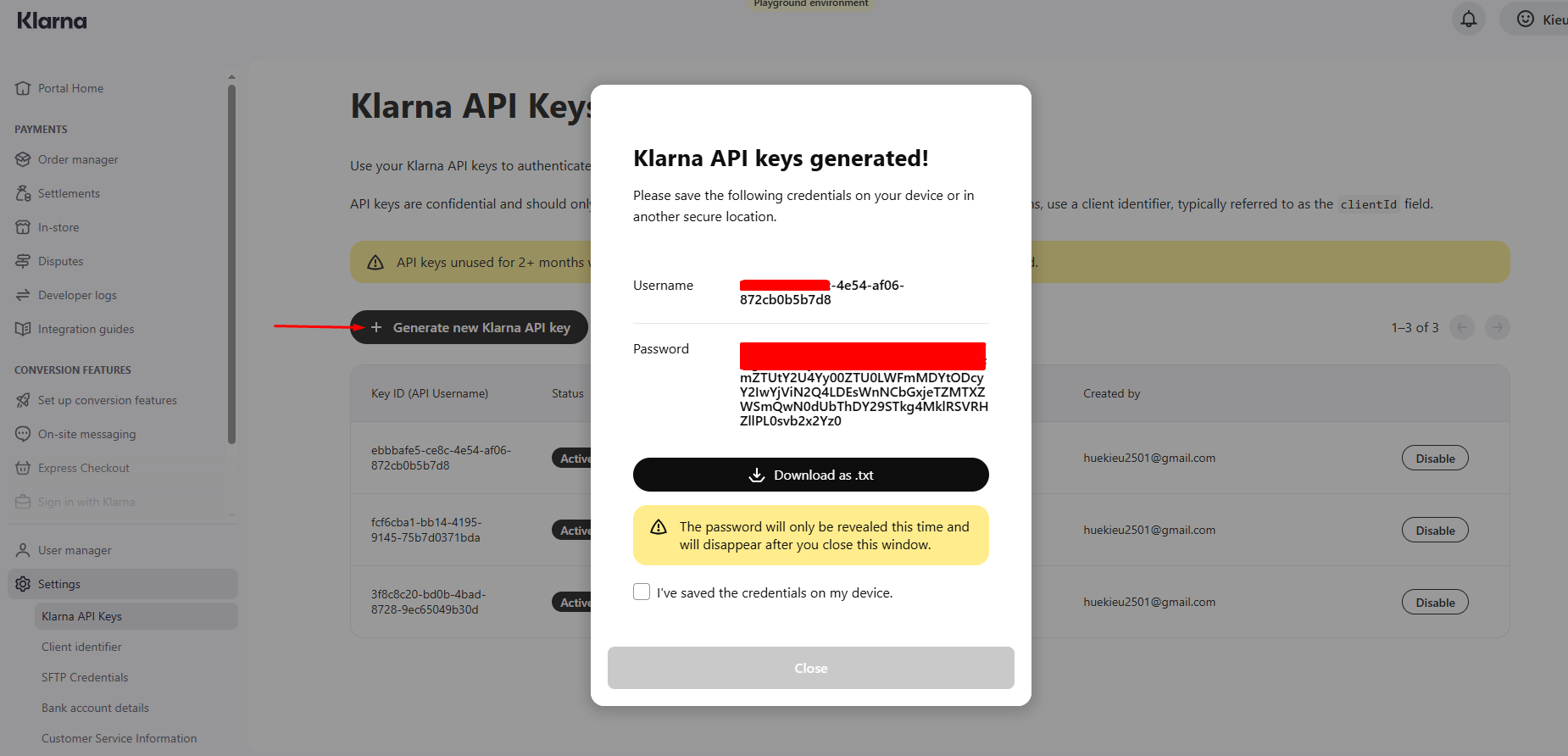
Click the Generate new Klarna API key button.
Klarna will generate two credentials:
- API Username (UID)
- API Password
Important
The API Password is displayed only once when it is generated.
Make sure to copy and store it in a secure location before closing the dialog.
Step 4. Record your account information
Before configuring the LearnPress payment gateway, note the following information from your Klarna account:
- API Username (UID)
- API Password
- Region
- Europe
- North America
- Oceania
- Purchase Country (ISO 3166-1 Alpha-2), for example:
GBUSDESE
These values will be required when configuring the Klarna payment gateway in LearnPress.
Note
Playground (Sandbox) credentials and Production credentials are completely separate.
Sandbox credentials only work when Test Mode is enabled.
Production credentials only work when Test Mode is disabled.
Step 5. Continue to Configure LearnPress
After obtaining your API credentials, return to your WordPress Dashboard and navigate to:
LearnPress → Settings → Payments → Klarna
Enter the API Username, API Password, Region, and other required settings to complete the configuration.