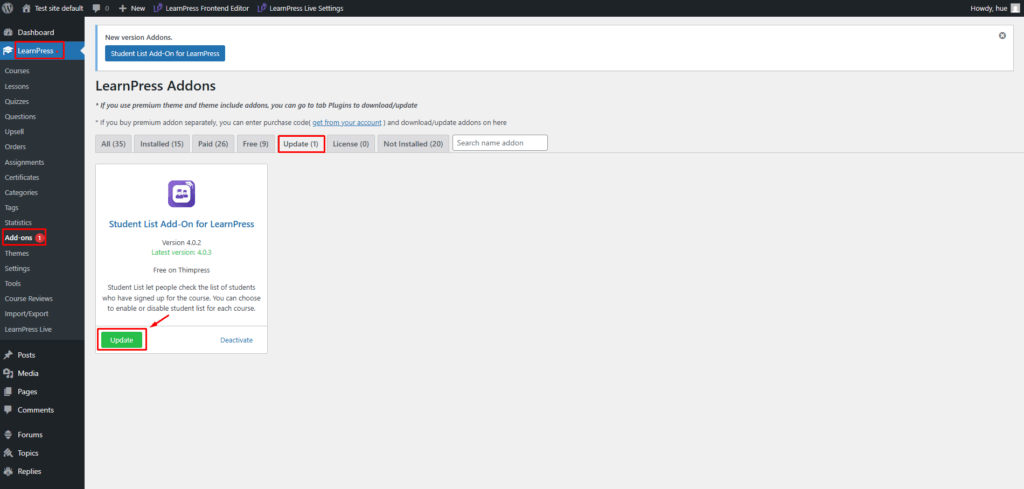
This guide describes how to install and update the LearnPress add-ons via purchase codes.
The purchase code is a string of random characters you will receive after purchasing any LearnPress premium add-on from Thimpress. This purchase code is used to install and update the add-on automatically on your website. Each add-on will have a purchase code that corresponds to it.
When you have purchased and used ThimPress themes such as Eduma, Coaching, IvyPrep,… you can install free add-ons by going to Theme -> Plugin -> Add-ons -> Install Now.
- Install Add-on via purchase code
After purchasing a LearnPress Add-on, sign in to your ThimPress account, go to My Account -> click “Dashboard“. You will see the Purchase code for the add-on you purchased earlier.
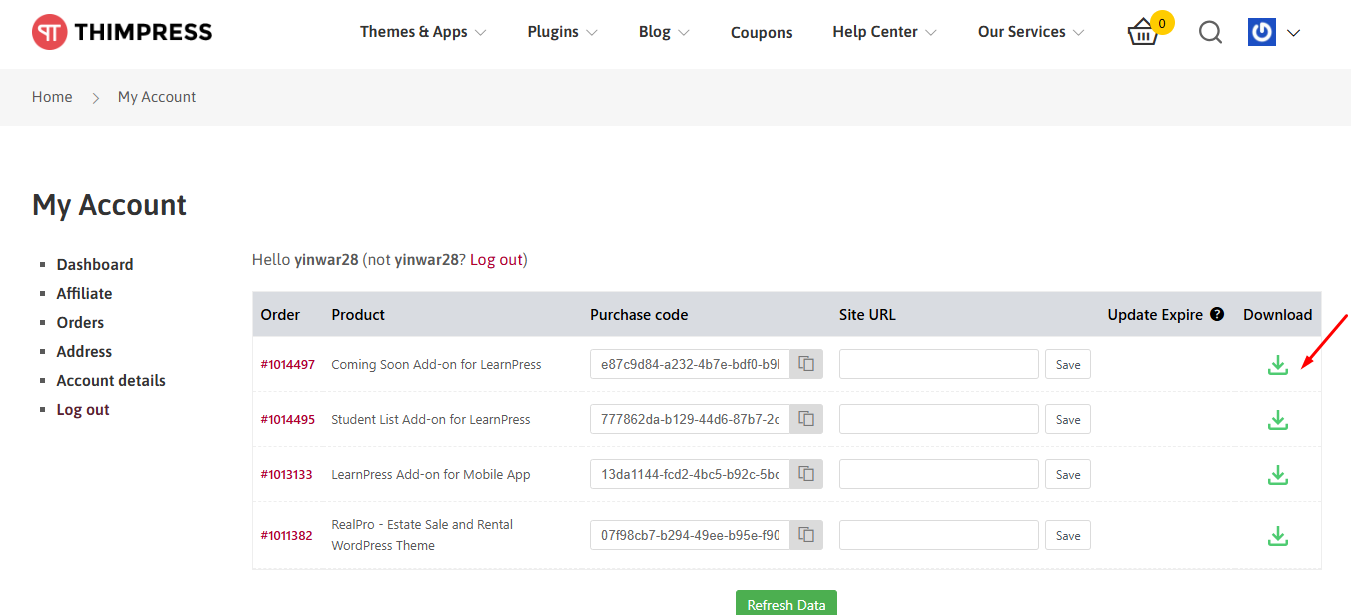
- Order: Order number.
- Product: Product name.
- Purchase code: The product code that is used to install and update add-ons on your website. Each purchase code is limited to one website.
- Site URL: Shows the website currently activated with this purchase code.
- Expire: Expiration time of support and upgrade licenses.
- Download: Download add-ons as .zip file with different versions.
Copy that “Purchase code“.
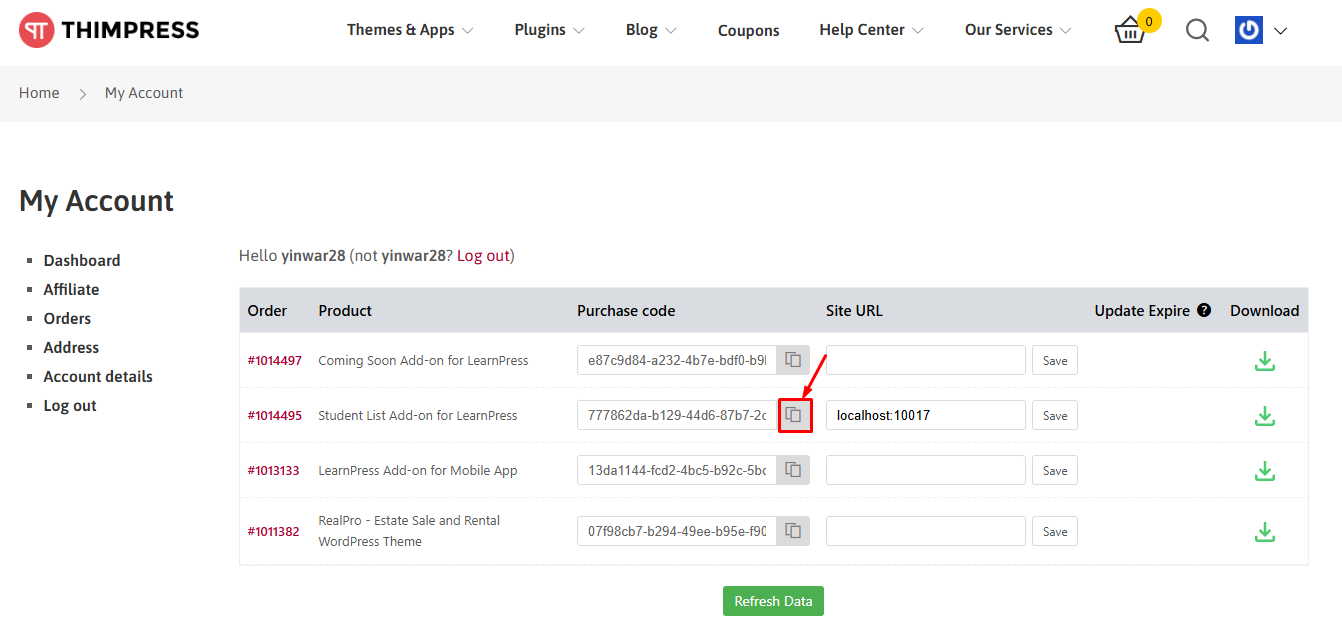
Next, you need to find the add-on that corresponds to that purchase code by going to your Dashboard -> LearnPress -> Add-ons -> All -> Install -> Paste “Purchase code” -> click “Submit“.
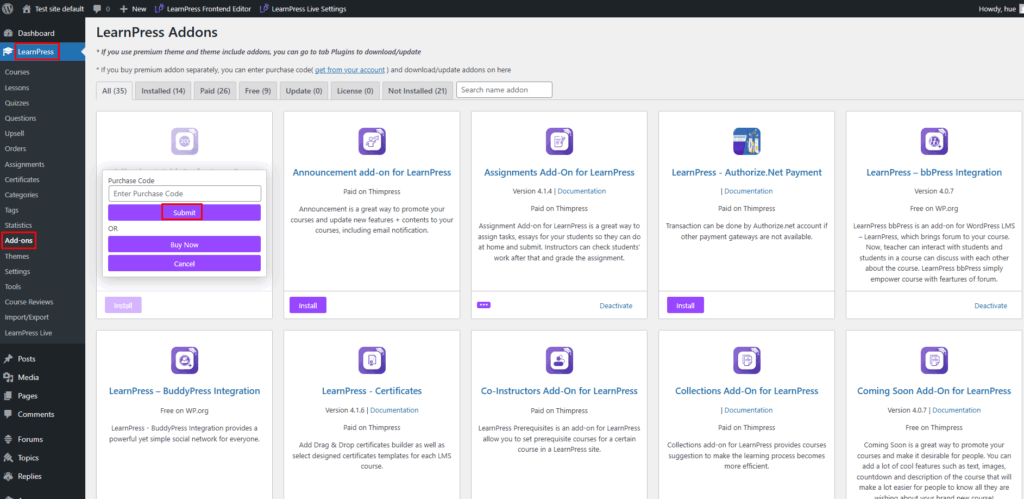
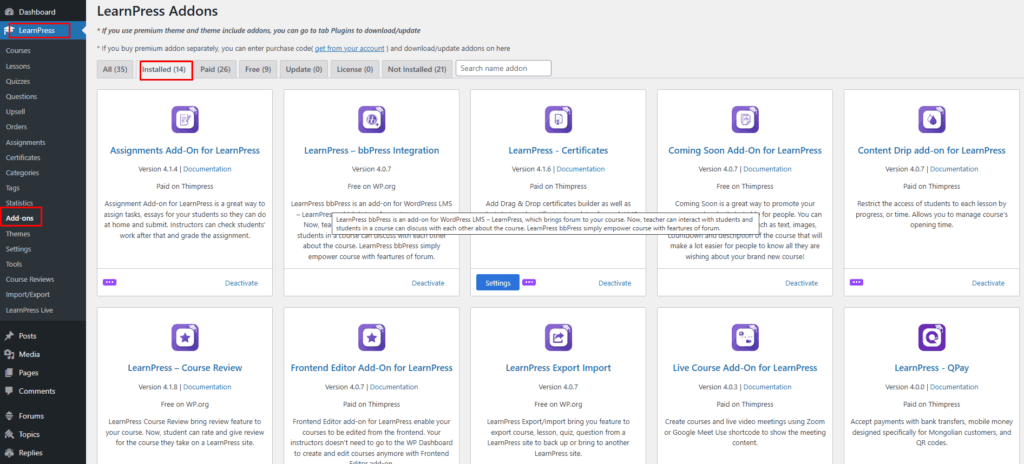
You can check if the add-on has been successfully installed by navigating to LearnPress -> Add-ons -> Installed.
- Update Add-on via purchase code
In addition, the purchase code is also used to update the add-on. There are two methods to update the add-on: When installing the add-on via purchase code and when downloading the .zip file.
Method 1: Update the add-on when installing it via the purchase code.
When buying and installing the LearnPress add-ons via the purchase code, you need to go to LearnPress -> Add-ons -> Update -> select the add-on and click on the “Update” button.
Method 2: Update the add-on when installing it by downloading the .zip file
When buying and installing the LearnPress add-ons by downloading the .zip file, go to My Account -> Dashboard -> copy and assign your website domain name to “Site URL“.
Next, go to LearnPress -> Add-ons -> Update -> find the add-on to update -> Click “…” -> Paste ” Purchase code” -> click “Submit“.

After successfully updating the purchase code -> Click “Update” to update the add-on.